



一、安装插件
搜索IntelliSense、CodeRunner、Python、C++、CMake、ROS等关键词,安装插件。
二、填写配置文档
在.vscode文件夹中新建如下三个json文档。如果自动生成json文件,则可按照如下内容更改文件。我使用的ROS版本是humble,请按照实际情况进行修改。
c_cpp_properties.json
{
  "configurations": [
    {
      "browse": {
        "databaseFilename": "${default}",
        "limitSymbolsToIncludedHeaders": false
      },
      "includePath": [
        "/usr/include/**",
        "/usr/local/**",
        "/usr/local/include/**",
        "/opt/ros/humble/include/**",
        "${workspaceFolder}/**"
      ],
      "name": "ROS2",
      "intelliSenseMode": "gcc-x64",
      "compilerPath": "/usr/bin/gcc",
      "cStandard": "gnu11",
      "cppStandard": "c++17"
    }
  ],
  "version": 4
}
settings.json
{
    "editor.tabSize": 8,
    "editor.rulers": [
        100
    ],
    "files.associations": {
        "*.repos": "yaml",
        "*.world": "xml",
        "*.xacro": "xml",
        "chrono": "cpp"
    },
    // Autocomplete from ros python packages
    "python.autoComplete.extraPaths": [
        "/opt/ros/humble/lib/python3.8/site-packages/"
    ],
    // Environment file lets vscode find python files within workspace
    "python.envFile": "${workspaceFolder}/.env",
    // Use the system installed version of autopep8
    "python.formatting.autopep8Path": "/usr/bin/autopep8",
    "python.formatting.autopep8Args": [
        "--max-line-length=100"
    ],
    "C_Cpp.default.intelliSenseMode": "gcc-x64",
    "C_Cpp.formatting": "Enabled",
    "uncrustify.useReplaceOption": true,
    "uncrustify.configPath.linux": "/opt/ros/humble/lib/python3.8/site-packages/ament_uncrustify/configuration/ament_code_style.cfg",
    "cSpell.words": [
        "RTPS",
        "athackst",
        "autopep",
        "cmake",
        "cppcheck",
        "cpplint",
        "deque",
        "devcontainer",
        "ints",
        "noqa",
        "pytest",
        "rclcpp",
        "rclpy",
        "repos",
        "rosdistro",
        "rosidl",
        "uncrustify",
        "xmllint"
    ],
    "search.exclude": {
        "**/node_modules": true,
        "**/bower_components": true,
        "**/*.code-search": true,
        "**/build": true,
        "**/install": true,
        "**/log": true
    },
    "python.analysis.extraPaths": [
        "/opt/ros/humble/lib/python3.8/site-packages/"
    ],
    "cSpell.allowCompoundWords": true,
    "cSpell.ignorePaths": [
        "**/package-lock.json",
        "**/node_modules/**",
        "**/vscode-extension/**",
        "**/.git/objects/**",
        ".vscode",
        ".vscode-insiders",
        ".devcontainer/devcontainer.json"
    ],
    "C_Cpp.default.customConfigurationVariables": {

    },
    "C_Cpp.default.includePath": [
        "/usr/include/**",
        "/opt/ros/humble/include/**",
        "${workspaceFolder}/**"
    ],
    "javascript.preferGoToSourceDefinition": true,
    "typescript.preferGoToSourceDefinition": true,
    "editor.definitionLinkOpensInPeek": true,
    "editor.gotoLocation.alternativeDeclarationCommand": "editor.action.goToImplementation",
    "editor.gotoLocation.alternativeImplementationCommand": "editor.action.goToImplementation",
    "editor.gotoLocation.alternativeReferenceCommand": "editor.action.goToReferences"
}
tasks.json
{
    // See https://go.microsoft.com/fwlink/?LinkId=733558
    // for the documentation about the tasks.json format
    "version": "2.0.0",
    "tasks": [
        // Build tasks
        {
            "label": "colcon make",
            "detail": "Build workspace (default)",
            "type": "shell",
            "command": "source ./src/self_def_msgs/install/setup.bash & colcon build",
            "group": {
                "kind": "build",
                "isDefault": true
            },
            "problemMatcher": "$gcc"
        }
    ]
}
我建立了自定义消息库self_def_msgs,所以编译代码之前,需要先运行
source ./src/self_def_msgs/install/setup.bash
三、配置包含路径
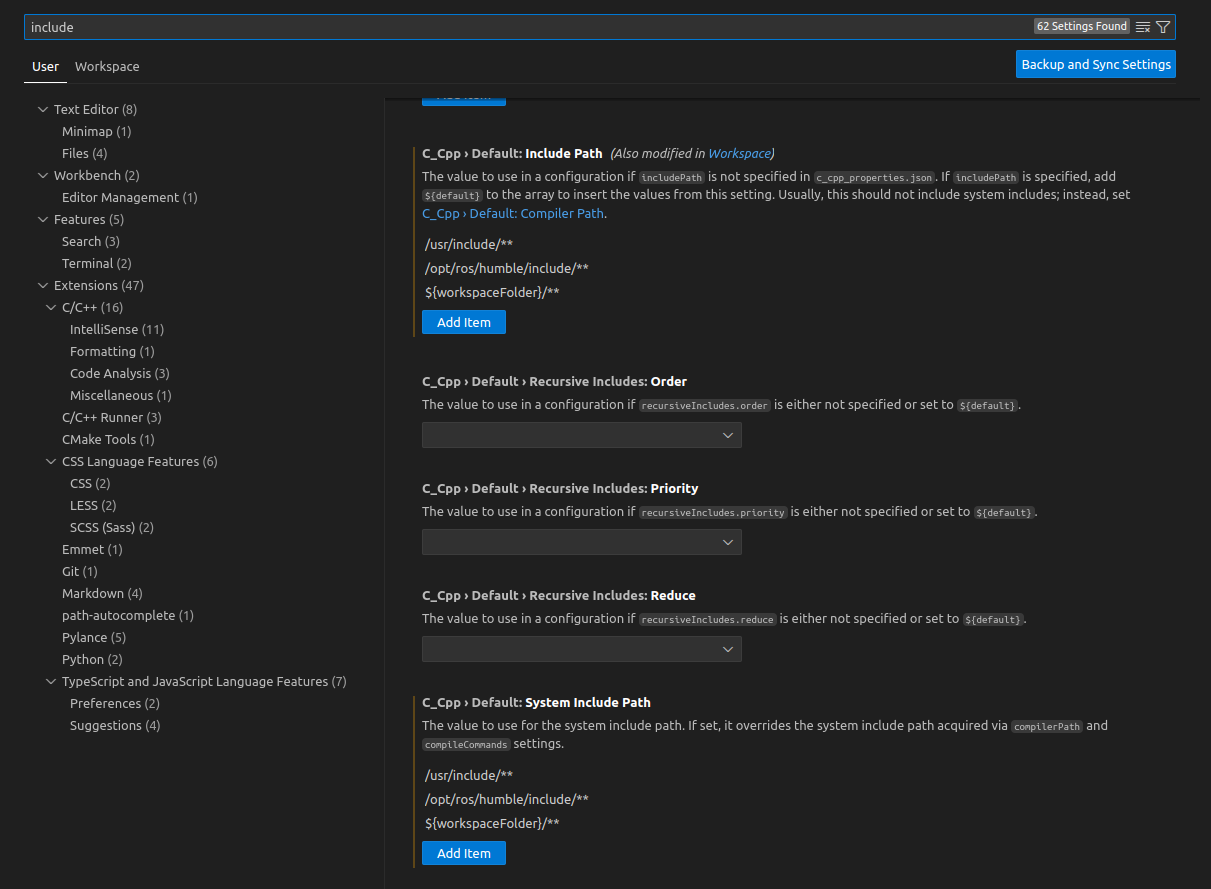
打开File/Preferences/settings工具栏,搜索“include”,配置如下几个路径,也可根据自己的需求更改配置。
        /usr/include/**
        /usr/local/**
        /usr/local/include/**
        /opt/ros/humble/include/**
        ${workspaceFolder}/**
四、配置代码跳转功能
打开File/Preferences/settings工具栏,搜索“go to”,进行相关配置。配置完成后,就可以在代码编辑器中使用右键工具栏中的“Go to Definition”、“Go to Declaration”等代码跳转功能了。
五、编译
同时按下Ctrl、Shift和B键,即可编译。可看到终端显示了如下语句:
Executing task: source ./src/self_def_msgs/install/setup.bash & colcon build
参考文献
[1] https://blog.youkuaiyun.com/orlobl/article/details/107801290
[2] https://mp.weixin.qq.com/s?__biz=MzU1NjEwMTY0Mw==&mid=2247527592&idx=1&sn=1380d457028b3242baee6a5be1fdf93a&chksm=fbc815ccccbf9cda8db34a8c2aa2ce881091dcea3ed49ad91cd24a2600a9b616fd3ba924aa75&scene=27
[3] https://www.bilibili.com/opus/839923800119181337





 扫一扫
扫一扫


 2185
2185

 被折叠的 条评论
为什么被折叠?
被折叠的 条评论
为什么被折叠?
 到【灌水乐园】发言





