


 博客围绕案例相关内容展开,涉及Unity游戏引擎,以及Java、Android开发相关。虽未详细阐述案例,但可知与游戏开发领域信息技术相关。
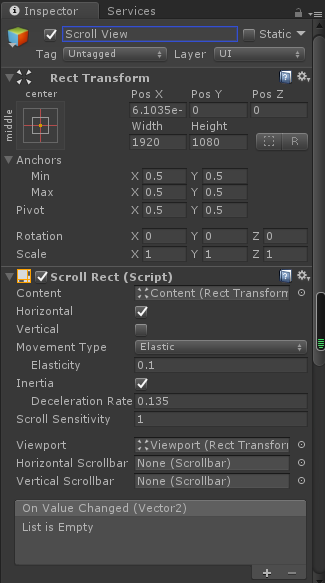
1.在场景中新建一个Scroll View组件,Scroll View组件设置如下图所示:
2.创建PageView0.cs脚本,该脚本的作用是实现滑动图片展示的主要功能,脚本代码如下所示: `using System.Collections; using System.Collections.Generic; using UnityEngine; using UnityEngine.UI; using UnityEngine.EventSystems; using System;
public class PageView0 : MonoBehaviour, IBeginDragHandler, IEndDragHandler { //滑动组件 private ScrollRect rect; //滑动的起始坐标 public float targethorizontal = 0; //是否拖拽结束 private bool isDrag = false; //求出每页的临界值,页索引从0开始 private List<float> posList = new List<float>(); public int currentPageIndex = 0; public Action<int> OnPageChanged; private bool stopMove = true; //滑动速度 public float smooting = 4.0f; public float sensitivity = 0; private float startTime; private float startDragHorizontal; //单例初始化 public static PageView0 _instance;
     public


     GameObject

      content

     ;


     // Use this for initialization


     void


     Awake

     (

     )


     {


    _instance

     =


     this

     ;


    rect

     =

      transform

     .

     GetComponent

     <

     ScrollRect

     >

     (

     )

     ;


     float

      horizontalLength

     =

      rect

     .

     content

     .

     rect

     .

     width

     -


     GetComponent

     <

     RectTransform

     >

     (

     )

     .

     rect

     .

     width

     ;


    posList

     .

     Add

     (

     0

     )

     ;


     for


     (

     int

      i

     =


     1

     ;

      i

     <

      rect

     .

     content

     .

     transform

     .

     childCount

     -


     1

     ;

      i

     ++

     )


     {


        posList

     .

     Add

     (

     GetComponent

     <

     RectTransform

     >

     (

     )

     .

     rect

     .

     width

     *

      i

     /

      horizontalLength

     )

     ;


     }


    posList

     .

     Add

     (

     1

     )

     ;


     }


     // Update is called once per frame


     void


     Update

     (

     )


     {


     if


     (

     !

     isDrag

     &&


     !

     stopMove

     )


     {


        startTime

     +=

      Time

     .

     deltaTime

     ;


     float

      t

     =

      startTime

     *

      smooting

     ;


        rect

     .

     horizontalNormalizedPosition

     =

      Mathf

     .

     Lerp

     (

     rect

     .

     horizontalNormalizedPosition

     ,

      targethorizontal

     ,

      t

     )

     ;


     if


     (

     t

     >=


     1

     )


            stopMove

     =


     true

     ;


     }


     }


     /// <summary>


     /// 切换页面的方法


     /// </summary>


     /// <param name="index"></param>


     public


     void


     PageTo

     (

     int

      index

     )


     {


     if


     (

     index

     >=


     0


     &&

      index

     <

      posList

     .

     Count

     )


     {


        rect

     .

     horizontalNormalizedPosition

     =

      posList

     [

     index

     ]

     ;


     SetPageIndex

     (

     index

     )

     ;


     }


     else


     {


        Debug

     .

     Log

     (

     "wu"

     )

     ;


     }


     }


     /// <summary>


     /// 切换页面的方法0


     /// </summary>


     /// <param name="index"></param>


     public


     void


     PageTo0

     (

     int

      index

     )


     {


     if


     (

     index

     >=


     1


     &&

      index

     <

      posList

     .

     Count

     -


     1

     )


     {


        rect

     .

     horizontalNormalizedPosition

     =

      posList

     [

     index

     ]

     ;


     SetPageIndex

     (

     index

     )

     ;


     }


     else


     {


     //PageTo(1);


     //PageTo(pageToNumber0);


     }


     }


     /// <summary>


     /// 切换页面方法1


     /// </summary>


     /// <param name="index"></param>


     public


     void


     PageTo1

     (

     int

      index

     )


     {


     if


     (

     index

     >=


     1


     &&

      index

     <

      posList

     .

     Count

     -


     1

     )


     {


        rect

     .

     horizontalNormalizedPosition

     =

      posList

     [

     index

     ]

     ;


     SetPageIndex

     (

     index

     )

     ;


     }


     else


     {


     //PageTo(3);


     //PageTo(pageToNumber1);


     }


     }


     private


     void


     SetPageIndex

     (

     int

      index

     )


     {


     if


     (

     currentPageIndex

     !=

      index

     )


     {


        currentPageIndex

     =

      index

     ;


     if


     (

     OnPageChanged

     !=


     null

     )


     OnPageChanged

     (

     index

     )

     ;


     }


     }


     public


     void


     OnBeginDrag

     (

     PointerEventData

      eventData

     )


     {


    isDrag

     =


     true

     ;


    startDragHorizontal

     =

      rect

     .

     horizontalNormalizedPosition

     ;


     }


     public


     virtual


     void


     OnEndDrag

     (

     PointerEventData

      eventData

     )


     {


     float

      posX

     =

      rect

     .

     horizontalNormalizedPosition

     ;


    posX

     +=


     (

     (

     posX

     -

      startDragHorizontal

     )


     *

      sensitivity

     )

     ;


    posX

     =

      posX

     <


     1


     ?

      posX

     :


     1

     ;


    posX

     =

      posX

     >


     0


     ?

      posX

     :


     0

     ;


     int

      index

     =


     0

     ;


     float

      offset

     =

      Mathf

     .

     Abs

     (

     posList

     [

     index

     ]


     -

      posX

     )

     ;


     for


     (

     int

      i

     =


     1

     ;

      i

     <

      posList

     .

     Count

     ;

      i

     ++

     )


     {


     float

      temp

     =

      Mathf

     .

     Abs

     (

     posList

     [

     i

     ]


     -

      posX

     )

     ;


     if


     (

     temp

     <

      offset

     )


     {


            index

     =

      i

     ;


            offset

     =

      temp

     ;


     }


     }


     SetPageIndex

     (

     index

     )

     ;


     //Debug.Log(index);


     //count.imageImdex = index;


     //toEnd.InterputTime();


     //设置当前坐标,更新函数进行插值


    targethorizontal

     =

      posList

     [

     index

     ]

     ;


    isDrag

     =


     false

     ;


    startTime

     =


     0

     ;


    stopMove

     =


     false

     ;


     StartCoroutine

     (

     ToShowPinPaiImageButton

     (

     )

     )

     ;


     }


     /// <summary>


     /// 显示对应按钮介绍


     /// </summary>


     /// <returns></returns>


     IEnumerator


     ToShowPinPaiImageButton

     (

     )


     {


     yield


     return


     new


     WaitForSeconds

     (

     0.1f

     )

     ;


     if


     (

     currentPageIndex

     ==


     0

     )


     {


     ToChangeTo0

     (

     )

     ;


     }


     if


     (

     currentPageIndex

     ==


     1

     )


     {


     ToChangeTo1

     (

     )

     ;


     }


     if


     (

     currentPageIndex

     ==


     2

     )


     {


     ToChangeTo2

     (

     )

     ;


     }


     if


     (

     currentPageIndex

     ==


     3

     )


     {


     ToChangeTo3

     (

     )

     ;


     }


     if


     (

     currentPageIndex

     ==


     4

     )


     {


     ToChangeTo4

     (

     )

     ;


     }


     }


     /// <summary>


     /// 切换到图片0


     /// </summary>


     public


     void


     ToChangeTo0

     (

     )


     {


     PageTo

     (

     0

     )

     ;


     }


     /// <summary>


     /// 切换到图片1


     /// </summary>


     public


     void


     ToChangeTo1

     (

     )


     {


     PageTo

     (

     1

     )

     ;


     }


     /// <summary>


     /// 切换到图片2


     /// </summary>


     public


     void


     ToChangeTo2

     (

     )


     {


     PageTo

     (

     2

     )

     ;


     }


     /// <summary>


     /// 切换到图片3


     /// </summary>


     public


     void


     ToChangeTo3

     (

     )


     {


     PageTo

     (

     3

     )

     ;


     }


     /// <summary>


     /// 切换到图片4


     /// </summary>


     public


     void


     ToChangeTo4

     (

     )


     {


     PageTo

     (

     4

     )

     ;


     }
}
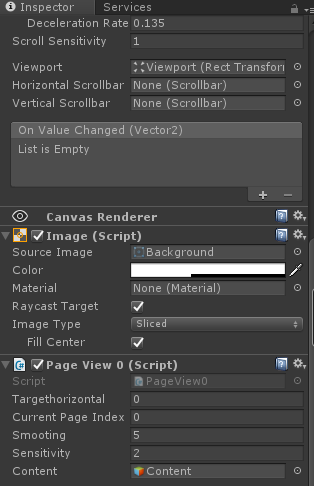
` 3.将该脚本挂载到场景中的Scroll View组件上,并且将Content物体赋值到该脚本上,如下图所示:
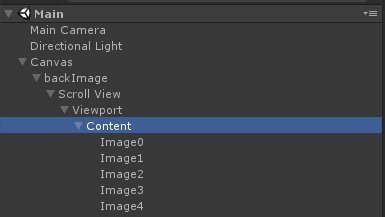
4.Content物体设置如下图所示,并且在Content物体下挂载5个Image组件,并且排列好位置顺序,如下图所示:
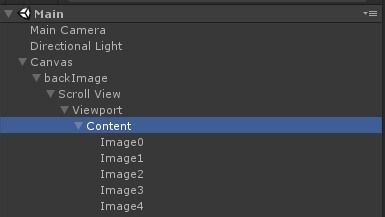
5.Content物体设置如下图所示:
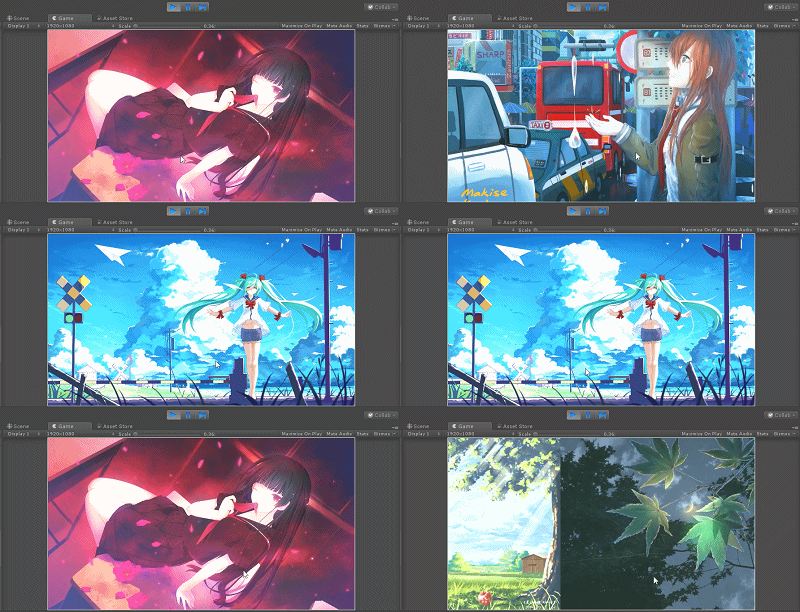
6.此时运行场景,发现已经可以滑动图片了,如下图所示:
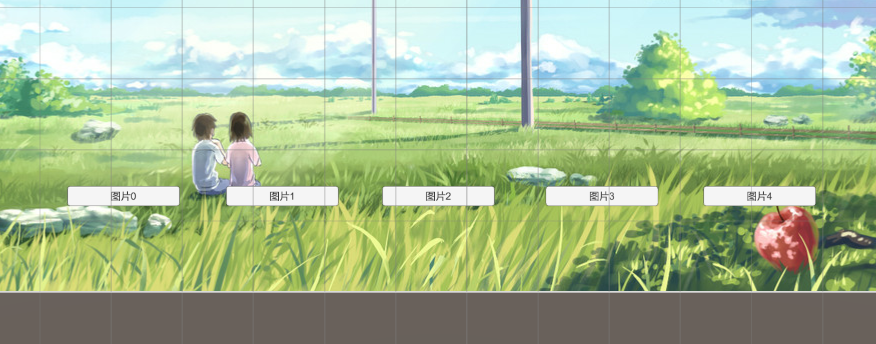
7.有时候还有需求不光能滑动,还需要点击按钮变换图片,此时只需要进行一点点的改进即可,在场景中创建5个Button组件,如下图所示:
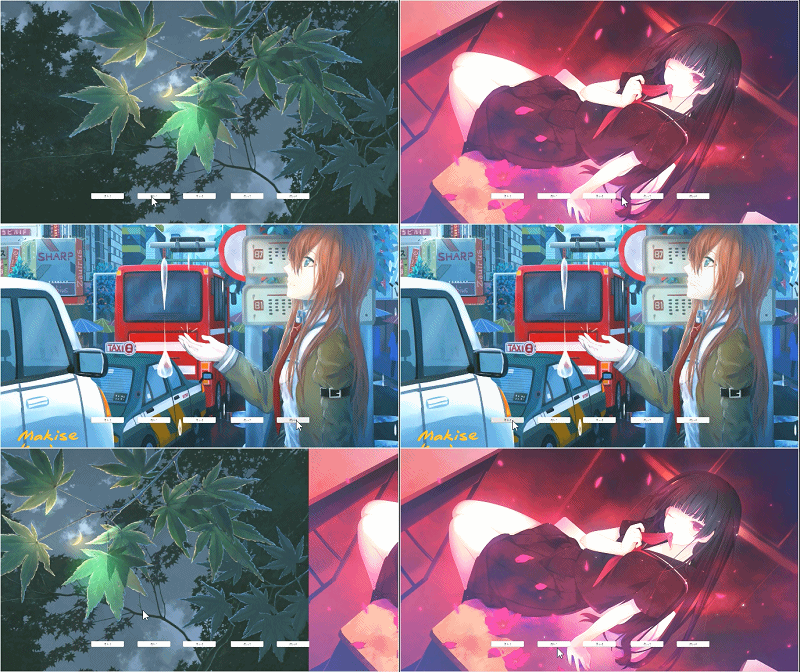
8.将PageView0脚本中的ToChangeTo0、ToChangeTo1、ToChangeTo2、ToChangeTo3、ToChangeTo4方法依次赋值到场景中的5个按钮中,运行场景,发现已经可以使用按钮切换图片了,如下图所示:
9.其实根据这个Demo可以实现很多效果的,比如左右键切换图片、拖动图片展示按钮效果等等,大家自己去慢慢探索吧!





 扫一扫
扫一扫


 7463
7463

 被折叠的 条评论
为什么被折叠?
被折叠的 条评论
为什么被折叠?
 到【灌水乐园】发言





