


 本文详细介绍如何使用Anki Vector AI进行物体检测编程,包括设置Google Vision账户、使用Vector Python SDK进行开发,以及如何让Vector识别并播报检测到的物体。
近期收到留言,遇到安装或者网络问题,可以去官网反馈或查阅解决方案(链接如下):
https://support.bluestacks.com/
使用模拟器视频录像链接:
https://v.youku.com/v_show/id_XMzk4NjM4OTU4NA==.html
需要使用安卓模拟器:
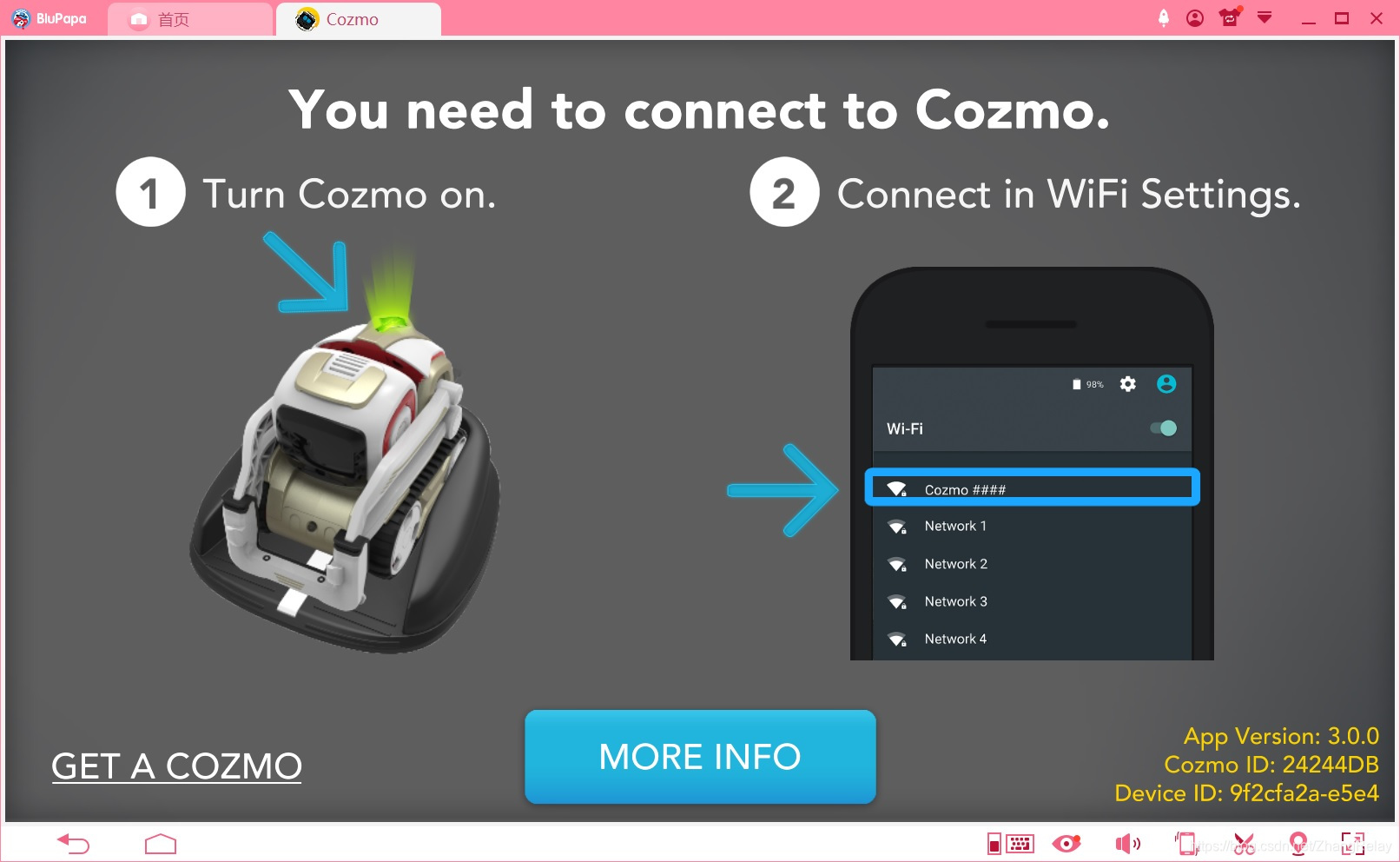
连接成功后:
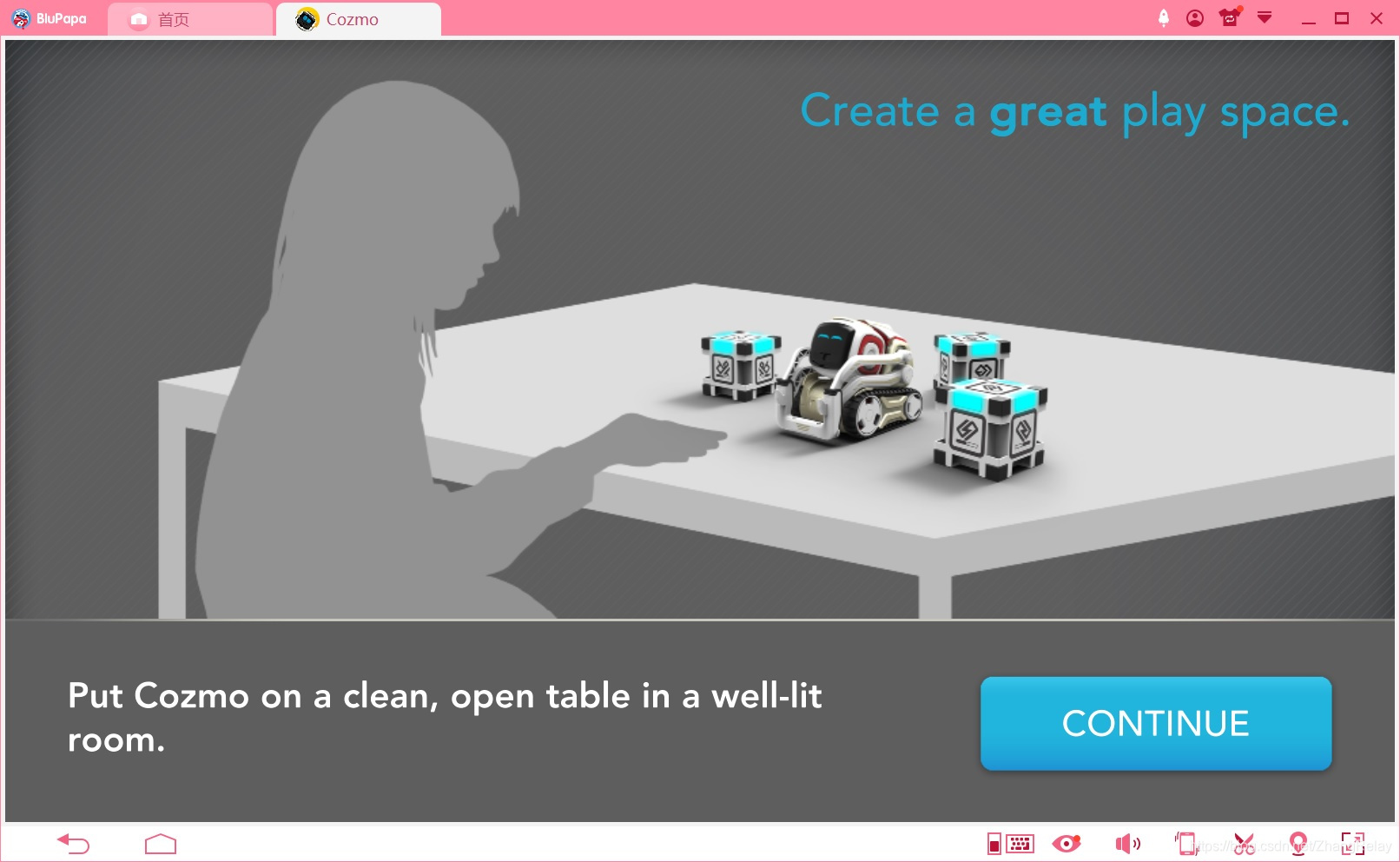
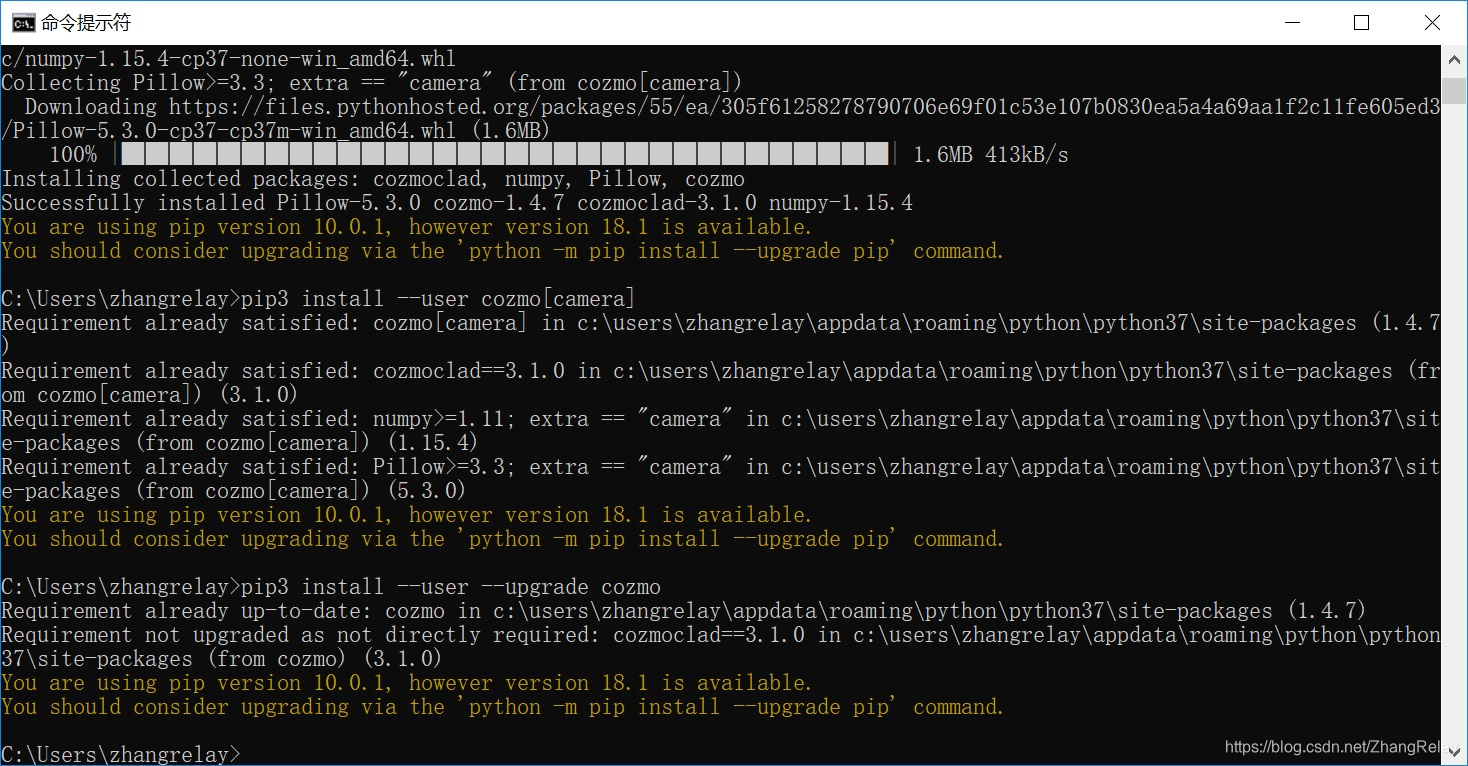
需要进行sdk开发和调试,参考官网按如下步骤配置:
使用adb调试:
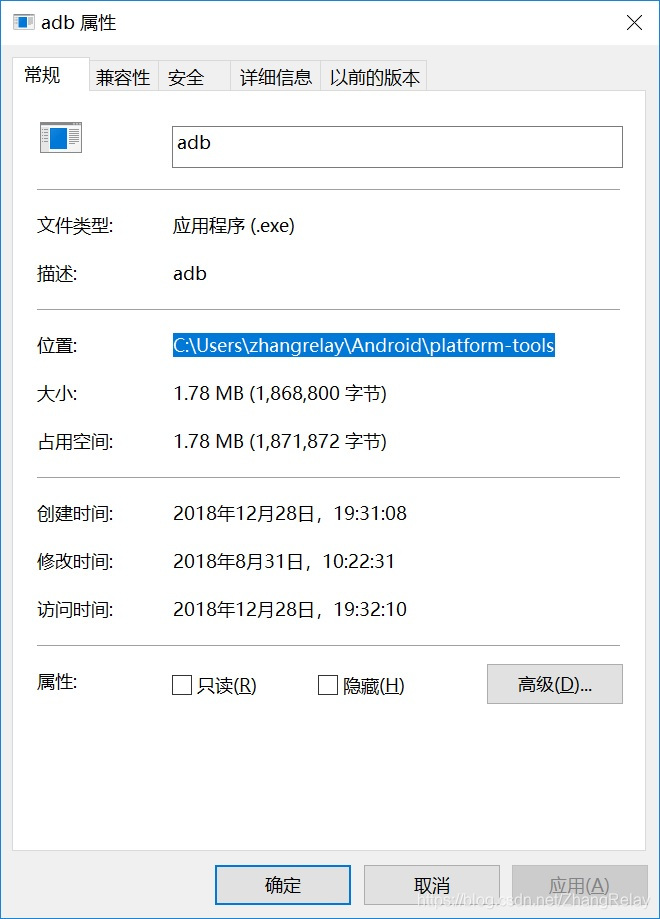
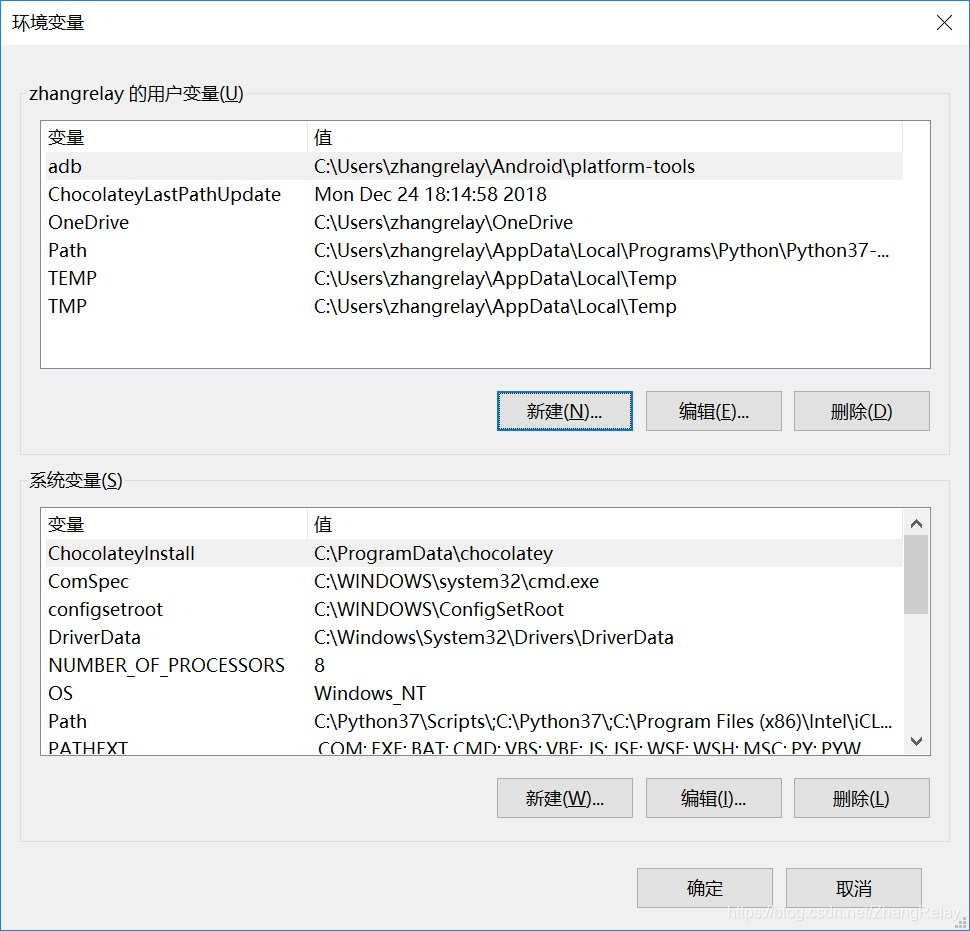
在对应位置添加环境变量:
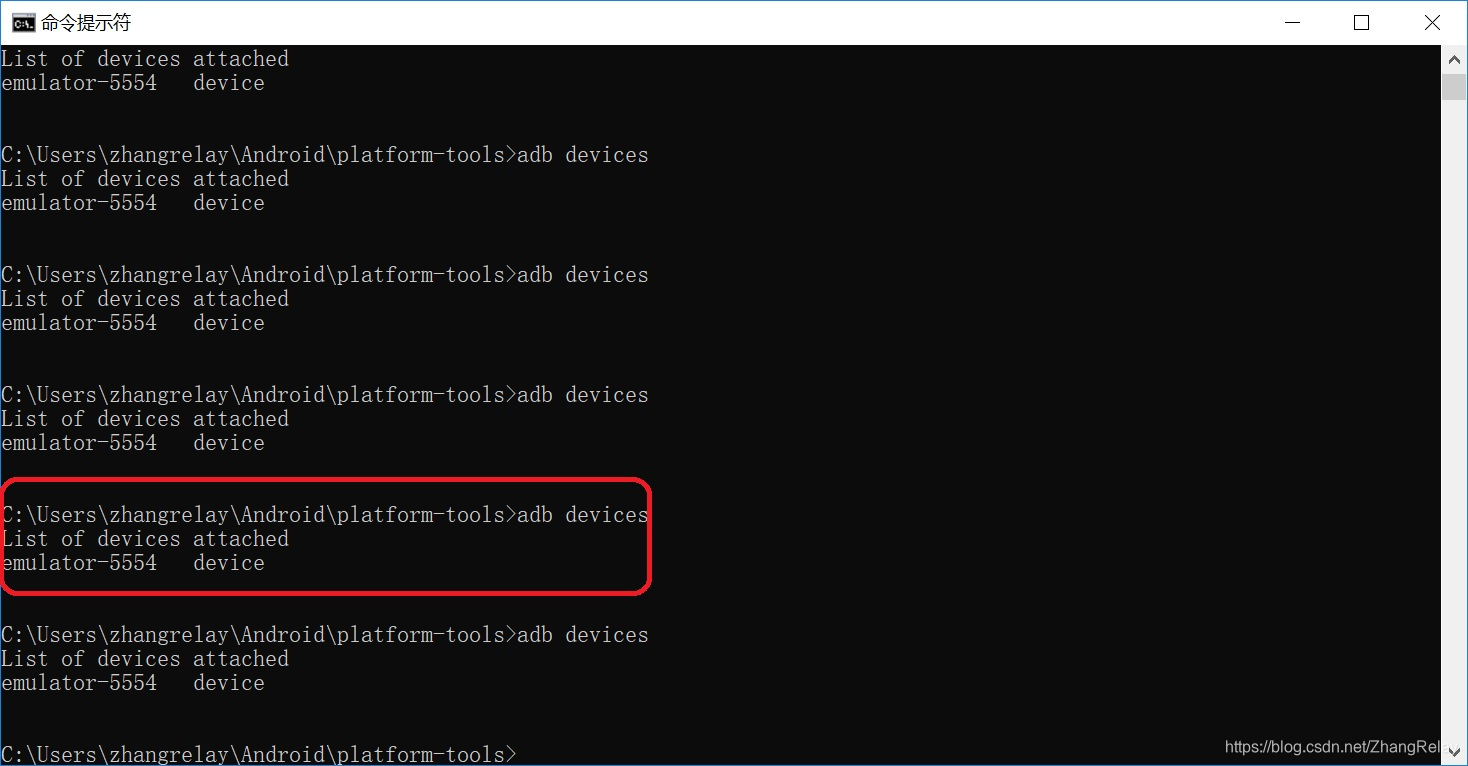
测试adb是否正常开启:
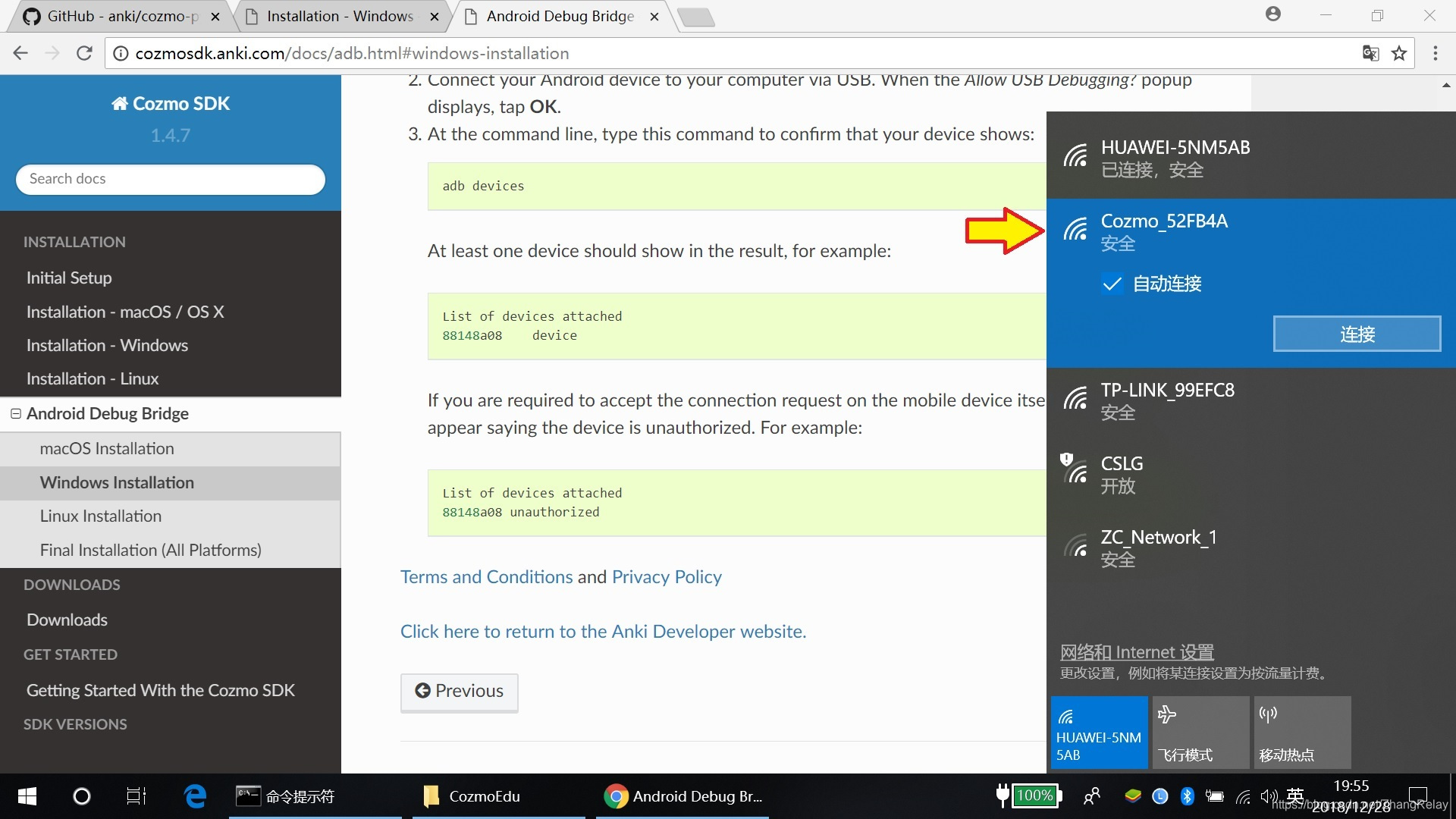
连接Cozmo_xxxxx:
完成配置后,就可以开发各类cozmo应用了,是不是很有趣!
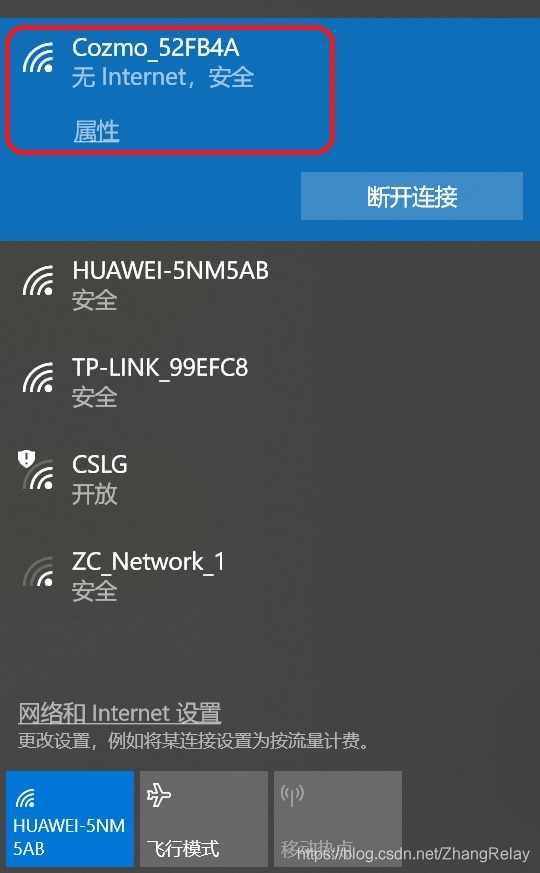
忽略无网络链接:
----
Fin
----
补充vector的openai:https://github.com/open-ai-robot/Anki-Vector-AI
目录
Anki Vector AI ++
Anki Vector - 具有交互式AI技术的家庭机器人。
好吧,我在2019年2月10日买了这个小家伙,如果你想要一个机器人宠物,并且你想对它做一些AI编程,那么我强烈建议你去Anki Vector。
我构建这个项目来分享我的代码和文档。
物体检测
此程序用于使Vector能够使用其相机检测对象,并告诉我们它找到了什么。
我们从Vector的相机拍摄照片,然后发布到Google Vision服务,然后Google Vision Service返回对象检测结果,最后,我们将所有标签文本转换为一个句子并发送到Vector,以便Vector可以大声说出来。
Well, let's see how to do it.

Run the code yourself
Install Vector Python SDK. You can test the SDK by running any of the example from anki/vector-python-sdk/examples/tutorials/
Set up your Google Vision account. Then follow the Quickstart to test the API.
Clone this project to local. It requires Python 3.6+.
Don forget to set Google Vision environment variable GOOGLE_APPLICATION_CREDENTIALS to the file path of the JSON file that contains your service account key. e.g. export GOOGLE_APPLICATION_CREDENTIALS="/Workspace/Vector-vision-62d48ad8da6e.json"
Make sure your computer and Vector in the same WiFi network. Then run python3 object_detection.py.
If you are lucky, Vector will start the first object detection, it will say "My lord, I found something interesting. Give me 5 seconds."
How it works
Connect to Vector with enable_camera_feed=True, because we need the anki_vector.camera API.
robot = anki_vector.Robot(anki_vector.util.parse_command_args().serial, enable_camera_feed=True)
We'll need to show what Vector see on its screen.
def show_camera():
    print('Show camera')
    robot.camera.init_camera_feed()
    robot.vision.enable_display_camera_feed_on_face(True)
and close the camera after the detection.

def close_camera():
    print('Close camera')
    robot.vision.enable_display_camera_feed_on_face(False)
    robot.camera.close_camera_feed()
We'll save take a photo from Vector's camera and save it later to send to Google Vision.
def save_image(file_name):
    print('Save image')
    robot.camera.latest_image.save(file_name, 'JPEG')
We post the image to Google Vision and parse the result as a text for Vector.
def detect_labels(path):
    print('Detect labels, image = {}'.format(path))
    # Instantiates a client
    # [START vision_python_migration_client]
    client = vision.ImageAnnotatorClient()
    # [END vision_python_migration_client]

    # Loads the image into memory
    with io.open(path, 'rb') as image_file:
        content = image_file.read()

    image = types.Image(content=content)

    # Performs label detection on the image file
    response = client.label_detection(image=image)
    labels = response.label_annotations

    res_list = []
    for label in labels:
        if label.score > 0.5:
            res_list.append(label.description)

    print('Labels: {}'.format(labels))
    return ', or '.join(res_list)
Then we send the text to Vector and make it say the result.
def robot_say(text):
    print('Say {}'.format(text))
    robot.say_text(text)
Finally, we put all the steps together.
def analyze():
    stand_by()
    show_camera()
    robot_say('My lord, I found something interesting. Give me 5 seconds.')
    time.sleep(5)

    robot_say('Prepare to take a photo')
    robot_say('3')
    time.sleep(1)
    robot_say('2')
    time.sleep(1)
    robot_say('1')
    robot_say('Cheers')

    save_image(image_file)
    show_image(image_file)
    time.sleep(1)

    robot_say('Start to analyze the object')
    text = detect_labels(image_file)
    show_image(image_file)
    robot_say('Might be {}'.format(text))

    close_camera()
    robot_say('Over, goodbye!')
We want Vector randomly active the detection action, so we wait for a random time (about 30 seconds to 5 minutes) for the next detection.
def main():
    while True:
        connect_robot()
        try:
            analyze()
        except Exception as e:
            print('Analyze Exception: {}', e)

        disconnect_robot()
        time.sleep(random.randint(30, 60 * 5))
When Vector success to active the detection action, you should see logs:
2019-02-17 21:55:42,113 anki_vector.robot.Robot WARNING  No serial number provided. Automatically selecting 009050ae
Connect to Vector...
2019-02-17 21:55:42,116 anki_vector.connection.Connection INFO     Connecting to 192.168.1.230:443 for Vector-M2K2 using /Users/gaolu.li/.anki_vector/Vector-M2K2-009050ae.cert
2019-02-17 21:55:42,706 anki_vector.connection.Connection INFO     control_granted_response {
}

Show camera
Say My lord, I found something interesting. Give me 5 seconds.
Say Prepare to take a photo
Say 3
Say 2
Say 1
Say Cheers
Save image
Show image = /Workspace/labs/Anki-Vector-AI/resources/latest.jpg
Display image on Vector's face...
Say Start to analyze the object
Detect labels, image = /Workspace/labs/Anki-Vector-AI/resources/latest.jpg
Labels: [mid: "/m/08dz3q"
description: "Auto part"
score: 0.6821197867393494
topicality: 0.6821197867393494
]
Show image = /Workspace/labs/Anki-Vector-AI/resources/latest.jpg
Display image on Vector's face...
Say Might be Auto part
Close camera
Say Over, goodbye!
2019-02-17 21:56:12,460 anki_vector.connection.Connection INFO     control_lost_event {
}

2019-02-17 21:56:12,460 anki_vector.robot.Robot WARNING  say_text cancelled because behavior control was lost
2019-02-17 21:56:12,461 anki_vector.util.VisionComponent INFO     Delaying disable_all_vision_modes until behavior control is granted
2019-02-17 21:56:12,707 anki_vector.connection.Connection INFO     control_granted_response {
}

Vector disconnected
You can find the latest photo that Vector uses to detention in resources/latest.jpg.

Shoes placed
This program is to enable Vector to place shoes for us. Vector will place our shoes when we're not at home, so we can leave home without worry about the shoes, especially when we're in a hurry.

This program is in research. I'll share the plan, the design, the docs, the codes here. I highly recommend you make an issue on GitHub so we can talk about it further if you're interesting, any help is welcome!

The design proposal is in this Google doc. https://docs.google.com/document/d/10TQEdbIdcvCW8gNAUvVVSe1YxzFxsQExP_X33M3_Aos/edit?usp=sharing

image

Here is a draft demo video I made to give you guys a sense of the program:

image





 扫一扫
扫一扫


 2911
2911

 被折叠的 条评论
为什么被折叠?
被折叠的 条评论
为什么被折叠?
 到【灌水乐园】发言





