在 Windows 平台的 VSCode 中配置 C++ 开发环境以支持中文文件名,主要涉及几个关键步骤:编译器选择、文件编码设置、以及 VSCode 的相关配置文件调整。以下是一个完整的配置方法:
### 配置步骤
#### 1. 安装 MinGW-w64 编译器
首先,需要在 Windows 上安装支持中文的 MinGW-w64 编译器。该编译器能够正确处理 UTF-8 编码的文件路径,从而避免因中文文件名导致的编译失败问题。安装完成后,确保将 `bin` 目录添加到系统环境变量 `PATH` 中。
#### 2. 设置 VSCode 文件编码为 UTF-8
在 VSCode 中,确保所有文件以 UTF-8 编码保存,这是支持中文文件名的基础设置。可以在 `settings.json` 中添加以下配置:
```json
{
"files.encoding": "utf8"
}
```
#### 3. 配置 `tasks.json` 以支持中文路径
`tasks.json` 文件用于定义编译任务。在该文件中,确保编译命令使用正确的编码方式运行,例如使用 `chcp 65001` 切换到 UTF-8 模式后再执行编译命令:
```json
{
"label": "C/C++: clang++ 生成活动文件",
"command": "clang++",
"args": [
"-std=c++17",
"-finput-charset=UTF-8",
"-fexec-charset=UTF-8",
"${file}",
"-o",
"${fileDirName}/${fileBasenameNoExtension}"
],
"type": "shell",
"group": {
"kind": "build",
"isDefault": true
},
"problemMatcher": ["$gcc"]
}
```
#### 4. 配置 `launch.json` 以支持调试中文文件
在调试阶段,确保 `launch.json` 中的 `miDebuggerPath` 设置正确,并且调试器支持 UTF-8 编码的文件路径。例如,使用 GDB 调试器时,可以添加如下配置:
```json
{
"name": "g++ - 生成并调试活动文件",
"type": "cppdbg",
"request": "launch",
"program": "${fileDirName}/${fileBasenameNoExtension}",
"args": [],
"stopAtEntry": false,
"cwd": "${fileDirName}",
"environment": [],
"externalConsole": true,
"MIMode": "gdb",
"miDebuggerPath": "C:\\mingw-w64\\bin\\gdb.exe",
"setupCommands": [
{
"description": "为 gdb 启用整齐打印",
"text": "-enable-pretty-printing",
"ignoreFailures": true
}
]
}
```
#### 5. 配置 `c_cpp_properties.json` 以确保智能提示
在 `c_cpp_properties.json` 中,确保 `compilerArgs` 包含 `-finput-charset=UTF-8` 和 `-fexec-charset=UTF-8`,这样可以保证 VSCode 的 IntelliSense 功能正确识别中文路径下的文件内容:
```json
{
"configurations": [
{
"name": "Win32",
"includePath": ["${workspaceFolder}/**"],
"defines": ["_DEBUG", "UNICODE", "_UNICODE"],
"compilerPath": "C:\\mingw-w64\\bin\\g++.exe",
"compilerArgs": ["-finput-charset=UTF-8", "-fexec-charset=UTF-8"],
"cStandard": "c17",
"cppStandard": "c++17",
"intelliSenseMode": "windows-gcc-x64"
}
],
"version": 4
}
```
通过上述配置,VSCode 的 C++ 开发环境将能够正确处理包含中文文件名的项目,确保编译和调试流程顺利进行[^1]。



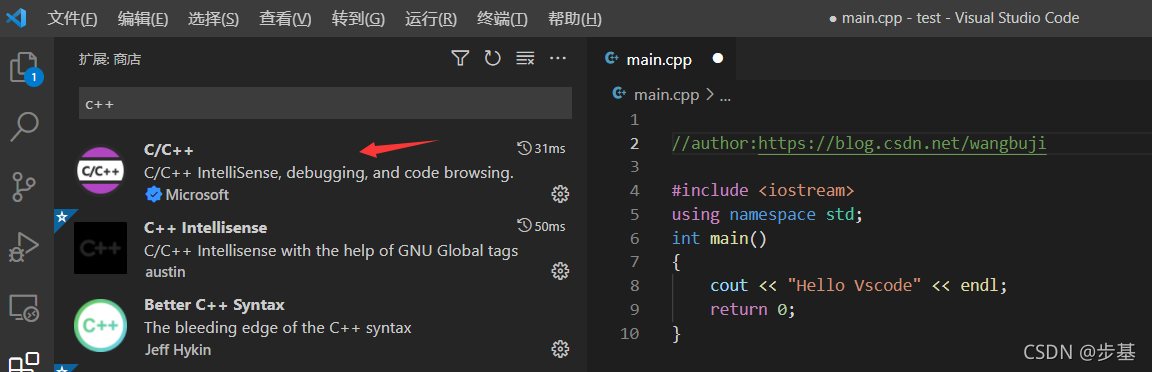
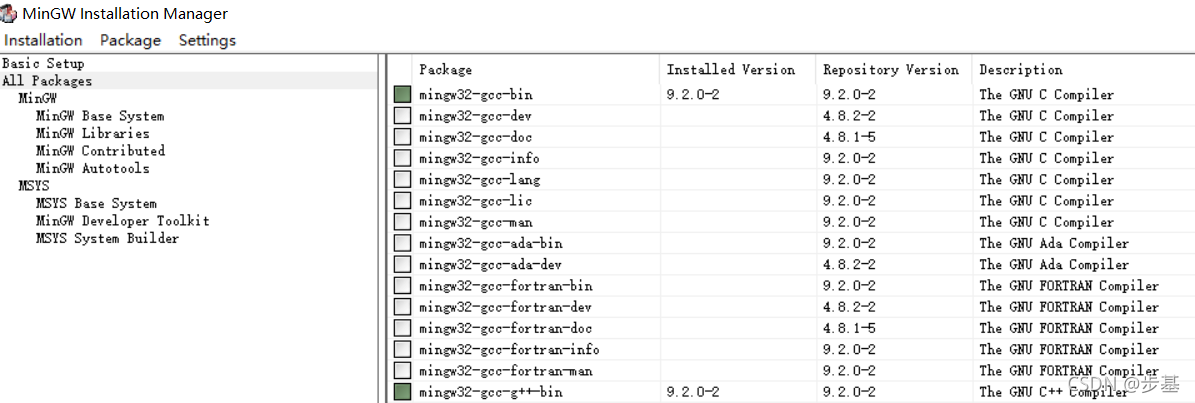


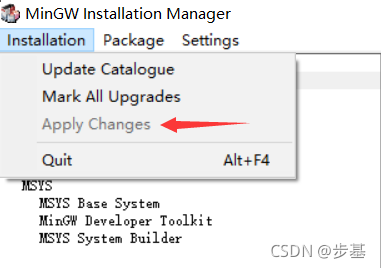
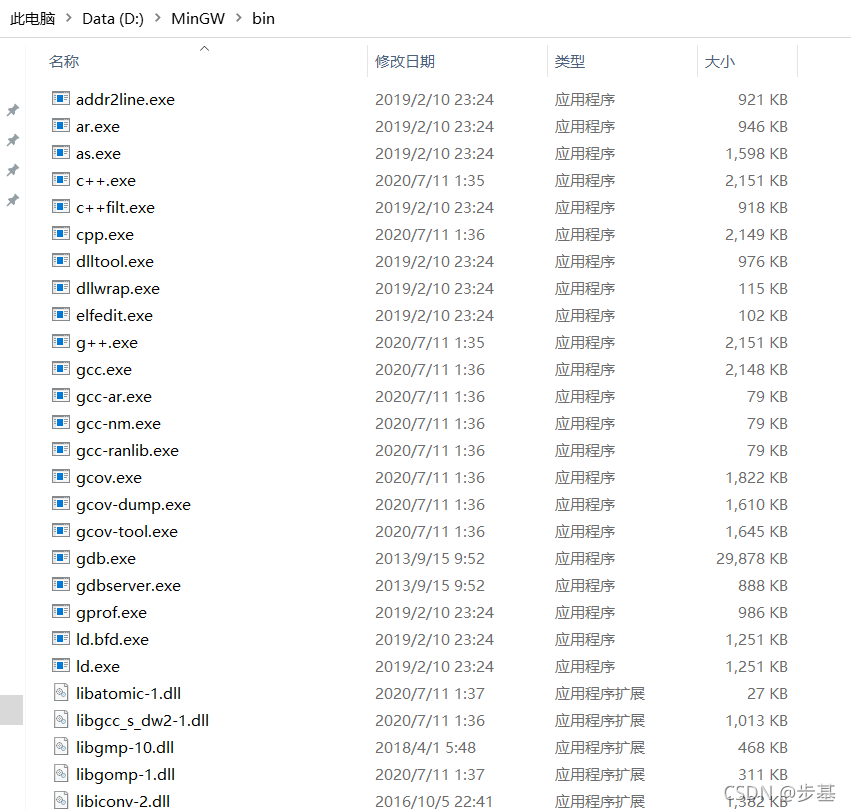
 在VSCode中配置C/C++开发环境
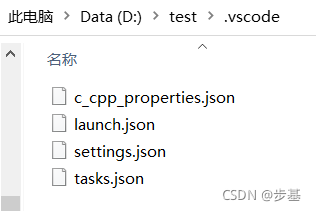
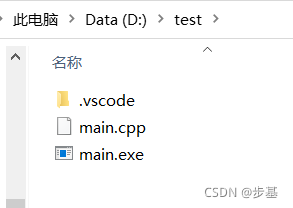
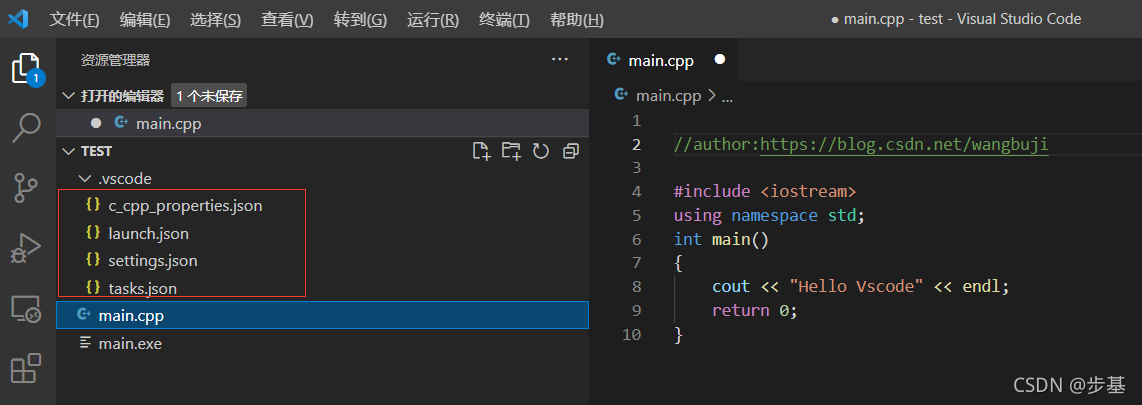
 本文档详细介绍了如何在Visual Studio Code(VSCode)中配置C/C++开发环境,包括安装C/C++插件、MinGW,以及配置tasks.json、launch.json、settings.json和c_cpp_properties.json四个关键文件,确保代码编译、调试的顺利进行。
 3191
3191

 被折叠的 条评论
为什么被折叠?
被折叠的 条评论
为什么被折叠?
 到【灌水乐园】发言




 最低0.47元/天 解锁文章






 扫一扫
扫一扫


