



注:本文为 “VS Code SSH 远程连接问题” 相关文章合辑。
英文部分机翻,未校。
Troubleshooting VS Code Remote SSH Connection Issues: A Step-by-Step Guide
排查 VS Code 远程 SSH 连接问题:分步指南
Coded Java, 11-11-2024
Introduction
介绍
Visual Studio Code (VS Code) has revolutionized the way we develop software, offering a robust and versatile platform for coding across diverse languages and environments. One of its most powerful features is the Remote - SSH extension, allowing developers to connect to remote servers and work on projects seamlessly. However, like any complex technology, remote SSH connections can encounter issues, leading to frustration and lost productivity. This comprehensive guide will provide you with a step-by-step approach to troubleshoot common VS Code remote SSH connection problems, empowering you to swiftly identify and resolve them.
Visual Studio Code (VS Code) 彻底改变了我们开发软件的方式,为跨不同语言和环境的编码提供了一个强大且多功能的平台。它最强大的功能之一是远程 - SSH 扩展,允许开发人员连接到远程服务器并无缝地处理项目。但是,与任何复杂技术一样,远程 SSH 连接可能会遇到问题,从而导致挫败感和生产力损失。本综合指南将为您提供解决常见 VS Code 远程 SSH 连接问题的分步方法,使您能够快速识别和解决这些问题。
Understanding the Problem
了解问题
Before diving into troubleshooting, it’s crucial to understand the nature of the issue. Pinpointing the source of the problem is the first step towards a solution. Consider these factors:
在深入研究故障排除之前,了解问题的性质至关重要。查明问题的根源是解决问题的第一步。请考虑以下因素:
- Remote Server Configuration: Are you sure the remote server is correctly set up for SSH access? This includes verifying firewall settings, SSH service status, and user permissions.
远程服务器配置:您确定远程服务器已正确设置为 SSH 访问吗?这包括验证防火墙设置、SSH 服务状态和用户权限。 - Network Connectivity: Is your local machine able to connect to the remote server over the network? Check for any network issues like firewall blocks, VPN configurations, or internet connectivity problems.
网络连接:您的本地计算机是否能够通过网络连接到远程服务器?检查是否存在任何网络问题,例如防火墙阻止、VPN 配置或 Internet 连接问题。 - VS Code Settings: Are your VS Code settings for the Remote - SSH extension configured correctly? This includes specifying the SSH connection details, authentication methods, and other relevant parameters.
VS Code 设置:远程 - SSH 扩展的 VS Code 设置是否配置正确?这包括指定 SSH 连接详细信息、身份验证方法和其他相关参数。 - Extension Updates: Are your VS Code extensions, particularly the Remote - SSH extension, up-to-date? Outdated extensions can sometimes lead to compatibility issues.
扩展更新:您的 VS Code 扩展(尤其是远程 - SSH 扩展)是否是最新的?过时的扩展有时会导致兼容性问题。
Common Troubleshooting Steps
常见故障排除步骤
Now, let’s delve into the specific troubleshooting steps for resolving VS Code remote SSH connection problems:
现在,让我们深入研究解决 VS Code 远程 SSH 连接问题的具体故障排除步骤:
1. Verify Remote Server Configuration
验证远程服务器配置
- SSH Service Status: Ensure that the SSH service is running on the remote server. You can check this using commands like
systemctl status sshd(on Linux/macOS) orsc query sshd(on Windows). If the service is not running, start it usingsystemctl start sshdorsc start sshd.
SSH 服务状态:确保 SSH 服务正在远程服务器上运行。您可以使用systemctl status sshd(在 Linux/macOS 上)或sc query sshd(在 Windows 上)等命令进行检查。如果服务未运行,请使用systemctl start sshd或sc start sshd启动它。 - Firewall Rules: Verify that your firewall rules allow SSH connections. On Linux/macOS, you can check and modify firewall settings using tools like
ufw,iptables, orfirewalld. On Windows, you can use the Windows Firewall with Advanced Security feature. Ensure that ports 22 (for SSH) are open for incoming connections.
防火墙规则:验证您的防火墙规则是否允许 SSH 连接。在 Linux/macOS 上,您可以使用ufw、iptables或firewalld等工具检查和修改防火墙设置。在 Windows 上,您可以使用高级安全 Windows 防火墙功能。确保端口 22(用于 SSH)为传入连接打开。 - User Permissions: Confirm that the user account you’re using to connect has SSH access privileges. The user should have a valid SSH key configured for authentication or a valid password set up.
用户权限:确认您用于连接的用户帐户具有 SSH 访问权限。用户应配置有效的 SSH 密钥进行身份验证或设置有效的密码。
2. Network Connectivity Check
网络连接检查
- Ping Test: Try pinging the remote server’s IP address or hostname from your local machine using the
pingcommand. If the ping is successful, it indicates network connectivity.
Ping 测试:尝试使用ping命令从本地计算机 ping 远程服务器的 IP 地址或主机名。如果 ping 成功,则表示网络连接。 - Port Scan: Use a port scanner like
nmapto confirm that the remote server is listening on port 22 (for SSH). If port 22 is not open, the remote server might not be configured correctly for SSH access.
端口扫描:使用类似nmap的端口扫描器确认远程服务器正在侦听端口 22(用于 SSH)。如果端口 22 未打开,则远程服务器可能无法正确配置 SSH 访问。 - VPN and Proxies: If you are using a VPN or proxy, ensure that they are not blocking or interfering with your SSH connection. Temporarily disable them to see if it resolves the issue.
VPN 和代理:如果您使用的是 VPN 或代理,请确保它们不会阻止或干扰您的 SSH 连接。暂时禁用它们以查看它是否解决了问题。
3. VS Code Settings and Configurations
VS Code 设置和配置
- Connection Details: Double-check the remote server’s hostname, port, and username in your VS Code configuration. Ensure that these details are accurate and match the remote server’s settings.
连接详细信息:在 VS Code 配置中仔细检查远程服务器的主机名、端口和用户名。确保这些详细信息准确无误,并与远程服务器的设置相匹配。 - Authentication Method: Verify that the authentication method you’re using is correct. If using an SSH key, confirm that the private key is accessible and its permissions are set correctly. If using a password, ensure it’s entered correctly.
身份验证方法:验证您使用的身份验证方法是否正确。如果使用 SSH 密钥,请确认私钥可访问且其权限设置正确。如果使用密码,请确保输入正确。 - Extension Settings: Explore the Remote - SSH extension settings in VS Code. You can access these by clicking on the Remote - SSH icon on the left sidebar and selecting “Configure Remote Settings” from the “Remote Explorer” pane. Review these settings for any potential conflicts or misconfigurations.
扩展设置:浏览 VS Code 中的远程 - SSH 扩展设置。您可以通过单击左侧边栏上的远程 - SSH 图标并从“远程资源管理器”窗格中选择“配置远程设置”来访问这些设置。查看这些设置是否存在任何潜在的冲突或错误配置。
4. Extension Updates and Dependencies
扩展更新和依赖项
- Remote - SSH Extension: Ensure that the Remote - SSH extension is up-to-date. You can update extensions by clicking on the Extensions icon (four squares icon) on the left sidebar, searching for the “Remote - SSH” extension, and clicking on the “Update” button if available.
远程 - SSH 扩展:确保远程 - SSH 扩展是最新的。您可以通过单击左侧边栏上的扩展图标(四个方块图标),搜索“远程 - SSH”扩展,然后单击“更新”按钮(如果可用)来更新扩展。 - VS Code Version: Check your VS Code version and ensure it’s compatible with the Remote - SSH extension. You can check the VS Code release notes or extension marketplace listing for compatibility information.
VS Code 版本:检查您的 VS Code 版本,并确保它与远程 - SSH 扩展兼容。您可以查看 VS Code 发行说明或扩展市场列表,了解兼容性信息。 - System Dependencies: Ensure that all necessary system dependencies are installed on your local machine. For example, you might need to install an SSH client like OpenSSH or PuTTY depending on your operating system.
系统依赖项:确保在本地计算机上安装了所有必要的系统依赖项。例如,您可能需要安装 OpenSSH 或 PuTTY 等 SSH 客户端,具体取决于您的操作系统。
Debugging Techniques
调试技术
Sometimes, troubleshooting requires more in-depth analysis and debugging. These techniques can be helpful:
有时,故障排除需要更深入的分析和调试。以下技术可能会有所帮助:
- SSH Logs: Analyze the SSH logs on the remote server for any error messages related to the failed connection attempt. You can find these logs in
/var/log/auth.logor/var/log/secureon most Linux distributions.
SSH 日志:分析远程服务器上的 SSH 日志,查找与连接尝试失败相关的任何错误消息。在大多数 Linux 发行版中,您可以在/var/log/auth.log或/var/log/secure中找到这些日志。 - VS Code Developer Tools: Use the VS Code Developer Tools (accessible through the “Help” menu) to inspect network requests and logs related to the Remote - SSH extension. This can provide insights into the specific issue causing the connection problem.
VS Code 开发人员工具:使用 VS Code 开发人员工具(可通过“帮助”菜单访问)检查与远程 - SSH 扩展相关的网络请求和日志。这可以深入了解导致连接问题的特定问题。 - SSH Client Testing: Test the connection using a separate SSH client like PuTTY or OpenSSH on your local machine. This can help isolate whether the issue is specific to VS Code or a broader SSH connectivity problem.
SSH 客户端测试:在本地计算机上使用单独的 SSH 客户端(如 PuTTY 或 OpenSSH)测试连接。这有助于确定问题是特定于 VS Code 还是更广泛的 SSH 连接问题。
Addressing Specific Errors
解决特定错误
Let’s now focus on addressing some commonly encountered error messages during VS Code remote SSH connections:
现在,让我们专注于解决 VS Code 远程 SSH 连接期间遇到的一些常见错误消息:
1. “Connection Refused”
“连接被拒绝”
- Possible Causes: This error typically indicates that the remote server is not listening on the specified port (usually port 22 for SSH). This can be due to firewall blocks, a stopped SSH service, or incorrect configuration of the SSH service.
可能的原因:此错误通常表示远程服务器未侦听指定的端口(通常是 SSH 的端口 22)。这可能是由于防火墙阻止、SSH 服务停止或 SSH 服务配置不正确。 - Troubleshooting Steps:
- Verify firewall rules and ensure that port 22 is open for incoming connections.
验证防火墙规则,并确保端口 22 已打开以用于传入连接。 - Check if the SSH service is running on the remote server and start it if it’s not.
检查 SSH 服务是否在远程服务器上运行,如果没有,请启动它。 - Double-check the hostname and port number in your VS Code settings.
仔细检查 VS Code 设置中的主机名和端口号。
2. “Permission Denied (publickey,password)”
“权限被拒绝(公钥、密码)”
- Possible Causes: This error means that the SSH client (VS Code) is unable to authenticate with the remote server using the provided credentials. This can be due to an invalid SSH key, incorrect password, or insufficient permissions on the remote server.
可能的原因: 此错误意味着 SSH 客户端 (VS Code) 无法使用提供的凭据向远程服务器进行身份验证。这可能是由于 SSH 密钥无效、密码不正确或远程服务器的权限不足造成的。 - Troubleshooting Steps:
- Verify that the private key associated with your SSH key pair is available and its permissions are set correctly.
验证与您的 SSH 密钥对关联的私有密钥是否可用,以及其权限设置是否正确。 - Double-check the password and ensure it’s entered correctly.
仔细检查密码并确保输入正确。 - Confirm that the user account you’re trying to connect with has the appropriate permissions on the remote server to access SSH.
确认您尝试连接的用户帐户在远程服务器上具有访问 SSH 的适当权限。
3. “Host Key Verification Failed”
“Host Key Verification failed” 主机密钥验证失败
- Possible Causes: This error indicates that the SSH client doesn’t recognize the host key of the remote server, which is a security measure to prevent man-in-the-middle attacks. This can happen when connecting to a new server for the first time or when the server’s host key has been changed.
可能原因:该错误表示 SSH 客户端无法识别远程服务器的 host key,这是防止中间人攻击的安全措施。首次连接到新服务器或更改服务器的主机密钥时,可能会发生这种情况。 - Troubleshooting Steps:
- Add the server’s host key to your known hosts file. You can do this using the
ssh-keyscancommand followed by the remote server’s hostname or IP address.
将服务器的主机密钥添加到已知的主机文件中。您可以使用ssh-keyscan命令后跟远程服务器的主机名或 IP 地址来执行此操作。 - Manually add the host key to your known hosts file (usually located at ~/.ssh/known_hosts) if the
ssh-keyscancommand fails.
如果ssh-keyscan命令失败,请手动将主机密钥添加到已知的主机文件(通常位于 ~/.ssh/known_hosts)。 - If you are sure the remote server is trustworthy, you can disable host key verification in your VS Code settings, but this is not recommended for security reasons.
如果您确定远程服务器值得信赖,则可以在 VS Code 设置中禁用主机密钥验证,但出于安全原因,不建议这样做。
4. “Connection Timed Out”
“Connection Timed Out” (连接超时)
- Possible Causes: This error indicates that the SSH client couldn’t establish a connection to the remote server within the timeout period. This could be due to network connectivity problems, high server load, or network congestion.
可能的原因:此错误表示 SSH 客户端无法在超时时间内与远程服务器建立连接。这可能是由于网络连接问题、高服务器负载或网络拥塞造成的。 - Troubleshooting Steps:
疑难解答步骤 - Check your internet connection and ensure there are no network issues.
检查您的 Internet 连接并确保没有网络问题。 - Try connecting to the remote server using a different network or internet connection.
尝试使用其他网络或 Internet 连接连接到远程服务器。 - Increase the SSH timeout value in your VS Code settings.
在 VS Code 设置中增加 SSH 超时值。 - Check the server load and see if it’s under excessive stress.
检查服务器负载,看看它是否承受了过大的压力。
Additional Tips and Best Practices
其他提示和最佳实践
- Use a Strong SSH Key: Utilize a secure SSH key for authentication instead of passwords. This provides better security and avoids the risk of exposing your password.
使用强 SSH 密钥:使用安全的 SSH 密钥而不是密码进行身份验证。这提供了更好的安全性,并避免了暴露密码的风险。 - Enable SSH Key Authentication: Enable SSH key authentication on the remote server, making it more secure than password-based authentication.
启用 SSH 密钥身份验证:在远程服务器上启用 SSH 密钥身份验证,使其比基于密码的身份验证更安全。 - Keep Software Updated: Regularly update your VS Code, Remote - SSH extension, and the SSH client on your local machine to benefit from security patches and bug fixes.
保持软件更新:定期更新本地计算机上的 VS Code、远程 - SSH 扩展和 SSH 客户端,以从安全补丁和错误修复中受益。 - Use a Dedicated User Account: Create a dedicated user account on the remote server for development purposes and limit its permissions to only necessary files and directories.
使用专用用户帐户:在远程服务器上创建专用用户帐户以进行开发,并将其权限限制为仅必要的文件和目录。 - Regularly Review Security Settings: Periodically review your firewall settings, SSH configurations, and other security settings on both your local machine and the remote server to maintain a secure development environment.
定期检查安全设置:定期检查本地计算机和远程服务器上的防火墙设置、SSH 配置和其他安全设置,以维护安全的开发环境。
Conclusion
结论
Troubleshooting VS Code remote SSH connection issues can be frustrating, but by following the step-by-step guide and applying the debugging techniques outlined in this article, you can effectively identify and resolve most common connection problems. Remember to approach troubleshooting systematically, starting with the most likely causes and gradually narrowing down your investigation. Regularly reviewing your settings and configurations, keeping software up-to-date, and prioritizing security best practices will help prevent future connection issues.
排查 VS Code 远程 SSH 连接问题可能令人沮丧,但通过遵循分步指南并应用本文中概述的调试技术,您可以有效地识别和解决最常见的连接问题。请记住系统地进行故障排除,从最可能的原因开始,然后逐渐缩小调查范围。定期检查您的设置和配置,使软件保持最新状态,并确定安全最佳实践的优先级,将有助于防止将来出现连接问题。
FAQs
1. Can I use VS Code for remote development without SSH?
我可以在没有 SSH 的情况下使用 VS Code 进行远程开发吗?
While SSH is a popular method for remote development, you can also use other options like VS Code’s Remote - Containers extension to connect to Docker containers or the Remote - WSL extension to work on projects within the Windows Subsystem for Linux.
虽然 SSH 是一种流行的远程开发方法,但您也可以使用其他选项(如 VS Code 的远程 - 容器扩展)连接到 Docker 容器,或使用远程 - WSL 扩展来处理适用于 Linux 的 Windows 子系统中的项目。
2. Is it safe to disable host key verification?
禁用主机密钥验证是否安全?
Disabling host key verification can increase the risk of man-in-the-middle attacks. While it might be convenient for testing purposes, it’s not recommended for production environments.
禁用主机密钥验证可能会增加中间人攻击的风险。虽然它可能便于测试目的,但不建议用于生产环境。
3. How do I troubleshoot a “Connection Refused” error when connecting to an AWS EC2 instance?
如何排查连接到 AWS EC2 实例时出现的“Connection Refused”(连接被拒绝)错误?
If you encounter this error when connecting to an AWS EC2 instance, ensure that the security group associated with the instance allows incoming SSH connections on port 22. You might also need to ensure that the instance’s SSH service is running and correctly configured.
如果您在连接到 AWS EC2 实例时遇到此错误,请确保与该实例关联的安全组允许端口 22 上的传入 SSH 连接。您可能还需要确保实例的 SSH 服务正在运行并正确配置。
4. Can I access files on the remote server through VS Code?
我可以通过 VS Code 访问远程服务器上的文件吗?
Yes, VS Code’s Remote - SSH extension allows you to browse, edit, and manage files on the remote server directly within the VS Code environment.
是的,VS Code 的远程 - SSH 扩展允许您直接在 VS Code 环境中浏览、编辑和管理远程服务器上的文件。
5. What are the best practices for SSH security?
SSH 安全的最佳实践是什么?
- Use strong SSH keys for authentication instead of passwords.
使用强 SSH 密钥而不是密码进行身份验证。 - Enable SSH key authentication on the remote server.
在远程服务器上启用 SSH 密钥身份验证。 - Keep your SSH client and server software up-to-date.
使您的 SSH 客户端和服务器软件保持最新状态。 - Use a dedicated user account with limited permissions on the remote server.
在远程服务器上使用具有有限权限的专用用户帐户。 - Regularly review your firewall settings and SSH configurations.
定期检查您的防火墙设置和 SSH 配置。
【工程调试记录】vscode 远程连接卡顿、频繁掉线的一个解决方法
Thomas_Ironprop 于 2020-05-12 14:57:13 发布
问题描述
本地(win10)使用 vscode 的 remote-ssh 功能远程连接服务器(ubuntu16.04)进行开发。发现十分卡顿,频繁掉线。
原因
本地使用的是 win10 自带的 openSSH,版本是 7.7p1。

该版本可能和 vscode 不太兼容。安装其他版本可能解决这个问题,我这里使用的是 git 自带的 ssh 版本,不想折腾的同学可以仿照下面的步骤进行。
解决方法
下载安装 git
- Git - Downloads
https://git-scm.com/downloads
配置环境变量
将 git 安装路径下的 *\Git\usr\bin 路径添加到系统自带 OpenSSH 路径(一般是 *\System32\OpenSSH)前即可。注意由于系统自带的 OpenSSH 路径一般在系统变量和用户变量中都有配置,而系统 path 会先于用户 path 生效,所以要将 git 路径也配置在系统变量中的 *\System32\OpenSSH 前。如下图所示。
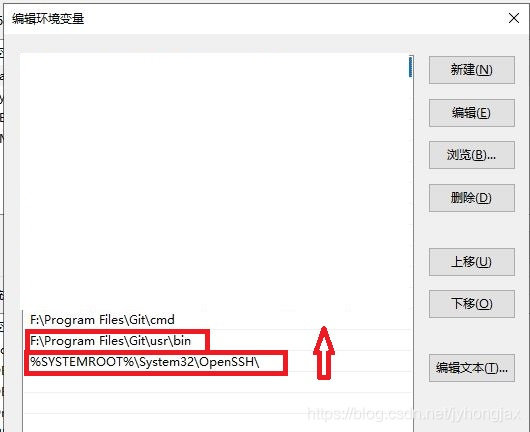
配置好之后重启 cmd 窗口,查看 ssh 版本,验证是否配置成功。

之后再打开 vscode 重新连接,发现卡顿和频繁掉线问题得到解决。
[2023 最新] vscode 连接服务器频繁断连
孙笑窜已于 2023-03-01 10:23:54 修改
一、问题描述
vscode、xshell、MobaXterm等一众 shell 客户端连接aliyun服务器或者实验室服务器都出现频繁断连情况。
所以可能不是 vscode 的问题,而是自己电脑的问题!
二、解决办法
搜遍网上教程,尝试处理方法如下,但是都没有解决:
1.vscode切换英文
2. 卸载 Windows 自带的 openssh,将 Git 文件夹里的 ssh.exe 添加到环境变量
3. 修改服务器端的 sshd_config
三、成功方法
- 卸载
Windows自带的openssh,将自己下载的Git文件夹里的ssh.exe添加到系统环境变量,用户环境变量最好也加一下。
如何卸载 openssh:[官方链接]
https://docs.microsoft.com/en-us/windows-server/administration/openssh/openssh_install_firstuse

成功后,cmd 中显示如下:

- 修改 ssh_config ( D:\Program Files\Git\etc\ssh\ssh_config ) 文件,注意是
ssh,不是sshd,在末尾添加:
ServerAliveInterval 20
ServerAliveCountMax 999
-
重启电脑。
-
另外一种解决方法:还有可能是服务器,内存不够或者磁盘空间不够!
四、常见客户端设置方法
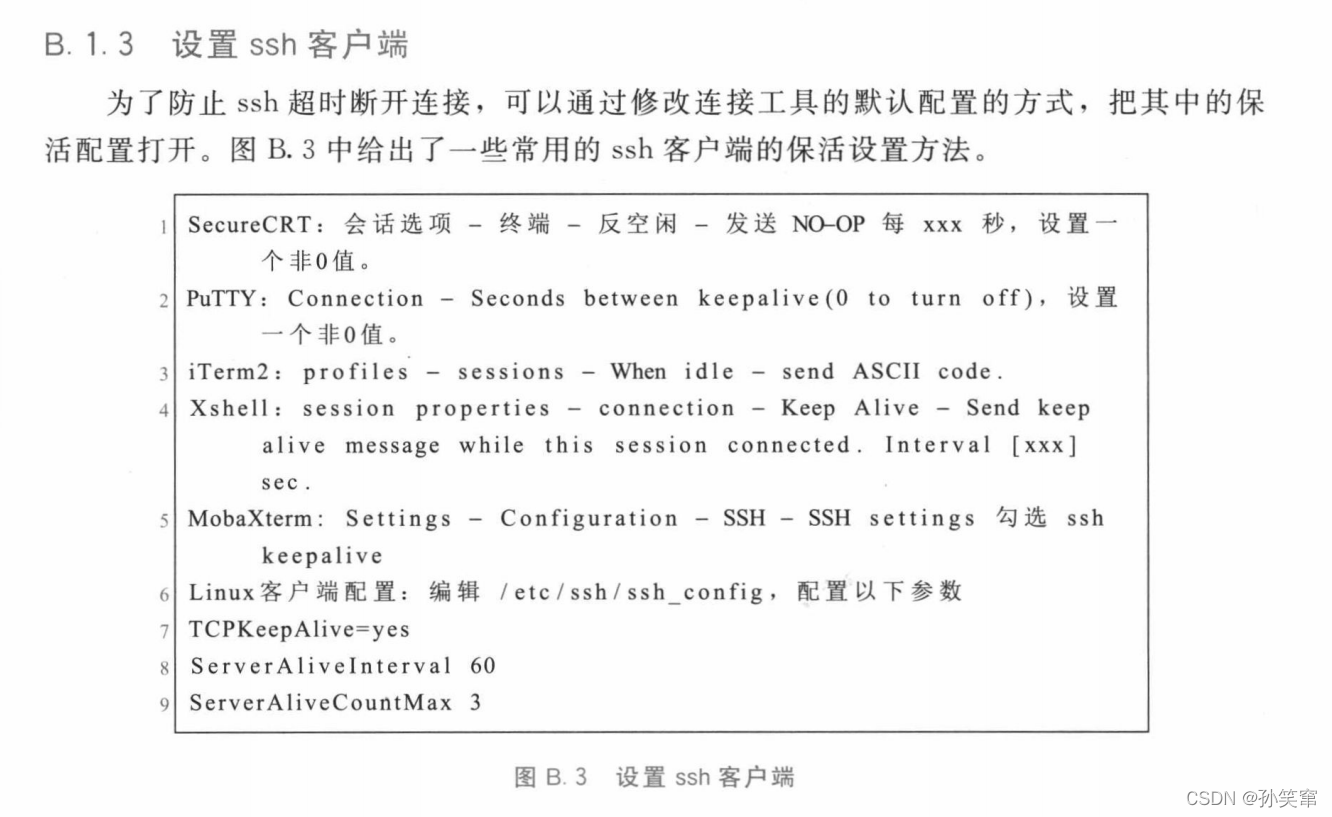
vscode 远程 ssh 连接不稳定的解决方法
chen_znn 于 2023-03-04 14:16:41 发布
1 问题描述
在使用 vscode 的 remote ssh 插件远程连接服务器时很不稳定,改起代码来很麻烦。
2 原因分析
在终端 ping 服务器的 IP 时显示没有丢包,在 winscp、MobaXterm 中使用 ssh 也能正常稳定地连接到服务器,这就表明问题出在 vscode 的 ssh 连接上,windows 自带的 openssh 与 vscode 不兼容。
3 解决方法
方法一
安装其他版本的 openssh,这个方法我还没试过。
方法二
使用 git 自带的 ssh 来替换掉 openssh。git 下载网址:
安装好 git 后,配置 git 环境变量,把 “C:\Program Files\Git\usr\bin”(该文件的路径因人而异,取决于你安装 git 的路径) 添加到系统变量的 path 中,对放置的位置也有要求,需要放置在 openssh 前面,如下图所示,

方法三
把 vscode 中 remote ssh 中的 path 改成 git 中 ssh 的路径,如:C:\Program Files\Git\usr\bin,
在 vscode 的扩展插件中找到 remote ssh,并选择设置 ->extension settings

找到 remote ssh path,并把 git 的 ssh 路径填进去,

解决 VS code 远程连接 ssh 频繁掉线问题
起个啥名捏于 2024-01-02 08:47:51 发布
最近刚换了新办公电脑,换了电脑以后发现 vscode 远程变得很不稳定,一打开倒是可以用,但是用过几个小时变得一直需要输密码,总是掉线,登陆不上,遂开始排查问题:
1. 使用 git,更改环境变量
如网上教程所示
- [vs code 通过 remote-ssh 远程到 ubuntu 频繁掉线问题解决历程_vscode 远程 断掉 - 优快云 博客]
https://blog.youkuaiyun.com/qq_37765778/article/details/126675962
下载 git,又将环境变量修改成默认 git 的 ssh
刚开始登录很顺利,又是用了几个小时又开始频繁掉线,没用。
2. 重新安装 vscode-sever
开始排查原因,用 cmd 中的 ssh 登录,没有问题,登录顺利
正在本人眉头紧锁之际,突然发现我的远程服务器中有一 vscode-sever 隐藏文件夹,想那就把服务器上的 vscode 删掉重装试试

再次登录发现需要用时比较久
问题解决
这种方法可以用于 ssh 正常但是 vscode remote 不正常的情况
vscode 使用 ssh 远程连接失败(及其他问题合集)
吨吨不打野已于 2023-06-27 14:35:54 修改
1. 常见错误和解决方案
去查看自己的错误,
- 在 vscode 界面,帮助->切换开发人员工具
- 如果是 windows 系统,直接快捷键
ctrl+shift+I打开开发者工具。
1.1 ERR Request 7 timed out (15000ms)

ERR Error: Time limit reached,超时错误,15000ms 是个参数,可以设置响应等待时间,默认是 15s,可以改为其他时间
参考 Stack Overflow:[why ssh connection timed out in vscode?]
https://stackoverflow.com/questions/59978826/why-ssh-connection-timed-out-in-vscode
- 文件 -> 首选项 -> 设置
- 在
常用设置中,找到扩展->Remote-SSH - 把 15s 改成更长的时间

另外,也有方法是修改一个配置文件。
依旧是在设置中,搜索 ssh,找到 在 setting.json 中编辑

在这个文件夹中加入:"remote.SSH.useLocalServer": false,,编辑后文件类似下面这样:
{
    "security.workspace.trust.untrustedFiles": "open",
    "remote.SSH.useLocalServer": false,
    "remote.SSH.remotePlatform": {
        "10.71.10.49": "linux",
        "10.70.21.10": "linux"
    },
    "workbench.colorTheme": "Quiet Light",
    "workbench.iconTheme": "office-material-icon-theme",
    "terminal.integrated.windowsEnableConpty": false,
}
如果没什么用的话,说明可能本地和远程服务器之间网可能确实不太好,大部分情况下重连几次就好了
1.2 ERR Error: WebSocket close with status code 1006
在开发者工具里信息如下:

其实在输出 ->remote ssh 中,也会有一些有用的信息,

错误信息为:
Failed to set up socket for dynamic port forward to remote port XXX: Proxy connection timed out. Is the remote port correct?
大概意思是代理超时了。。(应该是 vpn 有问题?但是 mobaxterm 连接依然非常顺利)
参考 Github:
- [Vscode-issue]
https://github.com/microsoft/vscode/issues/115818
一些人选择降级,但是 2021 年是 1.52 版本,现在已经 1.66 了,而且这个问题已经关闭了,应该新版本已经解决了
参考
- [why ssh connection timed out in vscode?]
https://stackoverflow.com/questions/59978826/why-ssh-connection-timed-out-in-vscode
2. Error: Could not find pty on pty host
2.1 确认错误
感谢 Github 上的 issue:[Keeps reconnect and reload when Remote SSH with VPN #2565]
https://github.com/microsoft/vscode-remote-release/issues/2565
启发我去看自己的输出信息,确定远程 log 文件的位置。

使用 xshell 或者 mobaxterm 等远程连接工具,去查看上面这个日志文件,例如:
vim /home/user/.vscode-server/.dfd34e8260c270da74b5c2d86d61aee4b6d56977.log
找到其中的报错信息,例如我的是
[15:13:51] [Error: Could not find pty on pty host,
at C._throwIfNoPty (/home/user/.vscode-server/bin/dfd34e8260c270da74b5c2d86d61aee4b6d56977/out/vs/platform/terminal/node/ptyHostMain.js:20:5336),
at C.updateTitle (/home/user/.vscode-server/bin/dfd34e8260c270da74b5c2d86d61aee4b6d56977/out/vs/platform/terminal/node/ptyHostMain.js:20:1676),
at Object.call (/home/user/.vscode-server/bin/dfd34e8260c270da74b5c2d86d61aee4b6d56977/out/vs/platform/terminal/node/ptyHostMain.js:13:8332),
at E.onPromise (/home/user/.vscode-server/bin/dfd34e8260c270da74b5c2d86d61aee4b6d56977/out/vs/platform/terminal/node/ptyHostMain.js:12:4867),
at E.onRawMessage (/home/user/.vscode-server/bin/dfd34e8260c270da74b5c2d86d61aee4b6d56977/out/vs/platform/terminal/node/ptyHostMain.js:12:4262),
at /home/user/.vscode-server/bin/dfd34e8260c270da74b5c2d86d61aee4b6d56977/out/vs/platform/terminal/node/ptyHostMain.js:12:3554,
at L.invoke (/home/user/.vscode-server/bin/dfd34e8260c270da74b5c2d86d61aee4b6d56977/out/vs/platform/terminal/node/ptyHostMain.js:8:145),
at l.fire (/home/user/.vscode-server/bin/dfd34e8260c270da74b5c2d86d61aee4b6d56977/out/vs/platform/terminal/node/ptyHostMain.js:8:1856),
at process.U (/home/user/.vscode-server/bin/dfd34e8260c270da74b5c2d86d61aee4b6d56977/out/vs/platform/terminal/node/ptyHostMain.js:6:34661),
at process.emit (node:events:390:28),
at emit (node:internal/child_process:917:12),
at processTicksAndRejections (node:internal/process/task_queues:84:21)]
2.2 搜索解决(需要等待官方 debug)
进一步搜索 vscode remote Error: Could not find pty on pty host,,根据 Github 的 issue:[Could not find pty on pty host #144548]
https://github.com/microsoft/vscode/issues/144548
-
一模一样的报错信息(自动测试机器人发现的。。)
-
2022.3.7 才分配的错误
-
修复时间从 3 月推迟到了 4 月
-
等吧
解决 ✅
最大的收获
-
Visual Studio Code Remote Development Troubleshooting Tips and Tricks
https://code.visualstudio.com/docs/remote/troubleshooting#_configuring-key-based-authentication -
Developing on Remote Machines using SSH and Visual Studio Code
https://code.visualstudio.com/docs/remote/ssh
这两个文档里详细介绍了一些 ssh 连接可能出现的问题和解决方案
1. 更新 vscode 版本
前几天 vscode 更新了,目前版本是 1.67.0
帮助->关于

2. 配置 ssh 密钥
2.2.1 想法来源
灵感来源于我在寻找替代方案时,看到
- [VScode 远程调试 C++ 工程含 X11(局域网)]
https://zhuanlan.zhihu.com/p/385276301
中配置 ssh 密钥,就可以省去输入密码。
想起来 vscode 之前一直断连,一直让输入密码,那直接配密钥就可以避开这一环节。
2.2.2 具体操作
生成密钥
- 在 windows 命令行里输入
ssh-keygen,然后会有一些提示,直接三个回车。 - 在
C:\Users\yourname\.ssh文件夹中可以看到刚刚生成的密钥id_rsa.pub和私钥id_rsa
公钥复制到服务器中
- 将公钥复制到
~/.ssh/authorized_keys文件中
测试是否配置成功
- 直接在命令行里输入
ssh username@XXX.XXX.XXX - 看是否不需要密码可以直接连接
以上内容完成后,就去 vscode 进行远程连接,一般都会成功
我的到这里其实有个小插曲
- 由于公司电脑会自动加密,我在将公钥复制到服务器的过程中,不小心把公钥文件做了编辑,因此文件被加密了
- 在 vscode 的
Remote-SSH输出面板中,当时出现了C:\Users\yourname\.ssh\id_rsa invalid format这样的提示。 - 重新生成密钥公钥,复制的时候小心不进行编辑,才成功的
3. 更换默认的 ssh 工具 👍
报错
close - IO is still pending on closed socket. read:0, write:1, io:0000019BC2EE60
更换 OpenSSH 为 gitSSH
在 vscode 的设置中搜索 remote.SSH.path,在弹出的输入框中输入自己 git 的 ssh 的路径,例如:D:\software\Git\usr\bin\ssh.exe
设置好之后再去进行远程连接,输出信息中会有类似
[22:59:38.015] Install and start server if needed
[22:59:38.018] Checking ssh with "D:\software\Git\usr\bin\ssh.exe -V"
[22:59:38.736] > OpenSSH_8.8p1, OpenSSL 1.1.1m 14 Dec 2021

[22:59:38.748] Running script with connection command: "D:\software\Git\usr\bin\ssh.exe"
12345
即现在已经使用 git 的 ssh 在进行远程连接了
参考:
-
✅[How can I use Windows’ built-in OpenSSH ssh-agent in VS Code, instead of Git bash’s?]
https://stackoverflow.com/questions/60819352/how-can-i-use-windows-built-in-openssh-ssh-agent-in-vs-code-instead-of-git-bas -
vscode-remote 的 Github issue:[Can’t connect to Ubuntu: unreachable or not Linux x86_64 - IO is still pending on closed socket #51]
https://github.com/microsoft/vscode-remote-release/issues/51 -
[环境配置–关于 vscode-ssh 远程连接下 openssh 与 git 自带的 ssh 的冲突解决方法]
https://blog.youkuaiyun.com/weixin_42100456/article/details/105434869
其它:一般有两种解决方案,
- 一种是修改 vscode 的 Remote-SSH 插件的代码,对 ssh 加入
-t参数,但是在我看到的 Remote-SSH 输出信息中,"C:\Users\huangs2\AppData\Local\Temp\vscode-linux-multi-line-command-XXXX-XXX.sh" | ssh -T -L 127.0.0.1:57124:127.0.0.1:33173 "XXX" bash,已经加入-T参数了,应该是这个问题已经被修复了,故不予考虑 - 另一种方案是使用 gitssh 来代替默认的 openssh,下面着重叙述这个方案
查看自己当前系统的 SSH 版本
-
使用 vscode 进行远程连接时,其实会打印出这个信息,类似
OpenSSH_for_Windows_8.1p1, LibreSSL 3.0.2 -
其实可以直接在命令行里输入
ssh -V,也会得到OpenSSH_for_Windows_8.1p1, LibreSSL 3.0.2 -
根据 PowerShell/Win32-OpenSSH 的 Github issue: [close - IO is still pending on closed socket. read:1, write:0, io:0000023DE45AF900 #1899]
https://github.com/PowerShell/Win32-OpenSSH/issues/1899 -
这个问题可能与当前系统的 openssh 版本有关。
-
一开始想着如果报错就重启 OpenSSH,但是似乎没有输入命令的地方。。
参考:[VSCode 远程连接配置]
https://www.codenong.com/js12e226e224ff/
虽然这个网站看起来不怎么行,但是上面这个文章真的很好,虽然找不到收录的来源。
以下是这篇文章的一部分内容摘录
VSCode 远程连接到开发机,调试 Python 或 C++ 程序时,通过配置本地 ssh,理论上每次在 VSCode 中连接远程机器,输入密码后即可连接。
首先需要确保 VSCode 中安装了 Remote SSH 插件。
考虑两种情况:
- 连接不上,或者经常掉线
- 不想每次输入密码
对于问题 1,考虑安装 git-for-windows,并添加 Git 安装目录 usrin 到系统 PATH 环境变量,并重开 VSCode 以生效(使用 git 安装后带的 ssh.exe 替代 Win10 自带 ssh.exe)
对于问题 2,考虑配置 ssh-key。按照 VSCode 官方文档:
https://code.visualstudio.com/docs/remote/troubleshooting#_configuring-key-based-authentication
由于上述 VSCode 文档中的操作,是在本机的 powershelll/terminal 里操作的, 实际中可能执行会出错,例如提示:
close - IO is still pending on closed socket. read:1, write:0, io:0000001B883956190
4. OpenSSH 与 gitSSH
参考:[让 git 使用 Windows 10 OpenSSH]
https://blog.umu618.com/2020/04/07/umutech-get-git-to-use-windows-10-openssh/

另外,也可以参考:
-
✅[Using the OpenSSH client included in Windows 10 (1809) as your Git’s SSH client]
https://poshsecurity.com/blog/using-the-openssh-client-included-in-windows-10-1809-as-your-gits-ssh-client -
以及 [Git on Windows: Force use of OpenSSH [closed]
https://stackoverflow.com/questions/19531626/git-on-windows-force-use-of-openssh
3. 彻底卸载 vscode
其实就是两步:
- 软件本身的卸载
- 一些缓存文件(配置、插件等的卸载)
第一步: 软件本身的卸载,找到安装目录,点击 unis000.exe

第二步:找到 C:\Users\yourname\AppData\Roaming 中的 Code 文件夹,删除。(如果没有找到 AppData,在 查看 中勾选 隐藏的项目)

第三步:找到 C:\Users\yourname 文件夹,删除其中的 .vscode 文件夹

参考:
-
💨 [How to uninstall VS Code completely?]
https://debug.to/1074/how-to-uninstall-vs-code-completel -
[How to cleanly /completely re-install VS Code on Mac]
https://support.enthought.com/hc/en-us/articles/360046796611-How-to-cleanly-completely-re-install-VS-Code-on-Mac -
[How to reinstall VSCode without losing extensions and user settings]
https://stackoverflow.com/questions/42103251/how-to-reinstall-vscode-without-losing-extensions-and-user-settings -
[Uninstall Visual Studio Code]
https://code.visualstudio.com/docs/setup/uninstall
4. vscode 报错
窗口已崩溃 (原因:“crashed”, 代码:“-1073741819”)

网上常见的解决方式有两种:
- 设置成兼容模式
- 加大给的内存
根据 Github issue:[The window has crashed (reason: ‘crashed’, code: ‘-1073741819’) #132945]
https://github.com/microsoft/vscode/issues/132945
其实可以通过某个命令打开错误记录,来查看更详细的错误信息。
根据文档:[Creating and symbolicating local crash reports]
https://github.com/microsoft/vscode/wiki/Native-Crash-Issues#creating-and-symbolicating-local-crash-reports
- 关闭 vscode
- 在命令行输入
code --crash-reporter-directory <absolute-path>,注意是绝对路径,这个路径是用于存放后续生成的故障转储文件 (vscode 在安装时默认添加到了 path,所以可以执行)
例如:code --crash-reporter-directory D:\package\vscode_dump - 然后这个命令会自动打开 vscode,你需要复现自己的错误
- 然后去看这个文件夹下的
.dmp文件记录
参考:
-
优快云 博客:[解决 vscode 运行项目卡死 提示:窗口已崩溃(原因 oom)]
https://blog.youkuaiyun.com/wolffei/article/details/117323600 -
Github issue:[The window has crashed (reason: ‘crashed’, code: ‘-1073741819’) #132945]
https://github.com/microsoft/vscode/issues/132945 -
优快云:[解决 vscode 窗口故障]
https://blog.youkuaiyun.com/nanhuaibeian/article/details/105020102 -
优快云:[关于 Visual Studo Code 其中 The window has crashed(宽口出现故障)问题!]
https://blog.youkuaiyun.com/Front_ends/article/details/103400537
5. Failed to set up socket for dynamic port forward to remote port
网上有很多解决方案,都试了一遍,对我的问题有效的我放在前面,无效的丢在后面了
5.3 改服务器中 ssh 的配置 ❌
参考 [VSCode Remote SSH Connection Failed]
https://stackoverflow.com/questions/60507713/vscode-remote-ssh-connection-failed
和 [VSCode 连接 Linux 服务器出错]
https://blog.youkuaiyun.com/hjmaAsC/article/details/107723029
注意,不要在容器里改,在服务器里改
# vi /etc/ssh/sshd_config

"大概会看到以下内容"
# override default of no subsystems
Subsystem    sftp  /usr/lib/openssh/sftp-server

# Example of overriding settings on a per-user basis
#Match User anoncvs
#    X11Forwarding no
AllowTcpForwarding yes
"将 AllowTcpForwarding 前的注释去掉,同时 no 改为 yes"

"然后重启服务"
systemctl restart sshd
改了之后,短暂的连接正常
5.2 删除服务器端的 .vs-code ❌
连接远程过程中,其实可以看到输出信息中,包含以下内容

切换到这个文件夹,删除你自己这个连接对应的文件夹,即上面的 bin/dfd34e8260c270da74b 文件夹,
# 打开会发现这里有很多其他连接的文件,删除自己的就行
/home/user/.vscode-server/bin> ls
6cba118ac49a1b88332f312a8f67186f7f3c1643 8908a9ca0f221f36507231afb39d2d8d1e182702 dfd34e8260c270da74b5c2d86d61aee4b6d56977
7f6ab5485bbc008386c4386d08766667e155244e c722ca6c7eed3d7987c0d5c3df5c45f6b15e77d1
再次连接,会发现一个同名文件会被创建,还是名为 dfd34e8260c270da74b5c2d86。
5.1 改本地配置文件 ❌
根据 [【Vscode Remote】无法连接:Failed to set up socket for dynamic port forward to remote port]
https://blog.youkuaiyun.com/weixin_45019478/article/details/113337098
-
ctrl+shift+P,输入Remote-SSH:Settings,或者找到设置中用户->扩展->Remote-SSH。 -
把
Remote.SSH:Enable Agent Forwarding的勾选去掉

6. 与终端 pty 主机进程的连接没有响应,终端可能停止工作(重启 pty 主机)
和最开始2. 自己看日志找适合自己的解决方案中报错的问题类似,都是和 pty 主机有关系。
报错:与终端 pty 主机进程的连接没有响应,终端可能停止工作(重启 pty 主机)

对应的英语是:The connection to the terminal’s pty host process is unresponsive, the terminals may stop working.
虽然有些 github 上的 issue 显示这个问题已经被修复了,但是感谢
- [Connection to terminal’s pty host process is becoming unresponsive #130320]
https://github.com/microsoft/vscode/issues/130320
文件 -> 首选项 -> 设置,搜索 Windows Enable Conpty,将勾选去掉即可

参考
-
Github Issue:[Terminal pty, not responding #148307]
https://github.com/microsoft/vscode/issues/148307 -
Github Issue:[The connection to the terminal’s pty host process is unresponsive, the terminals may stop working. #118159]
https://github.com/microsoft/vscode/issues/118159
7. 其它问题
7.1 终端进程 “C:\Windows\System32\cmd.exe” 启动失败(退出代码:-1)

真的是令人无语的问题,根据 [Exit codes]
https://code.visualstudio.com/docs/supporting/troubleshoot-terminal-launch#_exit-codes
可知:
终端启动失败时提示的退出代码时来自于 shell,而不是由 VS code 生成的。VS code 支持很多类型的 shell,因此也会有很多种可能的退出代码。
因此在解决问题的时候,需要搜索 shell 及对应的退出代码。例如:PowerShell 4294901760,或者是cmd 1等。
操作 1
参考
- 2021-11-25 终端进程 “C:\Windows\System32\cmd.exe” 已终止,退出代码: 3221225786 - 简书
https://www.jianshu.com/p/40d9592001bb
可以将所有终端的 使用旧版控制台 选项都去掉,包括 powershell,cmd,Anaconda Prompt 以及 Anaconda Powershell Prompt

没啥用
操作 2
参考
- 关于 vscode 出现终端进程终止,退出代码:1 的情况_窗口意外终止 (原因: “clean-exit”, 代码: “1”)-优快云 博客
https://blog.youkuaiyun.com/qq_40197926/article/details/106278312
其认为错误原因是:
由于 vscode 安装目录的文件名中有空格存在,将其改为其他字符或删除空格
我也确实有这个问题,重新安装之后,报另一个错误。
无效
7.2 已安装配置的调试类型’python’,但在此环境中不受支持
已安装配置的调试类型’python’,但在此环境中不受支持

via:
-
Troubleshooting VS Code Remote SSH Connection Issues: A Step-by-Step Guide
https://theglobalpresence.com/post/troubleshooting-vs-code-remote-ssh-connection-issues-a-step -
【工程调试记录】vscode 远程连接卡顿、频繁掉线的一个解决方法_vscode 远程连接 切换窗口就掉线 - 优快云 博客Thomas_Ironprop 于 2020-05-12 14:57:13 发布
https://blog.youkuaiyun.com/jyhongjax/article/details/106075493 -
[2023 最新] vscode 连接服务器频繁断连_vscode remote ssh 反复掉线 - 优快云 博客 孙笑窜已于 2023-03-01 10:23:54 修改
https://blog.youkuaiyun.com/qq_43272349/article/details/123745652 -
vscode 远程 ssh 连接不稳定的解决方法 <_vscode remote ssh 反复掉线 - 优快云 博客 chen_znn 于 2023-03-04 14:16:41 发布
https://blog.youkuaiyun.com/qq_38964360/article/details/129333476 -
解决 VS code 远程连接 ssh 频繁掉线问题 <<_vscode remote ssh 反复掉线 - 优快云 博客起个啥名捏于 2024-01-02 08:47:51 发布
https://blog.youkuaiyun.com/sunjunaaa/article/details/135332356 -
vscode 使用 ssh 远程连接失败(及其他问题合集)_与终端 pty 主机进程的连接没有响应 - 优快云 博客吨吨不打野已于 2023-06-27 14:35:54 修改
https://blog.youkuaiyun.com/Castlehe/article/details/124196344 -
vscode remote ssh 调试python_mob64ca12e6f33c的技术博客_51CTO博客 mob64ca12e6f33c 2024-10-02 03:24:36
https://blog.51cto.com/u_16213392/12160496





 扫一扫
扫一扫


 1144
1144

 被折叠的 条评论
为什么被折叠?
被折叠的 条评论
为什么被折叠?
 到【灌水乐园】发言





