
✿2-The Basics-介绍Qt Creator

这篇博客介绍了如何在Qt Creator中创建一个简单的GUI应用程序。通过新建Qt Widgets Application项目,然后编辑main.cpp和mainwindow.cpp文件,实现了主窗口的显示。在Qt Designer中,将Label控件添加到界面并设置文本为'HelloWorld!'。运行程序后,展示了一个包含问候信息的窗口。

创建一个简单的Qt应用程序
File->New->Application->Qt Widgets Application->Next->…->Finish
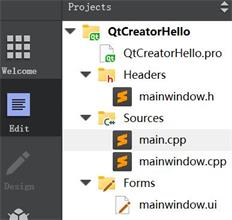
main.cpp

#include "mainwindow.h"
#include <QApplication>
int main(int argc, char *argv[]) {
    QApplication a(argc, argv);
    MainWindow w;
    w.show();
    return a.exec();
}

mainwindow.h

#ifndef MAINWINDOW_H
#define MAINWINDOW_H
#include <QMainWindow>

namespace Ui { class MainWindow; }

class MainWindow : public QMainWindow {
    Q_OBJECT
public:
    explicit MainWindow(QWidget *parent = 0);
    ~MainWindow();
private:
    Ui::MainWindow *ui;
};
#endif // MAINWINDOW_H

mainwindow.cpp

#include "mainwindow.h"
#include "ui_mainwindow.h"

MainWindow::MainWindow(QWidget *parent) :
    QMainWindow(parent), ui(new Ui::MainWindow)
{
    ui->setupUi(this);
}

MainWindow::~MainWindow() {
    delete ui;
}

QtCreatorHello.pro文件是项目文件。这包含qmake构建应用程序所需的所有信息。该文件在项目创建期间自动生成,并以结构化方式包含相关详细信息。可以在此文件中指定文件、资源和目标平台。如果你对应用程序进行了任何修改,则需要再次运行qmake。.pro文件内容,如下图所示。让我们跳过修改此项目的内容。
QtCreatorHello.pro

#-------------------------------------------------
# Project created by QtCreator 2022-04-18T21:54:32
#-------------------------------------------------
QT       += core gui

greaterThan(QT_MAJOR_VERSION, 4): QT += widgets

TARGET = QtCreatorHello
TEMPLATE = app

# The following define makes your compiler emit warnings if you use
# any feature of Qt which as been marked as deprecated (the exact warnings
# depend on your compiler). Please consult the documentation of the
# deprecated API in order to know how to port your code away from it.
DEFINES += QT_DEPRECATED_WARNINGS

# You can also make your code fail to compile if you use deprecated APIs.
# In order to do so, uncomment the following line.
# You can also select to disable deprecated APIs only up to a certain version of Qt.
#DEFINES += QT_DISABLE_DEPRECATED_BEFORE=0x060000    # disables all the APIs deprecated before Qt 6.0.0

SOURCES += \
        main.cpp \
        mainwindow.cpp
        
HEADERS += \
        mainwindow.h

FORMS += \
        mainwindow.ui

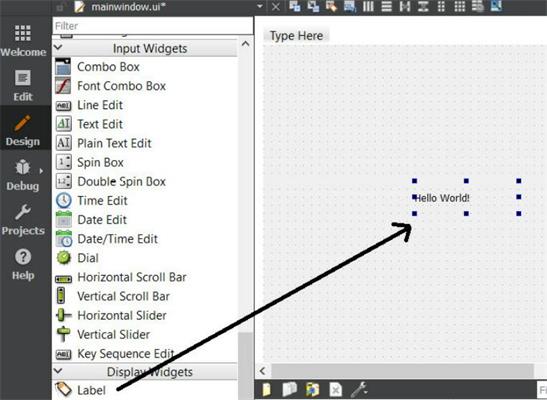
你可以找到一个后缀为“.ui”的表单文件。编辑器窗口左侧的ui扩展。在用户界面文件双击它。在这里,可以看到文件在另一个界面下打开:Qt Designer。你可以看到模式选择面板已切换到设计模式。现在,将Display Widgets类别下列出的Label控件拖动到右侧表单的中心,如下图所示。接下来,双击拖入的项目,并键入Hello World!。按键盘上的Enter键或用鼠标单击控件外的任意位置以保存文本。
mainwindow.ui(下面是原始代码,拖入Label控件后,.ui代码也会自动更新)

<?xml version="1.0" encoding="UTF-8"?>
<ui version="4.0">
 <class>MainWindow</class>
 <widget class="QMainWindow" name="MainWindow">
  <property name="geometry">
   <rect>
    <x>0</x>
    <y>0</y>
    <width>400</width>
    <height>300</height>
   </rect>
  </property>
  <property name="windowTitle">
   <string>MainWindow</string>
  </property>
  <widget class="QWidget" name="centralWidget"/>
  <widget class="QMenuBar" name="menuBar">
   <property name="geometry">
    <rect>
     <x>0</x>
     <y>0</y>
     <width>400</width>
     <height>17</height>
    </rect>
   </property>
  </widget>
  <widget class="QToolBar" name="mainToolBar">
   <attribute name="toolBarArea">
    <enum>TopToolBarArea</enum>
   </attribute>
   <attribute name="toolBarBreak">
    <bool>false</bool>
   </attribute>
  </widget>
  <widget class="QStatusBar" name="statusBar"/>
 </widget>
 <layoutdefault spacing="6" margin="11"/>
 <resources/>
 <connections/>
</ui>

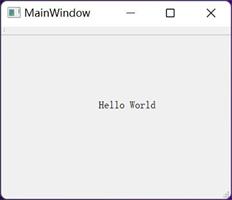
运行工程,生成一个窗口,如下:
Qt帮助手册
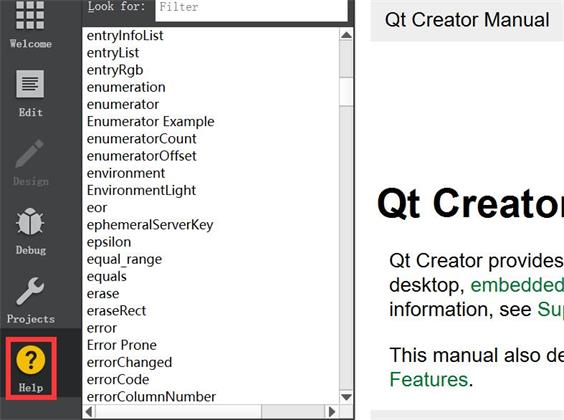
Qt Quick enables you to build UIs around the behavior of components and how they connect with one another. You create components using Qt Quick and QML types that are available in the Design mode. You can specify values for the properties of a component to change its appearance and behavior. All QML types have a set of predefined properties, some of which control things that are visible to users, while others are used behind the scene. While it is useful to learn the basics of Qt Quick, you can also rely on Qt Design Studio to write the code for you when you drag-and-drop the ready-made components to the working area and change them to your liking by modifying their properties in the Design mode. You can always check up details in the extensive Qt Quick documentation by pressing F1. Creating Qt Quick Projects You can use wizards to create Qt Quick projects. Editing QML Files in Design Mode You can use the Form Editor or the Text Editor in the Design mode to develop Qt Quick applications. Creating Components In addition to your imported artwork, you can use the Design mode to customize ready-made components or design any custom form and shape directly as QML types. You can import visual assets in various formats, such as PNG, JPG, and SVG for use in the components. Managing Item Hierarchy You can manage the items in the current QML file and their relationships in the Navigator. Specifying Item Properties You can specify values for the properties of a component to change its appearance and behavior. All QML types have a set of predefined properties. Some properties, such as position, size, and visibility, are common to all QML types, whereas others are specific to the QML type. You can specify properties for your components in the Properties pane. Creating Animations You can use a timeline and keyframe based editor in the Timeline view to animate the properties of UI components. Animating properties enables their values to move through intermediate values at specified keyframes instead of immediately changing to the target value. Adding Connections You can create connections between the UI components and the application to enable them to communicate with each other. For example, how does the appearance of a button change on a mouse click and which action does the application need to perform in response to it. You can also create connections between UI components by binding their properties together. This way, when the value of a property changes in a parent component, it can be automatically changed in all the child components, for example. Adding States Qt Quick allows you to declare various UI states that describe how component properties change from a base state. Therefore, states can be a useful way of organizing your UI logic. You can associate transitions with items to define how their properties will animate when they change due to a state change. Related Topics Editing PathView Properties You can use a graphical spline editor to specify PathView paths. A path view lays out data provided by data models on a Path. Browsing ISO 7000 Icons You can add ISO 7000 icons from a library delivered with Qt Creator to UIs and change their color. Qt Quick UI Forms Some of the wizards create Qt Quick projects that contain UI forms (.ui.qml files). The forms use a purely declarative subset of the QML language and you can edit them in the Design mode. Using QML Modules with Plugins QML modules may use plugins to expose components defined in C++ to QML applications. Qt Creator cannot load the plugins to determine the details of the contained components, and therefore, the modules must provide extra type information for code completion and the semantic checks to work correctly. Converting UI Projects to Applications Qt Quick UI projects (.qmlproject) are useful for creating user interfaces. To use them for application development, you have to convert them to Qt Quick Application projects that contain .pro, .cpp, and .qrc files. Designing User Interfaces ◦ Creating Qt Quick Projects
09-11
评论
成就一亿技术人!
拼手气红包6.0元
还能输入1000个字符
 
红包 添加红包
表情包 插入表情
 条评论被折叠 查看
添加红包

请填写红包祝福语或标题

红包个数最小为10个

红包金额最低5元

当前余额3.43前往充值 >
需支付:10.00
成就一亿技术人!
领取后你会自动成为博主和红包主的粉丝 规则
hope_wisdom
发出的红包

打赏作者

itzyjr

你的鼓励将是我创作的最大动力

¥1 ¥2 ¥4 ¥6 ¥10 ¥20
扫码支付:¥1
获取中
扫码支付

您的余额不足,请更换扫码支付或充值

打赏作者

实付
使用余额支付
点击重新获取
扫码支付
钱包余额 0

抵扣说明:

1.余额是钱包充值的虚拟货币,按照1:1的比例进行支付金额的抵扣。
2.余额无法直接购买下载,可以购买VIP、付费专栏及课程。

余额充值


