


前段时间,GitHub悄悄地发布了一个新功能:Profile README.
翻译成中文即简历型README,好听一点就是个人自述型简历,简单点就是个人GitHub总览。
下面给大家讲讲怎么通过 GitHub API 创建一个能够自更新的总览。
1.首先,创建一个GitHub仓库:
创建一个与你的GitHub帐户同名的存储库:
(在我的情况下为 github.com/Ckend/Ckend)
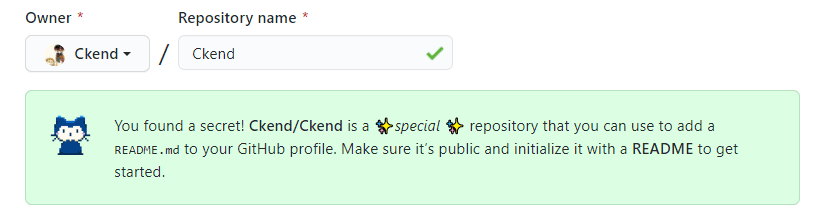
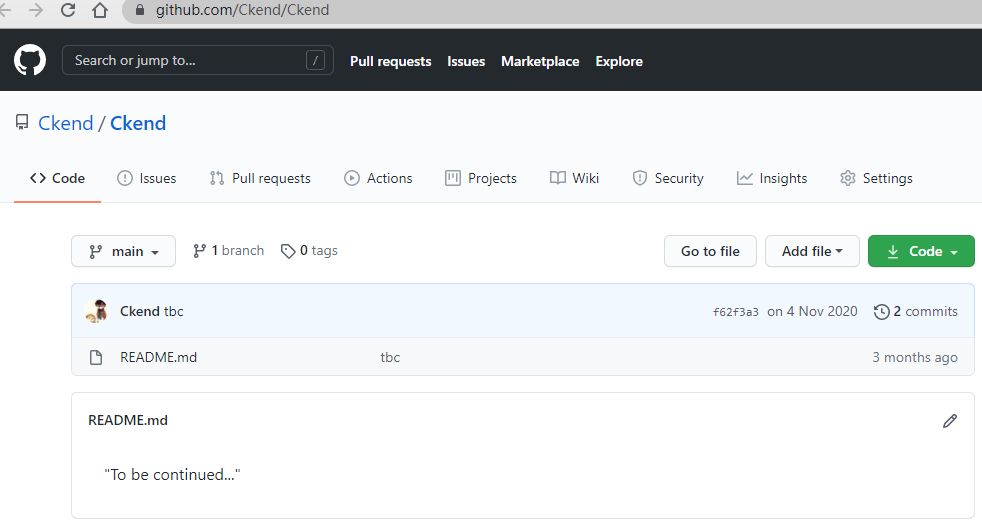
向其添加一个README.md,我写入了以下内容:
"To be continued..."
如图所示:
然后GitHub将在你的个人资料页面顶部呈现该README内容,对我来说就是 github.com/Ckend:
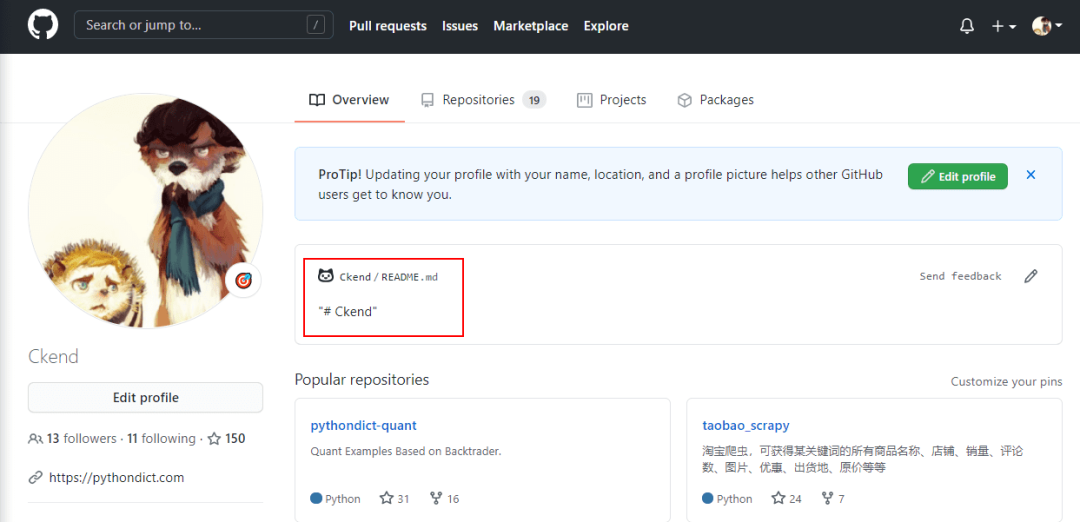
如图所示,用户名的这个仓库的 README.md 将成为你的个人资料首页的展示内容。
2.美化你的展示内容
首先,我们可以加一个GitHub的基本统计信息:
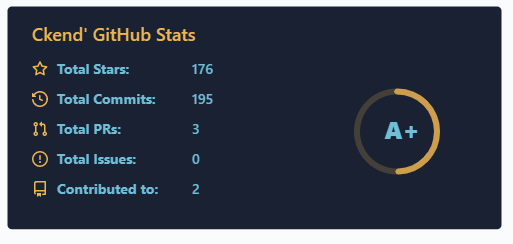
这是官方给出的统计组件API,使用起来很方便,你只需要往你的README.md里添加下述代码即可:
<img align="left" src="https://github-readme-stats.vercel.app/api?username=你的账号用户名&include_all_commits=true&count_private-true&custom_title=你的账号用户名'%20GitHub%20Stats&line_height=30&show_icons=true&hide_border=true&bg_color=192133&title_color=efb752&icon_color=efb752&text_color=70bed9">此外GitHub官方还提供了一个展示自己最常用语言的接口。
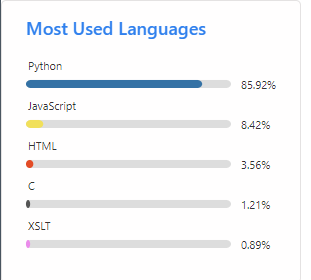
你可以在README.md里添加下述内容展示这个图表:
<img align="right" src="https://github-readme-stats.vercel.app/api/top-langs/?username=ckend">你还可以带一个 &layout=compact 参数展示横版图表:
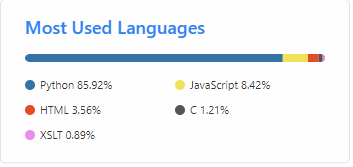
<img align="right" src="https://github-readme-stats.vercel.app/api/top-langs/?username=ckend&layout=compact">另外,我们还可以加上技术栈图标:
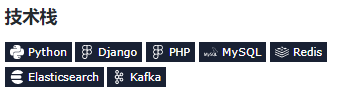
利用 https://img.shields.io 提供的图标,可以轻松实现这点,在README键入以下内容即可:
### 技术栈


当然,你要根据自己的情况做修改。
此外,shields网站还能自定义图标,可以用于展示自己的项目:
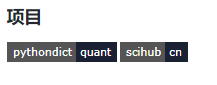
### 项目
[](https://github.com/Ckend/pythondict-quant)
[](https://github.com/Ckend/scihub-cn)你可以按照自己的情况选择以上任意一种组件来美化总览。
完成一个漂亮的总览,能让你更有动力去维护GitHub仓库,所以一定要动手试试。
下面给大家提供一份我的总览完整版:
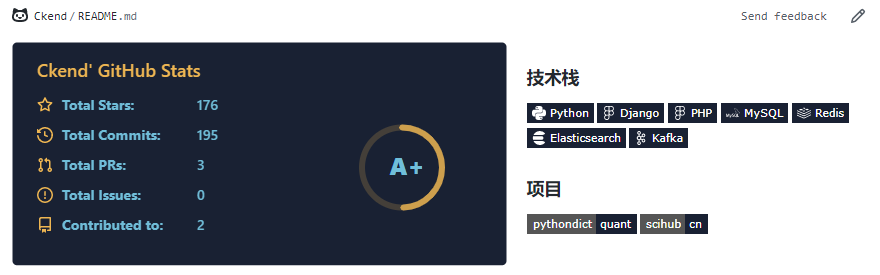
完整版代码如下:
<img align="left" src="https://github-readme-stats.vercel.app/api?username=Ckend&include_all_commits=true&count_private-true&custom_title=Ckend'%20GitHub%20Stats&line_height=30&show_icons=true&hide_border=true&bg_color=192133&title_color=efb752&icon_color=efb752&text_color=70bed9">
### 技术栈


### 项目
[](https://github.com/Ckend/pythondict-quant)
[](https://github.com/Ckend/scihub-cn)大家可以参考这个方案进行修改,绘制一个属于自己的漂亮总览。
文末福利
各位猿们,还在为记不住API发愁吗,哈哈哈,最近发现了国外大师整理了一份Python代码速查表和Pycharm快捷键sheet,火爆国外,这里分享给大家。
这个是一份Python代码速查表

下面的宝藏图片是2张(windows && Mac)高清的PyCharm快捷键一览图

怎样获取呢?可以添加我们的AI派团队的Beyonce小姐姐
一定要备注【高清图】哦
????????????????????

➕我们的Beyonce小姐姐微信要记得备注【高清图】哦
来都来了,喜欢的话就请分享、点赞、在看三连再走吧~~~





 扫一扫
扫一扫


 969
969

 被折叠的 条评论
为什么被折叠?
被折叠的 条评论
为什么被折叠?
 到【灌水乐园】发言





