






【Python 提高】GUI 界面 Tkinter 库布局管理器 Pack 方法开发指南
开发语言:Python 3
Python 专栏:提高篇
Python GUI 开发:Tkinter 库
Python Tkinter 指南:布局管理器(Pack 方法)
Python Tkinter 布局管理器
Python Tkinter 库提供了三种主要的布局管理器(layout managers/geometry managers)来排列和放置窗口中的组件(widgets),选择合适的布局方法对于创建美观且功能良好的 GUI 应用至关重要。
三种主要布局管理器
- pack 方法:简单自动排列,适合线性布局
- grid 方法:网格布局,适合规整的表格形式
- place 方法:绝对定位,精确控制位置
说明:widget 表示组件,parameter 表示参数。
在 Tkinter 库中,组件和布局管理器的调用形式不唯一,常用的三种组合形式如下:
第一种(清晰,组件创建随时调用,建议):
widget = tk.Widget(root,widget_parameter)
widget.layout_managers(options)
其中 widget 表示组件名称,Widget 表示 Tkinter 中的组件,widget_parameter 表示组件中的参数,layout_managers 表示布局方法(pack,grid,place),options 表示布局管理器选项及参数,下同。
第二种(清晰,组件创建即调用,后续可调用):
widget = tk.Widget(root,widget_parameter).layout_managers(options)
第三种(简洁,组件创建即调用,后续不可调用):
tk.Widget(root,widget_parameter).layout_managers(options)
Pack 方法
pack() 是最简单的布局管理器,按照添加顺序将组件排列在父容器中。
pack() 方法是控件间相对位置布局管理器,用户只需制定相对位置,具体精确位置有此方法自己确定,这使此方法简单易用,但控件布局灵活性极小。
优缺点
- 优点:简单易用,适合快速原型开发
- 缺点:控制精度有限,复杂布局难以实现
基本方法
widget.pack(options)
其中 widget 表示组件,options 表示可选参数(选项)。
例如:
button.pack()
常用选项
side 选项
——指定组件放置的方向
基本参数:
- TOP(默认):从上到下排列(放置于上边,独占容器可用空间的整行)
- BOTTOM:从下到上排列(放置于下边,独占容器可用空间的整行)
- LEFT:从左到右排列(放置于左边,独占容器可用空间的整列)
- RIGHT:从右到左排列(放置于右边,独占容器可用空间的整列)
使用方式:
side 选项中的基本参数属于 Tkinter 库下的参数类型,调用时需要注意格式为 side=tk.parameter,如果想写为 side=parameter,则需要 from tkinter import * 或 from tkinter import TOP, BOTTOM, LEFT, RIGHT。
参数也可以设置为字符串参数,"top", "bottom", "left", "right"。
import tkinter as tk
#...
widget.pack(side=tk.parameter)
#or
from tkinter import *
#...
widget.pack(side=parameter)
#or
import tkinter as tk
from tkinter import TOP, BOTTOM, LEFT, RIGHT
#...
widget.pack(side=parameter)
#or
widget.pack(side=string_parameter)
其中 widget 表示组件,parameter 表示参数(TOP, BOTTOM, LEFT, RIGHT),string_parameter 表示字符串参数("top", "bottom", "left", "right")。
例如:
import tkinter as tk
#...
button.pack(side=tk.LEFT)

#or

from tkinter import *
#...
button.pack(side=TOP)

#or

import tkinter as tk
from tkinter import TOP, BOTTOM, LEFT, RIGHT
#...
button.pack(side=BOTTOM)

#or

button.pack(side="right")
页面布局:
(1)TOP 和 BOTTOM:
TOP 样式:
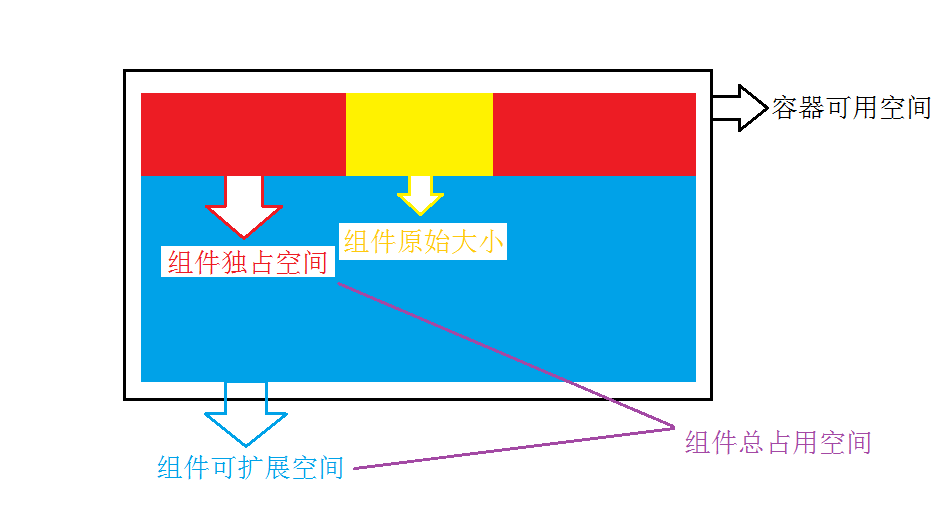
BOTTOM 样式上下翻转即得。
(2)LEFT 和 RIGHT:
LEFT 样式:
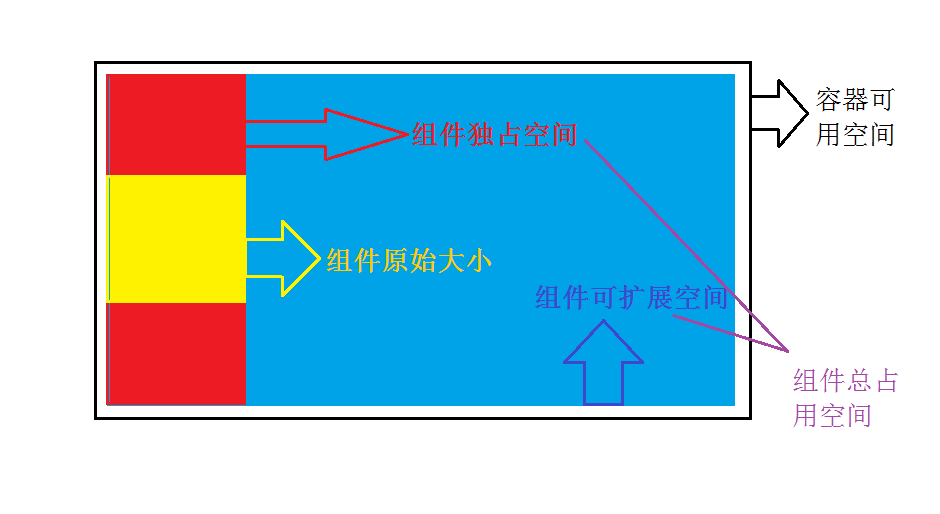
RIGHT 样式左右翻转即得。
说明:
(1)容器可用空间
Tkinter 库严格按代码的前后组织顺序依次排列组件(按照代码中 pack 方法的调用顺序),容器可用空间,即前面的组件还没有占据的空间,是当前组件的可用空间,pack 方法布局是在当前组件的可用空间内进行的。如上图所示的黑框区域(上述图示留出组件 padding 外边距)。
(2)组件原始大小
组件原始大小(可见空间),是定义组件时设置的组件大小(可见空间),即组件设置的 width、height 参数或由其他方式确定的组件原始大小(如 ttk 中定义的样式),也就是组件上可以看见的大小(如外边距等除外)。如上图所示的黄色区域。
(3)组件的独占空间
组件独占空间,即由组件独占使用而其他组件不可使用的空间,在 pack
方法中,组件并不是只占据它的原始大小的位置,而是会占据容器可用空间的整行或整列空间(即竖直或水平方向宽度不变,另一方向占满容器可用空间)。如上图所示红色区域(包括黄色区域)。
(4)组件可扩展空间
组件可扩展空间,即除组件独占空间外还可以占用的空间。当只有一个组件使用扩展空间时,可扩展空间即容器剩余空间,如上图所示的蓝色区域。
如果组件使用扩展空间,而没有填充(fill 选项),组件可见大小是不变的,但组件的摆放位置可能会与原来不同,同样也会影响后面组件的摆放。
事实上,扩展空间的作用就是使组件将容器空间占满。组件使用扩展空间,组件占用的容器空间大小即为组件独占空间加扩展空间,但并不需要细分组件独占空间和扩展空间,只需知道组件独占空间是组件占用容器空间的最小值即可(其他组件不可占用)。
组件扩展空间是动态的,会受到后面组件的影响,不完全属于此组件,也就是说组件使用扩展空间后,后面组件的放置会影响当前组件占用的容器空间,当后面组件放置时,会从上一个放置的组件的扩展空间边缘向内逐步占用,直至将此组件的扩展空间全部占用完为止。如果多个组件使用了扩展空间,那么组件间占用的容器空间会有一定的平分、等分原则,具体要看 side 选项的排列方式(TOP, BOTTOM 会在竖直方向上平分空间,LEFT, RIGHT 会在水平方向上平分空间)。
使用扩展空间方式即下文所述的 expand 选项。
(5)组件总占用空间
组件总占用空间,即组件独占空间加组件扩展空间。
fill 选项
——指定组件填充方式,改变组件可见大小
基本参数:
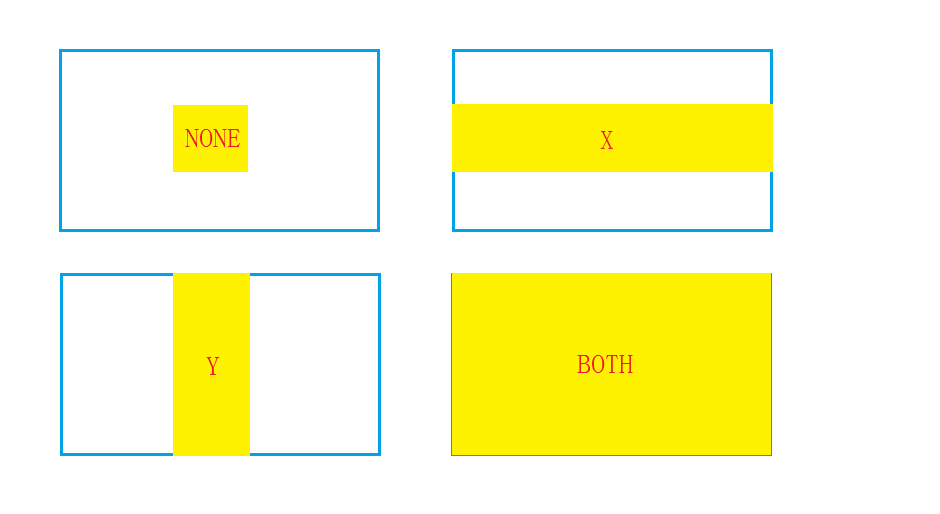
- NONE(默认):不填充,保持原有尺寸
- X:水平填充(竖直方向宽度不变,水平方向拉长至水平方向填充满组件总占用空间)
- Y:垂直填充(水平方向宽度不变,竖直方向拉长至竖直方向填充满组件总占用空间)
- BOTH:水平和垂直都填充(填充满组件总占用空间)
注意:fill 选项填充只是改变了组件可见大小,不会改变组件实际占用空间大小,所以是以某种方式填充满组件总占用空间,而不是容器可用空间。
使用方式:
fill 选项中的基本参数属于 Tkinter 库下的参数类型,调用时需要注意格式为 fill=tk.parameter,如果想写为 fill=parameter,则需要 from tkinter import * 或 from tkinter import X, Y, BOTH, NONE。
参数也可以设置为字符串参数,"x", "y", "both", "none"。
import tkinter as tk
#...
widget.pack(fill=tk.parameter)
#or
from tkinter import *
#...
widget.pack(fill=parameter)
#or
import tkinter as tk
from tkinter import X, Y, BOTH, NONE
#...
widget.pack(fill=parameter)
#or
widget.pack(fill=string_parameter)
其中 widget 表示组件,parameter 表示参数(X, Y, BOTH, NONE),string_parameter 表示字符串参数("x", "y", "both", "none")。
例如:
import tkinter as tk
#...
button.pack(fill=tk.X)

#or

from tkinter import *
#...
button.pack(fill=NONE)

#or

import tkinter as tk
from tkinter import X, Y, BOTH, NONE
#...
button.pack(fill=BOTH)

#or

button.pack(fill="y")
布局图示:
说明:蓝框表示组件总占用空间,黄色部分表示组件可见大小。
padding 系列选项
——指定组件内外边距
具体选项:
外部填充(像素)
- padx(设置水平方向的外边距)
- pady(设置竖直方向的外边距)
注意:padding 系列选项制造的外边距造成组件中的空隙间隔部分不属于任何一个组件的占用空间,则 fill 选项不会填充空隙间隔部分。
内部填充(像素)
- ipadx(设置水平方向的内边距)
- ipady(设置竖直方向的内边距)
选项参数:
十进制数字或二元元组,取值适配即可,长度单位:像素。
二元元组:由两个十进制数字组成,表示为 (first,second),在 padx, ipadx 中 first 表示组件左端外边距,second 表示组件右端外边距;在 pady, ipady 中 first 表示组件上端外边距,second 表示组件下端外边距。
十进制数字即表示左端和右端或上端和下端一样,都为此值。
使用方式:
widget.pack(option1=number1, ..., option4=number4)

#or

widget.pack(option1=(number1_1,number1_2), ..., option4=(number4_1,number4_2))
其中 widget 表示组件,option[index] 表示边距填充方式选项,number[index] 和 (number[index]_1,number[index]_2) 表示选项对应的数值,四个选项可以同时存在,最多存在四个选项。
例如:
button.pack(pady=2, ipadx=10)

#or

button.pack(pady=(2,8), ipadx=(10,6))
anchor 选项
——指定组件在分配空间中的位置(锚定位)
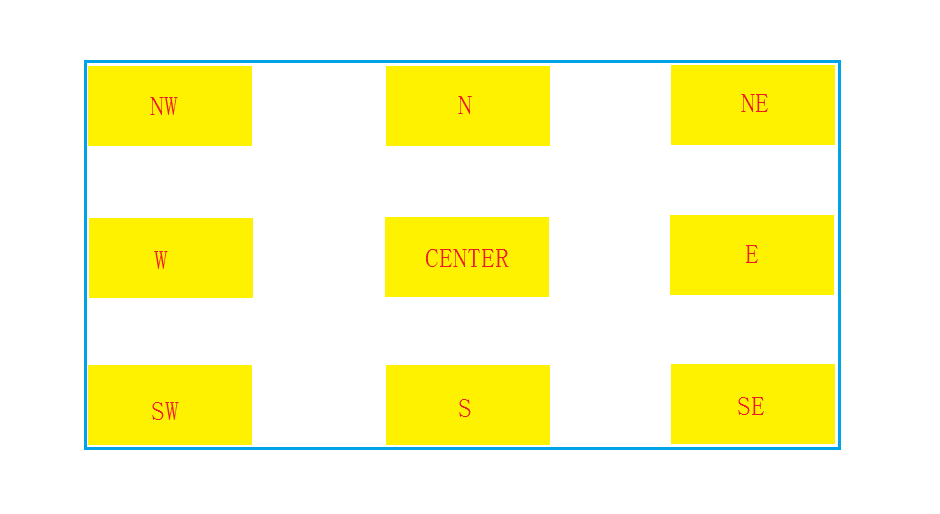
也就是说锚定位是指定组件在组件总占用空间中的位置,那么如果想将锚定位的精准定位功能发挥出来,很多情况下依赖于组件的扩展空间。扩展空间使用方式如下文(expand 选项)所述。
基本参数:
- tk.N - 北(上中)
- tk.S - 南(下中)
- tk.E - 东(右中)
- tk.W - 西(左中)
- tk.NE - 东北(右上)
- tk.NW - 西北(左上)
- tk.SE - 东南(右下)
- tk.SW - 西南(左下)
- tk.CENTER - 中心(默认)
使用方式:
anchor 选项中的基本参数属于 Tkinter 库下的参数类型,调用时需要注意格式为 anchor=tk.parameter,如果想写为 anchor=parameter,则需要 from tkinter import * 或 from tkinter import N, S, E, W, NE, NW, SE, SW, CENTER。
参数也可以设置为字符串参数,"n", "s", "e", "w", "ne", "nw", "se", "sw", "center"。
import tkinter as tk
#...
widget.pack(anchor=tk.parameter)
#or
from tkinter import *
#...
widget.pack(anchor=parameter)
#or
import tkinter as tk
from tkinter import N, S, E, W, NE, NW, SE, SW, CENTER
#...
widget.pack(anchor=parameter)
#or
widget.pack(anchor=string_parameter)
其中 widget 表示组件,parameter 表示参数(N, S, E, W, NE, NW, SE, SW, CENTER),string_parameter 表示字符串参数("n", "s", "e", "w", "ne", "nw", "se", "sw", "center")。
例如:
import tkinter as tk
#...
button.pack(anchor=tk.N)

#or

from tkinter import *
#...
button.pack(anchor=CENTER)

#or

import tkinter as tk
from tkinter import N, S, E, W, NE, NW, SE, SW, CENTER
#...
button.pack(anchor=SW)

#or

button.pack(anchor="e")
布局图示:
说明:蓝框表示组件总占用空间,黄色部分表示组件可见大小。
expand 选项
——指定是否扩展组件以填充额外空间(布尔值)
关于 expand 选项(扩展空间)的一些介绍可见上文【side 选项–页面布局】
基本参数:
是、否(默认,不填充)
表示形式:
- 布尔值:
True、False - 数字值:
1、0 - 参数值:
tk.YES、tk.NO
使用方法:
widget.pack(expand=True)#False

#or

widget.pack(expand=1)#0

#or

widget.pack(expand=tk.YES)#tk.NO

#or

from tkinter import *#from tkinter import YES, NO
#...
widget.pack(expand=YES)#NO
例如:
button.pack(expand=True)#False

#or

button.pack(expand=1)#0

#or

button.pack(expand=tk.YES)#tk.NO

#or

from tkinter import *#from tkinter import YES, NO
#...
button.pack(expand=YES)#NO
分析方式
单组件分析
- 明确当前容器的可用空间范围与组件预期放置位置
- 分析使用排列方式(side 选项),影响组件整体布局效果
- 分析使用扩展空间(expand 选项),影响锚定位和填充效果
- 使用锚定位(anchor 选项),确定组件的具体位置
- 使用填充(fill 选项),优化组件可见范围大小
多组件分析
组件间优先级顺序:
- 所有组件按代码的前后组织顺序依次排列(pack 方法的调用顺序);
- 后面的组件不可占用任何前面组件的独占空间;
- 后面的组件可用占用前面组件的扩展空间,随着后面组件的占用,前面组件扩展空间逐渐减小直至消失,前面组件的位置会随扩展空间的改变而变化;
- 容器空间优先级:先放置的组件独占空间 > 后放置的组件独占空间 > 先放置的组件扩展空间 = 后放置的组件扩展空间
- 若容器界面空间缩小,组件(所有组件,同时)扩展空间先压缩变小至消失,然后后放置的组件独占空间压缩变小至消失,最后先放置的组件独占空间压缩变小至消失。
实例展示:
(1)排列综合展示
import tkinter as tk

root = tk.Tk()
root.geometry("300x200")

# 从上到下排列
tk.Label(root, text="Top 1", bg="red").pack()
tk.Label(root, text="Top 2", bg="green").pack()
tk.Label(root, text="Top 3", bg="blue").pack()

# 使用不同方向
tk.Label(root, text="Left", bg="yellow").pack(side=tk.LEFT)
tk.Label(root, text="Right", bg="cyan").pack(side=tk.RIGHT)
tk.Label(root, text="Bottom", bg="magenta").pack(side=tk.BOTTOM)

root.mainloop()
(2)填充综合展示
import tkinter as tk

root = tk.Tk()
root.geometry("400x300")

# 不填充(默认)
tk.Label(root, text="No fill", bg="red").pack(pady=5)

# 水平填充
tk.Label(root, text="X fill", bg="green").pack(fill=tk.X, pady=5)

# 垂直填充
frame = tk.Frame(root, height=100)
frame.pack(pady=5)
tk.Label(frame, text="Y fill", bg="blue").pack(fill=tk.Y)

# 双向填充
tk.Label(root, text="Both fill", bg="yellow").pack(fill=tk.BOTH, expand=True, pady=5)

root.mainloop()
(3)扩展综合展示
import tkinter as tk

root = tk.Tk()
root.geometry("400x300")

# 不扩展(默认)
tk.Label(root, text="No expand", bg="red").pack(pady=5)

# 扩展但不填充
tk.Label(root, text="Expand but no fill", bg="green").pack(expand=True, pady=5)

# 扩展并填充
tk.Label(root, text="Expand and fill", bg="blue").pack(expand=True, fill=tk.BOTH, pady=5)

root.mainloop()
(4)锚点定位综合展示
import tkinter as tk

root = tk.Tk()
root.geometry("500x400")

# 创建带有边框的框架
frame = tk.Frame(root, bg="lightgray", relief=tk.SUNKEN, bd=2)
frame.pack(expand=True, fill=tk.BOTH, padx=10, pady=10)

# 测试不同的锚点值
anchors = [tk.N, tk.S, tk.E, tk.W, tk.NE, tk.NW, tk.SE, tk.SW, tk.CENTER]
anchor_names = ["N", "S", "E", "W", "NE", "NW", "SE", "SW", "CENTER"]

for i, (anchor, name) in enumerate(zip(anchors, anchor_names)):
    label = tk.Label(frame, text=name, bg="yellow")
    label.pack(anchor=anchor, pady=5)

root.mainloop()
(5)外部间距综合展示
import tkinter as tk

root = tk.Tk()
root.geometry("300x200")

# 无间距(默认)
tk.Label(root, text="No padding", bg="red").pack(fill="both")

# 水平间距
tk.Label(root, text="X padding", bg="green").pack(padx=50, fill="both")

# 垂直间距
tk.Label(root, text="Y padding", bg="blue").pack(pady=20, fill="both")

# 双向间距
tk.Label(root, text="Both padding", bg="yellow").pack(padx=30, pady=30, fill="both")

root.mainloop()
(6)内部间距综合展示
import tkinter as tk

root = tk.Tk()
root.geometry("300x200")

# 无内部间距(默认)
tk.Label(root, text="No internal padding", bg="red").pack(pady=5)

# 水平内部间距
tk.Label(root, text="X internal padding", bg="green").pack(ipadx=20, pady=5)

# 垂直内部间距
tk.Label(root, text="Y internal padding", bg="blue").pack(ipady=20, pady=5)

# 双向内部间距
tk.Label(root, text="Both internal padding", bg="yellow").pack(ipadx=20, ipady=20, pady=5)

root.mainloop()
高级进阶
1、使用框架(Frame)组合布局
框架组件(Frame),在屏幕上创建一块矩形区域,常用来作为容器来布局其他控件(如标签、按钮、输入框等)。框架组件一般在布局很复杂的情况下使用,比如有较多组件或使用不同的布局管理器时会选择使用框架组件,框架控件相当于一种容器,里面可以放置各种组件。
(1)简单使用
import tkinter as tk

root = tk.Tk()

# 创建顶部框架
top_frame = tk.Frame(root)
top_frame.pack(fill=tk.X)

# 创建底部框架
bottom_frame = tk.Frame(root)
bottom_frame.pack(fill=tk.X)

# 在框架内添加组件
tk.Label(top_frame, text="Top_left", bg="red").pack(side=tk.LEFT)
tk.Label(top_frame, text="Top_right", bg="green").pack(side=tk.RIGHT)
tk.Label(bottom_frame, text="Bottom_center", bg="blue").pack()

root.mainloop()
(2)应用举例
import tkinter as tk

root = tk.Tk()
root.title("导航菜单界面")

# 主框架
main_frame = tk.Frame(root)
main_frame.pack(expand=True, fill=tk.BOTH, padx=10, pady=10)

# 左侧面板
left_panel = tk.Frame(main_frame, bg="lightgray")
left_panel.pack(side=tk.LEFT, fill=tk.Y, padx=(0,10))

# 右侧面板
right_panel = tk.Frame(main_frame)
right_panel.pack(side=tk.RIGHT, expand=True, fill=tk.BOTH)

# 在左侧面板添加组件
tk.Label(left_panel, text="导航菜单", bg="lightgray").pack(pady=5)
tk.Button(left_panel, text="选项1").pack(fill=tk.X)
tk.Button(left_panel, text="选项2").pack(fill=tk.X)

# 在右侧面板添加组件
tk.Label(right_panel, text="内容区域").pack(anchor=tk.NW)
tk.Text(right_panel).pack(expand=True, fill=tk.BOTH)

root.mainloop()
import tkinter as tk

root = tk.Tk()
root.title("应用程序界面")
root.geometry("500x400")

# 顶部工具栏
toolbar = tk.Frame(root, bg="lightgray", height=40)
toolbar.pack(side=tk.TOP, fill=tk.X)

# 左侧边栏
sidebar = tk.Frame(root, bg="gray", width=100)
sidebar.pack(side=tk.LEFT, fill=tk.Y)

# 主内容区域
content = tk.Frame(root, bg="white")
content.pack(side=tk.RIGHT, expand=True, fill=tk.BOTH)

# 底部状态栏
statusbar = tk.Frame(root, bg="lightgray", height=20)
statusbar.pack(side=tk.BOTTOM, fill=tk.X)

# 填充工具栏
tk.Button(toolbar, text="文件").pack(side=tk.LEFT, padx=5, pady=5)
tk.Button(toolbar, text="编辑").pack(side=tk.LEFT, padx=5, pady=5)
tk.Button(toolbar, text="视图").pack(side=tk.LEFT, padx=5, pady=5)

# 填充侧边栏
tk.Label(sidebar, text="导航", bg="gray", fg="white").pack(pady=10)
tk.Button(sidebar, text="选项1").pack(fill=tk.X, padx=5, pady=2)
tk.Button(sidebar, text="选项2").pack(fill=tk.X, padx=5, pady=2)
tk.Button(sidebar, text="选项3").pack(fill=tk.X, padx=5, pady=2)

# 填充内容区域
tk.Label(content, text="欢迎使用应用程序", font=("Arial", 16)).pack(pady=50)
tk.Button(content, text="开始", width=15, height=2).pack()

# 填充状态栏
tk.Label(statusbar, text="就绪", bg="lightgray").pack(side=tk.LEFT, padx=5)

root.mainloop()
2、动态添加和移除组件
import tkinter as tk

def add_label():
    if len(frame.winfo_children()) >= 9:
        return
    label = tk.Label(frame, text=f"标签 {len(frame.winfo_children()) + 1}", bg="lightblue")
    label.pack(pady=2, fill=tk.X)

def remove_label():
    if frame.winfo_children():
        frame.winfo_children()[-1].destroy()

root = tk.Tk()
root.title("动态组件示例")
root.geometry("300x300")

# 按钮框架
button_frame = tk.Frame(root)
button_frame.pack(fill=tk.X, pady=5)

tk.Button(button_frame, text="添加标签", command=add_label).pack(side=tk.LEFT, padx=5)
tk.Button(button_frame, text="移除标签", command=remove_label).pack(side=tk.LEFT, padx=5)

# 标签容器框架
frame = tk.Frame(root)
frame.pack(fill=tk.BOTH, expand=True, padx=10, pady=10)

# 初始添加几个标签
for i in range(3):
    add_label()

root.mainloop()
常见问题
1、组件不显示
- 忘记调用
pack(), grid(), place() - 父容器尺寸太小
- 被其他组件覆盖
2、界面布局混乱
如果在同一容器中混合使用不同的布局管理器,可能会导致界面布局混乱或报错,可以使用框架组件(Frame)来避免出现布局混乱。
例如以下代码会出现错误:
# 错误:在同一容器中混合 pack 和 grid
label1 = tk.Label(root, text="标签1")
label1.pack()

label2 = tk.Label(root, text="标签2")
label2.grid(row=0, column=0)
使用框架组件(Frame):
# 正确:在不同容器中使用不同布局管理器
frame1 = tk.Frame(root)
frame1.pack()  # 使用pack

frame2 = tk.Frame(root)
frame2.pack()  # 使用pack

label1 = tk.Label(frame1, text="标签1")
label1.pack()

label2 = tk.Label(frame2, text="标签2")
label2.grid(row=0, column=0)  # 在另一个容器中使用grid
3、窗口调整大小时布局不正常
解决方法:使用 expand 和 fill 选项:
tk.Label(root, text="随窗口调整").pack(expand=True, fill=tk.BOTH)
# 组件会随窗口调整大小而扩展
frame = tk.Frame(root)
frame.pack(expand=True, fill=tk.BOTH)

label = tk.Label(frame, text="随窗口调整")
label.pack(expand=True, fill=tk.BOTH)
总结
优点:
- 简单易学,代码简洁
- 自动处理组件排列顺序
- 适合快速开发和简单界面
缺点:
- 复杂布局实现困难
- 控制精度有限
- 不适合需要精确像素级控制的界面
参考文献
[1] tkinter–pack()
[2] tkinter–pack()
[3] tkinter–Frame
博客日志
- 开始于 2025.8.26
- 完成于 2025.8.27





 扫一扫
扫一扫


 3万+
3万+

 被折叠的 条评论
为什么被折叠?
被折叠的 条评论
为什么被折叠?
 到【灌水乐园】发言





