



1、案例:表单全选反选
<!DOCTYPE html>
<html lang="en">

<head>
  <meta charset="UTF-8">
  <meta name="viewport" content="width=device-width, initial-scale=1.0">
  <title>Tab栏切换</title>
  <style>
    * {
      margin: 0;
      padding: 0;
    }

    table {
      border-collapse: collapse;
      border-spacing: 0;
      border: 1px solid #c0c0c0;
      width: 500px;
      margin: 100px auto;
      text-align: center;
    }

    th {
      background-color: #09c;
      font: bold 16px "微软雅黑";
      color: #fff;
      height: 24px;
    }

    td {
      border: 1px solid #d0d0d0;
      color: #404060;
      padding: 10px;
    }

    .allCheck {
      width: 80px;
    }
  </style>
</head>

<body>
  <table>
    <tr>
      <th class="allCheck">
        <input type="checkbox" name="" id="checkAll"> <span class="all">全选</span>
      </th>
      <th>商品</th>
      <th>商家</th>
      <th>价格</th>
    </tr>
    <tr>
      <td>
        <input type="checkbox" name="check" class="ck">
      </td>
      <td>小米手机</td>
      <td>小米</td>
      <td>¥1999</td>
    </tr>
    <tr>
      <td>
        <input type="checkbox" name="check" class="ck">
      </td>
      <td>小米净水器</td>
      <td>小米</td>
      <td>¥4999</td>
    </tr>
    <tr>
      <td>
        <input type="checkbox" name="check" class="ck">
      </td>
      <td>小米电视</td>
      <td>小米</td>
      <td>¥5999</td>
    </tr>
  </table>
  <script>
    //获取大复选框
    const checkAll = document.querySelector('#checkAll')
    //获取小复选框
    const cks = document.querySelectorAll('.ck')
    //点击大复选框 注册事件
    checkAll.addEventListener('click', function () {
      //遍历所有的小复选框 让其checked = 大复选框的 checked
      for (let i = 0; i < cks.length; i++) {
        cks[i].checked = this.checked

      }
    })

    // 小复选框控制大复选框
    // 给所有的小复选框添加点击事件
    for (let i = 0; i < cks.length; i++) {
      cks[i].addEventListener('click', function () {
        //判断选中的小复选框个数 是否等于 总的小复选框个数
        // document.querySelectorAll('.ck:checked').length === cks.length  true or false
        checkAll.checked = document.querySelectorAll('.ck:checked').length === cks.length
      })
    }
  </script>
</body>

</html>
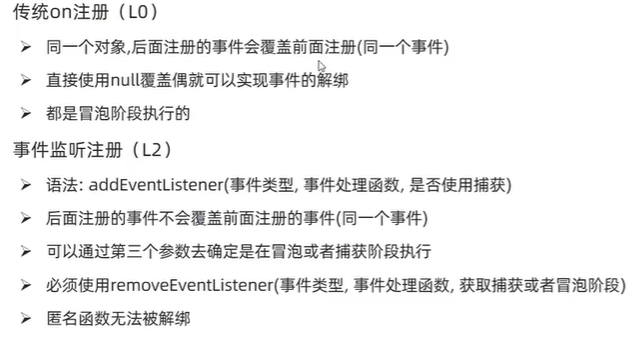
2、事件流
1)事件流与两个阶段说明
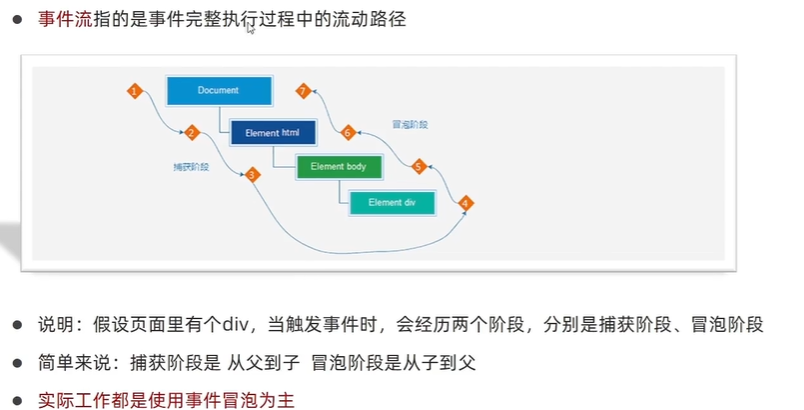
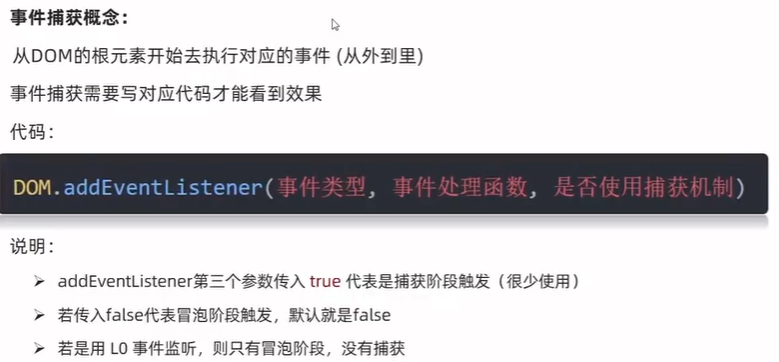
2)事件捕获
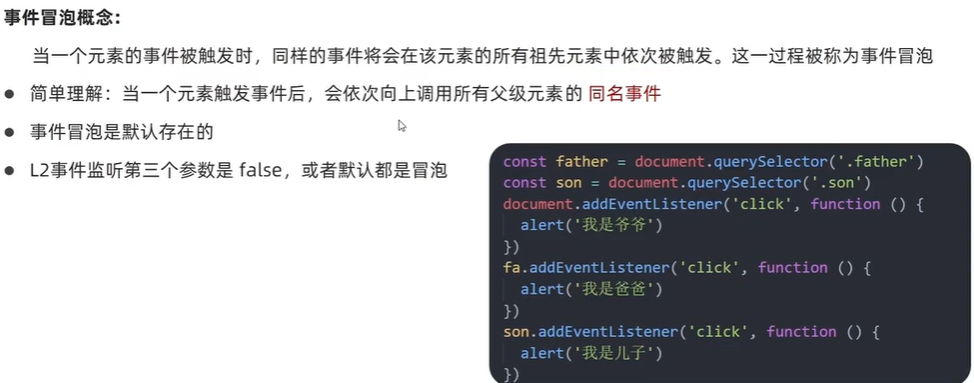
3)事件冒泡
同名事件:同一个事件(eg:都为click)
4)阻止冒泡
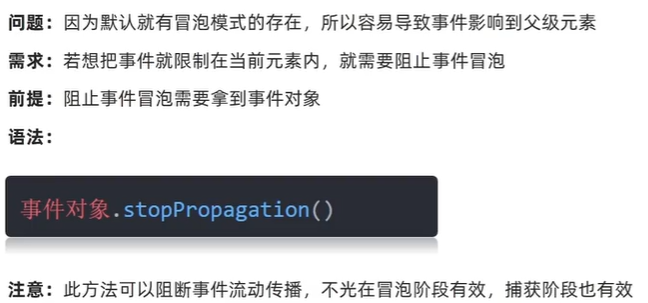
如果不阻止事件冒泡,则当点击我是儿子的盒子时,会依次弹出我是儿子、我是爸爸、我是爷爷,同理,father盒子也是;阻止事件冒泡后,点那个盒子就弹出对应的对话框。
<!DOCTYPE html>
<html lang="en">

<head>
  <meta charset="UTF-8">
  <meta name="viewport" content="width=device-width, initial-scale=1.0">
  <title>Document</title>
  <style>
    .father {
      width: 500px;
      height: 500px;
      background-color: pink;
    }

    .son {
      width: 200px;
      height: 200px;
      background-color: purple;
    }
  </style>
</head>

<body>
  <div class="father">
    <div class="son"></div>
  </div>
  <script>
    const fa = document.querySelector('.father')
    const son = document.querySelector('.son')
    document.addEventListener('click', function () {
      alert('我是爷爷')
    })
    fa.addEventListener('click', function (e) {
      alert('我是爸爸')
      e.stopPropagation()
    })
    son.addEventListener('click', function (e) {
      console.log(son);

      alert('我是儿子')
      // 阻止流动传播  事件对象.stopPropagation()
      e.stopPropagation()
    })

  </script>
</body>

</html>
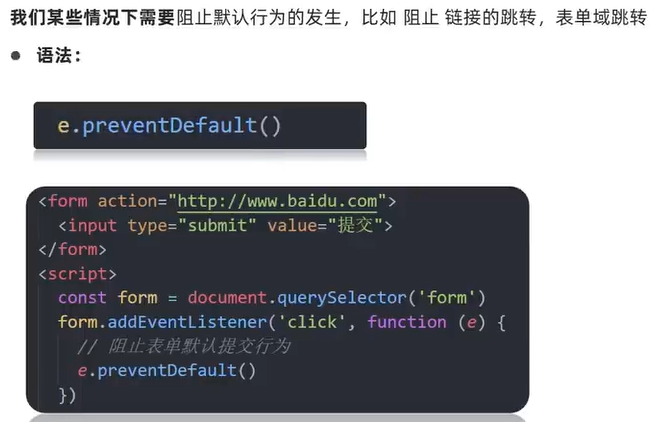
阻止默认行为
5)解绑事件
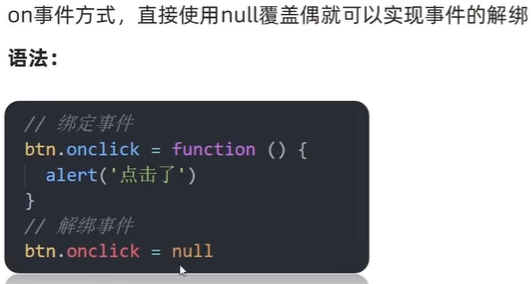
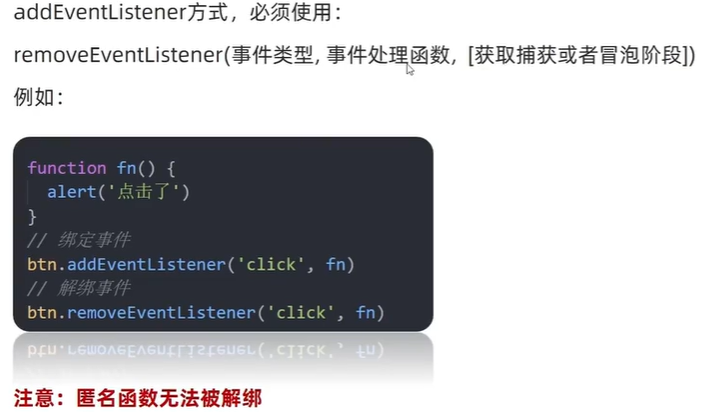
<!DOCTYPE html>
<html lang="en">

<head>
  <meta charset="UTF-8">
  <meta name="viewport" content="width=device-width, initial-scale=1.0">
  <title>Document</title>
</head>

<body>
  <button>点击</button>
  <script>
    const btn = document.querySelector('button')
    // btn.onclick = function () {
    //   alert('点击了')
    //   // L0 事件移除解绑
    //   btn.onclick = null
    // }
    function fn() {
      alert('点击了')
    }
    btn.addEventListener('click', fn)
    // L2 事件移除解绑
    btn.removeEventListener('click', fn)
  </script>
</body>

</html>
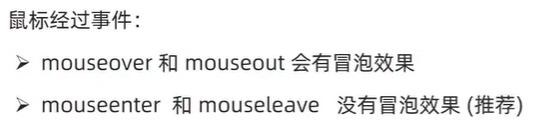
6)鼠标经过事件的区别
<!DOCTYPE html>
<html lang="en">

<head>
  <meta charset="UTF-8">
  <meta name="viewport" content="width=device-width, initial-scale=1.0">
  <title>Document</title>
  <style>
    .dad {
      width: 400px;
      height: 400px;
      background-color: pink;
    }

    .baby {
      width: 200px;
      height: 200px;
      background-color: purple;
    }
  </style>
</head>

<body>
  <div class="dad">
    <div class="baby"></div>
  </div>
  <script>
    const dad = document.querySelector('.dad')
    const baby = document.querySelector('.baby')
    // dad.addEventListener('mouseover', function () {
    //   console.log('鼠标经过')
    // })
    // dad.addEventListener('mouseout', function () {
    //   console.log('鼠标离开')
    // })
    dad.addEventListener('mouseenter', function () {
      console.log('鼠标经过')
    })
    dad.addEventListener('mouseleave', function () {
      console.log('鼠标离开')
    })
  </script>
</body>

</html>
7)两种事件的区别
3、事件委托
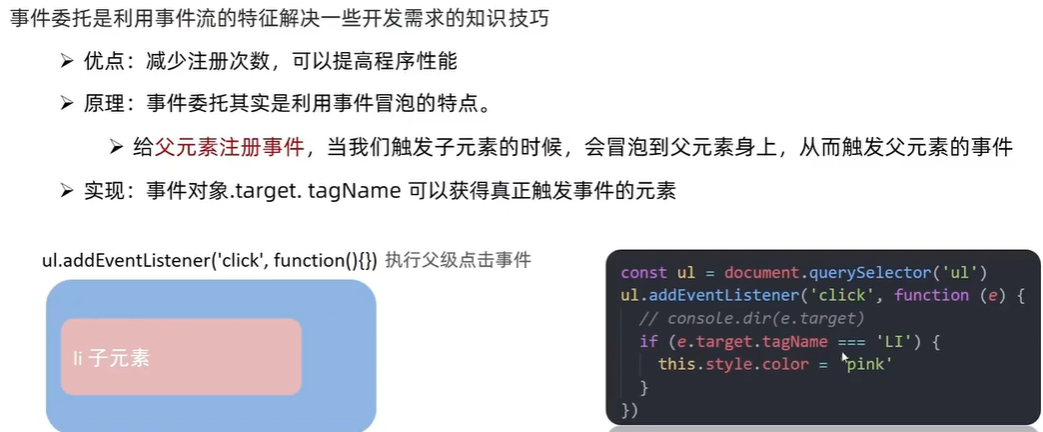
<body>
  <ul>
    <li>第1个孩子</li>
    <li>第2个孩子</li>
    <li>第3个孩子</li>
    <li>第4个孩子</li>
    <li>第5个孩子</li>
    <p>我不要变色</p>
  </ul>
  <script>
    //委托给父级 事件写到父级身上
    const ul = document.querySelector('ul')
    ul.addEventListener('click', function (e) {
      //  e.target 是我们点击的对象
      // e.target.style.color = 'red'
      // tagName 标签名
      if (e.target.tagName === 'LI') {
        e.target.style.color = 'red'
      }
    })
  </script>
</body>
事件委托版的Tab栏切换(此处需要知道自定义属性:https://blog.youkuaiyun.com/2303_80098652/article/details/152087087?spm=1011.2415.3001.5331)
<!DOCTYPE html>
<html lang="en">

<head>
  <meta charset="UTF-8">
  <meta name="viewport" content="width=device-width, initial-scale=1.0">
  <title>Tab栏切换</title>
  <style>
    * {
      margin: 0;
      padding: 0;
    }

    .tab {
      width: 590px;
      height: 340px;
      margin: 20px;
      border: 1px solid #e4e4e4;
    }

    .tab-nav {
      width: 100%;
      height: 60px;
      line-height: 60px;
      display: flex;
      justify-content: space-between;
    }

    .tab-nav h3 {
      font-size: 24px;
      font-weight: normal;
      margin-left: 20px;
    }

    .tab-nav ul {
      list-style: none;
      display: flex;
      justify-content: flex-end;
    }

    .tab-nav ul li {
      margin: 0 20px;
      font-size: 14px;
    }

    .tab-nav ul li a {
      text-decoration: none;
      border-bottom: 2px solid transparent;
      color: #333;
    }

    .tab-nav ul li a.active {
      border-color: #e1251b;
      color: #e1251b;
    }

    .tab-content {
      padding: 0 16px;
    }

    .tab-content .item {
      display: none;
    }

    .tab-content .item.active {
      display: block;
    }
  </style>
</head>

<body>
  <div class="tab">
    <div class="tab-nav">
      <h3>每日特价</h3>
      <ul>
        <li><a class="active" href="javascript:;" data-id="0">精选</a></li>
        <li><a href="javascript:;" data-id="1">美食</a></li>
        <li><a href="javascript:;" data-id="2">百货</a></li>
        <li><a href="javascript:;" data-id="3">个护</a></li>
        <li><a href="javascript:;" data-id="4">预告</a></li>
      </ul>
    </div>
    <div class="tab-content">
      <div class="item active"><img src="/images/tab00.png" alt="" /></div>
      <div class="item"><img src="/images/tab01.png" alt="" /></div>
      <div class="item"><img src="/images/tab02.png" alt="" /></div>
      <div class="item"><img src="/images/tab03.png" alt="" /></div>
      <div class="item"><img src="/images/tab04.png" alt="" /></div>
    </div>
  </div>
  <script>
    const ul = document.querySelector('ul')
    const items = document.querySelector('item')
    ul.addEventListener('click', function (e) {
      //  e.target 是我们点击的对象
      // e.target.style.color = 'red'
      // e.target.tagName 点击的对象的标签名
      if (e.target.tagName === 'A') {
        document.querySelector('.tab-nav .active').classList.remove('active')
        e.target.classList.add('active')

        // e.target.dataset.id 获得点击对象的索引号
        const i = +e.target.dataset.id  //e.target.dataset.id = "0" "1" ...是字符串,需要转为数字
        document.querySelector('.tab-content .active').classList.remove('active')
        // 第一种方式
        // document.querySelector(`.tab-content .item:nth-child(${i + 1})`).classList.add('active')
        // 第二种方式
        items[i].classList.add('active')
      }
    })

  </script>
</body>

</html>
4、其他事件
1)页面加载事件
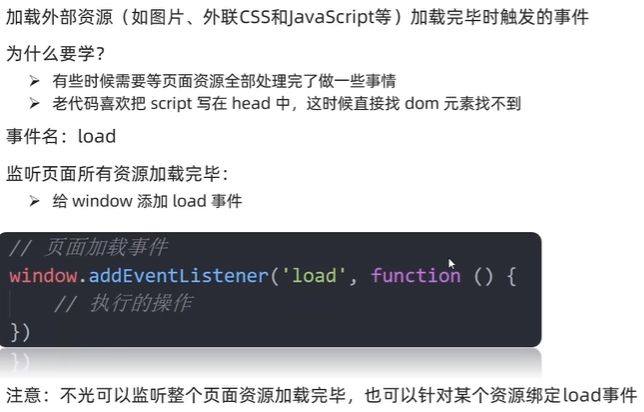
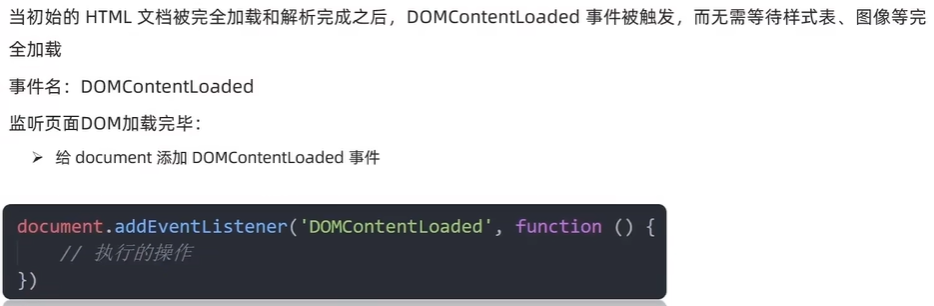
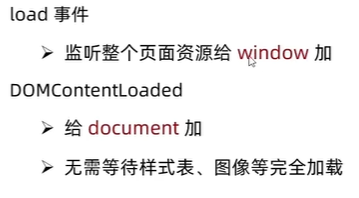
<!DOCTYPE html>
<html lang="en">

<head>
  <meta charset="UTF-8">
  <meta name="viewport" content="width=device-width, initial-scale=1.0">
  <title>Tab栏切换</title>
  <script>
    // 等待页面所有资源加载完毕,就回去执行回调函数
    // window.addEventListener('load', function () {
    //   const btn = document.querySelector('button')
    //   btn.addEventListener('click', function () {
    //     alert('!!!')
    //   })
    // })
    // img.addEventListener('load',function(){
    //   //等待图片加载完毕,再去执行里面的代码
    // })
    document.addEventListener('DOMContentLoaded', function () {
      const btn = document.querySelector('button')
      btn.addEventListener('click', function () {
        alert('!!!')
      })
    })
  </script>
</head>

<body>
  <button></button>
</body>

</html>
2)页面滚动事件
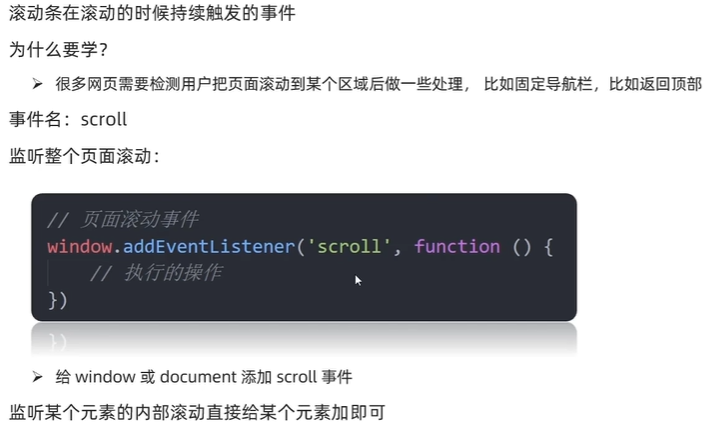
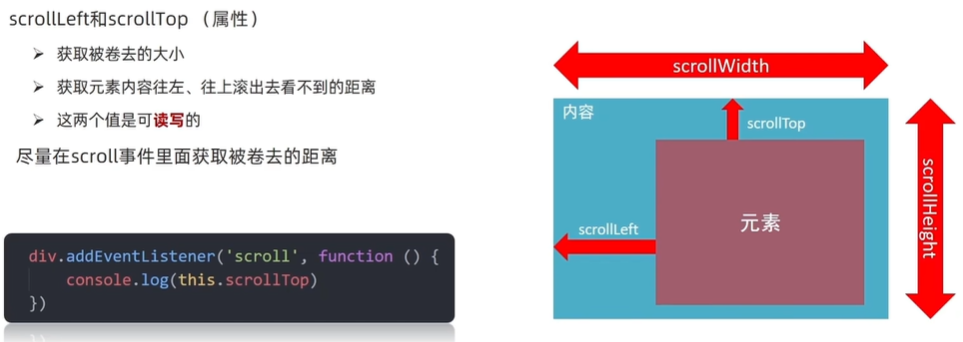
获取位置
3)页面尺寸事件
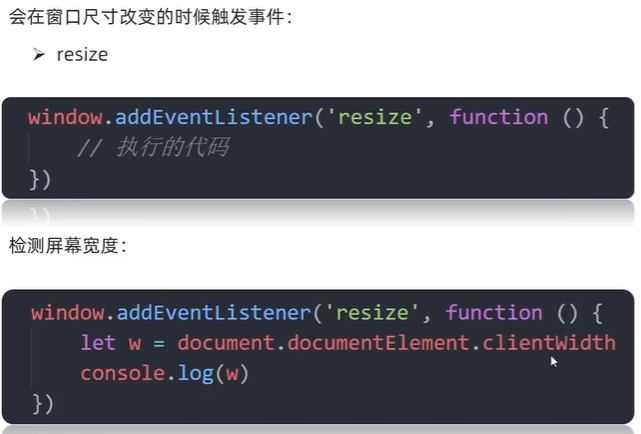
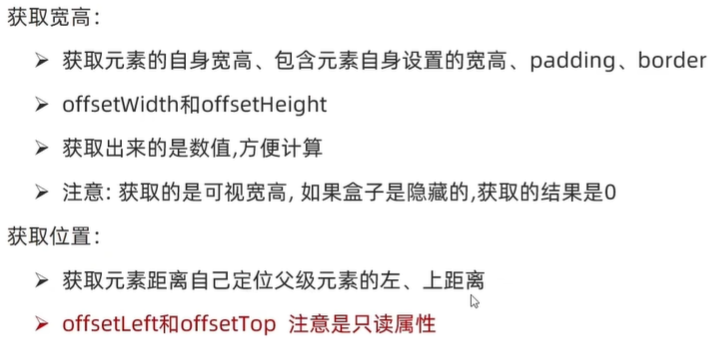
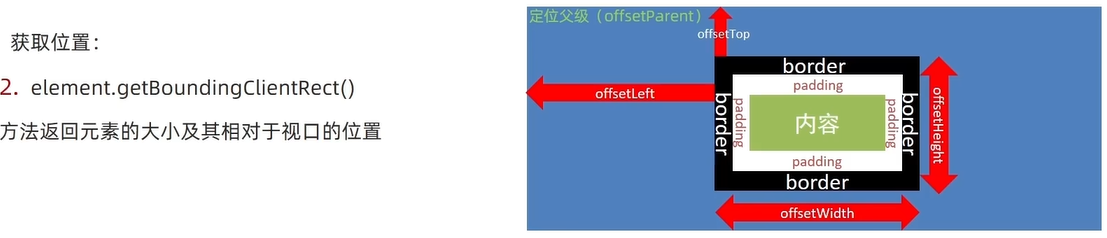
<!DOCTYPE html>
<html lang="en">

<head>
  <meta charset="UTF-8">
  <meta name="viewport" content="width=device-width, initial-scale=1.0">
  <title>Document</title>
  <style>
    div {
      margin: 20px;
      width: 200px;
      height: 200px;
      background-color: skyblue;
      padding: 10px;
      border: 10px solid rgb(52, 60, 196);
    }
  </style>
</head>

<body>
  <div>123</div>
  <script>
    const div = document.querySelector('div')
    console.log(div.clientWidth)
    window.addEventListener('resize', function () {

    })

  </script>
</body>

</html>
4)案例:仿京东导航栏案例
<!DOCTYPE html>
<html lang="en">

<head>
  <meta charset="UTF-8">
  <meta name="viewport" content="width=device-width, initial-scale=1.0">
  <title>Document</title>
  <style>
    * {
      margin: 0;
      padding: 0;
      box-sizing: border-box;
    }

    .content {
      overflow: hidden;
      width: 1000px;
      height: 3000px;
      background-color: pink;
      margin: 0 auto;
    }

    .backtop {
      display: none;
      width: 50px;
      left: 50%;
      margin: 0 0 0 505px;
      position: fixed;
      bottom: 60px;
      z-index: 100;
    }

    .backtop a {
      height: 50px;
      width: 50px;
      background: url(./images/bg2.png) 0 -600px no-repeat;
      opacity: 0.35;
      overflow: hidden;
      display: block;
      text-indent: -999em;
      cursor: pointer;
    }

    .header {
      position: fixed;
      top: -80px;
      left: 0;
      width: 100%;
      height: 80px;
      background-color: purple;
      text-align: center;
      color: #fff;
      line-height: 80px;
      font-size: 30px;
      transition: all .3s;
    }

    .sk {
      width: 300px;
      height: 300px;
      background-color: skyblue;
      margin-top: 500px;
    }
  </style>
</head>

<body>
  <div class="header">我是顶部导航栏</div>
  <div class="content">
    <div class="sk">秒杀模块</div>
  </div>
  <div class="backtop">
    <img src="/images/close2.png" alt="">
    <a href="javascript:;"></a>
  </div>
  <script>
    const sk = document.querySelector('.sk')
    const header = document.querySelector('.header')
    // 页面滚动
    window.addEventListener('scroll', function () {
      // 当页面滚动到 秒杀模块 时,就改变头部的 top值
      const n = document.documentElement.scrollTop
      if (n >= sk.offsetTop) {
        header.style.top = 0
      } else {
        header.style.top = '-80px'
      }
    })
  </script>
</body>

</html>
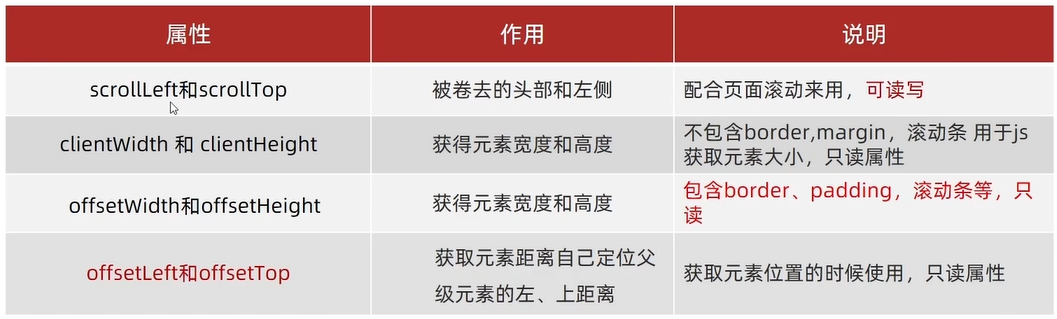
5)获取位置总结
5、案例:电梯导航
补充CSS页面滑动
// 让页面滑动
html {
    scroll-behavior: smooth;    //让滚动条添加滑动效果
}
<script>
// 第一大模块,页面滑动可以显示和隐藏
(function () {
// 获取元素
const entry = document.querySelector('.xtx_entry')
const elevator = document.querySelector('.xtx-elevator')
// 1. 当页面滚动大于 300像素,就显示 电梯导航
// 2. 给页面添加滚动事件
window.addEventListener('scroll', function () {
// 被卷去的头部大于 300
const n = document.documentElement.scrollTop
// if (n >= 300) {
// elevator.style.opacity = 1
// } else {
// elevator.style.opacity = 0
// }
// 简写
elevator.style.opacity = n >= entry.offsetTop ? 1 : 0
})
// 点击返回页面顶部
const backTop = document.querySelector('#backTop')
backTop.addEventListener('click', function () {
// 可读写
// document.documentElement.scrollTop = 0
// window.scrollTo(x, y)
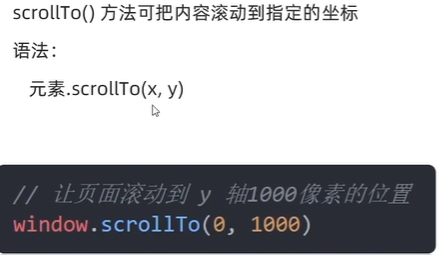
window.scrollTo(0, 0)
})
})();
// 第二第三都放到另外一个执行函数里面
(function () {
// 2. 点击页面可以滑动
const list = document.querySelector('.xtx-elevator-list')
list.addEventListener('click', function (e) {
// console.log(11)
// 选中前四个li
if (e.target.tagName === 'A' && e.target.dataset.name) {
// 初次获取不到active,因此在这里使用排他思想会报错
// 先获取这个active的对象
const old = document.querySelector('.xtx-elevator-list .active') // 获取结果要么true 要么false
// console.log(old)
// 判断 如果原来有active类的对象,就移除类,如果开始就没有对象,就不删除,所以不报错
if (old) old.classList.remove('active')
// 当前元素添加 active
e.target.classList.add('active')
// 获得自定义属性 new topic
// console.log(e.target.dataset.name)
// 根据小盒子的自定义属性值 去选择 对应的大盒子
// console.log(document.querySelector(`.xtx_goods_${e.target.dataset.name}`).offsetTop)
// 获得对应大盒子的 offsetTop
const top = document.querySelector(`.xtx_goods_${e.target.dataset.name}`).offsetTop
// 让页面滚动到对应的位置
document.documentElement.scrollTop = top
}
})
// 3. 页面滚动,可以根据大盒子选 小盒子 添加 active 类
window.addEventListener('scroll', function () {
// 先获取这个active的对象
const old = document.querySelector('.xtx-elevator-list .active')
// console.log(old)
// 判断 如果原来有active类的对象,就移除类,如果开始就没有对象,就不删除,所以不报错
if (old) old.classList.remove('active')
// 判断页面当前滑动的位置,选择小盒子
// 获取4个大盒子
const news = document.querySelector('.xtx_goods_new')
const popular = document.querySelector('.xtx_goods_popular')
const brand = document.querySelector('.xtx_goods_brand')
const topic = document.querySelector('.xtx_goods_topic')
const n = document.documentElement.scrollTop
if (n >= news.offsetTop && n < popular.offsetTop) {
// 选择第一个小盒子
document.querySelector('[data-name=new]').classList.add('active')
} else if (n >= popular.offsetTop && n < brand.offsetTop) {
document.querySelector('[data-name=popular]').classList.add('active')
} else if (n >= brand.offsetTop && n < topic.offsetTop) {
document.querySelector('[data-name=brand]').classList.add('active')
} else if (n >= topic.offsetTop) {
// [] 属性选择器
document.querySelector('[data-name=topic]').classList.add('active')
}
})
})();
</script>





 扫一扫
扫一扫


 761
761

 被折叠的 条评论
为什么被折叠?
被折叠的 条评论
为什么被折叠?
 到【灌水乐园】发言





