


https://kivy.org/doc/stable/api-kivy.uix.screenmanager.html#module-kivy.uix.screenmanager
Screen Manager
Module: kivy.uix.screenmanager
Added in 1.0.0
New in version 1.4.0.
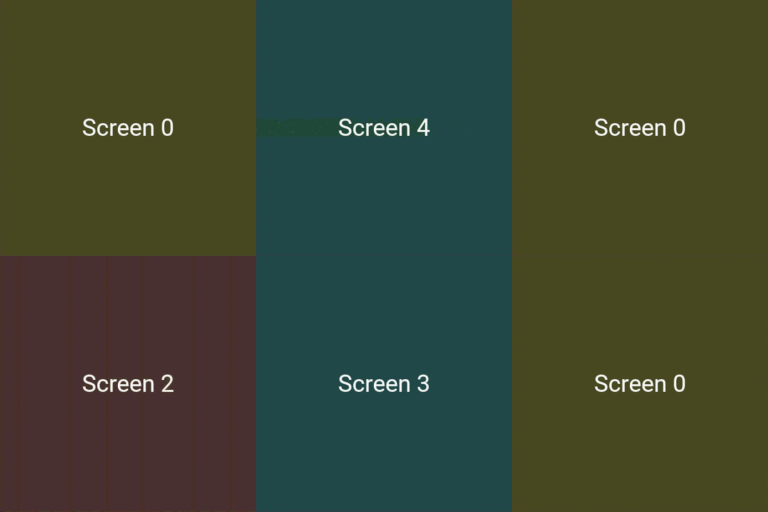
The screen manager is a widget dedicated to managing multiple screens for your application. The default ScreenManager displays only one Screen at a time and uses a TransitionBase to switch from one Screen to another.
屏幕管理器是一个专门用于管理应用程序中多个屏幕的控件。默认的屏幕管理器一次只显示一个屏幕,并使用TransitionBase来从一个屏幕切换到另一个屏幕。
Multiple transitions are supported based on changing the screen coordinates / scale or even performing fancy animation using custom shaders.
支持多种过渡效果,这些效果可以通过改变屏幕的坐标/比例来实现,甚至可以使用自定义着色器来执行复杂的动画。
Basic Usage
Let’s construct a Screen Manager with 4 named screens. When you are creating a screen, you absolutely need to give a name to it:
让我们构建一个包含4个命名屏幕的屏幕管理器。在创建屏幕时,您绝对需要给它一个名字:
from kivy.uix.screenmanager import ScreenManager, Screen

# Create the manager
sm = ScreenManager()

# Add few screens
for i in range(4):
    screen = Screen(name='Title %d' % i)
    sm.add_widget(screen)

# By default, the first screen added into the ScreenManager will be
# displayed. You can then change to another screen.

# Let's display the screen named 'Title 2'
# A transition will automatically be used.
sm.current = 'Title 2'
The default ScreenManager.transition is a SlideTransition with options direction and duration.
默认的ScreenManager.transition是一个SlideTransition,它带有direction和duration选项。
Please note that by default, a Screen displays nothing: it’s just a RelativeLayout. You need to use that class as a root widget for your own screen, the best way being to subclass.
请注意,默认情况下,一个Screen不显示任何内容:它只是一个RelativeLayout。您需要将该类用作您自己屏幕的根控件,最好的方法是进行子类化。
Warning
As Screen is a RelativeLayout, it is important to understand the Common Pitfalls.
由于Screen是一个RelativeLayout,因此了解它的“常见陷阱”是很重要的。
Here is an example with a ‘Menu Screen’ and a ‘Settings Screen’:
from kivy.app import App
from kivy.lang import Builder
from kivy.uix.screenmanager import ScreenManager, Screen

# Create both screens. Please note the root.manager.current: this is how
# you can control the ScreenManager from kv. Each screen has by default a
# property manager that gives you the instance of the ScreenManager used.
Builder.load_string("""
<MenuScreen>:
    BoxLayout:
        Button:
            text: 'Goto settings'
            on_press: root.manager.current = 'settings'
        Button:
            text: 'Quit'

<SettingsScreen>:
    BoxLayout:
        Button:
            text: 'My settings button'
        Button:
            text: 'Back to menu'
            on_press: root.manager.current = 'menu'
""")

# Declare both screens
class MenuScreen(Screen):
    pass

class SettingsScreen(Screen):
    pass

class TestApp(App):

    def build(self):
        # Create the screen manager
        sm = ScreenManager()
        sm.add_widget(MenuScreen(name='menu'))
        sm.add_widget(SettingsScreen(name='settings'))

        return sm

if __name__ == '__main__':
    TestApp().run()
Changing Direction
A common use case for ScreenManager involves using a SlideTransition which slides right to the next screen and slides left to the previous screen. Building on the previous example, this can be accomplished like so:ScreenManager的一个常见用例包括使用SlideTransition,该过渡效果在滑向下一个屏幕时向右滑动,在滑向上一个屏幕时向左滑动。基于之前的例子,这可以通过以下方式实现:
Builder.load_string("""
<MenuScreen>:
    BoxLayout:
        Button:
            text: 'Goto settings'
            on_press:
                root.manager.transition.direction = 'left'
                root.manager.current = 'settings'
        Button:
            text: 'Quit'

<SettingsScreen>:
    BoxLayout:
        Button:
            text: 'My settings button'
        Button:
            text: 'Back to menu'
            on_press:
                root.manager.transition.direction = 'right'
                root.manager.current = 'menu'
""")
Advanced Usage
From 1.8.0, you can now switch dynamically to a new screen, change the transition options and remove the previous one by using switch_to():
从1.8.0版本开始,您现在可以使用switch_to()函数动态地切换到新屏幕,更改过渡选项,并移除之前的屏幕:
sm = ScreenManager()
screens = [Screen(name='Title {}'.format(i)) for i in range(4)]

sm.switch_to(screens[0])
# later
sm.switch_to(screens[1], direction='right')
Note that this method adds the screen to the ScreenManager instance and should not be used if your screens have already been added to this instance. To switch to a screen which is already added, you should use the current property.
请注意,此方法会将screen添加到ScreenManager实例中,如果您的screens已经添加到了此实例中,则不应使用此方法。要切换到已经添加的屏幕,您应该使用current属性。
Changing transitions
You have multiple transitions available by default, such as:
默认情况下,您可以使用多种过渡效果,例如:
-
NoTransition - switches screens instantly with no animation
NoTransition- 瞬间切换屏幕,没有动画效果 -
SlideTransition - slide the screen in/out, from any direction
SlideTransition- 以任何方向滑入/滑出屏幕 -
CardTransition - new screen slides on the previous or the old one slides off the new one depending on the mode
CardTransition- 根据模式,新屏幕会在旧屏幕上滑动进入,或者旧屏幕从新屏幕上滑出。 -
SwapTransition - implementation of the iOS swap transition
SwapTransition- iOS风格的交换过渡效果实现。 -
FadeTransition - shader to fade the screen in/out
FadeTransition- 使用着色器实现屏幕的淡入淡出效果。 -
WipeTransition - shader to wipe the screens from right to left
WipeTransition- 使用着色器从右向左擦拭屏幕以实现过渡。 -
FallOutTransition - shader where the old screen ‘falls’ and becomes transparent, revealing the new one behind it.
FallOutTransition- 使用着色器使旧屏幕“落下”并变得透明,从而揭示背后的新屏幕。 -
RiseInTransition - shader where the new screen rises from the screen centre while fading from transparent to opaque.
RiseInTransition- 使用着色器使新屏幕从屏幕中心升起,同时从透明渐变到不透明。
You can easily switch transitions by changing the ScreenManager.transition property:
您可以通过更改ScreenManager.transition属性来轻松切换过渡效果:
sm = ScreenManager(transition=FadeTransition())
Note
Currently, none of Shader based Transitions use anti-aliasing. This is because they use the FBO which doesn’t have any logic to handle supersampling. This is a known issue and we are working on a transparent implementation that will give the same results as if it had been rendered on screen.
目前,所有基于着色器的过渡效果都不使用抗锯齿。这是因为它们使用了帧缓冲对象(FBO),而帧缓冲对象没有处理超采样的逻辑。这是一个已知的问题,我们正在致力于实现一个透明的解决方案,以提供与直接在屏幕上渲染相同的结果。
To be more concrete, if you see sharp edged text during the animation, it’s normal.
更具体地说,如果您在动画过程中看到文字边缘很锐利,那么这是正常现象。
 最低0.47元/天 解锁文章






 扫一扫
扫一扫


 952
952

 被折叠的 条评论
为什么被折叠?
被折叠的 条评论
为什么被折叠?
 到【灌水乐园】发言





