


为毛要实现这个工具?
-
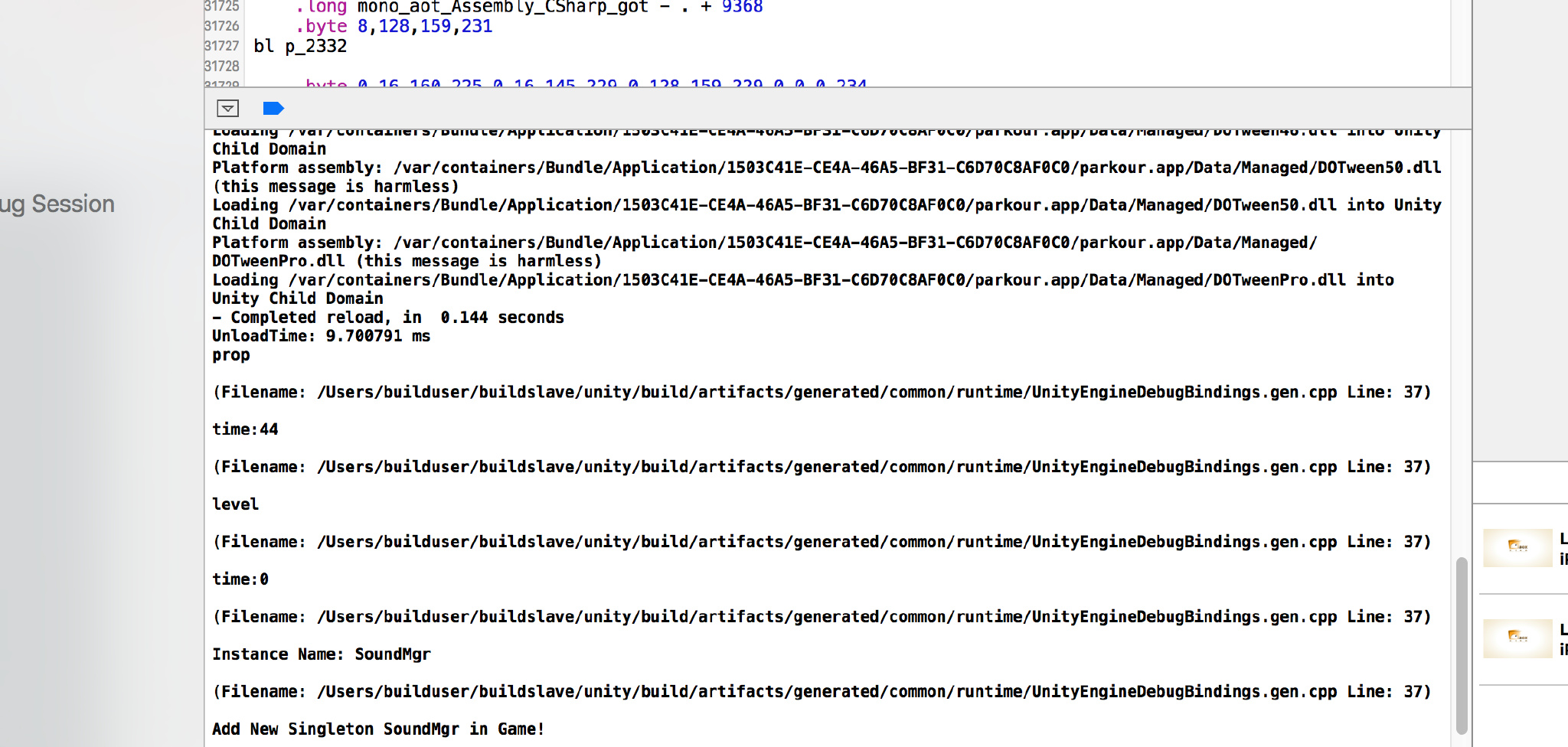
在我小时候,每当游戏在真机运行时,我们看到的日志是这样的。 没高亮啊,还有乱七八糟的堆栈信息,好干扰日志查看,好影响心情。
-
还有就是必须始终连着 usb 线啊,我想要想躺着测试。。。 以上种种原因,QConsole 诞生了。
如何使用?
使用方式和QLog一样,在初始化出调用,简单的一句。
     QConsole
     .
     Instance
     (
     )
     ;
就好了,使用之后效果是这样的。 在 Editor 模式下,F1控制开关。
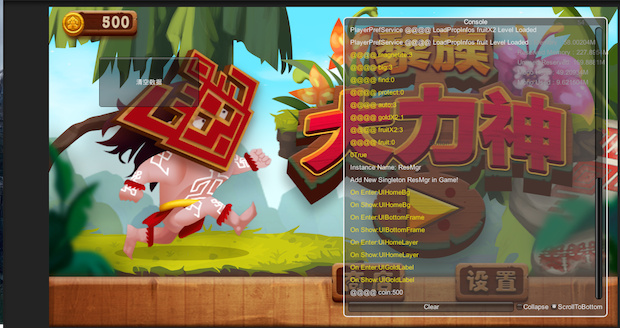
在真机上需要在屏幕上同时按下五个手指就可以控制开关了。(本来考虑 11 个手指萌一下的)。
实现思路:
-
首先要想办法获取Log,这个和上一篇介绍的 QLog 一样,需要使用 Application.logMessageReceived 这个 api。
-
获取到的 Log 信息要存在一个 Queue 或者 List 中,然后把 Log 输出到屏幕上就 ok 了。
-
输出到屏幕上使用的是 OnGUI 回调和 GUILayout.Window 这个 api, 总共三步。
贴上代码:
QConsole实现
sing
UnityEngine
;
#
if
UNITY_EDITOR
using
UnityEditor
;
#
endif
using
System
.
Collections
;
using
System
;
using
System
.
Collections
.
Generic
;
namespace
QFramework
{
/// <summary>
/// 控制台GUI输出类
/// 包括FPS,内存使用情况,日志GUI输出
/// </summary>
public
class
QConsole
:
QSingleton
<
QConsole
>
{
struct
ConsoleMessage
{
public
readonly
string
message
;
public
readonly
string
stackTrace
;
public
readonly
LogType
type
;
public
ConsoleMessage
(
string
message
,
string
stackTrace
,
LogType
type
)
{
this
.
message
=
message
;
this
.
stackTrace
=
stackTrace
;
this
.
type
=
type
;
}
}
/// <summary>
/// Update回调
/// </summary>
public
delegate
void
OnUpdateCallback
(
)
;
/// <summary>
/// OnGUI回调
/// </summary>
public
delegate
void
OnGUICallback
(
)
;
public
OnUpdateCallback
onUpdateCallback
=
null
;
public
OnGUICallback
onGUICallback
=
null
;
/// <summary>
/// FPS计数器
/// </summary>
private
QFPSCounter
fpsCounter
=
null
;
/// <summary>
/// 内存监视器
/// </summary>
private
QMemoryDetector
memoryDetector
=
null
;
private
bool
showGUI
=
true
;
List
<
ConsoleMessage
>
entries
=
new
List
<
ConsoleMessage
>
(
)
;
Vector2
scrollPos
;
bool
scrollToBottom
=
true
;
bool
collapse
;
bool
mTouching
=
false
;
const
int
margin
=
20
;
Rect
windowRect
=
new
Rect
(
margin
+
Screen
.
width
*
0.5f
,
margin
,
Screen
.
width
*
0.5f
-
(
2
*
margin
)
,
Screen
.
height
-
(
2
*
margin
)
)
;
GUIContent
clearLabel
=
new
GUIContent
(
"Clear"
,
"Clear the contents of the console."
)
;
GUIContent
collapseLabel
=
new
GUIContent
(
"Collapse"
,
"Hide repeated messages."
)
;
GUIContent
scrollToBottomLabel
=
new
GUIContent
(
"ScrollToBottom"
,
"Scroll bar always at bottom"
)
;
private
QConsole
(
)
{
this
.
fpsCounter
=
new
QFPSCounter
(
this
)
;
this
.
memoryDetector
=
new
QMemoryDetector
(
this
)
;
// this.showGUI = App.Instance().showLogOnGUI;
QApp
.
Instance
(
)
.
onUpdate
+=
Update
;
QApp
.
Instance
(
)
.
onGUI
+=
OnGUI
;
Application
.
logMessageReceived
+=
HandleLog
;
}
~
QConsole
(
)
{
Application
.
logMessageReceived
-=
HandleLog
;
}
void
Update
(
)
{
#
if
UNITY_EDITOR
if
(
Input
.
GetKeyUp
(
KeyCode
.
F1
)
)
this
.
showGUI
=
!
this
.
showGUI
;
#
elif
UNITY_ANDROID
if
(
Input
.
GetKeyUp
(
KeyCode
.
Escape
)
)
this
.
showGUI
=
!
this
.
showGUI
;
#
elif
UNITY_IOS
if
(
!
mTouching
&&
Input
.
touchCount
==
4
)
{
mTouching
=
true
;
this
.
showGUI
=
!
this
.
showGUI
;
}
else
if
(
Input
.
touchCount
==
0
)
{
mTouching
=
false
;
}
#
endif
if
(
this
.
onUpdateCallback
!=
null
)
this
.
onUpdateCallback
(
)
;
}
void
OnGUI
(
)
{
if
(
!
this
.
showGUI
)
return
;
if
(
this
.
onGUICallback
!=
null
)
this
.
onGUICallback
(
)
;
if
(
GUI
.
Button
(
new
Rect
(
100
,
100
,
200
,
100
)
,
"清空数据"
)
)
{
PlayerPrefs
.
DeleteAll
(
)
;
#
if
UNITY_EDITOR
EditorApplication
.
isPlaying
=
false
;
#
else
Application
.
Quit
(
)
;
#
endif
}
windowRect
=
GUILayout
.
Window
(
123456
,
windowRect
,
ConsoleWindow
,
"Console"
)
;
}
/// <summary>
/// A window displaying the logged messages.
/// </summary>
void
ConsoleWindow
(
int
windowID
)
{
if
(
scrollToBottom
)
{
GUILayout
.
BeginScrollView
(
Vector2
.
up
*
entries
.
Count
*
100.0f
)
;
}
else
{
scrollPos
=
GUILayout
.
BeginScrollView
(
scrollPos
)
;
}
// Go through each logged entry
for
(
int
i
=
0
;
i
<
entries
.
Count
;
i
++
)
{
ConsoleMessage
entry
=
entries
[
i
]
;
// If this message is the same as the last one and the collapse feature is chosen, skip it
if
(
collapse
&&
i
>
0
&&
entry
.
message
==
entries
[
i
-
1
]
.
message
)
{
continue
;
}
// Change the text colour according to the log type
switch
(
entry
.
type
)
{
case
LogType
.
Error
:
case
LogType
.
Exception
:
GUI
.
contentColor
=
Color
.
red
;
break
;
case
LogType
.
Warning
:
GUI
.
contentColor
=
Color
.
yellow
;
break
;
default
:
GUI
.
contentColor
=
Color
.
white
;
break
;
}
if
(
entry
.
type
==
LogType
.
Exception
)
{
GUILayout
.
Label
(
entry
.
message
+
" || "
+
entry
.
stackTrace
)
;
}
else
{
GUILayout
.
Label
(
entry
.
message
)
;
}
}
GUI
.
contentColor
=
Color
.
white
;
GUILayout
.
EndScrollView
(
)
;
GUILayout
.
BeginHorizontal
(
)
;
// Clear button
if
(
GUILayout
.
Button
(
clearLabel
)
)
{
entries
.
Clear
(
)
;
}
// Collapse toggle
collapse
=
GUILayout
.
Toggle
(
collapse
,
collapseLabel
,
GUILayout
.
ExpandWidth
(
false
)
)
;
scrollToBottom
=
GUILayout
.
Toggle
(
scrollToBottom
,
scrollToBottomLabel
,
GUILayout
.
ExpandWidth
(
false
)
)
;
GUILayout
.
EndHorizontal
(
)
;
// Set the window to be draggable by the top title bar
GUI
.
DragWindow
(
new
Rect
(
0
,
0
,
10000
,
20
)
)
;
}
void
HandleLog
(
string
message
,
string
stackTrace
,
LogType
type
)
{
ConsoleMessage
entry
=
new
ConsoleMessage
(
message
,
stackTrace
,
type
)
;
entries
.
Add
(
entry
)
;
}
}
}
QFPSCounter
     using

     UnityEngine
     ;


     using

     System
     .
     Collections
     ;


     namespace

     QFramework

     {


     /// <summary>


     /// 帧率计算器


     /// </summary>


     public

     class

     QFPSCounter


     {


     // 帧率计算频率


     private

     const

     float
      calcRate
     =

     0.5f
     ;


     // 本次计算频率下帧数


     private

     int
      frameCount
     =

     0
     ;


     // 频率时长


     private

     float
      rateDuration
     =

     0f
     ;


     // 显示帧率


     private

     int
      fps
     =

     0
     ;


     public

     QFPSCounter
     (
     QConsole
      console
     )


     {

            console
     .
     onUpdateCallback
     +=
      Update
     ;

            console
     .
     onGUICallback
     +=
      OnGUI
     ;


     }


     void

     Start
     (
     )


     {


     this
     .
     frameCount
     =

     0
     ;


     this
     .
     rateDuration
     =

     0f
     ;


     this
     .
     fps
     =

     0
     ;


     }


     void

     Update
     (
     )


     {


     ++
     this
     .
     frameCount
     ;


     this
     .
     rateDuration
     +=
      Time
     .
     deltaTime
     ;


     if

     (
     this
     .
     rateDuration
     >
      calcRate
     )


     {


     // 计算帧率


     this
     .
     fps
     =

     (
     int
     )
     (
     this
     .
     frameCount
     /

     this
     .
     rateDuration
     )
     ;


     this
     .
     frameCount
     =

     0
     ;


     this
     .
     rateDuration
     =

     0f
     ;


     }


     }


     void

     OnGUI
     (
     )


     {

            GUI
     .
     color
     =
      Color
     .
     black
     ;

            GUI
     .
     Label
     (
     new

     Rect
     (
     80
     ,

     20
     ,

     120
     ,

     20
     )
     ,
     "fps:"

     +

     this
     .
     fps
     .
     ToString
     (
     )
     )
     ;


     }


     }


     }
QMemoryDetector
     using

     UnityEngine
     ;


     using

     System
     .
     Collections
     ;


     namespace

     QFramework

     {


     /// <summary>


     /// 内存检测器,目前只是输出Profiler信息


     /// </summary>


     public

     class

     QMemoryDetector


     {


     private

     readonly

     static

     string
      TotalAllocMemroyFormation
     =

     "Alloc Memory : {0}M"
     ;


     private

     readonly

     static

     string
      TotalReservedMemoryFormation
     =

     "Reserved Memory : {0}M"
     ;


     private

     readonly

     static

     string
      TotalUnusedReservedMemoryFormation
     =

     "Unused Reserved: {0}M"
     ;


     private

     readonly

     static

     string
      MonoHeapFormation
     =

     "Mono Heap : {0}M"
     ;


     private

     readonly

     static

     string
      MonoUsedFormation
     =

     "Mono Used : {0}M"
     ;


     // 字节到兆


     private

     float
      ByteToM
     =

     0.000001f
     ;


     private

     Rect
      allocMemoryRect
     ;


     private

     Rect
      reservedMemoryRect
     ;


     private

     Rect
      unusedReservedMemoryRect
     ;


     private

     Rect
      monoHeapRect
     ;


     private

     Rect
      monoUsedRect
     ;


     private

     int
      x
     =

     0
     ;


     private

     int
      y
     =

     0
     ;


     private

     int
      w
     =

     0
     ;


     private

     int
      h
     =

     0
     ;


     public

     QMemoryDetector
     (
     QConsole
      console
     )


     {


     this
     .
     x
     =

     60
     ;


     this
     .
     y
     =

     60
     ;


     this
     .
     w
     =

     200
     ;


     this
     .
     h
     =

     20
     ;


     this
     .
     allocMemoryRect
     =

     new

     Rect
     (
     x
     ,
      y
     ,
      w
     ,
      h
     )
     ;


     this
     .
     reservedMemoryRect
     =

     new

     Rect
     (
     x
     ,
      y
     +
      h
     ,
      w
     ,
      h
     )
     ;


     this
     .
     unusedReservedMemoryRect
     =

     new

     Rect
     (
     x
     ,
      y
     +

     2

     *
      h
     ,
      w
     ,
      h
     )
     ;


     this
     .
     monoHeapRect
     =

     new

     Rect
     (
     x
     ,
      y
     +

     3

     *
      h
     ,
      w
     ,
      h
     )
     ;


     this
     .
     monoUsedRect
     =

     new

     Rect
     (
     x
     ,
      y
     +

     4

     *
      h
     ,
      w
     ,
      h
     )
     ;


            console
     .
     onGUICallback
     +=
      OnGUI
     ;


     }


     void

     OnGUI
     (
     )


     {

            GUI
     .
     Label
     (
     this
     .
     allocMemoryRect
     ,


     string
     .
     Format
     (
     TotalAllocMemroyFormation
     ,
      Profiler
     .
     GetTotalAllocatedMemory
     (
     )

     *
      ByteToM
     )
     )
     ;

            GUI
     .
     Label
     (
     this
     .
     reservedMemoryRect
     ,


     string
     .
     Format
     (
     TotalReservedMemoryFormation
     ,
      Profiler
     .
     GetTotalReservedMemory
     (
     )

     *
      ByteToM
     )
     )
     ;

            GUI
     .
     Label
     (
     this
     .
     unusedReservedMemoryRect
     ,


     string
     .
     Format
     (
     TotalUnusedReservedMemoryFormation
     ,
      Profiler
     .
     GetTotalUnusedReservedMemory
     (
     )

     *
      ByteToM
     )
     )
     ;

            GUI
     .
     Label
     (
     this
     .
     monoHeapRect
     ,


     string
     .
     Format
     (
     MonoHeapFormation
     ,
      Profiler
     .
     GetMonoHeapSize
     (
     )

     *
      ByteToM
     )
     )
     ;

            GUI
     .
     Label
     (
     this
     .
     monoUsedRect
     ,


     string
     .
     Format
     (
     MonoUsedFormation
     ,
      Profiler
     .
     GetMonoUsedSize
     (
     )

     *
      ByteToM
     )
     )
     ;


     }


     }


     }
注意事项:
-
和上一篇介绍的 QLog 一样,需要依赖上上篇文章介绍的QApp。
-
QConsole 初步实现来自于开源 Unity 插件 Unity-WWW-Wrapper 中的 Console.cs.在此基础上添加了 ScrollToBottom 选项。因为这个插件的控制台不支持滚动显示 Log,需要拖拽右边的 scrollBar,很不方便。
-
Unity-WWW-wrapper 非常不稳定,建议大家不要使用。倒是感兴趣的同学可以研究下实现,贴上地址:https://www.assetstore.unity3d.com/en/#!/content/19116。转载请注明地址:凉鞋的笔记: liangxiegame.com
欢迎讨论!
更多内容
-
QFramework 地址: https://github.com/liangxiegame/QFramework
-
QQ 交流群: 623597263
-
Unity 进阶小班 :
-
主要训练内容:
-
框架搭建训练(第一年)
-
跟着案例学 Shader(第一年)
-
副业的孵化(第二年、第三年)
-
权益、授课形式等具体详情请查看 《小班产品手册》 :https://liangxiegame.com/master/intro
-
关注公众号:liangxiegame 获取第一时间更新通知及更多的免费内容。






 扫一扫
扫一扫


 2万+
2万+

 被折叠的 条评论
为什么被折叠?
被折叠的 条评论
为什么被折叠?
 到【灌水乐园】发言





