


 本文深入分析了3D场景编辑器中添加菜单的功能实现,详细介绍了Menubar.Add.js文件如何通过UI组件和Three.js几何体创建,实现如立方体、球体等基本3D对象的添加,并探讨了如何利用AddObjectCommand命令进行操作的记录与撤销。
这一章分析ui中的添加菜单项的内容,与之相关的js文件为Menubar.Add.js,编辑器的结构简单易懂,很适合初学者学习。
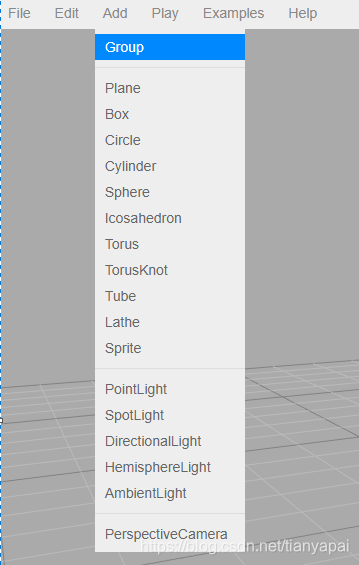
这个js文件中值得注意的是场景中的任意操作都会封装成一个命令,例如添加操作时会使用AddObjectCommand这个命令,然后这个命令会被放到Sidebar.History.js中的栈中,方便操作的撤销和重做。
// 菜单栏中的添加菜单
Menubar.Add = function ( editor ) {
//获取标签文字信息
var strings = editor.strings;
//添加panel,即div,设置className为menu,为以后的css使用,这个为容器
var container = new UI.Panel();
container.setClass( 'menu' );
//添加子项,设置子项的className,设置文本内容
var title = new UI.Panel();
title.setClass( 'title' );
title.setTextContent( strings.getKey( 'menubar/add' ) ); //设置标题为'Add'
container.add( title ); //添加到菜单
//添加子项
var options = new UI.Panel();
options.setClass( 'options' );
container.add( options );
// Group
// 添加组
var option = new UI.Row();
option.setClass( 'option' );
option.setTextContent( strings.getKey( 'menubar/add/group' ) ); //设置标题为'Group'
option.onClick( function () { //添加事件
var mesh = new THREE.Group(); //创建组,设置名称为组
mesh.name = 'Group';
editor.execute( new AddObjectCommand( mesh ) ); //调用执行函数
} );
options.add( option ); //添加到options容器当中
//
//添加水平分隔符
options.add( new UI.HorizontalRule() );
// Plane
// 添加面
var option = new UI.Row();
option.setClass( 'option' );
option.setTextContent( strings.getKey( 'menubar/add/plane' ) );
option.onClick( function () {
//添加面
var geometry = new THREE.PlaneBufferGeometry( 1, 1, 1, 1 );
var material = new THREE.MeshStandardMaterial();
var mesh = new THREE.Mesh( geometry, material );
mesh.name = 'Plane';
editor.execute( new AddObjectCommand( mesh ) );
} );
options.add( option );
// Box
//添加立方体
var option = new UI.Row();
option.setClass( 'option' );
option.setTextC 最低0.47元/天 解锁文章






 扫一扫
扫一扫


 3378
3378


 到【灌水乐园】发言



