


章节目标
自定义应用菜单、注册全局快捷键与系统托盘的基本使用。
- Menu,该Api是electron提供的关于菜单相关的能力
- globalShortcut,该Api是electron提供的关于系统快捷键的能力
- Tray,该Api是electron提供的关于系统托盘相关的能力
应用菜单
应用菜单就是,每一款桌面端App,都有关于该应用的一个系统菜单,在实际的开发中,该菜单是可以自定义的。
比如以下的应用菜单,就是我们应用程序自定义开发的。
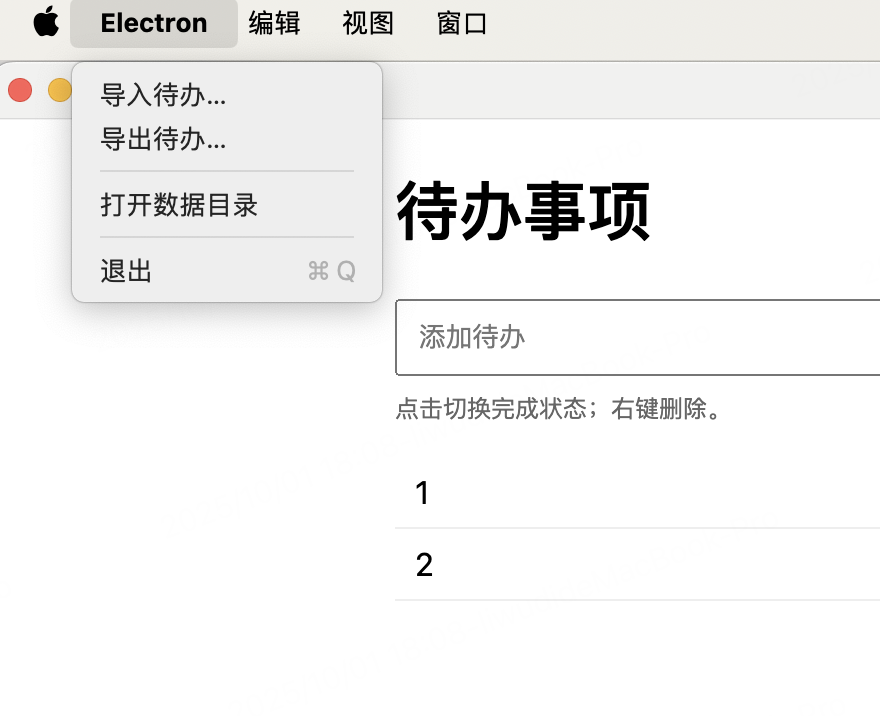
其核心代码如下:
export function createAppMenu() {
    const template = [
        {
            label: '文件',
            submenu: [
                {
                    label: '导入待办…',
                    click: async () => {
                        const { canceled, filePaths } = await dialog.showOpenDialog({
                            properties: ['openFile'],
                            filters: [{ name: 'JSON', extensions: ['json'] }]
                        })
                        if (canceled || filePaths.length === 0) return
                        try {
                            const raw = await fs.readFile(filePaths[0], 'utf8')
                            const data = JSON.parse(raw)
                            if (!Array.isArray(data)) throw new Error('Bad format')
                            await saveTodos(data)
                            BrowserWindow.getAllWindows()[0]?.reload()
                        } catch (e) {
                            dialog.showErrorBox('导入失败', String(e?.message || e))
                        }
                    }
                },
                {
                    label: '导出待办…',
                    click: async () => {
                        try {
                            const todos = await loadTodos()
                            const { canceled, filePath } = await dialog.showSaveDialog({
                                filters: [{ name: 'JSON', extensions: ['json'] }],
                                defaultPath: 'todos.json'
                            })
                            if (canceled || !filePath) return
                            await fs.writeFile(filePath, JSON.stringify(todos, null, 2), 'utf8')
                        } catch (e) {
                            dialog.showErrorBox('导出失败', String(e?.message || e))
                        }
                    }
                },
                { type: 'separator' },
                {
                    label: '打开数据目录',
                    click: async () => {
                        const { dataDir } = getDataPaths()
                        await shell.openPath(dataDir)
                    }
                },
                { type: 'separator' },
                { role: 'quit', label: '退出' }
            ]
        },
        {
            label: '编辑',
            submenu: [
                { role: 'undo' },
                { role: 'redo' },
                { type: 'separator' },
                { role: 'cut' },
                { role: 'copy' },
                { role: 'paste' },
                { role: 'selectAll' }
            ]
        },
        {
            label: '视图',
            submenu: [
                { role: 'reload' },
                { role: 'toggleDevTools' },
                { type: 'separator' },
                { role: 'resetZoom' },
                { role: 'zoomIn' },
                { role: 'zoomOut' },
                { type: 'separator' },
                { role: 'togglefullscreen' }
            ]
        },
        {
            label: '窗口',
            submenu: [
                { role: 'minimize' },
                { role: 'close' }
            ]
        }
    ]

    const menu = Menu.buildFromTemplate(template)
    Menu.setApplicationMenu(menu)
}
全局快捷键
一般而言,全局快捷键,在app启动的时候,直接注入。
globalShortcut.register() 方法,就是注入快捷键的核心能力。
// globalShortcut,是全局快捷键的核心api
import { globalShortcut, app } from 'electron'

app.whenReady().then(() => {
  globalShortcut.register('CommandOrControl+Shift+I', () => {
  	// 在该方法的回调中,我们可以做任何我们想做的事情。
  	// 比如微信的快捷键截屏,等等都可以使用该方式实现。
    const win = BrowserWindow.getFocusedWindow()
    win?.webContents.openDevTools({ mode: 'detach' })
  })
})
托盘图标
托盘图标,提供了另一种,我们进行系统快捷操作的能力。
其核心Api为Tray
图中的图标,是博主自己定义的一种图标。
图标的大小尺寸,一定要按照要求来提供,否则该icon显示不出来。
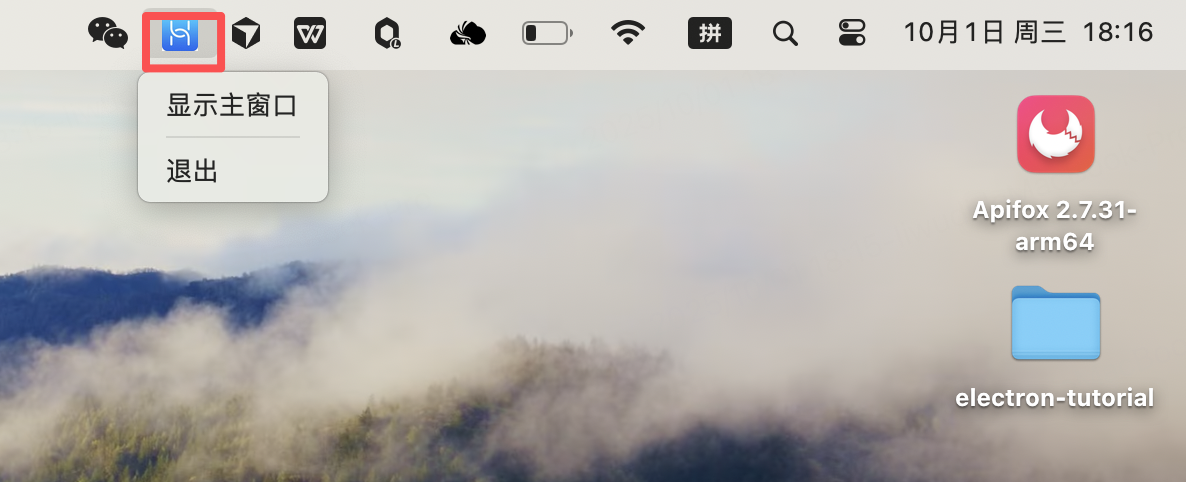
其核心代码,如下所示
import { Tray, Menu, BrowserWindow, nativeImage, app } from 'electron'
import path from 'node:path'
import { fileURLToPath } from 'node:url'

const __filename = fileURLToPath(import.meta.url)
const __dirname = path.dirname(__filename)
export function createTrayIfAvailable() {
	try {
		// 提供icon
        const iconPath = path.join(__dirname, '../assets/tray.png')
        let icon = nativeImage.createFromPath(iconPath);
        const isMac = process.platform === 'darwin'
		const targetSize = isMac ? 18 : 16
        icon = icon.resize({ width: targetSize, height: targetSize })
        // 系统托盘实例化
        tray = new Tray(icon)
        // 菜单设置
        const menu = Menu.buildFromTemplate([
			{ label: '显示主窗口', click: () => BrowserWindow.getAllWindows()[0]?.show() },
			{ type: 'separator' },
			{ label: '退出', click: () => app.quit() }
		])
		tray.setToolTip('Electron Todo')
		tray.setContextMenu(menu)
	} catch (e) {
		console.error('[tray] createTrayIfAvailable error:', e)
	}
}
本章要点
- Menu,该Api是electron提供的关于菜单相关的能力
- globalShortcut,该Api是electron提供的关于系统快捷键的能力
- Tray,该Api是electron提供的关于系统托盘相关的能力
关于本专栏
本专栏的所有内容和代码,github地址:https://github.com/techLaoLi/electron-tutorial
关于作者,前大厂技术专家,现大前端技术负责人,公众号:老李说技术。 欢迎大家的关注。





 扫一扫
扫一扫


 1088
1088

 被折叠的 条评论
为什么被折叠?
被折叠的 条评论
为什么被折叠?
 到【灌水乐园】发言





