 在Windows上配置WSL与Ubuntu,搭建Android源码编译环境



 本文详细介绍了如何在Windows上启用WSL,安装Ubuntu并配置国内源,迁移Ubuntu到非系统盘,以及下载和初始化Android源码。在配置过程中,提到了可能遇到的错误及其解决方法,如DNS解析问题、证书验证失败等。此外,还指导了如何在VSCode中远程访问WSL文件,提升编辑体验。
1. 开启WSL
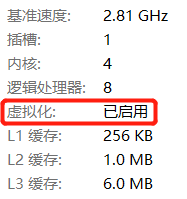
右键开始菜单,打开任务管理器,选择性能选项卡,查看 CPU 虚拟化是否开启,如果没有开启,需要在 BIOS 中开启。
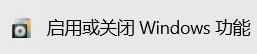
在 Windows 设置中搜索并打开“启用或关闭 Windows 功能”。
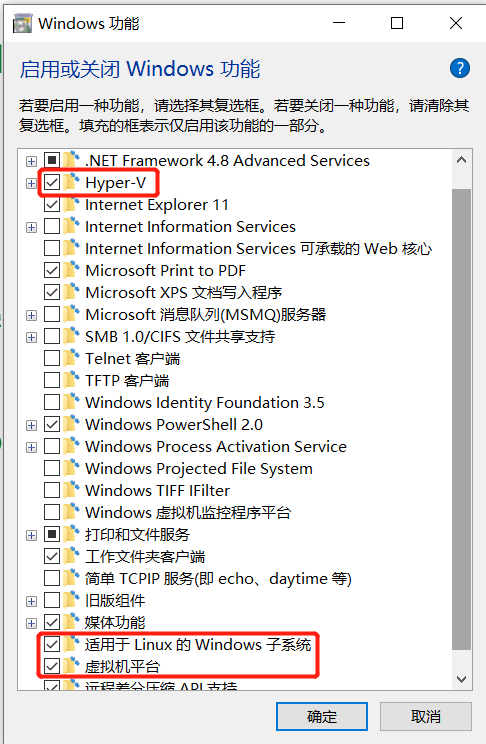
勾选“Hyper-V”、“适用于 Linux 的 Windows 子系统”、“虚拟机平台”,点击“确定”然后重启。
2. 配置Ubuntu
2.1 安装Ubuntu
在 Microsoft Store 中搜索 Ubuntu 就可以直接选择我们需要的分发版进行安装,我这里选择Ubuntu-20.04 LTS。
2021年10月已经推出了22.04版本,但是我安装以后使用感觉还是不太稳定,有几回apt换源会失败,后面用repo init的时候也一直报错,所以最后又重新下回了20.04版本的。
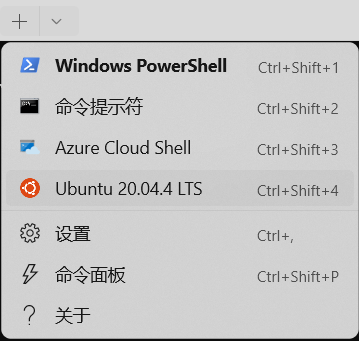
安装以后可以直接在菜单中打开 Ubuntu,也可以在应用商店中搜索 Windows Terminal,在Terminal的上方标签页下拉箭头选择 Ubuntu 也能打开,后者页面稍微漂亮点。
首次使用会需要设置用户名和密码,照样设置好就行。
输入sudo -i,根据提示输入上述设置的密码,即可切换到 root 用户,后续执行命令就不需要再加sudo了。
这里强烈建议把 VS code 远程访问 wsl 的功能也顺手配置上,如果不熟悉 vim 操作的话,用 VS code 会使得后续编辑文件方便很多,具体方法参见本文末“其他—在 VS code 中访问 wsl 文件”。
可能遇到的错误
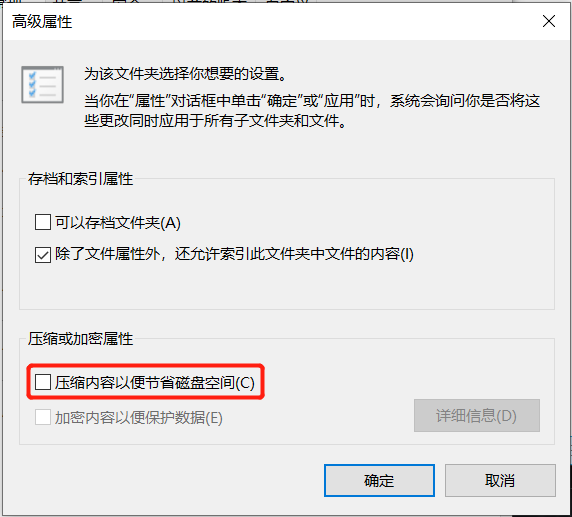
打开 Ubuntu 时显示0xc03a001a错误代码和一堆“???”,是因为 wsl2 系统的安装目录必须不能是压缩过的(wsl1 没这个问题,不过压缩过以后升级到 wsl2 也会出错,建议都不要用压缩后的目录)。
解决方案就是在C:\Users\<你的用户名>\AppData\Local\Packages下找到CanonicalGroupLimited.Ubuntu20.04onWindows_79rhkp1fndgsc目录,右键“属性”——“常规”选项卡下的“高级”——取消“压缩内容以便节省空间”复选框——“确定”。
2.2 换 apt 源
默认源为http://archive.ubuntu.com/ubuntu,在网络环境不适宜的时候容易导致更新失败。
# deb-src http://archive.ubuntu.com/ubuntu/ focal multiverse
deb http://archive.ubuntu.com/ubuntu/ focal-updates multiverse
# deb-src http://archive.ubuntu.com/ubuntu/ focal-updates multiverse

## N.B. software from this repository may not have been tested as
## extensively as that contained in the main release, although it includes
## newer versions of some applications which may provide useful features.
## Also, please note that software in backports WILL NOT receive any review
## or updates from the Ubuntu security team.
deb http://archive.ubuntu.com/ubuntu/ focal-backports main restricted universe multiverse
# deb-src http://archive.ubuntu.com/ubuntu/ focal-backports main restricted universe multiverse

## Uncomment the following two lines to add software from Canonical's
## 'partner' repository.
## This software is not part of Ubuntu, but is offered by Canonical and the
## respective vendors as a service to Ubuntu users.
# deb http://archive.canonical.com/ubuntu focal partner
# deb-src http://archive.canonical.com/ubuntu focal partner

deb http://security.ubuntu.com/ubuntu/ focal-security main restricted
# deb-src http://security.ubuntu.com/ubuntu/ focal-security main restricted
deb http://security.ubuntu.com/ubuntu/ focal-security universe
# deb-src http://security.ubuntu.com/ubuntu/ focal-security universe
deb http://security.ubuntu.com/ubuntu/ focal-security multiverse
# deb-src http://security.ubuntu.com/ubuntu/ focal-security multiverse
建议将源更换为国内源。
先将原 list 文件备份(养成备份的好习惯)。
cp /etc/apt/sources.list /etc/apt/sources.list.bak
然后打开sources.list文件。
vim sources.list
用以下任意源替换该文件的内容。
- 清华源
# 默认注释了源码镜像以提高 apt update 速度,如有需要可自行取消注释
deb https://mirrors.tuna.tsinghua.edu.cn/ubuntu/ jammy main restricted universe multiverse
# deb-src https://mirrors.tuna.tsinghua.edu.cn/ubuntu/ jammy main restricted universe multiverse
deb https://mirrors.tuna.tsinghua.edu.cn/ubuntu/ jammy-updates main restricted universe multiverse
# deb-src https://mirrors.tuna.tsinghua.edu.cn/ubuntu/ jammy-updates main restricted universe multiverse
deb https://mirrors.tuna.tsinghua.edu.cn/ubuntu/ jammy-backports main restricted universe multiverse
# deb-src https://mirrors.tuna.tsinghua.edu.cn/ubuntu/ jammy-backports main restricted universe multiverse
deb https://mirrors.tuna.tsinghua.edu.cn/ubuntu/ jammy-security main restricted universe multiverse
# deb-src https://mirrors.tuna.tsinghua.edu.cn/ubuntu/ jammy-security main restricted universe multiverse

# 预发布软件源,不建议启用
# deb https://mirrors.tuna.tsinghua.edu.cn/ubuntu/ jammy-proposed main restricted universe multiverse
# deb-src https://mirrors.tuna.tsinghua.edu.cn/ubuntu/ jammy-proposed main restricted universe multiverse
- 阿里源
deb http://mirrors.aliyun.com/ubuntu/ jammy main restricted universe multiverse
deb-src http://mirrors.aliyun.com/ubuntu/ jammy main restricted universe multiverse
deb http://mirrors.aliyun.com/ubuntu/ jammy-security main restricted universe multiverse
deb-src http://mirrors.aliyun.com/ubuntu/ jammy-security main restricted universe multiverse
deb http://mirrors.aliyun.com/ubuntu/ jammy-updates main restricted universe multiverse
deb-src http://mirrors.aliyun.com/ubuntu/ jammy-updates main restricted universe multiverse
deb http://mirrors.aliyun.com/ubuntu/ jammy-proposed main restricted universe multiverse
deb-src http://mirrors.aliyun.com/ubuntu/ jammy-proposed main restricted universe multiverse
deb http://mirrors.aliyun.com/ubuntu/ jammy-backports main restricted universe multiverse
deb-src http://mirrors.aliyun.com/ubuntu/ jammy-backports main restricted universe multiverse
- 中科大源
deb https://mirrors.ustc.edu.cn/ubuntu/ jammy main restricted universe multiverse
deb-src https://mirrors.ustc.edu.cn/ubuntu/ jammy main restricted universe multiverse
deb https://mirrors.ustc.edu.cn/ubuntu/ jammy-updates main restricted universe multiverse
deb-src https://mirrors.ustc.edu.cn/ubuntu/ jammy-updates main restricted universe multiverse
deb https://mirrors.ustc.edu.cn/ubuntu/ jammy-backports main restricted universe multiverse
deb-src https://mirrors.ustc.edu.cn/ubuntu/ jammy-backports main restricted universe multiverse
deb https://mirrors.ustc.edu.cn/ubuntu/ jammy-security main restricted universe multiverse
deb-src https://mirrors.ustc.edu.cn/ubuntu/ jammy-security main restricted universe multiverse
deb https://mirrors.ustc.edu.cn/ubuntu/ jammy-proposed main restricted universe multiverse
deb-src https://mirrors.ustc.edu.cn/ubuntu/ jammy-proposed main restricted universe multiverse
- 网易源
deb http://mirrors.163.com/ubuntu/ jammy main restricted universe multiverse
deb http://mirrors.163.com/ubuntu/ jammy-security main restricted universe multiverse
deb http://mirrors.163.com/ubuntu/ jammy-updates main restricted universe multiverse
deb http://mirrors.163.com/ubuntu/ jammy-proposed main restricted universe multiverse
deb http://mirrors.163.com/ubuntu/ jammy-backports main restricted universe multiverse
deb-src http://mirrors.163.com/ubuntu/ jammy main restricted universe multiverse
deb-src http://mirrors.163.com/ubuntu/ jammy-security main restricted universe multiverse
deb-src http://mirrors.163.com/ubuntu/ jammy-updates main restricted universe multiverse
deb-src http://mirrors.163.com/ubuntu/ jammy-proposed main restricted universe multiverse
deb-src http://mirrors.163.com/ubuntu/ jammy-backports main restricted universe multiverse
如果觉得 vim 复制粘贴操作太复杂,也可以在本地磁盘下创建
sources.list文件,在 wsl 的/mnt/盘符路径下可以访问 Windows 文件,用mv /mnt/Windows路径 /etc/apt覆盖原先的文件。
也可以用 VS code 远程访问 Ubuntu 的文件来修改sources.list,在 VS Code 中编辑更加符合我们平时的操作习惯
最后执行命令更新源,使其生效。
apt-get update
apt-get upgrade
可能遇到的错误
Temporary failure resolving ‘mirrors.tuna.tsinghua.edu.cn’
上述方法可能默认安装了 wsl2,而无法进行 DNS 解析是 wsl2 可能会发生的一个毛病,详见本文“其他—关于 wsl1 和 wsl2 的问题”。
此时可尝试在 Windows 的%USERPROFILE%下新建.wslconfig文件,内容如下:
[wsl2]
memory=6GB
swap=0
localhostForwarding=true
[network]
generateResolvConf=false
.wslconfig文件是对 wsl 下所有分发的全局配置,如果仅想改动一个分发版配置的话,请进入对应分发版的/etc/wsl.conf,写入上述内容。
重启 wsl 如果能 ping 通域名的话这个问题就解决了。
关于该方法的原理和.wslconfig与wsl.conf的介绍,参见以下教程:
Certificate verification failed: The certificate is NOT trusted
如果更新源报了以下错误:
Ign:1 https://mirrors.tuna.tsinghua.edu.cn/ubuntu jammy InRelease
Ign:2 https://mirrors.tuna.tsinghua.edu.cn/ubuntu jammy-updates InRelease
Ign:3 https://mirrors.tuna.tsinghua.edu.cn/ubuntu jammy-backports InRelease
Ign:4 https://mirrors.tuna.tsinghua.edu.cn/ubuntu jammy-security InRelease
Err:5 https://mirrors.tuna.tsinghua.edu.cn/ubuntu jammy Release
  Certificate verification failed: The certificate is NOT trusted. The certificate chain uses expired certificate.  Could not handshake: Error in the certificate verification. [IP: 101.6.15.130 443]
Err:6 https://mirrors.tuna.tsinghua.edu.cn/ubuntu jammy-updates Release
  Certificate verification failed: The certificate is NOT trusted. The certificate chain uses expired certificate.  Could not handshake: Error in the certificate verification. [IP: 101.6.15.130 443]
Err:7 https://mirrors.tuna.tsinghua.edu.cn/ubuntu jammy-backports Release
  Certificate verification failed: The certificate is NOT trusted. The certificate chain uses expired certificate.  Could not handshake: Error in the certificate verification. [IP: 101.6.15.130 443]
Err:8 https://mirrors.tuna.tsinghua.edu.cn/ubuntu jammy-security Release
  Certificate verification failed: The certificate is NOT trusted. The certificate chain uses expired certificate.  Could not handshake: Error in the certificate verification. [IP: 101.6.15.130 443]
Reading package lists... Done
E: The repository 'https://mirrors.tuna.tsinghua.edu.cn/ubuntu jammy Release' does not have a Release file.
N: Updating from such a repository can't be done securely, and is therefore disabled by default.
N: See apt-secure(8) manpage for repository creation and user configuration details.
E: The repository 'https://mirrors.tuna.tsinghua.edu.cn/ubuntu jammy-updates Release' does not have a Release file.
N: Updating from such a repository can't be done securely, and is therefore disabled by default.
N: See apt-secure(8) manpage for repository creation and user configuration details.
E: The repository 'https://mirrors.tuna.tsinghua.edu.cn/ubuntu jammy-backports Release' does not have a Release file.
N: Updating from such a repository can't be done securely, and is therefore disabled by default.
N: See apt-secure(8) manpage for repository creation and user configuration details.
E: The repository 'https://mirrors.tuna.tsinghua.edu.cn/ubuntu jammy-security Release' does not have a Release file.
N: Updating from such a repository can't be done securely, and is therefore disabled by default.
N: See apt-secure(8) manpage for repository creation and user configuration details.
这里 https 的证书不被信任,我们需要更新证书。
将sources.list中的https改成http,然后重新安装证书:
apt install ca-certificates --reinstall
此时再把sources.list中的http改回https,再次进行update和upgrade操作。
vim、git、curl 之类的工具在 wsl 的 Ubuntu 中都已默认安装。如果你的虚拟机上没有,可以用
apt-get install <包名>进行安装。
2.3 将 Ubuntu 迁移到非系统盘
由于后续下载和编译后的源码体积非常庞大,建议将 wsl 迁移到非系统盘。
查看现有分发。
wsl -l -v
会显示关于所有已安装分发版的详细信息。
  NAME            STATE           VERSION
* Ubuntu-20.04    Running         2
需要导出的分发版还在运行,需要将其关闭。
wsl --shutdown
使用参数--export <分发> <文件名>将分发导出到 tar 文件
wsl --export Ubuntu-20.04 D:\ubunutu.tar
注销当前分发。
wsl --unregister Ubuntu-20.04
使用参数--import <分发> <安装路径> <文件名> [选项]导入到目标硬盘。
wsl --import Ubuntu-20.04 D:\Apps\wsl\Ubuntu-20.04 D:\ubuntu.tar --version 2
设置默认登陆用户为安装时用户名。
ubuntu2004 config --default-user <用户名>
之前生成的.tar压缩包也可以删除了。
3. 下载 Android 源码
参考官方文档:https://source.android.google.cn/setup/downloading
3.1 安装 repo
安卓的源码管理官方推荐用 Repo 这一工具。
3.1.1 创建 bin 目录
在主目录下创建一个bin/目录,并且使该目录包含在路径中
mkdir ~/bin # 在根目录下创建 bin 文件夹
PATH=~/bin:$PATH # 将其加入系统环境变量
通过echo命令可以检查一下是否添加成功。
echo $PATH

3.1.2 下载 Repo
从清华源下载 Repo 工具,并使其可执行。
curl https://mirrors.tuna.tsinghua.edu.cn/git/git-repo > ~/bin/repo
chmod a+x ~/bin/repo
3.1.3 更换 Repo 的源
避免 Repo 仍然用谷歌的源更新。
export REPO_URL='https://mirrors.tuna.tsinghua.edu.cn/git/git-repo'
3.2 初始化 Repo 客户端
3.2.1 创建工作目录
我之前为了能更方便地在 Windows 中关联到源码,所以将代码下载到/mnt/d中,但是后续会报错:
Failed to listen for path logs: listen unix out/.path_interposer_log: bind: operation not supported
所以建议不要将mnt/盘符作为直接的工作目录,而是写到 Linux 系统下。
mkdir /home/AOSP
cd /home/AOSP
不过要是仅下载源码,并不需要编译(那不设置区分大小写也没事)或者单纯不死心还是想用 Windows (能不能编译成功就自求多福吧)的话,记得将 Windows 的工作目录设置为区分大小写的模式。
由于 Windows 的 NTFS 分区是不区分大小写的,但是 Linux 对大小写敏感,此处我们需要将工作目录设置成区分大小写,这样在该文件夹下的所有子目录都会继承区分大小写属性;否则后续编译会报以下的错误:
************************************************************
You are building on a case-insensitive filesystem.
Please move your source tree to a case-sensitive filesystem.
************************************************************
Case-insensitive filesystems not supported
到时候再更改这一属性只能手动挨个目录修改了,那种痛苦不言而喻(当事人现身说法,没错,装到 Windows 也是我踩过的坑)。
设置方法如下:
参考链接:https://docs.microsoft.com/zh-cn/windows/wsl/case-sensitivity
- 以管理员身份运行 PowerShell 并使用以下命令:
fsutil.exe file setCaseSensitiveInfo <path> enable
这里path就是你在 Windows 中的工作目录。
- 检查一下 Windows 文件系统中的目录是否区分大小写:
fsutil.exe file queryCaseSensitiveInfo <path>
3.2.2 运行repo init来获取对应版本的分支
查找现有分支
现有分支可以通过git clone拉取:
git clone  https://mirrors.tuna.tsinghua.edu.cn/git/AOSP/platform/manifest
cd manifest
git branch -a
也可以访问 https://android.googlesource.com/platform/manifest 查询。
获取所需分区
假设我们需要下载 Android 10.0.0 r9,可以通过参数-b获取。
repo init -u https://aosp.tuna.tsinghua.edu.cn/platform/manifest -b android-10.0.0_r9
也可以直接下载master分支的内容。
repo init -u https://aosp.tuna.tsinghua.edu.cn/platform/manifest
这里需要输入用于 git 的用户名和邮箱,有些需要确认的地方都y过去就行,最后显示如下页面表示初始化成功:

初始化成功以后,在工作目录下会生成一个.repo目录。根据提示,如果初始化错了目录可以直接删除.repo。
可能遇到的错误
Repo 是基于 Python 2.x 中的特定功能构建的,但遗憾的是与 Python 3 不兼容,此处可能会报错说找不到 python。
要使用 Repo,请安装 Python 2.x:
apt install python2
用 python2 的位置做个软链。
whereis python2
比如我这边 python 的位置在/usr/bin/python2。
ln -s /usr/bin/python2 /usr/bin/python
3.3 下载 Android 源代码树
将 Android 源代码树从默认清单中指定的代码库下载到工作目录,这里可以使用-jn参数使用多核下载,这里n表示核数。
repo sync -j6
可能遇到的错误
下载时间非常长,我在校园网下用了一个半小时左右下载+一个半小时checking out,不让电脑进入睡眠状态,去游了个泳回来发现还是报错了,非常 sad:
error: Unable to fully sync the tree.
error: Downloading network changes failed.
Try re-running with "-j1 --fail-fast" to exit at the first error.
根据提示试试看:
repo sync -j1 --fail-fast
上述方法我没有试过是否有效,我用下面这个办法解决了:
repo sync -l

爷的快乐回来了!!!!!
其他
repo 初始化错误
有个在 Ubuntu 22.04 上的 repo 初始化错误,先挖个坑,日后来填:
repo: error: "git" failed with exit status 128
fatal: double check your --repo-rev setting.
fatal: cloning the git-repo repository failed, will remove '.repo/repo'
猜测原因:可能当时用的是 wsl1,所以 Ubuntu 22.04 会出现各种莫名其妙的错误。猜想待时间的验证。所以还是建议用 wsl2。
关于 wsl1 和 wsl2 的问题
在命令行中输入wsl -l -v可以查看 wsl 的版本。
wsl2拥有完整的 Linux 内核,能够避免后续安卓源码的编译过程中出现诸如此类的报错:
Failed to listen for path logs: listen unix out/.path_interposer_log: bind: invalid argument
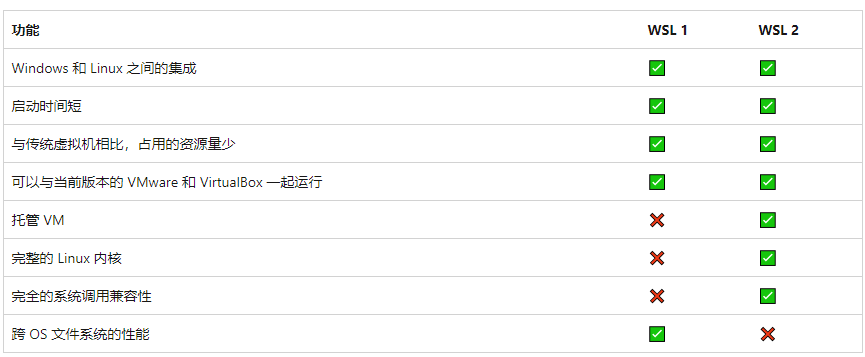
但是需要注意的是 wsl2 的网络功能很头痛,比如最常见的就是在 WIN10 系统(WIN11 目前网络访问尚且正常)下的 wsl2 会出现无法用 DNS 解析域名的情况,解决方法在上文中已提及,关于这种情况的原理和解决方案可以参照 WSL2 网络异常排查 [ping 不通、网络地址异常、缺少默认路由、被宿主机防火墙拦截]。
关于如何将 wsl1 升级为 wsl2 可以参见以下教程:
在 VS code 中访问 wsl 文件
参考教程:Remote development in WSL
在 VS code 中搜索并安装 remote - WSL,并启动对应的 wsl 分发版。
在 VS code 中点击左下角:

在打开的远程窗口中选择“New WSL Window”。
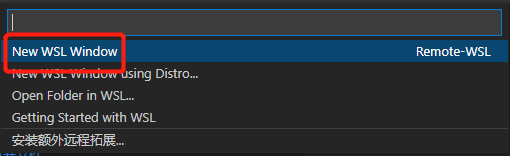
如果是首次使用此功能,VS code 会自动在wsl 端下载和安装配置服务端。此时左下角会显示你所在的分发版 wsl 系统。
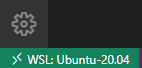
在 wsl 中给需要编辑的文件赋权(不然之后在 VS code 中编辑后无法保存写回):
sudo chmod 777 /etc/apt/sources.list
在新打开的窗口中从菜单或者ctrl+O打开文件,都会发现是在 Ubuntu 的文件系统中。
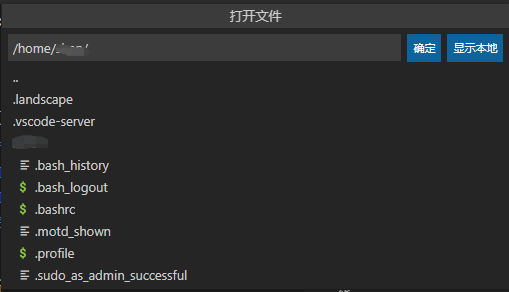
这样就可以直接在 VS Code 中打开文件了,个人觉得打开和编辑比直接用 Vim 要友好。前述修改sources.list也可以用此方法。
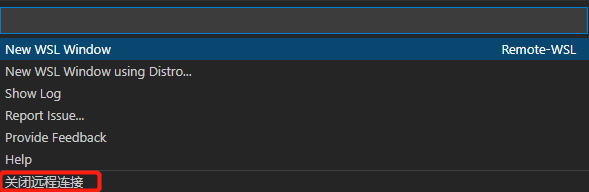
退出远程连接,可点击左下角,在弹出的窗口中选择“关闭远程连接”。





 扫一扫
扫一扫


 2313
2313

 被折叠的 条评论
为什么被折叠?
被折叠的 条评论
为什么被折叠?
 到【灌水乐园】发言





