


 本文介绍了matplotlib库中的PolygonSelector类,详细讲解了如何使用多边形选区进行对象选择,包括选区创建、移动、取消以及回调函数的配置。通过实例演示了如何在图形中创建并控制多边形选区,以及其在数据可视化的实际应用场景。
多边形选区概述
多边形选区是一种常见的对象选择方式,在一个子图中,单击鼠标左键即构建一个多边形的端点,最后一个端点与第一个端点重合即完成多边形选区,选区即为多个端点构成的多边形。在matplotlib中的多边形选区属于部件(widgets),matplotlib中的部件都是中性(neutral )的,即与具体后端实现无关。
多边形选区具体实现定义为matplotlib.widgets.PolygonSelector类,继承关系为:Widget->AxesWidget->_SelectorWidget->PolygonSelector。
PolygonSelector类的签名为class matplotlib.widgets.PolygonSelector(ax, onselect, useblit=False, lineprops=None, markerprops=None, vertex_select_radius=15)
PolygonSelector类构造函数的参数为:
ax:多边形选区生效的子图,类型为matplotlib.axes.Axes的实例。onselect:多边形选区完成后执行的回调函数,函数签名为def onselect( vertices),vertices数据类型为列表,列表元素格式为(xdata,ydata)元组。drawtype:多边形选区的外观,取值范围为{"box", "line", "none"},"box"为多边形框,"line"为多边形选区对角线,"none"无外观,类型为字符串,默认值为"box"。lineprops:多边形选区线条的属性,默认值为dict(color='k', linestyle='-', linewidth=2, alpha=0.5)。markerprops:多边形选区端点的属性,默认值为dict(marker='o', markersize=7, mec='k', mfc='k', alpha=0.5)。vertex_select_radius:多边形端点的选择半径,浮点数,默认值为15,用于端点选择或者多边形闭合。
PolygonSelector类中的state_modifier_keys公有变量 state_modifier_keys定义了操作快捷键,类型为字典。
- “move_all”: 移动已存在的选区,默认为
"shift"。 - “clear”:清除现有选区,默认为
"escape",即esc键。 - “move_vertex”:正方形选区,默认为
"control"。
PolygonSelector类中的verts特性返回多边形选区中的多有端点,类型为列表,元素为(x,y)元组,即端点的坐标元组。
案例
官方案例,https://matplotlib.org/gallery/widgets/polygon_selector_demo.html
案例说明
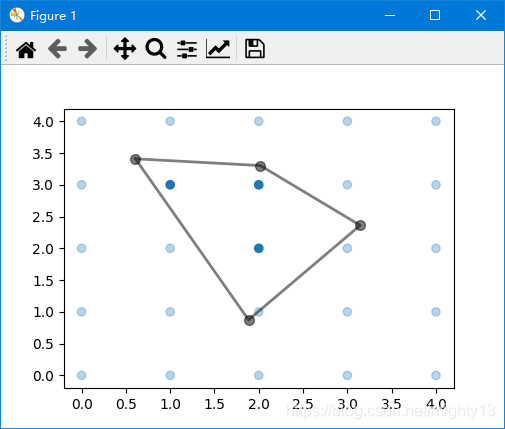
单击鼠标左键创建端点,最终点击初始端点闭合多边形,形成多边形选区。选区外的数据元素颜色变淡,选区内数据颜色保持不变。
按esc键取消选区。按shift键鼠标可以移动多边形选区位置,按ctrl键鼠标可以移动多边形选区某个端点的位置。退出程序时,控制台输出选区内数据元素的坐标。
控制台输出:
Selected points:
[[2.0 2.0]
 [1.0 3.0]
 [2.0 3.0]]
案例代码
import numpy as np

from matplotlib.widgets import PolygonSelector
from matplotlib.path import Path


class SelectFromCollection:
    """
    Select indices from a matplotlib collection using `PolygonSelector`.

    Selected indices are saved in the `ind` attribute. This tool fades out the
    points that are not part of the selection (i.e., reduces their alpha
    values). If your collection has alpha < 1, this tool will permanently
    alter the alpha values.

    Note that this tool selects collection objects based on their *origins*
    (i.e., `offsets`).

    Parameters
    ----------
    ax : `~matplotlib.axes.Axes`
        Axes to interact with.
    collection : `matplotlib.collections.Collection` subclass
        Collection you want to select from.
    alpha_other : 0 <= float <= 1
        To highlight a selection, this tool sets all selected points to an
        alpha value of 1 and non-selected points to *alpha_other*.
    """

    def __init__(self, ax, collection, alpha_other=0.3):
        self.canvas = ax.figure.canvas
        self.collection = collection
        self.alpha_other = alpha_other

        self.xys = collection.get_offsets()
        self.Npts = len(self.xys)

        # Ensure that we have separate colors for each object
        self.fc = collection.get_facecolors()
        if len(self.fc) == 0:
            raise ValueError('Collection must have a facecolor')
        elif len(self.fc) == 1:
            self.fc = np.tile(self.fc, (self.Npts, 1))

        self.poly = PolygonSelector(ax, self.onselect)
        self.ind = []

    def onselect(self, verts):
        path = Path(verts)
        self.ind = np.nonzero(path.contains_points(self.xys))[0]
        self.fc[:, -1] = self.alpha_other
        self.fc[self.ind, -1] = 1
        self.collection.set_facecolors(self.fc)
        self.canvas.draw_idle()

    def disconnect(self):
        self.poly.disconnect_events()
        self.fc[:, -1] = 1
        self.collection.set_facecolors(self.fc)
        self.canvas.draw_idle()


if __name__ == '__main__':
    import matplotlib.pyplot as plt

    fig, ax = plt.subplots()
    grid_size = 5
    grid_x = np.tile(np.arange(grid_size), grid_size)
    grid_y = np.repeat(np.arange(grid_size), grid_size)
    pts = ax.scatter(grid_x, grid_y)

    selector = SelectFromCollection(ax, pts)

    print("Select points in the figure by enclosing them within a polygon.")
    print("Press the 'esc' key to start a new polygon.")
    print("Try holding the 'shift' key to move all of the vertices.")
    print("Try holding the 'ctrl' key to move a single vertex.")

    plt.show()

    selector.disconnect()

    # After figure is closed print the coordinates of the selected points
    print('\nSelected points:')
    print(selector.xys[selector.ind])





 扫一扫
扫一扫


 630
630

 被折叠的 条评论
为什么被折叠?
被折叠的 条评论
为什么被折叠?
 到【灌水乐园】发言





