



分割动画
分割参数
| 参数 | 含义 |
|---|---|
| Start | 动画片段的第一帧 |
| End | 动画片段的最后一帧 |
| Loop Time | 是否设定该动画片段为循环动画 |
| LoopPose | 是否设定该动画片段的姿势循环 |
| Cycle | 为该动画片段指定一定的偏移量 |
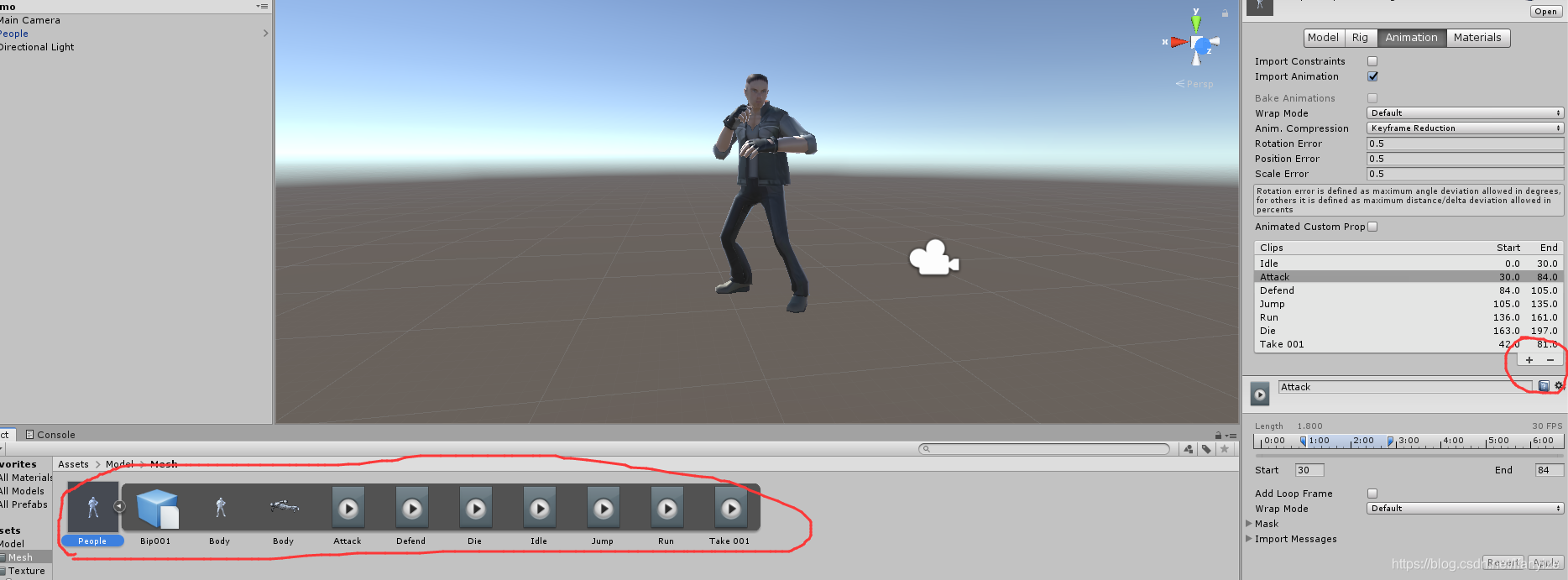
分割动画的操作其实并不复杂,可以通过单击动画片段列表u右下角的+、-按钮来进行动画片段的增删操作,拖动动画滑杆或者修改Start和End参数可以修改该动画片段的长度。同时分割而成的动画片段会编程模型文件的子对象,如图:
动画控制器
制作一个动画角色的第一件事是为角色对象添加动画控制器
动画控制器属性
| Animation | 启动自动播放(Play Automatically)时,默认播放动画 |
|---|---|
| Animations | 可以从脚本访问的动画列表 |
| Play Automatically | 启动游戏的时候是否自动播放动画 |
| – | – |
| Animate Physics | 动画是否与物理交互 |
| Culling Type | 设置动画的剔除模型 |
其中Culling Type 有两种类型,分别Always Animate和Based OnRenders ,前者是总是播放动画,后者是只有对象渲染在屏幕上是才播放动画。
播放动画
using System.Collections;
using System.Collections.Generic;
using UnityEngine;

public class NewBehaviourScript : MonoBehaviour
{
    public Animation animation;
    // Start is called before the first frame update
    void Start()
    {
        animation = this.GetComponent<Animation>();
        animation.Play("run");
        animation.Stop("run");
    }

    // Update is called once per frame
    void Update()
    {

    }
}
动画融合\动画之间平滑过渡
动画融合是确保角色平滑动画的一项重要功能,在游戏的人和时间点都有可能从一个动画转换到另一个动画,开发人员不希望两个不同的动画动作之间突然发生跳转,所以如果想要动画之间平滑过渡,需要使用CrossFade;
签名: void CrossFade(animation :striing,fadeLength:float = 0.3F,mode:PlayMode = PlayMode.StopSameLayer)
其作用是把将要播放的动画,在一定的时间内淡入,将播放完的动画淡出
using System.Collections;
using System.Collections.Generic;
using UnityEngine;

public class NewBehaviourScript : MonoBehaviour
{
    public Animation animation;
    // Start is called before the first frame update
    void Start()
    {
        animation = this.GetComponent<Animation>();
        animation.CrossFade("Walk", 0.3f);
    }

    // Update is called once per frame
    void Update()
    {

    }
}
动画混合(局部动画)
动画混合的作用是削减游戏创建的动画数ou’l量,使某一些动画值应用给胜利的一部分,比如走路挥手,我们可以将走路的动画与一只手挥手的动画混合起来在,通过调用AddMIxingTransform方法进行动画混合变化
using System.Collections;
using System.Collections.Generic;
using UnityEngine;

public class NewBehaviourScript : MonoBehaviour
{
    public AnimationClip wave_hand;//挥手动画片段
    private Transform shoulder;//定义混合transfor
    // Start is called before the first frame update
    void Start()
    {
        GetComponent<Animation>()[wave_hand.name].AddMixingTransform(shoulder);//将wave_hand动画添加到shoulder上
        Transform mixTransform = transform.Find("root / upper_body / left_shoulder");//用路径增加一个混合transform
        GetComponent<Animation>()[wave_hand.name].AddMixingTransform(mixTransform);//将wave_hand动画应用到mixTranform上
    }

    // Update is called once per frame
    void Update()
    {

    }
}
动画控制器
动画控制器的配置
1.动画状态机和过度条件
通过状态控制及,可以让游戏动画师进行五代码的可视化开发,将准备好的动画拖拽到动画状态及中,并搭建,在动画中,IDLE呗设置为默认动画,当然其他的也可以设置为默认,所谓默认就是在场景开始的时候,游戏对象保持的动画。
过度条件其实就是两个动画之间的过渡,通过右击动画状态单元,选择Make Transition创建过度条件。
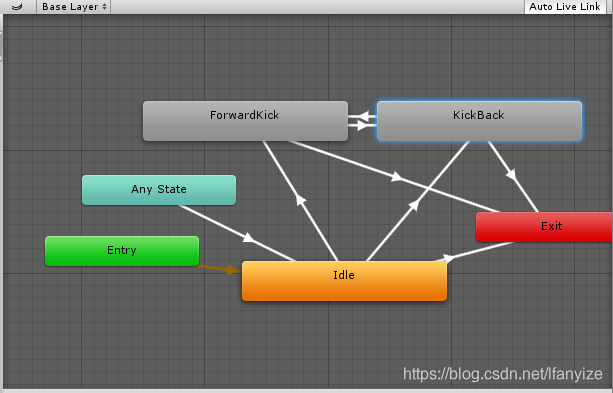
每一个动画控制器都可以由若干个动画曾,每个动画曾都是一个动画状态机。
下图可以认为是一个动画状态机,也就是一个动画层。
2.过度条件的参数设置
动画状态机和过度条件搭建完成之后,需要对状态机间的过度条件进行设置,为了实现对各个过度条件的操纵,需要创建一个或者多个参数与之搭配
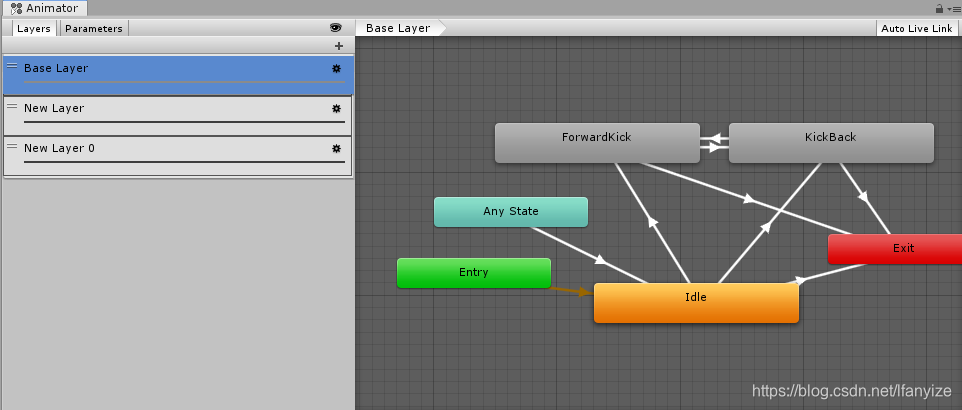
这里是三个动画状态机,也就是三个层,
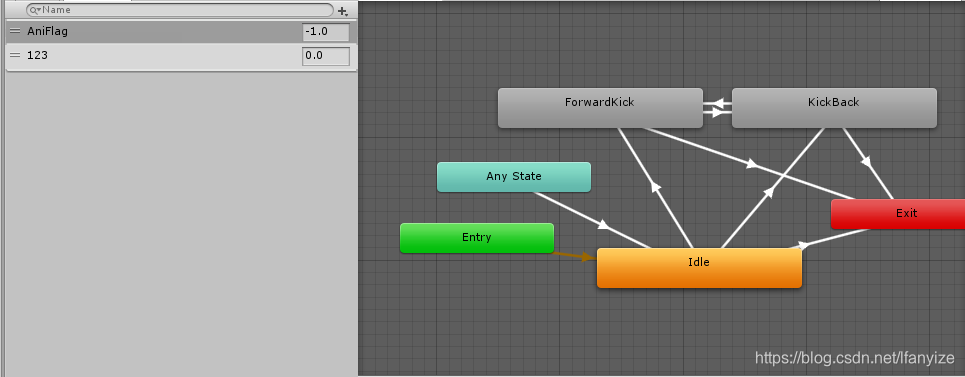
这是过度条件的设置,使用方法如下
using UnityEngine;
using System.Collections;

public class StaticAniCtrl : MonoBehaviour {

    //private KeyCode[] keys = new KeyCode[] { KeyCode.Keypad0, KeyCode.Keypad1, KeyCode.Keypad2, KeyCode.Keypad3 };
    Animator myAnimator;
    Transform myCamera;

    void Start () {
        myAnimator = GetComponent<Animator>();
        UIInit();
        myCamera = GameObject.Find("Main Camera").transform;
    }

    void Update () {
        myCamera.position = transform.position + new Vector3(0, 1.5f, 5);
        myCamera.LookAt(transform);

    }

    void UIInit() {
        GameObject.Find("Canvas/Button0").transform.GetComponent<RectTransform>().localPosition = new Vector3(Screen.height / 6 - Screen.width / 2, Screen.height * 2 / 5 - Screen.height / 2);
        GameObject.Find("Canvas/Button0").transform.GetComponent<RectTransform>().localScale = Screen.width / 600.0f * new Vector3(1, 1, 1);
        GameObject.Find("Canvas/Button1").transform.GetComponent<RectTransform>().localPosition = new Vector3(Screen.height / 6 - Screen.width / 2, Screen.height / 6 - Screen.height / 2);
        GameObject.Find("Canvas/Button1").transform.GetComponent<RectTransform>().localScale = Screen.width / 600.0f * new Vector3(1, 1, 1);

    }

    public void ButtonOnClick(int index) {
        myAnimator.SetFloat("AniFlag", index);
    }
}
其中这句代码传递参数,动画控制器获得参数之后,将对指定的过度条件进行调控,从而实现动画播放的操控。
角色动画的重定向
1.角色动画重定向的应用
所谓重定向其实就是创建一个动画控制器,然后将器拖拽到两个对象的Animation组件中的Controller选项内
实例:
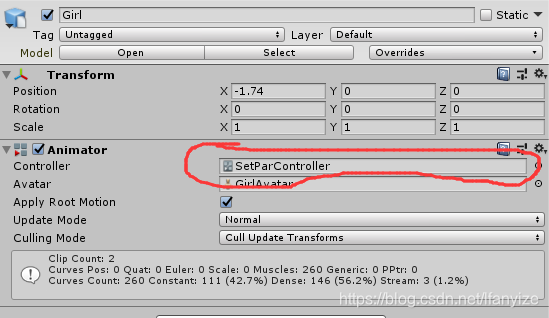
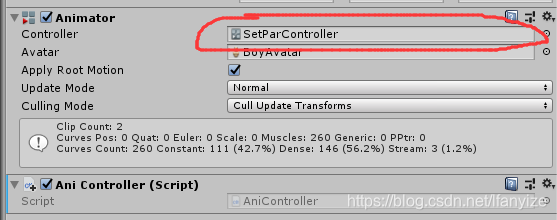
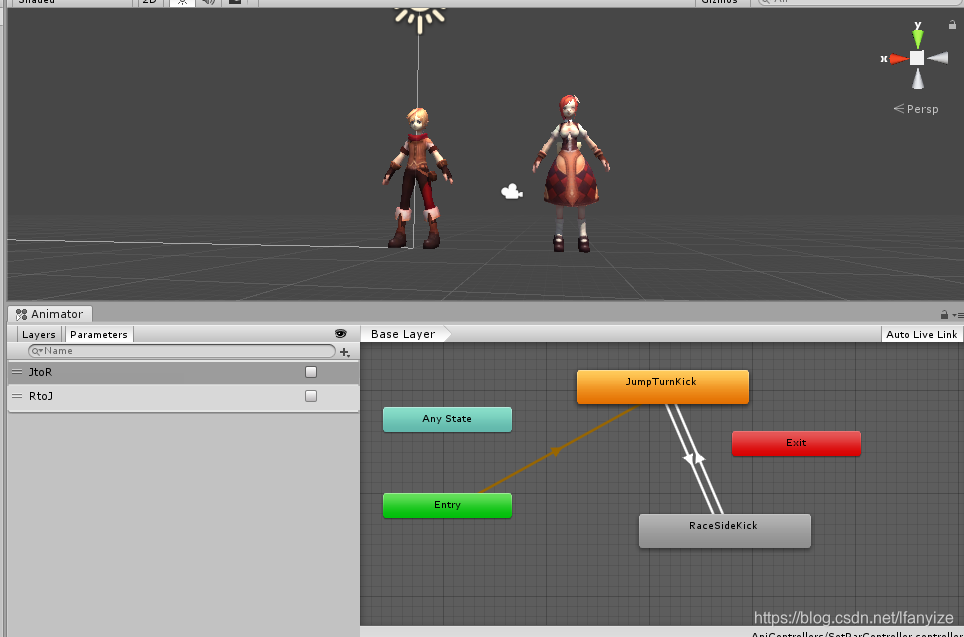
using UnityEngine;
using System.Collections;

public class AniController : MonoBehaviour
{

    #region Variables
    Animator animator;              //声明动画控制器
    Animator girlAnimator;          //声明小女孩对象的动画控制器
    Transform myCamera;             //声明摄像机对象
    #endregion

    // Use this for initialization
    #region Function which be called by system
    void Start () {
        animator = GetComponent<Animator>();
        girlAnimator = GameObject.Find("Girl").GetComponent<Animator>();
        UIInit();
        myCamera = GameObject.Find("Main Camera").transform;
    }

    // Update is called once per frame
    void Update () {
        myCamera.position = transform.position + new Vector3(0, 1.5f, 5);
        myCamera.LookAt(transform);
    }
    #endregion

    #region UI recall function and setting
    public void ButtonOnClick(int Index) {
        bool[] pars = new bool[] { true, false };
        animator.SetBool("JtoR", pars[Index]);
        animator.SetBool("RtoJ", pars[(Index + 1) % 2]);
        girlAnimator.SetBool("JtoR", pars[Index]);
        girlAnimator.SetBool("RtoJ", pars[(Index + 1) % 2]);
    }

    void UIInit() {
        GameObject.Find("Canvas/Button0").transform.GetComponent<RectTransform>().localPosition = new Vector3(Screen.height / 6 - Screen.width / 2, Screen.height * 2 / 5 - Screen.height / 2);
        GameObject.Find("Canvas/Button0").transform.GetComponent<RectTransform>().localScale = Screen.width / 600.0f * Vector3.one;
        GameObject.Find("Canvas/Button1").transform.GetComponent<RectTransform>().localPosition = new Vector3(Screen.height / 6 - Screen.width / 2, Screen.height / 6 - Screen.height / 2);
        GameObject.Find("Canvas/Button1").transform.GetComponent<RectTransform>().localScale = Screen.width / 600.0f * Vector3.one;
    }
    #endregion
}





 扫一扫
扫一扫


 2352
2352

 被折叠的 条评论
为什么被折叠?
被折叠的 条评论
为什么被折叠?
 到【灌水乐园】发言





