


1、介绍及安装
(1)pygame——2D游戏开发工具包
(2)安装:>>> pip install pygame >>>import pygame
(3)帮助文档:https://www.pygame.org/docs/
(4)Hello World
引入相关包:import pygame, sys等
初始化:pygame.init()
得到窗口 pygame.Surface对象:pygame.display.set_mode((400,300))
游戏主循环:处理游戏事件 — 更新游戏状态 — 在屏幕上绘制
游戏事件:for event in pygame.event.get(): #退出游戏事件 if event.type == QUIT: pygame.quit() sys.exit()
示例:
# 引入相关的包
import sys, pygame

# 进行初始化操作
pygame.init()

size = width, height = 320, 240
speed = [2, 2]
black = 0, 0, 0

# 得到初始化对象
screen = pygame.display.set_mode(size)

ball = pygame.image.load("intro_ball.gif")
ballrect = ball.get_rect()

# 游戏主循环
while 1:
    # 处理游戏事件
    for event in pygame.event.get():
        if event.type == pygame.QUIT: sys.exit()

    # 更新游戏状态
    ballrect = ballrect.move(speed)
    if ballrect.left < 0 or ballrect.right > width:
        speed[0] = -speed[0]
    if ballrect.top < 0 or ballrect.bottom > height:
        speed[1] = -speed[1]

    #在屏幕上进行绘制
    screen.fill(black)
    screen.blit(ball, ballrect)
    pygame.display.flip()
2、文字及颜色
(1)游戏中的文字
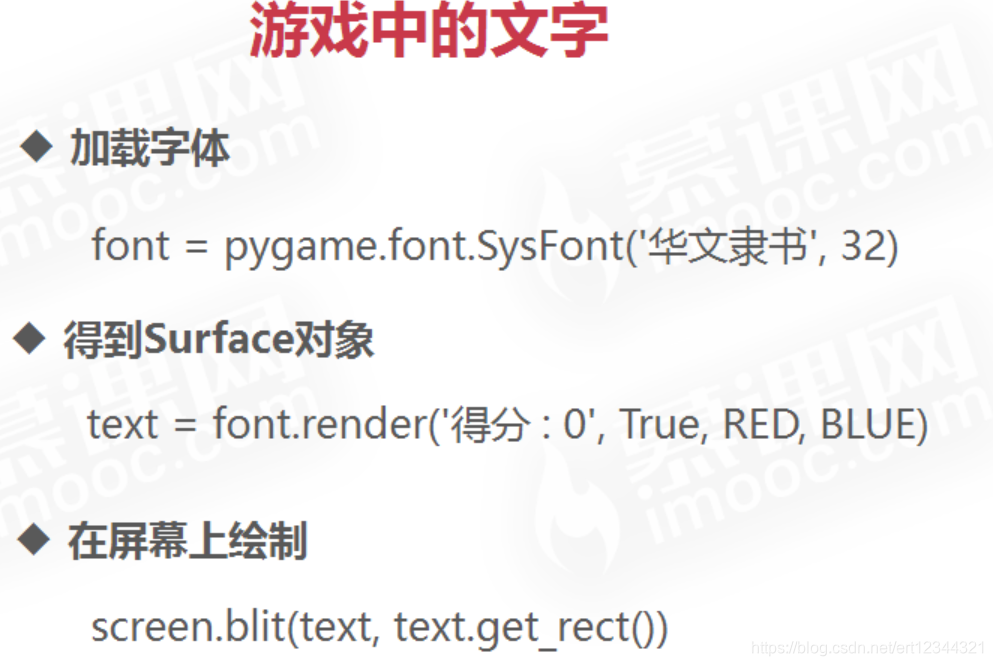
import pygame, sys

pygame.init()

screen = pygame.display.set_mode((500,500))

red = pygame.Color(255, 0 ,0)
# 加载字体
font = pygame.font.get_fonts()
# print(font)

# 方式一:使用系统默认的字体进行加载
#font = pygame.font.SysFont('华文新魏', 40)
# 方式二:自己准备好一个字体文件ttf,放到咱们的项目里面
font = pygame.font.Font('simhei.ttf',40)
# 文字对象 得到surface对象
text = font.render('得分', True, red)
# 文字加载


while True:
    for event in pygame.event.get():
        if event.type == pygame.QUIT:
            pygame.quit()
            sys.exit()
# 在屏幕上绘制
    screen.blit(text, (20, 20))
    pygame.display.flip()
(2)游戏中的颜色:
使用RGB表示:取值范围: 0-255
RGBA表示透明色:A(alpha):0-255
import sys, pygame

# 初始化pygame
pygame.init()

# 屏幕对象
screen = pygame.display.set_mode((500, 500))

# 加载图片
ball = pygame.image.load('./static/intro_ball.gif')

# 红色
red = pygame.Color(255, 20, 255)

# 游戏主循环
while True:
    # 处理事件
    for event in pygame.event.get():
        if event.type == pygame.QUIT:
            pygame.quit()
            sys.exit()
    # 更新状态

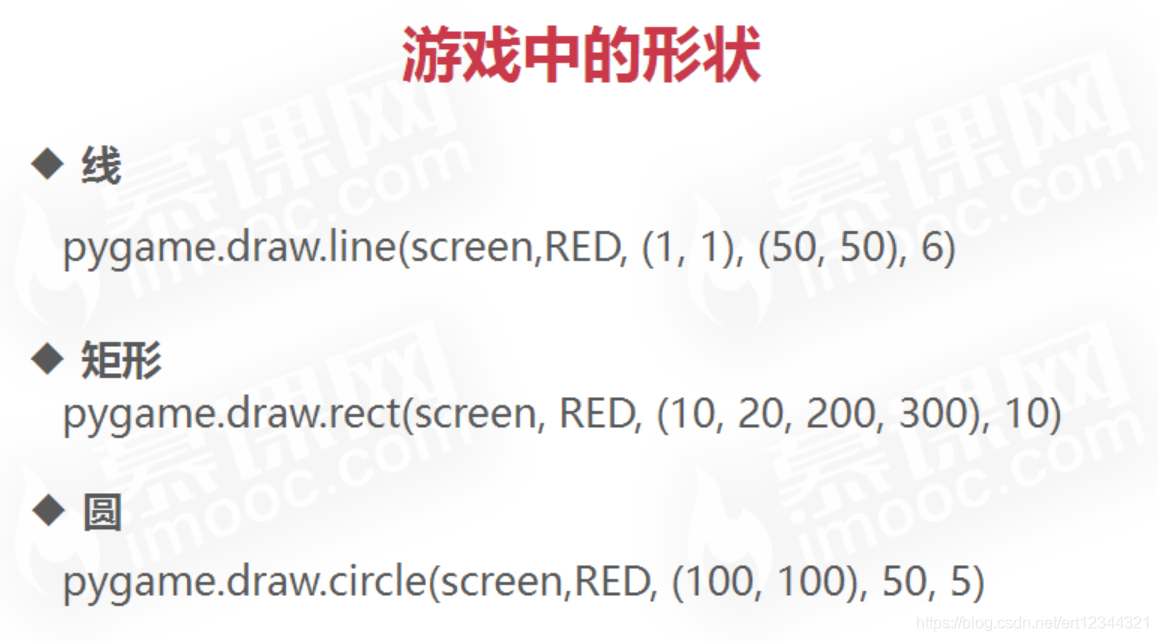
    # 画线
    pygame.draw.line(screen, red, (10, 10), (200, 200), 10)

    # 画矩形
    pygame.draw.rect(screen, red, (10, 20, 200, 300), 10)

    # 画圆
    pygame.draw.circle(screen, red, (100, 100), 50, 5)

    # 绘制
    screen.blit(ball, (100, 100))
    pygame.display.flip()
3、游戏中的图片
图片加载:bg = pygame.image.load('bg.png')
在屏幕上绘制:screen.blit(bg,bg.get_rect())
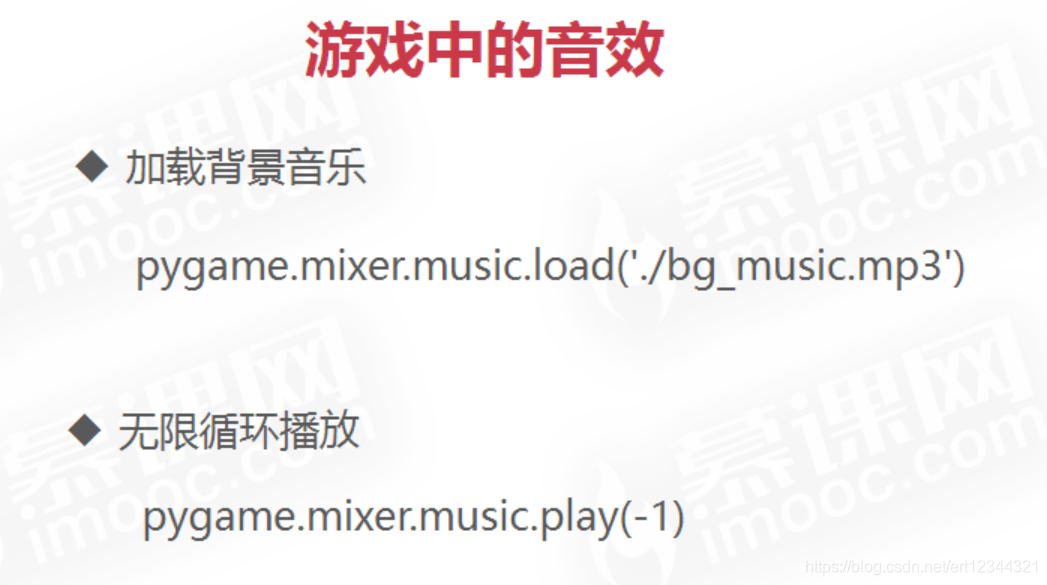
4、游戏音效
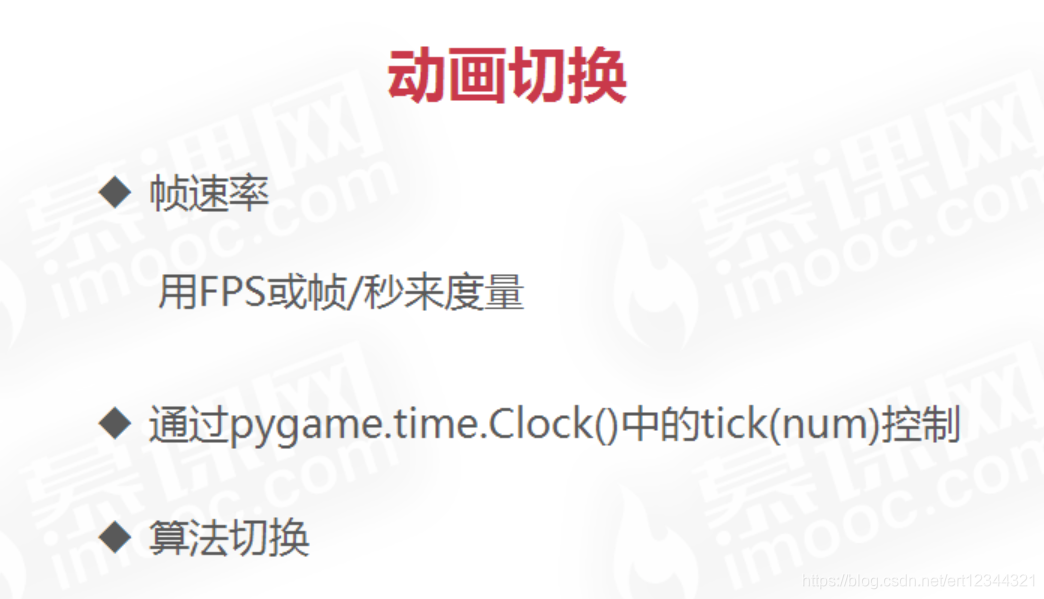
5、动画切换
6、精灵及精灵组
精灵:精灵可以认为是一个个小图片,一种可以在屏幕上移动的图形对象,并且可以与其他图形对象交互。精灵图像可以是使用pygame绘制函数绘制IDE图像,也可以是原来就有的图像文件
精灵组:是一个容器,用于管理组内精灵的绘制和更新
7、碰撞检测
两个精灵之间的矩形检测:pygame.sprite.collide_rect(sprite_1,sprite_2 pygame.sprite.collide_rect_ratio(0.5)(sprite_1,sprite_2
两个精灵之间的圆形检测:pygame.sprite.collide_circle(sprite_1,sprite_2)
两个精灵之间的像素遮罩检测:pygame.sprite.collide_mask(sprite_1,sprite_2)
精灵和精灵组之间的碰撞检测:pygame.sprite.spritecollideany(sprite,sprite_group,bool)
# 1.引入相关的包
import sys, pygame

# 2. pygame进行初始化
pygame.init()

size = width, height = 320, 240
speed = [2, 2]
black = 0, 0, 0

# 3. 得到屏幕对象Surface
screen = pygame.display.set_mode((320, 240))


class Block(pygame.sprite.Sprite):

    # Constructor. Pass in the color of the block,
    # and its x and y position
    def __init__(self, color, width, height, init_pos):
        # Call the parent class (Sprite) constructor
        pygame.sprite.Sprite.__init__(self)

        # Create an image of the block, and fill it with a color.
        # This could also be an image loaded from the disk.
        self.image = pygame.Surface([width, height])
        self.image.fill(color)

        # Fetch the rectangle object that has the dimensions of the image
        # Update the position of this object by setting the values of rect.x and rect.y
        self.rect = self.image.get_rect()
        self.rect.topleft = init_pos


# 实例化精灵对象
sprite_1 = Block(pygame.Color(255, 0, 0), 50, 50, (50, 50))
sprite_2 = Block(pygame.Color(0, 255, 0), 50, 50, (90, 90))


# 4. 游戏主循环
while 1:

    # 处理游戏的事件
    for event in pygame.event.get():
        if event.type == pygame.QUIT:
            sys.exit()

    # 往屏幕上画精灵
    screen.blit(sprite_1.image, sprite_1.rect)
    screen.blit(sprite_2.image, sprite_2.rect)

    # 矩形检测碰撞
    rest = pygame.sprite.collide_rect(sprite_1, sprite_2)
    print('rest', rest)
    # 链式调用
    rest2 = pygame.sprite.collide_rect_ratio(0.5)(sprite_1, sprite_2)
    print('rest2', rest2)

    pygame.display.flip()





 扫一扫
扫一扫


 2453
2453

 被折叠的 条评论
为什么被折叠?
被折叠的 条评论
为什么被折叠?
 到【灌水乐园】发言





