


 本文介绍如何在WPF中优化ListView控件,实现异步加载图片列表,以解决因图片加载导致的界面停顿问题。通过异步加载图片地址和异步读取图片资源的方式,提高用户体验。
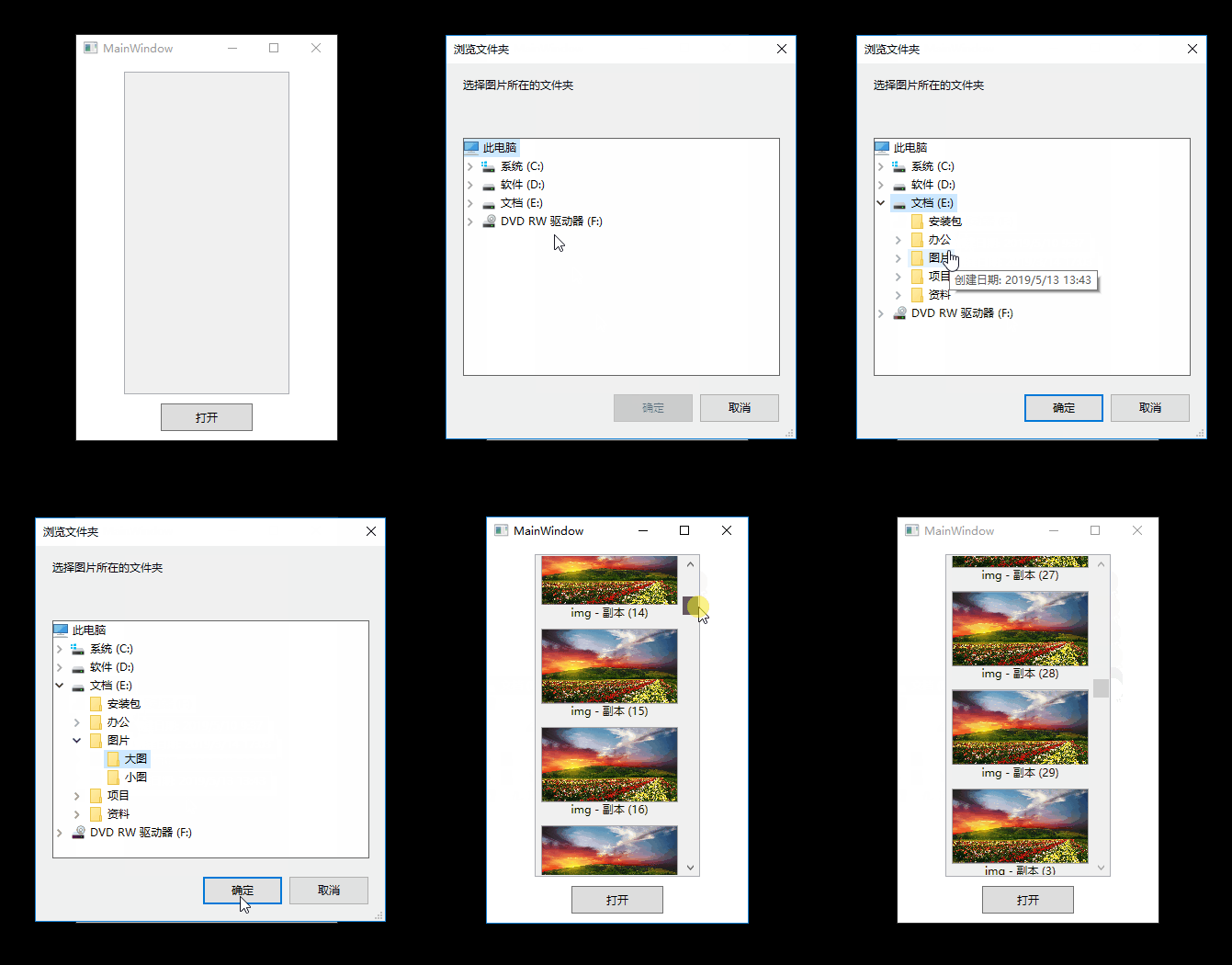
通过改变ListView控件的ItemsControl.ItemContainerStyle样式可以实现各式各样的列表展示效果。如果后台读取文件夹图片资源后最后给ListView的ItemsSource赋值,可以在前台显示加载的图片列表,但是由于加载图片需要时间,会有一段空白停顿,并且要加载的图片越大停顿的时间越长。如下图所示:
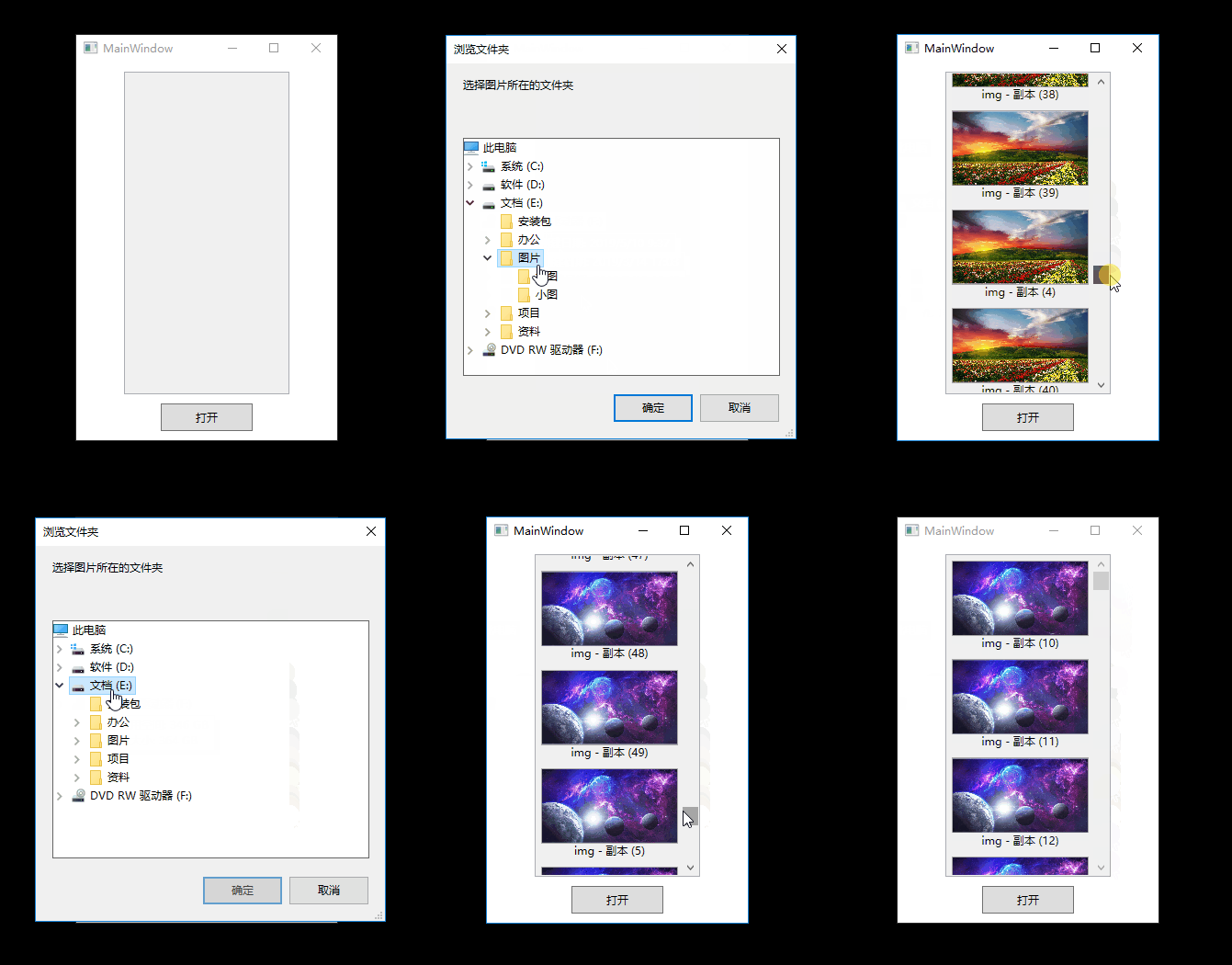
这里的解决方案是首先异步加载图片地址,再异步读取图片资源的方式来加载本地图片列表。效果如下:
具体代码:
1、自定义控件ucListPicView.xaml
<ListView x:Class="ListViewDemo.ucListPicView"
             xmlns="http://schemas.microsoft.com/winfx/2006/xaml/presentation"
             xmlns:x="http://schemas.microsoft.com/winfx/2006/xaml"
             xmlns:mc="http://schemas.openxmlformats.org/markup-compatibility/2006"
             xmlns:d="http://schemas.microsoft.com/expression/blend/2008"
             xmlns:local="clr-namespace:ListViewDemo"
             mc:Ignorable="d" SelectionMode="Single" Background="#f0f0f0"
             ItemContainerStyle="{DynamicResource ListViewItemStyle}"
             ScrollViewer.HorizontalScrollBarVisibility="Disabled" ScrollViewer.VerticalScrollBarVisibility="Auto">
    <ListView.Resources>
        <Style x:Key="ListViewItemStyle" TargetType="{x:Type ListViewItem}">
            <Setter Property="AllowDrop" Value="True"/>
            <Setter Property="Cursor" Value ="Hand"/>
            <Setter Property="Margin" Value="5,5,5,5"/>
            <Setter Property="Foreground" Value="Black"/>
            <Setter Property="FontSize" Value="12"/>
            <Setter Property="Template">
                <Setter.Value>
                    <ControlTemplate TargetType="{x:Type ListViewItem}">
                        <Grid x:Name="gridContent" HorizontalAlignment="Center" VerticalAlignment="Center">
                            <Grid.RowDefinitions>
                                <RowDefinition ></RowDefinition>
                                <RowDefinition ></RowDefinition>
                            </Grid.RowDefinitions>
                            <Border Name="picBorder" Background="White" BorderBrush="DarkGray" BorderThickness="1">
                                <Image Name="ItemPic" Width="{Binding ItemWidth}" Height="{Binding ItemHeight}" Source="{Binding ItemPic}" Stretch="{Binding StrethMethod}" VerticalAlignment="Center" HorizontalAlignment="Center"/>
                            </Border>
                            <ContentControl Name="ItemName" Content="{Binding ItemName}" HorizontalAlignment="Center" VerticalAlignment="Center" Grid.Row="1" Margin="0"/>
                        </Grid>
                        <ControlTemplate.Triggers>
                            <Trigger Property="IsSelected" Value="True">
                                <Setter TargetName="picBorder" Property="BorderBrush" Value="DarkBlue"></Setter>
                            </Trigger>
                            <Trigger Property="IsMouseOver" Value="True">
                                <Setter TargetName="picBorder" Property="BorderBrush" Value="Blue"></Setter>
                            </Trigger>
                        </ControlTemplate.Triggers>
                    </ControlTemplate>
                </Setter.Value>
            </Setter>
        </Style>
    </ListView.Resources>
    <ListView.ItemsPanel>
 最低0.47元/天 解锁文章






 扫一扫
扫一扫


 467
467


 到【灌水乐园】发言



