


1.创建Plugin工程
如果Module SDK中没有可选的SDK,那么点击New新添加一个SDK,目录就选择Intellij的安装位置即可。
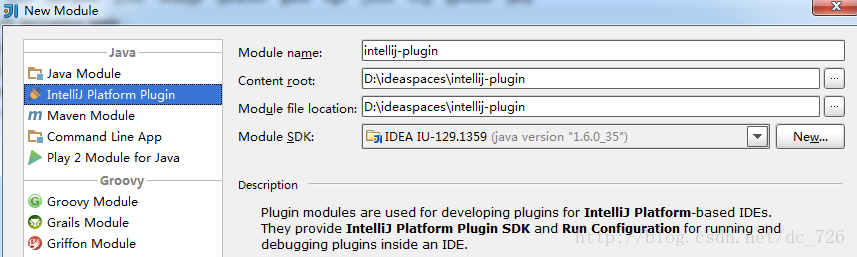
创建出的Plugin项目结构很简单,只是在META-INF下多了一个plugin.xml配置文件,后文会介绍到它的用处。
2.让插件Say哈喽
2.1添加Component
在src目录上Alt+Insert,可以看到New对话框中列出有三种组件,分别对应三种级别:Application、Project、Module Component。
这里我们选择Application Component作为实例,在弹出框中输入一个名字例如MyComponent,这样一个组件就创建出来了。
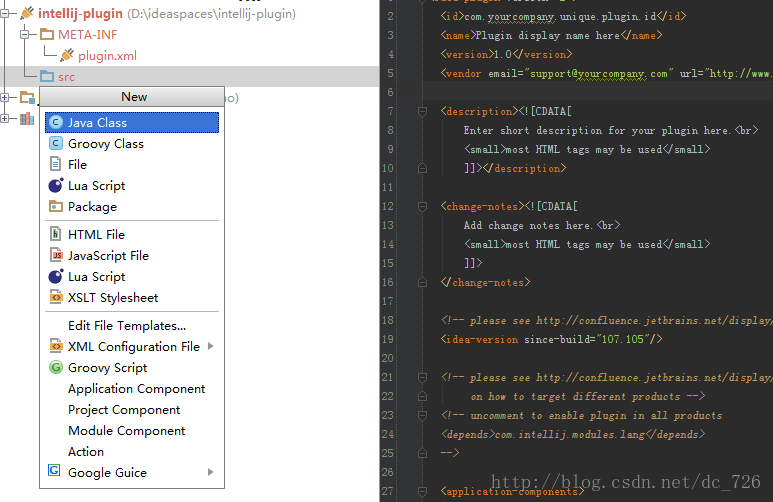
然后在MyComponent中添加一个SayHello的方法,其他方法暂不实现,源代码如下所示:
package com.cdai.plugin.rapidg;


import com.intellij.openapi.components.ApplicationComponent;

import com.intellij.openapi.ui.Messages;

import org.jetbrains.annotations.NotNull;


/**

 * My Component

 * User: cdai

 * Date: 13-11-4

 * Time: 上午10:08

 */

public class MyComponent implements ApplicationComponent {

    public MyComponent() {

    }


    public void initComponent() {

        // TODO: insert component initialization logic here

    }


    public void disposeComponent() {

        // TODO: insert component disposal logic here

    }


    @NotNull

    public String getComponentName() {

        return "MyComponent";

    }


    public void sayHello() {

        // Show dialog with message

        Messages.showMessageDialog(

                "Hello World!",

                "Sample",

                Messages.getInformationIcon()

        );

    }

}
2.2添加Action
现在需要添加一个Action让使用我们插件的用户可以通过菜单或其他方式点击到插件。
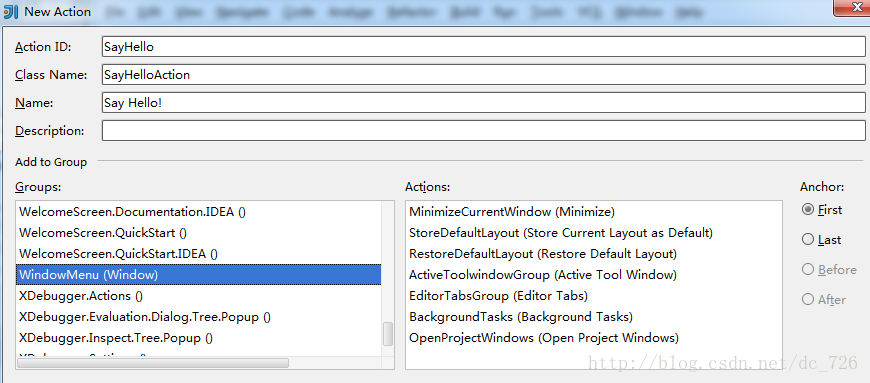 Action主要工作是创建一个Application和MyComponent对象,代码如下:
package com.cdai.plugin.rapidg;


import com.intellij.openapi.actionSystem.AnAction;

import com.intellij.openapi.actionSystem.AnActionEvent;

import com.intellij.openapi.application.Application;

import com.intellij.openapi.application.ApplicationManager;


/**

 * Say Hello Action

 * User: cdai

 * Date: 13-11-4

 * Time: 上午10:16

 */

public class SayHelloAction extends AnAction {


    @Override

    public void actionPerformed(AnActionEvent e) {

        Application application = ApplicationManager.getApplication();

        MyComponent myComponent = application.getComponent(MyComponent.class);

        myComponent.sayHello();

    }


}
2.3配置文件 其实前面两步新建Component和Action的同时,IDEA在帮我们自动将它们注册到META-INF/plugin.xml中。 我们刚才添加的Application Component和Action会在<application-components>结点下,plugin.xml最终是下面的样子:
<idea-plugin version="2">

  <id>com.cdai.plugin.rapidg</id>

  <name>CDai's Rapid Generator Plugin</name>

  <version>1.0</version>

  <vendor email="dc_726@163.com" url="http://www.yourcompany.com">CDai</vendor>


  <description><![CDATA[

      Enter short description for your plugin here.<br>

      <small>most HTML tags may be used</small>

      ]]></description>


  <change-notes><![CDATA[

      Add change notes here.<br>

      <small>most HTML tags may be used</small>

      ]]>

  </change-notes>


  <!-- please see http://confluence.jetbrains.net/display/IDEADEV/Build+Number+Ranges for description -->

  <idea-version since-build="107.105"/>


  <!-- please see http://confluence.jetbrains.net/display/IDEADEV/Plugin+Compatibility+with+IntelliJ+Platform+Products

       on how to target different products -->

  <!-- uncomment to enable plugin in all products

  <depends>com.intellij.modules.lang</depends>

  -->


  <application-components>

    <!-- Add your application components here -->

      <component>

          <implementation-class>com.cdai.plugin.rapidg.MyComponent</implementation-class>

      </component>

  </application-components>


  <project-components>

    <!-- Add your project components here -->

  </project-components>


  <actions>

    <!-- Add your actions here -->

      <action id="SayHello" class="com.cdai.plugin.rapidg.SayHelloAction" text="Say Hello!">

          <add-to-group group-id="WindowMenu" anchor="first"/>

      </action>

  </actions>


  <extensions defaultExtensionNs="com.intellij">

    <!-- Add your extensions here -->

  </extensions>

</idea-plugin>
3.运行调试
打开Run/Debug配置对话框,新加一个Plugin类型的,Use classpath of module选择刚才的示例项目。
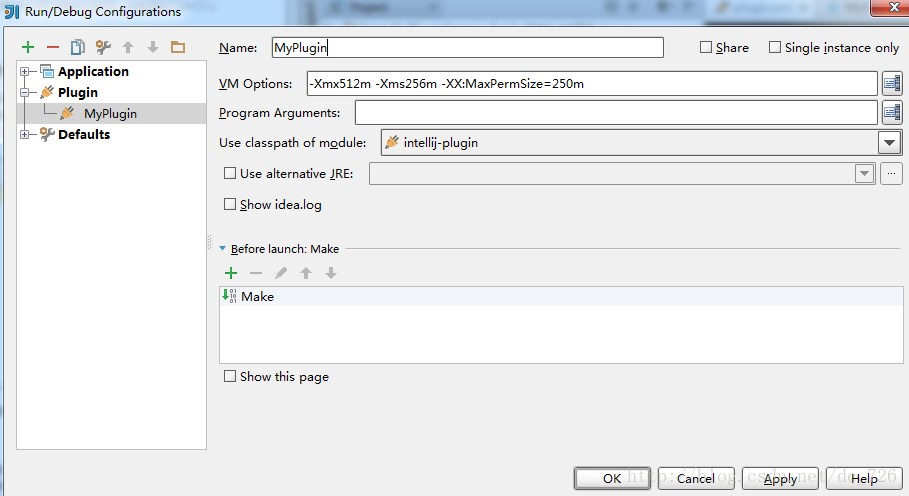 运行起来就会发现,原来会启动一个新的Intellij IDEA实例,重新走一遍启动配置过程,可以看到插件的名字就是plugin.xml中<name>中的值。
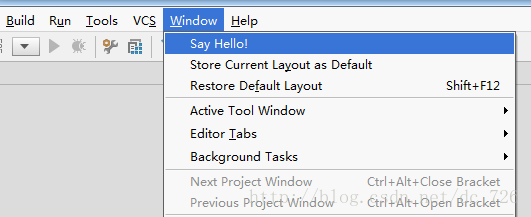
我们可以只选中我们刚开发的插件,忽略掉其他的。现在通过Window->Say Hello!就可以触发我们的插件了,效果就是会弹出个对话框。





 扫一扫
扫一扫


 4010
4010

 被折叠的 条评论
为什么被折叠?
被折叠的 条评论
为什么被折叠?
 到【灌水乐园】发言





