



 本文详细介绍了如何在.NET Core项目中使用配置框架,包括配置核心类库的选择,通过内存、命令行、环境变量及文件(json、xml、ini)配置的实践,以及强类型绑定配置的示例。展示了配置的构建过程和不同配置源间的优先级和覆盖规则。
一.配置框架的核心类库
首先我们使用.NET Core的配置框架需要安装额外的NuGet扩展包,下面是列举最常用的几个扩展包以及所对应的配置功能
| NuGet Package | Description |
|---|---|
| Microsoft.Extensions.Configuration | 配置框架的核心库,提供有关Configuration的抽象类和实现类 |
| Microsoft.Extensions.Configuration.CommandLine | 能够使用命令参数进行配置 |
| Microsoft.Extensions.Configuration.EnvironmentVariables | 能够使用环境变量进行配置 |
| Microsoft.Extensions.Configuration.Json | 能够使用json文件进行配置 |
| Microsoft.Extensions.Configuration.Xml | 能够使用xml文件进行配置 |
| Microsoft.Extensions.Configuration.Ini | 能够使用Ini文件进行配置 |
| Microsoft.Extensions.Configuration.Binder | 支持强类型对象绑定配置 |
二.一个Configuration的构建
下面我们在控制台使用内存存储配置信息并且完成一个Configuration的构造,代码如下:
 static void Main(string[] args)
{
    //定义一个ConfigurationBuilder
    IConfigurationBuilder builder = new ConfigurationBuilder();

    //添加ConfigurationSource
    builder.AddInMemoryCollection(new Dictionary<string, string>()
    {
        {"Name","Foo"},
        {"Sex","Male" },
        {"Job","Student" },
    });

    //通过Build构建出IConfiguration
    IConfiguration configuration = builder.Build();

     foreach (var item in configuration.GetChildren())
     {
        Console.WriteLine($"{item.Key}:{item.Value}");
     }
     Console.ReadLine();
}
输出结果:
Job:Student
Name:Foo
Sex:Male
那么我们可以看到一个configuration的构建的步骤:
- 定义
ConfigurationBuilder - 为
ConfigurationBuilder添加ConfigurationSource - 通过
ConfigurationBuilder的Build方法完成构建
三.通过命令行配置
首先我们在项目的调试的应用程序参数加入命令行参数:
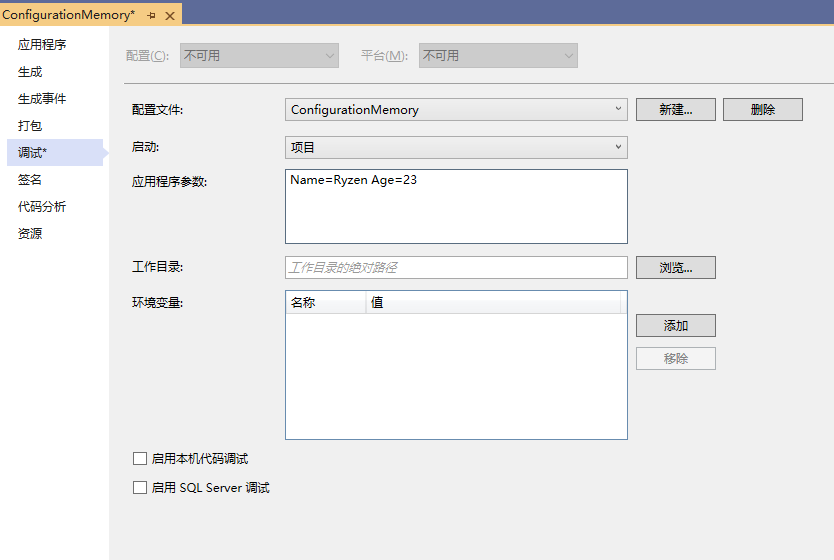
代码修改如下:
 builder.AddInMemoryCollection(new Dictionary<string, string>()
 {
      {"Name","Foo"},
      {"Sex","Male" },
      {"Job","Student" },
 })
 .AddCommandLine(args);
输出:
Age:23
Job:Student
Name:Ryzen
Sex:Male
同时我们在输出结果看到,key为Name的value变化了,证明当不同配置源存在相同Key时,会被后添加的配置源覆盖其value
四.通过环境变量配置
下面的环节由于出于演示效果,通过WPF程序来演示,首先创建好一个wpf项目,界面如下:
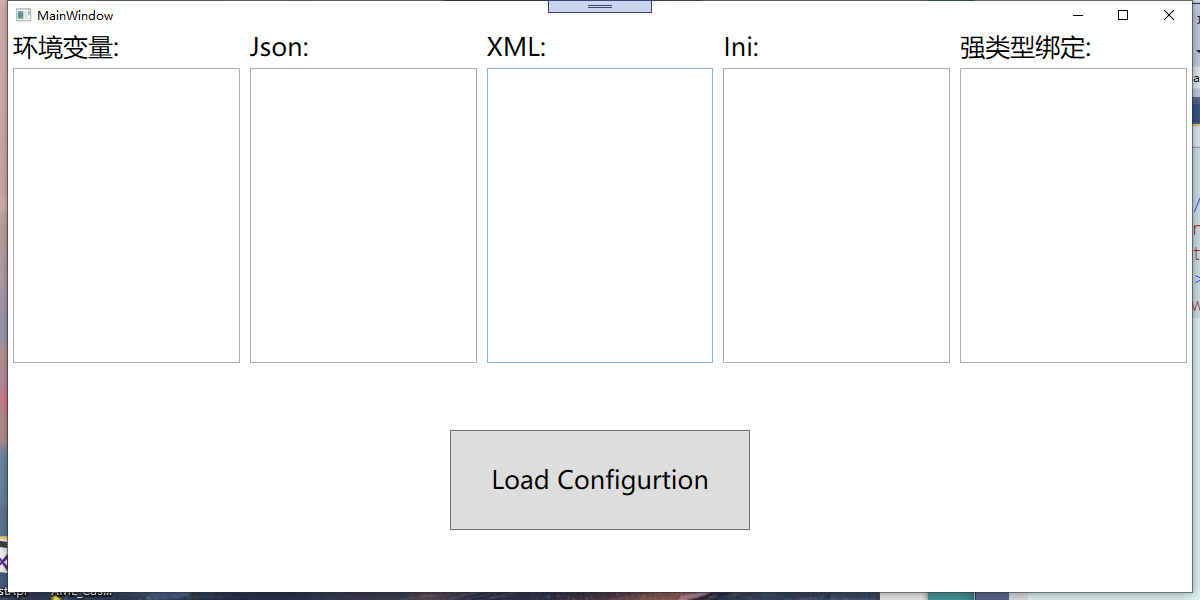
我们在项目的调试的环境变量添加几个参数:
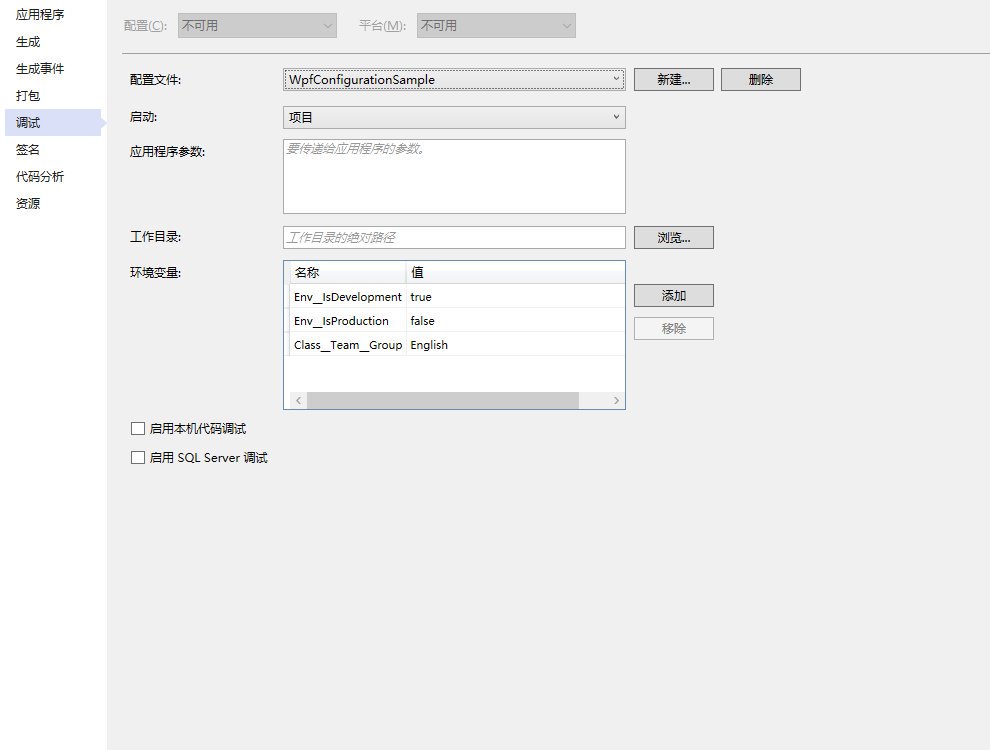
在App.cs中构建一个静态属性IConfiguration,代码如下:
public partial class App : Application
{
   public static IConfiguration MyConfigration => new ConfigurationBuilder()
        .AddEnvironmentVariables()

}
MainWindow.cs:
public partial class MainWindow : Window
{
    public MainWindow()
    {
        InitializeComponent();
    }

    private void Button_Click(object sender, RoutedEventArgs e)
    {
        LoadEnv();

    }

    private void LoadEnv()
    {
        string envString = string.Empty;
        this.textbox_env.Text = $"Env__IsProduction:{App.MyConfigration.GetSection("Env")["IsProduction"]}"+"\n";
        this.textbox_env.Text += $"Env__IsDevelopment:{App.MyConfigration.GetSection("Env")["IsDevelopment"] }"+"\n";
        this.textbox_env.Text += $"Class__Team__Group:{App.MyConfigration.GetSection("Class:Team")["Group"]}";
    }
}
实现效果:
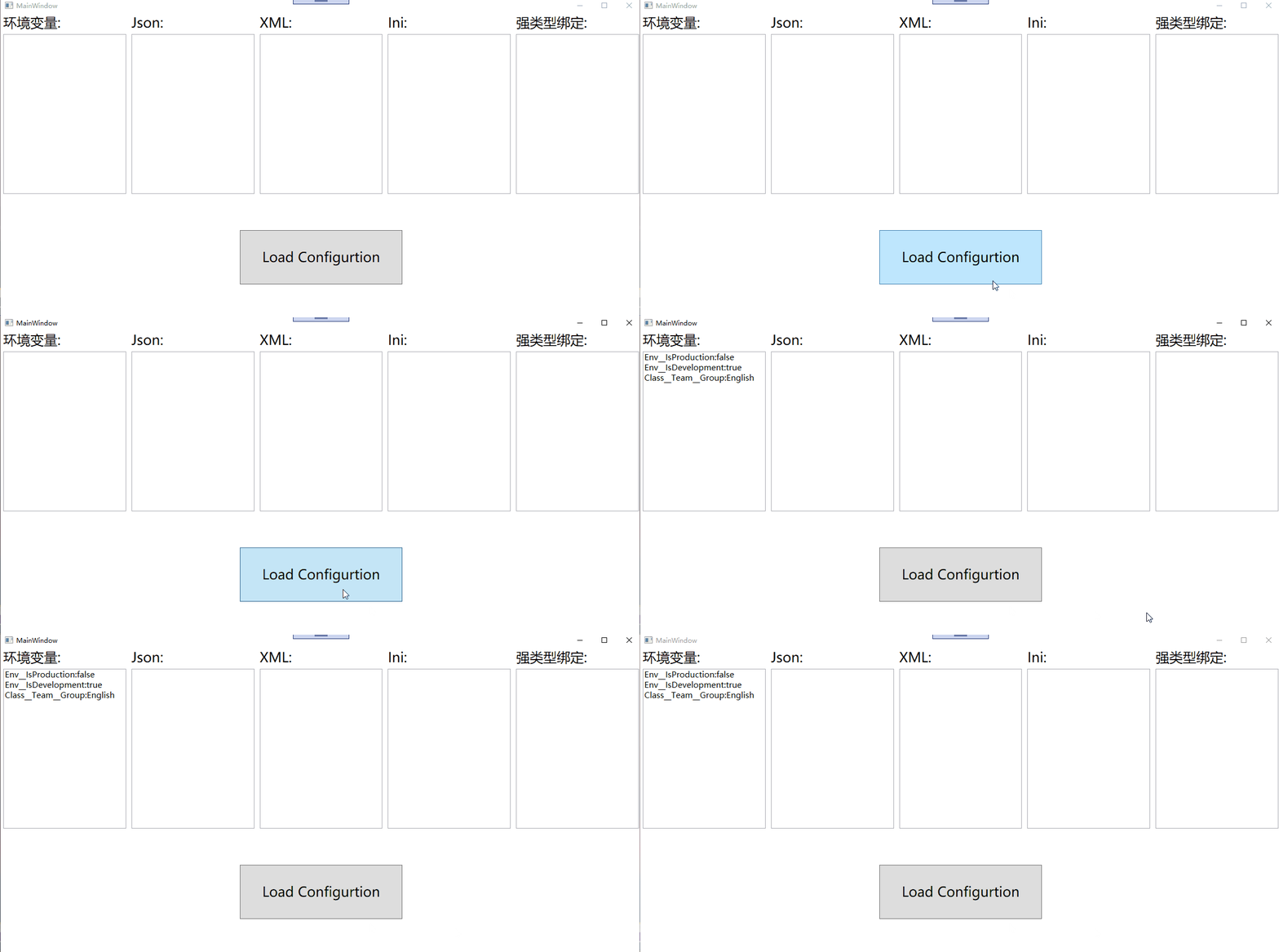
在注入环境变量时,还支持去前缀过滤筛选注入,修改App.cs:
public partial class App : Application
{
   public static IConfiguration MyConfigration => new ConfigurationBuilder()
        .AddEnvironmentVariables("Env:")

}
修改MainWindow.cs:
private void LoadEnv()
{
    string envString = string.Empty;
    this.textbox_env.Text = $"Env__IsProduction:{App.MyConfigration.GetSection("Env")["IsProduction"]}"+"\n";
    this.textbox_env.Text += $"Env__IsDevelopment:{App.MyConfigration.GetSection("Env")["IsDevelopment"] }"+"\n";
    this.textbox_env.Text += $"Class__Team__Group:{App.MyConfigration.GetSection("Class:Team")["Group"]}" +"\n";
    //过滤前缀后
    this.textbox_env.Text += $"IsProduction:{App.MyConfigration["IsProduction"]}";
}
效果如下:
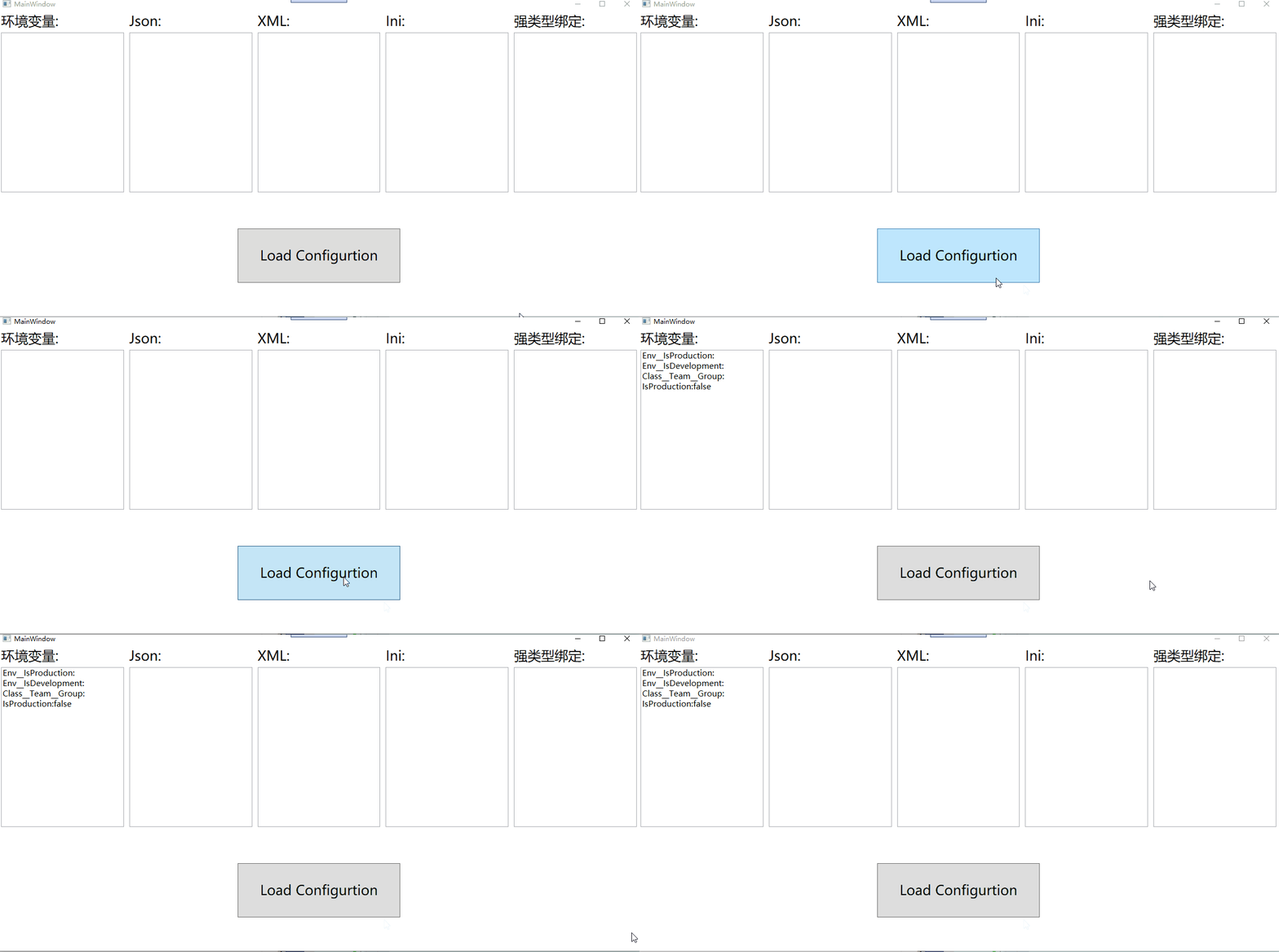
我们会发现,之前的环境变量都被过滤了,只能读取被过滤前缀后的环境变量
配置环境变量时的注意点:
- 和json等文件不同,环境变量的
Key是以__双下划线为分层键,而不是:冒号 - 分层读取的时候是以冒号:来进行读取
五.通过文件来配置
1.创建和读取配置文件
首先我们新建一个Configurations文件夹,然后再该文件夹创建三个配置文件
appsetting.json:
{
  "Human": {
    "Name": "Foo",
    "Body": {
      "Height": 190,
      "Weight": 170
    },
    "Sex": "Male",
    "Age": 24,
    "IsStudent": true
  }
}
appsetting.xml:
<?xml version="1.0" encoding="utf-8" ?>
<Configuration>
  <DbServers>
    <SqlSever>12</SqlSever>
    <MySql>11</MySql>
  </DbServers>
</Configuration>
appsetting.ini:
[Ini]
IniKey1=IniValue1
IniKey2=IniValue2
在App.cs分别注入这三个文件:
public partial class App : Application
{
   public static IConfiguration MyConfigration => new ConfigurationBuilder()
        .AddEnvironmentVariables("Env:")
        .AddJsonFile(@"Configurations\appsetting.json", false, true)
        .AddXmlFile(@"Configurations\appsetting.xml", false, true)
        .AddIniFile(@"Configurations\appsetting.Ini")
        .Build();

}
修改MainWindow代码,分别读取这三个文件:
private void Button_Click(object sender, RoutedEventArgs e)
{
     LoadEnv();
     LoadJson();
     LoadXML();
     LoadIni();
 }

private void LoadJson()
 {
     var jsonString = string.Empty;
     foreach (var item in App.MyConfigration.GetSection("Human").GetChildren())
     {
        if (item.Key.Contains("Body"))
        {
            foreach (var body in item.GetChildren())
            {
                jsonString += $"{body.Key}:{body.Value} \n";
            }
        }
        else
        {
           jsonString += $"{item.Key}:{item.Value} \n";
        }

     }
     this.textbox_json.Text = jsonString;
 }

private void LoadXML()
{
   var xmlString = string.Empty;
   foreach (var item in App.MyConfigration.GetSection("DbServers").GetChildren())
   {
       xmlString += $"{item.Key}:{item.Value} \n";
   }
   this.textbox_xml.Text = xmlString;
}

private void LoadIni()
{
   var iniString = string.Empty;
   foreach (var item in App.MyConfigration.GetSection("Ini").GetChildren())
   {
      iniString += $"{item.Key}:{item.Value} \n";
   }
   this.textbox_ini.Text = iniString;
}
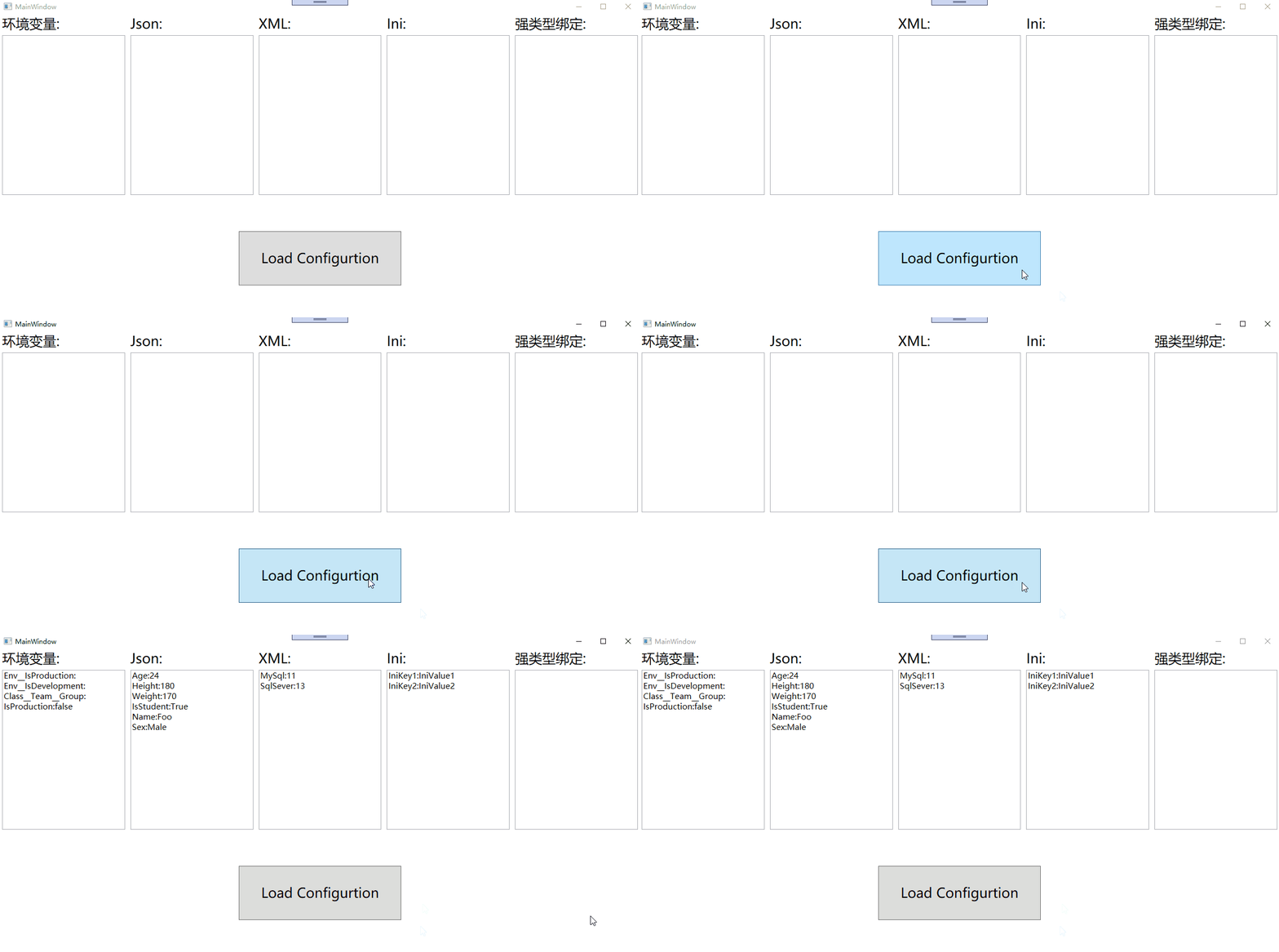
效果如下:
2.支持文件变更时重新读取和设置变更监视
以json文件为例,我们在App.cs注入json文件时调用此方法
AddJsonFile(@"Configurations\appsetting.json", false, true)
该方法有是一个重载方法,最常用的是三个参数的重载方法,下面是三个参数的作用
path:文件路径optional:默认为false,当找不到该文件路径会报错,true则不报错reloadOnChange:默认为false,当为true时支持配置文件变更后重新读取
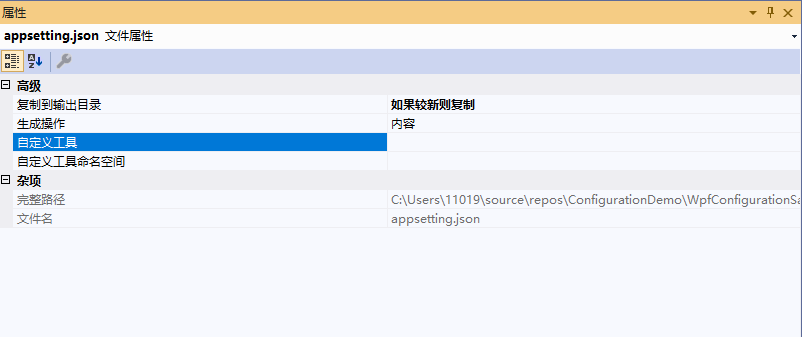
首先,我们为appsetting.json文件设置属性,复制到输出目录=>如果较新则复制,生成操作=>内容
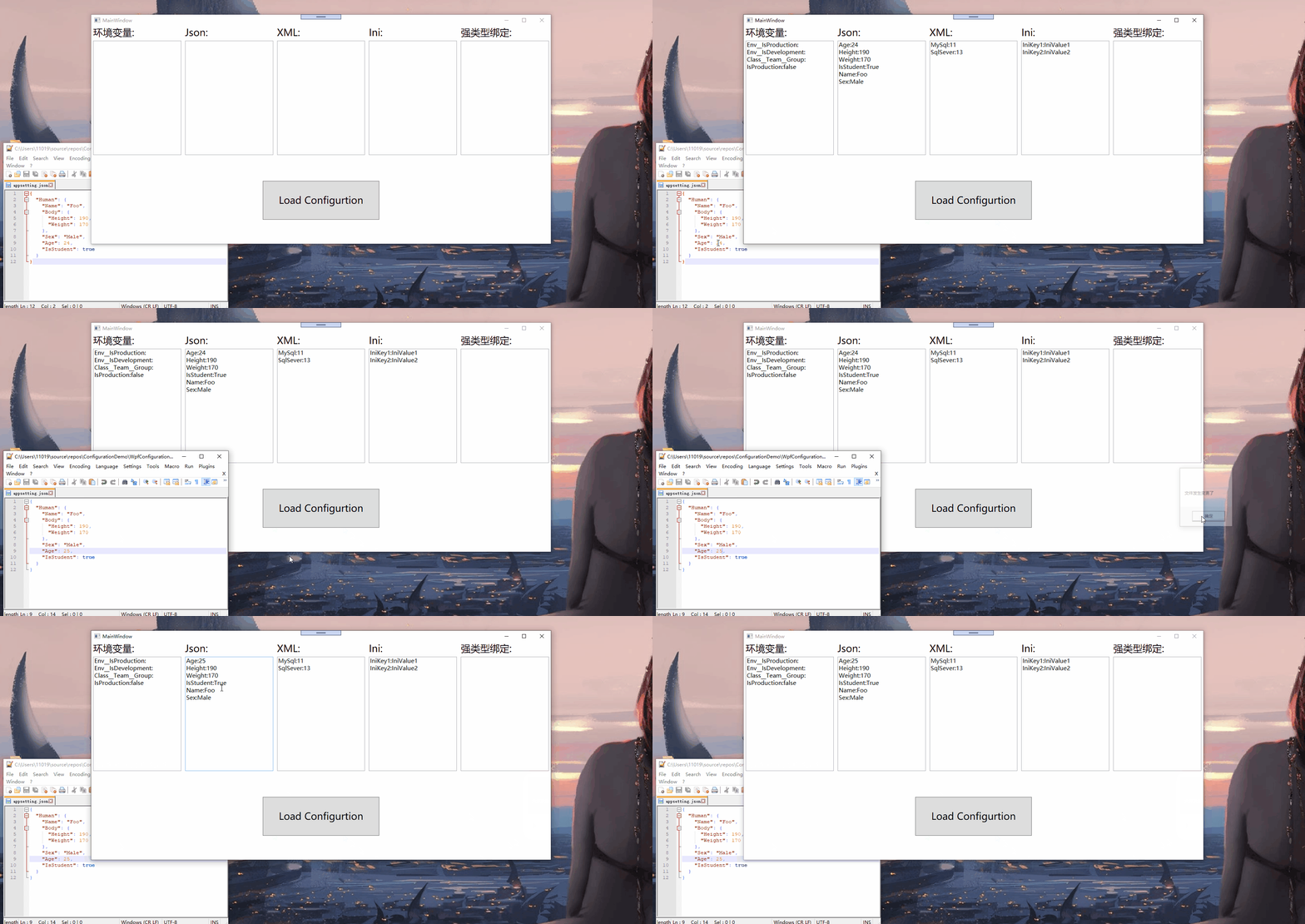
然后我们通过一个内置的静态方法监控文件变更,修改MainWindows.cs:
public MainWindow()
{
   InitializeComponent();
   ChangeToken.OnChange(() => App.MyConfigration.GetReloadToken(), () =>
   {
       MessageBox.Show("文件发生变更了");
   });
}
效果如下:
六.强类型绑定配置
首先我们创建一个类用于绑定配置,代码如下:
public class MyHumanConfig
{
    public string Name { get; set; }

    public Body Body { get; set; }
    public string Sex { get; set; }

    public int Age { get; set; }

    public bool IsStudent { get; set; }
}

public class Body
{
    public int Height { get; set; }

    public int Weight { get; set; }
}
在Mainwindow.cs新增以下代码:
  private void Button_Click(object sender, RoutedEventArgs e)
  {
       LoadEnv();
       LoadJson();
       LoadXML();
       LoadIni();
       LoadBind();
  }


  private void LoadBind()
  {
      var bindString = string.Empty;
      MyHumanConfig config = new MyHumanConfig();//声明变量

      App.MyConfigration.GetSection("Human").Bind(config);//绑定变量

      foreach (var configProperty in config.GetType().GetProperties())
      {
         if (configProperty.PropertyType==typeof(Body))
         {
             var body = configProperty.GetValue(config) as Body;
             foreach (var bodyProperty in body.GetType().GetProperties())
             {
                bindString += $"{bodyProperty.Name}:{bodyProperty.GetValue(body)} \n";
             }
         }
         else
         {
            bindString += $"{configProperty.Name}:{configProperty.GetValue(config)} \n";
         }

      }
      this.textbox_bind.Text = bindString;
  }
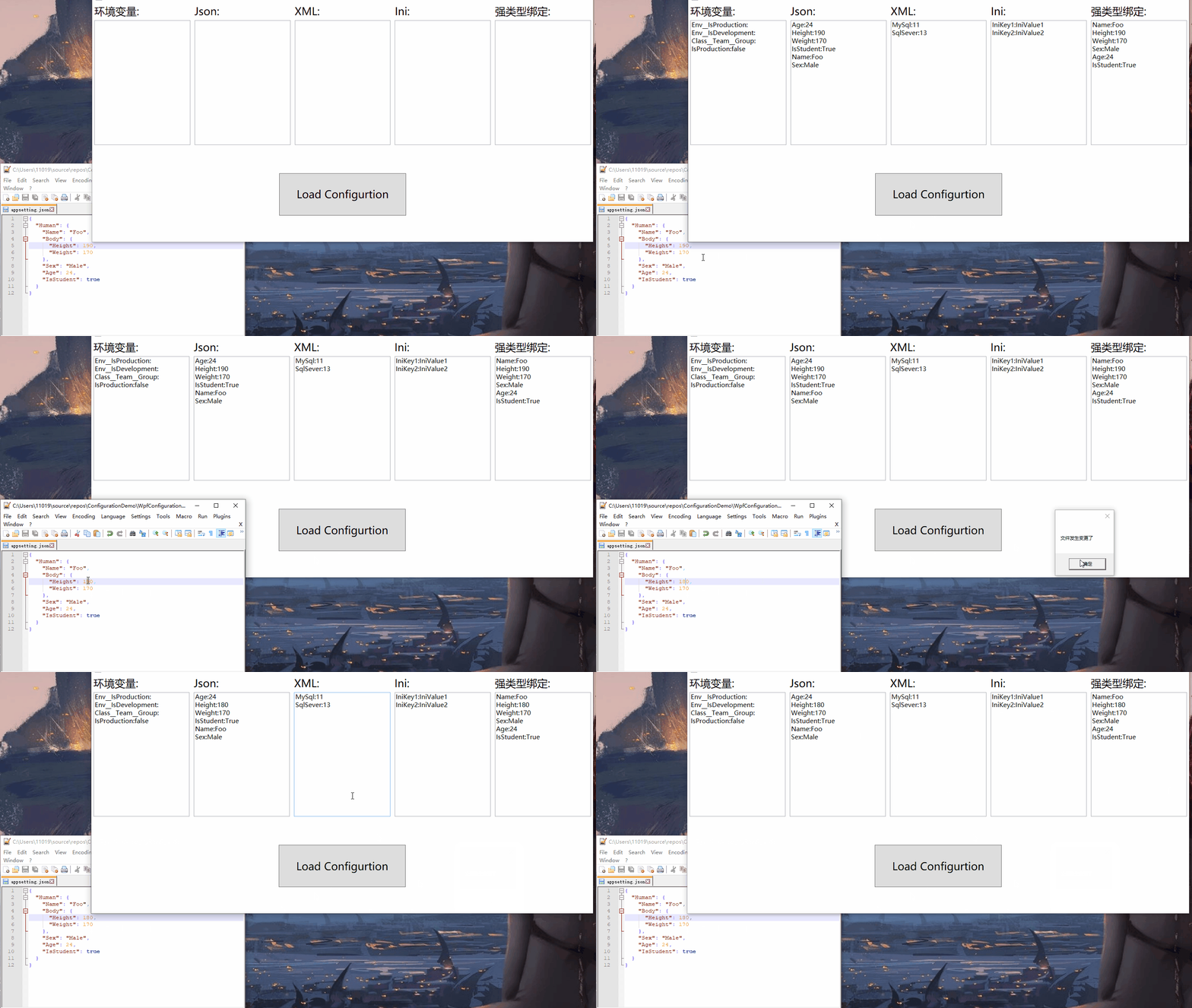
效果如下:





 扫一扫
扫一扫


 1165
1165

 被折叠的 条评论
为什么被折叠?
被折叠的 条评论
为什么被折叠?
 到【灌水乐园】发言





