



Theme
视频课里面很多主题设置已经不起作用了,需要注意
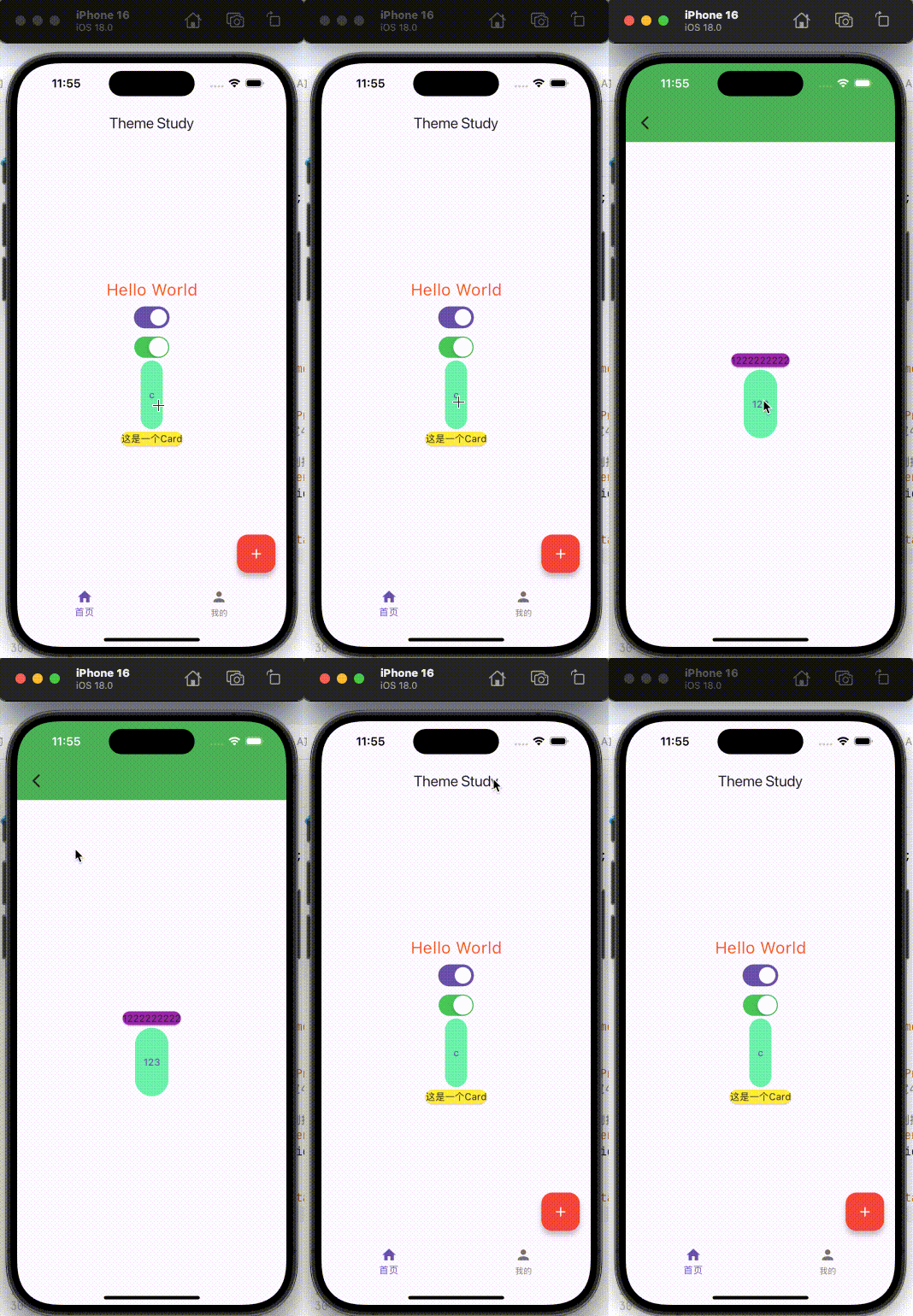
import 'package:flutter/cupertino.dart';
import 'package:flutter/material.dart';
void main(){
//调用runApp函数
runApp(
MyApp()
);
}
class MyApp extends StatelessWidget{
Widget build(BuildContext context) {
return MaterialApp(//保持整个app是Material风格
title: "主题演示",
debugShowCheckedModeBanner: false,//去掉右上角的debug
theme: ThemeData(
// 亮度
brightness: Brightness.light,
primarySwatch: Colors.red,
// 明确设置 primaryColor
primaryColor: Colors.green,
// 统一textButtonTheme的一些配置
textButtonTheme: TextButtonThemeData(
style: ButtonStyle(
minimumSize: MaterialStateProperty.all(Size(10, 100)),
backgroundColor: MaterialStateProperty.all(Colors.greenAccent)
)
),
// 统一Card的一些配置
cardTheme: CardTheme(
color: Colors.yellow
),
// // 设置 AppBar 主题
// appBarTheme: AppBarTheme(
// backgroundColor: Colors.red,
// foregroundColor: Colors.white,
// ),
// 设置 FloatingActionButton 主题
floatingActionButtonTheme: FloatingActionButtonThemeData(
backgroundColor: Colors.red,
foregroundColor: Colors.white,
),
),
//暗黑模式
darkTheme: ThemeData(
cardTheme: CardTheme(
color: Colors.grey
),
),
home: YZHomePage()
);
}
}
class YZHomePage extends StatelessWidget
{
Widget build(BuildContext context) {
return Scaffold(//脚手架
appBar: AppBar(
title: Text("Theme Study"),
),
body: YZContentBody(),
bottomNavigationBar: BottomNavigationBar(
items: [
BottomNavigationBarItem(
label: "首页",
icon: Icon(Icons.home)
),
BottomNavigationBarItem(
label: "我的",
icon: Icon(Icons.person)
)
],
),
floatingActionButton: FloatingActionButton(
child: Icon(Icons.add),
onPressed: (){
print("object");
}
),
);
}
}
class YZContentBody extends StatelessWidget{
Widget build(BuildContext context) {
// 获取主题颜色
final theme = Theme.of(context);
return Center(
child: Column(
mainAxisAlignment: MainAxisAlignment.center,
children: [
Text(
"Hello World",
textDirection: TextDirection.ltr,//从左到右
style: TextStyle(
fontSize: 24,
color: Colors.deepOrange
)),
Switch(value: true, onChanged: (value){
print("Switch changed: $value");
}),
/// iOS系统的样式
CupertinoSwitch(value: true, onChanged: (value){}),
TextButton(
onPressed: (){
Navigator.of(context).push(MaterialPageRoute(builder: (BuildContext context){
return YZHomeDetailPage();
}));
},
child: Text("c"),
// style: ButtonStyle(backgroundColor: MaterialStateProperty.all(Colors.yellow)),
),
Card(
child: Text("这是一个Card"),
)
],
)
);
}
}
class YZHomeDetailPage extends StatelessWidget {
const YZHomeDetailPage({super.key});
Widget build(BuildContext context) {
return Theme(
// 重新搞一个ThemeData
// data: ThemeData(
// // 自己的ThemeData,以及CardTheme
// cardTheme: CardTheme(
// color: Colors.redAccent
// ),
// ),
data: Theme.of(context).copyWith(
cardTheme: CardTheme(
color: Colors.purple
)
),
child: Scaffold(
appBar: AppBar(
backgroundColor: Colors.green,
),
body: Center(
child: Column(
mainAxisAlignment: MainAxisAlignment.center,
children: [
Card(
child: Text("1222222222"),
),
TextButton(onPressed: (){}, child: Text("123"))
],
),
),
),
);
}
}
屏幕适配
import 'dart:ui';

import 'package:flutter/material.dart';

class YZScreenSizefit {

  static double? physicalWidth;
  static double? physicalHeight;
  static double? screenWidth;
  static double? screenHeight;
  static double? statusHeight;

  static double? rpx;
  static double? px;

  /// 初始化
  static void initialize({ double standardSize = 750 }) {
    /// 手机的物理分辨率
    physicalWidth = window.physicalSize.width;
    physicalHeight = window.physicalSize.height;
    print("分辨率:$physicalWidth * $physicalHeight");

    // 获取dpr
    final dpr = window.devicePixelRatio;

    // 手机屏幕的大小
    screenWidth = physicalWidth! / dpr;
    screenHeight = physicalHeight! / dpr;
    print("手机屏幕大小:$screenWidth * $screenHeight");

    statusHeight = window.padding.top / dpr;
    print("状态栏的高度:$statusHeight");

    // 计算rpx的大小
    rpx = screenWidth! / standardSize;
    px = screenWidth! / standardSize * 2;
  }

  static double setRpx(double size) {
    return rpx! * size;
  }

  static double setPx(double size) {
    return px! * size;
  }
}
Extension
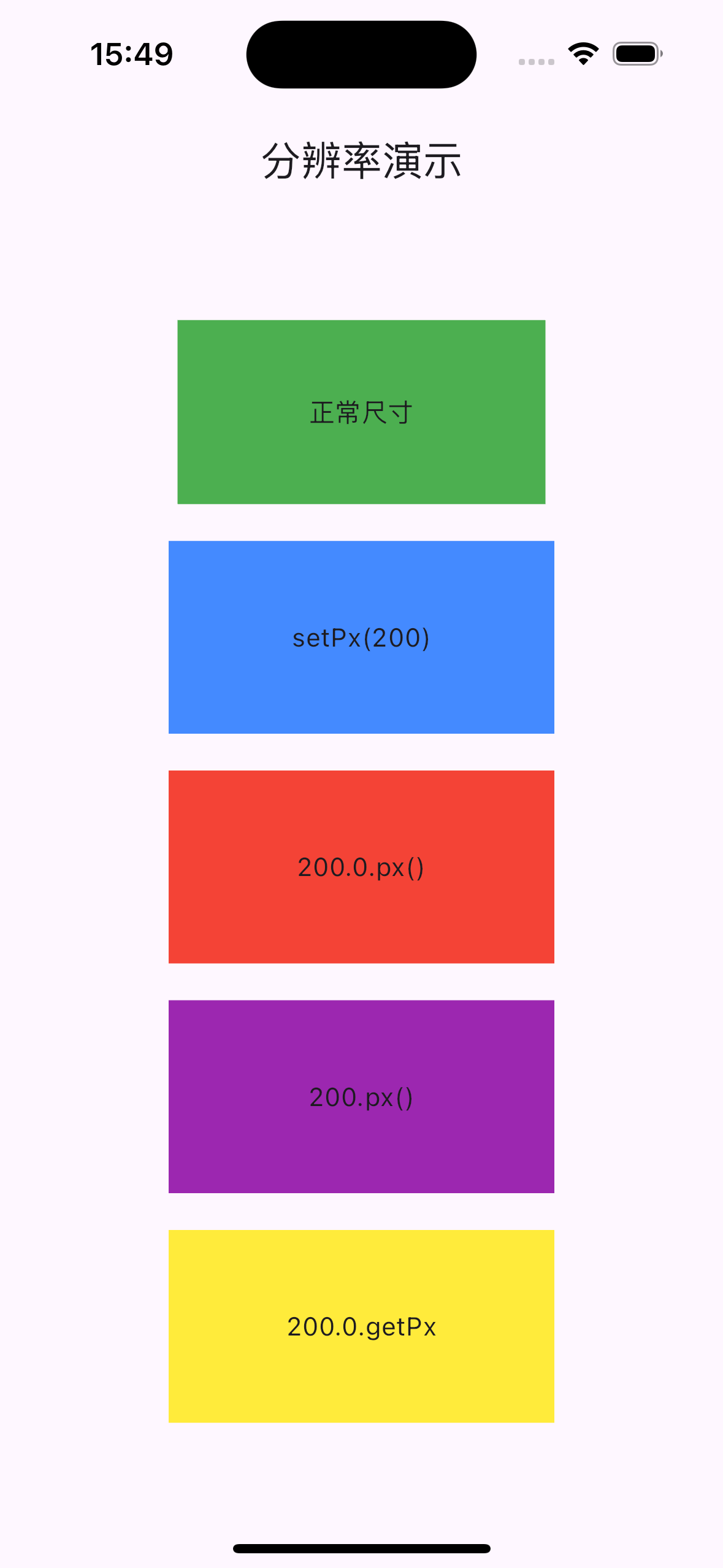
import '/YZScreenSizeFit.dart';

extension DoubleFit on double {
  double px() {
    return YZScreenSizefit.setPx(this);
  }

  // 使用get方法。用的时候,不需要写()
  double get getPx {
    return YZScreenSizefit.setPx(this);
  }
}
美食广场项目
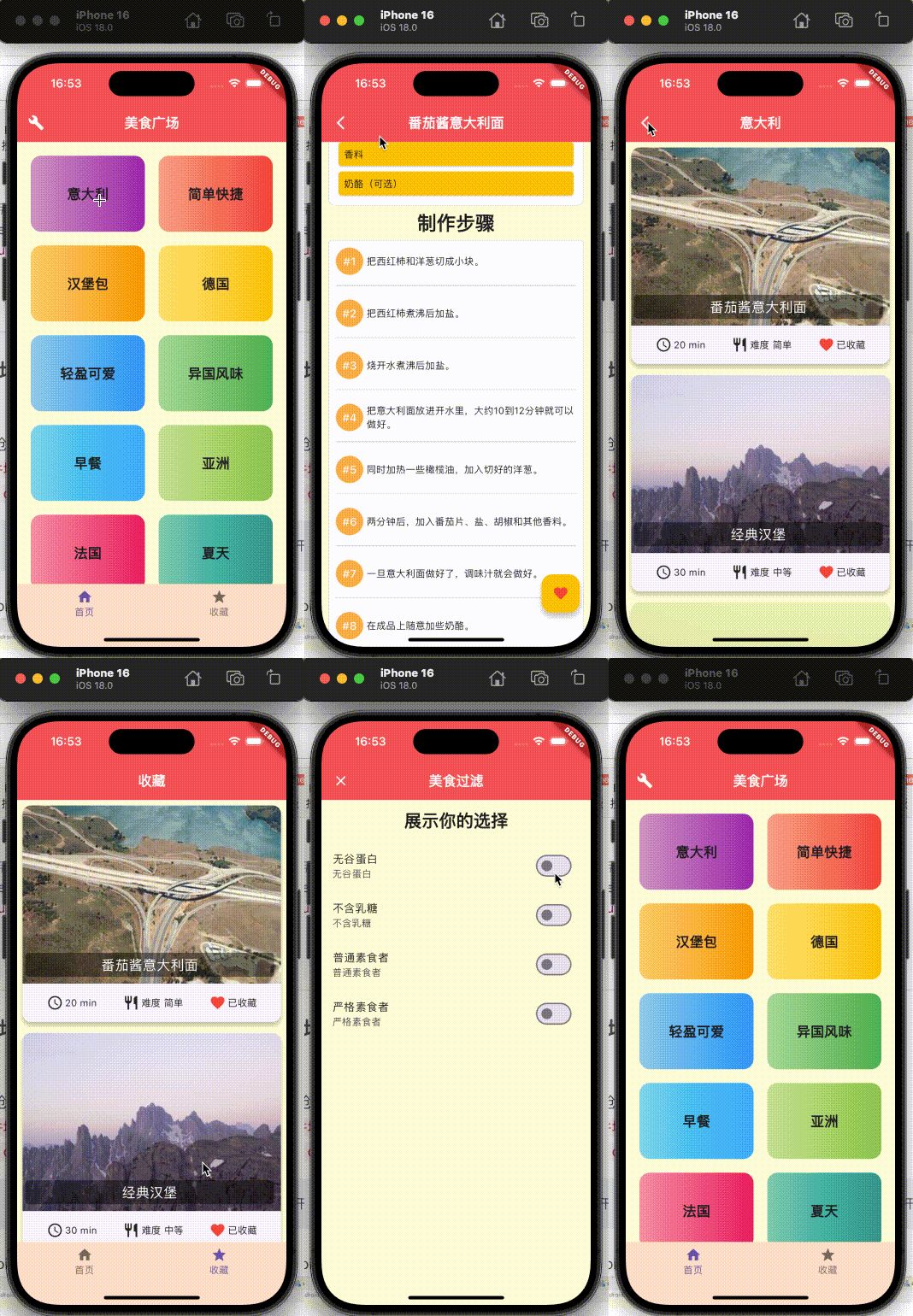
使用终端创建flutter项目:
cd 到文件地址
flutter create name
修改id、图标、背景图等操作,在第18节视频课,23分钟开始
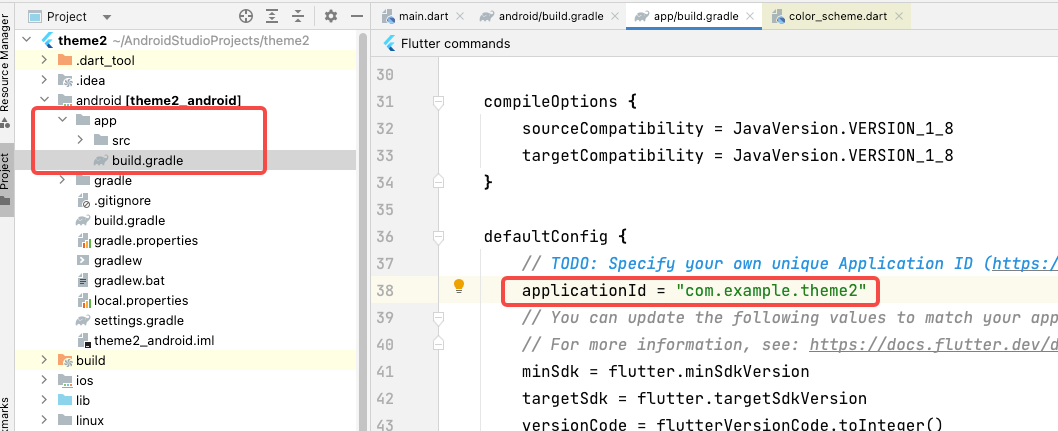
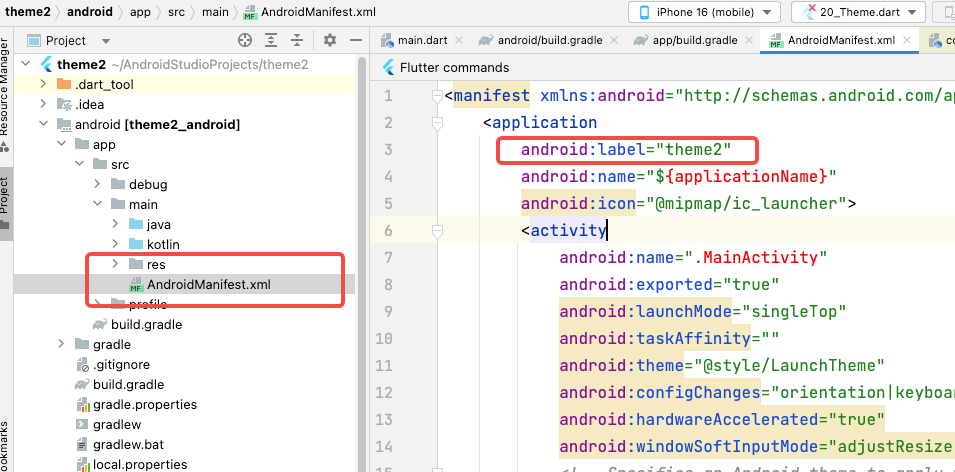
修改android的id:
修改android的app名字:
将json转换成dart的model的网站:
json_to_dart
加载Json,并将Json转换成Model
import 'dart:convert';
import 'package:flutter/services.dart';
import 'package:theme2/core/model/category_model.dart';

class JsonParse {
  static Future<List<YZCategoryModel>> getCategoryData() async{
    //1. 加载JSON文件
    final jsonString = await rootBundle.loadString("assets/json/home.json");

    //2. 将jsonString转换成Map或者List
    final result = json.decode(jsonString);

    //将其他格式转换成jsonString
    // json.encoder()

    //3. 将Map中的内容转成一个个对象
    final resultList = result["category"];//获取到的是数组

    List<YZCategoryModel> categoryList = [];
    for (var json in resultList){
      categoryList.add(YZCategoryModel.fromJson(json));
    }

    return categoryList;
  }
}








 扫一扫
扫一扫


 3946
3946

 被折叠的 条评论
为什么被折叠?
被折叠的 条评论
为什么被折叠?
 到【灌水乐园】发言





