1. 元素尺寸与位置
<!DOCTYPE html>
<html lang="en">

<head>
  <meta charset="UTF-8">
  <meta http-equiv="X-UA-Compatible" content="IE=edge">
  <meta name="viewport" content="width=device-width, initial-scale=1.0">
  <title>元素的尺寸和位置</title>
  <style>
    * {
      margin: 0;
      padding: 0;
    }

    .father {
      position: relative;
      width: 300px;
      height: 300px;
      padding: 5px;
      border: 10px solid red;
      margin: 100px;
      background-color: pink;
    }

    .son {
      width: 100px;
      background-color: purple;
    }

    .box {
      background-color: aqua;
      margin: 100px;
    }
  </style>
</head>

<body>
  <div class="father">
    <div class="son">
      里面包含一些文字
      里面包含一些文字
      里面包含一些文字
    </div>
  </div>
  <div class="box">11</div>

  <!-- 元素尺寸与位置:获得元素的尺寸大小和页面中的位置 -->
  <script>
    /*
    1. 大小
    ⚫ offsetWidth 和 offsetHeight
    ⚫ 获取元素的自身宽高、包含元素自身设置的宽高、padding、border
    ⚫ 返回的是数字不带单位,并且是只读属性
    */
    const father = document.querySelector('.father')
    const box = document.querySelector('.box')

    console.log(father.offsetWidth, father.offsetHeight)  // 有边框 328 328
    console.log(father.clientWidth, father.clientHeight)  // 无边框 310 310

    box.style.width = father.offsetWidth + 'px'

    /*
    2. 位置
    ⚫ offsetLeft 和 offsetTop
    ⚫ 获取元素距离自己定位父级元素的左、上距离,跟绝对定位类似
    ⚫ 如果父级都没有定位则以浏览器文档为准
    ⚫ 返回的是数字不带单位,并且是只读属性
    */
    const son = document.querySelector('.son')
    console.log(son.offsetLeft, son.offsetTop) // 5 5(父级内边距)

  </script>
</body>

</html>
2. 节点操作
2.1 DOM节点
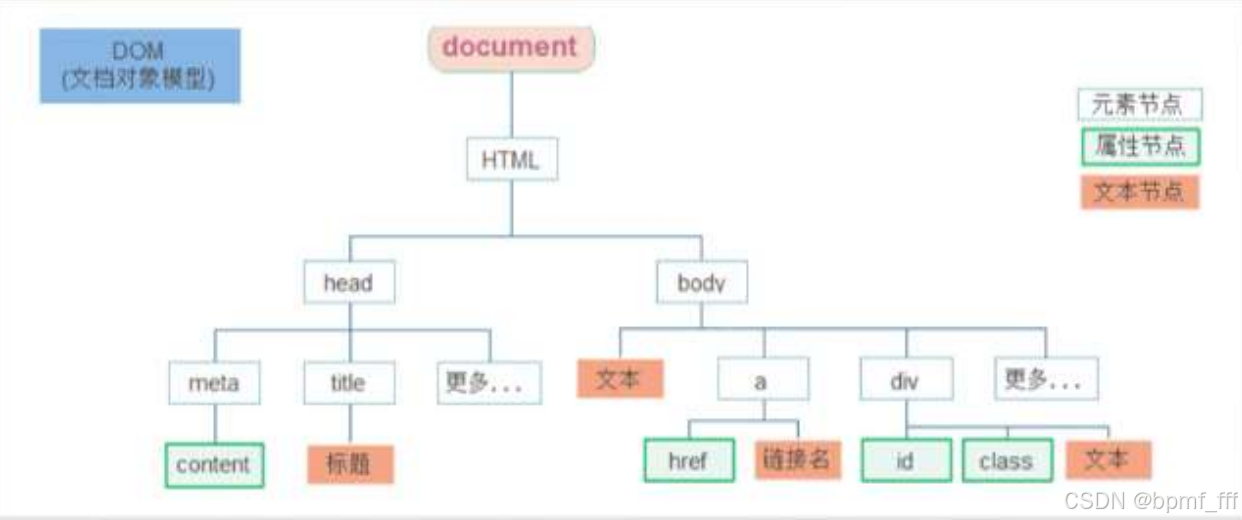
  <script>
    /*
      DOM节点
      ⚫ DOM树:DOM 将 HTML文档以树状结构直观的表现出来,我们称之为 DOM 树 或者 节点树
      ⚫ 节点(Node)是DOM树(节点树)中的单个点。包括文档本身、元素、文本以及注释都属于是节点。

      ➢ 元素节点(重点): 所有的标签 比如 body、 div; html 是根节点
      ➢ 属性节点: 所有的属性 比如 class属性、href
      ➢ 文本节点: 所有的文本

      利用节点关系可以更好的操作元素(比如查询更方便)
    */
  </script>
2.2 查找节点
2.2.1 查找父节点 parentNode
<!DOCTYPE html>
<html lang="en">

<head>
  <meta charset="UTF-8">
  <meta http-equiv="X-UA-Compatible" content="IE=edge">
  <meta name="viewport" content="width=device-width, initial-scale=1.0">
  <title>王者荣耀关闭登录案例</title>
  <style>
    .pop {
      display: block;
      visibility: visible;
      position: fixed;
      z-index: 9999;
      left: 50%;
      top: 50%;
      width: 530px;
      height: 254px;
      margin-top: -127px;
      margin-left: -265px;
      background: url(./images/login.webp) no-repeat;
    }

    .close {
      position: absolute;
      right: 0;
      top: 0;
      width: 40px;
      height: 40px;
    }

    @keyframes slideUp {
      to {
        height: 0;
      }
    }

    @keyframes hidden {
      to {
        display: none;
      }
    }

    .hide {
      animation: slideUp .3s linear forwards, hidden .3s .3s forwards;
    }
  </style>
</head>

<body>
  <div class="pop">
    <a href="javascript:;" class="close"></a>
  </div>

  <!-- 查找节点:利用节点关系查找节点,返回的都是对象,找不到返回null -->
  <!-- 需求:点击关闭按钮,关闭弹窗 ==> 点击关闭按钮,关闭父元素 -->
  <script>
    const closeBtn = document.querySelector('.close')
    closeBtn.addEventListener('click', function () {
      // closeBtn.parentNode.classList.add('hide')
      // xx.parentNode 返回最近一级的父节点对象,找不到返回为 null
      this.parentNode.classList.add('hide')
    })
  </script>
</body>

</html>
2.2.2 查找子节点 children
<!DOCTYPE html>
<html lang="en">

<head>
  <meta charset="UTF-8">
  <meta name="viewport" content="width=device-width, initial-scale=1.0">
  <title>Document</title>
</head>

<body>
  <ul>
    <li>第1个li</li>
    <li>第2个li</li>
    <li>第3个li</li>
    <li>第4个li</li>
    <li>第5个li</li>
  </ul>

  <ol></ol>

  <!--
  子节点查找:children(重点)
    获得所有子元素节点,返回的是一个伪数组
    节点对象.children
  -->
  <script>
    const ul = document.querySelector('ul')
    const ol = document.querySelector('ol')

    // 节点对象.children 找到返回伪数组,找不到返回空数组
    console.log(ul.children) // HTMLCollection(5) [li, 1i, li, 1i, 1i]
    console.log(ol.children) // HTMLCollection []

    // 节点对象.children[index] 找到返回元素节点,找不到返回undefined
    console.log(ul.children[0]) // <li>第1个li</li>
    console.log(ul.children[5]) // undefined
  </script>
</body>

</html>
2.2.3 查找兄弟节点
nextElementSibling
previousElementSibling
<!DOCTYPE html>
<html lang="en">

<head>
  <meta charset="UTF-8">
  <meta name="viewport" content="width=device-width, initial-scale=1.0">
  <title>Document</title>
</head>

<body>
  <h4>1</h4>
  <p class="p">2</p>
  <span>3</span>

  <!-- 兄弟节点查找 -->
  <script>
    const h4 = document.querySelector('h4')
    const p = document.querySelector('.p')
    const span = document.querySelector('span')

    // 1. 下一个兄弟 节点对象.nextElementSibling
    console.log(p.nextElementSibling) // <span>3</span>
    console.log(span.nextElementSibling) // <script>...< / script >

    // 2. 上一个兄弟 节点对象.previousElementSibling
    console.log(p.previousElementSibling) // <h4>1</h4>
    console.log(h4.previousElementSibling) // null
  </script>
</body>

</html>
2.3 增加节点
<!DOCTYPE html>
<html lang="en">

<head>
  <meta charset="UTF-8">
  <meta name="viewport" content="width=device-width, initial-scale=1.0">
  <title>Document</title>
</head>

<body>
  <ul>
    <li>我是默认的li</li>
  </ul>

  <!--
  增加节点
    ➢ 创建一个新的节点 document.createElement('标签名')
    ➢ 把创建的新的节点放入到指定的元素内部
      父元素最后一个子节点之后,插入节点元素 element.append()
      父元素第一个子元素的之前,插入节点元素 element.prepend()
  -->
  <script>
    const ul = document.querySelector('ul')

    // 1. 创建节点
    // 创建后直接填充内容(错误) 其返回值 newLi1 会是一个字符串而不是 DOM 元素
    const newLi1 = document.createElement('li').innerHTML = '新增的li1 直接填充内容'
    // 先创建后填充内容(正确)
    const newLi2 = document.createElement('li')
    newLi2.innerHTML = '新增的li2 先创建后填充内容'

    // 2. 添加节点
    // 2.1 最后面添加节点
    ul.append(newLi2)
    // 2.2 最前面添加节点
    ul.prepend(newLi2)
  </script>
</body>

</html>
2.4 删除节点
<!DOCTYPE html>
<html lang="en">

<head>
  <meta charset="UTF-8">
  <meta name="viewport" content="width=device-width, initial-scale=1.0">
  <title>Document</title>
</head>

<body>
  <div class="remove">这是要删除的 div</div>
  <div class="hide">这是要隐藏的 div</div>

  <!--
    删除节点:若一个节点在页面中已不需要时,可以删除它
    element.remove()
    ➢ 把对象从它所属的 DOM 树中删除
    ➢ 删除节点和隐藏节点(display:none)有区别的:
      隐藏节点还是存在的,但是删除,则从DOM树中删除
      一个标签一会显示一会隐藏 -- 来回切换的,用display或透明度 -- 性能好
  -->
  <script>
    const removeEl = document.querySelector('.remove')
    const hideEl = document.querySelector('.hide')

    // 删除节点
    removeEl.remove()

    // 隐藏节点
    hideEl.style.display = 'none'
    // hideEl.style.opacity = 0
  </script>
</body>

</html>
3. 阶段案例-智慧园区








 扫一扫
扫一扫


 被折叠的 条评论
为什么被折叠?
被折叠的 条评论
为什么被折叠?
 到【灌水乐园】发言





