Qt Demo(3) 之 deepseek 帮我写的关于图像显示的小界面
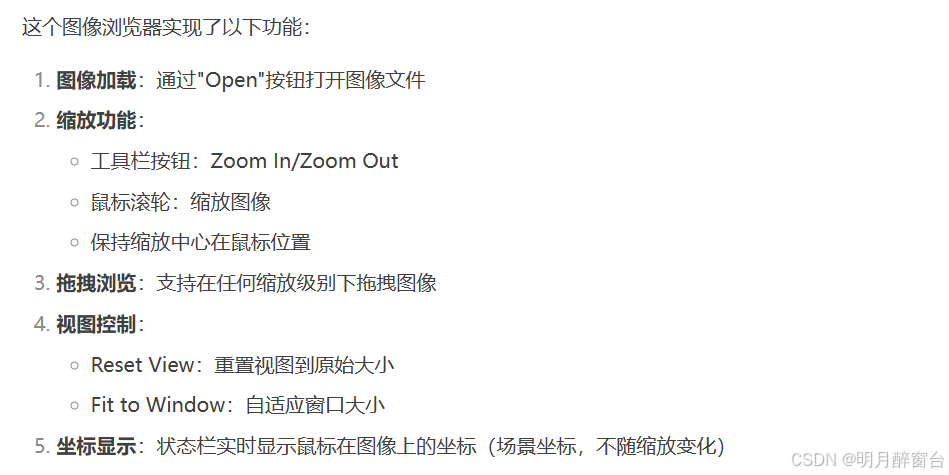
- 一个完整的图像浏览器实现,支持缩放、拖拽和坐标显示功能。
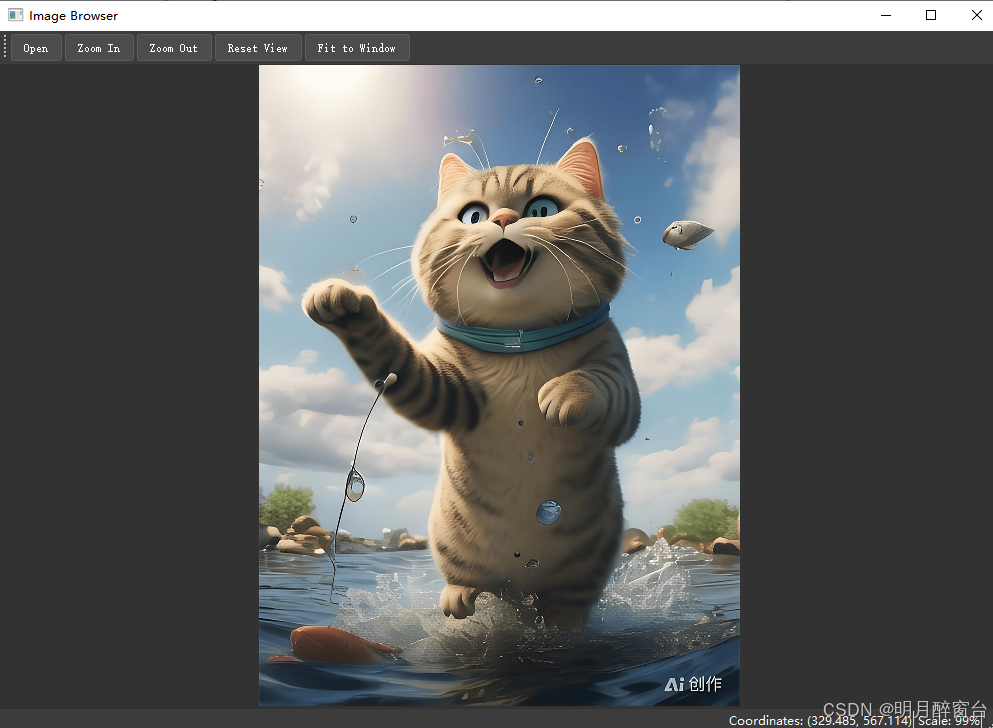
- 实现提供了一个功能完整、界面美观的图像浏览器,展示了 QGraphicsView、QGraphicsScene 和 QGraphicsPixmapItem 的核心功能和使用方法。
- 界面如下图所示:
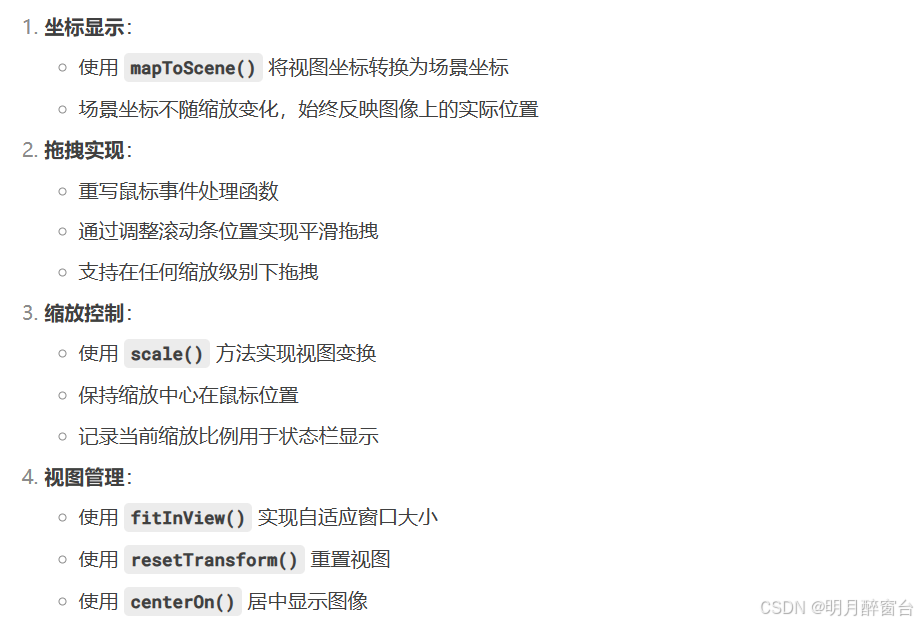
界面功能介绍
具体实现代码
#ifndef IMAGEVIEWER_H
#define IMAGEVIEWER_H
#include <QGraphicsView>
#include <QGraphicsScene>
#include <QGraphicsPixmapItem>
#include <QWheelEvent>
#include <QMouseEvent>
#include <QPointF>
class ImageViewer : public QGraphicsView
{
Q_OBJECT
public:
explicit ImageViewer(QWidget* parent = nullptr);
bool loadImage(const QString& fileName);
void setImage(QImage& qimage);
void clearImage();
void zoomIn();
void zoomOut();
void resetView();
void fitToWindow();
bool hasImage() const;
double scaleFactor() const;
signals:
void mousePositionChanged(const QPointF& scenePos);
protected:
void wheelEvent(QWheelEvent* event) override;
void mousePressEvent(QMouseEvent* event) override;
void mouseMoveEvent(QMouseEvent* event) override;
void mouseReleaseEvent(QMouseEvent* event) override;
private:
void setupView();
void scaleView(double factor);
QGraphicsScene* scene;
QGraphicsPixmapItem* pixmapItem;
double currentScale;
bool isDragging;
QPoint lastDragPos;
};
#endif
#include "imageviewer.h"
#include <QGraphicsScene>
#include <QGraphicsPixmapItem>
#include <QWheelEvent>
#include <QMouseEvent>
#include <QFileDialog>
#include <QMessageBox>
#include <QScrollBar>
#include <QtMath>
ImageViewer::ImageViewer(QWidget* parent)
: QGraphicsView(parent), scene(nullptr), pixmapItem(nullptr),
currentScale(1.0), isDragging(false)
{
scene = new QGraphicsScene(this);
setScene(scene);
setupView();
}
void ImageViewer::setupView()
{
setRenderHint(QPainter::Antialiasing, true);
setRenderHint(QPainter::SmoothPixmapTransform, true);
setRenderHint(QPainter::TextAntialiasing, true);
setDragMode(QGraphicsView::ScrollHandDrag);
setTransformationAnchor(QGraphicsView::AnchorUnderMouse);
setResizeAnchor(QGraphicsView::AnchorUnderMouse);
setVerticalScrollBarPolicy(Qt::ScrollBarAsNeeded);
setHorizontalScrollBarPolicy(Qt::ScrollBarAsNeeded);
setFrameShape(QFrame::NoFrame);
setBackgroundBrush(QBrush(QColor(50, 50, 50)));
}
bool ImageViewer::loadImage(const QString& fileName)
{
QPixmap pixmap(fileName);
if (pixmap.isNull()) {
return false;
}
clearImage();
pixmapItem = scene->addPixmap(pixmap);
scene->setSceneRect(pixmap.rect());
resetView();
return true;
}
void ImageViewer::setImage(QImage& qimage)
{
clearImage();
QPixmap pixmap = QPixmap::fromImage(qimage);
pixmapItem = scene->addPixmap(pixmap);
scene->setSceneRect(pixmap.rect());
resetView();
}
void ImageViewer::clearImage()
{
scene->clear();
pixmapItem = nullptr;
currentScale = 1.0;
}
void ImageViewer::zoomIn()
{
scaleView(1.2);
}
void ImageViewer::zoomOut()
{
scaleView(1.0 / 1.2);
}
void ImageViewer::resetView()
{
fitToWindow();
currentScale = 1.0;
if (pixmapItem) {
centerOn(pixmapItem);
}
}
void ImageViewer::fitToWindow()
{
if (pixmapItem) {
fitInView(scene->sceneRect(), Qt::KeepAspectRatio);
QTransform transform = this->transform();
currentScale = transform.m11();
}
}
bool ImageViewer::hasImage() const
{
return pixmapItem != nullptr;
}
double ImageViewer::scaleFactor() const
{
return currentScale;
}
void ImageViewer::scaleView(double factor)
{
scale(factor, factor);
currentScale *= factor;
}
void ImageViewer::wheelEvent(QWheelEvent* event)
{
if (pixmapItem) {
double factor = qPow(1.2, event->angleDelta().y() / 240.0);
scaleView(factor);
event->accept();
}
else {
QGraphicsView::wheelEvent(event);
}
}
void ImageViewer::mousePressEvent(QMouseEvent* event)
{
if (event->button() == Qt::LeftButton && pixmapItem) {
setCursor(Qt::ClosedHandCursor);
lastDragPos = event->pos();
isDragging = true;
event->accept();
}
else {
QGraphicsView::mousePressEvent(event);
}
}
void ImageViewer::mouseMoveEvent(QMouseEvent* event)
{
if (pixmapItem) {
QPointF scenePos = mapToScene(event->pos());
emit mousePositionChanged(scenePos);
if (isDragging && (event->buttons() & Qt::LeftButton)) {
QPoint delta = event->pos() - lastDragPos;
lastDragPos = event->pos();
horizontalScrollBar()->setValue(horizontalScrollBar()->value() - delta.x());
verticalScrollBar()->setValue(verticalScrollBar()->value() - delta.y());
event->accept();
}
else {
QGraphicsView::mouseMoveEvent(event);
}
}
else {
QGraphicsView::mouseMoveEvent(event);
}
}
void ImageViewer::mouseReleaseEvent(QMouseEvent* event)
{
if (event->button() == Qt::LeftButton && isDragging) {
setCursor(Qt::ArrowCursor);
isDragging = false;
event->accept();
}
else {
QGraphicsView::mouseReleaseEvent(event);
}
}
#ifndef MAINWINDOW_H
#define MAINWINDOW_H
#include <QMainWindow>
#include <QStatusBar>
#include <QLabel>
#include "imageviewer.h"
class MainWindow : public QMainWindow
{
Q_OBJECT
public:
MainWindow(QWidget* parent = nullptr);
~MainWindow();
private slots:
void openImage();
void updateStatusBar(const QPointF& scenePos);
private:
void setupUI();
void setupConnections();
ImageViewer* imageViewer;
QStatusBar* statusBar;
QLabel* coordLabel;
QLabel* scaleLabel;
QAction* openAction;
QAction* zoomInAction;
QAction* zoomOutAction;
QAction* resetViewAction;
QAction* fitToWindowAction;
};
#endif
#include "mainwindow.h"
#include <QToolBar>
#include <QFileDialog>
#include <QMessageBox>
MainWindow::MainWindow(QWidget* parent)
: QMainWindow(parent)
{
setupUI();
setupConnections();
setWindowTitle("Image Browser");
resize(1000, 700);
}
MainWindow::~MainWindow()
{
}
void MainWindow::setupUI()
{
imageViewer = new ImageViewer(this);
setCentralWidget(imageViewer);
statusBar = new QStatusBar();
setStatusBar(statusBar);
coordLabel = new QLabel("Coordinates: (0, 0)");
scaleLabel = new QLabel("Scale: 100%");
statusBar->addPermanentWidget(coordLabel);
statusBar->addPermanentWidget(scaleLabel);
QToolBar* toolBar = new QToolBar("Main Toolbar");
addToolBar(Qt::TopToolBarArea, toolBar);
openAction = new QAction("Open", this);
zoomInAction = new QAction("Zoom In", this);
zoomOutAction = new QAction("Zoom Out", this);
resetViewAction = new QAction("Reset View", this);
fitToWindowAction = new QAction("Fit to Window", this);
toolBar->addAction(openAction);
toolBar->addAction(zoomInAction);
toolBar->addAction(zoomOutAction);
toolBar->addAction(resetViewAction);
toolBar->addAction(fitToWindowAction);
setStyleSheet(R"(
QMainWindow {
background-color: #2b2b2b;
}
QToolBar {
background-color: #3c3c3c;
color: #ffffff;
border: none;
spacing: 3px;
padding: 3px;
}
QToolButton {
background-color: #4c4c4c;
color: #ffffff;
border: 1px solid #5c5c5c;
border-radius: 3px;
padding: 5px;
}
QToolButton:hover {
background-color: #5c5c5c;
}
QStatusBar {
background-color: #3c3c3c;
color: #ffffff;
}
QLabel {
color: #ffffff;
}
)");
}
void MainWindow::setupConnections()
{
connect(openAction, &QAction::triggered, this, &MainWindow::openImage);
connect(zoomInAction, &QAction::triggered, imageViewer, &ImageViewer::zoomIn);
connect(zoomOutAction, &QAction::triggered, imageViewer, &ImageViewer::zoomOut);
connect(resetViewAction, &QAction::triggered, imageViewer, &ImageViewer::resetView);
connect(fitToWindowAction, &QAction::triggered, imageViewer, &ImageViewer::fitToWindow);
connect(imageViewer, &ImageViewer::mousePositionChanged, this, &MainWindow::updateStatusBar);
}
void MainWindow::openImage()
{
QString fileName = QFileDialog::getOpenFileName(this,
"Open Image", "", "Image Files (*.png *.jpg *.jpeg *.bmp *.tif)");
if (!fileName.isEmpty())
{
QImage qimage(fileName);
if (qimage.isNull())
{
QMessageBox::warning(this, "Error", "Cannot load image file.");
}
else {
imageViewer->setImage(qimage);
}
}
}
void MainWindow::updateStatusBar(const QPointF& scenePos)
{
coordLabel->setText(QString("Coordinates: (%1, %2)").arg(scenePos.x()).arg(scenePos.y()));
int scalePercent = static_cast<int>(imageViewer->scaleFactor() * 100);
scaleLabel->setText(QString("Scale: %1%").arg(scalePercent));
}
#include "mainwindow.h"
#include <QApplication>

int main(int argc, char* argv[])
{
    QApplication a(argc, argv);
    MainWindow w;
    w.show();
    return a.exec();
}








 扫一扫
扫一扫


 465
465

 被折叠的 条评论
为什么被折叠?
被折叠的 条评论
为什么被折叠?
 到【灌水乐园】发言





