


Overview
One of the advanced features of the Images to Google Earth/Ovi Maps tool is the ability to batch export GPS information from photos into a CSV file. This feature is particularly suitable for users who need to analyze the geographical location data of a large number of photos, such as Geographic Information System (GIS) professionals, photographers, travel enthusiasts, etc. By converting the EXIF data of photos into structured tables, users can easily perform data analysis, visual display, and further geospatial processing.
Applicable Scenarios
- Geotag Analysis: Analyze the geographical distribution patterns of a large number of photos to study popular shooting areas.
- Travel Route Recording: Record travel routes and stopover points to generate detailed travel reports.
- Scientific Research Data Collection: Used in scientific research activities such as ecological surveys and geological investigations to establish georeferenced databases.
- Commercial Applications: Industries such as real estate and tourist attractions that need to display geographical location information can create location visualization reports.
- Law Enforcement Evidence Collection: Law enforcement officers can record the geographical location evidence of photos taken at crime scenes.
- Insurance Investigation: Record the geographical location information of accident scenes during insurance claims.
Detailed Usage Steps
-
Preparation
- Ensure that the photos contain GPS information (most photos taken by smartphones automatically include it).
- Check the photo format: Common formats such as JPG and PNG are supported.
- Purchase a usage code for advanced features (scan the QR code with Alipay to pay 20 yuan and get 30 - day usage rights).
-
Operation Process
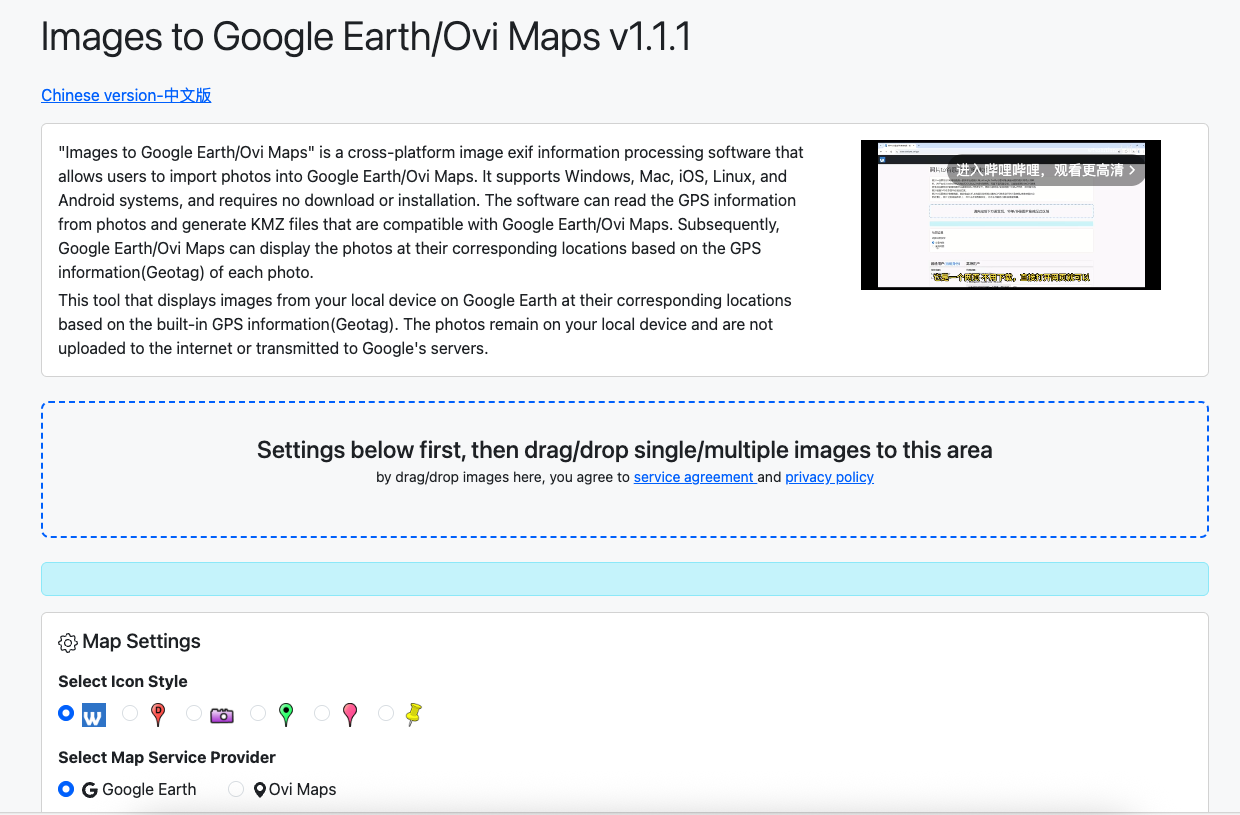
- Visit the images to Google Earth/Ovi Maps tool https://s.wtsolutions.cn/gpsen.html.
- Drag the photos to the specified area (multiple - selection and dragging are supported).
- Click the “Export GPS Data to CSV File” button in the “Advanced Users” area.
- The system will automatically generate a CSV file containing the following information:
- File name
- Latitude
- Longitude
- Altitude
- Download the generated CSV file.
-
Data Processing
- The generated CSV file can be directly opened with spreadsheet software such as Excel and Numbers.
- You can use the pivot table function in Excel for statistical analysis.
- It can be imported into professional GIS software such as ArcGIS and QGIS for spatial analysis.
- It supports data docking with platforms such as Google Earth and Ovi Maps.
- It can be combined with programming languages such as Python and R for big data analysis.
Technical Features
- Batch Processing: Supports exporting GPS data from thousands of photos at once.
- Complete Data: Extracts all available EXIF GPS information.
- Format Compatibility: The generated CSV file is compatible with mainstream data analysis software.
- High - Performance Processing: Processed by local hardware.
- Privacy Protection: All processing is done locally in the browser, and photo data is not uploaded to the server.
Notes
-
Data Completeness:
- Some old photos may not contain GPS information.
- Photos taken indoors usually do not have GPS data.
- Some cameras may require manually enabling the GPS recording function.
-
Usage Limitations:
- Advanced features require verification of the usage code to use.
- The free version limits the processing of 6 photos at a time.
- Some photos in special formats may need to be converted before they can be read.
-
Accuracy Issues:
- GPS accuracy is affected by the shooting device.
- Position drift may occur in high - rise building areas.
- Post - processing data correction can be considered.
Frequently Asked Questions
Q: Why are the GPS data of some photos missing in the exported CSV file?
A: This may be because these photos do not contain GPS information themselves. Please check whether the original photos contain GPS data.
Q: Why is the data format in the CSV file incorrect?
A: Please make sure to use the latest version of Excel or other compatible software to open the file. If the problem still exists, you can try the following solutions:
- Check the system regional settings.
- Try opening the file with a text editor and saving it as UTF - 8 format.
- Contact technical support for help.
Q: What if the exported altitude data is inaccurate?
A: The altitude data recorded by the device may have errors. It is recommended to:
- Check whether the altitude sensor of the device is calibrated.
- Use the reference points collected by professional GPS devices for correction.
- Combine with Digital Elevation Model (DEM) data for correction.
Q: How to handle photo data in different time zones?
A: The tool supports the time zone conversion function. You can select the following options in the export settings:
- Keep the original time zone.
- Convert uniformly to UTC time.
- Convert to the specified time zone.
Application Cases
- Wildlife Research: Researchers take photos of animal activities in the wild and study the activity ranges and behavior patterns of animals by analyzing GPS data.
- Urban Planning: Planners collect photos from all corners of the city and determine the areas that need key renovation through geographical distribution analysis.
- Travel Blogs: Travel bloggers record the locations of all photos taken during their trips and generate interactive travel maps to share with readers.
- Real Estate Marketing: Real estate agents organize photos of properties and create property maps with accurate location information.
- Agricultural Monitoring: Farmers regularly take photos of farmland and analyze the growth status of crops through location data.





 扫一扫
扫一扫


 1785
1785

 被折叠的 条评论
为什么被折叠?
被折叠的 条评论
为什么被折叠?
 到【灌水乐园】发言





