



 本文介绍如何利用Systrace工具诊断并解决Android应用在显示动画或进行用户交互时出现的性能问题,通过分析系统行为,找出可能导致帧率下降的原因。
转载自:https://blog.youkuaiyun.com/hfreeman2008/article/details/53538155
Systrace
While developing your application, you should check that user interactions are buttery smooth, running at a consistent 60 frames per second. If something goes wrong, and a frame gets dropped, the first step in fixing the problem is understanding what the system is doing.
一般来说,我们的机器以60帧/秒显示时(也就是16.6 millisecond),用户会感觉机器会流畅。如果出现显示时出现丢帧的情况,我们要知道系统在做什么。
Systrace collects system and application process execution data and generates detailed, interactive reports from devices running Android 4.1 and higher.
Systrace 是用来收集系统和应用的数据信息和一些中间生成数据的细节,在Android 4.1系统和4.1之后的系统。
The Systrace tool is particularly useful in diagnosing display problems where an application is slow to draw or stutters while displaying motion or animation.
Systrace在一些分析显示的问题上特别有用,如应用画图慢,显示动作或动画时变形等。
What it’s good for:
• Evaluating container performance.(评估性能)
• Finding performance bottlenecks in the execution of your code.(查找性能瓶颈)
启动Systrace
先把手机的Trace功能打开:Settings > Developer options > Monitoring > Enable traces.
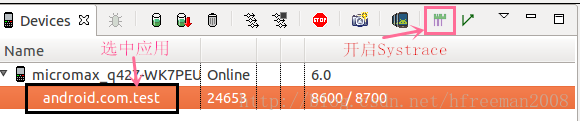
如果是Eclipse,直击点击DDMS的Systrace图标,如果是Android Studio,则Tools–android–Android Device Monitor,再点击DDMS的Systrace图标,如下图:
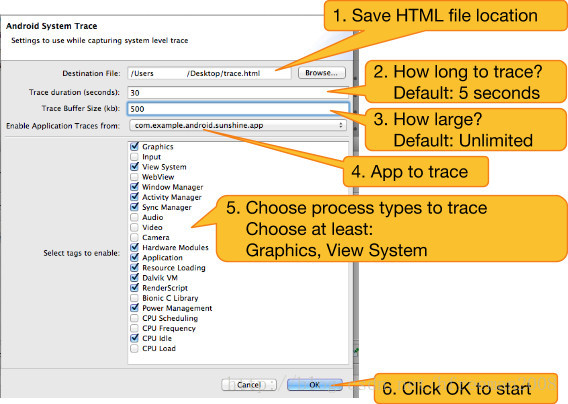
在执行收集信息前,先填写一些配置信息:
生成trace.html 文件后,直接在浏览器中打开就可以。
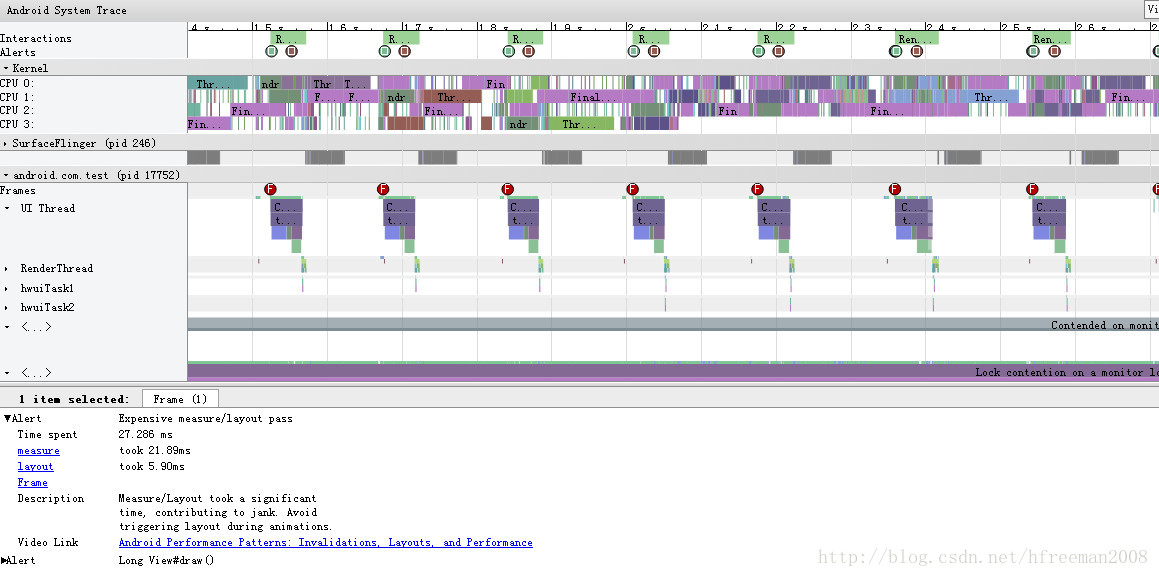
我们可以看到此界面的Frame的圆圈会显示三种颜色,绿,黄,红。一般红色就是有问题的,要优化的地方。
我们操作此界面的方法如下:
| Key | Description |
|---|---|
| w | Zoom into the trace timeline |
| s | Zoom out of the trace timeline |
| a | Pan left on the trace timeline |
| d | Pan right on the trace timeline. |
| e | Center the trace timeline on the current mouse location. |
| g | Show grid at the start of the currently selected task. |
| Shift+g | Show grid at the end of the currently selected task. |
| Right Arrow | Select the next event on the currently selected timeline. |
| Left Arrow | Select the previous event on the currently selected timeline. |
m可以显示选中方法的时间。
Systrace does automatic analysis of the events in the trace, and highlights many performance problems as alerts, suggesting what to do next.
Systrace会自动分析信息,将性能问题直接以alerts的方式高亮显示,我们只要修改这些alerts就可以。
Alert如下图:
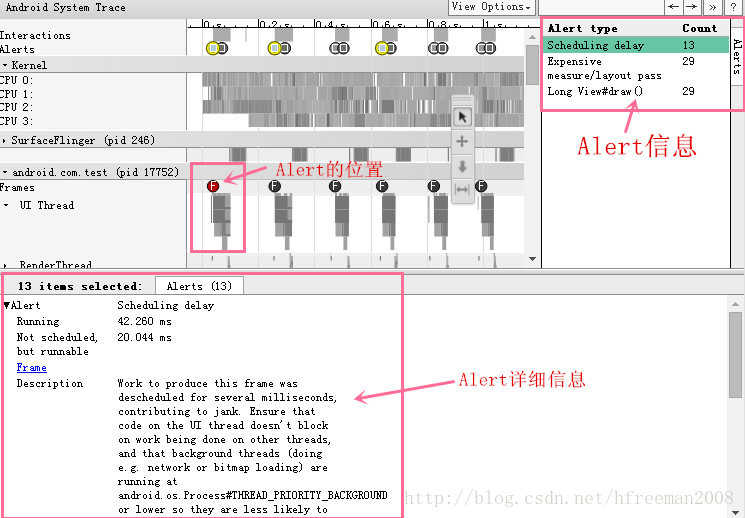
我们可以看到Alert的详细信息,描述和建议。这个Alert是可以定位到有问题的方法。如果我们想要知道方法的更详细信息,我们可以结合Traceview来解决问题。
参考资料
1.Android性能优化之Systrace分析UI性能
http://blog.youkuaiyun.com/neacy_zz/article/details/50404863
2.Systrace Walkthrough
https://developer.android.com/studio/profile/systrace-walkthru.html
3.Systrace
https://developer.android.com/studio/profile/systrace-commandline.html
4.Analyzing UI Performance with Systrace
https://developer.android.com/studio/profile/systrace.html





 扫一扫
扫一扫


 875
875

 被折叠的 条评论
为什么被折叠?
被折叠的 条评论
为什么被折叠?
 到【灌水乐园】发言





