


 这篇博客详细介绍了如何使用Vite搭建Vue3项目,涵盖了从安装、render函数和JSX的使用,到路由配置、状态管理(Vuex和Pinia)、事件总线mitt、axios封装、Element-Plus集成、Echarts封装、百度地图异步加载、自定义指令、Less样式穿透、适配方案、日期处理库dayjs、Cesium三维地图、全局组件和自定义Hook防抖等全面内容。
文章目录
前言
①、node版本建议14.8 以上版本。
②、使用 yarn 来安装。
一、安装
npm init vite@latest
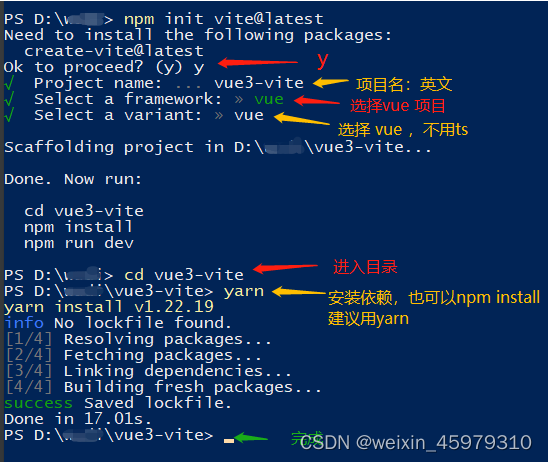
进入目录后,yarn 一下,然后 npm run dev 即可查看工程页面。
二、render 函数和JSX
1. render
①、在 .vue文件里,直接书写,与setup同级:
import {h} from "vue";
export default {
  setup() {

  }
  // 第一个参数是 标签名字
  // 第二个参数是 属性或prop,不写的话,使用null占位
  // 第三个参数是 children,内容或者子节点
  render: () => h(
    'div', {
      id: 'map',
      style: {
        width: '100%',
        height: '100%'
      }
    }
  )
}
②、在setup的返回中书写
import {h} from "vue";
export default {
  setup() {

	return () => h(
        'div', {
          id: 'map',
          style: {
            width: '100%',
            height: '100%'
          }
        }
    )
  }

}
注意:目前不支持setup语法糖中使用(可能是我没找到)
2. JSX
①、vite搭建的工程默认不支持 jsx,需要安装插件
yarn add @vitejs/plugin-vue-jsx -D
②、验证jsx成功,在src下新建App.jsx,内容:
import { defineComponent } from "vue";

export default defineComponent({
    setup() {
        return () => {
            return <div>hello Vue3 Jsx</div>
        }
    }
})
③、在vite.config.js中使用
import { defineConfig } from 'vite'
import vue from '@vitejs/plugin-vue'
import pluginJsx from '@vitejs/plugin-vue-jsx'

// https://vitejs.dev/config/
export default defineConfig({
  plugins: [vue(), pluginJsx()]
})
修改main.js文件的引入,再启动显示正常。
三、使用路由
①、安装:
yarn add vue-router@4
②、使用:在src目录下新建router文件夹,里面新建 index.js
import { createRouter, createWebHashHistory } from 'vue-router'

const router = createRouter({
    history: createWebHashHistory(),
    routes: [
        {
            path: '/',
            name: 'home',
            component: () => import('../pages/home.vue')
        },
        {
            path: '/about',
            component: () => import('../pages/about.vue')
        }
    ]
})

export default router;
③、在src下新建 pages目录,新建 home.vue 和 about.vue
④、在 main.js 中引用
import { createApp } from 'vue'
import router from "./router/index.js";
import './style.css'
import App from './App.jsx'

const app = createApp(App)

app.use(router).mount('#app')
⑤、修改App.jsx文件
import {defineComponent} from "vue";

export default defineComponent({
    setup() {
        return () => <>
            <div id="nav">
                <router-link to="/">Home</router-link> |
                <router-link to="/about">About</router-link>
            </div>
            <router-view />
        </>
    }
})
四、状态管理:vuex(可选)
①、安装
yarn add vuex@next --save
②、在src下新建store目录,新建index.js文件:
import { createStore } from 'vuex'

const store = createStore({
    state() {
        return {
            num: 0
        }
    },
    mutations: {
        add(state, payload = 1) {
            state.num += payload;
        }
    }
})

export default store;
③、在main.js中引用
import store from './store'

app.use(store)
④、使用
<template>

  <div>{{ num }}</div>
  <button @click="add">add</button>

</template>

<script>
import {useStore} from 'vuex'
import {computed} from "vue";

export default {
  name: "home",
  setup() {
    const store = useStore();

    return {
      num: computed(() => store.state.num),

      add: () => store.commit('add')
    }
  }
}
</script>
五、状态管理:Pinia(可选)
①、安装
// 先停止项目运行(解决报错)
yarn add pinia
②、main.js中引用
import { createPinia } from 'pinia'
app.use(createPinia())
③、在src下新建 stores目录,新建user.js
import { defineStore, acceptHMRUpdate } from "pinia";
import request from "../api/interface.js";

export const useUserStore = defineStore({
    id: 'user',
    state: () => ({
        name: 'WuDi',
        isLoading: false
    }),
    actions: {
        /**
         * 登陆
         * @param user
         * @param password
         * @returns {Promise<void>}
         */
        async login(user, password) {
            const userData = await request.login(user, password)

            this.$patch({
                name: user,
                ...userData,
            })

        },
        /**
         * 登出
         */
        logout() {
            this.$patch({
                name: '',
                isLoading: false,
            })
        }
    }
})
if (import.meta.hot) {
    import.meta.hot.accept(acceptHMRUpdate(useUserStore, import.meta.hot))
}
④、使用
import {useUserStore} from "../stores/user.js";

  setup() {
    const user = useUserStore();
	console.log(user);	// 可以通过user获取state/getter/actions
  }
六、事件总线:mitt
vue3官方不推荐使用,推荐使用状态管理。针对喜欢事件总线的,推荐mitt
①、安装
yarn add mitt
②、在main.js中挂在到全局
import mitt from "mitt";
app.config.globalProperties.$EventBus = mitt();
③、使用
// A 组件 -监听
import { getCurrentInstance } from "vue";
const {proxy: { $EventBus }} = getCurrentInstance();
$EventBus.on('foo', e => console.log('foo', e) )

// B 组件 -抛出
import { getCurrentInstance } from "vue";
const {proxy: { $EventBus }} = getCurrentInstance();
$EventBus.emit('foo', { a: 'b' })
七、封装axios
①、安装
yarn add axios

// 用到qs库来处理参数
yarn add qs
②、在src下新建 utils目录,新建 request.js
import axios from "axios";
import qs from 'qs'

class XHR {


    constructor(props) {
        this.config = {
            baseURL: '',    // 服务器地址
            headers: {},
            crossDomain: true
        }
        this.config = Object.assign(this.config, props);
        this.$request = axios.create(this.config);

        // 请求拦截器,
        this.$request.interceptors.request.use(
            config => {
                config.withCredentials = false;
                config.headers.Authorization = sessionStorage.getItem('wyToken');
                return config;
            },
            error => {
                return Promise.reject(error);
            });
    }

    // 处理get方法
    get(url, data) {
        return this.request(url, data, 'GET');
    }
    // 处理post方法
    post(url, data) {
        return this.request(url, data, 'POST')
    }

    request(url, data, method = "GET") {
        if(typeof data === 'string') {
            method = data
            data = {}
        }
        const conf = {
            url,
            method
        }

        if(method === 'GET') {
            conf.params = data;
            conf.data = qs.stringify(data)
        }else {
            conf.data = data;
        }

        return this.$request(conf).then(({data}) => {
            return {
                code: parseInt(data.code || 0),
                count: parseInt(data.count || 0),
                data: data.data,
                msg: data.message || data.msg
            }
        }).catch((err) => {
            let error = err && err.toString();
            console.error('接口调用异常', error)
            if(err && (err.includes('Error:') || err.includes('<html'))) {
                error = '接口异常,请联系管理员';
            }
            return Promise.reject(error);
        })
    }
}

export default new XHR();
③、在src下新建api目录,新建 interface.js
import request from '../utils/request.js'

export default {

    /**
     * 登陆
     * @param params
     */
    login: params => request.get('/Login', params),


}
八、使用element-Plus-解决Elmessage和Elloading不生效
①、安装
yarn add element-plus

// 自动按需引入
npm install -D unplugin-vue-components unplugin-auto-import
②、在配置文件 vite.config.js 中引入
import AutoImport from 'unplugin-auto-import/vite'
import Components from 'unplugin-vue-components/vite'
import { ElementPlusResolver } from 'unplugin-vue-components/resolvers'

// https://vitejs.dev/config/
export default defineConfig({
    plugins: [
        vue(),
        pluginJsx(),
        AutoImport({
            resolvers: [ElementPlusResolver()],
        }),
        Components({
            resolvers: [ElementPlusResolver()],
        })
    ]
})
③、解决Elmessage和Elloading的css样式文件, 在main.js中
import 'element-plus/theme-chalk/el-loading.css';
import 'element-plus/theme-chalk/el-message.css';
九、封装 echarts-解决自缩放和路由切换刷新
①、安装 - 版本要求(定制、水球)
// 建议使用4.9.0版本
npm i echarts@^4.9.0

// 定制
npm install echarts-gl@^1.1.2
// 水球
npm install echarts-liquidfill@^2.0.6 zrender@^4.3.1
②、在utils目录下新建 myChart.js
import * as echarts from 'echarts'
import 'echarts-gl'
import 'echarts-liquidfill'

export default {
    line1: (id, callBack) => {
        const myChart = document.getElementById(id)
        myChart.removeAttribute('_echarts_instance_')
        const chart = echarts.init(myChart);
        chart.setOption({
            xAxis: {
                type: 'category',
                data: ['Mon', 'Tue', 'Wed', 'Thu', 'Fri', 'Sat', 'Sun']
            },
            yAxis: {
                type: 'value'
            },
            series: [
                {
                    data: [150, 230, 224, 218, 135, 147, 260],
                    type: 'line'
                }
            ]
        })
        window.addEventListener('resize', () => {
            chart.resize();
        })

        chart.off('click');
        chart.on('click', param => {
            callBack && callBack(param);
        })
    }
}
③、使用
<template>
  <div id="testLine" style="width: 50%; height: 300px;"></div>
</template>

<script>
import { onMounted } from "vue";
import myChart from "../utils/myChart.js";
export default {
  name: "about",
  setup() {
    onMounted(() => {
      myChart.line1('testLine', (e) => {
        console.log('点我了', e)
      });
    })
  }
}
</script>
十、封装百度地图 - 异步加载
①、在utils目录下 新建loadBmap.js
/**
 * @description 加载百度地图基础组件js
 */
export function asyncLoadBaiduJs () {
    return new Promise((resolve, reject) => {
        window.onBMapCallback = function () {
            resolve(BMapGL)
        }
        let script = document.createElement('script')
        script.type = 'text/javascript'
        // script.src = "https://api.map.baidu.com/api?v=3.0&ak=秘钥&callback=onBMapCallback"	// 3.0版本
        script.src = "https://api.map.baidu.com/api?v=1.0&type=webgl&ak=秘钥=onBMapCallback"
        script.onerror = reject
        document.head.appendChild(script)
    })
}
②、使用
<template>
  <div style="width:800px;height:400px;" id="map"></div>
</template>

<script>
import {asyncLoadBaiduJs} from "../../utils/loadBmap.js";
import mapStyle from "../../utils/mapStyle.js";
import otherimg from './assets/mk-other.png'
import {h} from "vue";
export default {
  name: "minMap",
  setup() {
    let mineMap = null;

    // 初始化地图
    const initMap = async () => {
      try {
        await asyncLoadBaiduJs(); // 加载百度地图
        mineMap = new BMapGL.Map("map");  // 初始化地图
        mineMap.enableScrollWheelZoom(true);  // 启用滚轮缩放
        setMapStyle();
        setMapCenter(118.758781, 31.979259, 16)
      } catch (error) {
        console.log(error);
      }
    }
    // 设置地图中心及缩放等级
    const setMapCenter = (lng, lat, zoom) => {
      mineMap.centerAndZoom(new BMapGL.Point(lng, lat), zoom);
    }
    // 重置地图
    const resetMap = (val) => {
      mineMap.clearOverlays();  // 清除图层
      // 路况、动画、轨迹视情况而定
    }
    // 个性化地图
    const setMapStyle = () => {
      mineMap.setMapStyleV2({
        styleJson: mapStyle
      });
    }
    // 绘制边界
    const setBoundaries = () => {

    }
    // 添加文本标注
    const addLabel = (name) => {

    }

    // 清除文本标注
    const clearLabel = () => {

    }

    /**
     * 添加点位标记
     * @param item:含坐标和label名
     * @param callback
     */
    const addMaker = (item, callback) => {
      let markerIcon = new BMapGL.Icon(otherimg, new BMapGL.Size(30, 39), {
        offset: new BMapGL.Size(13, 16) // 图标中央下端的尖角位置
      });
      // 设置标记坐标 (经, 纬)
      let markerPoint = new BMapGL.Point(item.lng * 1, item.lat * 1);
      // 生成地图标记
      let marker = new BMapGL.Marker(markerPoint, { icon: markerIcon });
      /* 为标记对象添加属性 start*/
      marker.type = item.type;
      marker.id = item.id;
      marker.name = item.name;
      /* end */

      // 添加label
      let markerLabel = new BMapGL.Label(item.shopName, {
        offset: new BMapGL.Size(0, -38)
      });
      markerLabel.setStyle({
        color: "#fff",
        backgroundColor: "0.05",
        border: "0",
        transform: "translateX(-50%)"
      });

      marker.setLabel(markerLabel);

      /* 为标记对象绑定点击事件 start*/
      marker.addEventListener("click", e => {
        console.log('mapClick',e)
        callback && callback(e);
        e.domEvent.stopPropagation();
      });

      mineMap.addOverlay(marker);
      setMapCenter(item.lng * 1, item.lat * 1);

    }

    // 清除点位标记
    const clearMaker = (marker) => {

    }


    return {
      initMap,
      resetMap,
      addLabel,
      clearLabel,
      addMaker,
      clearMaker
    }
  }
}
</script>
③、个性化地图:在utils目录下新建mapStyle.js
export default [
  {
    featureType: "land",
    elementType: "geometry",
    stylers: {
      visibility: "on",
      color: "#091220ff"
      // color: "#062d2e",
    }
  },
  // ...略
]
在使用地方
import mapStyle from "../utils/mapStyle.js";

this.mineMap.setMapStyleV2({ styleJson: mapStyle });
④、其他组件待完善
十一、封装自定义指令:v-drag
举个拖拽的例子:
①、在utils目录下新建 drag.js
// 全局指令:拖拽功能
// 使用:v-drag

const drag = {}
drag.install = function (Vue) {
    Vue.directive('drag', {
        mounted: function (el) {
            el.onmousedown = function (e) {
                const disx = e.pageX - el.offsetLeft;
                const disy = e.pageY - el.offsetTop;
                document.onmousemove = function (e) {
                    el.style.left = e.pageX - disx + 'px';
                    el.style.top = e.pageY - disy + 'px';
                }
                document.onmouseup = function () {
                    document.onmousemove = document.onmouseup = null;
                }
            }
        },
    })
}

export default drag;
②、在main.js中引入
import drag from "./utils/drag.js";
app.use(drag)
③、使用
  <div v-drag style="border: 1px solid red;width: 200px;height: 200px;position: fixed;top: 150px; right: 585px; z-index: 90;">
    <div>关于我</div>
  </div>
十二、Less和样式穿透
①、安装
yarn add less less-loader
②、在vite.config.js中
	// 配置根目录绝对路径
    resolve: {
        alias: {
            "@": '/src/'
        }
    },
	// 跟plugins同级
	css: {
        preprocessorOptions: {
            less: {
                javascriptEnabled: true,
            },
        },
    },
③、使用
<style lang="less" scoped>
// 1、引入其他css文件,需要@import
// 2、根路径下 @ 会报错,需要在vite.config.js配置,见上一步resolve
@import "@/css/_function_.less";

.demo {
  // 默认vite里 @ 会报错
  background-image: url('@/assets/popBg/popBg.png');
}

// 样式穿透 由原来的/deep/ 改成  :deep(.el类名)
:deep(.el-table) {
  --el-table-tr-bg-color: transparent;
}

</style>
十三、适配方案:pxtoViewPort 、autoprefixer、amfe-flexible
①、安装
yarn add amfe-flexible autoprefixer postcss-px-to-viewport
②、在main.js中
import 'amfe-flexible';
③、在 vite.config.js 中
import autoprefixer from 'autoprefixer';
import pxtoViewPort from 'postcss-px-to-viewport'

css: {
        // less 配置略

        postcss: {
            plugins: [
                autoprefixer,
                pxtoViewPort({
                    unitToConvert: 'px', // 要转化的单位
                    viewportWidth: 1920, // UI设计稿的宽度
                    unitPrecision: 6, // 转换后的精度,即小数点位数
                    propList: ['*'], // 指定转换的css属性的单位,*代表全部css属性的单位都进行转换
                    viewportUnit: 'vw', // 指定需要转换成的视窗单位,默认vw
                    fontViewportUnit: 'vw', // 指定字体需要转换成的视窗单位,默认vw
                    selectorBlackList: ['ignore-'], // 指定不转换为视窗单位的类名,
                    minPixelValue: 1, // 默认值1,小于或等于1px则不进行转换
                    mediaQuery: true, // 是否在媒体查询的css代码中也进行转换,默认false
                    replace: true, // 是否转换后直接更换属性值
                    landscape: false // 是否处理横屏情况
                })

            ]
        }
    },
十四、dayjs使用
// 方式一:element-plus处引入
import { dayjs } from "element-plus";

// 方式二: ES6 引入使用

// install
yarn add dayjs

import dayjs from 'dayjs/esm/index.js'
const times = dayjs().format()
console.log(times)
// app.config.globalProperties.$Dayjs = dayjs;
十五、Cesium三维地图
①、安装
yarn add cesium vite-plugin-cesium vite -D
②、在vite.config.js
import cesium from 'vite-plugin-cesium'

plugins: [
  vue(),
  cesium()
],
③、新建页面CesiumMap.vue
<template>
  <div id="cesiumContainer" style="width: 100%; height: 100%;"></div>
</template>

<script setup name="CesiumMap">
import { onMounted } from "vue";
import { Viewer, Cartesian3, Math } from "cesium";

onMounted(() => {

  const viewer = new Viewer("cesiumContainer", {
    animation: true, // 是否开启动画
    timeline: false, // 是否显示时间轴
    infoBox: false
  });
  viewer._cesiumWidget._creditContainer.style.display = "none";

  viewer.camera.flyTo({
    destination: Cartesian3.fromDegrees(120, 33, 408),
    orientation: { // 镜头角度
      heading: Math.toRadians(30),  // 代表镜头左右方向,正值为右,负值为左,360度和0度是一样的
      pitch: Math.toRadians(-20),  // 代表镜头上下方向,正值为上,负值为下
      roll: 0,                            // 代表镜头左右倾斜.正值,向右倾斜,负值向左倾斜
    },
  });
})

const cesiumInit = () => {
  const viewer = new Viewer("cesiumContainer", {
    animation: true, // 是否开启动画
    timeline: false, // 是否显示时间轴
    infoBox: false
  });
  viewer._cesiumWidget._creditContainer.style.display = "none";

  viewer.camera.flyTo({
    destination: Cartesian3.fromDegrees(120, 33, 408),
    orientation: { // 镜头角度
      heading: Math.toRadians(30),  // 代表镜头左右方向,正值为右,负值为左,360度和0度是一样的
      pitch: Math.toRadians(-20),  // 代表镜头上下方向,正值为上,负值为下
      roll: 0,                            // 代表镜头左右倾斜.正值,向右倾斜,负值向左倾斜
    },
  });
}

defineExpose({
  cesiumInit
})
</script>
④、使用:在App.vue中使用(根据自身情况)
<CesiumMap></CesiumMap>

import CesiumMap from "./components/CesiumMap/CesiumMap.vue";
十六、全局组件 - 弹窗
在 components 下新建 PopTop.vue
<template>
  <div class="PopTop" :class="{'BottomBorder': BottomBorder}">
    <div class="name">{{ name }}</div>
    <div class="icon" @click="$emit('close')"></div>
  </div>
</template>

<script setup name="PopTop">
defineProps({
  name: {
    type: String,
    required: true
  },
  BottomBorder: {
    type: Boolean,
    default: false
  }
})

</script>

<style lang="less" scoped>

@-webkit-keyframes spin {

  0% {
    -webkit-transform: rotate(0deg);
    -ms-transform: rotate(0deg);
    transform: rotate(0deg);
  }

  70% {
    -webkit-transform: rotate(90deg);
    -ms-transform: rotate(90deg);
    transform: rotate(90deg);
  }

  100% {
    -webkit-transform: rotate(0deg);
    -ms-transform: rotate(0deg);
    transform: rotate(0deg);
  }
}

.PopTop {
  position: relative;
  width: 100%;
  height: 50px;
  line-height: 50px;
  text-align: center;

  .name {
    color: #ffffff;
    font-size: 20px;
  }

  .icon {
    position: absolute;
    right: 5px;
    top: 15px;
    width: 20px;
    height: 20px;
    background-image: url('./assets/close-img.png');
    background-repeat: no-repeat;
    background-size: 100% 100%;
    background-position: center;
    cursor: pointer;
    &:hover {
      -webkit-animation: spin 0.5s;
    }
  }
}
.BottomBorder {
  border-bottom: 1px solid #ffffff;
}

</style>
在main.js 中 注册
import PopTop from "./components/PopTop/PopTop.vue";
app.component('PopTop', PopTop);
使用
<pop-top :name="'直接使用'" BottomBorder @close="close"></pop-top>

const close = () => {
	// v-if 操作
}
十七、视频播放
安装
yarn add video.js@7.20.2 videojs-player/vue@1.0.0
在main.js中
import VueVideoPlayer from '@videojs-player/vue'
import 'video.js/dist/video-js.css'

app.use(VueVideoPlayer).mount('#app')
使用
<template>
  <div>
    <div class="VideoComp">
      <div class="my-video" v-for="(item, index) in list" >
        <VideoPlayer
            :src="item.monitorUrl"
            :playsinline="true"
            :options="initVideoPlayer(item.monitorUrl)"
            controls />
      </div>

    </div>
    <div class="mine-pagination">
      <el-pagination
          small
          layout="prev, pager, next"
          :total="total"
          :page-size="pageSize"
          :current-page="pageNum"
          @current-change="currentChange"
      />
    </div>
  </div>
</template>

<script setup name="VideoComp">
import { VideoPlayer } from '@videojs-player/vue'
import {getCurrentInstance, ref} from "vue";

const list = ref([])
const total = ref(0)
const pageSize = ref(6)
const pageNum = ref(1)
const {proxy: { $http }} = getCurrentInstance()

const getData = () => {
  $http.monitorList({pageNo: pageNum.value, pageSize: pageSize.value}).then(({code, data, count}) => {
    if (code == 0) {
      list.value = data
      total.value = count
    }
  })
}

getData();

const currentChange = (e) => {
  pageNum.value = e
  getData()
}

const initVideoPlayer = (url) => {
  return {
    autoplay: true,
    muted: true,
    loop: false,
    preload: "auto",
    language: "zh-CN",
    aspectRatio: "400:240",
    fluid: true,
    sources: [
      {
        type: "application/x-mpegURL",
        src: url // 视频url地址
      }
    ],
    notSupportedMessage: "此视频暂无法播放,请稍后再试",
    controlBar: {
      timeDivider: false,
      durationDisplay: false,
      remainingTimeDisplay: false,
      fullscreenToggle: true
    }
  }
}

</script>

<style lang="less" scoped>

.VideoComp {
  position: fixed;
  z-index: 99;
  width: 70%;
  height: 750px;
  left: 800px;
  // right: 1%;
  top: 120px;
  display: flex;
  justify-content: space-between;
  align-items: center;
  flex-wrap: wrap;
  overflow: auto;

  .my-video {
    width: 400px;
    height: 300px;
    background-color: #048cba;
    margin-bottom: 20px;
    /deep/ .video-js {
      width: 100%;
      height: 100%;
      display: block;
      .vjs-big-play-button {
        left: 50%;
        top: 50%;
        transform: translate(-50%, -50%);
      }
      video {
        width: 100%;
        height: 100%;
        display: block;
      }
    }
  }
}

.mine-pagination {
  position: fixed;
  left: 800px;
  top: 900px;
  z-index: 99;
}
</style>
十八、自定义Hook - 防抖
在根目录下新建 hook文件夹,新建 index.js
import useDebounceRef from "./useDebounceRef.js";

export {
    useDebounceRef
    // 其他的hook都这样
}
新建 useDebounceRef.js
import {customRef} from "vue";

export default function (value) {
    let timer = null;
    return customRef((track, trigger) => {
        return {
            get() {
                track();
                return value;
            },
            set(newValue) {
                clearTimeout(timer);
                timer = setTimeout(() => {
                    value = newValue;
                    trigger();
                }, 1000)
            }
        }
    })
}
使用
<script setup>
import {
  useDebounceRef
} from '@/hook'





 扫一扫
扫一扫


 1949
1949


 到【灌水乐园】发言



