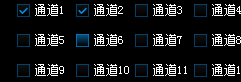
QCheckBox样式美化

QCheckBox{
font:12px;
color: rgb(255, 255, 255);  
 spacing: 5px;
}
 
 QCheckBox::indicator {
     width: 13px;
     height: 13px;  
 }
QCheckBox::indicator:unchecked {
     border-image: url(:/YxStreamClient/Resources/sys_checkbox.png) 0 54 18 0;
 }
 
 QCheckBox::indicator:unchecked:hover {
     border-image: url(:/YxStreamClient/Resources/sys_checkbox.png)0 36 18 18;
 }
 
 QCheckBox::indicator:unchecked:pressed {
     image: url(:/YxStreamClient/Resources/sys_checkbox.png)0 18 18 36;
 }
 
 QCheckBox::indicator:checked {
     border-image: url(:/YxStreamClient/Resources/sys_checkbox.png) 18 54 0 0;
 }
 
 QCheckBox::indicator:checked:hover {
     border-image: url(:/YxStreamClient/Resources/sys_checkbox.png)18 36 0 18;
 }
 
 QCheckBox::indicator:checked:pressed {
     border-image: url(:/YxStreamClient/Resources/sys_checkbox.png)18 18 0 36;
 }
 

在 PySide6 中,QCheckBox美化可以通过样式表(QSS)和自定义绘制来实现。 ### 使用样式表(QSS)美化 样式表是一种简单且有效的美化方式,它类似于 CSS,可以直接设置控件的外观。以下是一个示例代码,展示了如何使用样式美化 QCheckBox: ```python import sys from PySide6.QtWidgets import QApplication, QWidget, QVBoxLayout, QCheckBox app = QApplication(sys.argv) # 创建主窗口 window = QWidget() # 创建布局 layout = QVBoxLayout() # 创建 QCheckBox check_box = QCheckBox("美化后的复选框") # 使用样式美化 QCheckBox check_box.setStyleSheet(""" QCheckBox { color: #333; /* 文本颜色 */ font-size: 16px; /* 字体大小 */ } QCheckBox::indicator { width: 20px; /* 指示器宽度 */ height: 20px; /* 指示器高度 */ } QCheckBox::indicator:unchecked { background-color: #f0f0f0; /* 未选中时的背景颜色 */ border: 2px solid #ccc; /* 边框样式 */ border-radius: 4px; /* 边框圆角 */ } QCheckBox::indicator:checked { background-color: #007BFF; /* 选中时的背景颜色 */ border: 2px solid #007BFF; /* 边框样式 */ border-radius: 4px; /* 边框圆角 */ } QCheckBox::indicator:checked::before { content: '✔'; /* 选中时显示的图标 */ color: white; /* 图标的颜色 */ position: absolute; left: 4px; top: -2px; } """) # 将 QCheckBox 添加到布局中 layout.addWidget(check_box) # 设置布局到主窗口 window.setLayout(layout) # 显示主窗口 window.show() sys.exit(app.exec()) ``` ### 自定义绘制美化 除了样式表,还可以通过自定义绘制来实现更复杂的美化效果。以下是一个简单的示例,展示了如何通过重写 `paintEvent` 方法来自定义绘制 QCheckBox: ```python import sys from PySide6.QtWidgets import QApplication, QWidget, QVBoxLayout, QCheckBox from PySide6.QtGui import QPainter, QColor, QPen, QBrush from PySide6.QtCore import Qt class CustomCheckBox(QCheckBox): def paintEvent(self, event): painter = QPainter(self) painter.setRenderHint(QPainter.Antialiasing) # 绘制文本 text_rect = self.rect().adjusted(25, 0, 0, 0) painter.drawText(text_rect, Qt.AlignVCenter, self.text()) # 绘制指示器 indicator_rect = self.rect().adjusted(5, 5, -self.width() + 20, -self.height() + 20) if self.isChecked(): painter.setBrush(QBrush(QColor(0, 123, 255))) painter.setPen(QPen(QColor(0, 123, 255))) else: painter.setBrush(QBrush(QColor(240, 240, 240))) painter.setPen(QPen(QColor(204, 204, 204))) painter.drawRoundedRect(indicator_rect, 4, 4) if self.isChecked(): painter.setPen(QPen(QColor(255, 255, 255), 2)) painter.drawLine(indicator_rect.left() + 5, indicator_rect.center().y(), indicator_rect.center().x(), indicator_rect.bottom() - 5) painter.drawLine(indicator_rect.center().x(), indicator_rect.bottom() - 5, indicator_rect.right() - 5, indicator_rect.top() + 5) app = QApplication(sys.argv) # 创建主窗口 window = QWidget() # 创建布局 layout = QVBoxLayout() # 创建自定义 QCheckBox custom_check_box = CustomCheckBox("自定义复选框") # 将自定义 QCheckBox 添加到布局中 layout.addWidget(custom_check_box) # 设置布局到主窗口 window.setLayout(layout) # 显示主窗口 window.show() sys.exit(app.exec()) ```
评论
成就一亿技术人!
拼手气红包6.0元
还能输入1000个字符
 
红包 添加红包
表情包 插入表情
 条评论被折叠 查看
添加红包

请填写红包祝福语或标题

红包个数最小为10个

红包金额最低5元

当前余额3.43前往充值 >
需支付:10.00
成就一亿技术人!
领取后你会自动成为博主和红包主的粉丝 规则
hope_wisdom
发出的红包
实付
使用余额支付
点击重新获取
扫码支付
钱包余额 0

抵扣说明:

1.余额是钱包充值的虚拟货币,按照1:1的比例进行支付金额的抵扣。
2.余额无法直接购买下载,可以购买VIP、付费专栏及课程。

余额充值