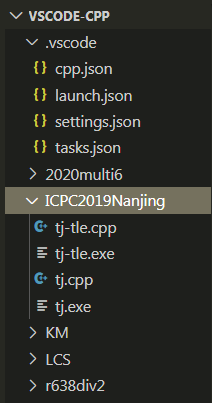
话不多说,直接代码:
{
"version": "0.2.0",
"configurations": [{
"name": "(gdb) Launch",
"type": "cppdbg",
"request": "launch",
"program": "${fileDirname}/${fileBasenameNoExtension}.exe",
"args": [],
"stopAtEntry": false,
"cwd": "${fileDirname}",
"environment": [],
"externalConsole": true,
"internalConsoleOptions": "neverOpen",
"MIMode": "gdb",
"miDebuggerPath": "gdb.exe",
"setupCommands": [
{
"description": "Enable pretty-printing for gdb",
"text": "-enable-pretty-printing",
"ignoreFailures": false
}
],
"preLaunchTask": "Compile"
}]
}
{
    "C_Cpp.errorSquiggles": "Disabled",
    "files.associations": {
        "ostream": "cpp",
        "iostream": "cpp",
        "array": "cpp",
        "atomic": "cpp",
        "*.tcc": "cpp",
        "bitset": "cpp",
        "cctype": "cpp",
        "cfenv": "cpp",
        "chrono": "cpp",
        "cinttypes": "cpp",
        "clocale": "cpp",
        "cmath": "cpp",
        "codecvt": "cpp",
        "complex": "cpp",
        "condition_variable": "cpp",
        "csetjmp": "cpp",
        "csignal": "cpp",
        "cstdarg": "cpp",
        "cstddef": "cpp",
        "cstdint": "cpp",
        "cstdio": "cpp",
        "cstdlib": "cpp",
        "cstring": "cpp",
        "ctime": "cpp",
        "cuchar": "cpp",
        "cwchar": "cpp",
        "cwctype": "cpp",
        "deque": "cpp",
        "forward_list": "cpp",
        "list": "cpp",
        "unordered_map": "cpp",
        "unordered_set": "cpp",
        "vector": "cpp",
        "exception": "cpp",
        "fstream": "cpp",
        "functional": "cpp",
        "future": "cpp",
        "initializer_list": "cpp",
        "iomanip": "cpp",
        "iosfwd": "cpp",
        "istream": "cpp",
        "limits": "cpp",
        "memory": "cpp",
        "mutex": "cpp",
        "new": "cpp",
        "numeric": "cpp",
        "optional": "cpp",
        "ratio": "cpp",
        "scoped_allocator": "cpp",
        "shared_mutex": "cpp",
        "sstream": "cpp",
        "stdexcept": "cpp",
        "streambuf": "cpp",
        "string_view": "cpp",
        "system_error": "cpp",
        "thread": "cpp",
        "type_traits": "cpp",
        "tuple": "cpp",
        "typeindex": "cpp",
        "typeinfo": "cpp",
        "utility": "cpp",
        "valarray": "cpp",
        "random": "cpp",
        "algorithm": "cpp",
        "iterator": "cpp",
        "map": "cpp",
        "memory_resource": "cpp",
        "regex": "cpp",
        "set": "cpp",
        "string": "cpp"
    }
}
{
"version": "2.0.0",
"tasks": [{
"label": "Compile",
"command": "g++",
"args": [
"${file}",
"-o",
"${fileDirname}/${fileBasenameNoExtension}.exe",
"-g",
"-Wall",
"-static-libgcc",
"-fexec-charset=GBK",
"-std=c++14",
],
"type": "process",
"group": {
"kind": "build",
"isDefault": true
},
"presentation": {
"echo": true,
"reveal": "always",
"focus": false,
"panel": "shared"
},
"problemMatcher": {
"owner": "cpp",
"fileLocation": ["relative", "\\"],
"pattern": {
"regexp": "^(.*):(\\d+):(\\d+):\\s+(warning|error):\\s+(.*)$",
"file": 1,
"line": 2,
"column": 3,
"severity": 4,
"message": 5
}
}
}]
}
{
"ch" :{
"prefix": "ch",
"body": [
"#include <bits/stdc++.h>",
"using namespace std;",
"typedef long long ll;",
"struct READ {",
" inline char read() {",
" #ifdef _WIN32",
" return getchar();",
" #endif",
" static const int IN_LEN = 1 << 18 | 1;",
" static char buf[IN_LEN], *s, *t;",
" return (s == t) && (t = (s = buf) + fread(buf, 1, IN_LEN, stdin)), s == t ? -1 : *s++;",
" }",
" template <typename _Tp> inline READ & operator >> (_Tp&x) {",
" static char c11, boo;",
" for(c11 = read(),boo = 0; !isdigit(c11); c11 = read()) {",
" if(c11 == -1) return *this;",
" boo |= c11 == '-';",
" }",
" for(x = 0; isdigit(c11); c11 = read()) x = x * 10 + (c11 ^ '0');",
" boo && (x = -x);",
" return *this;",
" }",
"} in;",
"",
"const int N = 2e5 + 50;",
"int main() {",
"",
" return 0;",
"}",
""
]
}
}



 本文详细介绍了如何在VSCode中配置C++开发环境,包括launch.json、settings.json和task.json的设置,以及如何解决调试过程中的断点问题。





 扫一扫
扫一扫


 8万+
8万+

 被折叠的 条评论
为什么被折叠?
被折叠的 条评论
为什么被折叠?
 到【灌水乐园】发言





