

c# vs2013 制作水晶报表并导出为 pdf

本文档介绍了如何在Visual Studio 2013中使用水晶报表插件创建报表,并详细阐述了从创建数据集、设计报表到最终导出为PDF的步骤。在Views/RPT目录下创建.rpt文件,Data目录下创建DataSet,接着在报表中导入数据源,设计报表布局,利用分组功能优化表格显示。最后,通过后端代码填充数据并实现PDF导出。

一两年前接触的,当时没有记录,现在把他写下来。
vs2013制作水晶报表,应该要用到插件安装,可以自行搜索安装插件。
在Views/RPT文件夹下创建.rpt后缀的水晶报表文件(这里的文件夹位置根据自身随意更改)。
在Data文件夹下(文件夹位置根据自身随意更改),创建DataSet数据集
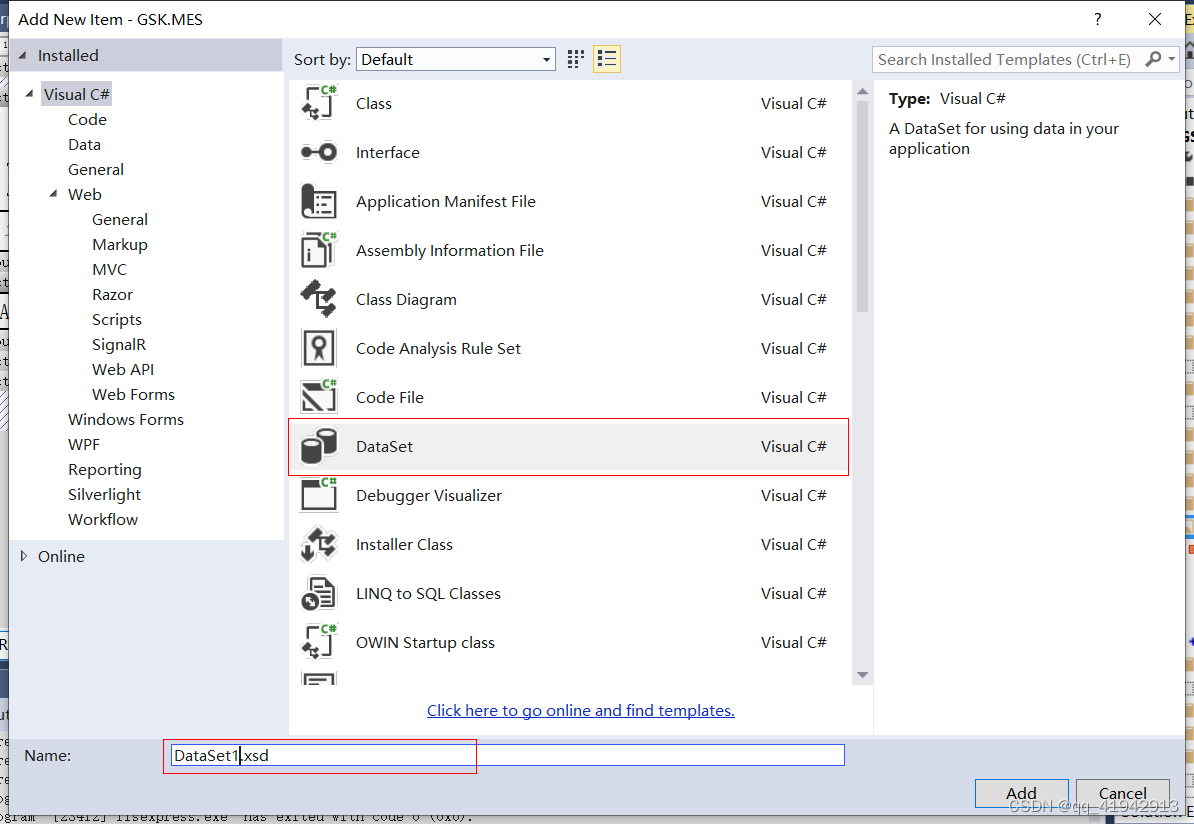
在这里插入图片描述
创建好后,在页面右击Add-DataTable添加表,更改datatable的名称,同样在表内右击Add-Column添加列,输入列明(自定义)
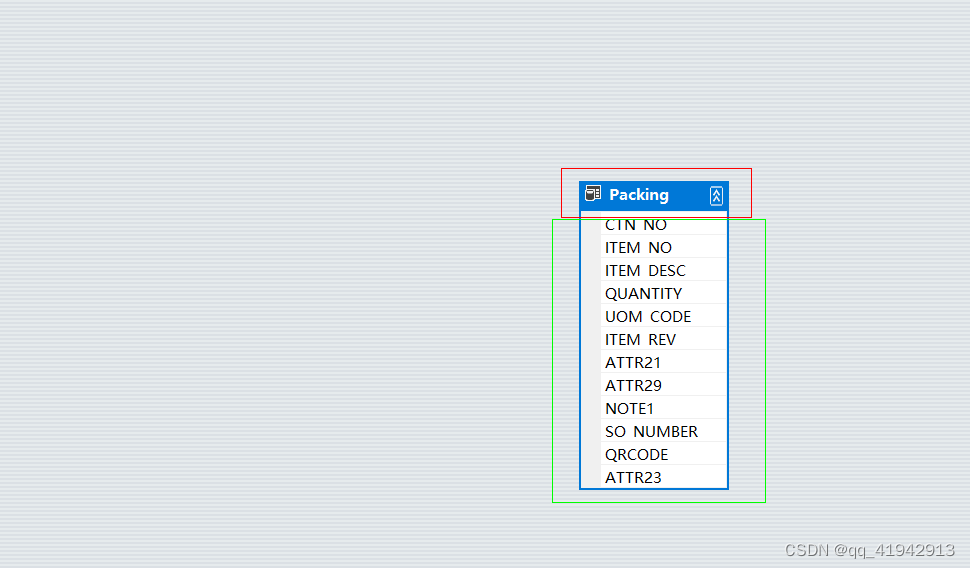
在这里插入图片描述

在.rpt报表文件页面,先将刚刚创建的DataSet的表导进来。在左边的导航,右击 Database Fields,选择Database Expert
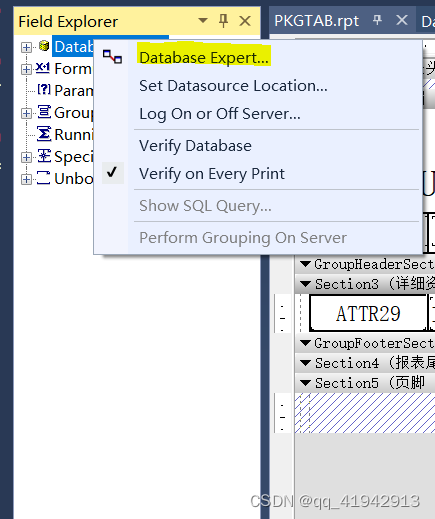
在这里插入图片描述
我的连接-DataSet1-Packing,点击>按钮,将该datatable表导进来,确定。待会就可以拖拉这个表里的列。
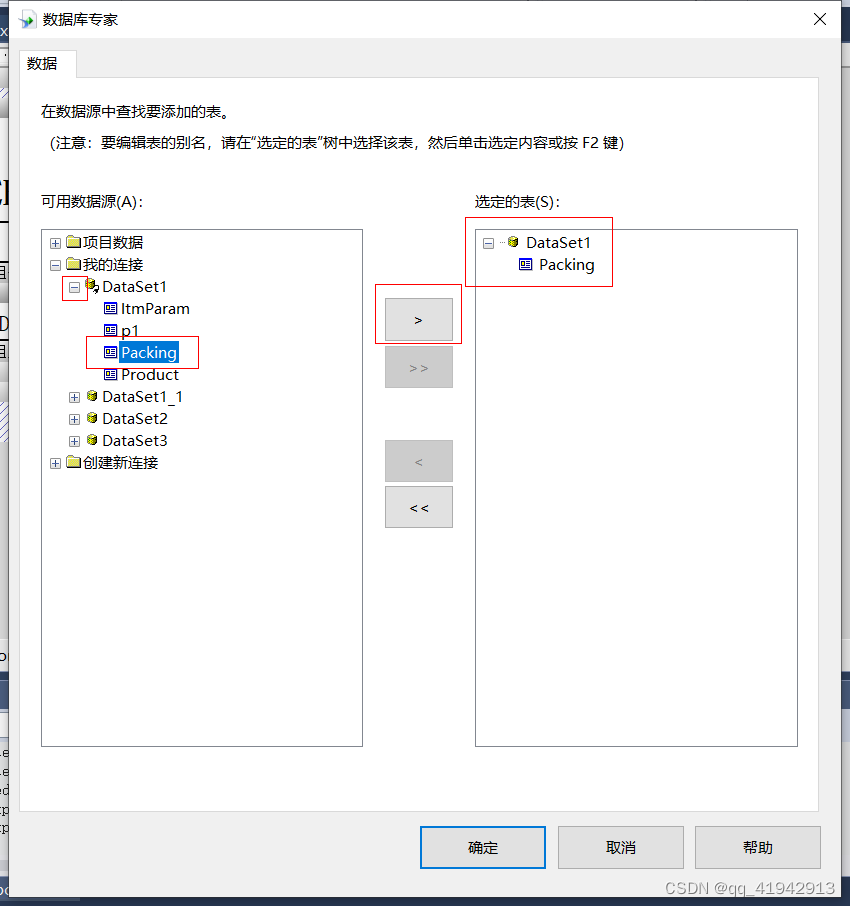
在这里插入图片描述

在里面画表格。改字体、字号大小、画线、不用到的报表头之类的就隐藏掉等。我这里是一个已经画好的表格,在页眉部分用到了分组功能,(为了让表格头不循环,表格体 列要循环显示,就将表的id作为分组名 来达到这样的目的)。
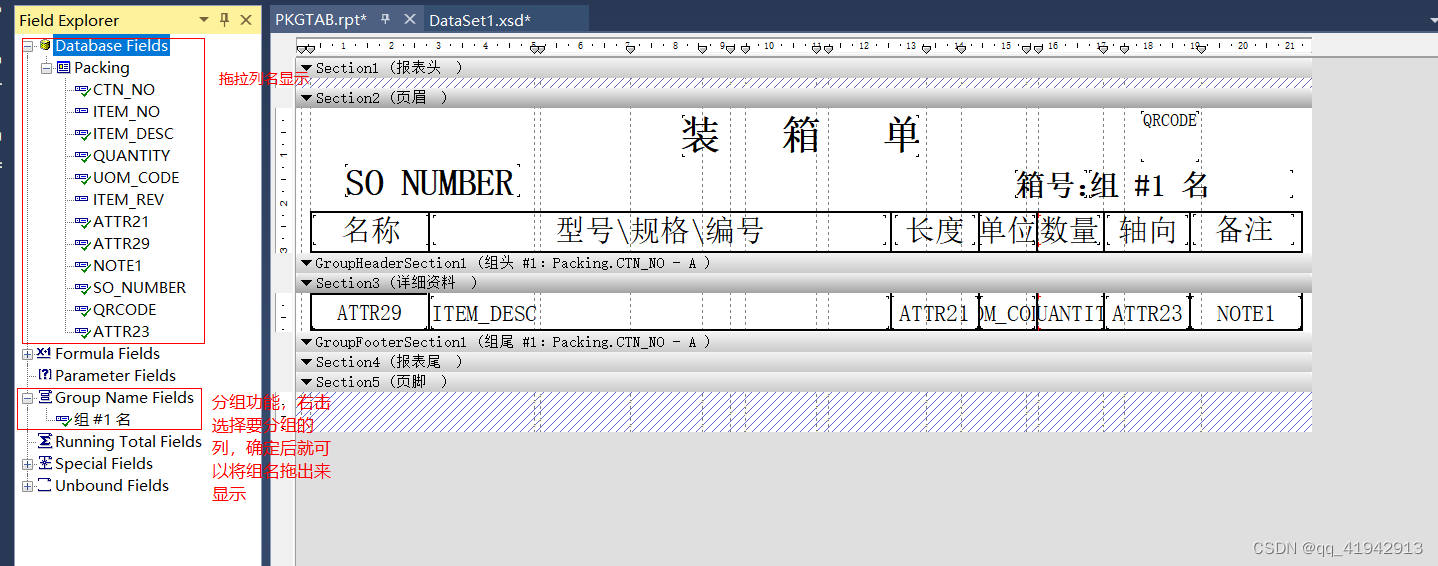
在这里插入图片描述
填充数据至表格,并导出为pdf。(我用的是一般处理程序,有什么不同根据自身修改)
后端代码,前端调用PrintPacking方法

using CrystalDecisions.CrystalReports.Engine;
using CrystalDecisions.Shared;
using Newtonsoft.Json;

public void PrintPacking(HttpContext context)
{
   
   
    try
    {
   
   
        string rptName = "PKGTAB";//.rpt报表文件名称
        List<数据库表名> list = new List<数据库表名>();//源数据表

        DataSet1 ds1 = new DataSet1();//实例化数据集

        //分箱数
        List<int> _countr = list1.Select(t => t.COUNTR).Distinct().ToList();

        if (list1.Count > 0 && head.Count > 0)
        {
   
   
            foreach (var item 
7-5 共7个压缩包(只有50M上传权限) Create rich reports within the familiarity of your Visual Studio development environment – for free Hit your report development deadlines and come in under budget without leaving Microsoft Visual Studio. Our report design software installs directly into Visual Studio. With this fully functional – and free software, you'll spend less and save time developing rich, interactive reports. Save time using powerful report creation, integration, and delivery tools Deliver interactive, graphical reports on any device through an XML Web services model Distribute highly formatted reports in rich-client Windows environments Enjoy flexible data access with support for over 35 data sources, major browsers and operating systems Extend your application with seamless report integration into WPF applications Seamless upgrade to SAP Crystal Reports 2011 for added report functionality Download SAP Crystal Reports, developer version for Microsoft Visual Studio now › Share 2 Features and Functionality Collapse All Features and Functionality Learn more about the features and functions of SAP Crystal Reports, developer version for Microsoft Visual Studio. Powerful designer features for creating rich reports Flexible Windows and Web application features support development ASP.NET features support your ASP development efforts Broad data access enables multiple sources and dynamic data output Platform features provide support and management for SAP Crystal Reports projects Get all the details on SAP Crystal Reports, developer version for Microsoft Visual Studio features › Less Technical & License Resources Discover if SAP Crystal Reports, developer version for Microsoft Visual Studio is right for you. Get started by reviewing the technical, data access and license details. Access virtually any data sources via ODBC, OLE DB or native connections Licensed for report design, runtime distribution and report viewer distribution Add reporting to thick client and intern
评论
添加红包

请填写红包祝福语或标题

红包个数最小为10个

红包金额最低5元

当前余额3.43前往充值 >
需支付:10.00
成就一亿技术人!
领取后你会自动成为博主和红包主的粉丝 规则
hope_wisdom
发出的红包
实付
使用余额支付
点击重新获取
扫码支付
钱包余额 0

抵扣说明:

1.余额是钱包充值的虚拟货币,按照1:1的比例进行支付金额的抵扣。
2.余额无法直接购买下载,可以购买VIP、付费专栏及课程。

余额充值



