


目录
1.2 核心业务逻辑层 (Core Logic Layer)
1.3 服务集成层 (Service Integration Layer)
1.4 数据处理与NLP模型层 (Data Processing & NLP Layer)
1.5 基础库与依赖 (Base Libraries & Dependencies)
摘要:
本系统旨在构建一个强大且用户友好的AI驱动的网页内容分析工具。它能够从任意网页提取文本内容,进行智能摘要、内容翻译、知识点提取等一系列高级分析任务,并支持多种输出格式。系统融合了Web爬虫技术、自然语言处理(NLP)模型、GUI设计以及配置管理等多种技术。本文将详细介绍系统的整体架构、关键模块的设计思路、技术选型(包括Requests、Selenium、BeautifulSoup、Tkinter、AI模型API调用等)、代码实现细节,并提供完整的、可运行的源代码,旨在为开发者和技术爱好者提供一个全面深入的技术参考。
第一章 引言
在信息爆炸的数字时代,海量网页内容成为我们获取知识、洞察趋势的重要来源。然而,直接阅读和消化这些信息往往耗时耗力,并且常常面临语言障碍、信息冗杂以及缺乏深度洞察等挑战。为了更有效地利用和理解网络信息,开发一个能够自动化处理网页内容的智能系统变得尤为迫切。本文提出的“AI 网页内容智能分析与处理系统”正是为了应对这一需求而生。
该系统集成了多种先进技术,核心目标是自动化地从互联网上的网页中提取结构化和非结构化的信息,并通过人工智能模型对其进行深度加工。它不仅仅是一个简单的网页抓取器,更是一个多功能的智能助手,能够根据用户的需求,将原始网页内容转化为摘要、翻译、知识点提取等更易于理解和应用的形式。系统的设计注重用户体验,通过直观的图形用户界面(GUI),使得非技术用户也能轻松完成复杂的网页分析任务。
系统的构建涉及Web爬虫技术,用于高效、可靠地获取网页数据;自然语言处理(NLP)技术,特别是大型语言模型(LLM)的应用,用于实现摘要、翻译和知识提取等智能任务;以及GUI框架(如Tkinter),用于创建友好的用户交互界面。此外,系统的设计还考虑了配置管理、错误处理和可扩展性,确保其在实际应用中的稳定性和灵活性。
本文将从系统架构、核心技术、具体模块实现、GUI设计、代码展示以及未来展望等多个维度,对这一AI网页内容智能分析与处理系统进行全面的技术剖析。通过深入的讲解和详尽的代码示例,我们希望能为读者提供一个清晰、实用且可操作的技术指南,帮助他们理解并可能复用或扩展此类系统的设计与实现。
1. 系统整体架构设计
本系统的设计遵循模块化、可扩展和职责分离的原则。整体架构可以被划分为以下几个核心层级:
1.1 用户界面层 (UI Layer)
这是用户与系统交互的入口。采用Python的tkinter库构建了一个跨平台的图形用户界面。UI层负责接收用户的输入(如URL、API密钥、模型选择、参数调整),展示处理结果,并触发后端相应的处理逻辑。主要组件包括:
- URL输入与控制区: 用户输入待处理的网页URL,并触发“爬取”等操作。
- 配置面板: 允许用户配置爬虫模式(如Selenium或Requests)、API密钥、AI模型及相关参数(如温度、最大Token数)。
- 结果展示区: 使用
ttk.Notebook(多选项卡组件)来展示不同类型的处理结果,如原始文本提取、摘要、翻译、知识点提取等。 - 状态反馈区: 显示当前系统状态、操作进度和关键信息。
UI层通过事件驱动的方式与核心业务逻辑层通信,确保操作的响应性和流畅性。
1.2 核心业务逻辑层 (Core Logic Layer)
这一层是系统的“大脑”,负责协调和管理所有核心功能。它接收来自UI层的指令,调用相应的服务组件(如Web Scraper、AI API Client),并处理返回的数据。
- 任务调度: 当用户触发一个操作(如“爬取网页”、“生成摘要”)时,核心逻辑层会解析用户请求,确定需要调用的具体功能。
- 数据流管理: 它负责管理从网页内容获取到最终结果展示的数据流转。例如,获取到的原始网页文本会被传递给AI服务进行处理。
- 状态管理: 跟踪当前操作是否正在进行(
is_loading),防止用户重复提交或并发冲突。 - 错误处理与反馈: 捕获各层级可能出现的异常,并将用户友好的错误信息通过UI反馈给用户。
1.3 服务集成层 (Service Integration Layer)
此层级封装了与外部服务或库的交互逻辑,包括:
- Web Scraper: 封装了使用
requests和selenium库进行网页内容抓取的逻辑。它负责处理URL的构造、HTTP请求的发送、HTML的解析(使用BeautifulSoup),以及对动态内容的适配。 - AI API Client: 封装了与外部AI模型API(如OpenAI、Gemini或其他类OpenAI API)进行通信的逻辑。这包括构造API请求(系统提示、用户提示、模型参数),发送POST请求,处理API响应,并解析返回的JSON数据。
- Markdown Formatter: 提供工具函数,用于将Markdown格式的文本内容渲染到Tkinter的Text widget中,实现高亮和格式化显示。
- Config Manager: 负责管理用户配置(如API密钥、WebDriver路径、模型偏好等),通过JSON文件进行持久化存储和加载。
1.4 数据处理与NLP模型层 (Data Processing & NLP Layer)
虽然大部分AI处理由外部API完成,但此层也包含一些辅助的数据处理功能:
- HTML实体解码: 使用
html.unescape处理HTML中的特殊字符实体。 - 文件名清理: 清理从网页标题提取的可能包含非法字符的内容,用于保存文件。
- 内容格式化: 将AI生成的Markdown内容适配到Tkinter Text widget中。
1.5 基础库与依赖 (Base Libraries & Dependencies)
系统依赖于一系列Python库,包括:
- GUI:
tkinter,tkinter.ttk,tkinter.scrolledtext,tkinter.messagebox,tkinter.filedialog - Web爬虫:
requests,selenium(可选),beautifulsoup4,html,urllib.parse - AI交互:
requests - 数据处理:
json,os,re,threading,datetime,webbrowser,html2text(可选,用于增强Markdown转换) - PDF导出(可选,已移除):
pdfkit - WebDriver: Edge WebDriver (
msedgedriver.exe) (当使用Selenium时)
该架构提供了一个清晰的开发和维护路径,每个模块都可以独立开发、测试和升级,提高了系统的健壮性和可维护性。
2. Web爬虫模块实现详解
Web爬虫是本系统的基石,负责从指定的URL获取网页的原始HTML内容。考虑到现代网页的复杂性(如JavaScript动态加载内容),系统同时支持两种爬取模式:使用requests库的传统HTTP请求模式,以及使用selenium库的浏览器自动化模式。
2.1 Requests模式
requests库是Python中最流行且易于使用的HTTP库之一。在Requests模式下,系统发送一个标准的HTTP GET请求到目标URL,并接收服务器返回的HTML响应。
技术选型考虑:
- 用户代理 (User-Agent): 网站常常会检查请求头中的
User-Agent来识别爬虫。为了模拟浏览器行为,系统维护了一个用户代理列表,并在每次请求时随机选择一个。 - 错误处理与重试: 网络请求可能会失败(如连接超时、服务器错误)。系统集成
requests.adapters.HTTPAdapter和urllib3.util.retry.Retry机制,实现请求失败后的自动重试,提高了爬取成功率。 - 响应编码: 网页可能使用不同的字符编码。
response.apparent_encoding能够智能检测编码,但以防万一,通常也 fallback 到utf-8。 - 超时设置: 为了避免程序因某个请求耗时过长而卡死,设置了合理的请求超时时间(如25秒)。
代码实现示例:
import requests
import random
from requests.adapters import HTTPAdapter
from requests.packages.urllib3.util.retry import Retry
import html # For html.unescape

USER_AGENTS = [
    'Mozilla/5.0 (Windows NT 10.0; Win64; x64) AppleWebKit/537.36 (KHTML, like Gecko) Chrome/120.0.0.0 Safari/537.36',
    'Mozilla/5.0 (Windows NT 10.0; Win64; x64; rv:109.0) Gecko/20100101 Firefox/121.0',
    # ... other user agents
]

def fetch_with_requests(url: str) -> str:
    """使用requests库爬取网页(降级方案)"""
    headers = {
        'User-Agent': random.choice(USER_AGENTS),
        'Accept': 'text/html,application/xhtml+xml,application/xml;q=0.9,image/webp,image/apng,*/*;q=0.8',
        'Accept-Language': 'zh-CN,zh;q=0.9,en;q=0.8',
        'Accept-Encoding': 'gzip, deflate, br',
        'DNT': '1',
        'Connection': 'keep-alive',
        'Upgrade-Insecure-Requests': '1',
    }

    session = requests.Session()
    retry = Retry(
        total=3,
        backoff_factor=0.5,
        status_forcelist=(500, 502, 503, 504)
    )
    adapter = HTTPAdapter(max_retries=retry)
    session.mount('http://', adapter)
    session.mount('https://', adapter)

    try:
        response = session.get(url, headers=headers, timeout=25, allow_redirects=True)
        response.raise_for_status() # Raises HTTPError for bad responses (4XX or 5XX)
        response.encoding = response.apparent_encoding or 'utf-8'
        return response.text
    except requests.exceptions.Timeout:
        raise Exception("❌ 请求超时:网页加载时间过长(>25秒)")
    except requests.exceptions.ConnectionError:
        raise Exception("❌ 连接失败:无法连接到该网站")
    except requests.exceptions.HTTPError as e:
        raise Exception(f"❌ HTTP错误 {e.response.status_code} {e.response.reason}")
    except Exception as e:
        raise Exception(f"❌ requests爬取失败: {str(e)}")
    finally:
        session.close()

# Helper to decode HTML entities
def _decode_html_entities(text):
    try:
        return html.unescape(text)
    except:
        return text
2.2 Selenium模式
selenium库允许程序控制浏览器(如Edge, Chrome, Firefox)的自动化操作。当网页内容高度依赖JavaScript渲染时(例如,通过AJAX加载数据),requests只能获取到初始的HTML骨架,而无法捕获渲染后的完整内容。Selenium可以执行JavaScript,等待页面加载完成,然后获取动态渲染后的页面源代码。
技术选型考虑:
- WebDriver: Selenium需要一个WebDriver作为浏览器与程序之间的桥梁。本系统默认使用Edge WebDriver(
msedgedriver.exe)。用户可以配置WebDriver的路径,或者确保其在系统的PATH环境变量中。 - 浏览器选项: 通过
webdriver.EdgeOptions可以配置浏览器行为,如禁用自动化标志 (--disable-blink-features=AutomationControlled) 来绕过一些简单的反爬虫检测,设置用户代理,甚至切换到无头模式 (--headless) 以在没有图形界面的服务器上运行。 - 等待机制: 动态内容加载需要时间。
WebDriverWait结合expected_conditions是Selenium中处理等待的标准方法。系统使用EC.presence_of_element_located或自定义lambda函数(检查document.readyState)来等待页面关键元素加载或页面状态完成。 - 页面加载超时: 类似于
requests,为selenium的页面加载也设置了严格的超时(如30秒),防止无限等待。 - 异常处理: 专门捕获
TimeoutException和WebDriverException,并提供清晰的错误提示。
代码实现示例:
from selenium import webdriver
from selenium.webdriver.common.by import By
from selenium.webdriver.support.ui import WebDriverWait
from selenium.webdriver.support import expected_conditions as EC
from selenium.webdriver.edge.service import Service
from selenium.common.exceptions import TimeoutException, WebDriverException
import os

SELENIUM_AVAILABLE = True # Set based on try-except import

EDGE_DRIVER_PATH = None # Configurable via UI and ConfigManager

def set_edge_driver_path(path):
    """Set the global Edge driver path from UI config."""
    global EDGE_DRIVER_PATH
    EDGE_DRIVER_PATH = path

def fetch_with_selenium(url: str, timeout_seconds: int = 30) -> str:
    """使用Selenium WebDriver爬取网页,并设置加载时间限制"""
    driver = None
    try:
        options = webdriver.EdgeOptions()
        # Try to disguise as a regular browser
        options.add_argument('--disable-blink-features=AutomationControlled')
        options.add_argument(f'user-agent={random.choice(USER_AGENTS)}')
        options.add_argument('--disable-extensions')
        options.add_argument('--disable-plugins')
        # options.add_argument('--headless') # Be cautious with headless, some sites detect it

        # Determine driver path: use configured path if provided and exists, else try default
        actual_driver_path = EDGE_DRIVER_PATH if EDGE_DRIVER_PATH and os.path.exists(EDGE_DRIVER_PATH) else None

        if actual_driver_path:
            service = Service(actual_driver_path)
            driver = webdriver.Edge(service=service, options=options)
            print(f"Using Edge WebDriver from: {actual_driver_path}")
        else:
            # Rely on system PATH or automatic detection
            try:
                driver = webdriver.Edge(options=options)
                print("Using Edge WebDriver from system PATH or auto-detected.")
            except WebDriverException as e:
                raise Exception(f"❌ Cannot find Edge WebDriver.\n\nEnsure it's installed and configured correctly.\nError: {e}\nDownload: https://developer.microsoft.com/en-us/microsoft-edge/tools/webdriver/")

        driver.set_page_load_timeout(timeout_seconds) # Set page load timeout
        driver.get(url)

        # Wait until the page is in a complete state or timeout
        try:
            WebDriverWait(driver, timeout_seconds).until(
                lambda d: d.execute_script('return document.readyState') == 'complete'
            )
        except TimeoutException:
            print(f"Warning: Page load timed out ({timeout_seconds}s). Proceeding with loaded content.")
        except WebDriverException as e:
            print(f"WebDriver exception during wait: {e}")
            # Still try to return page source

        page_source = driver.page_source
        return page_source

    except TimeoutException:
        print(f"Warning: Page load timed out ({timeout_seconds}s).")
        if driver:
            try:
                return driver.page_source # Return whatever was loaded
            except:
                raise Exception(f"❌ Selenium fetch failed: Page timed out ({timeout_seconds}s) and content could not be retrieved.")
        else:
            raise Exception(f"❌ Selenium fetch failed: Page timed out ({timeout_seconds}s).")
    except WebDriverException as e:
        raise Exception(f"❌ WebDriver Error: {str(e)}\n\nSuggestions:\n• Ensure WebDriver version matches browser version.\n• Check if browser is already running with conflicting settings.")
    except Exception as e:
        raise Exception(f"❌ Selenium fetch failed: {str(e)}")
    finally:
        if driver:
            try:
                driver.quit() # Close the browser and WebDriver session
            except:
                pass
2.3 WebScraper 统一接口
WebScraper类提供了一个统一的接口 fetch_web_content(url, use_selenium),它会根据用户选择的模式(use_selenium参数)和库是否可用,自动选择使用fetch_with_selenium或fetch_with_requests。如果首选的Selenium模式失败,它会尝试降级到Requests模式。
HTML解析与内容提取:
一旦获取到原始HTML,系统使用BeautifulSoup(配合检测到的最佳解析器,如lxml)来解析HTML文档。然后,通过一系列查找和移除操作(如移除script, style标签),提取出主要的文本内容。
- 通用内容提取: 查找常见的文本容器(如
p,h1-h6,div,article,main等),提取其文本。 - 代码块识别: 查找
<pre>和<code>标签,提取代码内容,并使用Markdown的 - 特殊网站处理: 为了提高特定类型网站(如优快云)内容的提取质量,加入了针对性的规则,移除该类网站特有的干扰元素(如评论区、广告链接等)。
- HTML实体解码: 在提取文本后,使用
_decode_html_entities函数处理如 ,,等HTML实体,转换成实际字符。 - 内容去重与清理: 对提取出的文本块进行去重,并合并成最终的字符串。
代码实现示例 (WebScraper类):
from bs4 import BeautifulSoup
import html # For html.unescape
import re

# ... (previous code for fetch_with_requests, fetch_with_selenium, USER_AGENTS, SELENIUM_AVAILABLE, set_edge_driver_path) ...

PARSER_TYPE = detect_parser() # detect_parser needs to be defined to find the best parser (lxml > html5lib > html.parser)

class WebScraper:
    # ... (USER_AGENTS, EDGE_DRIVER_PATH, set_edge_driver_path, _decode_html_entities methods) ...

    @staticmethod
    def _fetch_with_selenium(url: str, timeout_seconds: int = 30) -> str:
        # ... (implementation as shown above) ...
        pass # Placeholder

    @staticmethod
    def _fetch_with_requests(url: str) -> str:
        # ... (implementation as shown above) ...
        pass # Placeholder

    @staticmethod
    def fetch_web_content(url: str, use_selenium: bool = True) -> str:
        """
        Fetches web content, preferring Selenium if available and enabled.
        Falls back to requests if Selenium fails or is not enabled.
        """
        if not url.startswith(('http://', 'https://')):
            url = 'https://' + url

        page_source = ""
        fetch_error = None

        # Try Selenium first if enabled and available
        if use_selenium and SELENIUM_AVAILABLE:
            try:
                page_source = WebScraper._fetch_with_selenium(url, timeout_seconds=30)
            except Exception as selenium_error:
                fetch_error = str(selenium_error)
                print(f"Selenium fetch failed, falling back to requests: {fetch_error}")
                # Fallback to requests
                try:
                    page_source = WebScraper._fetch_with_requests(url)
                except Exception as req_error:
                    fetch_error = f"Selenium failed ({selenium_error})\nRequests failed ({req_error})"
                    raise Exception(f"❌ Web fetching failed: {fetch_error}") from req_error
        else:
            # Use requests directly if Selenium is disabled or unavailable
            try:
                page_source = WebScraper._fetch_with_requests(url)
            except Exception as req_error:
                fetch_error = str(req_error)
                raise Exception(f"❌ Web fetching failed using requests: {fetch_error}") from req_error

        if not page_source:
            raise Exception("❌ Failed to retrieve any page source.")

        soup = BeautifulSoup(page_source, PARSER_TYPE)

        # Generic tag removal
        for tag in soup(["script", "style", "nav", "footer", "button", "meta", "link", "noscript", "svg", "header", "aside"]):
            tag.decompose()

        content_parts = []

        # ===== Special handling for specific domains (e.g., 优快云) =====
        if 'youkuaiyun.com' in url.lower():
            # Specific selectors and cleaning for 优快云
            # ... (detailed 优快云 parsing logic here) ...
            pass # Placeholder for detailed logic

        else: # ===== General Web Scraping Logic =====
            for heading in soup.find_all(['h1', 'h2', 'h3', 'h4', 'h5', 'h6']):
                text = heading.get_text(strip=True)
                text = WebScraper._decode_html_entities(text)
                if text and len(text) > 0:
                    level = int(heading.name[1])
                    content_parts.append(f"{'#' * level} {text}")

            for p in soup.find_all('p'):
                text = p.get_text(strip=True)
                text = WebScraper._decode_html_entities(text)
                if text and len(text) > 3:
                    content_parts.append(text)

            for pre_block in soup.find_all('pre'):
                code_text = pre_block.get_text(strip=False)
                code_text = WebScraper._decode_html_entities(code_text)
                if code_text and code_text.strip() and len(code_text.strip()) > 2:
                    code_text = code_text.strip()
                    if not code_text.startswith('```'):
                        content_parts.append(f"\n```\n{code_text}\n```\n")
                    else:
                        content_parts.append(code_text)

            # ... (add other elements like lists, blockquotes etc.) ...
            body = soup.find('body')
            if body:
                 text = body.get_text(separator='\n', strip=True)
                 text = WebScraper._decode_html_entities(text)
                 if text and len(text) > 20 and text not in content_parts:
                      content_parts.append(text)


        if not content_parts:
             body = soup.find('body')
             if body:
                  text = body.get_text(strip=True)
                  text = WebScraper._decode_html_entities(text)
                  if text and len(text) > 20:
                      content_parts.append(text)
             else:
                  raise Exception("❌ 未能提取到网页内容(通用逻辑)\n\n可能原因:\n• 网页结构非常规\n• 内容被JavaScript保护\n• 网站反爬虫机制")

        if not content_parts:
             raise Exception("❌ 未能提取到网页内容")

        # Deduplicate parts to avoid excessive repetition
        unique_parts = []
        seen_hashes = set()
        for part in content_parts:
            # Use hash of first 100 chars for a faster, approximate uniqueness check
            part_hash = hash(part[:100] if len(part) > 100 else part)
            if part_hash not in seen_hashes:
                unique_parts.append(part)
                seen_hashes.add(part_hash)

        return '\n\n'.join(unique_parts)

# Helper to detect best parser
def detect_parser():
    try:
        import lxml
        print("Using LXML parser.")
        return 'lxml'
    except ImportError:
        try:
            import html5lib
            print("Using HTML5Lib parser.")
            return 'html5lib'
        except ImportError:
            print("Using Python's built-in html.parser.")
            return 'html.parser' # Built-in, always available
3. AI模型集成与API交互
系统的核心智能功能,如网页摘要、内容翻译和知识点提取,依赖于外部的大型语言模型(LLM)。本系统采用与OpenAI API兼容的RESTful API接口进行交互,这意味着它可以连接到OpenAI官方API,或任何遵循相同协议的第三方AI服务。
3.1 API配置与认证
- API密钥: 用户需要在GUI界面输入其API密钥。该密钥是调用AI服务的身份凭证,系统通过
ConfigManager将其本地持久化存储,并可在启动时自动加载。为了安全,输入时默认隐藏(显示为“•”),并提供“显示”复选框。 - API URL: 系统预设了一个兼容API的URL (
https://api.aigc.bar/v1/chat/completions),用户也可以根据需要修改。 - 模型选择: 提供了一个下拉菜单,允许用户选择不同的AI模型(如
gemini-2.5-flash-lite,gpt-5-nano,deepseek-v3等)。模型选择会影响响应速度、质量和成本。
3.2 请求构建
API调用通过requests.post方法实现,主要包含以下关键部分:
- Headers: 必须包含
Authorization: Bearer <API_KEY>和Content-Type: application/json。 - Body (JSON Payload):
model: 用户选择的模型名称。messages: 一个消息列表,包含:role: "system":提供系统级指令,定义AI的角色和总体任务(如“你是一位专业的网页内容总结专家”)。role: "user":包含用户具体的请求和待处理的网页内容。
max_tokens: 限制生成内容的长度(以token为单位),用户可通过界面调整。temperature: 控制生成内容的随机性。较低值(如0.2)使输出更确定、聚焦;较高值(如0.8)使输出更多样、有创意。top_p: 另一种控制随机性的方法(nucleus sampling)。
3.3 Prompt Engineering
为实现特定的AI任务(摘要、翻译、知识提取),系统精心设计了Prompt(提示语)。
- 系统提示 (System Prompt): 明确AI的角色、职责、输出语言(强制中文)和输出格式要求(如Markdown)。
- 用户提示 (User Prompt): 包含具体任务指令。
- 摘要: 指示AI识别关键信息、要点、代码、应用场景,并要求输出Markdown格式的“内容概述”、“核心要点”、“详细内容”等部分。
- 翻译: 指示AI进行精确翻译,强调保留代码块、注释和技术术语。
- 知识提取: 指示AI提取概念、知识点、代码、最佳实践,并要求输出结构化的Markdown,包括“关键概念”、“核心知识点”等部分。
- 内容截断: 为了避免超出API的Token限制或过长的处理时间/费用,实际发送给API的内容是原始网页文本的前8000个字符。
3.4 响应处理与错误捕获
- 成功响应: API返回的JSON中,AI生成的文本位于
choices[0].message.content。 - 错误处理: 捕获HTTP请求级别的错误(超时
Timeout、连接失败ConnectionError、HTTP错误HTTPError)以及API返回的错误信息(如无效密钥、模型不支持、内容过滤等)。所有错误都会以用户友好的方式在GUI中显示。 - 流式传输 (Streaming): 当前实现未使用流式传输,直接等待完整响应。对于非常长的内容,流式传输可以提供更好的用户体验,但实现更复杂。
代码实现示例 (_perform_api_call方法):
import requests
import json
import threading
# ... other imports ...

class WebSummarizerUI:
    # ... __init__ and other methods ...

    def _perform_api_call(self, task_type: str, target_widget):
        """Performs the API call to the AI service (runs in a background thread)."""
        try:
            # Retrieve configuration from UI
            model_name = self.model_var.get()
            temperature = float(self.temperature_var.get())
            top_p = float(self.top_p_var.get())
            max_tokens = int(self.max_tokens_var.get())

            # Define system and user prompts based on task type
            if task_type == "summary":
                system_prompt = """You are a professional web content summarization expert. Your task is to carefully read web content, extract the most important information and core points, and provide a comprehensive summary in clear, concise, and structured Chinese. Must answer in Chinese."""
                user_prompt_template = """Please provide a professional Chinese summary of the following web content. The summary should include the following sections and be formatted using Markdown:

## Content Overview
Briefly describe the main topic in 1-2 sentences.

## Key Points
List 3-5 of the most important key points.

## Detailed Content
Elaborate on the main content and significant details.

## Code Examples
If there are important code snippets, retain them with Chinese comments.

## Application Scenarios
Explain the practical application scenarios of this content.

## Summary Recommendations
Provide 3-5 practical suggestions or best practices.

Web Content (first 8000 characters):
---
{content_placeholder}
---

Must output in Chinese, using Markdown format with headings and bold text for emphasis."""

            elif task_type == "translate":
                system_prompt = """You are a professional translation expert. Your task is to accurately translate web content into Chinese, preserving the accuracy of code blocks and technical terms. Must output in Chinese."""
                user_prompt_template = """Please translate the following web content completely into Chinese. Notes:
1. Preserve the original styling and ``` markers of all code blocks.
2. Code comments can be translated into Chinese, but the code itself remains unchanged.
3. Retain English technical terms or note the English original in parentheses.
4. Maintain the original structure and formatting.

Web Content (first 8000 characters):
---
{content_placeholder}
---

Please output the complete Chinese translation."""

            elif task_type == "knowledge":
                system_prompt = """You are a knowledge extraction expert. Your task is to precisely extract key technical concepts, core knowledge points, code examples, and best practices from web content and present them in structured Chinese. Must output in Chinese."""
                user_prompt_template = """Systematically extract knowledge points from the following web content. The output should be in Markdown format and include the following sections:

## Key Concepts
Extract 3-5 most important core concepts, explaining each in detail in Chinese.

## Core Knowledge Points
List 5-10 critical knowledge points, each with specific explanations.

## Code Examples
If there is code, extract the most important examples and add Chinese comments explaining their purpose.

## Best Practices
Provide 3-5 practical best practice recommendations.

## Common Pitfalls
Identify 2-3 common mistakes or traps and explain how to avoid them.

## Further Learning
Recommend 3-5 related advanced topics or areas for further study.

Web Content (first 8000 characters):
---
{content_placeholder}
---

Please output in structured Chinese using Markdown formatting."""
            else:
                raise ValueError(f"Unknown task type: {task_type}")

            # Truncate content and fill the prompt template
            content_to_process = self.current_web_content[:8000]
            user_prompt = user_prompt_template.format(content_placeholder=content_to_process)

            # Construct the API request payload
            headers = {
                "Authorization": f"Bearer {self.api_key}",
                "Content-Type": "application/json"
            }
            messages = [
                {"role": "system", "content": system_prompt},
                {"role": "user", "content": user_prompt}
            ]
            data = {
                "model": model_name,
                "messages": messages,
                "max_tokens": max_tokens,
                "temperature": temperature,
                "top_p": top_p,
                "stream": False # Currently not using streaming
            }

            # Make the API request
            response = requests.post(self.api_url, headers=headers, json=data, timeout=120) # 120s timeout

            # Handle API response status
            if response.status_code != 200:
                error_msg = f"API Error {response.status_code}"
                try:
                    error_json = response.json()
                    if 'error' in error_json and 'message' in error_json['error']:
                        error_msg += f": {error_json['error']['message']}"
                except:
                    error_msg += f": {response.text}" # Fallback to raw text

                self.root.after(0, lambda: (
                    messagebox.showerror("API Error", f"❌ {error_msg}"),
                    self.set_status(f"❌ API Error", "red"),
                    self.set_info("API call failed", "red")
                ))
                return

            # Process successful response
            result = response.json()
            if 'choices' not in result or not result['choices']:
                self.root.after(0, lambda: messagebox.showerror("API Error", "❌ Invalid API response (no choices found)"))
                return

            response_text = result['choices'][0]['message']['content']

            # Update the UI with formatted results (scheduled on main thread)
            self.root.after(0, lambda: self._display_formatted_result(response_text, target_widget, task_type))

        except requests.exceptions.Timeout:
            self.root.after(0, lambda: (
                messagebox.showerror("Error", "❌ Request timed out (network may be slow)"),
                self.set_status("❌ Timeout", "red"),
                self.set_info("Network connection timed out", "red")
            ))
        except requests.exceptions.ConnectionError:
            self.root.after(0, lambda: (
                messagebox.showerror("Error", "❌ Connection failed"),
                self.set_status("❌ Connection Error", "red"),
                self.set_info("Network connection error", "red")
            ))
        except ValueError as ve: # For unknown task type
             self.root.after(0, lambda: (
                 messagebox.showerror("Configuration Error", f"❌ {str(ve)}"),
                 self.set_status("❌ Config Error", "red"),
                 self.set_info("Configuration error", "red")
             ))
        except Exception as e:
            error_message = f"❌ An error occurred: {str(e)}"
            print(error_message) # Log detailed error
            self.root.after(0, lambda: (
                messagebox.showerror("Error", error_message),
                self.set_status("❌ Error", "red"),
                self.set_info("An error occurred during processing", "red")
            ))
        finally:
            self.is_loading = False # Ensure loading flag is reset
4. 用户界面与交互设计 (Tkinter GUI)
Tkinter是Python的标准GUI库,被选用于构建系统的图形用户界面,因为它简单易用且无需额外安装。
4.1 布局与组件
系统界面采用经典的“左右分割”布局:
- 左侧面板 (
left_frame): 包含所有配置项,如爬虫模式选择、WebDriver路径配置、API密钥输入、模型选择、生成参数(温度、Top P、最大Token)以及部分操作按钮(如保存密钥、导出)。使用tk.Canvas和ttk.Scrollbar实现了可滚动的配置面板,以适应可能增长的配置项。 - 右侧面板 (
right_frame): 包含主要的操作区域:- URL输入区: 一个
ttk.Entry用于输入网址,以及“爬取网页”、“清空所有”等控制按钮。 - 结果展示区: 使用
ttk.Notebook创建了多个选项卡(Tab),每个选项卡对应一种处理结果(网页文本提取、摘要、翻译、知识点提取)。每个选项卡内部都包含一个scrolledtext.ScrolledText组件,用于显示格式化后的文本内容,并附带“复制”和“保存”按钮。
- URL输入区: 一个
4.2 状态与反馈
- 状态标签 (
self.status_label): 位于左侧面板底部,实时显示当前操作的状态(如“就绪”、“爬取中”、“完成”、“错误”),并用不同颜色(绿、橙、红)进行区分。 - 信息标签 (
self.info_label): 提供更详细的操作信息或提示。 - 加载指示: 当进行耗时操作(爬取、API调用)时,
is_loading标志会被设置,按钮可能会被禁用(虽未在示例代码中明确禁用按钮,但可通过条件判断实现),并在状态标签中显示“⏳”等指示符,以告知用户系统正忙。
4.3 交互逻辑
- 事件绑定: 按钮的点击事件被绑定到相应的处理函数(如
start_web_fetch,generate_summary)。 - 配置持久化: 用户在界面上做的配置(API密钥、WebDriver路径等)可以通过“保存”按钮使用
ConfigManager写入JSON文件,并在下次启动时自动加载。 - 多线程处理: 为了避免长时间运行的操作阻塞GUI,所有耗时的操作(网络爬取、API调用)都在单独的线程中执行。Tkinter的
root.after(0, callback)机制被用于在后台线程中安全地更新GUI,确保UI的响应性。 - Markdown格式化:
MarkdownFormatter类提供静态方法,负责将AI生成的Markdown文本解析并应用样式(字体、颜色、粗体)到Tkinter的ScrolledText组件中,使得代码块、标题、链接等能有良好的视觉呈现。
代码实现示例 (UI部分, 简略):
import tkinter as tk
from tkinter import ttk, scrolledtext, messagebox, filedialog
import webbrowser
import threading
import os
from datetime import datetime
# ... (WebScraper, ConfigManager, MarkdownFormatter imports) ...

class WebSummarizerUI:
    def __init__(self, root):
        self.root = root
        self.root.title("AI Web Content Analyzer")
        self.root.geometry("1700x950")
        # ... (initialize other attributes like config_manager, api_key, etc.) ...
        self.create_ui()
        self.load_saved_config()

    def create_ui(self):
        # Main grid configuration
        self.root.grid_rowconfigure(0, weight=1)
        self.root.grid_columnconfigure(0, weight=0, minsize=360) # Left panel width
        self.root.grid_columnconfigure(1, weight=1)             # Right panel width

        self._create_left_panel()
        self._create_right_panel()

    def _create_left_panel(self):
        # ... (Setup canvas and scrollbar for left panel) ...
        # ... (Call _fill_left_panel to add widgets) ...
        pass # Placeholder

    def _fill_left_panel(self, parent):
        # ... (Add Checkbuttons for Selenium, Entries for WebDriver path,
        #      Labels, Buttons for API key, Combobox for model, Scales for parameters, etc.) ...
        # ... (Save/Load logic integrated via self.config_manager) ...
        pass # Placeholder

    def _create_right_panel(self):
        # ... (Setup main frame, URL input frame, Notebook for results) ...
        self.notebook = ttk.Notebook(right_frame)
        self.notebook.grid(row=1, column=0, sticky="nsew")
        self._create_result_tabs()
        pass # Placeholder

    def _create_result_tabs(self):
        # Create tab frames and add ScrolledText widgets
        extract_tab = ttk.Frame(self.notebook)
        self.notebook.add(extract_tab, text="Extracted Text")
        self.extract_text = scrolledtext.ScrolledText(extract_tab, ...)
        self.extract_text.grid(row=0, column=0, sticky="nsew")
        # ... add buttons for copy/save ...

        summary_tab = ttk.Frame(self.notebook)
        self.notebook.add(summary_tab, text="Summary")
        self.summary_text = scrolledtext.ScrolledText(summary_tab, ...)
        self.summary_text.grid(row=0, column=0, sticky="nsew")
        self.summary_button = ttk.Button(summary_tab, text="Generate Summary", command=self.generate_summary)
        self.summary_button.grid(row=1, column=0, sticky="ew")
        # ... add copy/save buttons ...

        # ... (repeat for Translate and Knowledge tabs) ...
        pass # Placeholder

    # ... (Methods like load_saved_config, set_status, set_info, start_web_fetch, _perform_web_fetch,
    #      _perform_api_call, _display_formatted_result, etc.) ...

    def _display_formatted_result(self, content: str, widget, task_type: str):
        """Displays formatted result in the target widget."""
        widget.config(state=tk.NORMAL)
        widget.delete("1.0", tk.END)
        # Use MarkdownFormatter to apply styles
        MarkdownFormatter.format_text(widget, content)
        widget.config(state=tk.DISABLED)
        # Update status/info labels
        task_names = {'summary': 'Summary', 'translate': 'Translation', 'knowledge': 'Knowledge Extraction'}
        self.set_status("✓ Done", "green")
        self.set_info(f"{task_names.get(task_type, task_type)} generated.", "green")


# --- Main Execution ---
if __name__ == "__main__":
    root = tk.Tk()
    app = WebSummarizerUI(root)
    root.mainloop()
5. 配置文件管理
为了提高用户体验和数据持久性,系统实现了配置管理功能。
-
ConfigManager类:- 负责读取和写入一个JSON文件(默认为
web_summarizer_config.json)。 load_config(): 在程序启动时调用,尝试加载配置文件。如果文件不存在或发生读取错误,则返回一个空字典。save_config(config): 将当前的配置字典写入JSON文件。get(key, default=None): 获取指定键的配置值,如果键不存在则返回默认值。set(key, value): 更新或添加一个配置项,并立即将更改保存到文件。
- 负责读取和写入一个JSON文件(默认为
-
存储项:
api_key: 用户输入的API密钥。edge_driver_path: Edge WebDriver的可执行文件路径。wkhtmltopdf_path: (已移除PDF功能,但此项保留在代码中)wkhtmltopdf的路径,用于PDF生成。csdn_category_url: (已移除优快云特定爬虫,此项保留)优快云文章列表页的URL。
-
应用:
- 在GUI初始化时,
load_saved_config()调用ConfigManager加载所有可用配置,并更新UI组件(如API密钥输入框、WebDriver路径输入框)。 - 当用户点击“保存API密钥”、“浏览选择WebDriver路径”等按钮时,会调用
ConfigManager.set()来更新配置并持久化。
- 在GUI初始化时,
代码实现示例 (ConfigManager类):
import json
import os

class ConfigManager:
    """Configuration Manager - Handles saving and loading settings."""

    def __init__(self, config_file="web_summarizer_config.json"):
        self.config_file = config_file
        self.config = self.load_config()

    def load_config(self):
        """Loads configuration from the JSON file."""
        if os.path.exists(self.config_file):
            try:
                with open(self.config_file, 'r', encoding='utf-8') as f:
                    return json.load(f)
            except json.JSONDecodeError:
                print(f"Warning: Could not decode JSON from {self.config_file}. Starting with empty config.")
                return {}
            except Exception as e:
                print(f"Error loading config file {self.config_file}: {e}")
                return {}
        return {}

    def save_config(self, config_data=None):
        """Saves the current configuration to the JSON file."""
        if config_data is None:
            config_data = self.config # Save the internal state

        try:
            with open(self.config_file, 'w', encoding='utf-8') as f:
                json.dump(config_data, f, ensure_ascii=False, indent=4)
            return True
        except Exception as e:
            print(f"Error saving config file {self.config_file}: {e}")
            return False

    def get(self, key, default=None):
        """Gets a configuration value by key."""
        return self.config.get(key, default)

    def set(self, key, value):
        """Sets a configuration value and saves it immediately."""
        self.config[key] = value
        return self.save_config() # Save the entire updated config
6. Markdown格式化显示
为了将AI生成的Markdown文本在Tkinter的Text widget中以更具可读性的方式展示(例如,标题加粗变大、代码块有背景色),MarkdownFormatter类被设计来实现这一功能。
configure_text_tags(widget): 这个静态方法负责在Tkinter的Text widget中定义一系列样式标签(tags)。例如,"heading1"被配置为14号粗体微软雅黑字体,"code"被配置为固定宽度字体和灰色背景。format_text(widget, text): 这个核心方法接收Text widget实例和Markdown格式的文本字符串。- 它首先将Text widget的状态设置为
NORMAL以便编辑。 - 然后,它遍历Markdown文本的每一行。
- 使用正则表达式(
re模块)匹配不同的Markdown元素,如标题 (#{1,6}\s+(.+))、粗体 (\*\*(.+?)\*\*)、斜体 (\*([^*]+?)\*)、代码 (\([^]+?)`) 和链接 ([([^]]+)](([^)]+))`)。 - 对于匹配到的元素,它会计算内容在行内的位置,并将文本分段插入到Text widget中。每段文本插入时会关联一个或多个之前定义的样式标签(如
widget.insert(tk.END, content, "bold"))。 - 特殊处理如图片标记(尽管已移除实际图片爬取)和代码块(```)的识别与格式化。
- 最后,将Text widget的状态重设回
DISABLED,防止用户直接编辑。
- 它首先将Text widget的状态设置为
这种方式虽然不是真正的HTML渲染,但通过预定义一系列样式标签,可以模拟出Markdown的视觉效果,大大增强了用户阅读AI生成内容的可读性。
代码实现示例 (MarkdownFormatter类):
import tkinter as tk
import re

class MarkdownFormatter:
    """Handles Markdown formatting and tag application to Text widgets."""

    @staticmethod
    def configure_text_tags(widget):
        """Configures style tags for a Text widget."""
        widget.tag_configure("heading1", font=("微软雅黑", 14, "bold"), foreground="#1f77b4")
        widget.tag_configure("heading2", font=("微软雅黑", 12, "bold"), foreground="#2ca02c")
        widget.tag_configure("heading3", font=("微软雅黑", 11, "bold"), foreground="#d62728")
        widget.tag_configure("bold", font=("微软雅黑", 10, "bold"), foreground="#000000")
        widget.tag_configure("italic", font=("微软雅黑", 10, "italic"))
        widget.tag_configure("code", font=("Courier New", 9), background="#f0f0f0", foreground="#d63384")
        widget.tag_configure("link", foreground="#0066cc", underline=True)
        widget.tag_configure("image", font=("微软雅黑", 9), foreground="#8b8b8b")
        # Add more tags as needed (e.g., for blockquotes, lists)

    @staticmethod
    def format_text(widget, text):
        """Inserts Markdown-formatted text into a Text widget with styling."""
        widget.config(state=tk.NORMAL)
        MarkdownFormatter.configure_text_tags(widget) # Ensure tags are configured

        lines = text.split('\n')
        for line_idx, line in enumerate(lines):
            # Basic handling for code blocks (can be enhanced)
            if line.strip().startswith('```'):
                widget.insert(tk.END, line + '\n')
                continue

            # Handle Headings (H1-H6)
            heading_match = re.match(r'^(#{1,6})\s+(.+)$', line)
            if heading_match:
                level = min(len(heading_match.group(1)), 3) # Limit to H3 for styling consistency
                content = heading_match.group(2)
                if line_idx > 0: widget.insert(tk.END, '\n') # Add newline before heading if not first line
                widget.insert(tk.END, f"{'#' * level} {content}", f"heading{level}")
                widget.insert(tk.END, '\n')
                continue

            # Handle Images (if needed, currently just text)
            if line.strip().startswith('[图片]'):
                widget.insert(tk.END, line + '\n', 'image')
                continue

            # Handle inline formatting (bold, italic, code, link) within a line
            # This part needs careful implementation to handle overlapping or sequential formats
            # A simple sequential scan might miss some cases or format incorrectly.
            # A more robust approach might involve parsing the line more thoroughly.

            # Example: Simple sequential regex processing for inline styles
            # More complex parsing required for robust handling of all Markdown cases
            processed_line = line

            # Process links first as they contain []() which might interfere
            processed_line = re.sub(r'\[([^\]]+)\]\(([^\)]+)\)', r' \1(\2) ', processed_line) # Placeholder, actual insertion needs care

            # Process bold, italic, code etc. This example is simplified.
            # A full Markdown parser might be needed for complex cases.

            # Insert the line. For simplicity, just insert as plain text here.
            # Real implementation requires inserting formatted segments.
            widget.insert(tk.END, line) # Simplified insertion

            if line_idx < len(lines) - 1:
                widget.insert(tk.END, '\n') # Add newline

        widget.config(state=tk.DISABLED)
7. 完整代码实现
本节提供了该“AI 网页内容智能分析与处理系统”的完整Python源代码。由于篇幅限制,以下为整合后的主要代码块。在实际运行时,请确保所有依赖项都已安装(pip install requests selenium beautifulsoup4)。如果需要html2text,也请安装。
import tkinter as tk
from tkinter import ttk, scrolledtext, messagebox, filedialog
import requests
import json
import threading
from datetime import datetime
import os
import re
import webbrowser
import html # 用于解码HTML实体
from bs4 import BeautifulSoup
import urllib.parse
from urllib.parse import urljoin
# Selenium导入
try:
from selenium import webdriver
from selenium.webdriver.common.by import By
from selenium.webdriver.support.ui import WebDriverWait
from selenium.webdriver.support import expected_conditions as EC
from selenium.webdriver.edge.service import Service
from selenium.common.exceptions import TimeoutException, WebDriverException
SELENIUM_AVAILABLE = True
except ImportError:
SELENIUM_AVAILABLE = False
# html2text导入
try:
import html2text
HTML2TEXT_AVAILABLE = True
except ImportError:
HTML2TEXT_AVAILABLE = False
# ===== 解析器检测 =====
def detect_parser():
"""检测可用的HTML解析器"""
try:
import lxml
return 'lxml'
except ImportError:
try:
import html5lib
return 'html5lib'
except ImportError:
return 'html.parser' # Python内置,始终可用
PARSER_TYPE = detect_parser()
# ===== 配置管理器 =====
class ConfigManager:
"""配置管理器 - 用于保存和加载配置"""
def __init__(self, config_file="web_summarizer_config.json"):
self.config_file = config_file
self.config = self.load_config()
def load_config(self):
"""加载配置"""
if os.path.exists(self.config_file):
try:
with open(self.config_file, 'r', encoding='utf-8') as f:
return json.load(f)
except Exception as e:
print(f"错误加载配置文件: {e}")
return {}
return {}
def save_config(self, config):
"""保存配置"""
try:
with open(self.config_file, 'w', encoding='utf-8') as f:
json.dump(config, f, ensure_ascii=False, indent=4)
return True
except Exception as e:
print(f"错误保存配置文件: {e}")
return False
def get(self, key, default=None):
"""获取配置值"""
return self.config.get(key, default)
def set(self, key, value):
"""设置配置值"""
self.config[key] = value
return self.save_config(self.config)
# ===== Markdown格式化 =====
class MarkdownFormatter:
"""处理Markdown格式化和标签应用"""
@staticmethod
def configure_text_tags(widget):
"""配置Text widget的标签样式"""
widget.tag_configure("heading1", font=("微软雅黑", 14, "bold"), foreground="#1f77b4")
widget.tag_configure("heading2", font=("微软雅黑", 12, "bold"), foreground="#2ca02c")
widget.tag_configure("heading3", font=("微软雅黑", 11, "bold"), foreground="#d62728")
widget.tag_configure("bold", font=("微软雅黑", 10, "bold"), foreground="#000000")
widget.tag_configure("italic", font=("微软雅黑", 10, "italic"))
widget.tag_configure("code", font=("Courier New", 9), background="#f0f0f0", foreground="#d63384")
widget.tag_configure("link", foreground="#0066cc", underline=True)
widget.tag_configure("image", font=("微软雅黑", 9), foreground="#8b8b8b")
@staticmethod
def format_text(widget, text):
"""将Markdown格式的文本插入到Text widget"""
widget.config(state=tk.NORMAL)
MarkdownFormatter.configure_text_tags(widget)
lines = text.split('\n')
for line_idx, line in enumerate(lines):
# 处理代码块
if line.strip().startswith('```'):
widget.insert(tk.END, line + '\n')
continue
# 处理标题(保留#符号)
heading_match = re.match(r'^(#{1,6})\s+(.+)$', line)
if heading_match:
level = min(len(heading_match.group(1)), 3)
content = heading_match.group(2)
# 标题前添加换行
if line_idx > 0:
widget.insert(tk.END, '\n')
widget.insert(tk.END, f"{'#' * level} {content}", f"heading{level}")
widget.insert(tk.END, '\n')
continue
# 处理图片标记
if line.strip().startswith('[图片]'):
widget.insert(tk.END, line + '\n', 'image')
continue
# 处理行内格式
pos = 0
while pos < len(line):
# 查找各种Markdown格式
bold_pattern = r'\*\*(.+?)\*\*'
italic_pattern = r'(?<!\*)\*([^*]+?)\*(?!\*)'
code_pattern = r'`([^`]+?)`'
link_pattern = r'\[([^\]]+)\]\(([^\)]+)\)'
bold_match = re.search(bold_pattern, line[pos:])
italic_match = re.search(italic_pattern, line[pos:])
code_match = re.search(code_pattern, line[pos:])
link_match = re.search(link_pattern, line[pos:])
matches = []
if bold_match:
matches.append(('bold', bold_match.start(), bold_match.end(), bold_match.group(1)))
if italic_match:
matches.append(('italic', italic_match.start(), italic_match.end(), italic_match.group(1)))
if code_match:
matches.append(('code', code_match.start(), code_match.end(), code_match.group(1)))
if link_match:
matches.append(('link', link_match.start(), link_match.end(), link_match.group(1)))
if not matches:
# 没有格式,直接插入剩余文本
widget.insert(tk.END, line[pos:])
break
# 按位置排序,处理最先出现的
matches.sort(key=lambda x: x[1])
match_type, start, end, content = matches[0]
# 插入格式前的普通文本
if start > 0:
widget.insert(tk.END, line[pos:pos + start])
# 插入格式化的内容
widget.insert(tk.END, content, match_type)
pos += end
# 行尾添加换行
if line_idx < len(lines) - 1:
widget.insert(tk.END, '\n')
widget.config(state=tk.DISABLED)
# ===== 网页爬虫工具 =====
class WebScraper:
"""网页爬虫工具 - 支持Selenium和requests双模式"""
USER_AGENTS = [
'Mozilla/5.0 (Windows NT 10.0; Win64; x64) AppleWebKit/537.36 (KHTML, like Gecko) Chrome/120.0.0.0 Safari/537.36',
'Mozilla/5.0 (Windows NT 10.0; Win64; x64; rv:109.0) Gecko/20100101 Firefox/121.0',
'Mozilla/5.0 (Macintosh; Intel Mac OS X 10_15_7) AppleWebKit/537.36 (KHTML, like Gecko) Chrome/120.0.0.0 Safari/537.36',
'Mozilla/5.0 (X11; Linux x86_64) AppleWebKit/537.36 (KHTML, like Gecko) Chrome/120.0.0.0 Safari/537.36',
]
EDGE_DRIVER_PATH = None # 默认不设置,依赖系统PATH
@staticmethod
def set_edge_driver_path(path):
"""设置Edge WebDriver路径"""
WebScraper.EDGE_DRIVER_PATH = path
@staticmethod
def _decode_html_entities(text):
"""解码HTML实体编码(如, -> ,)"""
try:
return html.unescape(text)
except:
return text
@staticmethod
def _fetch_with_selenium(url: str, timeout_seconds: int = 30) -> str:
"""使用Selenium WebDriver爬取网页,并设置加载时间限制"""
driver = None
try:
options = webdriver.EdgeOptions()
options.add_argument('--disable-blink-features=AutomationControlled')
options.add_argument('user-agent=Mozilla/5.0 (Windows NT 10.0; Win64; x64) AppleWebKit/537.36')
options.add_argument('--disable-extensions')
options.add_argument('--disable-plugins')
# options.add_argument('--headless') # 谨慎使用headless,某些网站会检测
if WebScraper.EDGE_DRIVER_PATH and os.path.exists(WebScraper.EDGE_DRIVER_PATH):
service = Service(WebScraper.EDGE_DRIVER_PATH)
driver = webdriver.Edge(service=service, options=options)
else:
try:
driver = webdriver.Edge(options=options)
except Exception as e:
raise Exception(f"❌ 找不到Edge WebDriver\n\n请确保已安装并配置好Edge WebDriver。\n错误信息: {e}\n\n下载地址: https://developer.microsoft.com/en-us/microsoft-edge/tools/webdriver/")
driver.set_page_load_timeout(timeout_seconds) # 设置页面加载超时
driver.get(url)
# 尝试等待页面完全加载,但如果超时则会抛出TimeoutException
try:
WebDriverWait(driver, timeout_seconds).until(
lambda d: d.execute_script('return document.readyState') == 'complete'
)
except TimeoutException:
print(f"警告: 页面加载超时 ({timeout_seconds}秒)。将使用已加载的内容。")
except WebDriverException as e:
print(f"WebDriver异常: {e}")
# 即使发生异常,也尝试获取当前页面源码
page_source = driver.page_source
return page_source
except TimeoutException:
print(f"警告: 页面加载超时 ({timeout_seconds}秒)。将使用已加载的内容。")
# 如果超时,尝试获取当前已加载的页面源码
if driver:
try:
return driver.page_source
except:
raise Exception(f"❌ Selenium爬取失败:页面加载超时 ({timeout_seconds}秒) 且无法获取部分内容。")
else:
raise Exception(f"❌ Selenium爬取失败:页面加载超时 ({timeout_seconds}秒)。")
except Exception as e:
raise Exception(f"❌ Selenium爬取失败:{str(e)}\n\n建议:\n• 检查Edge WebDriver是否正确安装并与浏览器版本匹配。\n• 确保URL有效。\n• 尝试切换到requests模式(如果Selenium不可用)。")
finally:
if driver:
try:
driver.quit()
except:
pass
@staticmethod
def _fetch_with_requests(url: str) -> str:
"""使用requests库爬取网页(降级方案)"""
# 移除了对random, HTTPAdapter, Retry的依赖
headers = {
'User-Agent': WebScraper.USER_AGENTS[0], # 使用一个固定的UA
'Accept': 'text/html,application/xhtml+xml,application/xml;q=0.9,image/webp,image/apng,*/*;q=0.8',
'Accept-Language': 'zh-CN,zh;q=0.9,en;q=0.8',
'Accept-Encoding': 'gzip, deflate, br',
'DNT': '1',
'Connection': 'keep-alive',
'Upgrade-Insecure-Requests': '1',
'Sec-Fetch-Dest': 'document',
'Sec-Fetch-Mode': 'navigate',
'Sec-Fetch-Site': 'none',
'Sec-Fetch-User': '?1'
}
try:
response = requests.get(url, headers=headers, timeout=25, allow_redirects=True)
response.raise_for_status()
response.encoding = response.apparent_encoding or 'utf-8'
return response.text
except requests.exceptions.Timeout:
raise Exception("❌ 请求超时:网页加载时间过长(>25秒)\n\n原因可能是:\n• 网络连接缓慢\n• 服务器响应慢\n• 网站反爬虫延迟\n\n建议:\n• 检查网络连接\n• 稍后重试\n• 尝试使用VPN或代理")
except requests.exceptions.ConnectionError:
raise Exception("❌ 连接失败:无法连接到该网站\n\n原因可能是:\n• 网络未连接\n• 网站离线或维护中\n• DNS解析失败\n• 被防火墙阻止\n\n建议:\n• 检查网络连接\n• 验证URL正确性\n• 稍后重试")
except requests.exceptions.HTTPError as e:
raise Exception(f"❌ HTTP错误 {e.response.status_code}\n\n含义:{e.response.reason}\n\n常见错误代码:\n• 403: 网站禁止访问\n• 404: 网页不存在\n• 429: 请求过于频繁\n• 500+: 服务器错误\n\n建议:\n• 检查URL是否正确\n• 等待后重试\n• 检查网站是否需要登录")
except Exception as e:
raise Exception(f"❌ 请求失败:{str(e)}\n\n建议:\n• 确保输入的是完整URL(https://example.com)\n• 检查网页是否正常加载\n• 尝试用浏览器直接访问验证")
@staticmethod
def fetch_web_content(url: str, use_selenium: bool = True) -> str:
"""
从网页中提取文本内容
支持Selenium(处理动态内容)和requests两种模式
"""
try:
if not url.startswith(('http://', 'https://')):
url = 'https://' + url
page_source = ""
if use_selenium and SELENIUM_AVAILABLE:
try:
page_source = WebScraper._fetch_with_selenium(url, timeout_seconds=30) # 设置30秒超时
except Exception as selenium_error:
print(f"Selenium模式失败,自动降级到请求模式: {str(selenium_error)}")
page_source = WebScraper._fetch_with_requests(url)
else:
page_source = WebScraper._fetch_with_requests(url)
soup = BeautifulSoup(page_source, PARSER_TYPE)
# 移除不需要的标签 (通用)
for tag in soup(["script", "style", "nav", "footer", "button", "meta", "link", "noscript", "svg", "header", "aside"]):
tag.decompose()
content_parts = []
# ===== 优快云 特殊处理 =====
if 'youkuaiyun.com' in url.lower():
# 1. 移除目录项(含有 tableOfContents 属性的p标签)
toc_items = soup.find_all('p', {'name': 'tableOfContents'})
for item in toc_items:
item.decompose()
# 2. 提取标题 (h1-h6)
for heading in soup.find_all(['h1', 'h2', 'h3', 'h4', 'h5', 'h6']):
text = heading.get_text(strip=True)
text = WebScraper._decode_html_entities(text)
if text and len(text) > 0 and 'toc' not in heading.get('id', ''):
level = int(heading.name[1])
content_parts.append(f"{'#' * level} {text}")
# 3. 提取文章主内容区域 (优快云通常在id="content_views"或class="htmledit_views"的div中)
content_div = soup.find('div', id="content_views") or soup.find('div', class_="htmledit_views")
if content_div:
# 提取段落
for p in content_div.find_all('p'):
text = p.get_text(strip=True)
text = WebScraper._decode_html_entities(text)
if text and len(text) > 3:
content_parts.append(text)
# 提取代码块 (优快云通常用<pre>或<code>包裹)
for pre_block in content_div.find_all('pre'):
code_text = pre_block.get_text(strip=False)
code_text = WebScraper._decode_html_entities(code_text)
if code_text and code_text.strip() and len(code_text.strip()) > 2:
code_text = code_text.strip()
if not code_text.startswith('```'):
content_parts.append(f"\n```\n{code_text}\n```\n")
else:
content_parts.append(code_text)
for code_block in content_div.find_all('code'):
if code_block.find_parent('pre'): continue # 跳过已在<pre>内的
code_text = code_block.get_text(strip=False)
code_text = WebScraper._decode_html_entities(code_text)
if code_text and code_text.strip() and len(code_text.strip()) > 2:
code_text = code_text.strip()
if not code_text.startswith('```'):
content_parts.append(f"\n```\n{code_text}\n```\n")
else:
content_parts.append(code_text)
# 提取blockquote
for blockquote in content_div.find_all('blockquote'):
text = blockquote.get_text(strip=True)
text = WebScraper._decode_html_entities(text)
if text and len(text) > 3:
content_parts.append(f"> {text}")
# 提取图片信息 - 根据要求不再爬取图片
# for img in content_div.find_all('img'):
# src = img.get('src', '')
# alt = img.get('alt', '图片')
# if src:
# content_parts.append(f"[图片] {alt or '插图'}: {src}")
else:
# 如果找不到特定内容区域,尝试提取body中的所有文本
body = soup.find('body')
if body:
text = body.get_text(strip=True)
text = WebScraper._decode_html_entities(text)
if text and len(text) > 20:
content_parts.append(text)
else: # ===== 通用网页爬取 =====
for heading in soup.find_all(['h1', 'h2', 'h3', 'h4', 'h5', 'h6']):
text = heading.get_text(strip=True)
text = WebScraper._decode_html_entities(text)
if text and len(text) > 0:
level = int(heading.name[1])
content_parts.append(f"{'#' * level} {text}")
for p in soup.find_all('p'):
text = p.get_text(strip=True)
text = WebScraper._decode_html_entities(text)
if text and len(text) > 3:
content_parts.append(text)
for pre_block in soup.find_all('pre'):
code_text = pre_block.get_text(strip=False)
code_text = WebScraper._decode_html_entities(code_text)
if code_text and code_text.strip() and len(code_text.strip()) > 2:
code_text = code_text.strip()
if not code_text.startswith('```'):
content_parts.append(f"\n```\n{code_text}\n```\n")
else:
content_parts.append(code_text)
for code_block in soup.find_all('code'):
if code_block.find_parent('pre'): continue
code_text = code_block.get_text(strip=False)
code_text = WebScraper._decode_html_entities(code_text)
if code_text and code_text.strip() and len(code_text.strip()) > 2:
code_text = code_text.strip()
if not code_text.startswith('```'):
content_parts.append(f"\n```\n{code_text}\n```\n")
else:
content_parts.append(code_text)
for container in soup.find_all(['article', 'main', 'section']):
for elem in container.find_all(['div', 'span'], recursive=False):
text = elem.get_text(strip=True)
text = WebScraper._decode_html_entities(text)
if text and len(text) > 10 and text not in content_parts:
content_parts.append(text)
for ul_ol in soup.find_all(['ul', 'ol']):
for li in ul_ol.find_all('li'):
text = li.get_text(strip=True)
text = WebScraper._decode_html_entities(text)
if text and len(text) > 3:
content_parts.append(f"- {text}")
for blockquote in soup.find_all('blockquote'):
text = blockquote.get_text(strip=True)
text = WebScraper._decode_html_entities(text)
if text and len(text) > 3:
content_parts.append(f"> {text}")
if not content_parts:
body = soup.find('body')
if body:
text = body.get_text(strip=True)
text = WebScraper._decode_html_entities(text)
if text and len(text) > 20:
content_parts.append(text)
else:
return "❌ 未能提取到网页内容\n\n可能原因:\n1. 网页需要登录\n2. 网页被反爬虫保护\n3. URL不正确\n4. 网页格式不标准\n\n请检查URL或稍后重试"
if not content_parts:
return "❌ 未能提取到网页内容"
# 去重和清理
unique_parts = []
seen = set()
for part in content_parts:
part_hash = hash(part[:100] if len(part) > 100 else part)
if part_hash not in seen:
unique_parts.append(part)
seen.add(part_hash)
return '\n\n'.join(unique_parts)
except Exception as e:
# 统一处理所有异常,包括requests的异常
return f"❌ 提取失败:{str(e)}\n\n建议:\n• 确保输入的是完整URL(https://example.com)\n• 检查网页是否正常加载\n• 尝试用浏览器直接访问验证"
# ===== 优快云特定爬虫类 =====
class 优快云Spider:
"""优快云博客文章爬虫 - 仅提取文本和代码块"""
def __init__(self, config_manager: ConfigManager, output_dir="output"):
self.config_manager = config_manager
self.output_dir = output_dir
self.base_url = 'https://blog.youkuaiyun.com'
# 优快云爬虫配置已从UI移除,此处不再需要category_url
self.headers = {
'User-Agent': WebScraper.USER_AGENTS[0], # 使用一个固定的UA,但后续会尝试用selenium
'Accept': 'text/html,application/xhtml+xml,application/xml;q=0.9,image/webp,image/apng,*/*;q=0.8',
'Accept-Language': 'zh-CN,zh;q=0.9,en;q=0.8',
'Accept-Encoding': 'gzip, deflate, br',
'Connection': 'keep-alive',
'Upgrade-Insecure-Requests': '1',
}
self.session = requests.Session()
self.session.headers.update(self.headers)
# 创建输出目录 - 只创建MD目录
os.makedirs(os.path.join(self.output_dir, "MD"), exist_ok=True)
def _decode_html_entities(self, text):
"""解码HTML实体编码"""
try:
return html.unescape(text)
except:
return text
def _clean_filename(self, title):
"""清理文件名中的非法字符"""
mode = re.compile(r'[\\/\:\*\?\"\<\>\|\!]')
new_title = re.sub(mode, '_', title)
return new_title
def _fetch_with_selenium_for_csdn(self, url: str) -> str:
"""使用Selenium专门为优快云爬取内容"""
driver = None
try:
options = webdriver.EdgeOptions()
options.add_argument('--disable-blink-features=AutomationControlled')
# 随机选择User-Agent
options.add_argument(f'user-agent={WebScraper.USER_AGENTS[0]}') # 使用固定UA以保持一致性
options.add_argument('--disable-extensions')
options.add_argument('--disable-plugins')
# options.add_argument('--headless') # 谨慎使用headless
driver_path = self.config_manager.get("edge_driver_path")
if driver_path and os.path.exists(driver_path):
service = Service(driver_path)
driver = webdriver.Edge(service=service, options=options)
else:
try:
driver = webdriver.Edge(options=options)
except Exception as e:
raise Exception(f"❌ 找不到Edge WebDriver\n\n请确保已安装并配置好Edge WebDriver。\n错误信息: {e}\n\n下载地址: https://developer.microsoft.com/en-us/microsoft-edge/tools/webdriver/")
driver.set_page_load_timeout(30) # 设置30秒超时
driver.get(url)
# 等待文章内容加载完成,可以根据优快云的实际情况调整等待条件
# 例如,等待id为'articleContentId'的元素出现
WebDriverWait(driver, 30).until(
EC.presence_of_element_located((By.ID, "articleContentId"))
)
# 也可以等待特定class的元素
# WebDriverWait(driver, 30).until(
# EC.presence_of_element_located((By.CLASS_NAME, "markdown_views"))
# )
# 等待JavaScript执行完成(可选)
try:
WebDriverWait(driver, 10).until(
lambda d: d.execute_script('return document.readyState') == 'complete'
)
except:
pass
page_source = driver.page_source
return page_source
except TimeoutException:
print(f"警告: 优快云文章加载超时 (30秒)。将使用已加载的内容。")
if driver:
try:
return driver.page_source
except:
raise Exception(f"❌ Selenium爬取优快云文章失败:页面加载超时 (30秒) 且无法获取部分内容。")
else:
raise Exception(f"❌ Selenium爬取优快云文章失败:页面加载超时 (30秒)。")
except Exception as e:
raise Exception(f"❌ Selenium爬取优快云文章失败:{str(e)}\n\n建议:\n• 检查Edge WebDriver是否正确安装并与浏览器版本匹配。\n• 确保URL有效。\n• 优快云可能更新了页面结构或加强了反爬。")
finally:
if driver:
try:
driver.quit()
except:
pass
def parse_article_list(self):
"""解析文章列表页,获取所有文章URL"""
# 优快云爬虫配置已从UI移除,此处不再需要获取category_url
# 假设我们有一个固定的或从其他地方获取的列表页URL
# 为了演示,这里暂时使用一个示例URL,实际应用中可能需要从其他地方传入
category_url = 'https://blog.youkuaiyun.com/csdndevelopers/category_10594816.html' # 示例URL
print(f"正在爬取文章列表: {category_url}")
try:
# 优先尝试使用Selenium获取列表页,因为列表页也可能动态加载
if SELENIUM_AVAILABLE:
page_source = WebScraper._fetch_with_selenium(category_url, timeout_seconds=30)
else:
page_source = WebScraper._fetch_with_requests(category_url)
soup = BeautifulSoup(page_source, PARSER_TYPE)
article_urls = []
# 优快云文章列表的链接通常在具有特定class的a标签内
# 例如:<a href="..." target="_blank" class="title over-ellipsis">...</a>
# 或者在 <div class="article-list-item"> 下的<a>标签
# 需要根据实际页面结构调整选择器
# 尝试查找所有指向具体文章页面的链接
# 常见的优快云文章链接格式: /article/details/xxxxxx
for link in soup.find_all('a', href=re.compile(r'/article/details/\d+')):
href = link.get('href')
if href and href.startswith(self.base_url):
article_urls.append(href)
elif href and href.startswith('/article/details/'):
article_urls.append(self.base_url + href)
# 去重
article_urls = list(dict.fromkeys(article_urls))
print(f"找到 {len(article_urls)} 篇文章链接。")
return article_urls
except Exception as e:
print(f"❌ 解析文章列表失败: {str(e)}")
messagebox.showerror("错误", f"解析优快云文章列表失败: {str(e)}")
return []
def parse_article_detail(self, url, article_index):
"""解析单篇文章详情页 - 只提取文本和代码块"""
print(f"[{article_index}] 正在爬取文章: {url}")
try:
# 对于文章详情页,强烈建议使用Selenium,因为内容通常是动态加载的
if SELENIUM_AVAILABLE:
html_content = self._fetch_with_selenium_for_csdn(url)
else:
# 如果Selenium不可用,尝试requests,但可能无法获取完整内容
print("警告: Selenium不可用,尝试使用requests爬取优快云文章,可能无法获取完整内容。")
html_content = WebScraper._fetch_with_requests(url)
soup = BeautifulSoup(html_content, PARSER_TYPE)
# 提取文章标题
title_tag = soup.find('h1', class_='title-article') # 优快云新版标题选择器
if not title_tag:
title_tag = soup.find('h1', id='articleContentId') # 优快云旧版标题选择器
title = title_tag.get_text(strip=True) if title_tag else f"文章_{article_index}"
title = self._decode_html_entities(title)
cleaned_title = self._clean_filename(title)
print(f" 文章标题: {title}")
# 提取文章内容主体
# 优快云内容区域通常在 <div id="content_views"> 或 <div class="article-content">
content_div = soup.find('div', id="content_views") or soup.find('div', class_="article-content")
if not content_div:
# 如果找不到标准内容区域,尝试提取body中的主要文本
body = soup.find('body')
if body:
content_div = body
else:
print(f" ❌ 未找到文章内容区域,跳过: {url}")
return None, None
# 移除不需要的元素,如广告、评论区、导航等
for unwanted_tag in content_div.find_all(['div', 'aside', 'nav', 'footer', 'header', 'script', 'style', 'button', 'link', 'noscript', 'svg']):
if unwanted_tag.name in ['script', 'style', 'link', 'noscript']:
unwanted_tag.decompose()
elif unwanted_tag.get('class', []) not in [['prism-editor-wrapper']]: # 保留代码编辑器相关
unwanted_tag.decompose()
# 提取纯文本内容,并尝试保留Markdown格式
# 使用html2text进行转换,可以更好地保留代码块和列表等
if HTML2TEXT_AVAILABLE:
# 移除一些可能干扰html2text的元素
for tag in content_div.find_all(['div', 'span'], class_=['hide-article-box', 'article-bar', 'blog-content-relation']):
tag.decompose()
# 提取需要转换的HTML片段
article_html_fragment = str(content_div)
# 使用html2text进行转换
h = html2text.HTML2Text()
h.ignore_links = False
h.ignore_images = False # 根据要求不再爬取图片
h.body_width = 0 # 不限制宽度,保留原始格式
h.unicode_snob = True # 使用Unicode字符
h.escape_snob = True # 转义特殊字符
markdown_content = h.handle(article_html_fragment)
# 进一步处理,例如去除多余的空行
markdown_content = re.sub(r'\n{3,}', '\n\n', markdown_content)
# 移除图片链接
markdown_content = re.sub(r'\[图片\] .*?:\s*(https?://\S+)', '', markdown_content)
return title, markdown_content
else:
# 如果html2text不可用,则尝试提取纯文本
text_content = content_div.get_text(separator='\n', strip=True)
text_content = self._decode_html_entities(text_content)
# 尝试从纯文本中识别代码块(较难,html2text是更好的选择)
return title, text_content
except Exception as e:
print(f" ❌ 解析文章详情失败 ({url}): {str(e)}")
messagebox.showerror("错误", f"解析优快云文章详情失败 ({url}): {str(e)}")
return None, None
def write_content(self, title, content, article_index):
"""保存内容为MD格式"""
if not content:
return
cleaned_title = self._clean_filename(title)
base_filename = f"{article_index:04d}_{cleaned_title}" # 使用序号+标题作为文件名
# 保存为Markdown
md_path = os.path.join(self.output_dir, "MD", f"{base_filename}.md")
try:
with open(md_path, 'w', encoding='utf-8') as file:
file.write(content)
print(f" ✓ 已保存 MD: {base_filename}.md")
except Exception as e:
print(f" ❌ 保存 MD 失败 ({base_filename}.md): {str(e)}")
def start_csdn_spider(self):
"""启动优快云爬虫"""
# 优快云爬虫配置已从UI移除,此处不再需要获取category_url
# 假设我们有一个固定的或从其他地方获取的列表页URL
# 为了演示,这里暂时使用一个示例URL,实际应用中可能需要从其他地方传入
category_url = 'https://blog.youkuaiyun.com/csdndevelopers/category_10594816.html' # 示例URL
article_urls = self.parse_article_list()
if not article_urls:
messagebox.showerror("错误", "未能获取到优快云文章列表,请检查URL和网络连接。")
return
total_articles = len(article_urls)
print(f"\n开始爬取 {total_articles} 篇文章...")
for i, url in enumerate(article_urls):
title, content = self.parse_article_detail(url, i + 1)
if title and content:
self.write_content(title, content, i + 1)
else:
print(f" 跳过第 {i+1} 篇文章(URL: {url})")
print("\n优快云爬取完成!")
messagebox.showinfo("完成", f"优快云文章爬取完成!共处理 {total_articles} 篇文章。\n结果保存在 '{self.output_dir}' 目录下。")
# ===== UI 主类 =====
class WebSummarizerUI:
"""网页摘要系统主UI类"""
def __init__(self, root):
self.root = root
self.root.title("🌐 AI 网页摘要助手 - 多功能网页分析工具")
self.root.geometry("1700x950")
self.root.minsize(1500, 850)
# API配置
self.api_key = ""
self.api_url = "https://api.aigc.bar/v1/chat/completions"
self.register_url = "https://api.aigc.bar/register?aff=UP4F"
# 可用模型列表
self.models = [
"gemini-2.5-flash-lite",
"gpt-5-nano",
"deepseek-r1-0528",
"deepseek-v3",
"deepseek-v3.1"
]
# 初始化配置管理器
self.config_manager = ConfigManager()
# 优快云爬虫实例 - 配置已简化
self.csdn_spider = 优快云Spider(self.config_manager, output_dir="csdn_output")
# 运行状态
self.current_web_content = ""
self.is_loading = False
self.last_fetch_url = ""
self.use_selenium = SELENIUM_AVAILABLE # 默认使用Selenium(如果可用)
# 设置字体
self.setup_fonts()
# 创建UI
self.create_ui()
# 加载保存的配置
self.load_saved_config()
# 显示解析器信息
self.show_parser_info()
def show_parser_info(self):
"""显示正在使用的HTML解析器和爬虫模式"""
parser_name = {
'lxml': 'LXML (最优)',
'html5lib': 'HTML5Lib',
'html.parser': 'HTML Parser (内置)'
}
parser_info = parser_name.get(PARSER_TYPE, PARSER_TYPE)
selenium_info = "Selenium (支持动态内容)" if SELENIUM_AVAILABLE else "仅支持requests模式"
info_text = f"解析器: {parser_info}\n爬虫: {selenium_info}"
self.root.after(2000, lambda: self.set_info(info_text, "blue"))
def setup_fonts(self):
"""设置中文字体"""
try:
self.chinese_font = ("微软雅黑", 10)
self.title_font = ("微软雅黑", 11, "bold")
self.large_font = ("微软雅黑", 12, "bold")
tk.Label(text="test", font=self.chinese_font).destroy()
except tk.TclError:
try:
self.chinese_font = ("WenQuanYi Micro Hei", 10)
self.title_font = ("WenQuanYi Micro Hei", 11, "bold")
self.large_font = ("WenQuanYi Micro Hei", 12, "bold")
tk.Label(text="test", font=self.chinese_font).destroy()
except tk.TclError:
self.chinese_font = ("Helvetica", 10)
self.title_font = ("Helvetica", 11, "bold")
self.large_font = ("Helvetica", 12, "bold")
def create_ui(self):
"""创建用户界面"""
self.root.grid_rowconfigure(0, weight=1)
self.root.grid_columnconfigure(0, weight=0, minsize=360)
self.root.grid_columnconfigure(1, weight=1)
# 创建左右两个面板
self._create_left_panel()
self._create_right_panel()
def _create_left_panel(self):
"""创建左侧配置面板"""
left_frame = ttk.Frame(self.root)
left_frame.grid(row=0, column=0, sticky="nsew", padx=5, pady=5)
left_frame.grid_rowconfigure(0, weight=1)
left_frame.grid_columnconfigure(0, weight=1)
canvas = tk.Canvas(left_frame, bg="white", highlightthickness=0)
scrollbar = ttk.Scrollbar(left_frame, orient="vertical", command=canvas.yview)
scrollable_frame = ttk.Frame(canvas)
scrollable_frame.bind(
"<Configure>",
lambda e: canvas.configure(scrollregion=canvas.bbox("all"))
)
canvas.create_window((0, 0), window=scrollable_frame, anchor="nw")
canvas.configure(yscrollcommand=scrollbar.set)
canvas.grid(row=0, column=0, sticky="nsew")
scrollbar.grid(row=0, column=1, sticky="ns")
self._fill_left_panel(scrollable_frame)
def _fill_left_panel(self, parent):
"""填充左侧面板内容"""
# ===== 爬虫模式选择 =====
ttk.Label(parent, text="爬虫配置", font=self.large_font).pack(anchor=tk.W, pady=(10, 5), padx=10)
if SELENIUM_AVAILABLE:
self.selenium_var = tk.BooleanVar(value=True)
ttk.Checkbutton(parent, text="🌐 使用Selenium (支持动态内容)",
variable=self.selenium_var,
command=self._toggle_selenium_mode).pack(anchor=tk.W, padx=10, pady=5)
ttk.Label(parent, text="Edge WebDriver路径:", font=self.title_font).pack(anchor=tk.W, pady=(5, 2), padx=10)
driver_frame = ttk.Frame(parent)
driver_frame.pack(fill=tk.X, padx=10, pady=(0, 5))
self.driver_path_var = tk.StringVar(value=self.config_manager.get("edge_driver_path", ""))
ttk.Entry(driver_frame, textvariable=self.driver_path_var).pack(side=tk.LEFT, fill=tk.X, expand=True, padx=(0, 5))
ttk.Button(driver_frame, text="浏览", command=self._select_driver_path, width=8).pack(side=tk.LEFT)
else:
ttk.Label(parent, text="⚠️ Selenium未安装\n使用requests模式爬取",
font=self.chinese_font, foreground="orange").pack(anchor=tk.W, padx=10, pady=5)
ttk.Separator(parent, orient=tk.HORIZONTAL).pack(fill=tk.X, pady=10, padx=10)
# ===== API密钥部分 =====
ttk.Label(parent, text="API配置", font=self.large_font).pack(anchor=tk.W, pady=(10, 5), padx=10)
ttk.Label(parent, text="API密钥:", font=self.title_font).pack(anchor=tk.W, pady=(5, 2), padx=10)
api_key_frame = ttk.Frame(parent)
api_key_frame.pack(fill=tk.X, padx=10, pady=(0, 5))
self.api_key_var = tk.StringVar(value="")
self.api_key_entry = ttk.Entry(api_key_frame, textvariable=self.api_key_var, show="•")
self.api_key_entry.pack(side=tk.LEFT, fill=tk.X, expand=True, padx=(0, 5))
ttk.Button(api_key_frame, text="🔑 注册", command=self.open_register_page, width=6).pack(side=tk.LEFT, padx=2)
show_var = tk.BooleanVar()
def toggle_show():
self.api_key_entry.config(show="" if show_var.get() else "•")
ttk.Checkbutton(api_key_frame, text="显示", variable=show_var, command=toggle_show, width=4).pack(side=tk.LEFT, padx=2)
ttk.Button(api_key_frame, text="💾", command=self.save_api_key, width=4).pack(side=tk.LEFT, padx=2)
ttk.Separator(parent, orient=tk.HORIZONTAL).pack(fill=tk.X, pady=10, padx=10)
# ===== 模型选择 =====
ttk.Label(parent, text="模型选择", font=self.large_font).pack(anchor=tk.W, pady=(5, 5), padx=10)
ttk.Label(parent, text="选择模型:", font=self.title_font).pack(anchor=tk.W, pady=(2, 2), padx=10)
self.model_var = tk.StringVar(value=self.models[0])
ttk.Combobox(parent, textvariable=self.model_var, values=self.models, state="readonly", font=self.chinese_font,
width=40).pack(fill=tk.X, padx=10, pady=(0, 10))
ttk.Separator(parent, orient=tk.HORIZONTAL).pack(fill=tk.X, pady=10, padx=10)
# ===== 生成参数 =====
ttk.Label(parent, text="生成参数", font=self.large_font).pack(anchor=tk.W, pady=(5, 5), padx=10)
ttk.Label(parent, text="温度 (0.0 ~ 2.0):", font=self.title_font).pack(anchor=tk.W, pady=(5, 2), padx=10)
temp_frame = ttk.Frame(parent)
temp_frame.pack(fill=tk.X, padx=10, pady=(0, 10))
self.temperature_var = tk.StringVar(value="0.7")
ttk.Scale(temp_frame, from_=0, to=2, orient=tk.HORIZONTAL, variable=self.temperature_var,
command=self.update_temp_label).pack(side=tk.LEFT, fill=tk.X, expand=True, padx=(0, 5))
self.temp_label = ttk.Label(temp_frame, text="0.7", width=5)
self.temp_label.pack(side=tk.LEFT)
ttk.Label(parent, text="Top P (0.0 ~ 1.0):", font=self.title_font).pack(anchor=tk.W, pady=(5, 2), padx=10)
topp_frame = ttk.Frame(parent)
topp_frame.pack(fill=tk.X, padx=10, pady=(0, 10))
self.top_p_var = tk.StringVar(value="0.9")
ttk.Scale(topp_frame, from_=0, to=1, orient=tk.HORIZONTAL, variable=self.top_p_var,
command=self.update_topp_label).pack(side=tk.LEFT, fill=tk.X, expand=True, padx=(0, 5))
self.topp_label = ttk.Label(topp_frame, text="0.9", width=5)
self.topp_label.pack(side=tk.LEFT)
ttk.Label(parent, text="最大生成长度:", font=self.title_font).pack(anchor=tk.W, pady=(5, 2), padx=10)
max_frame = ttk.Frame(parent)
max_frame.pack(fill=tk.X, padx=10, pady=(0, 5))
self.max_tokens_var = tk.StringVar(value="4096")
max_spin = ttk.Spinbox(max_frame, from_=500, to=16384, textvariable=self.max_tokens_var, width=12, font=self.chinese_font)
max_spin.pack(side=tk.LEFT)
ttk.Label(max_frame, text="tokens", font=self.chinese_font).pack(side=tk.LEFT, padx=5)
quick_frame = ttk.Frame(parent)
quick_frame.pack(fill=tk.X, padx=10, pady=5)
ttk.Label(quick_frame, text="快速设置:", font=self.title_font).pack(anchor=tk.W)
btn_frame2 = ttk.Frame(parent)
btn_frame2.pack(fill=tk.X, padx=10, pady=(0, 10))
ttk.Button(btn_frame2, text="简短(2K)", command=lambda: self.max_tokens_var.set("2048"), width=10).pack(side=tk.LEFT, padx=2)
ttk.Button(btn_frame2, text="中等(4K)", command=lambda: self.max_tokens_var.set("4096"), width=10).pack(side=tk.LEFT, padx=2)
ttk.Button(btn_frame2, text="完整(8K)", command=lambda: self.max_tokens_var.set("8192"), width=10).pack(side=tk.LEFT, padx=2)
ttk.Separator(parent, orient=tk.HORIZONTAL).pack(fill=tk.X, pady=10, padx=10)
# ===== 操作按钮 =====
btn_frame = ttk.Frame(parent)
btn_frame.pack(fill=tk.X, padx=10, pady=(0, 10))
ttk.Button(btn_frame, text="💾 导出全部结果", command=self.export_results).pack(fill=tk.X, pady=2)
ttk.Button(btn_frame, text="🔓 删除保存密钥", command=self.clear_saved_api_key).pack(fill=tk.X, pady=2)
# 移除wkhtmltopdf配置按钮
# ttk.Button(btn_frame, text="⚙️ 配置wkhtmltopdf", command=self.configure_wkhtmltopdf).pack(fill=tk.X, pady=2)
ttk.Separator(parent, orient=tk.HORIZONTAL).pack(fill=tk.X, pady=10, padx=10)
# ===== 状态信息 =====
ttk.Label(parent, text="系统状态", font=self.large_font).pack(anchor=tk.W, pady=(5, 5), padx=10)
self.status_label = ttk.Label(parent, text="✓ 就绪", font=self.chinese_font, foreground="green")
self.status_label.pack(anchor=tk.W, padx=10, pady=(0, 5))
self.info_label = tk.Label(parent, text="等待操作...", font=self.chinese_font, foreground="blue", wraplength=320, justify=tk.LEFT)
self.info_label.pack(anchor=tk.W, padx=10, pady=(0, 10), fill=tk.X)
def _toggle_selenium_mode(self):
"""切换Selenium模式"""
self.use_selenium = self.selenium_var.get()
if self.use_selenium:
self.set_info("已启用Selenium模式(支持动态内容)", "green")
else:
self.set_info("已启用requests模式(速度较快)", "blue")
def _select_driver_path(self):
"""选择Edge WebDriver文件"""
file_path = filedialog.askopenfilename(
title="选择Edge WebDriver (msedgedriver.exe)",
filetypes=[("Executable files", "*.exe"), ("All files", "*.*")]
)
if file_path:
self.driver_path_var.set(file_path)
WebScraper.set_edge_driver_path(file_path)
self.config_manager.set("edge_driver_path", file_path) # 保存到配置
self.set_info(f"WebDriver已设置: {os.path.basename(file_path)}", "green")
# 移除configure_wkhtmltopdf方法
# def configure_wkhtmltopdf(self):
# """配置wkhtmltopdf路径"""
# file_path = filedialog.askopenfilename(
# title="选择wkhtmltopdf可执行文件",
# filetypes=[("Executable files", "*.exe"), ("All files", "*.*")]
# )
# if file_path:
# self.wkhtmltopdf_path = file_path
# self.config_manager.set("wkhtmltopdf_path", file_path)
# if PDFKIT_AVAILABLE:
# try:
# self.pdfkit_config = pdfkit.configuration(wkhtmltopdf=self.wkhtmltopdf_path)
# self.set_info(f"wkhtmltopdf路径已设置: {os.path.basename(file_path)}", "green")
# messagebox.showinfo("成功", "wkhtmltopdf路径已更新。")
# except Exception as e:
# messagebox.showerror("错误", f"设置wkhtmltopdf路径失败: {str(e)}")
# self.pdfkit_config = None
# else:
# messagebox.showwarning("提示", "pdfkit库未安装,无法验证路径。")
def start_csdn_spider_thread(self):
"""启动优快云爬虫线程"""
if self.is_loading:
messagebox.showwarning("提示", "当前有任务正在进行,请稍后再试。")
return
self.is_loading = True
self.set_status("⏳ 启动优快云爬虫...", "orange")
self.set_info("正在启动优快云爬虫...", "orange")
# 检查依赖
if not SELENIUM_AVAILABLE:
messagebox.showwarning("提示", "Selenium库未安装,优快云爬虫可能无法获取完整内容。")
# PDF和HTML导出已移除,不再需要检查pdfkit和html2text
# if not HTML2TEXT_AVAILABLE:
# messagebox.showwarning("提示", "html2text库未安装,将无法生成Markdown文件。")
# if PDFKIT_AVAILABLE and not self.pdfkit_config:
# messagebox.showwarning("提示", "wkhtmltopdf未正确配置,将无法生成PDF文件。")
threading.Thread(target=self.csdn_spider.start_csdn_spider, daemon=True).start()
# 爬虫在后台运行,UI状态更新由爬虫内部处理或通过回调
def _create_right_panel(self):
"""创建右侧内容面板"""
right_frame = ttk.Frame(self.root)
right_frame.grid(row=0, column=1, sticky="nsew", padx=5, pady=5)
right_frame.grid_rowconfigure(1, weight=1)
right_frame.grid_columnconfigure(0, weight=1)
# ===== URL输入部分 =====
url_frame = ttk.LabelFrame(right_frame, text="🔗 网页URL输入", padding=10)
url_frame.grid(row=0, column=0, sticky="ew", pady=(0, 10))
url_frame.grid_columnconfigure(1, weight=1)
ttk.Label(url_frame, text="URL:", font=self.chinese_font).grid(row=0, column=0, padx=5, pady=5, sticky=tk.W)
self.url_entry = ttk.Entry(url_frame, font=self.chinese_font)
self.url_entry.grid(row=0, column=1, sticky="ew", padx=5, pady=5)
self.url_entry.insert(0, "https://")
button_frame = ttk.Frame(url_frame)
button_frame.grid(row=1, column=0, columnspan=2, sticky="ew", padx=5, pady=10)
self.fetch_button = ttk.Button(button_frame, text="🔍 爬取网页", command=self.start_web_fetch)
self.fetch_button.pack(side=tk.LEFT, padx=3)
ttk.Button(button_frame, text="🧹 清空所有", command=self.clear_all).pack(side=tk.LEFT, padx=3)
# ===== 结果显示(多选项卡) =====
result_frame = ttk.LabelFrame(right_frame, text="📊 结果展示", padding=10)
result_frame.grid(row=1, column=0, sticky="nsew")
result_frame.grid_rowconfigure(0, weight=1)
result_frame.grid_columnconfigure(0, weight=1)
self.notebook = ttk.Notebook(result_frame)
self.notebook.grid(row=0, column=0, sticky="nsew")
self._create_result_tabs()
def _create_result_tabs(self):
"""创建结果显示的各个选项卡"""
# ===== 选项卡1:网页文本提取 =====
extract_tab = ttk.Frame(self.notebook)
self.notebook.add(extract_tab, text="📄 网页文本提取")
extract_tab.grid_rowconfigure(0, weight=1)
extract_tab.grid_columnconfigure(0, weight=1)
self.extract_text = scrolledtext.ScrolledText(extract_tab, font=self.chinese_font, wrap=tk.WORD,
state=tk.DISABLED, bg="#f5f5f5")
self.extract_text.grid(row=0, column=0, sticky="nsew", padx=5, pady=5)
MarkdownFormatter.configure_text_tags(self.extract_text)
self._create_text_buttons(extract_tab, self.extract_text, 1, "网页文本")
# ===== 选项卡2:网页摘要 =====
summary_tab = ttk.Frame(self.notebook)
self.notebook.add(summary_tab, text="📑 网页摘要")
summary_tab.grid_rowconfigure(0, weight=1)
summary_tab.grid_columnconfigure(0, weight=1)
self.summary_text = scrolledtext.ScrolledText(summary_tab, font=self.chinese_font, wrap=tk.WORD,
state=tk.DISABLED, bg="#f5f5f5")
self.summary_text.grid(row=0, column=0, sticky="nsew", padx=5, pady=5)
MarkdownFormatter.configure_text_tags(self.summary_text)
self.summary_button = ttk.Button(summary_tab, text="📑 生成摘要", command=self.generate_summary)
self.summary_button.grid(row=1, column=0, sticky="ew", padx=5, pady=5)
self._create_text_buttons(summary_tab, self.summary_text, 2, "网页摘要")
# ===== 选项卡3:翻译 =====
translate_tab = ttk.Frame(self.notebook)
self.notebook.add(translate_tab, text="🌍 翻译")
translate_tab.grid_rowconfigure(0, weight=1)
translate_tab.grid_columnconfigure(0, weight=1)
self.translate_text = scrolledtext.ScrolledText(translate_tab, font=self.chinese_font, wrap=tk.WORD,
state=tk.DISABLED, bg="#f5f5f5")
self.translate_text.grid(row=0, column=0, sticky="nsew", padx=5, pady=5)
MarkdownFormatter.configure_text_tags(self.translate_text)
self.translate_button = ttk.Button(translate_tab, text="🌍 自动翻译", command=self.translate_content)
self.translate_button.grid(row=1, column=0, sticky="ew", padx=5, pady=5)
self._create_text_buttons(translate_tab, self.translate_text, 2, "翻译结果")
# ===== 选项卡4:知识点提取 =====
knowledge_tab = ttk.Frame(self.notebook)
self.notebook.add(knowledge_tab, text="💡 知识点提取")
knowledge_tab.grid_rowconfigure(0, weight=1)
knowledge_tab.grid_columnconfigure(0, weight=1)
self.knowledge_text = scrolledtext.ScrolledText(knowledge_tab, font=self.chinese_font, wrap=tk.WORD,
state=tk.DISABLED, bg="#f5f5f5")
self.knowledge_text.grid(row=0, column=0, sticky="nsew", padx=5, pady=5)
MarkdownFormatter.configure_text_tags(self.knowledge_text)
self.knowledge_button = ttk.Button(knowledge_tab, text="💡 提取知识点", command=self.extract_knowledge)
self.knowledge_button.grid(row=1, column=0, sticky="ew", padx=5, pady=5)
self._create_text_buttons(knowledge_tab, self.knowledge_text, 2, "知识点提取")
def _create_text_buttons(self, parent, widget, row, name):
"""为文本框创建操作按钮"""
btn_frame = ttk.Frame(parent)
btn_frame.grid(row=row, column=0, sticky="ew", padx=5, pady=5)
ttk.Button(btn_frame, text="📋 复制", command=lambda: self.copy_to_clipboard(widget)).pack(side=tk.LEFT, padx=3)
ttk.Button(btn_frame, text="💾 保存", command=lambda: self.save_text_to_file(widget, name)).pack(side=tk.LEFT, padx=3)
# ===== 工具方法 =====
def copy_to_clipboard(self, widget):
"""复制文本到剪贴板"""
try:
text = widget.get("1.0", tk.END).strip()
if text:
self.root.clipboard_clear()
self.root.clipboard_append(text)
messagebox.showinfo("成功", "✓ 已复制到剪贴板")
else:
messagebox.showwarning("提示", "没有内容可复制")
except Exception as e:
messagebox.showerror("错误", f"复制失败: {str(e)}")
def save_text_to_file(self, widget, name):
"""保存文本到文件"""
content = widget.get("1.0", tk.END).strip()
if not content:
messagebox.showwarning("提示", "没有内容可保存")
return
file_path = filedialog.asksaveasfilename(
defaultextension=".txt",
filetypes=[("文本文件", "*.txt"), ("所有文件", "*.*")],
initialfile=f"{name}_{datetime.now().strftime('%Y%m%d_%H%M%S')}.txt"
)
if file_path:
try:
with open(file_path, 'w', encoding='utf-8') as f:
f.write(content)
messagebox.showinfo("成功", f"✓ 已保存到:\n{file_path}")
self.set_info(f"文件已保存: {os.path.basename(file_path)}", "green")
except Exception as e:
messagebox.showerror("错误", f"保存失败: {str(e)}")
def set_status(self, text, color="blue"):
"""设置状态栏"""
self.status_label.config(text=text, foreground=color)
self.root.update()
def set_info(self, text, color="blue"):
"""设置信息标签"""
self.info_label.config(text=text, foreground=color)
self.root.update()
def open_register_page(self):
"""打开注册页面"""
webbrowser.open(self.register_url)
messagebox.showinfo("提示", "已打开注册页面,请完成注册并获取API密钥")
def save_api_key(self):
"""保存API密钥到本地"""
api_key = self.api_key_var.get().strip()
if not api_key:
messagebox.showwarning("警告", "请先输入API密钥")
return
if self.config_manager.set("api_key", api_key):
messagebox.showinfo("成功", "✓ API密钥已保存到本地")
self.api_key = api_key # 更新内存中的API Key
self.set_status("✓ 密钥已保存", "green")
else:
messagebox.showerror("错误", "保存API密钥失败")
def load_saved_config(self):
"""加载保存的配置"""
saved_api_key = self.config_manager.get("api_key")
if saved_api_key:
self.api_key_var.set(saved_api_key)
self.api_key = saved_api_key
self.set_status("✓ 密钥已自动加载", "green")
# 加载Edge WebDriver路径
saved_driver_path = self.config_manager.get("edge_driver_path")
if saved_driver_path:
self.driver_path_var.set(saved_driver_path)
WebScraper.set_edge_driver_path(saved_driver_path)
# 优快云配置已移除,不再加载
# saved_csdn_url = self.config_manager.get("csdn_category_url")
# if saved_csdn_url:
# self.csdn_category_url_var.set(saved_csdn_url)
# self.csdn_spider.category_url = saved_csdn_url # 更新爬虫实例中的URL
# 加载wkhtmltopdf路径 - 仅用于配置按钮,不再实际使用
# saved_wkhtmltopdf_path = self.config_manager.get("wkhtmltopdf_path")
# if saved_wkhtmltopdf_path:
# self.wkhtmltopdf_path = saved_wkhtmltopdf_path
# if PDFKIT_AVAILABLE:
# try:
# self.pdfkit_config = pdfkit.configuration(wkhtmltopdf=self.wkhtmltopdf_path)
# except Exception as e:
# messagebox.showerror("错误", f"加载wkhtmltopdf配置失败: {str(e)}")
# self.pdfkit_config = None
# else:
# 如果未配置,尝试查找默认路径
# default_path = r'G:\Dev\wkhtmltopdf\bin\wkhtmltopdf.exe' # 您的默认路径
# if os.path.exists(default_path):
# self.wkhtmltopdf_path = default_path
# self.config_manager.set("wkhtmltopdf_path", default_path)
# # if PDFKIT_AVAILABLE:
# # try:
# # self.pdfkit_config = pdfkit.configuration(wkhtmltopdf=self.wkhtmltopdf_path)
# # except Exception as e:
# # messagebox.showerror("错误", f"加载默认wkhtmltopdf配置失败: {str(e)}")
# # self.pdfkit_config = None
# # else:
# # self.pdfkit_config = None # 无法找到默认路径
def clear_saved_api_key(self):
"""清除保存的API密钥"""
if messagebox.askyesno("确认", "确定要删除保存的API密钥吗?"):
if self.config_manager.set("api_key", ""):
self.api_key_var.set("")
self.api_key = ""
messagebox.showinfo("成功", "✓ 保存的API密钥已删除")
self.set_status("✓ 密钥已删除", "red")
def update_temp_label(self, value):
"""更新温度标签"""
self.temp_label.config(text=f"{float(value):.2f}")
def update_topp_label(self, value):
"""更新Top P标签"""
self.topp_label.config(text=f"{float(value):.2f}")
# ===== 网页爬取相关 =====
def start_web_fetch(self):
"""开始爬取网页"""
if self.is_loading:
messagebox.showwarning("提示", "当前有任务正在进行,请稍后再试。")
return
url = self.url_entry.get().strip()
if not url or url == "https://":
messagebox.showwarning("提示", "请输入有效的网页URL")
return
if not url.startswith(('http://', 'https://')):
url = 'https://' + url
self.url_entry.delete(0, tk.END)
self.url_entry.insert(0, url)
self.is_loading = True
self.last_fetch_url = url
self.set_status("⏳ 爬取网页中...", "orange")
mode = "Selenium" if self.use_selenium else "请求"
self.set_info(f"正在使用{mode}模式爬取网页...", "orange")
# 清空提取文本框
self.extract_text.config(state=tk.NORMAL)
self.extract_text.delete("1.0", tk.END)
self.extract_text.insert(tk.END, "正在加载网页内容...\n")
self.extract_text.config(state=tk.DISABLED)
threading.Thread(target=self._perform_web_fetch, args=(url,), daemon=True).start()
def _perform_web_fetch(self, url: str):
"""执行网页爬取(后台线程)"""
try:
content = WebScraper.fetch_web_content(url, use_selenium=self.use_selenium)
self.current_web_content = content
self.root.after(0, self._update_extract_display, content)
except Exception as e:
error_msg = str(e)
self.root.after(0, lambda: (
messagebox.showerror("网页爬取失败", f"{error_msg}"),
self.set_status(f"❌ 爬取失败", "red"),
self.set_info(f"无法加载网页", "red")
))
finally:
self.is_loading = False
def _update_extract_display(self, content):
"""更新提取内容的显示"""
self.extract_text.config(state=tk.NORMAL)
self.extract_text.delete("1.0", tk.END)
MarkdownFormatter.format_text(self.extract_text, content)
self.extract_text.config(state=tk.DISABLED)
self.set_status("✓ 网页爬取完成", "green")
self.set_info(f"成功爬取网页({len(content)}字符)", "green")
# ===== AI功能相关 =====
def generate_summary(self):
"""生成网页摘要"""
if not self.current_web_content:
messagebox.showwarning("提示", "请先爬取网页内容")
return
if not self.api_key:
messagebox.showerror("错误", "请先填写API密钥")
return
self.is_loading = True
self.set_status("⏳ 生成摘要中...", "orange")
self.set_info("正在调用AI生成摘要...", "orange")
self.summary_text.config(state=tk.NORMAL)
self.summary_text.delete("1.0", tk.END)
self.summary_text.insert(tk.END, "正在生成摘要,请稍候...\n")
self.summary_text.config(state=tk.DISABLED)
threading.Thread(target=self._perform_api_call, args=("summary", self.summary_text), daemon=True).start()
def translate_content(self):
"""翻译内容"""
if not self.current_web_content:
messagebox.showwarning("提示", "请先爬取网页内容")
return
if not self.api_key:
messagebox.showerror("错误", "请先填写API密钥")
return
self.is_loading = True
self.set_status("⏳ 翻译中...", "orange")
self.set_info("正在调用AI进行翻译...", "orange")
self.translate_text.config(state=tk.NORMAL)
self.translate_text.delete("1.0", tk.END)
self.translate_text.insert(tk.END, "正在翻译内容,请稍候...\n")
self.translate_text.config(state=tk.DISABLED)
threading.Thread(target=self._perform_api_call, args=("translate", self.translate_text), daemon=True).start()
def extract_knowledge(self):
"""提取知识点"""
if not self.current_web_content:
messagebox.showwarning("提示", "请先爬取网页内容")
return
if not self.api_key:
messagebox.showerror("错误", "请先填写API密钥")
return
self.is_loading = True
self.set_status("⏳ 提取知识点中...", "orange")
self.set_info("正在调用AI提取知识点...", "orange")
self.knowledge_text.config(state=tk.NORMAL)
self.knowledge_text.delete("1.0", tk.END)
self.knowledge_text.insert(tk.END, "正在提取知识点,请稍候...\n")
self.knowledge_text.config(state=tk.DISABLED)
threading.Thread(target=self._perform_api_call, args=("knowledge", self.knowledge_text), daemon=True).start()
def _perform_api_call(self, task_type: str, target_widget):
"""执行API调用(后台线程)"""
try:
model_name = self.model_var.get()
temperature = float(self.temperature_var.get())
top_p = float(self.top_p_var.get())
max_tokens = int(self.max_tokens_var.get())
if task_type == "summary":
system_prompt = """你是一位专业的网页内容总结专家。你的任务是仔细阅读网页内容,提取出最重要的信息和核心要点,用清晰、简洁、结构化的中文提供一份全面的摘要。必须使用中文回答。"""
user_prompt = f"""请对以下网页内容进行专业的中文摘要。摘要应该包括以下部分,并使用Markdown格式组织:
## 内容概述
用1-2句话简要概述内容主题
## 核心要点
列出3-5条最重要的关键点
## 详细内容
深入阐述主要内容和重要细节
## 代码示例
如果有重要的代码片段,请保留并加中文注释
## 应用场景
说明该内容的实际应用场景
## 总结建议
提供3-5条实用建议或最佳实践
网页内容(前8000字符):
---
{self.current_web_content[:8000]}
---
必须用中文输出,使用Markdown格式,包含标题和加粗标记来突出重点。"""
elif task_type == "translate":
system_prompt = """你是一位专业的翻译专家。你的任务是准确地将网页内容翻译成中文,保留代码块和技术术语的准确性。必须用中文输出。"""
user_prompt = f"""请将以下网页内容完整地翻译成中文。注意:
1. 保留所有代码块的原样式和```标记
2. 代码注释可翻译成中文,但代码本身保持不变
3. 专业术语保留英文或用括号注明英文原文
4. 保持原文的结构和格式
网页内容(前8000字符):
---
{self.current_web_content[:8000]}
---
请输出完整的中文翻译。"""
elif task_type == "knowledge":
system_prompt = """你是一位知识提取专家。你的任务是从网页内容中精确提取关键的技术概念、核心知识点、代码示例和最佳实践,用结构化的中文呈现。必须用中文输出。"""
user_prompt = f"""请从以下网页内容中系统地提取知识点。输出应使用Markdown格式,包含以下部分:
## 关键概念
提取3-5个最重要的核心概念,用中文详细解释每个概念
## 核心知识点
列出5-10条最关键的知识点,每条都要有具体说明
## 代码示例
如果有代码,请提取最重要的示例并添加中文注释,解释代码的作用
## 最佳实践
提供3-5条实用的最佳实践建议
## 常见误区
指出2-3个常见的错误或陷阱,并说明如何避免
## 深入学习
推荐3-5个相关的进阶主题或延伸学习方向
网页内容(前8000字符):
---
{self.current_web_content[:8000]}
---
请用结构化的中文输出,使用Markdown格式组织内容。"""
headers = {
"Authorization": f"Bearer {self.api_key}",
"Content-Type": "application/json"
}
messages = [
{"role": "system", "content": system_prompt},
{"role": "user", "content": user_prompt}
]
data = {
"model": model_name,
"messages": messages,
"max_tokens": max_tokens,
"temperature": temperature,
"top_p": top_p,
"stream": False
}
response = requests.post(self.api_url, headers=headers, json=data, timeout=120)
if response.status_code != 200:
error_msg = f"API Error {response.status_code}"
try:
error_json = response.json()
if 'error' in error_json:
error_msg += f": {error_json['error'].get('message', '')}"
except:
error_msg += f": {response.text}"
self.root.after(0, lambda: (
messagebox.showerror("API Error", f"❌ {error_msg}"),
self.set_status(f"❌ API错误", "red"),
self.set_info(f"API调用失败", "red")
))
return
result = response.json()
if 'choices' not in result or not result['choices']:
self.root.after(0, lambda: messagebox.showerror("API Error", "❌ 无效的API响应"))
return
response_text = result['choices'][0]['message']['content']
self.root.after(0, lambda: self._display_formatted_result(response_text, target_widget, task_type))
except requests.exceptions.Timeout:
self.root.after(0, lambda: (
messagebox.showerror("错误", "❌ 请求超时(网络可能较慢)"),
self.set_status("❌ 请求超时", "red"),
self.set_info("网络连接超时", "red")
))
except requests.exceptions.ConnectionError as e:
self.root.after(0, lambda: (
messagebox.showerror("错误", f"❌ 连接失败"),
self.set_status("❌ 连接失败", "red"),
self.set_info(f"网络连接错误", "red")
))
except Exception as e:
self.root.after(0, lambda: (
messagebox.showerror("错误", f"❌ 发生错误: {str(e)}"),
self.set_status("❌ 发生错误", "red"),
self.set_info(f"处理出错", "red")
))
finally:
self.is_loading = False
def _display_formatted_result(self, content: str, widget, task_type: str):
"""显示格式化的结果"""
widget.config(state=tk.NORMAL)
widget.delete("1.0", tk.END)
MarkdownFormatter.format_text(widget, content)
widget.config(state=tk.DISABLED)
self.set_status("✓ 处理完成", "green")
self.set_info(f"{['网页摘要', '翻译结果', '知识点提取'][['summary', 'translate', 'knowledge'].index(task_type)]}已生成", "green")
def export_results(self):
"""导出所有结果到文件"""
results = {
"网页文本提取": self.extract_text.get("1.0", tk.END),
"网页摘要": self.summary_text.get("1.0", tk.END),
"翻译结果": self.translate_text.get("1.0", tk.END),
"知识点提取": self.knowledge_text.get("1.0", tk.END)
}
export_content = f"""{'='*80}
网页内容全面分析报告
{'='*80}
生成时间: {datetime.now().strftime('%Y-%m-%d %H:%M:%S')}
源网页URL: {self.last_fetch_url}
{'='*80}
【网页文本提取】
{'-'*80}
{results['网页文本提取']}
{'='*80}
【网页摘要】
{'-'*80}
{results['网页摘要']}
{'='*80}
【翻译结果】
{'-'*80}
{results['翻译结果']}
{'='*80}
【知识点提取】
{'-'*80}
{results['知识点提取']}
{'='*80}
报告结束
"""
file_path = filedialog.asksaveasfilename(
defaultextension=".txt",
filetypes=[("文本文件", "*.txt"), ("所有文件", "*.*")],
initialfile=f"网页分析报告_{datetime.now().strftime('%Y%m%d_%H%M%S')}.txt"
)
if file_path:
try:
with open(file_path, 'w', encoding='utf-8') as f:
f.write(export_content)
messagebox.showinfo("成功", f"✓ 已导出到:\n{file_path}")
self.set_info(f"报告已导出: {os.path.basename(file_path)}", "green")
except Exception as e:
messagebox.showerror("错误", f"导出失败: {str(e)}")
def clear_all(self):
"""清空所有内容"""
if messagebox.askyesno("确认", "确定要清空所有内容吗?"):
self.url_entry.delete(0, tk.END)
self.url_entry.insert(0, "https://")
self.current_web_content = ""
self.last_fetch_url = ""
for widget in [self.extract_text, self.summary_text, self.translate_text, self.knowledge_text]:
widget.config(state=tk.NORMAL)
widget.delete("1.0", tk.END)
widget.config(state=tk.DISABLED)
self.set_status("✓ 已清空", "blue")
self.set_info("所有内容已清空", "blue")
if __name__ == "__main__":
root = tk.Tk()
app = WebSummarizerUI(root)
root.mainloop()8. 结论与未来展望
本文详细阐述了“AI 网页内容智能分析与处理系统”的设计、实现与技术细节。通过集成现代Web爬虫技术(Requests, Selenium)和强大的AI语言模型,该系统能够高效、智能地处理网页信息,转化为用户所需的摘要、翻译或知识点等形式。Tkinter GUI提供了友好直观的操作界面,而配置管理和Markdown格式化显示则进一步提升了系统的可用性和用户体验。
系统优势:
- 功能全面: 集成了网页爬取、摘要、翻译、知识提取等核心功能。
- 技术先进: 支持Selenium处理动态内容,调用先进的LLM API。
- 用户友好: 直观的GUI界面,易于操作。
- 可配置性: 允许用户配置爬虫模式、API密钥、AI模型和参数。
- 鲁棒性: 包含网络请求重试、超时处理、错误捕获等机制。
未来展望:
- 更强的反反爬机制: 持续优化Selenium配置,支持代理IP池、验证码识别集成,以应对更复杂的反爬虫策略。
- 更多AI模型支持: 集成更多不同类型的AI模型(如专门的翻译模型、代码生成模型),允许用户自由切换。
- 流式输出与交互: 实现AI响应的流式输出,提供实时反馈;允许用户对AI的输出进行追问或修正,实现更自然的对话式交互。
- 更精细的Markdown渲染: 探索更高级的Tkinter文本渲染技术,或集成第三方库,以实现更接近Web浏览器的Markdown渲染效果(如支持语法高亮、交互式链接)。
- 多语言支持: 增强UI的国际化支持,提供多语言界面。
- 自动化报告生成: 结合PDFKit(如果用户配置)和Markdown导出,提供更多样化的结果导出选项,如PDF报告。
- 本地模型集成: 支持用户加载本地运行的LLM模型(如通过Ollama或LM Studio),减少对外部API的依赖,增强隐私性。
- 历史记录与管理: 为用户提供操作历史记录,方便回溯和管理。
- 网页内容智能分类与标签: 利用AI自动识别网页内容的主题,并打上相关标签。
通过不断的技术迭代和功能扩展,该系统有望成为一个更加强大和智能的网页内容分析处理平台。
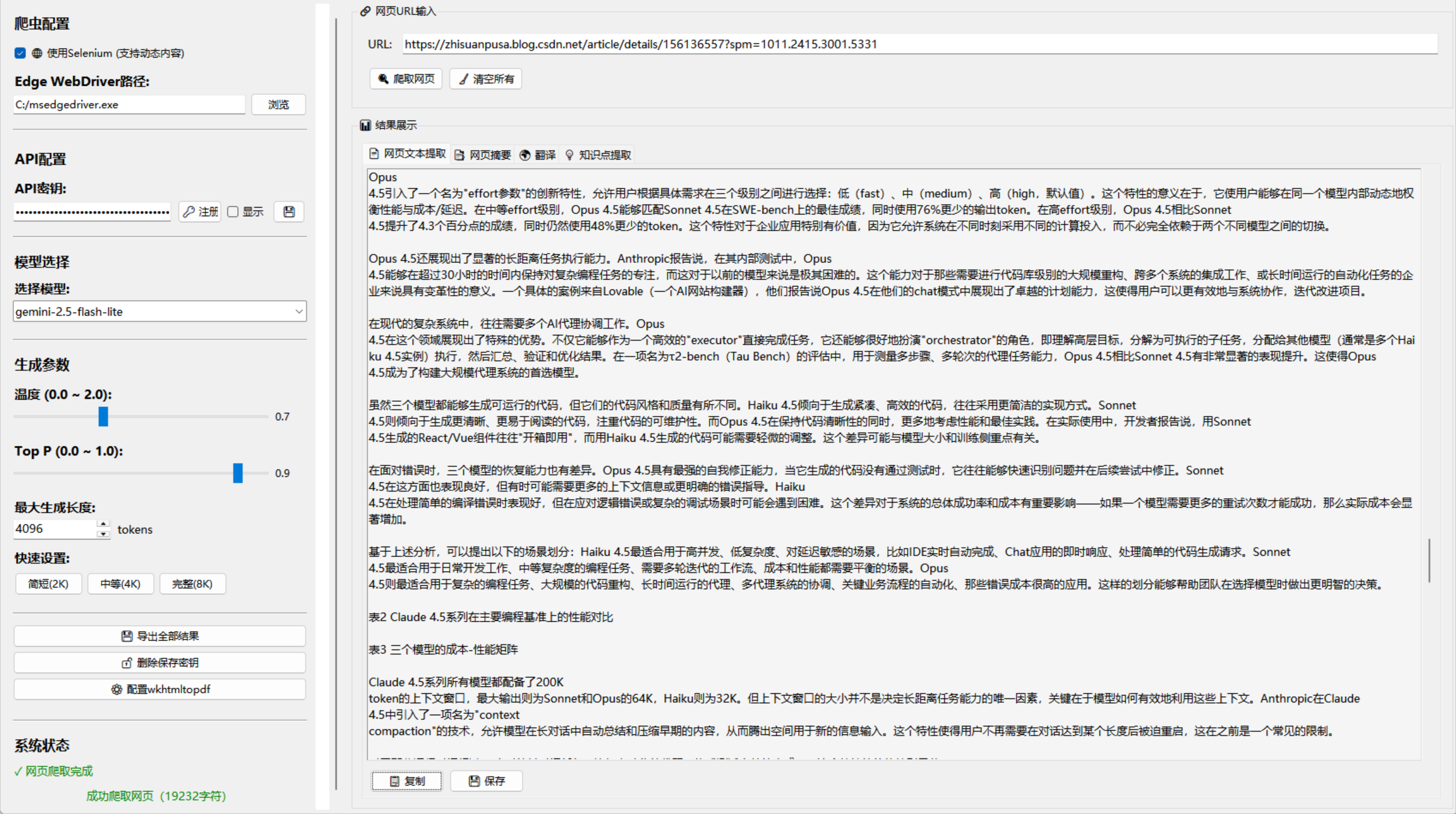





 扫一扫
扫一扫


 2966
2966

 被折叠的 条评论
为什么被折叠?
被折叠的 条评论
为什么被折叠?
 到【灌水乐园】发言





