 C#实现UI与功能控件控制及界面设置



前言
一、实现功能
1.界面
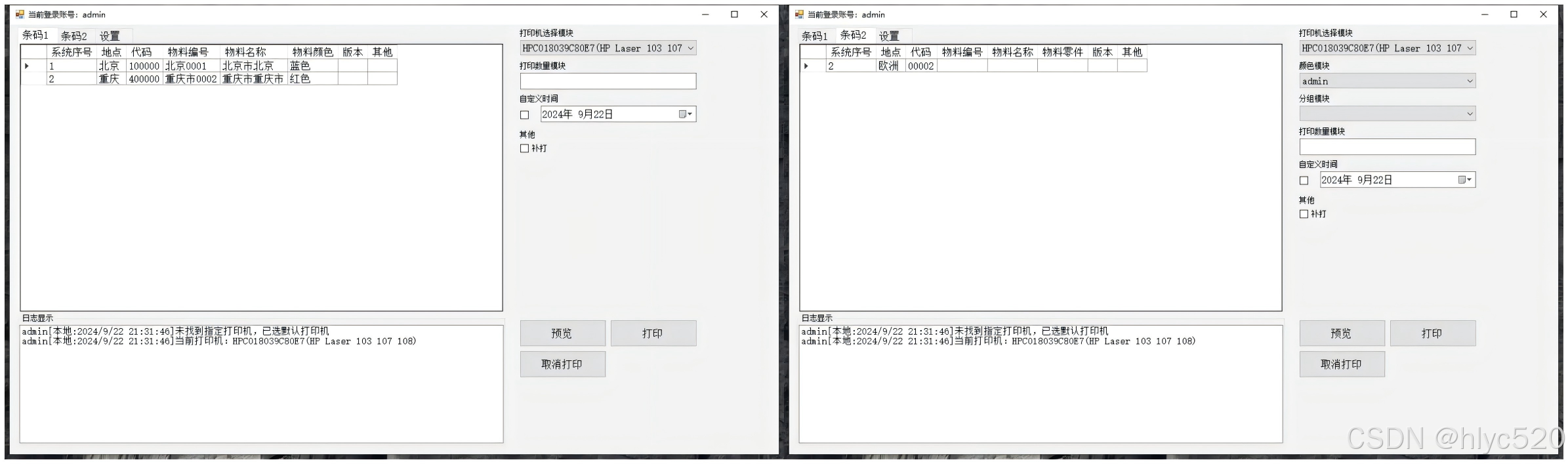
2. 右侧控件显示
主要实现:
1.实现UI控件显示
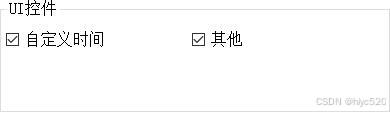
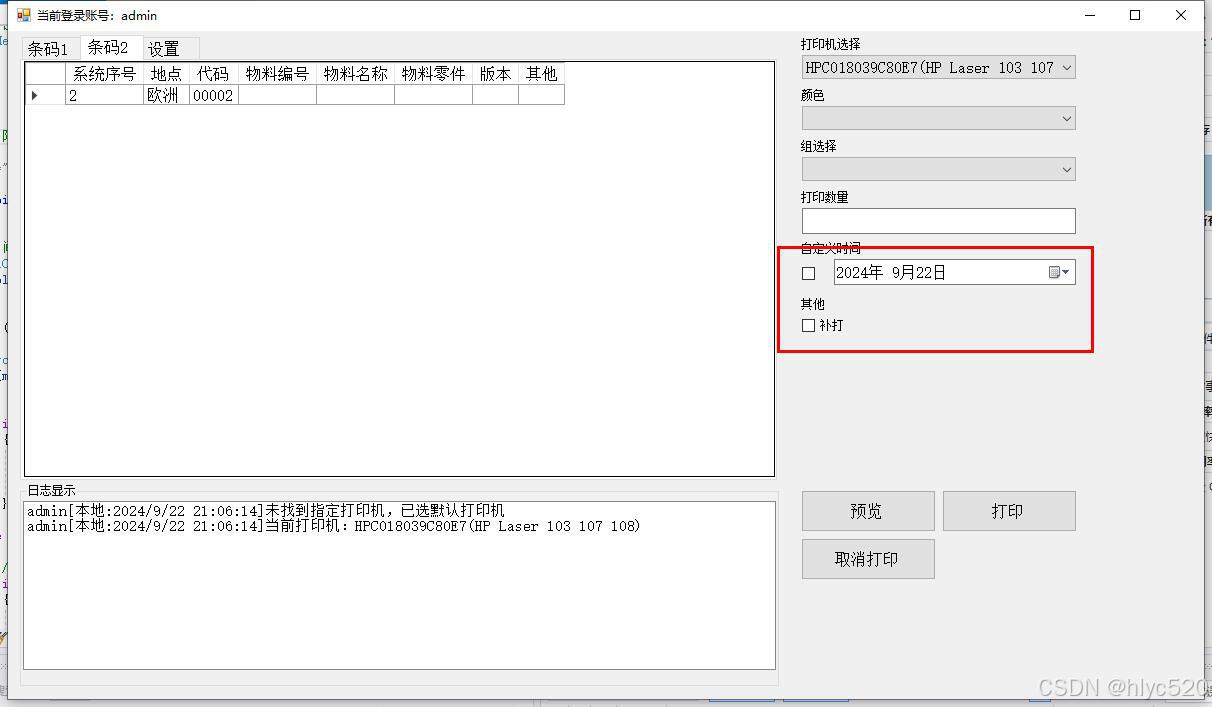
2.功能控件
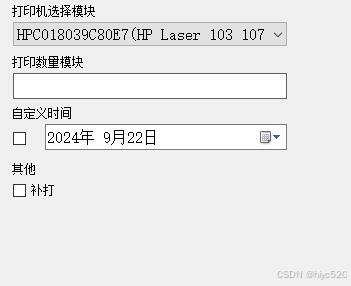
3.功能控件设置界面
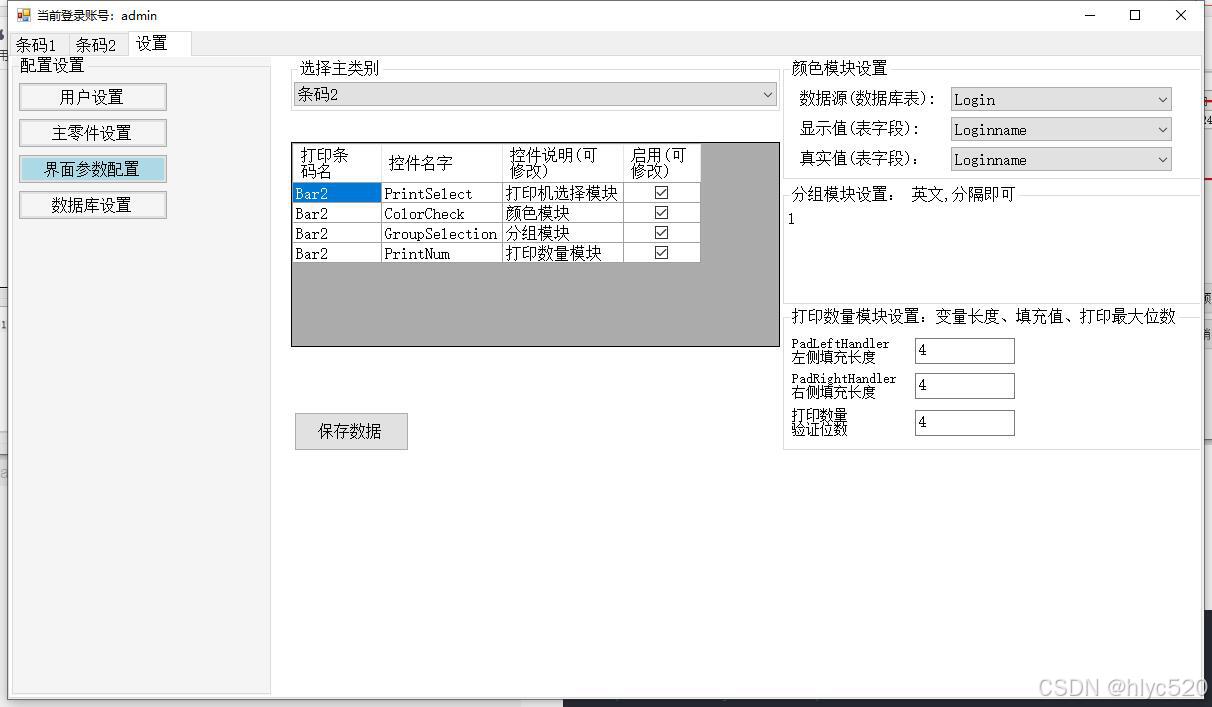
二、小计步骤
1. UI控价代码实现
 /// <summary>
 /// UI界面控件权限
 /// </summary>
 /// <param name="tryCounter"></param>
 public static void UIcontor(List<string> myList)
 {

     //设置打印时间按钮 权限判断  没得 就设置无权限 不显示
     List<ControlConfig> myControls = ControlLoader.ControlsALL.FindAll(config => config.Grouptype == 3 & string.IsNullOrEmpty(config.Name) == false);
     if (myControls.Count > 0)
     {

         foreach (ControlConfig controlConfig in myControls)
         {
             UsercontrolAddition button = ControlLoader.UserControlAdd.Find(config => (config.Type == controlConfig.Name));
             if (myList.Contains(controlConfig.Name) == true)
             {

                 if (button != null)
                 {
                     Control Specifydate = (Control)button.ButName;
                     Specifydate.Show();
                 }
             }
             else
             {
                 if (button != null)
                 {
                     Control Specifydate = (Control)button.ButName;
                     Specifydate.Hide();
                 }
             }
         }
     }
 }
2. 功能性控件代码实现
 /// <summary>
 /// 加载右侧 打印机选择  颜色等控件
 /// </summary>
 public static void Tabbuttenadd()
 {
     Barprint.Barprint_Form.flowLayoutPanel1.Controls.Clear();
     foreach (UsercontrolAddition item in ControlLoader.UserControlAdd)
     {
         //可控制权限  的名字控制
         ControlConfig controlConfig = ControlLoader.ControlsALL.Find(config => config.Name == item.Type);
         if (controlConfig != null)
         {
             if (item.ButName is SpecifyDate)
             {
                 SpecifyDate Specifydate = (SpecifyDate)item.ButName;
                 Specifydate.Showlabel = controlConfig.Text;
             }
             if (item.ButName is PatchWork)
             {
                 PatchWork Patchwork = (PatchWork)item.ButName;
                 Patchwork.Showlabel = controlConfig.Text;
             }
         }
         Barprint.Barprint_Form.flowLayoutPanel1.Controls.Add((Control)item.ButName);
     }
 }
3. 界面参数设置实现
参数保存
        /// <summary>
        /// 组参数保存
        /// </summary>
        /// <param name="sender"></param>
        /// <param name="e"></param>
        private void button9_Click(object sender, EventArgs e)
        {

            string tabname = comboBox7.SelectedValue?.ToString() ?? "";
            if (string.IsNullOrEmpty(tabname))
            {
                MessageBox.Show("参数错误", "提示");
                return;
            }
            List<ControlAddition> newList = (List<ControlAddition>)bindingSource.DataSource;
            PrintTemClass.ControlAddition.RemoveAll(config => config.ControlConfigName == tabname);
            PrintTemClass.ControlAddition.AddRange(newList);
            //保存
            JsonRW.PrintTemSave(PrintTemClass.ControlAddition, @"JSON\ControlAddition.json");
            //分组
            if (groupBox5.Visible == true)
            {
                Confrw.HeardSet(tabname, "GroupSelection", richTextBox1.Text);
            }
            //颜色数据源
            if (groupBox6.Visible == true)
            {
                Confrw.HeardSet(tabname, "tableName", comboBox8.Text);
                Confrw.HeardSet(tabname, "DisplayMember ", comboBox1.Text);
                Confrw.HeardSet(tabname, "ValueMember ", comboBox2.Text);
            }
            if (groupBox9.Visible == true)
            {
                ControlConfig foundConfig = ControlLoader.ControlsALL.Find(config => config.Grouptype == 0 & config.Name == tabname);
                if (foundConfig != null)
                {
                    foundConfig.ColorSQLName = comboBox8.Text;
                    JsonRW.PrintTemSave(ControlLoader.ControlsALL, @"JSON\controls.json");
                    // ControlLoader.ControlVisiBlesave(ControlLoader.ControlsALL);
                }
                //左侧
                Confrw.HeardSet(tabname, "PadLeftNnum", textBox5.Text);
                //右侧
                Confrw.HeardSet(tabname, "PadRightNnum", textBox6.Text);
                //  最大位数
                Confrw.HeardSet(tabname, "PrintNumMaxLength", textBox7.Text);
            }
            label11.Text = "保存完成";
        }
三、总结
以上就是今天要讲的内容,本文仅仅简单介绍了 UI控件控制,功能控件 动态控制,功能界面设置。





 扫一扫
扫一扫


 760
760

 被折叠的 条评论
为什么被折叠?
被折叠的 条评论
为什么被折叠?
 到【灌水乐园】发言





