如何在Ubuntu终端中添加标签

本文介绍如何在Ubuntu系统中使用选项卡功能管理多个终端会话,包括设置、切换、移动和关闭选项卡的方法。
00_lead_image_tabs_on_terminal_window

If you work a lot in the command line, you probably keep more than one Terminal window open at once. However, instead of having separate windows, you can condense all your Terminal sessions onto one window using tabs.

如果您在命令行中进行了大量工作,则可能一次打开多个“终端”窗口。 但是,您可以使用选项卡将所有终端会话浓缩为一个窗口,而不是使用单独的窗口。

We’ll show you how to open multiple Terminal sessions as tabs in Ubuntu.

我们将向您展示如何在Ubuntu中将多个终端会话作为选项卡打开。

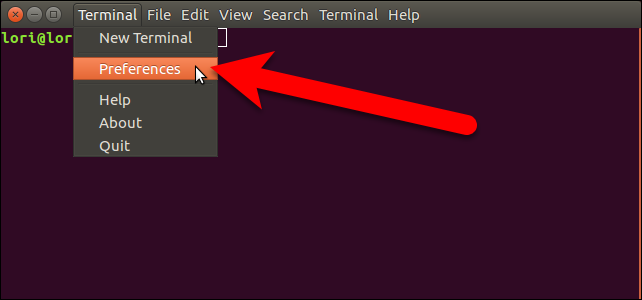
To begin, open a Terminal window and select “Preferences” from the “Terminal” menu. The menu bar may either be on the title bar of the Terminal window or on the top panel on the desktop, depending on whether global menus are enabled in Ubuntu.

首先,打开一个终端窗口,然后从“终端”菜单中选择“首选项”。 菜单栏可能位于“终端”窗口的标题栏上,也可能位于桌面的顶部面板上,具体取决于是否在Ubuntu 中启用全局菜单

01_selecting_preferences

On the Preferences dialog box, make sure the General tab is active. Then, select “Tab” from the “Open new terminals in” drop-down list.

在“首选项”对话框中,确保“常规”选项卡处于活动状态。 然后,从“打开新终端”下拉列表中选择“制表符”。
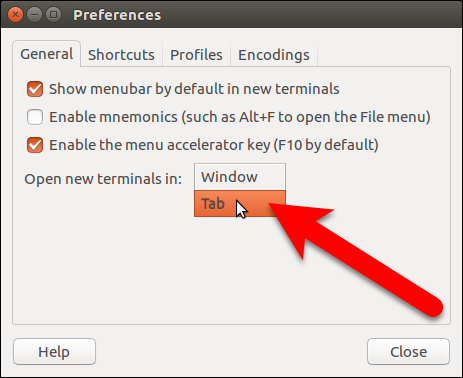
02_selecting_tab

Click “Close” to accept the change and close the Preferences dialog box.

单击“关闭”接受更改,然后关闭“首选项”对话框。

03_clicking_close

To open a new Terminal session on a new tab, select “New Terminal” from the “Terminal” menu.

要在新选项卡上打开新的终端会话,请从“终端”菜单中选择“新终端”。
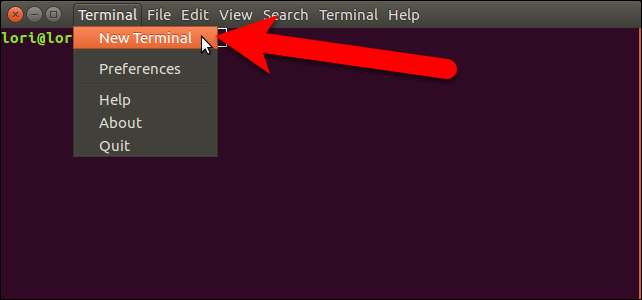
04_selecting_new_terminal

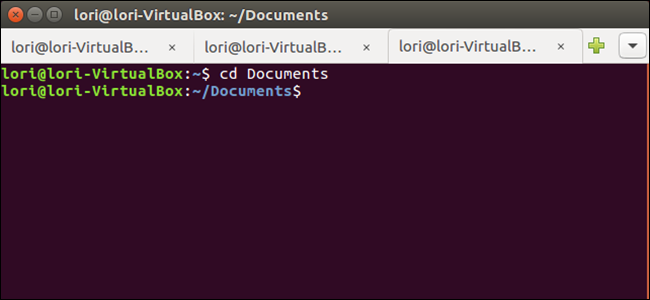
A second Terminal session is opened on a new tab and the original session is also available on a tab. The name on the tab includes the current directory you’re in on that tab.

在新选项卡上打开第二个终端会话,并且在选项卡上也可以使用原始会话。 选项卡上的名称包括您在该选项卡上的当前目录。

NOTE: Even when the Open new terminals in option is set to Tab, pressing Ctrl+Alt+T opens a new Terminal session in a new window, not a new tab.

注意:即使将“在以下位置打开新终端”选项设置为“选项卡”,按Ctrl + Alt + T也会在新窗口而不是新选项卡中打开新的终端会话。
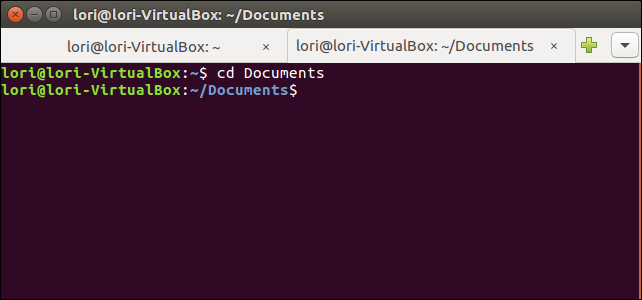
05_two_tabs_open_in_terminal

Once you have two sessions open, you can open additional sessions using plus button to the right of the tabs.

打开两个会话后,可以使用选项卡右侧的加号按钮打开其他会话。
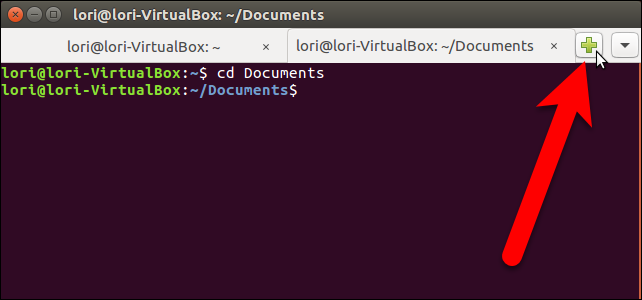
06_adding_a_new_tab

When you add a new tab, whether it be through the Terminal menu or using the plus button, the new session is open to the same directory you were in on the tab that was currently active at that time.

当您添加新选项卡时,无论是通过“终端”菜单还是使用加号按钮,新会话都将打开到您当时处于活动状态的选项卡上的同一目录。

There are several ways to switch among tabs. You can click on a tab to activate it, of course. You can also use the down arrow button on the far right to select the session you want or press Alt+1, Alt+2, etc. on your keyboard to jump to a specific tab. The tabs are numbered from the left, starting at 1.

有几种在选项卡之间切换的方法。 当然,您可以单击选项卡将其激活。 您也可以使用最右边的向下箭头按钮选择所需的会话,或按键盘上的Alt + 1,Alt + 2等以跳到特定选项卡。 这些选项卡从左侧开始编号,从1开始。
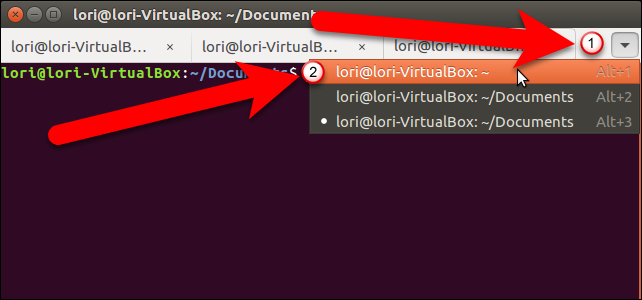
07_switching_tabs

If you want change the order of the tabs, you can click on a tab and drag it to another location on the tab bar. When you move tabs, they’re renumbered, so using the Alt+1, Alt+2 keyboard shortcuts to switch among the tabs will account for the new tab order. For example, if you move the third tab to the second position, Alt+2 would then activate what used to be the third tab.

如果要更改选项卡的顺序,可以单击选项卡并将其拖动到选项卡栏上的其他位置。 移动选项卡时,它们会重新编号,因此使用Alt + 1,Alt + 2键盘快捷键在各选项卡之间切换将说明新的选项卡顺序。 例如,如果将第三个选项卡移动到第二个位置,则Alt + 2将激活以前的第三个选项卡。
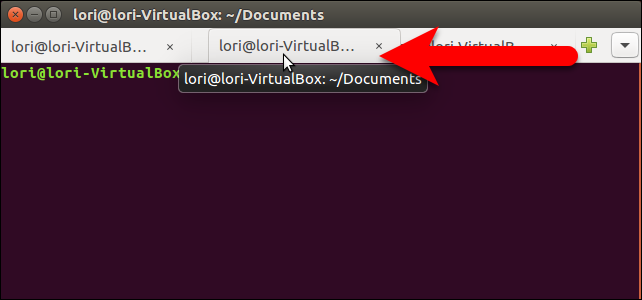
08_moving_a_tab

To close a tab, click the “X” button on the right side of the tab.

要关闭选项卡,请单击选项卡右侧的“ X”按钮。
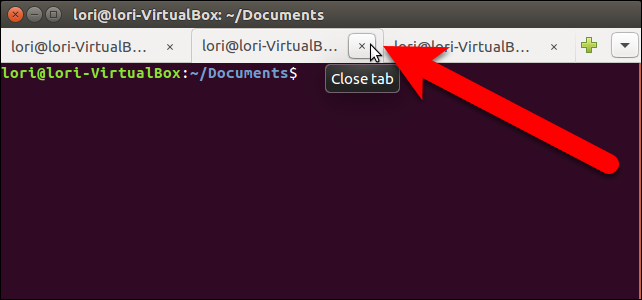
09_closing_a_tab

You can also move and close tabs by right-clicking on a tab and selecting an option from the popup menu.

您还可以通过右键单击选项卡并从弹出菜单中选择一个选项来移动和关闭选项卡。
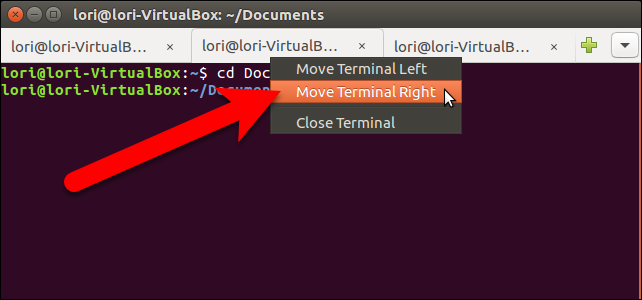
10_tab_right_click_menu

To close the Terminal window, and all the tabs, click the “X” button in the upper-left corner of the window.

要关闭“终端”窗口和所有选项卡,请单击窗口左上角的“ X”按钮。
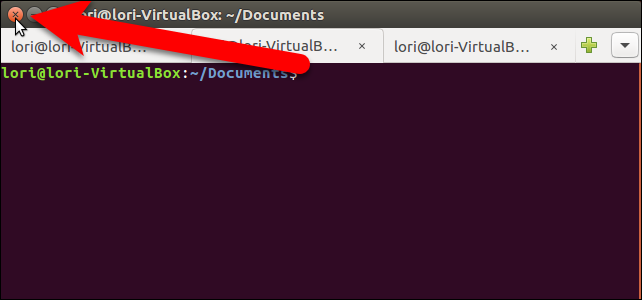
11_closing_the_terminal_window

The tabs are not saved when you close the Terminal window. However, the Open new terminals in setting is preserved and you can open multiple sessions on tabs the next time you open a Terminal window.

关闭“终端”窗口时,不会保存这些选项卡。 但是,将保留“在以下位置打开新终端”设置,并且下次打开“终端”窗口时,可以在选项卡上打开多个会话。

翻译自: https://www.howtogeek.com/267348/how-to-add-tabs-to-ubuntus-terminal/

<think>首先,用户的问题是关于在Ubuntu系统终端中使用git tag命令的相关内容,如使用方法和示例。用户提供了多个引用,但这些只是附加信息,我需要基于我的知识和用户的查询来回答。 用户指令要求: - 所有行内数学表达式必须使用$...$格式(但在这个上下文中,可能不涉及数学表达式,除非提到数学概念)。 - 独立公式使用$$...$$格式并单独成段(同样,可能不适用)。 - LaTeX语法正确(由于回答是文本,我需要确保任何使用的LaTeX是正确的)。 - 使用中文回答。 - 生成相关问题(在最后添加相关问题)。 - 在回答中引用的段落末尾自然而然地添加引用标识(用户提供了引用,所以我需要在回答中引用它们)。 用户提供的引用: - 引用[1]: 关于git基础命令,包括安装和配置。 - 引用[2]: 关于Git基础命令,特别提到创建和推送tag。 - 引用[3]: 关于ubuntu git简单使用指令,包括克隆时指定tag。 - 引用[4]: 关于什么是git,解释了git的本质。 用户的问题是:"我想了解在Ubuntu系统终端中使用git tag命令的相关内容,如使用方法、示例等 请问Ubuntu系统终端中git tag命令的使用方法"。所以,我需要专注于git tag命令的使用方法、示例,以及在Ubuntu终端中的应用。 关键点: - git tag命令用于管理标签(tags),常用于标记特定提交(如版本发布)。 - 引用[2]直接提到了git tag命令:创建本地tag、推送到远程等。 - 引用[3]涉及克隆时使用tag。 我的回答结构应该清晰,帮助用户逐步解决问题: 1. 解释git tag是什么。 2. 展示基本使用方法。 3. 提供示例。 4. 讨论常见操作。 5. 自然地引用提供的参考资料。 6. 最后生成相关问题。 确保回答真实可靠:基于我的知识,git tag命令的标准用法如下: - git tag <tagname>:创建轻量级标签。 - git tag -a <tagname> -m "message":创建带注释的标签。 - git tag:列出所有标签。 - git push origin <tagname>:推送单个标签。 - git push origin --tags:推送所有标签。 - git checkout <tagname>:检出标签(创建分离头指针)。 - 等等。 结合引用: - 引用[2]说:"git tag <tagName> //创建本地tag git push origin <tagName> //推送到远程仓库"。 - 引用[3]说:"git clone -branch [tags标签] [git地址] 或者 git clone -b [tags标签] [git地址]",这展示了克隆时指定tag。 - 其他引用提供背景,如git的定义。 回答大纲: 1. 介绍git tag:简要解释标签是什么。 2. 基本命令: - 创建标签 - 列出标签 - 删除标签 - 推送和拉取标签 3. 示例:提供实际命令示例。 4. 适用场景:解释在Ubuntu中使用。 5. 引用:在相关部分添加引用标识。 6. 结尾:生成相关问题。 使用中文回答。 生成相关问题:至少3个,相关于git tag命令的使用。 最终输出结构: - 回答部分。 - §§相关问题§§部分。 </think>### Ubuntu系统终端中git tag命令的使用方法 在Ubuntu系统终端中使用Git时,`git tag`命令是版本控制中管理标签(tags)的关键工具。标签用于标记代码库的特定提交点(通常是版本发布点),如v1.0.0,便于快速访问和引用历史版本。Ubuntu下Git的操作与其他Linux系统一致,只需确保Git已安装(可使用`sudo apt-get install git`安装)[^1]。下面我将逐步介绍基本使用方法、常见操作和示例,确保内容真实可靠。 #### 1. **git tag命令的基本介绍** - **标签类型**:Git标签分为两类: - **轻量级标签(Lightweight tag)**:仅指向一个提交对象(commit),不包含额外信息,适合临时标记。 - **带注释标签(Annotated tag)**:存储在Git数据库中的完整对象,包含标签名称、创建者信息、日期和描述信息,更适合正式版本发布。 - **为什么使用标签**:标签提供了一种稳定的方式标记代码库状态,便于团队协作、部署或回滚。例如,在发布软件版本时,创建一个带注释标签可记录版本变更细节[^4]。 #### 2. **基本使用方法** 以下是`git tag`命令的常用语法和操作步骤。假设Ubuntu终端已打开,且当前目录是Git仓库根目录(使用`cd`命令进入)。 - **创建标签**: - **轻量级标签**:直接指定标签名称。例如,标记当前提交为v1.0: ```bash git tag v1.0 # 创建轻量级标签 ``` - **带注释标签**:使用`-a`选项添加标签名称并`-m`指定描述信息。示例: ```bash git tag -a v1.1 -m "Release version 1.1 with bug fixes" # 创建带注释标签 ``` 这会在本地仓库创建标签对象,记录提交点[^2]。 - **查看和列出标签**: - 列出所有标签(按字母顺序排序): ```bash git tag # 显示本地仓库的所有标签 ``` 输出示例:`v1.0`、`v1.1`。 - 搜索特定标签(使用通配符): ```bash git tag -l "v1.*" # 列出以"v1."开头的标签 ``` - **推送标签到远程仓库**: - 标签默认只存储在本地,需手动推送到远程(如GitHub)。引用[2]提到标签推送与分支推送独立: - 推送单个标签: ```bash git push origin v1.0 # 将标签v1.0推送到远程仓库 ``` - 推送所有未推送的本地标签: ```bash git push origin --tags # 推送所有本地标签到远程仓库 ``` 这确保团队成员能访问这些标签[^2]。 - **删除标签**: - 删除本地标签: ```bash git tag -d v1.0 # 删除本地标签v1.0 ``` - 删除远程标签(需先从本地删除,再推送删除操作): ```bash git push origin :refs/tags/v1.0 # 删除远程仓库的标签v1.0 ``` - **检出和使用标签**: - 检出标签内容(创建分离头指针状态,用于查看或测试): ```bash git checkout v1.0 # 切换到标签v1.0对应的提交 ``` - 克隆仓库时指定标签(下载特定版本代码): ```bash git clone -b v1.0 https://github.com/your/repo.git # 克隆远程仓库时直接检出标签v1.0 ``` 这适用于快速获取特定版本代码(如在Ubuntu中部署应用)[^3]。 #### 3. **完整示例场景** 假设你在Ubuntu系统中开发一个项目,使用Git管理代码。以下是一个端到端示例: - **步骤1: 创建并推送标签** ```bash # 进入Git仓库目录 cd ~/my-project # 创建带注释标签(标记当前提交为正式版本) git tag -a v2.0 -m "Major release with new features" # 列出标签确认(输出: v2.0) git tag # 推送到远程仓库 git push origin v2.0 ``` - **步骤2: 克隆时使用标签** 其他团队成员在Ubuntu终端克隆特定版本: ```bash git clone -b v2.0 https://github.com/your/repo.git # 克隆后,直接进入v2.0标签状态 ``` - **步骤3: 管理和删除标签** 如果标签错误,进行清理: ```bash # 删除本地标签 git tag -d v2.0 # 删除远程标签 git push origin :refs/tags/v2.0 ``` #### 4. **注意事项** - **标签与分支区别**:标签是静态的指针(不会改变),而分支是动态的开发线。发布版本时应优先使用标签[^4]。 - **Ubuntu特定优化**:在Ubuntu终端中,使用`git tag`命令时,建议定期运行`git fetch --tags`从远程拉取新标签,保持本地仓库同步。 - **安全实践**:避免在标签名称中使用特殊字符(如空格),并使用语义化版本(SemVer)规范(如MAJOR.MINOR.PATCH格式)以提高可读性。 通过以上步骤,你可高效使用`git tag`管理版本。Git的核心是分布式版本控制,标签功能是其强大功能之一,帮助敏捷处理项目状态[^4]。如果命令执行出错,检查Git版本(`git --version`)或网络连接。
评论
成就一亿技术人!
拼手气红包6.0元
还能输入1000个字符  | 博主筛选后可见
 
红包 添加红包
表情包 插入表情
 条评论被折叠 查看
添加红包

请填写红包祝福语或标题

红包个数最小为10个

红包金额最低5元

当前余额3.43前往充值 >
需支付:10.00
成就一亿技术人!
领取后你会自动成为博主和红包主的粉丝 规则
hope_wisdom
发出的红包
实付
使用余额支付
点击重新获取
扫码支付
钱包余额 0

抵扣说明:

1.余额是钱包充值的虚拟货币,按照1:1的比例进行支付金额的抵扣。
2.余额无法直接购买下载,可以购买VIP、付费专栏及课程。

余额充值