


 本文介绍了一款名为CrossEyes的免费工具,它可以让Microsoft Word用户像在WordPerfect中那样查看和编辑格式代码,帮助解决文档格式问题。CrossEyes适用于Word 2010及更早版本,提供了详细的格式显示、自定义选项以及快捷键设置。
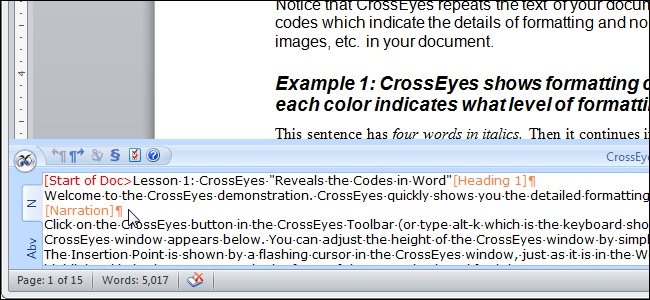
Have you switched to Microsoft Word from WordPerfect? Do you remember the Reveal Codes feature in WordPerfect that made it so easy to see exactly how your document was formatted? Well, you can get that feature now in Word using a free tool called CrossEyes.
您是否已从WordPerfect切换到Microsoft Word? 您还记得WordPerfect中的“显示代码”功能,该功能使您可以轻松地查看文档的确切格式吗? 好了,您现在可以使用称为CrossEyes的免费工具在Word中获得该功能。
NOTE: CrossEyes works in Word 2010 and earlier, but not in Word 2013.
注意:CrossEyes在Word 2010和更早版本中可用,但在Word 2013中不起作用。
CrossEyes lets you easily identify and resolve any document-formatting problems in Word. No more guessing at how your document is formatted.
CrossEyes使您可以轻松地识别和解决Word中的任何文档格式问题。 无需再猜测文档的格式。
Download CrossEyes using the link at the end of this article. Install the add-in, following the instructions in the setup wizard.
使用本文结尾的链接下载CrossEyes。 按照安装向导中的说明安装外接程序。
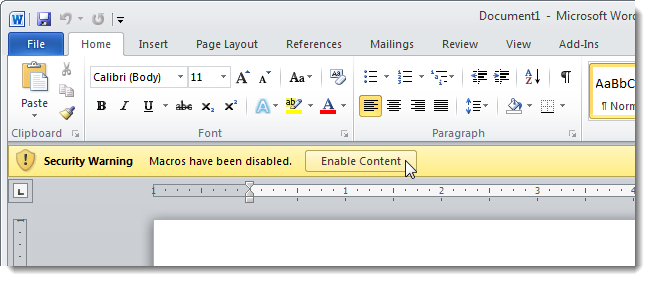
Once CrossEyes is installed, open Word. If you see the Security Warning message displayed below telling you that macros have been disabled, click Enable Content. Without doing this, CrossEyes will not work.
安装CrossEyes后,打开Word。 如果您看到下面显示的“安全警告”消息告诉您宏已被禁用,请单击“启用内容”。 如果不这样做,CrossEyes将无法工作。
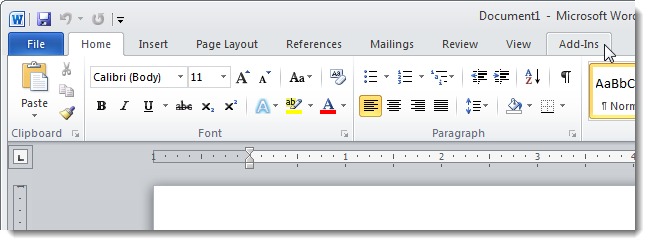
Click the Add-Ins tab.
单击加载项选项卡。
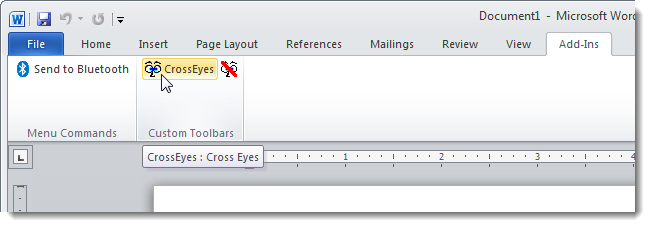
Click CrossEyes in the Custom Toolbars section of the Add-Ins tab.
单击“外接程序”选项卡的“自定义工具栏”部分中的CrossEyes。
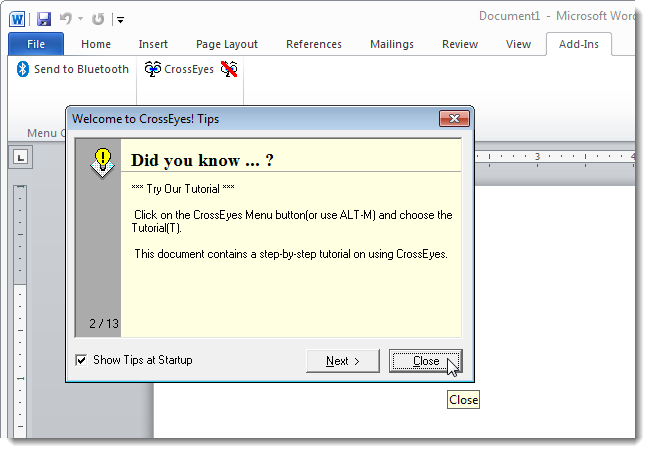
Initially, the Tips dialog box displays. If you don’t want to see this dialog box every time you activate CrossEyes, uncheck the Show Tips at Startup check box. Click Close to close the dialog box.
最初,显示“提示”对话框。 如果不想每次激活CrossEyes时都看到此对话框,请取消选中“在启动时显示提示”复选框。 单击“关闭”关闭对话框。
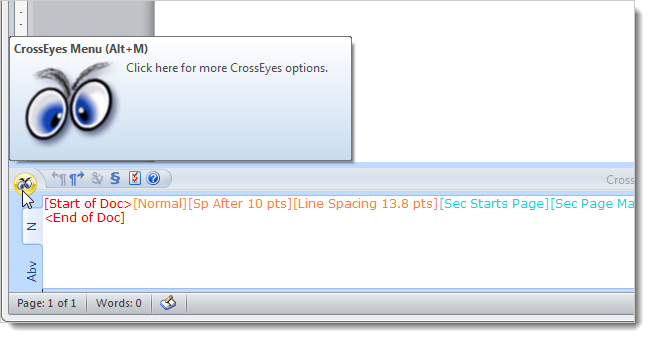
To demonstrate CrossEyes, we will open the Tutorial that comes with the add-in. Click the CrossEyes menu button to access the options for CrossEyes or press Ctrl + M.
为了演示CrossEyes,我们将打开外接程序随附的教程。 单击CrossEyes菜单按钮以访问CrossEyes的选项,或按Ctrl +M。
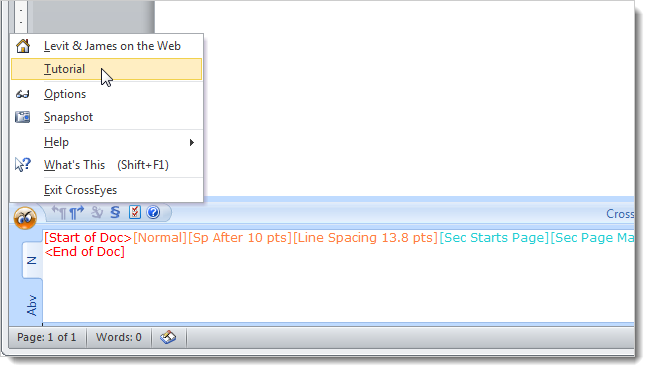
Select Tutorial from the popup menu.
从弹出菜单中选择教程。
The tutorial opens in Word.
本教程将在Word中打开。
NOTE: When the tutorial opens, the CrossEyes pane at the bottom of the Word window closes. To open CrossEyes again, follow the steps above again.
注意:当教程打开时,Word窗口底部的CrossEyes窗格关闭。 要再次打开CrossEyes,请再次执行上述步骤。
Notice that the formatting displays in color, surrounding the text it applies to, just like the Reveal Codes in Word Perfect.
请注意,格式以彩色显示,并围绕着所应用的文本,就像Word Perfect中的“显示代码”一样。
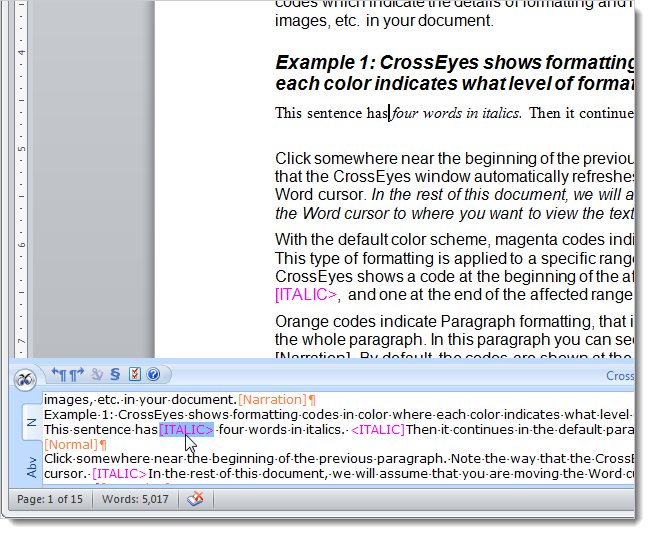
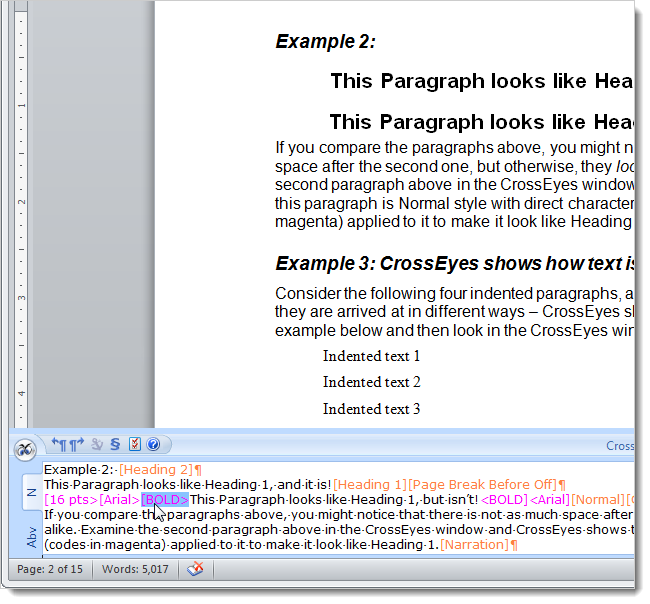
For example, there are two paragraphs under Example 2 in the tutorial that look exactly alike. However, when you look at the formatting in CrossEyes, you’ll see one is formatted with Heading 1 and the other looks like it is, but has in fact been manually formatted to look the same.
例如,本教程中示例2下有两个段落完全相似。 但是,当您查看CrossEyes中的格式时,您会看到其中一个使用Heading 1进行了格式化,而另一个看上去像是,但是实际上已经过手动格式化以看起来相同。
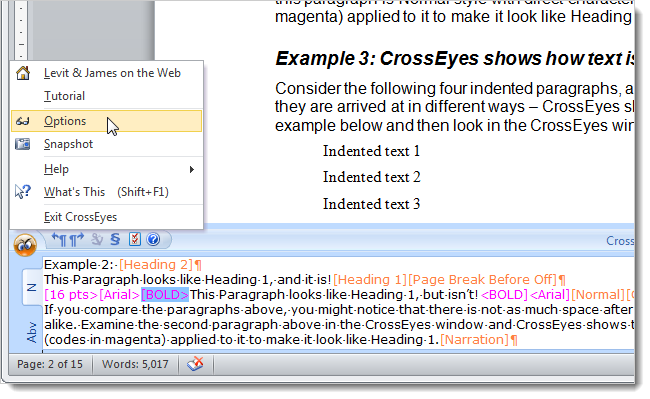
There are options you can set in CrossEyes to customize it. Click the CrossEyes menu button and select Options.
您可以在CrossEyes中设置一些选项以对其进行自定义。 单击CrossEyes菜单按钮,然后选择选项。
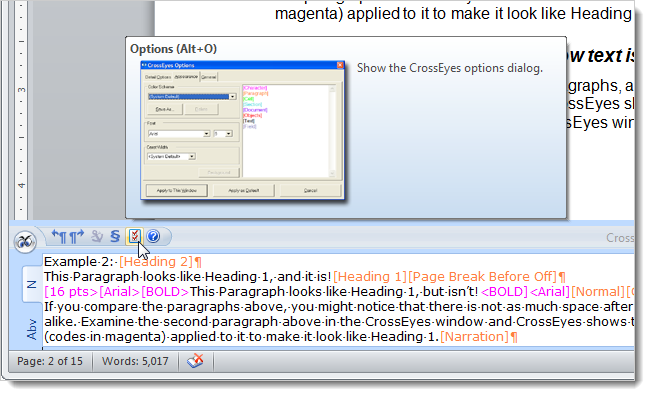
NOTE: You can also click the Options button on the CrossEyes toolbar or press Alt + O (the capital letter O, not zero).
注意:您也可以单击CrossEyes工具栏上的“选项”按钮,或按Alt + O(大写字母O,而不是零)。
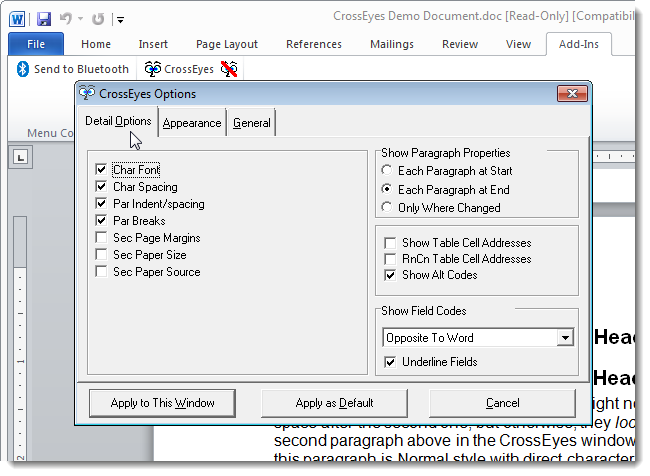
The Detail Options tab allows you to specify which details to display, where to show paragraph properties, and how to show field codes.
“详细信息选项”选项卡允许您指定要显示的详细信息,显示段落属性的位置以及如何显示域代码。
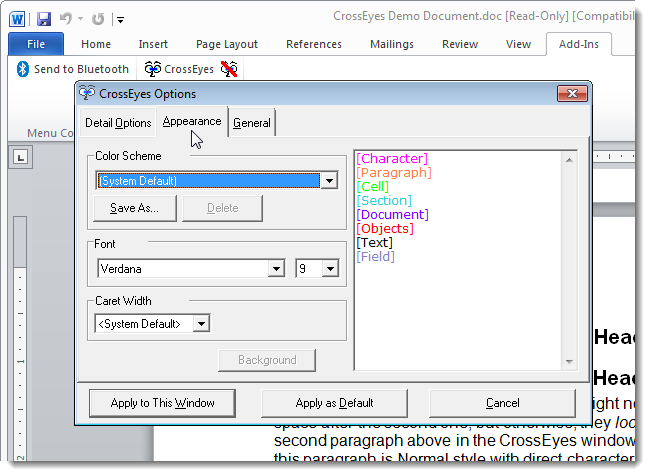
The Appearance tab allows you to change the colors used to display the different categories of formatting, the font to use for the formatting codes, and the width of the caret.
通过“外观”选项卡,您可以更改用于显示不同格式类别的颜色,用于格式代码的字体以及插入标记的宽度。
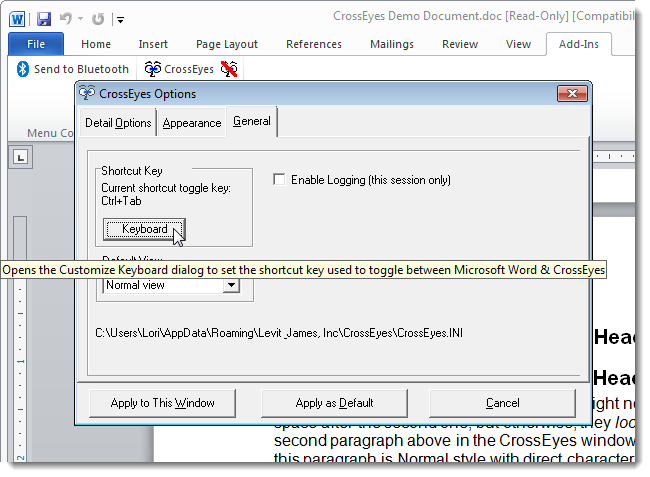
The General tab allows you to change the Shortcut Key used to toggle between the Word document and the CrossEyes pane. You can also select the Default View and Enable Logging.
“常规”选项卡允许您更改用于在Word文档和CrossEyes窗格之间切换的快捷键。 您也可以选择默认视图并启用日志记录。
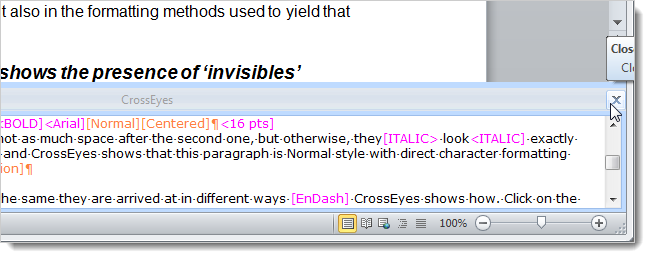
To close the CrossEyes pane, click the X button in the upper, right corner of the pane.
要关闭CrossEyes窗格,请单击窗格右上角的X按钮。
You can also double-click on a formatting code in the CrossEyes pane to open the dialog box used to change that formatting.
您也可以在CrossEyes窗格中双击格式代码,以打开用于更改该格式的对话框。
Download CrossEyes from http://www.levitjames.com/Products/CrossEyes.aspx.
从http://www.levitjames.com/Products/CrossEyes.aspx下载CrossEyes。
翻译自: https://www.howtogeek.com/164343/easily-view-formatting-codes-in-word-2010-using-crosseyes/





 扫一扫
扫一扫


 9313
9313

 被折叠的 条评论
为什么被折叠?
被折叠的 条评论
为什么被折叠?
 到【灌水乐园】发言





