


Question: C++ (QWidgets) 中 读取文件什么的如何在QML中实现?
Answer: 最简单熟悉的办法,使用C++/QFile来进行操作。即将C++引入到QtQuick中 (JavaScript的 Node.js框架也可以做,但是Node.js QML目前还不支持,需要额外设置,没必要考虑,除非特别熟悉后端的Node.js)
CPP版本的文件读写例子:
#ifndef FILEIO_HPP
#define FILEIO_HPP
#include <QObject>
//#include <QtQml/qqmlregistration.h>
#include <QFile>
#include <QTextStream>
class FileIO : public QObject
{
Q_OBJECT
//QML_ELEMENT
Q_PROPERTY(QString content MEMBER m_strContent READ getContent WRITE setContent NOTIFY contentChanged);
public:
explicit FileIO(){}
signals:
void contentChanged();
public slots: /*slots已经实现了反射,所以不用挨个加上Q_INVOKABLE了*/
bool writeIntoFile(const QString &path)
{
QFile file(path);
if (file.open(QIODevice::WriteOnly | QIODevice::Text))
{
QTextStream out(&file);
out << m_strContent;
file.close();
return true;
}
return false;
}
QString readFile(const QString &path)
{
m_strContent.clear();
QFile file(path);
if (file.open(QIODevice::ReadOnly | QIODevice::Text))
{
QTextStream in(&file);
m_strContent = in.readAll();
file.close();
}
else
m_strContent = "Error to read file";
return m_strContent;
}
public:
//!QML中Component.attribute 中自动调用这两个函数,所有不用手动反射了
QString getContent()const{return "getContent: " + m_strContent;}
void setContent(const QString &str){m_strContent = "setContent: " +str;}
protected:
QString m_strContent;
};
#endif // FILEIO_HPP
在main.cpp中进行注册
#include <QGuiApplication>
#include <QQmlApplicationEngine>
#include "FileIO.hpp" // step1: import header file
int main(int argc, char *argv[])
{
QGuiApplication app(argc, argv);
//step 2: register a c++ class into QML
qmlRegisterType<FileIO>("com.FileIO", 1, 0, "FileIO"); // 注册类型到QML中
QQmlApplicationEngine engine;
QObject::connect(
&engine,
&QQmlApplicationEngine::objectCreationFailed,
&app,
[]() { QCoreApplication::exit(-1); },
Qt::QueuedConnection);
engine.loadFromModule("untitled", "Main");
return app.exec();
}
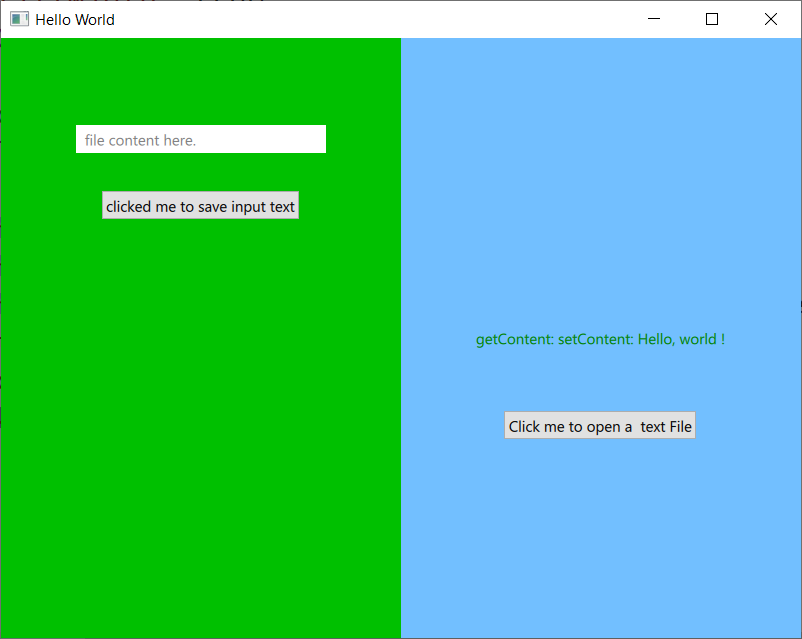
调用实例:
Main.qml
import QtQuick
import QtQuick.Dialogs //注意和labs的略有不同,查帮助时弹出的对话框小心选一下
import QtQuick.Controls
import QtQuick.Layouts
//step3: import our FileIO C++ "Component"
import com.FileIO
Window {
width: 640
height: 480
visible: true
title: qsTr("Hello World")
function fileUrl2FileName(furl){
let suffix = "file:///";
//Notice: length is an attribute of Js string type, NOT a function
var cppFileName = furl.toString().slice(suffix.length)
console.log(cppFileName);
return cppFileName;
}
//Component from CPP
FileIO{
id: cppFileIO
content: "Hello, world !"
}
FileDialog{
id: fd
nameFilters: ["Text files(*.txt)","All files (*)"]
}
RowLayout{
//相当于充满整个Window,即Designer中给Window(Widget)添加HBoxLayout
anchors.fill: parent
spacing: 0
//fillHeight/fillWidth:true 即为Layout的自动充满模式
Rectangle{ //write file
Layout.fillHeight: true
Layout.fillWidth: true
color: Qt.lighter("green")
//QtQuick.Controls
TextField{
id: te
anchors.top : parent.top
anchors.topMargin: 70
anchors.horizontalCenter: parent.horizontalCenter
width: 200
placeholderText: "file content here."
background:Rectangle{
anchors.fill: parent
color: "white"
}
}
//QtQuick.Controls
Button{
id: btnWrite
anchors.top: te.bottom
anchors.topMargin: 30
anchors.horizontalCenter: te.horizontalCenter
text: "clicked me to save input text"
onClicked:{
fd.fileMode = FileDialog.SaveFile
fd.open();
}
Component.onCompleted: {
fd.accepted.connect(function (){
if(fd.fileMode == FileDialog.SaveFile){
cppFileIO.content = te.text
cppFileIO.writeIntoFile(fileUrl2FileName(fd.selectedFile));
}
}
);
}
}
}
Rectangle{ //read file
Layout.fillHeight: true
Layout.fillWidth: true
color: Qt.lighter("steelblue")
Text{
id: fileContent
anchors.centerIn: parent
text: cppFileIO.content
color: "green"
wrapMode: Text.WordWrap
}
Button{
id: btnRead
anchors.horizontalCenter: parent.horizontalCenter
anchors.top: fileContent.bottom
anchors.topMargin: 50
text: "Click me to open a text File"
onClicked: {
fd.fileMode = FileDialog.OpenFile
fd.open();
}
Component.onCompleted: {
fd.accepted.connect(()=>{
if(fd.fileMode == FileDialog.OpenFile){
cppFileIO.readFile(fileUrl2FileName(fd.selectedFile));
fileContent.text = cppFileIO.content;
}
})
}
}
Text{
id: fileName
anchors.top: btnRead.bottom
anchors.topMargin: 50
anchors.horizontalCenter: parent.horizontalCenter
text: fd.currentFile
color: "red"
}
}
}
}





 扫一扫
扫一扫


 134
134

 被折叠的 条评论
为什么被折叠?
被折叠的 条评论
为什么被折叠?
 到【灌水乐园】发言





