VS2010 快捷键

从网上拷贝,方便记忆

Keyboard Shortcuts

1. Alt-Shift-Enter to View Coding Window Full-screen

clip_image001clip_image003clip_image004clip_image003[1]clip_image005

Hitting "Alt+Shift+Enter" will make the coding window full-screen and (temporarily) drop most other windows from view. Restore to your usual window configuration by de-pressing the "Full Screen" button at top (the fact that it seems to be pushed up a little off-screen must be a VS2010 Beta 2 deal):

clip_image007

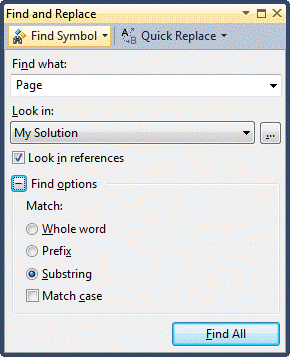
2. Alt-F12 to Find Symbol

clip_image001[1]clip_image003[2]clip_image008

Use "Alt-F12" to find symbols, objects, or members.
clip_image010

3. Ctrl-F to do a Quick Find

clip_image011clip_image003[3]clip_image012

Search for something in the current code file quickly with "Ctrl-f". clip_image014

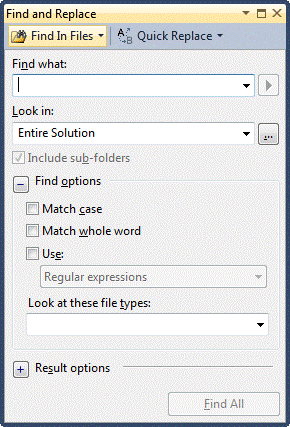
4. Ctrl-Shift-F to Find in Files

clip_image011[1]clip_image003[4]clip_image004[1]clip_image003[5]clip_image012[1]

Find in files is easy with "Ctrl-Shift-f". clip_image016
5. Ctrl-K-C to Comment/Uncomment Code
clip_image011[2]clip_image003[6]clip_image012[2]clip_image003[7]clip_image017

You can comment or uncomment code by highlighting the respective code block and hitting "Ctrl-k-c" to comment or "Ctrl-k-u" to uncomment. This shortcut even works in .aspx pages.


clip_image019

clip_image021

6. Ctrl-K-D to Reformat the Entire Document
clip_image011[3]clip_image003[8]clip_image022clip_image003[9]clip_image023

If you want to reformat all of the code in the current document, hit "Ctrl-k-d".

7. Ctrl-K-F to Reformat a Block of Code
clip_image011[4]clip_image003[10]clip_image022[1]clip_image003[11]clip_image012[3]

If you've just pasted in a bunch of code where the formatting is screwed-up, just highlight it and hit "Ctrl-k-f" to format.

8. Ctrl-K-L to Toggle Outlining Ctrl-M-M to Toggle Outlining

clip_image011[5]clip_image003[12] clip_image024 clip_image003[13] clip_image024[1]

If you want to open (expand) or close (collapse) all outlining in a code file, use "Ctrl-m-m". It works like a toggle, alternatively expanding or collapsing all outlining in the current file.

9. Ctrl-K-S to Access Code Snippets
clip_image011[6]clip_image003[14]clip_image022[2]clip_image003[15]clip_image025

Easily open the code snippets selection dropdown with "Ctrl-k-s":

clip_image027

10. Ctrl–K–T to View Call Hierarchy

clip_image011[7]clip_image003[16]clip_image022[3]clip_image003[17]clip_image028

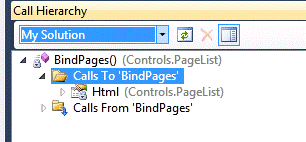
Highlight a member operation and hit "Ctrl-k-t" to view it's call hierarchy.

clip_image030

A new window will open:

clip_image032

11. Ctrl-L to Cut Line to Clipboard

clip_image011[8]clip_image003[18]clip_image033

It's not necessary to highlight an entire line and then hit the delete key. Just hit "Ctrl-L" and the line the cursor is currently on will be removed and copied to the clipboard. "Ctrl-x" performs the same operation by default.

12. Ctrl-F3 to Search Without the Dialog
clip_image011[9]clip_image003[19]clip_image034

clip_image011[10]clip_image003[20]clip_image004[2]clip_image003[21]clip_image034[1]

Just highlight the text you want to search on and hit "Ctrl-F3" to search down or "Ctrl-Shift-F3" to search up.

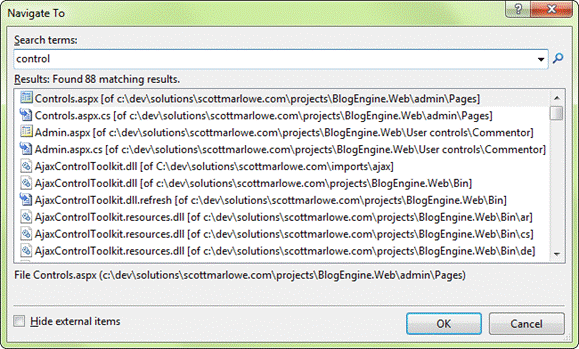
13. Ctrl-, (Ctrl-Comma) to Perform a Fuzzy 'Navigate To' Search
clip_image011[11]clip_image003[22]clip_image036

Perform a "fuzzy" search and get location information with "Ctrl-," (Ctrl-Comma).
clip_image038

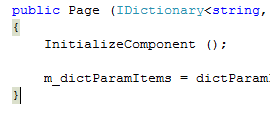
14. Ctrl-] to Find Matching Curly Brace or Region

clip_image011[12]clip_image003[23]clip_image039

Position the cursor next to a curly brace ('{' or '}') and hit "Ctrl-}'. This will toggle the cursor between the matching braces.
clip_image041

This shortcut will also work for #region...#endregion's.

15. F9 to Add/Remove Breakpoint

clip_image042

'F9' will toggle breakpoints for the current line.

16. F12 to Go to Definition

clip_image008[1]

Put the cursor on an item and hit 'F12'. Instant 'go to definition' functionality.

17. Shift-F5 to Stop Debugging
clip_image004[3]clip_image003[24]clip_image043

To stop debugging a project, use "Shift-F5". Much quicker than going through the Debug menu.

18. Shift-F12 to Find Usages

clip_image004[4]clip_image003[25]clip_image008[2]

'Shift-F12' will find all usages of the item the cursor is currently on and display the "Find Usages" dialog (this is ReSharper's version of the dialog; standard VS2008 looks a little different):

clip_image045

19. 'prop' to Create New Property
clip_image047clip_image003[26]clip_image048clip_image003[27]clip_image048[1]

Add a new property in code by typing prop then hitting the Tab key twice. This "prop-TAB-TAB" combination will create a property template that looks like:

1: public int MyProperty { get; set; }

View Plain

Mouse Shortcuts

1. Right-click to add references

Say you've just entered a line of code like the following where the red squiggly indicates you haven't yet added the necessary reference (in VS2010 Beta 2, the red squiggly isn't showing up, but the shortcut still works):

clip_image050

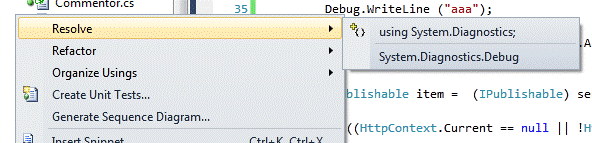
You could jump to the top of the file and type it in manually, or you could right-click on the squiggly-indicated word and choose "Resolve | using …":
clip_image052

This will add the needed reference for you, no typing required.

2. Zoom In/Zoom Out

clip_image011[13]clip_image003[28]clip_image054

The same Word functionality of pressing Ctrl and zooming in and out is now in VS2010.

3. Remove unused references

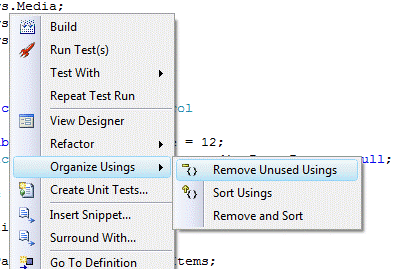
Many times there are references included in the "using…" section that are not needed. Removing the unnecessary ones is easy: Right-click anywhere on the code file, select "Organize Usings | Remove Unused Usings".
clip_image056

4. Sort usings

To sort your "usings…" section, right-click anywhere on the code file and select "Organize Usings | Sort Usings".

clip_image058

5. Open a file's "containing folder"

Right-click on an open file's tab, select "Open Containing Folder".
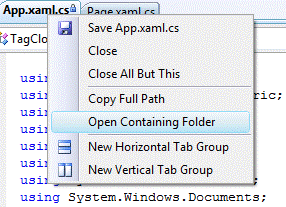
clip_image060

6. Copy a file's folder location to the clipboard

Right-click on an open file's tab, select "Copy Full Path".

clip_image062

7. Close all files but "this" one

If you have more than one file open, you can right-click on one of the file tabs (the one which you want to stay open) and choose "Close All But This". This will close all other files.

clip_image064

8. Close tab

A quick way of closing a tab is to use the mouse scroll or middle button. Hover the mouse cursor over the tab, click the mouse scroll button, and the file (and it's tab) will close.

9. Highlight References/Usages

Place the cursor on any member and VS2010 will auto-highlight it throughout:
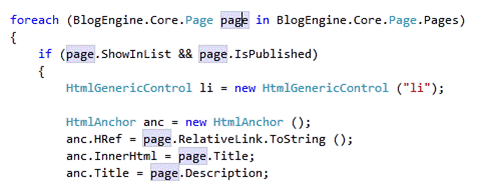
clip_image066

转载于:https://www.cnblogs.com/railgunman/archive/2012/09/23/2699272.html

Cadence Allegro 17.4学习记录开始01-原理图Capture CIS 17.4 Orcad的学习记录 阅读详情

相关推荐

正点原子lwIP实战指南——从FreeRTOS移植到网络应用开发

本文详细介绍了如何将轻量级TCP/IP协议栈lwIP移植到FreeRTOS实时操作系统上,并基于正点原子STM32开发板进行网络应用开发。内容涵盖从使用STM32CubeMX快速搭建工程、核心概念解析(RAW/NETCONN/Socket API),到关键的系统适配、驱动实现,并通过TCP Echo服务器和云台控制两个实战案例,手把手指导读者完成从移植到应用开发的全过程,帮助嵌入式开发者快速掌握lwIP在FreeRTOS环境下的稳定部署与开发技巧。

s4t5u6v的博客 1002

vs的常用配置【以及vs常用的快捷键】

vs的常用配置【以及vs常用的快捷键】

伟庭的博客 2754

秦时明月6.2魔改版_从零到一部署指南_含安卓客户端配置与GM后台直通

本文提供《秦时明月》6.2魔改版从零开始的完整部署指南。详细讲解CentOS服务器环境准备、服务端文件部署与安装、关键端口开放及进程验证。重点涵盖安卓客户端APK的IP修改与重签名方法,并介绍了GM后台工具的访问与使用,助你快速搭建并管理专属游戏服务器。

garlic的博客 316

word@制表位和列数据对齐@填空下划线制作

## refs ## 制表位(tab stop) ### 制表位类型 ## 制作对其的下划线填空表单👺 ### 利用前导符代替下划线制作待填空下划线 ## 制表位对其列数据模拟简单表格 ### 测试数据 ### 设置引线 ### 使用标尺设置

xuchaoxin1375的博客 4338

局域网tcp通信实验

IPv4 地址 . . . . . . . . . . . . : 192.168.92.79。IPv4 地址 . . . . . . . . . . . . : 192.168.92.59。子网掩码 . . . . . . . . . . . . : 255.255.255.0。子网掩码 . . . . . . . . . . . . : 255.255.255.0。使用这篇文章的小工具。

weixin_51883798的博客 437

vivado实现SDI接口

XAPP1249,用来介绍UHD_SDI的实现。

Huskar_Liu的博客 7078

VS code : 设置编译运行快捷键

VS code : 设置编译运行快捷键

m0_60037214的博客 1万+

LIS2DH三轴加速度传感器原理图设计,已量产(加速度传感器)

最近在做一款可穿戴设备原型时,选了 LIS2DH 这款加速度计 —— 比起之前常用的 ADXL345,它在低功耗和稳定性上的优化刚好戳中了可穿戴设备 “续航 + 可靠” 的核心需求。下面结合这次画的原理图,聊聊这个小模块的硬件设计细节。

不脱发的程序猿 391

VScode配置快捷键

VScode配置快捷键

batman_curry的博客 3万+

Qt实现YOLO目标检测及其界面制作(附完整源码)

Qt实现YOLO目标检测及其界面制作(附完整源码)

希望我的博客,能帮上你解决学习中工作中所遇到的问题 2742

游戏客户端开发工程师笔试题

1、已知有一个关键字序列:(27,23,34,14,1,55, 20,19,85,83,10,68)散列存储在一个哈希表中,若散列函数为H(key)=key%7,并采用链地址法来解决冲突,则在等概率情况下查找成功的平均查找长度为(4、出现死锁时,除了可以采用资源剥夺的方法解决死锁问题外,还可以使用的方法是()是被限定只能在表的一端进行插入运算,在另一端进行删除运算的线性表.5、大端模式,是指数据的高字节保存在内存的(3、在二叉查找树中, 最好情况下复杂度为。)地址中,而数据的低字节保存在内存的(

博客 1877

vs2010 快捷键

VS2010 快捷键 全屏:Shift+Alt+Enter 注释选定内容:Ctrl+E+C/Crtr+E+U 代码格式化:ctrl+E+F   =================================== VS2008 使用小技巧——快捷键 1. 怎样调整代码排版的格式? 选择:编辑—>高级—>设置文档的格式 或编辑—>高级—>设置选中代码的格式。 格式化cs代码:Ct

alex_sym的专栏 3199

基于LSTM的股票价格预测系统,Django框架,Web的股票预测系统,训练+数据集+源码(无需安装环境版)

股票价格预测是投资领域的一个重点关注课题。由于股票价格受到诸多非线性因素的影响,得到精确的预测结果较为困难。使用 PyCharm 作为代码开发工具,通过下载好的股票金融数据,进行数据预处理,构建 LSTM 网络模型,训练模型并训练出最优模型,输出股票未来收盘价波动的走势,最后在训练好的模型上,设计股票模型应用系统,运行效率较高,对股票预测具有一定的积极意义。

在职AI算法工程师,擅长计算机视觉,YOLO目标检测、分割等,擅长web、pyqt界面可视化,好内容持续更新中,来这里跟大家一起学习,共同进步 957

VS2010版快捷键

VS2010版快捷键 Ctrl+E,D ----格式化全部代码  Ctrl+E,F ----格式化选中的代码  CTRL + SHIFT + B生成解决方案  CTRL + F7 生成编译  CTRL + O 打开文件  CTRL + SHIFT + O打开项目  CTRL + SHIFT + C显示类视图窗口  F4 显示属性窗口  SHIFT + F4显示项目属性窗口  C

fqnchina2的专栏 1068

C# WinForm 基于DirectShow.dll编写的程序,可边预览边保存视频,音频和图片

基于微软的DirectShow.dll的二次开发1.自动识别连接的摄像头跟麦克风且可以对其进行选择(默认选中第一个)2.可录制wmv和avi两种格式的视频并且都带有音频,avi可以录制的分辨率和帧数进行选择,wmv默认进行了淸晰度优化如不喜欢可去除代码中有相关提示3.可在预览点开之后进行拍照,也可边录制视频边拍照4.添加了视频和音频的压缩功能(酌情使用)这次二次开发发现C#对DirectShow的相关信息太少,这次做完也不敢藏私共享出来,还望大家指正

jre9下载 jdk9

(Java SE Runtime Environment 9.0) 9.0u175 官方最新版 【x86|x64】

vs2010 快捷键大全

vs2010 快捷键大全 VS2010版快捷键 Ctrl+E,D ----格式化全部代码  Ctrl+E,F ----格式化选中的代码  CTRL + SHIFT + B生成解决方案  CTRL + F7 生成编译  CTRL + O 打开文件  CTRL + SHIFT + O打开项目  CTRL + SHIFT + C显示类视图窗口  F4 显示属性窗口 

数据采集 盘点 扫描条码 casio 838

文档:亲测可用解决vnc灰屏,黑屏,鼠标大黑叉情况

主要解决vnc-viewer灰屏,黑屏,鼠标大黑叉等现象,详细见文档。

VS2010快捷键大全及设置

设置快捷键,打开VS2010 工具->环境-> 键盘-> 应用以下其他键盘映射方案(M)-> Visual C#2005VS2010版快捷键Ctrl+E,D —-格式化全部代码Ctrl+E,F —-格式化选中的代码CTRL + SHIFT + B生成解决方案CTRL + F7生成编译CTRL + O打开文件CTRL + SHIFT + O打开项目CTRL + SHIFT + C显示类视图窗口F4显

Harvey 1万+

win10 跳过U8环境检测的IE WebControls.rar

win10 安装u8的时候 提示IE WebControls 不通过,这个工具可以欺骗u8的检查。 跳过U8环境检测的IE WebControls。提示导入失败后,重新检测通过。

VS2010快捷键设置

VS2010快捷键设置 1.进入工具----选项  对话框 2.选择  环境---->键盘 3.在 【显示命令包含】 下面的对话框中输入“对齐”关键字,然后就会在这个编辑框下面一个文本窗口中显示关于“对齐”一系列的“某某对齐”操作命令,选中你想查看的,就会在【选定命令的快捷键】一栏中显示其快捷键了,也可以输入其他的文字,比如说“在浏览器中查看”、“注释选择内容”等。 VS2010版

csnewdn的专栏 3565

vs2010快捷键大全

vs2010快捷键大全 VS2010版快捷键 Ctrl+E,D ----格式化全部代码 Ctrl+E,F ----格式化选中的代码 CTRL + SHIFT + B生成解决方案 CTRL + F7生成编译 CTRL + O打开文件 CTRL + SHIFT + O打开项目 CTRL + SHIFT + C显示类视图窗口 F4显示属性窗口

elecica的专栏 408

VS2010常用快捷键及修改

VS2010快捷键设置 1.进入工具----选项  对话框 2.选择  环境---->键盘 3.在 【显示命令包含】 下面的对话框中输入“对齐”关键字,然后就会在这个编辑框下面一个文本窗口中显示关于“对齐”一系列的“某某对齐”操作命令,选中你想查看的,就会在【选定命令的快捷键】一栏中显示其快捷键了,也可以输入其他的文字,比如说“在浏览器中查看”、“注释选择内容”等。

Angus_pei的专栏 706

C#基础之VS2010 快捷键

我一直认为,能快速熟练的开发出程序,快捷键的使用起到了非常重要的作用,所以在开始学习之前,首先熟悉一下快捷键是十分必要的。 vs2010快捷键大全 VS2010版快捷键 Ctrl+E,D ----格式化全部代码  Ctrl+E,F ----格式化选中的代码  CTRL + SHIFT + B生成解决方案  CTRL + F7 生成编译  CTRL + O 打开文件  C

松龄的专栏 809

vs2010 快捷键大全

VS2010版快捷键 Ctrl+E,D ----格式化全部代码  Ctrl+E,F ----格式化选中的代码  CTRL + SHIFT + B生成解决方案  CTRL + F7 生成编译  CTRL + O 打开文件  CTRL + SHIFT + O打开项目  CTRL + SHIFT + C显示类视图窗口  F4 显示属性窗口  SHIFT + F4显示项目属性窗口  C

尼奥 1691

VS2010快捷键大全

VS2010快捷键设置 1.进入工具----选项  对话框 2.选择  环境---->键盘 3.在 【显示命令包含】 下面的对话框中输入“对齐”关键字,然后就会在这个编辑框下面一个文本窗口中显示关于“对齐”一系列的“某某对齐”操作命令,选中你想查看的,就会在【选定命令的快捷键】一栏中显示其快捷键了,也可以输入其他的文字,比如说“在浏览器中查看”、“注释选择内容”等。 VS2010版

步知道 1468

VS2010快捷键

有人发了VS2010的快捷键,不够全,那才哪到哪呀,我来发个完整的 吧,后附VS2008的快捷键 Ctrl+E,D ----格式化全部代码 Ctrl+E,F ----格式化选中的代码 CTRL + SHIFT + B生成解决方案 CTRL + F7 生成编译 CTRL + O 打开文件 CTRL + SHIFT + O打开项目 CTRL + SHIFT + C显示类视图窗口 F4 ...

weixin_30734435的博客 71

VS2010的快捷键和VS2012变化的快捷键

VS2012变化的快捷键: 注释::VS2010是(Ctrl+E,C),VS2012是(Ctrl+K, Ctrl+C),实际操作,按住Ctrl键不放,先按K键,再按C键。相当于Ctrl+K加 Ctrl+C的组合键 反註解:VS2010是(Ctrl+E,U),VS2012是(Ctrl+K, Ctrl+U)   有人发了VS2010的快捷键,不够全,那才哪到哪呀,我来发个完整的 吧,后附V

Happy_Girl2012的专栏 697
上一篇: dephi的bug?四舍五入的问题! (来源于大富翁)
下一篇: C# 编写Windows Service(windows服务程序)
aowo7144
博客等级 码龄10年 5粉丝 0原创
评论
成就一亿技术人!
拼手气红包6.0元
还能输入1000个字符  | 博主筛选后可见
 
 条评论被折叠 查看
添加红包

请填写红包祝福语或标题

个

红包个数最小为10个

元

红包金额最低5元

当前余额3.43元 前往充值 >
需支付:10.00元
成就一亿技术人!
领取后你会自动成为博主和红包主的粉丝 规则
hope_wisdom
发出的红包
实付元
使用余额支付
点击重新获取
扫码支付
钱包余额 0

抵扣说明:

1.余额是钱包充值的虚拟货币,按照1:1的比例进行支付金额的抵扣。
2.余额无法直接购买下载,可以购买VIP、付费专栏及课程。

余额充值