
五十、openlayers官网示例JSTS Integration解析——使用JSTS 库来处理几何缓冲区并在地图上显示结果

官网demo地址:

JSTS Integration 

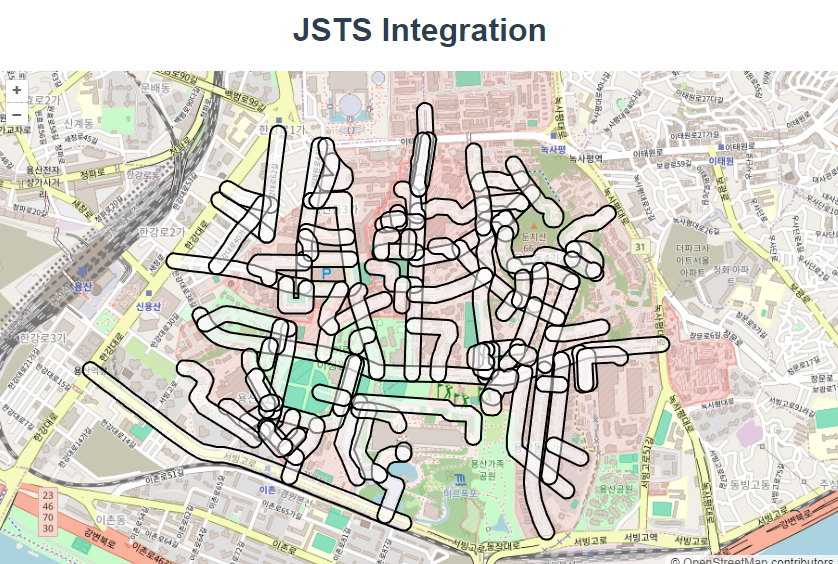
这篇讲了如何在地图上添加缓冲图形

什么叫做缓冲几何?

几何缓冲(Geometric Buffering)是指在 GIS(地理信息系统)和计算几何中,围绕一个几何对象创建一个具有特定距离的区域。这种操作通常用于表示影响区域、保护区、可视范围等。例如,创建一个道路中心线的缓冲区,可以用于表示道路的影响范围。

缓冲几何的具体应用包括:

  1. 道路缓冲区:表示道路的影响范围,如交通噪音或安全距离。
  2. 河流缓冲区:用于表示河流两侧的生态保护区或防洪区。
  3. 设施缓冲区:用于表示设施(如学校、医院、加油站等)的服务范围或安全区。

 首先,初始化地图

const rasterLayer = new TileLayer({
      source: new OSM(),
    });

    const map = new Map({
      layers: [rasterLayer, vectorLayer],
      target: document.getElementById("map"),
      view: new View({
        center: fromLonLat([126.979293, 37.528787]),
OpenLayers使用 Flight Animation 扩展实现飞机航线绘制及飞行动画效果,通常涉及以下几个关键步骤: 1. **准备地图环境**:首先需要初始化一个 OpenLayers 地图实例,设置合适的视图(view)和图层(如 OSM、TileLayer 等)。这为后续的动画渲染提供了基础。 2. **定义航线坐标**:通过 `LineString` 几何对象表示飞机的飞行路径。可以将一组经纬度坐标传入 `LineString` 构造函数中,然后将其添加到矢量图层上,以便在地图显示航线。 3. **创建飞机动画逻辑**:使用 `requestAnimationFrame` 或者 OpenLayers 提供的 `beforeRender` 事件来驱动动画更新。在每一帧中,根据时间计算飞机当前位置,更新其几何位置或旋转角度以模拟飞行效果。 4. **控制动画状态**:通过为每个动画元素(feature)设置属性(如 `flight`, `index`, `finished`)来管理动画的状态。例如,在动画结束时重置索引或将状态标记为完成,从而停止动画。 5. **优化视觉表现**:可以通过自定义样式函数来动态调整飞机图标的方向、大小、透明度等属性,使其更真实地反映飞行过程。例如,使用 `easeOut` 缓动函数平滑过渡飞机的位置变化 [^2]。 6. **整合所有功能**:将上述逻辑整合到一个完整的示例中,确保地图能够正确渲染航线,且飞机动画能够流畅运行。 以下是一个简化的代码示例,展示如何在 OpenLayers 中实现基本的飞行动画效果: ```javascript import 'ol/ol.css'; import Map from 'ol/Map'; import View from 'ol/View'; import {bbox as bboxStrategy} from 'ol/loadingstrategy'; import {get as getProjection} from 'ol/proj'; import {getWidth, getTopLeft} from 'ol/extent'; import TileLayer from 'ol/layer/Tile'; import XYZ from 'ol/source/XYZ'; import VectorSource from 'ol/source/Vector'; import Feature from 'ol/Feature'; import LineString from 'ol.geom/LineString'; import Point from 'ol.geom/Point'; import Style from 'ol/style/Style'; import Icon from 'ol/style/Icon'; import {icon} from 'ol/icons'; // 初始化地图 const map = new Map({ target: 'map', layers: [ new TileLayer({ source: new XYZ({ url: 'https://{a-c}.tile.openstreetmap.org/{z}/{x}/{y}.png' }) }) ], view: new View({ center: [0, 0], zoom: 2, projection: 'EPSG:3857' }) }); // 定义航线坐标(WGS84) const flightPath = new LineString([ [116.4, 39.9], // 北京 [121.47, 31.23], // 上海 [113.26, 23.12] // 广州 ]).transform('EPSG:4326', 'EPSG:3857'); // 创建航线 feature const pathFeature = new Feature(flightPath); pathFeature.setStyle(new Style({ stroke: new Stroke({ color: '#ff0000', width: 2 }) })); // 创建矢量源添加航线 feature const vectorSource = new VectorSource(); vectorSource.addFeature(pathFeature); // 飞机图标样式 const planeIcon = icon({ src: 'path/to/plane-icon.png', anchor: [0.5, 0.5] }); // 创建飞机 feature const planeFeature = new Feature(new Point(flightPath.getCoordinateAt(0))); planeFeature.setStyle(new Style({ image: planeIcon })); // 添加飞机 feature 到矢量源 vectorSource.addFeature(planeFeature); // 创建矢量图层 const vectorLayer = new VectorLayer({ source: vectorSource, updateWhileInteracting: true }); map.addLayer(vectorLayer); // 动画参数 let lastTime; let elapsedPoints = 0; const coords = flightPath.getCoordinates(); const duration = 10000; // 动画持续时间 ms function animatePlane(feature, coords, duration) { function movePlane(timestamp) { if (!lastTime) { lastTime = timestamp; } const elapsed = timestamp - lastTime; lastTime = timestamp; // 计算当前点 elapsedPoints += elapsed / (duration / coords.length); if (elapsedPoints >= coords.length) { feature.set("finished", true); feature.set("flight", true); elapsedPoints = 0; feature.setGeometry(new Point(coords[0])); } else { const currentCoord = coords[Math.floor(elapsedPoints)]; feature.setGeometry(new Point(currentCoord)); } // 请求下一帧 requestAnimationFrame(movePlane); } requestAnimationFrame(movePlane); } // 启动动画 animatePlane(planeFeature, coords, duration); ``` ###
评论
成就一亿技术人!
拼手气红包6.0元
还能输入1000个字符
 
红包 添加红包
表情包 插入表情
 条评论被折叠 查看
添加红包

请填写红包祝福语或标题

红包个数最小为10个

红包金额最低5元

当前余额3.43前往充值 >
需支付:10.00
成就一亿技术人!
领取后你会自动成为博主和红包主的粉丝 规则
hope_wisdom
发出的红包
实付
使用余额支付
点击重新获取
扫码支付
钱包余额 0

抵扣说明:

1.余额是钱包充值的虚拟货币,按照1:1的比例进行支付金额的抵扣。
2.余额无法直接购买下载,可以购买VIP、付费专栏及课程。

余额充值



