



 这篇文章介绍了如何使用Me.js库在移动端实现一个竖向滚动的swiper组件,展示了如何配置autoplay、vertical属性,并通过<swiper-item>展示自定义通知,包括图片和文字内容。
最外层用<swiper> </swiper>
swiper组件里的一些常用的属性
autoplay:自动播放
vertical:竖着滚动
circular:循环跳转,就是播到最后一个之后,会自动播放第一个。
indicator-dots:是否显示小圆点
里层用不同的<swiper-item></swiper-item>
swiper-item里面也可以嵌套一些view,image之类的。
竖着轮播的效果
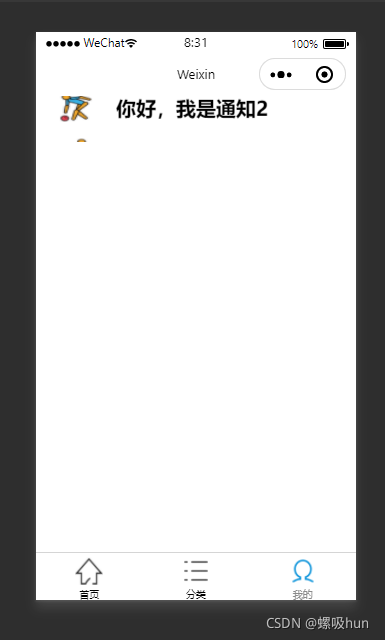
me.js
// pages/me/me.js
Page({

  /**
   * 页面的初始数据
   */
  data: {
    arrs:[
      {"content":"你好,我是通知1","pic":"../images/棒球.png"},
      {"content":"你好,我是通知2","pic":"../images/保龄球.png"},
      {"content":"你好,我是通知3","pic":"../images/橄榄球.png"},
      {"content":"你好,我是通知4","pic":"../images/击剑.png"},
    ]
  },

  /**
   * 生命周期函数--监听页面加载
   */
  onLoad: function (options) {

  },

  /**
   * 生命周期函数--监听页面初次渲染完成
   */
  onReady: function () {

  },

  /**
   * 生命周期函数--监听页面显示
   */
  onShow: function () {

  },

  /**
   * 生命周期函数--监听页面隐藏
   */
  onHide: function () {

  },

  /**
   * 生命周期函数--监听页面卸载
   */
  onUnload: function () {

  },

  /**
   * 页面相关事件处理函数--监听用户下拉动作
   */
  onPullDownRefresh: function () {

  },

  /**
   * 页面上拉触底事件的处理函数
   */
  onReachBottom: function () {

  },

  /**
   * 用户点击右上角分享
   */
  onShareAppMessage: function () {

  }
})
me.json
{
  "usingComponents": {}
}
me.wxml
<view class="middle">
    <swiper duration="3000" interval="3000" autoplay="true" class="info" vertical="true">
      <block wx:for="{{arrs}}">
        <swiper-item class="box">
          <view class="img"><image src="{{item.pic}}"></image></view>
          <view class="tip">{{item.content}}</view>
        </swiper-item>
      </block>
    </swiper>
  </view>
me.wxss
/*消息提示框*/
.middle{
  width: 100%;
  height: 10vh;
}
.info{
  width: 100%;
  height: 100%;
}
.box{
  width: 100%;
  height: 100%;
  display: flex;
  align-items: center;
  /*background-color: steelblue;*/
}
.img{
  width: 20%;
  height: 90%;
  /*border: 1px solid rebeccapurple;*/
  margin-left: 10px;
}
.img>image{
  width: 100%;
  height: 100%;
}
.tip{
  margin-left: 10px;
  width: 80%;
  height: 70%;
  font-size: 20px;
  font-weight: bold;
  /*border: 1px solid snow;*/
  display: flex;
  align-items: center;
}





 扫一扫
扫一扫


 4727
4727

 被折叠的 条评论
为什么被折叠?
被折叠的 条评论
为什么被折叠?
 到【灌水乐园】发言





