




Odin Attributes 为Unity开发者提供了更多的自定义选项,使得开发过程更加高效和愉悦。通过使用这些特性,开发者可以创建更加专业和用户友好的编辑器界面,从而提升整个开发团队的工作效率。

⭕️探索入口

📂 Odin Attributes 大全 | 目录索引

💯 概述
Dictionary Drawer Settings 特性:在 Inspector 中自定义词典的绘制方式。

💯 使用方法
-
默认以左侧为key,右侧为value 的形式展示,如果需要进行序列化,需要继承自SerializedMonoBehaviour
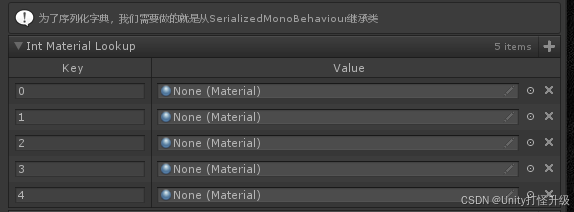
[DictionaryDrawerSettings()] [ShowInInspector] [InfoBox("为了序列化字典,我们需要做的就是从SerializedMonoBehaviour继承类")] public Dictionary<int, Material> IntMaterialLookup = new Dictionary<int, Material>() { }; -
【KeyLabel和ValueLabel】自定义标签
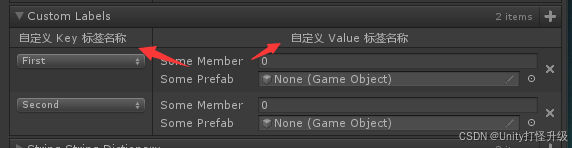
[ShowInInspector] [DictionaryDrawerSettings(KeyLabel = "自定义 Key 标签名称", ValueLabel = "自定义 Value 标签名称")] public Dictionary<SomeEnum, MyCustomType> CustomLabels = new Dictionary<SomeEnum, MyCustomType>() { { SomeEnum.First, new MyCustomType() }, { SomeEnum.Second, new MyCustomType() }, }; -
【DictionaryDisplayOptions】控制value默认以折叠还是展开形式显示
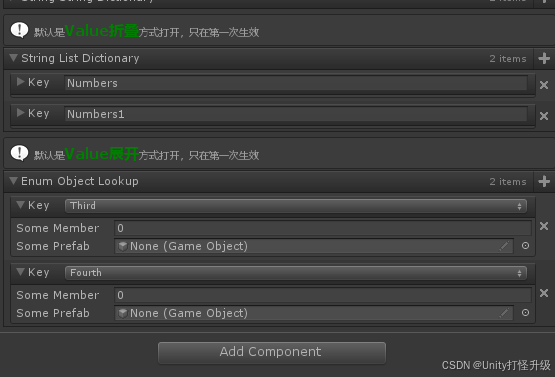
    [InfoBox("默认是<color=green><size=15><b>Value折叠</b></size></color>方式打开,只在第一次生效")]
    [ShowInInspector]
    [DictionaryDrawerSettings(DisplayMode = DictionaryDisplayOptions.CollapsedFoldout)]
    public Dictionary<string, List<int>> StringListDictionary = new Dictionary<string, List<int>>()
	{
	    { "Numbers", new List<int>(){ 1, 2, 3, 4, } },
	    { "Numbers1", new List<int>(){ 1, 2, 3, 4, } },
	};

    [InfoBox("默认是<color=green><size=15><b>Value展开</b></size></color>方式打开,只在第一次生效")]
    [ShowInInspector]
    [DictionaryDrawerSettings(DisplayMode = DictionaryDisplayOptions.ExpandedFoldout)]
    public Dictionary<SomeEnum, MyCustomType> EnumObjectLookup = new Dictionary<SomeEnum, MyCustomType>()
	{
	    { SomeEnum.Third, new MyCustomType() },
	    { SomeEnum.Fourth, new MyCustomType() },
	};

💯 完整示例代码
using Sirenix.OdinInspector;
using System.Collections;
using System.Collections.Generic;
using UnityEngine;

public class DictionaryDrawerSettingsExample : MonoBehaviour
{
    [DictionaryDrawerSettings()]
    [ShowInInspector]
    [InfoBox("为了序列化字典,我们需要做的就是从SerializedMonoBehaviour继承类")]
    public Dictionary<int, Material> IntMaterialLookup = new Dictionary<int, Material>()
{
};

    [ShowInInspector]
    [DictionaryDrawerSettings(KeyLabel = "自定义 Key 标签名称", ValueLabel = "自定义 Value 标签名称")]
    public Dictionary<SomeEnum, MyCustomType> CustomLabels = new Dictionary<SomeEnum, MyCustomType>()
{
    { SomeEnum.First, new MyCustomType() },
    { SomeEnum.Second, new MyCustomType() },
};

    [DictionaryDrawerSettings(DisplayMode = DictionaryDisplayOptions.Foldout)]
    [ShowInInspector]
    public Dictionary<string, string> StringStringDictionary = new Dictionary<string, string>()
{
    { "One", ExampleHelper.GetString() },
    { "Two", ExampleHelper.GetString() },
};

    [InfoBox("默认是<color=green><size=15><b>Value折叠</b></size></color>方式打开,只在第一次生效")]
    [ShowInInspector]
    [DictionaryDrawerSettings(DisplayMode = DictionaryDisplayOptions.CollapsedFoldout)]
    public Dictionary<string, List<int>> StringListDictionary = new Dictionary<string, List<int>>()
{
    { "Numbers", new List<int>(){ 1, 2, 3, 4, } },
    { "Numbers1", new List<int>(){ 1, 2, 3, 4, } },
};

    [InfoBox("默认是<color=green><size=15><b>Value展开</b></size></color>方式打开,只在第一次生效")]
    [ShowInInspector]
    [DictionaryDrawerSettings(DisplayMode = DictionaryDisplayOptions.ExpandedFoldout)]
    public Dictionary<SomeEnum, MyCustomType> EnumObjectLookup = new Dictionary<SomeEnum, MyCustomType>()
{
    { SomeEnum.Third, new MyCustomType() },
    { SomeEnum.Fourth, new MyCustomType() },
};

    [InlineProperty(LabelWidth = 100)]
    public struct MyCustomType
    {
        public int SomeMember;
        public GameObject SomePrefab;
    }

    public enum SomeEnum
    {
        First, Second, Third, Fourth, AndSoOn
    }
}

💯 Odin 下载地址


🍉🍉🍉 如果觉得这篇文对你有帮助的话,请点个赞👍、收藏⭐️下吧,非常感谢! 💕💕💕

【博主简介】:10年以上软件开发经验,精通C语言、C++、C#、Java等开发语言,开发过大型 Android 项目,现主要自主开发经营 休闲益智类小游戏。
【粉丝福利】:博主收藏了大量游戏开发资源和素材。这些资源经过博主多年整理沉淀,现筛选一批精品资源,分享给大家学习研究。

Unity打怪军团 诚邀天下勇士加入 Unity学习互助小组 有意进群的同学联系我,互3互推也请联系我…







 扫一扫
扫一扫


 2282
2282

 被折叠的 条评论
为什么被折叠?
被折叠的 条评论
为什么被折叠?
 到【灌水乐园】发言





