


mineru
安装依赖
pip install PyMuPDF Pillow python-pptx tqdm fastapi uvicorn python-multipart img2pdf reportlab
mineru解析/转换文件
- 完整app.py文件
#!/usr/bin/env python3
"""
MinerU 多媒体文件处理工具
支持多种文件格式的处理,包括:
1. PDF转PPT,保持原始质量
2. 图片(PNG/JPG/JPEG/GIF/BMP等)转PPT
3. Office文档(Word/Excel/PowerPoint)处理
4. 文本文件(TXT/CSV/JSON/Markdown)处理
5. 文档内容分析与提取
6. 支持自定义DPI和图片质量
7. 支持自定义幻灯片大小
8. 支持添加标题页和页码
9. 支持RGB和灰度模式
10. 支持抗锯齿处理
11. 自动清理临时文件
12. 完整的错误处理和日志记录
"""
import os
import sys
import json
import shutil
import argparse
import logging
import tempfile
import platform
from dataclasses import dataclass, field
from pathlib import Path
from typing import Optional, Dict, Any, List, Tuple, Set, Union
from enum import Enum
from base64 import b64encode
from glob import glob
from io import StringIO
# 第三方库导入
import fitz # PyMuPDF
from PIL import Image
from pptx import Presentation
from pptx.util import Inches, Pt
from pptx.dml.color import RGBColor
from pptx.enum.text import PP_ALIGN
from tqdm import tqdm
import uvicorn
from fastapi import FastAPI, HTTPException, UploadFile, File, Form
from fastapi.responses import JSONResponse, FileResponse
from fastapi.staticfiles import StaticFiles
from fastapi.middleware.cors import CORSMiddleware
# 尝试导入可选依赖
try:
import img2pdf
except ImportError:
img2pdf = None
try:
import magic_pdf.model as model_config
from magic_pdf.config.enums import SupportedPdfParseMethod
from magic_pdf.data.data_reader_writer import DataWriter, FileBasedDataWriter, FileBasedDataReader
from magic_pdf.data.data_reader_writer.s3 import S3DataReader, S3DataWriter
from magic_pdf.data.dataset import PymuDocDataset, ImageDataset
from magic_pdf.libs.config_reader import get_bucket_name, get_s3_config
from magic_pdf.model.doc_analyze_by_custom_model import doc_analyze
from magic_pdf.operators.models import InferenceResult
from magic_pdf.operators.pipes import PipeResult
from magic_pdf.utils.office_to_pdf import convert_file_to_pdf as convert_office_file_to_pdf_linux
HAS_MAGIC_PDF = True
except ImportError:
HAS_MAGIC_PDF = False
# ===== 日志配置 =====
logging.basicConfig(
level=logging.INFO,
format='%(asctime)s - %(levelname)s - %(message)s',
handlers=[
logging.StreamHandler(sys.stdout),
logging.FileHandler('mineru_media_processing.log', encoding='utf-8')
]
)
logger = logging.getLogger(__name__)
# ===== 常量定义 =====
class MediaType(Enum):
"""媒体类型"""
PDF = "pdf"
IMAGE = "image"
OFFICE = "office"
TEXT = "text"
UNKNOWN = "unknown"
SUPPORTED_IMAGE_FORMATS: Set[str] = {
'.png', '.jpg', '.jpeg', '.gif', '.bmp', '.tiff', '.webp'
}
SUPPORTED_OFFICE_FORMATS: Set[str] = {
'.docx', '.doc', '.pptx', '.ppt', '.xlsx', '.xls'
}
SUPPORTED_TEXT_FORMATS: Set[str] = {
'.txt', '.csv', '.json', '.md', '.markdown'
}
# ===== 内存数据写入器 =====
class MemoryDataWriter:
"""内存数据写入器,用于存储处理结果"""
def __init__(self):
self.buffer = StringIO()
def write(self, path: str, data: bytes) -> None:
if isinstance(data, str):
self.buffer.write(data)
else:
self.buffer.write(data.decode("utf-8"))
def write_string(self, path: str, data: str) -> None:
self.buffer.write(data)
def get_value(self) -> str:
return self.buffer.getvalue()
def close(self):
self.buffer.close()
# ===== MinerU框架核心类 =====
class Step:
"""MinerU框架的基础步骤类"""
def process(self, context: Dict[str, Any]) -> Dict[str, Any]:
"""处理步骤"""
raise NotImplementedError
class Pipeline:
"""MinerU框架的管道类"""
def __init__(self):
self.steps: List[Step] = []
def add_step(self, step: Step):
"""添加处理步骤"""
self.steps.append(step)
def process(self, context: Dict[str, Any]) -> Dict[str, Any]:
"""执行所有处理步骤"""
for step in self.steps:
try:
logger.debug(f"执行步骤: {step.__class__.__name__}")
context = step.process(context)
except Exception as e:
logger.error(f"步骤 {step.__class__.__name__} 执行失败: {str(e)}")
raise
return context
# ===== 配置类定义 =====
@dataclass
class MediaConfig:
"""媒体处理相关配置"""
dpi: int = 300
temp_dir: str = "temp_images"
output_format: str = "pptx"
# 图像处理选项
image_quality: int = 95 # 图片质量 (1-100)
use_rgb: bool = True # 使用RGB颜色空间
antialias: bool = True # 抗锯齿
resize_method: str = "lanczos"# 图片缩放方法
# 高级选项
max_memory_mb: int = 1024 # 最大内存使用量(MB)
chunk_size: int = 10 # 分块处理大小
@dataclass
class PPTConfig:
"""PPT相关配置"""
slide_width_inches: float = 10.0
slide_height_inches: float = 7.5
layout_index: int = 6 # 空白布局
# PPT样式选项
title_slide: bool = True # 是否添加标题页
page_number: bool = True # 是否添加页码
# 标题页样式
title_font: str = "Arial"
title_size: int = 32
subtitle_size: int = 18
# 页码样式
page_number_size: int = 12
page_number_font: str = "Arial"
page_number_format: str = "第 {current} 页 / 共 {total} 页"
# 图片布局
image_margin_inches: float = 0.1 # 图片边距
keep_aspect_ratio: bool = True # 保持图片纵横比
@dataclass
class Config:
"""主配置类"""
media: MediaConfig = field(default_factory=MediaConfig)
ppt: PPTConfig = field(default_factory=PPTConfig)
input_path: Optional[Path] = None
output_path: Optional[Path] = None
media_type: MediaType = MediaType.UNKNOWN
@classmethod
def create_default(cls) -> 'Config':
"""创建默认配置"""
return cls(
media=MediaConfig(),
ppt=PPTConfig()
)
# ===== 工具函数 =====
def get_media_type(path: Path) -> MediaType:
"""判断媒体类型"""
suffix = path.suffix.lower()
if suffix == '.pdf':
return MediaType.PDF
elif suffix in SUPPORTED_IMAGE_FORMATS:
return MediaType.IMAGE
elif suffix in SUPPORTED_OFFICE_FORMATS:
return MediaType.OFFICE
elif suffix in SUPPORTED_TEXT_FORMATS:
return MediaType.TEXT
return MediaType.UNKNOWN
def get_image_info(image_path: Path) -> Dict[str, Any]:
"""获取图片信息"""
with Image.open(image_path) as img:
return {
"size": img.size,
"mode": img.mode,
"format": img.format,
"filename": image_path.name
}
def encode_image(image_path: str) -> str:
"""使用base64编码图像"""
with open(image_path, "rb") as f:
return b64encode(f.read()).decode()
def convert_office_file_to_pdf_windows(input_path, output_folder):
"""在Windows上将Office文件转换为PDF"""
try:
import win32com.client
# 创建输出文件夹(如果不存在)
os.makedirs(output_folder, exist_ok=True)
# 获取文件扩展名
_, ext = os.path.splitext(input_path)
ext = ext.lower()
file_name = os.path.basename(input_path).replace(ext, "")
# 初始化正确的Office应用程序
if ext in [".doc", ".docx"]:
app = win32com.client.Dispatch("Word.Application")
doc = app.Documents.Open(input_path)
output_path = os.path.join(output_folder, f"{file_name}.pdf")
doc.SaveAs(output_path, FileFormat=17) # 17 = PDF格式
doc.Close()
elif ext in [".xls", ".xlsx"]:
app = win32com.client.Dispatch("Excel.Application")
workbook = app.Workbooks.Open(input_path)
output_path = os.path.join(output_folder, f"{file_name}.pdf")
workbook.ExportAsFixedFormat(0, output_path) # 0 = PDF格式
workbook.Close()
elif ext in [".ppt", ".pptx"]:
app = win32com.client.Dispatch("PowerPoint.Application")
ppt = app.Presentations.Open(input_path)
output_path = os.path.join(output_folder, f"{file_name}.pdf")
ppt.SaveAs(output_path, 32) # 32 = PDF格式
ppt.Close()
else:
raise ValueError(f"不支持的文件格式: {ext}")
app.Quit()
logger.info(f"成功转换: {input_path} → {output_path}")
return output_path
except Exception as e:
logger.error(f"转换 {input_path} 时出错: {str(e)}")
raise
def convert_image_to_pdf(input_path, output_folder):
"""将图片转换为PDF"""
if img2pdf is None:
raise ImportError("请安装img2pdf库: pip install img2pdf")
# 创建输出文件夹(如果不存在)
os.makedirs(output_folder, exist_ok=True)
# 获取文件名(不含扩展名)
file_name = os.path.basename(input_path)
name_without_ext, _ = os.path.splitext(file_name)
# 输出PDF路径
output_path = os.path.join(output_folder, f"{name_without_ext}.pdf")
# 转换图片为PDF
with open(output_path, "wb") as f:
f.write(img2pdf.convert(input_path))
logger.info(f"成功转换: {input_path} → {output_path}")
return output_path
def convert_text_to_pdf(input_path, output_folder):
"""将文本文件转换为PDF"""
from reportlab.lib.pagesizes import letter
from reportlab.platypus import SimpleDocTemplate, Paragraph, Spacer
from reportlab.lib.styles import getSampleStyleSheet
# 创建输出文件夹(如果不存在)
os.makedirs(output_folder, exist_ok=True)
# 获取文件名(不含扩展名)
file_name = os.path.basename(input_path)
name_without_ext, ext = os.path.splitext(file_name)
# 输出PDF路径
output_path = os.path.join(output_folder, f"{name_without_ext}.pdf")
# 读取文本内容
with open(input_path, 'r', encoding='utf-8') as f:
content = f.read()
# 创建PDF文档
doc = SimpleDocTemplate(output_path, pagesize=letter)
styles = getSampleStyleSheet()
# 处理不同类型的文本文件
story = []
if ext.lower() == '.json':
try:
# 尝试格式化JSON
parsed_json = json.loads(content)
content = json.dumps(parsed_json, indent=4, ensure_ascii=False)
except:
pass
# 将内容分行添加到PDF
for line in content.split('\n'):
story.append(Paragraph(line, styles["Normal"]))
story.append(Spacer(1, 6))
# 生成PDF
doc.build(story)
logger.info(f"成功转换: {input_path} → {output_path}")
return output_path
def init_writers(
file_path: str = None,
output_path: str = None,
output_image_path: str = None,
) -> Tuple[
Union[FileBasedDataWriter, Any],
Union[FileBasedDataWriter, Any],
bytes,
]:
"""初始化数据读写器"""
if not HAS_MAGIC_PDF:
raise ImportError("请安装magic_pdf库以使用文档分析功能")
writer = FileBasedDataWriter(output_path)
image_writer = FileBasedDataWriter(output_image_path)
os.makedirs(output_image_path, exist_ok=True)
reader = FileBasedDataReader()
file_bytes = reader.read(file_path)
return writer, image_writer, file_bytes
def process_file(
file_bytes: bytes,
parse_method: str,
image_writer: Any,
) -> Tuple[Any, Any]:
"""处理文件内容"""
if not HAS_MAGIC_PDF:
raise ImportError("请安装magic_pdf库以使用文档分析功能")
# 初始化模型配置
model_config.__use_inside_model__ = True
ds = PymuDocDataset(file_bytes)
infer_result = None
pipe_result = None
if parse_method == "ocr":
infer_result = ds.apply(doc_analyze, ocr=True)
pipe_result = infer_result.pipe_ocr_mode(image_writer)
elif parse_method == "txt":
infer_result = ds.apply(doc_analyze, ocr=False)
pipe_result = infer_result.pipe_txt_mode(image_writer)
else: # auto
if ds.classify() == SupportedPdfParseMethod.OCR:
infer_result = ds.apply(doc_analyze, ocr=True)
pipe_result = infer_result.pipe_ocr_mode(image_writer)
else:
infer_result = ds.apply(doc_analyze, ocr=False)
pipe_result = infer_result.pipe_txt_mode(image_writer)
return infer_result, pipe_result
# ===== 转换步骤定义 =====
class MediaOpenStep(Step):
"""打开媒体文件的步骤"""
def process(self, context: dict) -> dict:
config: Config = context["config"]
if not config.input_path.exists():
raise FileNotFoundError(f"文件未找到: {config.input_path}")
# 检查文件大小
file_size = config.input_path.stat().st_size
logger.info(f"文件大小: {file_size / 1024 / 1024:.2f} MB")
# 检查是否有足够的磁盘空间
free_space = shutil.disk_usage(config.input_path.parent).free
if free_space < file_size * 3:
raise OSError(f"磁盘空间不足,至少需要 {file_size * 3 / 1024 / 1024:.2f} MB")
# 根据文件类型处理
if config.media_type == MediaType.PDF:
return self._process_pdf(context)
elif config.media_type == MediaType.IMAGE:
return self._process_image(context)
elif config.media_type == MediaType.OFFICE:
return self._process_office(context)
elif config.media_type == MediaType.TEXT:
return self._process_text(context)
else:
raise ValueError(f"不支持的文件类型: {config.input_path.suffix}")
def _process_pdf(self, context: dict) -> dict:
config: Config = context["config"]
logger.info(f"正在打开PDF文件: {config.input_path}")
pdf_doc = fitz.open(str(config.input_path))
context["media_doc"] = pdf_doc
context["media_info"] = {
"page_count": len(pdf_doc),
"metadata": pdf_doc.metadata,
"type": "pdf",
"title": pdf_doc.metadata.get("title", ""),
"author": pdf_doc.metadata.get("author", ""),
"creation_date": pdf_doc.metadata.get("creationDate", "")
}
logger.info(f"PDF文件信息: 共{context['media_info']['page_count']}页")
return context
def _process_image(self, context: dict) -> dict:
config: Config = context["config"]
input_path = config.input_path
if input_path.is_file():
# 单个图片
image_info = get_image_info(input_path)
context["media_info"] = {
"page_count": 1,
"type": "image",
"images": [image_info]
}
else:
# 图片目录
image_files = []
for ext in SUPPORTED_IMAGE_FORMATS:
image_files.extend(input_path.glob(f"*{ext}"))
if not image_files:
raise ValueError(f"未找到支持的图片文件: {input_path}")
image_files.sort()
images_info = [get_image_info(img_path) for img_path in image_files]
context["media_info"] = {
"page_count": len(images_info),
"type": "image",
"images": images_info
}
context["image_files"] = image_files
logger.info(f"图片信息: 共{context['media_info']['page_count']}张")
return context
def _process_office(self, context: dict) -> dict:
"""处理Office文档"""
config: Config = context["config"]
logger.info(f"正在处理Office文档: {config.input_path}")
# 创建临时目录
temp_dir = Path(tempfile.mkdtemp())
try:
# 转换为PDF
plat = platform.system()
pdf_path = None
if plat == "Windows":
pdf_path = convert_office_file_to_pdf_windows(str(config.input_path), str(temp_dir))
else:
if HAS_MAGIC_PDF:
# 获取文件名(不含扩展名)
file_name = config.input_path.stem
# 预期的PDF输出路径
expected_pdf_path = os.path.join(str(temp_dir), f"{file_name}.pdf")
# 调用转换函数
convert_office_file_to_pdf_linux(str(config.input_path), str(temp_dir))
# 检查PDF是否生成
if os.path.exists(expected_pdf_path):
pdf_path = expected_pdf_path
else:
# 尝试查找任何生成的PDF文件
pdf_files = list(temp_dir.glob("*.pdf"))
if pdf_files:
pdf_path = str(pdf_files[0])
else:
raise ValueError(f"Office文档转换失败,未在 {temp_dir} 中找到PDF文件")
else:
raise ImportError("缺少magic_pdf库,无法处理Office文档")
# 确保PDF文件存在
if not pdf_path or not os.path.exists(pdf_path):
raise ValueError(f"Office文档转换失败,未生成PDF文件: {pdf_path}")
# 打开转换后的PDF
pdf_doc = fitz.open(pdf_path)
context["media_doc"] = pdf_doc
context["media_info"] = {
"page_count": len(pdf_doc),
"metadata": pdf_doc.metadata,
"type": "office",
"original_format": config.input_path.suffix,
"title": pdf_doc.metadata.get("title", "") or config.input_path.name,
"author": pdf_doc.metadata.get("author", ""),
"creation_date": pdf_doc.metadata.get("creationDate", "")
}
# 保存临时目录路径,以便后续清理
context["temp_dir"] = temp_dir
logger.info(f"Office文档信息: 共{context['media_info']['page_count']}页")
return context
except Exception as e:
# 清理临时目录
shutil.rmtree(temp_dir)
raise ValueError(f"处理Office文档失败: {str(e)}")
def _process_text(self, context: dict) -> dict:
"""处理文本文件"""
config: Config = context["config"]
logger.info(f"正在处理文本文件: {config.input_path}")
# 创建临时目录
temp_dir = Path(tempfile.mkdtemp())
try:
# 转换为PDF
pdf_path = convert_text_to_pdf(str(config.input_path), str(temp_dir))
# 确保PDF文件存在
if not pdf_path or not os.path.exists(pdf_path):
raise ValueError(f"文本文件转换失败,未生成PDF文件: {pdf_path}")
# 打开转换后的PDF
pdf_doc = fitz.open(pdf_path)
context["media_doc"] = pdf_doc
context["media_info"] = {
"page_count": len(pdf_doc),
"metadata": pdf_doc.metadata,
"type": "text",
"original_format": config.input_path.suffix,
"title": config.input_path.name,
"author": "MinerU Converter",
"creation_date": ""
}
# 保存临时目录路径,以便后续清理
context["temp_dir"] = temp_dir
logger.info(f"文本文件信息: 共{context['media_info']['page_count']}页")
return context
except Exception as e:
# 清理临时目录
shutil.rmtree(temp_dir)
raise ValueError(f"处理文本文件失败: {str(e)}")
class CleanupStep(Step):
"""清理资源的步骤"""
def process(self, context: dict) -> dict:
# 关闭媒体文档
if"media_doc"in context:
try:
context["media_doc"].close()
except Exception as e:
logger.warning(f"关闭媒体文档失败: {str(e)}")
# 清理临时目录
if"temp_dir"in context and isinstance(context["temp_dir"], Path) and context["temp_dir"].exists():
try:
shutil.rmtree(context["temp_dir"])
logger.debug(f"已清理临时目录: {context['temp_dir']}")
except Exception as e:
logger.warning(f"清理临时目录失败: {str(e)}")
return context
class PPTCreateStep(Step):
"""创建PPT文档的步骤"""
def process(self, context: dict) -> dict:
config: Config = context["config"]
ppt = Presentation()
# 设置幻灯片大小
ppt.slide_width = Inches(config.ppt.slide_width_inches)
ppt.slide_height = Inches(config.ppt.slide_height_inches)
# 如果启用标题页,添加标题页
if config.ppt.title_slide:
self._add_title_slide(ppt, context["media_info"], config)
context["ppt"] = ppt
return context
def _add_title_slide(self, ppt: Presentation, media_info: dict, config: Config):
"""添加标题页"""
title_slide = ppt.slides.add_slide(ppt.slide_layouts[0])
# 设置标题
title = title_slide.shapes.title
if media_info["type"] == "pdf":
title.text = media_info.get("title") or os.path.basename(config.input_path)
else:
title.text = f"图片演示 - {os.path.basename(config.input_path)}"
# 设置标题字体
title_format = title.text_frame.paragraphs[0].font
title_format.name = config.ppt.title_font
title_format.size = Pt(config.ppt.title_size)
title_format.color.rgb = RGBColor(0, 0, 0)
# 设置副标题
subtitle = title_slide.placeholders[1]
if media_info["type"] == "pdf":
subtitle.text = (
f"页数:{media_info['page_count']} 页\n"
f"作者:{media_info.get('author', '未知')}\n"
f"创建时间:{media_info.get('creation_date', '未知')}\n"
f"由 MinerU Media2PPT 转换"
)
else:
subtitle.text = (
f"共 {media_info['page_count']} 张图片\n"
f"由 MinerU Media2PPT 转换"
)
# 设置副标题字体
subtitle_format = subtitle.text_frame.paragraphs[0].font
subtitle_format.name = config.ppt.title_font
subtitle_format.size = Pt(config.ppt.subtitle_size)
class MediaProcessStep(Step):
"""处理媒体内容的步骤"""
def process(self, context: dict) -> dict:
config: Config = context["config"]
# 创建临时目录
temp_dir = Path(config.media.temp_dir)
temp_dir.mkdir(exist_ok=True)
try:
if config.media_type == MediaType.PDF:
self._process_pdf(context, temp_dir)
elif config.media_type == MediaType.OFFICE:
# Office文档已转换为PDF,使用相同的处理方法
self._process_pdf(context, temp_dir)
elif config.media_type == MediaType.TEXT:
# 文本文件已转换为PDF,使用相同的处理方法
self._process_pdf(context, temp_dir)
else:
self._process_images(context, temp_dir)
finally:
# 清理临时目录
if temp_dir.exists():
try:
shutil.rmtree(temp_dir)
except Exception as e:
logger.warning(f"清理临时目录失败: {str(e)}")
return context
def _process_pdf(self, context: dict, temp_dir: Path):
"""处理PDF文件"""
config: Config = context["config"]
pdf_doc = context["media_doc"]
ppt = context["ppt"]
total_pages = len(pdf_doc)
chunk_size = config.media.chunk_size
# 分块处理页面
for start_page in range(0, total_pages, chunk_size):
end_page = min(start_page + chunk_size, total_pages)
self._process_pdf_chunk(
pdf_doc, ppt, config, temp_dir,
start_page, end_page, total_pages
)
def _process_pdf_chunk(self, pdf_doc, ppt, config, temp_dir, start_page, end_page, total_pages):
"""处理一组PDF页面"""
for page_num in tqdm(
range(start_page, end_page),
desc=f"转换页面 {start_page + 1}-{end_page}/{total_pages}"
):
page = pdf_doc[page_num]
# 转换为图片
matrix = fitz.Matrix(config.media.dpi / 72, config.media.dpi / 72)
pix = page.get_pixmap(
matrix=matrix,
alpha=False,
colorspace="rgb"if config.media.use_rgb else"gray"
)
image_path = temp_dir / f"page_{page_num + 1}.png"
pix.save(
str(image_path),
output="png",
jpg_quality=config.media.image_quality
)
# 添加到PPT
self._add_slide_with_image(ppt, image_path, config, page_num + 1, total_pages)
# 删除临时图片
image_path.unlink()
def _process_images(self, context: dict, temp_dir: Path):
"""处理图片文件"""
config: Config = context["config"]
ppt = context["ppt"]
if config.input_path.is_file():
# 单个图片
image_files = [config.input_path]
else:
# 图片目录
image_files = context["image_files"]
total_images = len(image_files)
for idx, image_path in enumerate(tqdm(image_files, desc="处理图片")):
# 处理图片
processed_image_path = self._process_image(
image_path,
temp_dir / f"image_{idx + 1}.png",
config
)
# 添加到PPT
self._add_slide_with_image(ppt, processed_image_path, config, idx + 1, total_images)
# 删除临时图片
processed_image_path.unlink()
def _process_image(self, source_path: Path, target_path: Path, config: Config) -> Path:
"""处理单个图片"""
with Image.open(source_path) as img:
# 转换为RGB模式(如果需要)
if config.media.use_rgb and img.mode != 'RGB':
img = img.convert('RGB')
# 保存处理后的图片
img.save(
target_path,
'PNG',
quality=config.media.image_quality,
optimize=True
)
return target_path
def _add_slide_with_image(self, ppt: Presentation, image_path: Path, config: Config,
current_page: int, total_pages: int):
"""添加带有图片的幻灯片"""
blank_slide_layout = ppt.slide_layouts[config.ppt.layout_index]
slide = ppt.slides.add_slide(blank_slide_layout)
# 计算图片位置和大小
margin = Inches(config.ppt.image_margin_inches)
left = margin
top = margin
width = ppt.slide_width - (2 * margin)
height = ppt.slide_height - (2 * margin)
# 添加图片
if config.ppt.keep_aspect_ratio:
# 保持纵横比
with Image.open(image_path) as img:
img_width, img_height = img.size
ratio = min(width / img_width, height / img_height)
width = img_width * ratio
height = img_height * ratio
# 居中
left = (ppt.slide_width - width) / 2
top = (ppt.slide_height - height) / 2
slide.shapes.add_picture(str(image_path), left, top, width, height)
# 如果启用页码,添加页码
if config.ppt.page_number:
self._add_page_number(slide, config, current_page, total_pages)
def _add_page_number(self, slide, config: Config, current_page: int, total_pages: int):
"""添加页码"""
left = Inches(config.ppt.slide_width_inches - 2)
top = Inches(config.ppt.slide_height_inches - 0.5)
width = Inches(1.5)
height = Inches(0.5)
txBox = slide.shapes.add_textbox(left, top, width, height)
tf = txBox.text_frame
tf.text = config.ppt.page_number_format.format(
current=current_page,
total=total_pages
)
paragraph = tf.paragraphs[0]
paragraph.alignment = PP_ALIGN.RIGHT
font = paragraph.font
font.name = config.ppt.page_number_font
font.size = Pt(config.ppt.page_number_size)
font.color.rgb = RGBColor(128, 128, 128)
class PPTSaveStep(Step):
"""保存PPT文件的步骤"""
def process(self, context: dict) -> dict:
config: Config = context["config"]
ppt = context["ppt"]
# 确保输出目录存在
config.output_path.parent.mkdir(parents=True, exist_ok=True)
# 保存PPT
logger.info("正在保存PPT文件...")
ppt.save(str(config.output_path))
# 验证文件大小
file_size = config.output_path.stat().st_size
logger.info(f"PPT文件已保存至: {config.output_path}")
logger.info(f"文件大小: {file_size / 1024 / 1024:.2f} MB")
return context
class CleanupStep(Step):
"""清理资源的步骤"""
def process(self, context: dict) -> dict:
# 关闭媒体文档
if"media_doc"in context:
try:
context["media_doc"].close()
except Exception as e:
logger.warning(f"关闭媒体文档失败: {str(e)}")
# 清理临时目录
if"temp_dir"in context and isinstance(context["temp_dir"], Path) and context["temp_dir"].exists():
try:
shutil.rmtree(context["temp_dir"])
logger.debug(f"已清理临时目录: {context['temp_dir']}")
except Exception as e:
logger.warning(f"清理临时目录失败: {str(e)}")
return context
class MediaToPPTConverter(Pipeline):
"""媒体转PPT转换器"""
def __init__(self, config: Optional[Config] = None):
super().__init__()
self.config = config or Config.create_default()
# 添加处理步骤
self.add_step(MediaOpenStep())
self.add_step(PPTCreateStep())
self.add_step(MediaProcessStep())
self.add_step(PPTSaveStep())
self.add_step(CleanupStep())
def convert(self, input_path: str, output_path: str):
"""执行转换过程"""
self.config.input_path = Path(input_path)
self.config.output_path = Path(output_path)
# 判断输入类型
self.config.media_type = get_media_type(self.config.input_path)
if self.config.media_type == MediaType.UNKNOWN:
raise ValueError(f"不支持的文件类型: {self.config.input_path.suffix}")
try:
self.process({"config": self.config})
except Exception as e:
logger.error(f"转换过程中出现错误: {str(e)}")
raise
# ===== FastAPI应用 =====
app = FastAPI(
title="MinerU 多媒体文件处理工具",
description="支持多种文件格式的处理,包括PDF、Office文档、图片和文本文件等",
version="1.0.0"
)
# 添加CORS中间件
app.add_middleware(
CORSMiddleware,
allow_origins=["*"],
allow_credentials=True,
allow_methods=["*"],
allow_headers=["*"],
)
# 创建静态文件目录
os.makedirs("output", exist_ok=True)
app.mount("/output", StaticFiles(directory="output"), name="output")
@app.post(
"/file_process",
tags=["文档处理"],
summary="处理各种类型的文件,如PDF、Word、PPT、图片等",
)
async def file_process(
upload_file: UploadFile = File(...),
parse_method: str = Form("auto"),
is_json_md_dump: bool = Form(False),
output_dir: str = Form("output"),
return_layout: bool = Form(False),
return_info: bool = Form(False),
return_content_list: bool = Form(False),
return_images: bool = Form(False),
):
"""
处理上传的文件并返回分析结果
- **upload_file**: 要处理的文件
- **parse_method**: 解析方法 ('ocr', 'txt', 'auto')
- **is_json_md_dump**: 是否保存JSON和Markdown结果
- **output_dir**: 输出目录
- **return_layout**: 是否返回布局信息
- **return_info**: 是否返回文档信息
- **return_content_list**: 是否返回内容列表
- **return_images**: 是否返回图片
"""
try:
# 解析上传的文档名称和文档类型
file_name, ext = os.path.splitext(upload_file.filename)
ext = ext.lower()
# 判断文件类型是否符合要求
supported_formats = ['.pdf', '.docx', '.doc', '.ppt', '.pptx', '.xlsx', '.xls',
'.png', '.jpg', '.jpeg', '.gif', '.bmp', '.tiff', '.webp',
'.txt', '.csv', '.json', '.md', '.markdown']
if ext not in supported_formats:
return JSONResponse(
content={"error": f"不支持的文件类型: {ext}"},
status_code=400,
)
# 创建临时文件夹,保存上传文档
temp_dir = tempfile.mkdtemp()
temp_file_path = await save_file_to_local(upload_file, temp_dir)
# 根据文件类型进行处理
process_file_name = temp_file_path
plat = platform.system()
# 处理Office文档
if ext in SUPPORTED_OFFICE_FORMATS:
if plat == "Windows":
process_file_name = convert_office_file_to_pdf_windows(temp_file_path, temp_dir)
else:
if HAS_MAGIC_PDF:
process_file_name = convert_office_file_to_pdf_linux(temp_file_path, temp_dir)
else:
return JSONResponse(
content={"error": "缺少magic_pdf库,无法处理Office文档"},
status_code=500,
)
# 处理图片文件
elif ext in SUPPORTED_IMAGE_FORMATS:
if img2pdf:
process_file_name = convert_image_to_pdf(temp_file_path, temp_dir)
else:
return JSONResponse(
content={"error": "缺少img2pdf库,无法处理图片文件"},
status_code=500,
)
# 处理文本文件
elif ext in SUPPORTED_TEXT_FORMATS:
try:
from reportlab.lib.pagesizes import letter
from reportlab.platypus import SimpleDocTemplate, Paragraph, Spacer
from reportlab.lib.styles import getSampleStyleSheet
process_file_name = convert_text_to_pdf(temp_file_path, temp_dir)
except ImportError:
return JSONResponse(
content={"error": "缺少reportlab库,无法处理文本文件"},
status_code=500,
)
# 设置输出路径
output_path = os.path.join(output_dir, file_name)
output_image_path = os.path.join(output_path, "images")
# 根据请求类型选择处理方式
if parse_method in ["ocr", "txt", "auto"] and HAS_MAGIC_PDF:
# 使用magic_pdf进行文档分析
writer, image_writer, file_bytes = init_writers(
file_path=process_file_name,
output_path=output_path,
output_image_path=output_image_path,
)
# 处理文件
infer_result, pipe_result = process_file(file_bytes, parse_method, image_writer)
# 使用MemoryDataWriter获取结果
content_list_writer = MemoryDataWriter()
md_content_writer = MemoryDataWriter()
middle_json_writer = MemoryDataWriter()
# 使用PipeResult的dump方法获取数据
pipe_result.dump_content_list(content_list_writer, "", "images")
pipe_result.dump_md(md_content_writer, "", "images")
pipe_result.dump_middle_json(middle_json_writer, "")
# 获取内容
content_list = json.loads(content_list_writer.get_value())
md_content = md_content_writer.get_value()
middle_json = json.loads(middle_json_writer.get_value())
model_json = infer_result.get_infer_res()
# 如果需要保存结果
if is_json_md_dump:
writer.write_string(
f"{file_name}_content_list.json", content_list_writer.get_value()
)
writer.write_string(f"{file_name}.md", md_content)
writer.write_string(
f"{file_name}_middle.json", middle_json_writer.get_value()
)
writer.write_string(
f"{file_name}_model.json",
json.dumps(model_json, indent=4, ensure_ascii=False),
)
# 保存可视化结果
pipe_result.draw_layout(os.path.join(output_path, f"{file_name}_layout.pdf"))
pipe_result.draw_span(os.path.join(output_path, f"{file_name}_spans.pdf"))
pipe_result.draw_line_sort(
os.path.join(output_path, f"{file_name}_line_sort.pdf")
)
infer_result.draw_model(os.path.join(output_path, f"{file_name}_model.pdf"))
# 构建返回数据
data = {}
if return_layout:
data["layout"] = model_json
if return_info:
data["info"] = middle_json
if return_content_list:
data["content_list"] = content_list
if return_images:
image_paths = glob(f"{output_image_path}/*.jpg")
data["images"] = {
os.path.basename(
image_path
): f"data:image/jpeg;base64,{encode_image(image_path)}"
for image_path in image_paths
}
data["md_content"] = md_content # md_content总是返回
# 清理内存写入器
content_list_writer.close()
md_content_writer.close()
middle_json_writer.close()
else:
# 使用MediaToPPTConverter进行转换
ppt_output_path = os.path.join(output_dir, f"{file_name}.pptx")
# 创建配置
config = Config.create_default()
# 执行转换
converter = MediaToPPTConverter(config)
converter.convert(process_file_name, ppt_output_path)
# 构建返回数据
data = {
"md_content": f"# {file_name}\n\n文件已成功转换为PPT。\n\n[下载PPT文件](/output/{file_name}.pptx)",
"ppt_path": f"/output/{file_name}.pptx"
}
# 清理临时目录
shutil.rmtree(temp_dir)
return JSONResponse(data, status_code=200)
except Exception as e:
logger.exception(e)
return JSONResponse(content={"error": str(e)}, status_code=500)
@app.post(
"/convert_to_ppt",
tags=["文件转换"],
summary="将文件转换为PPT",
)
async def convert_to_ppt(
upload_file: UploadFile = File(...),
dpi: int = Form(300),
image_quality: int = Form(95),
use_rgb: bool = Form(True),
title_slide: bool = Form(True),
page_number: bool = Form(True),
):
"""
将上传的文件转换为PPT
- **upload_file**: 要转换的文件
- **dpi**: 图像DPI
- **image_quality**: 图像质量 (1-100)
- **use_rgb**: 是否使用RGB模式
- **title_slide**: 是否添加标题页
- **page_number**: 是否添加页码
"""
try:
# 解析上传的文档名称和文档类型
file_name, ext = os.path.splitext(upload_file.filename)
ext = ext.lower()
# 判断文件类型是否符合要求
supported_formats = ['.pdf'] + list(SUPPORTED_IMAGE_FORMATS) + list(SUPPORTED_OFFICE_FORMATS) + list(
SUPPORTED_TEXT_FORMATS)
if ext not in supported_formats:
return JSONResponse(
content={"error": f"不支持的文件类型: {ext}"},
status_code=400,
)
# 创建临时文件夹,保存上传文档
temp_dir = tempfile.mkdtemp()
temp_file_path = await save_file_to_local(upload_file, temp_dir)
# 根据文件类型进行处理
process_file_name = temp_file_path
plat = platform.system()
# 处理Office文档
if ext in SUPPORTED_OFFICE_FORMATS:
if plat == "Windows":
process_file_name = convert_office_file_to_pdf_windows(temp_file_path, temp_dir)
else:
if HAS_MAGIC_PDF:
process_file_name = convert_office_file_to_pdf_linux(temp_file_path, temp_dir)
else:
return JSONResponse(
content={"error": "缺少magic_pdf库,无法处理Office文档"},
status_code=500,
)
# 处理图片文件
elif ext in SUPPORTED_IMAGE_FORMATS:
if img2pdf:
process_file_name = convert_image_to_pdf(temp_file_path, temp_dir)
else:
return JSONResponse(
content={"error": "缺少img2pdf库,无法处理图片文件"},
status_code=500,
)
# 处理文本文件
elif ext in SUPPORTED_TEXT_FORMATS:
try:
from reportlab.lib.pagesizes import letter
from reportlab.platypus import SimpleDocTemplate, Paragraph, Spacer
from reportlab.lib.styles import getSampleStyleSheet
process_file_name = convert_text_to_pdf(temp_file_path, temp_dir)
except ImportError:
return JSONResponse(
content={"error": "缺少reportlab库,无法处理文本文件"},
status_code=500,
)
# 设置输出路径
output_dir = "output"
os.makedirs(output_dir, exist_ok=True)
ppt_output_path = os.path.join(output_dir, f"{file_name}.pptx")
# 创建配置
config = Config(
media=MediaConfig(
dpi=dpi,
image_quality=image_quality,
use_rgb=use_rgb,
),
ppt=PPTConfig(
title_slide=title_slide,
page_number=page_number,
)
)
# 执行转换
converter = MediaToPPTConverter(config)
converter.convert(process_file_name, ppt_output_path)
# 清理临时目录
shutil.rmtree(temp_dir)
return FileResponse(
ppt_output_path,
filename=f"{file_name}.pptx",
media_type="application/vnd.openxmlformats-officedocument.presentationml.presentation"
)
except Exception as e:
logger.exception(e)
return JSONResponse(content={"error": str(e)}, status_code=500)
async def save_file_to_local(upload_file: UploadFile, output_path):
"""将上传的文件保存到本地"""
contents = await upload_file.read()
# 保存文件
save_path = os.path.join(output_path, upload_file.filename)
with open(save_path, "wb") as f:
f.write(contents)
return save_path
def parse_arguments():
"""解析命令行参数"""
parser = argparse.ArgumentParser(
description="MinerU 多媒体文件处理工具 - 支持多种文件格式的处理",
formatter_class=argparse.ArgumentDefaultsHelpFormatter
)
# 子命令
subparsers = parser.add_subparsers(dest="command", help="命令")
# 转换为PPT的命令
convert_parser = subparsers.add_parser("convert", help="将文件转换为PPT")
convert_parser.add_argument("input", help="输入文件路径")
convert_parser.add_argument("output", help="输出PPT文件路径")
# 媒体处理相关参数
media_group = convert_parser.add_argument_group("媒体处理选项")
media_group.add_argument("--dpi", type=int, default=300, help="图像DPI")
media_group.add_argument("--temp-dir", default="temp_images", help="临时文件目录")
media_group.add_argument("--image-quality", type=int, default=95, help="图像质量 (1-100)")
media_group.add_argument("--no-rgb", action="store_false", dest="use_rgb", help="使用灰度模式")
media_group.add_argument("--no-antialias", action="store_false", dest="antialias", help="关闭抗锯齿")
media_group.add_argument("--chunk-size", type=int, default=10, help="分块处理大小")
media_group.add_argument("--max-memory", type=int, default=1024, help="最大内存使用量(MB)")
# PPT相关参数
ppt_group = convert_parser.add_argument_group("PPT选项")
ppt_group.add_argument("--slide-width", type=float, default=10.0, help="幻灯片宽度(英寸)")
ppt_group.add_argument("--slide-height", type=float, default=7.5, help="幻灯片高度(英寸)")
ppt_group.add_argument("--no-title", action="store_false", dest="title_slide", help="不添加标题页")
ppt_group.add_argument("--no-page-number", action="store_false", dest="page_number", help="不添加页码")
ppt_group.add_argument("--title-font", default="Arial", help="标题字体")
ppt_group.add_argument("--title-size", type=int, default=32, help="标题字号")
ppt_group.add_argument("--page-number-size", type=int, default=12, help="页码字号")
ppt_group.add_argument("--image-margin", type=float, default=0.1, help="图片边距(英寸)")
ppt_group.add_argument("--no-keep-ratio", action="store_false", dest="keep_aspect_ratio",
help="不保持图片纵横比")
# 启动Web服务的命令
server_parser = subparsers.add_parser("server", help="启动Web服务")
server_parser.add_argument("--host", default="0.0.0.0", help="监听主机")
server_parser.add_argument("--port", type=int, default=8000, help="监听端口")
# 其他选项
parser.add_argument("--debug", action="store_true", help="启用调试模式")
return parser.parse_args()
def main():
"""主函数"""
# 解析命令行参数
args = parse_arguments()
# 设置日志级别
if args.debug:
logger.setLevel(logging.DEBUG)
# 根据命令执行不同的操作
if args.command == "convert":
# 创建配置
config = Config(
media=MediaConfig(
dpi=args.dpi,
temp_dir=args.temp_dir,
image_quality=args.image_quality,
use_rgb=args.use_rgb,
antialias=args.antialias,
chunk_size=args.chunk_size,
max_memory_mb=args.max_memory
),
ppt=PPTConfig(
slide_width_inches=args.slide_width,
slide_height_inches=args.slide_height,
title_slide=args.title_slide,
page_number=args.page_number,
title_font=args.title_font,
title_size=args.title_size,
page_number_size=args.page_number_size,
image_margin_inches=args.image_margin,
keep_aspect_ratio=args.keep_aspect_ratio
)
)
try:
# 执行转换
converter = MediaToPPTConverter(config)
converter.convert(args.input, args.output)
logger.info("转换完成!")
except Exception as e:
logger.error(f"转换失败: {str(e)}")
if args.debug:
import traceback
traceback.print_exc()
sys.exit(1)
elif args.command == "server":
# 启动Web服务
logger.info(f"启动Web服务,监听 {args.host}:{args.port}")
uvicorn.run(app, host=args.host, port=args.port)
else:
# 如果没有指定命令,显示帮助信息
print("请指定要执行的命令。使用 --help 查看帮助信息。")
sys.exit(1)
if __name__ == "__main__":
main()
使用案例
pdf转pptx
执行命令
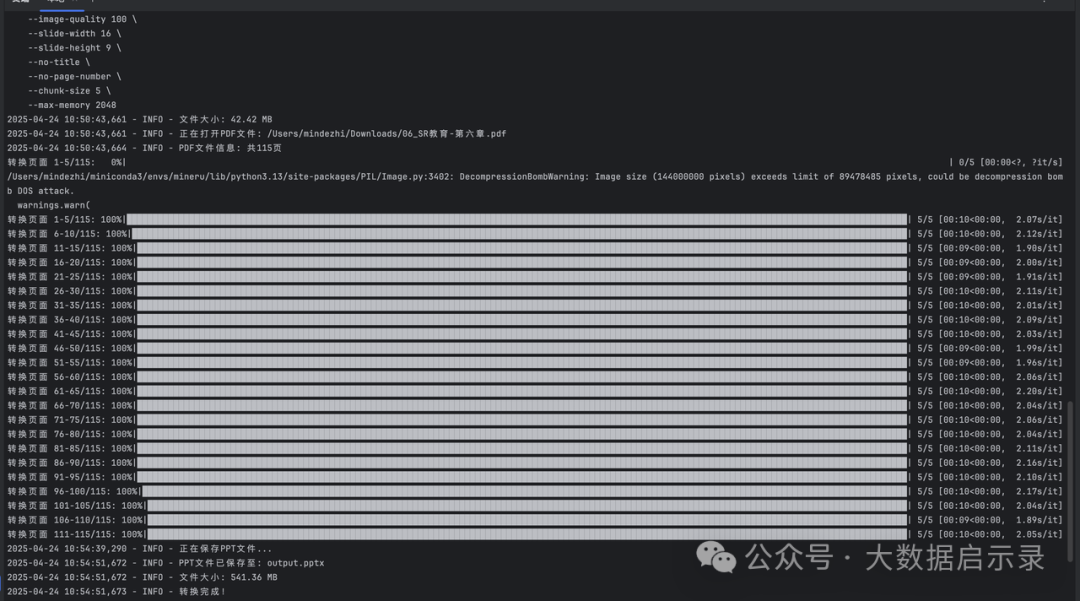
 python app.py convert /Users/mindezhi/Downloads/06_SR教育-第六章.pdf output.pptx \
    --dpi 600 \
    --image-quality 100 \
    --slide-width 16 \
    --slide-height 9 \
    --no-title \
    --no-page-number \
    --chunk-size 5 \
    --max-memory 2048
运行进度详情

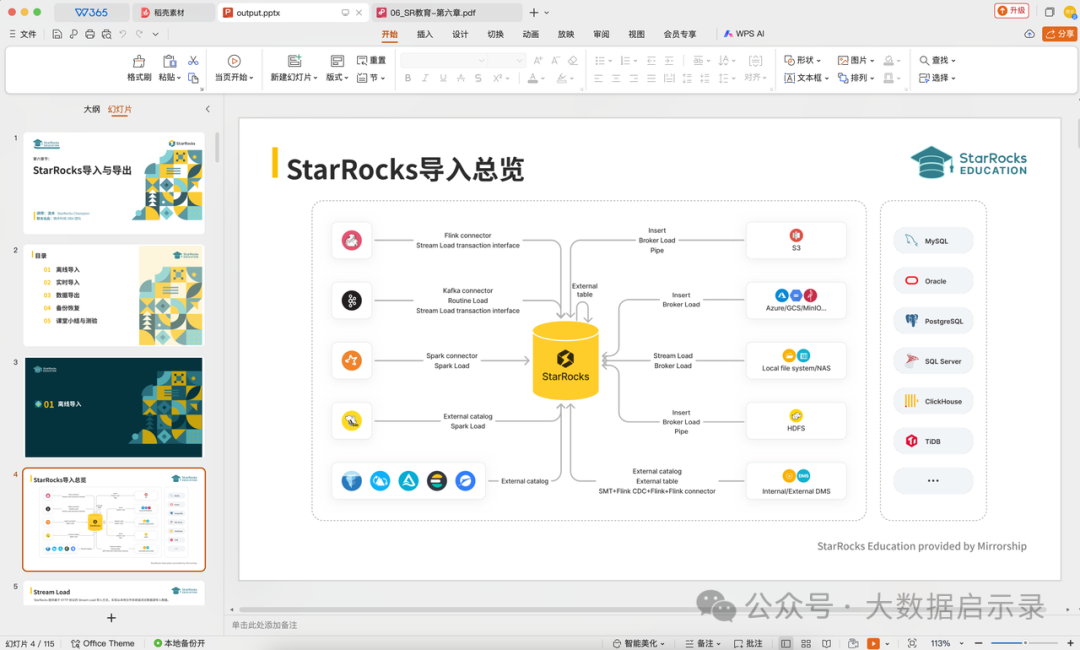
效果展示
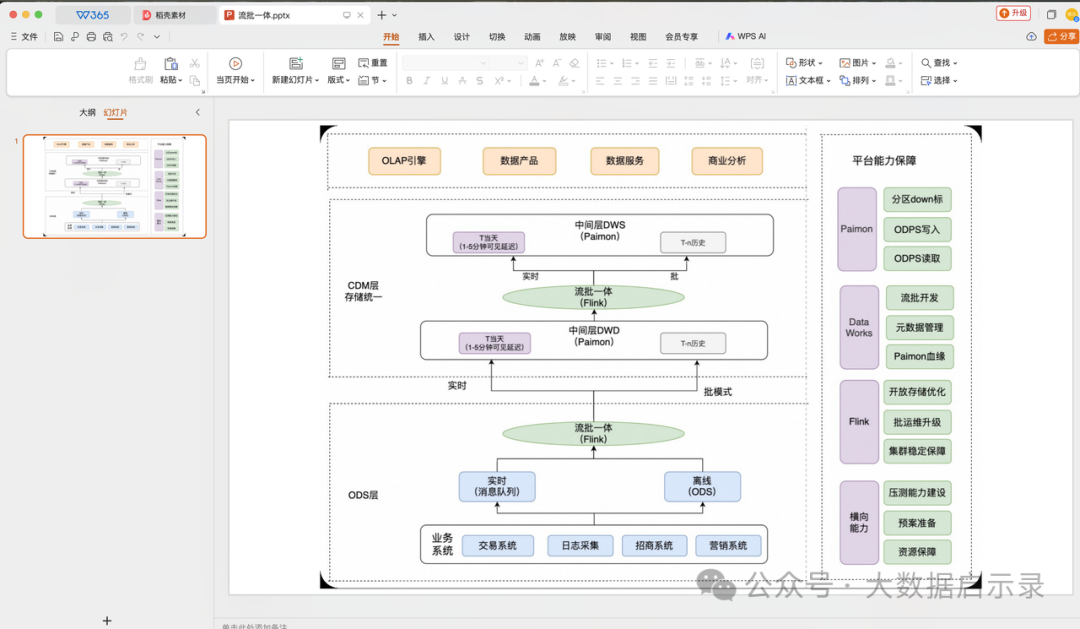
将图片转换为PPT
执行命令
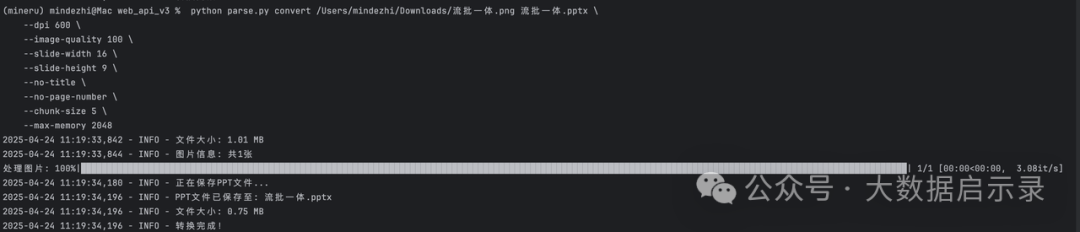
 python app.py convert /Users/mindezhi/Downloads/流批一体.png 流批一体.pptx \
    --dpi 600 \
    --image-quality 100 \
    --slide-width 16 \
    --slide-height 9 \
    --no-title \
    --no-page-number \
    --chunk-size 5 \
    --max-memory 2048
运行进度详情

效果展示
将Word文档转换为PPT
执行命令
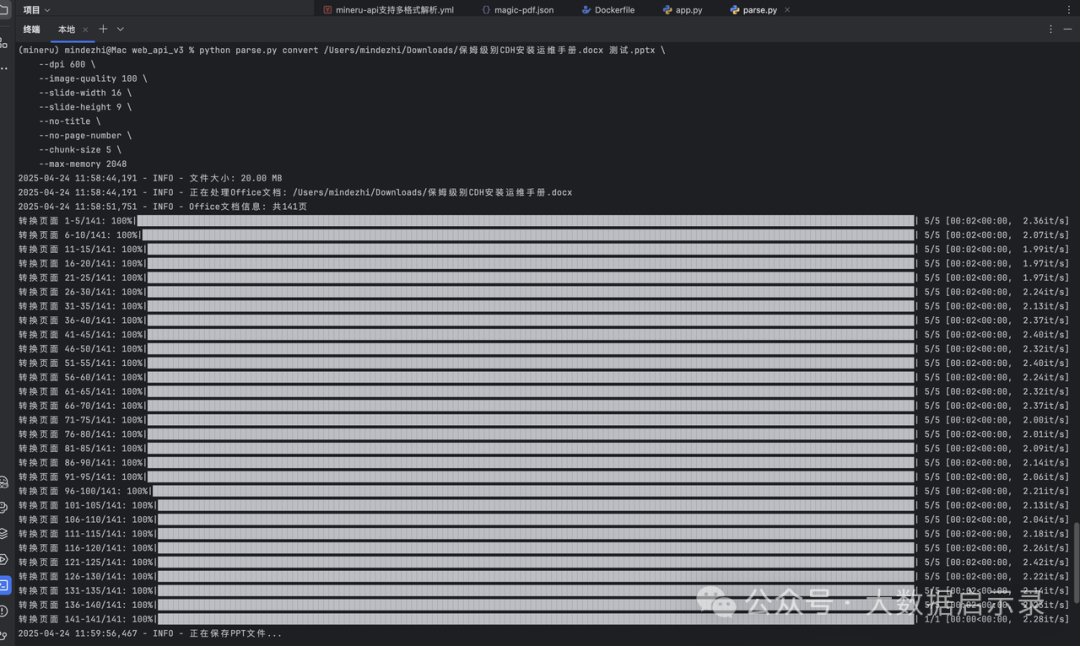
python app.py convert /Users/mindezhi/Downloads/保姆级别CDH安装运维手册.docx 测试.pptx \
    --dpi 600 \
    --image-quality 100 \
    --slide-width 16 \
    --slide-height 9 \
    --no-title \
    --no-page-number \
    --chunk-size 5 \
    --max-memory 2048
运行进度详情

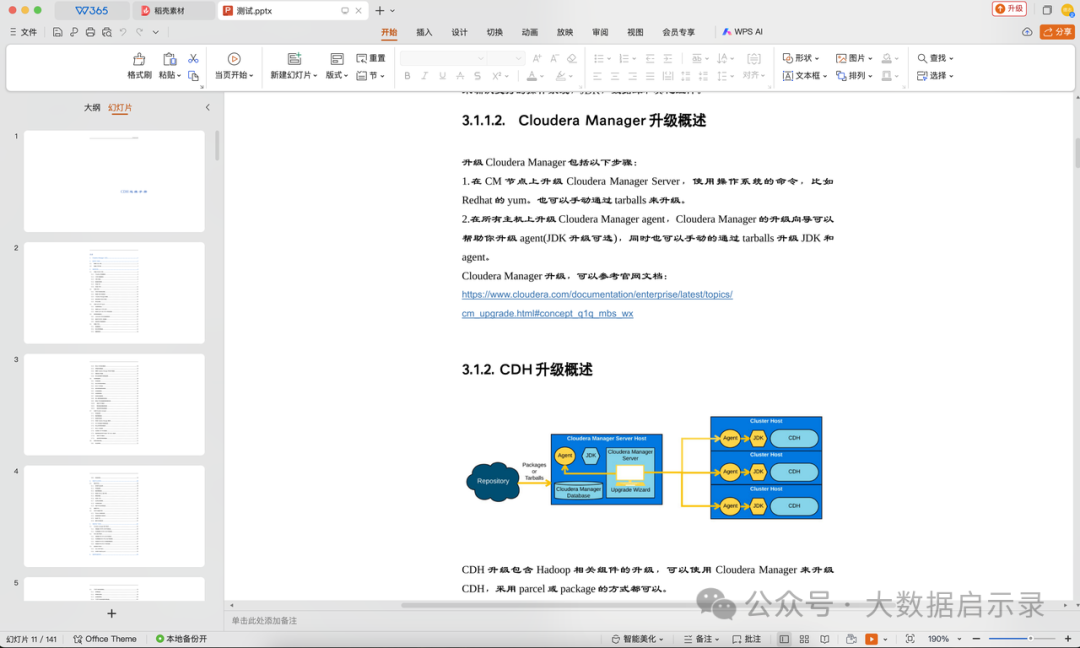
效果展示
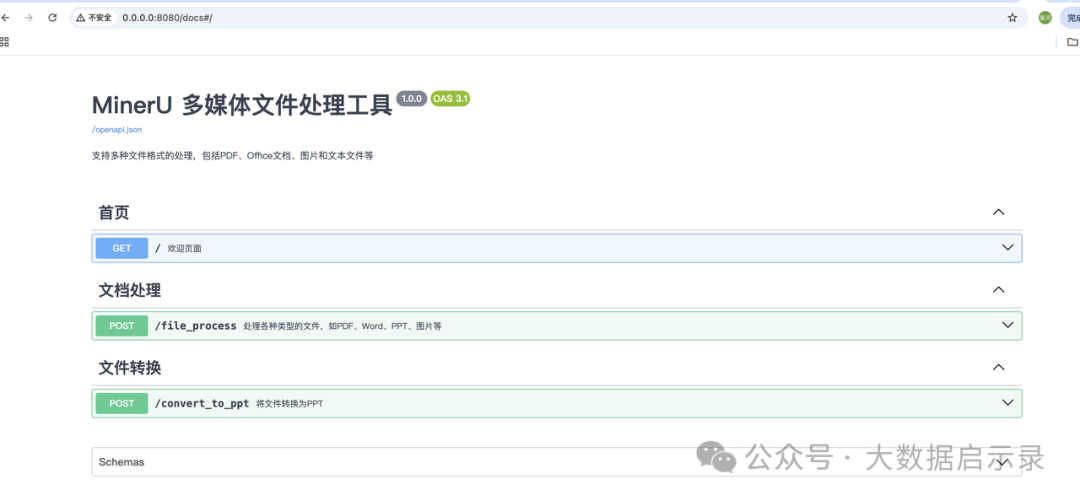
启动web 服务
python app.py server --port 8080

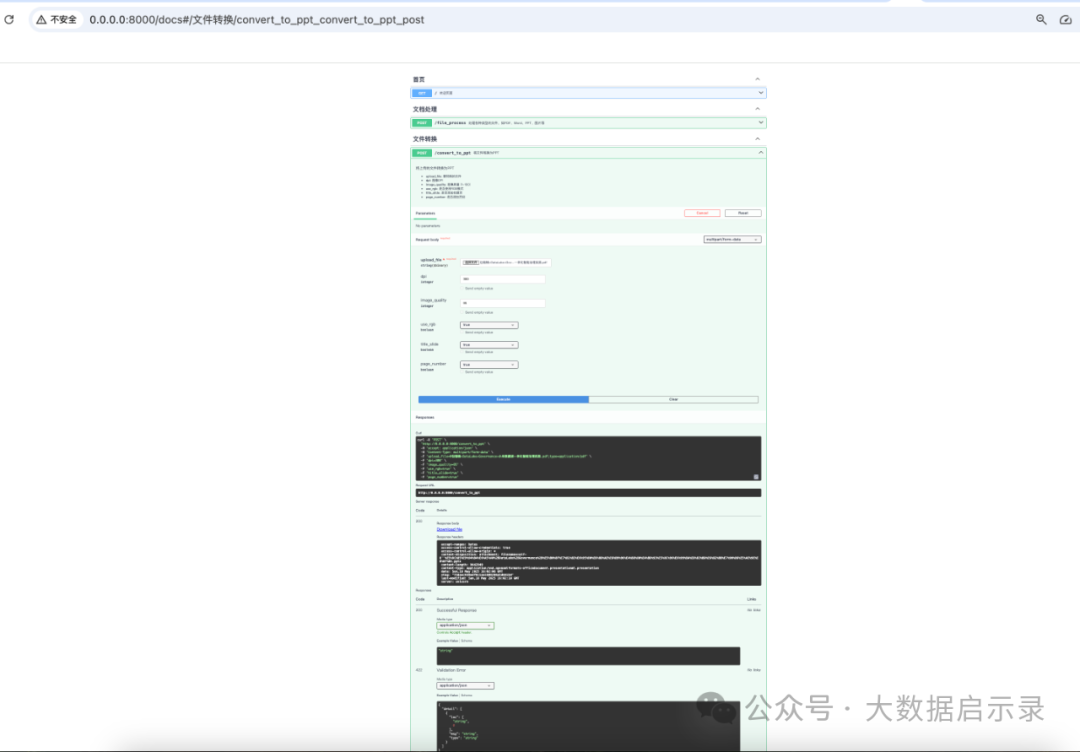
构建Docker服务
entrypoint.sh文件
#!/usr/bin/env bash
set -e

# 运行FastAPI应用
exec uvicorn app:app "$@"
编写Dockerfile文件
FROM python:3.9-slim

WORKDIR /app

# python 环境安装依赖
RUN pip install img2pdf fastapi uvicorn PyMuPDF python-pptx tqdm -i https://pypi.org/simple/ && \
    pip install magic-pdf python-multipart -i https://pypi.org/simple/

## 安装soffice
RUN apt-get update && \
    apt-get install -y --no-install-recommends libreoffice && \
    apt-get clean && \
    rm -rf /var/lib/apt/lists/*

# Copy the app and its configuration file
COPY entrypoint.sh /app/entrypoint.sh
COPY magic-pdf.json /root/magic-pdf.json
COPY app.py /app/app.py

# 确保entrypoint.sh具有执行权限
RUN chmod +x /app/entrypoint.sh

# Expose the port that FastAPI will run on
EXPOSE 8000

# Command to run FastAPI using Uvicorn, pointing to app.py and binding to 0.0.0.0:8000
ENTRYPOINT [ "/app/entrypoint.sh" ]
CMD ["--host", "0.0.0.0", "--port", "8000"]
镜像制作
docker build -t mineru-api-mac:v0.1 .
启动
docker run -p 8000:8000 mineru-api-mac:v0.1
与dify集成
Dify 启动
cd dify/docker
docker compose up -d
安装插件
进入【工具】 -> 【插件市场】,搜索 MinerU 插件并添加

获取ip地址
ipconfig getifaddr en0
配置 MinerU 插件参数:

用 MinerU 插件在 Dify 中搭建工作流


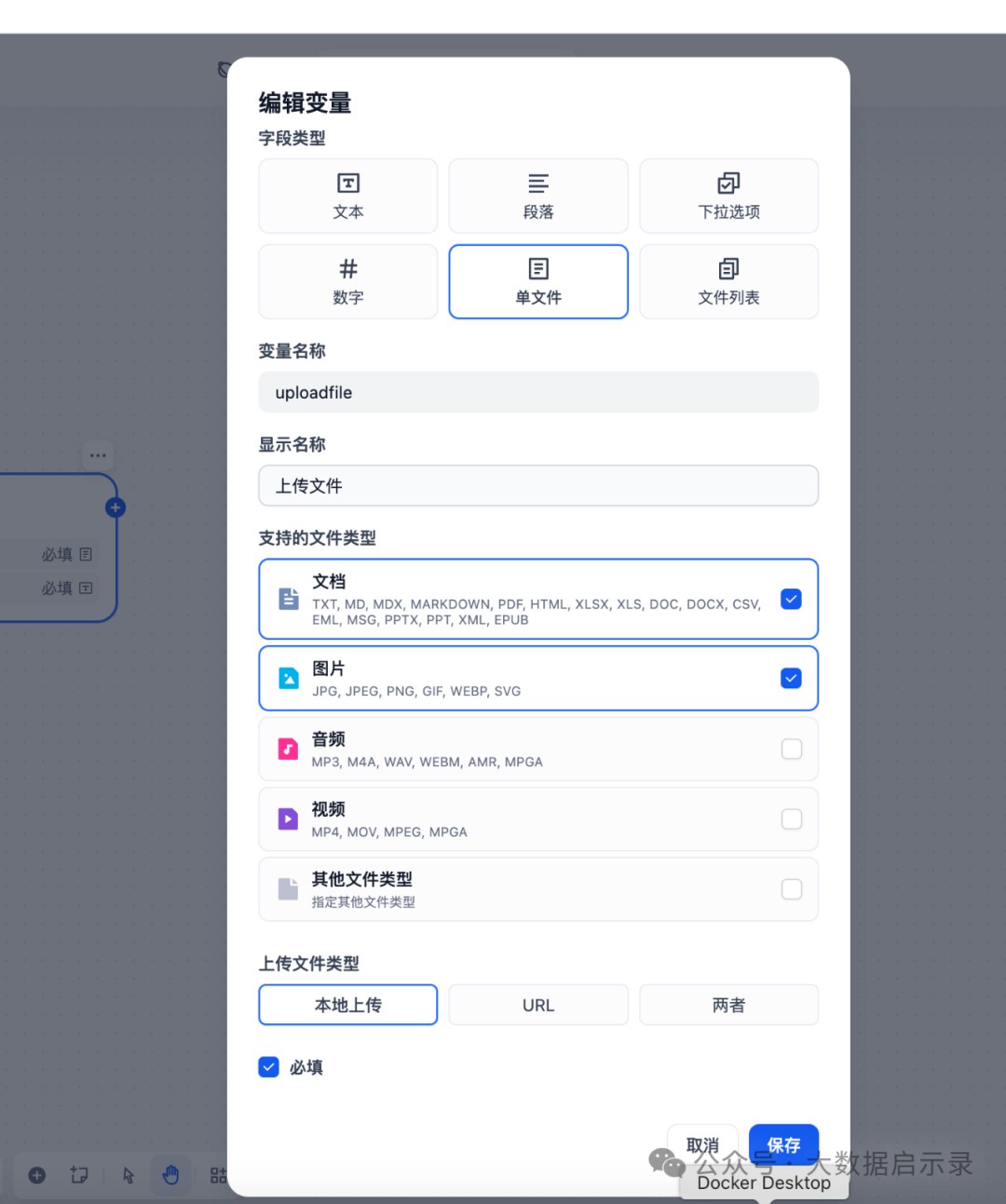
在【开始】节点中添加两个输入字段:
- uploadfile:用于上传文件;
- question:用户提问文本。

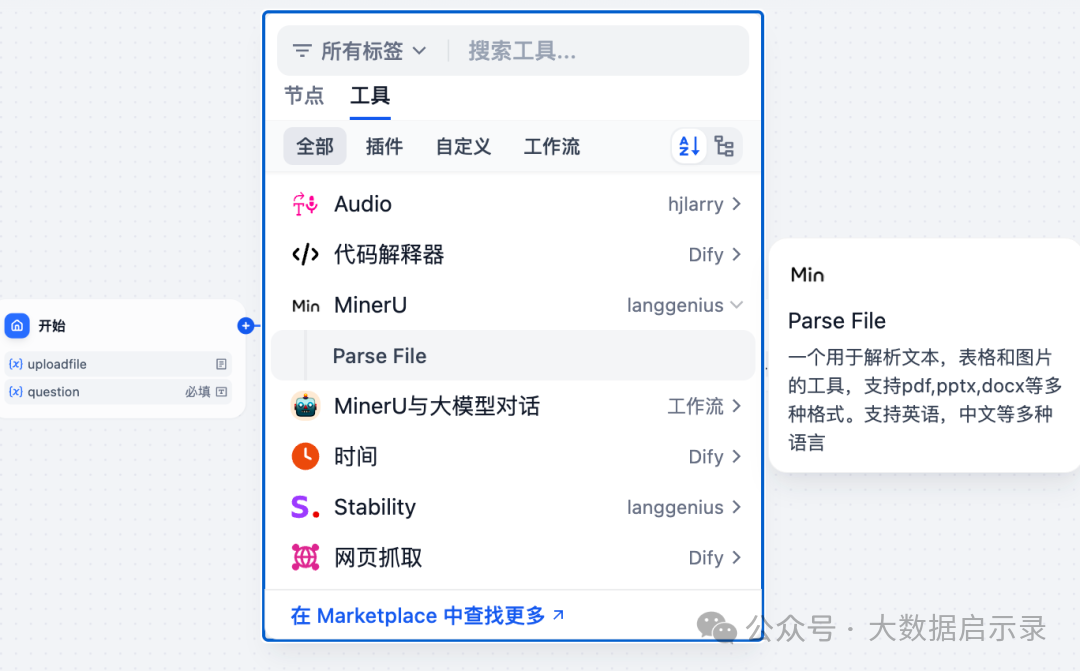
添加 MinerU 插件节点:
- 点击【开始】节点下方的【添加】按钮;
- 选择【工具】类型,添加【MinerU 插件】节点;
- 在插件输入变量中,绑定【开始】节点的 uploadfile 字段作为输入。
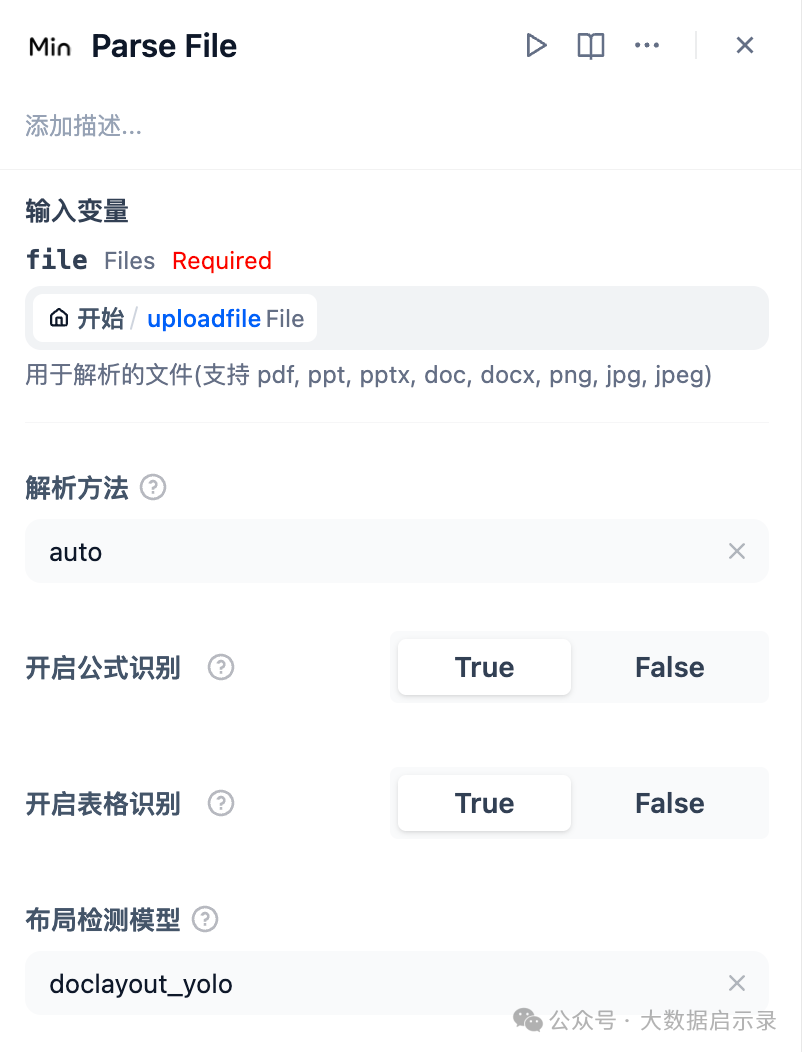
添加 LLM 节点,进行问答处理:
- 在【MinerU 插件】节点下方点击【添加】,选择【LLM】节点;
- 设置 LLM 节点的提示词(Prompts)如下:
- 上下文字段(Context):引用【MinerU 插件】节点输出的 Parse File 字段;
- System 字段提示词:可填写说明,如:Parse File 是用户上传文件解析出的内容,用户提到的“文件”“文档”等即指该内容;
- User 字段提示词:引用【开始】节点中的 question 字段作为用户问题输入。

设置【结束】节点输出:
- 在【结束】节点中,选择【LLM】节点的输出字段 text 作为最终输出变量。

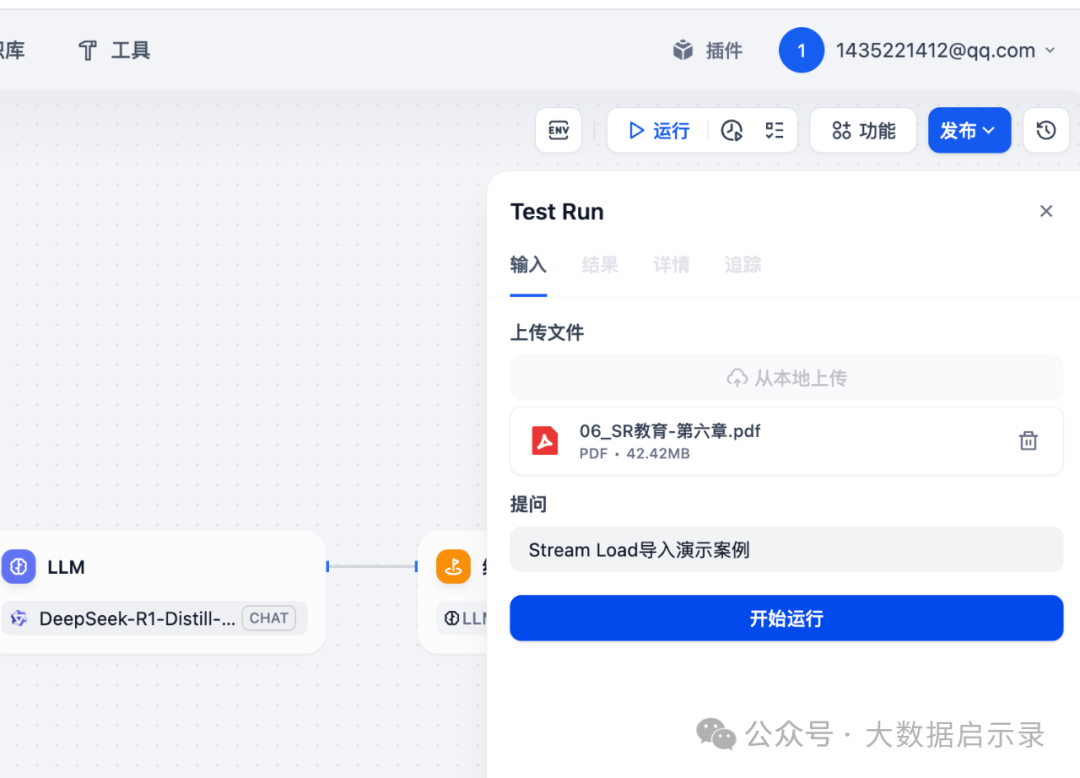
运行并测试工作流:
- 点击页面右上角【运行】按钮,测试上传文件与提问功能;
- 测试通过后,点击【发布】下拉菜单中的【运行】按钮,即可在浏览器中打开最终应用页面。
运行报错,异常解决
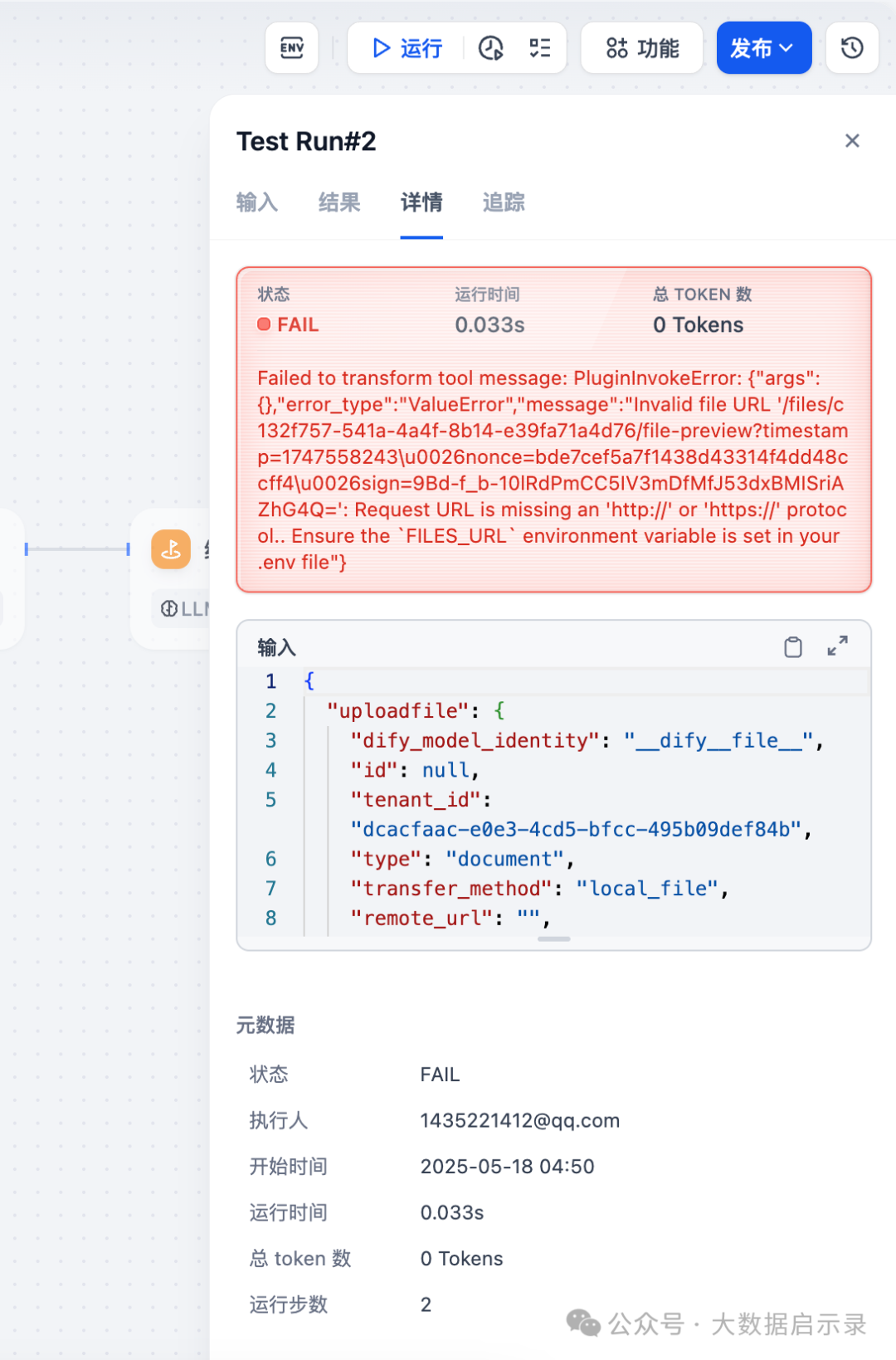
设置 Dify 的配置文件,修改 FILES_URL 配置项
- Docker Compose 部署:FILES_URL 设置为 ‘http://api:5001’
- 其他部署方式:FILES_URL 设置为 ‘http://Dify宿主机IP:5001’
vi .env

重启dify后上传文件测试
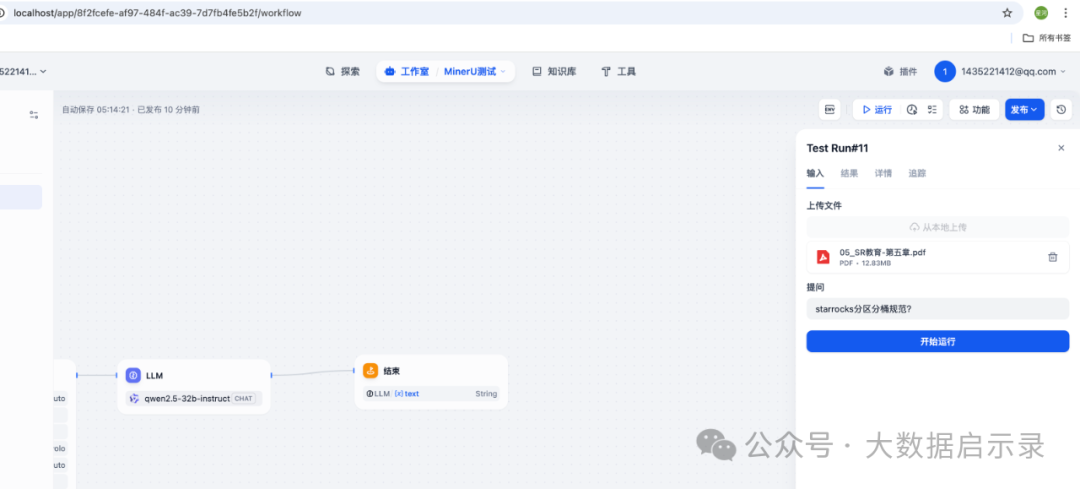
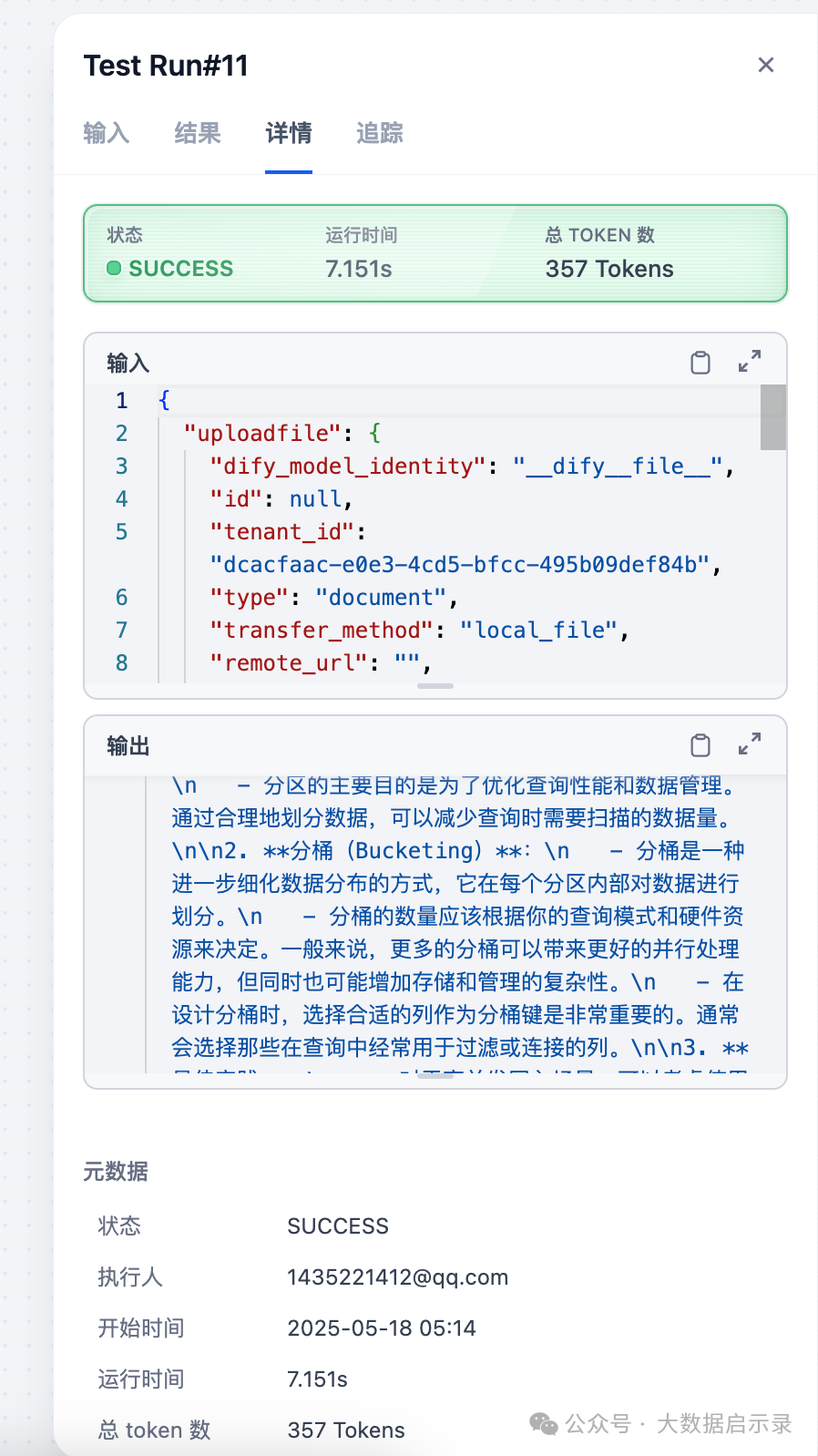
如何学习大模型 AI ?
由于新岗位的生产效率,要优于被取代岗位的生产效率,所以实际上整个社会的生产效率是提升的。
但是具体到个人,只能说是:
“最先掌握AI的人,将会比较晚掌握AI的人有竞争优势”。
这句话,放在计算机、互联网、移动互联网的开局时期,都是一样的道理。
我在一线互联网企业工作十余年里,指导过不少同行后辈。帮助很多人得到了学习和成长。
我意识到有很多经验和知识值得分享给大家,也可以通过我们的能力和经验解答大家在人工智能学习中的很多困惑,所以在工作繁忙的情况下还是坚持各种整理和分享。但苦于知识传播途径有限,很多互联网行业朋友无法获得正确的资料得到学习提升,故此将并将重要的AI大模型资料包括AI大模型入门学习思维导图、精品AI大模型学习书籍手册、视频教程、实战学习等录播视频免费分享出来。

第一阶段(10天):初阶应用
该阶段让大家对大模型 AI有一个最前沿的认识,对大模型 AI 的理解超过 95% 的人,可以在相关讨论时发表高级、不跟风、又接地气的见解,别人只会和 AI 聊天,而你能调教 AI,并能用代码将大模型和业务衔接。
- 大模型 AI 能干什么?
- 大模型是怎样获得「智能」的?
- 用好 AI 的核心心法
- 大模型应用业务架构
- 大模型应用技术架构
- 代码示例:向 GPT-3.5 灌入新知识
- 提示工程的意义和核心思想
- Prompt 典型构成
- 指令调优方法论
- 思维链和思维树
- Prompt 攻击和防范
- …
第二阶段(30天):高阶应用
该阶段我们正式进入大模型 AI 进阶实战学习,学会构造私有知识库,扩展 AI 的能力。快速开发一个完整的基于 agent 对话机器人。掌握功能最强的大模型开发框架,抓住最新的技术进展,适合 Python 和 JavaScript 程序员。
- 为什么要做 RAG
- 搭建一个简单的 ChatPDF
- 检索的基础概念
- 什么是向量表示(Embeddings)
- 向量数据库与向量检索
- 基于向量检索的 RAG
- 搭建 RAG 系统的扩展知识
- 混合检索与 RAG-Fusion 简介
- 向量模型本地部署
- …
第三阶段(30天):模型训练
恭喜你,如果学到这里,你基本可以找到一份大模型 AI相关的工作,自己也能训练 GPT 了!通过微调,训练自己的垂直大模型,能独立训练开源多模态大模型,掌握更多技术方案。
到此为止,大概2个月的时间。你已经成为了一名“AI小子”。那么你还想往下探索吗?
- 为什么要做 RAG
- 什么是模型
- 什么是模型训练
- 求解器 & 损失函数简介
- 小实验2:手写一个简单的神经网络并训练它
- 什么是训练/预训练/微调/轻量化微调
- Transformer结构简介
- 轻量化微调
- 实验数据集的构建
- …
第四阶段(20天):商业闭环
对全球大模型从性能、吞吐量、成本等方面有一定的认知,可以在云端和本地等多种环境下部署大模型,找到适合自己的项目/创业方向,做一名被 AI 武装的产品经理。
- 硬件选型
- 带你了解全球大模型
- 使用国产大模型服务
- 搭建 OpenAI 代理
- 热身:基于阿里云 PAI 部署 Stable Diffusion
- 在本地计算机运行大模型
- 大模型的私有化部署
- 基于 vLLM 部署大模型
- 案例:如何优雅地在阿里云私有部署开源大模型
- 部署一套开源 LLM 项目
- 内容安全
- 互联网信息服务算法备案
- …
学习是一个过程,只要学习就会有挑战。天道酬勤,你越努力,就会成为越优秀的自己。
如果你能在15天内完成所有的任务,那你堪称天才。然而,如果你能完成 60-70% 的内容,你就已经开始具备成为一名大模型 AI 的正确特征了。
这份完整版的大模型 AI 学习资料已经上传优快云,朋友们如果需要可以微信扫描下方优快云官方认证二维码免费领取【保证100%免费】

 809


 扫一扫


 被折叠的 条评论
为什么被折叠?
 到【灌水乐园】发言


