


各位iOS开发大佬们好:
我是一名Swift+SwiftUI栈的iOS小白,目前还在上大三,最近准备实习,面试的过程中发现现在大公司很多还在用OC + UIKit的技术栈,OC我还在考虑要不要学,目前想先把UIKit学完,这是我在官网学习UIKit英文文档时摘录的本人认为的重点,如果你们也觉得对你们有用的话欢迎持续关注,我大概一天更一节,有事除外。格式什么的我也就不做了,翻译都是我自己翻译的,哪里不对欢迎在评论区指正,感谢各位大佬支持
今天2021年12月13日
这一章叫做Presentation and Transition
目录
Presenting a View Controller
两种在屏幕上显示VC的方法,直接显示或放进容器VC中
Support for presenting view controllers is built in to the UIViewController class and is available to all view controller objects. You can present any view controller from any other view controller, although UIKit might reroute the request to a different view controller. Presenting a view controller creates a relationship between the original view controller, known as the presenting view controller, and the new view controller to be displayed, known as the presented view controller. This relationship forms part of the view controller hierarchy and remains in place until the presented view controller is dismissed.
UIViewController原生支持显示VC,你可以显示任何其他VC,显示一个VC创建了原始VC和新VC的某种关系,这种关系在新VC消失时也会随之消除
通过给 modalPresentationStyle 属性赋值设置显示风格
When presenting a view controller using the UIModalPresentationFullScreen style, UIKit normally removes the views of the underlying view controller after the transition animations finish. You can prevent the removal of those views by specifying the UIModalPresentationOverFullScreen style instead. You might use that style when the presented view controller has transparent areas that let underlying content show through.
When using one of the full-screen presentation styles, the view controller that initiates the presentation must itself cover the entire screen. If the presenting view controller does not cover the screen, UIKit walks up the view controller hierarchy until it finds one that does. If it can’t find an intermediate view controller that fills the screen, UIKit uses the root view controller of the window.
当用UIModalPresentationFullScreen属性时被覆盖的VC将会在新VC过度完成后被移除,如果不想要被移除,那么用UIModalPresentationOverFullScreen
如果设置了全屏但未铺满全屏,UIKit会在层级中找有全屏的,如果没找到,就会用Window的根VC
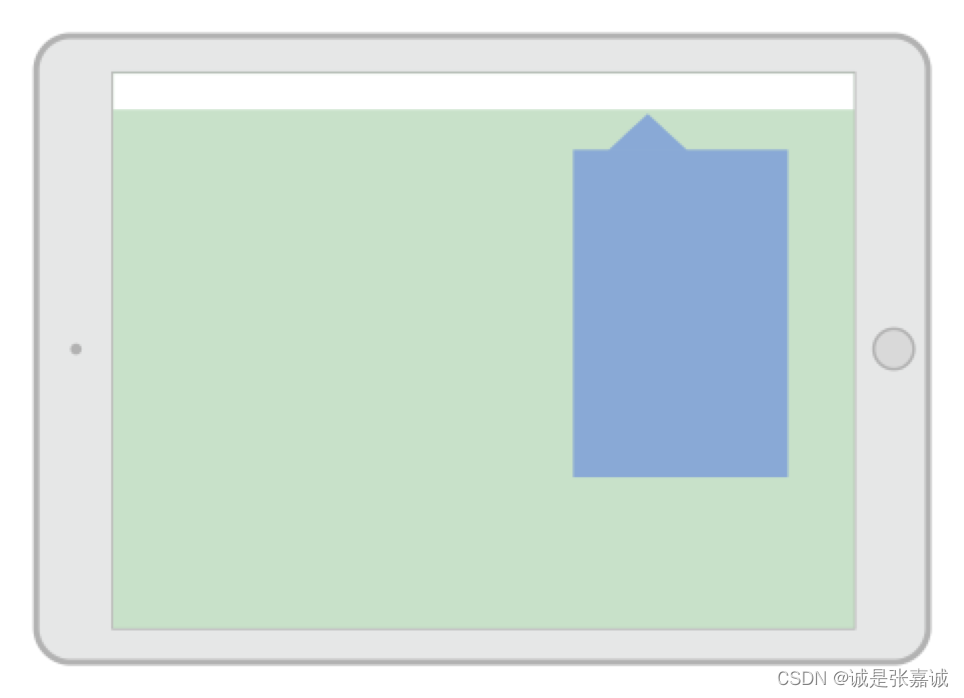
UIModalPresentationPopover 样式默认适配UIModalPresentationOverFullScreen 显示风格,点框外就会消失
Because popovers adapt to full-screen presentations in a horizontally compact environment, you usually need to modify your popover code to handle the adaptation. In full-screen mode, you need a way to dismiss a presented popover. You can do that by adding a button, embedding the popover in a dismissible container view controller, or changing the adaptation behavior itself
通过添加按钮,嵌入进一个可消失的容器VC或者改变适配行为等方法使弹出窗口适配全屏模式
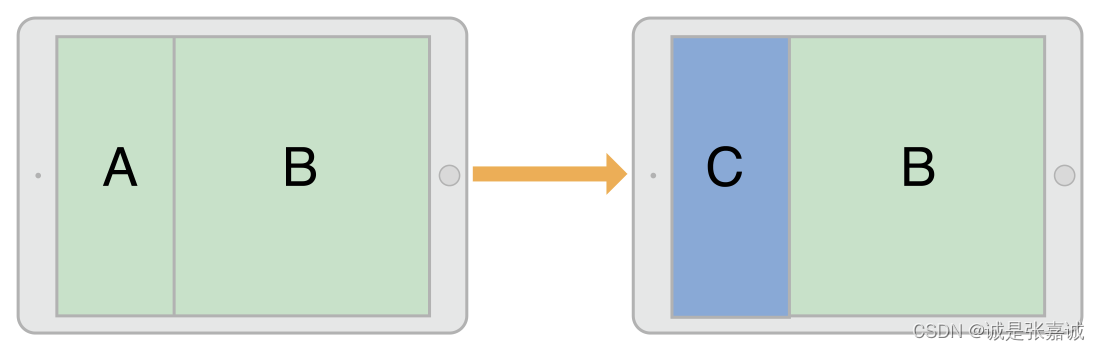
The UIModalPresentationCurrentContext style covers a specific view controller in your interface. When using the contextual style, you designate which view controller you want to cover by setting its definesPresentationContext property to YES.
通过设置被替换VC的definesPresentationContext 属性为true来覆盖界面中指定的VC,比如下图分屏中的A
When presenting a view controller using the UIModalPresentationFullScreen style, UIKit normally removes the views of the underlying view controller after the transition animations finish. You can prevent the removal of those views by specifying the UIModalPresentationOverCurrentContext style instead. You might use that style when the presented view controller has transparent areas that let underlying content show through.
跟上面一样,如果不想在过度完成后移除之前的VC就得用UIModalPresentationOverCurrentContext 风格
The view controller that defines the presentation context can also define the transition animations to use during the presentation. Normally, UIKit animates view controllers onscreen using the value in the modalTransitionStyle property of the presented view controller. If the presentation context view controller has its providesPresentationContextTransitionStyle set to YES, UIKit uses the value in that view controller’s modalTransitionStyle property instead.
When transitioning to a horizontally compact environment, the current context styles adapt to the UIModalPresentationFullScreen style. To change that behavior, use an adaptive presentation delegate to specify a different presentation style or view controller.
UIKit默认用新VC的 modalTransitionStyle 属性里的值做VC的transition的动画,如果旧VC的providesPresentationContextTransitionStyle 属性为true,那么就会用旧的VC的modalTransitionStyle 属性做动画
横屏时默认适配UIModalPresentationFullScreen 风格,如果想改变,用代理指定其他风格或VC
The UIModalPresentationCustom style lets you present a view controller using a custom style that you define. Creating a custom style involves subclassing UIPresentationController and using its methods to animate any custom view onto the screen and to set the size and position of the presented view controller. The presentation controller also handles any adaptations that occur because of changes to the presented view controller’s traits.
可以使用UIModalPresentationCustom自定义风格,子类化UIPresentationController然后重写它的方法做动画,旧VC还处理因新VC特征更改而发生的任何调整。
Transition Styles
Transition styles determine the type of animations used to display a presented view controller. For the built-in transition styles, you assign one of the standard transition styles to the modalTransitionStyle property of the view controller you want to present. When you present the view controller, UIKit creates the animations that correspond to that style.You can create custom transitions using an animator object and transitioning delegate. The animator object creates the transition animations for placing the view controller onscreen. The transitioning delegate supplies that animator object to UIKit at the appropriate time.
过渡风格
给需要过渡的VC的modalTransitionStyle 属性赋值来做过渡动画,可以用动画对象和transitioning代理来自定义transitions
Presenting Versus Showing a View Controller
The UIViewController class offers two ways to display a view controller:
The showViewController:sender: and showDetailViewController:sender: methods offer the most adaptive and flexible way to display view controllers. These methods let the presenting view controller decide how best to handle the presentation. For example, a container view controller might incorporate the view controller as a child instead of presenting it modally. The default behavior presents the view controller modally.
The presentViewController:animated:completion: method always displays the view controller modally. The view controller that calls this method might not ultimately handle the presentation but the presentation is always modal. This method adapts the presentation style for horizontally compact environments.
The showViewController:sender: and showDetailViewController:sender: methods are the preferred way to initiate presentations. A view controller can call them without knowing anything about the rest of the view controller hierarchy or the current view controller’s position in that hierarchy. These methods also make it easier to reuse view controllers in different parts of your app without writing conditional code paths.
showViewController:sender: 和 showDetailViewController:sender: 方法显示VC更灵活,他不需要知道VC层级中的其余部分和当前VC在层级中的位置,重用也更加方便,不需要写路径,使用时会经历以下步骤
Create the view controller object you want to present. When creating the view controller, it is your responsibility to initialize it with whatever data it needs to perform its task.
Set the modalPresentationStyle property of the new view controller to the preferred presentation style. This style might not be used in the final presentation.
Set the modalTransitionStyle property of the view controller to the desired transition animation style. This style might not be used in the final animations.
Call the showViewController:sender: and showDetailViewController:sender: method of the current view controller.
UIKit forwards calls to the showViewController:sender: and showDetailViewController:sender: methods to the appropriate presenting view controller. That view controller can then decide how best to perform the presentation and can change the presentation and transition styles as needed. For example, a navigation controller might push the view controller onto its navigation stack.
初始化VC
设置modalPresentationStyle 的风格
设置modalTransitionStyle的风格
调用当前VC的showViewController:sender: 和 showDetailViewController:sender: 方法
模态化显示时最后一步为调用当前VC的presentViewController:animated:completion: 方法,这个方法不是真正用来模态化显示的,presentation style才决定了新VC怎样显示,还包括一些其他特殊要求,比如全屏的VC必须也由全屏的VC来初始化,如果当前VC不是全屏,那么UIKit将会在层级中找直至找到全屏VC,然后去初始化新VC,显示结束后,UIKit会更新受影响的presentingViewController 和 presentedViewController 属性
Popovers require additional configuration before you can present them. After setting the modal presentation style to UIModalPresentationPopover, configure the following popover-related attributes:
Set the preferredContentSize property of your view controller to the desired size.
Set the popover anchor point using the associated UIPopoverPresentationController object, which is accessible from the view controller’s popoverPresentationController property. Set only one of the following:
Set the barButtonItem property to a bar button item.
Set the sourceView and sourceRect properties to a specific region in one of your views.
You can use the UIPopoverPresentationController object to make other adjustments to the popover’s appearance as needed. The popover presentation controller also supports a delegate object that you can use to respond to changes during the presentation process. For example, you can use the delegate to respond when the popover appears, disappears, or is repositioned on the screen.
弹出窗口需要在显示之前额外配置一些东西,在UIModalPresentationPopover中设置完modal presentation style之后,还需要配置以下东西:
大小
瞄点
在 UIPopoverPresentationController 中响应一些弹出框的改变
关闭弹出框调用弹出框(新VC)的或旧VC dismissViewControllerAnimated:completion: 方法都行,调用新的也会传到旧的那去
关闭之前记得保存所有重要的信息,关闭后将会从层级中移除。如果你在其他地方没有强引用了的话,那就会ARC释放掉跟他有关的内存,
如果新视图必须为旧视图返回数据,可以使用代理模式,
With delegation, the presented view controller stores a reference to a delegate object that implements methods from a formal protocol. As it gathers results, the presented view controller calls those methods on its delegate. In a typical implementation, the presenting view controller makes itself the delegate of its presented view controller.
新VC会存代理对象的引用,收集结果的时候在代理上调用某些方法,一般旧VC就是新VC的代理
第二节由于本人不用SB,所以跳过
Customizing the Transition Animations
Transition有两种,一种是添加视图的,一种是移除视图的
It takes many objects to implement a transition animation. UIKit provides default versions of all of the objects involved in transitions, and you can customize all of them or only a subset.
实现一个transition动画需要好多个对象
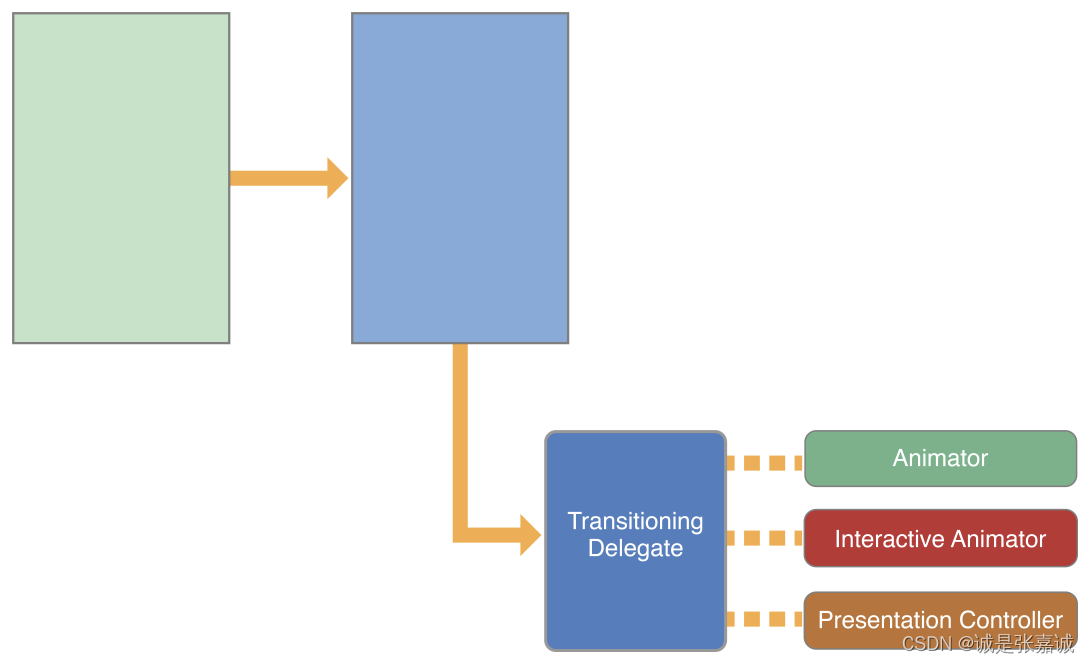
transitioning代理是过渡动画和自定义presentation的开始,它是一个你定义的遵守UIViewControllerTransitioningDelegate 协议的对象,它给UIKit提供以下对象
显示或移除VC的动画对象。Animator objects conform to the UIViewControllerAnimatedTransitioning protocol.
手势交互的动画对象。Interactive animator objects conform to the UIViewControllerInteractiveTransitioning protocol.The easiest way to create an interactive animator is to subclass UIPercentDrivenInteractiveTransition class and add event-handling code to your subclass. That class controls the timing of animations created using your existing animator objects. If you create your own interactive animator, you must render each frame of the animation yourself.
Presentation controller管理着当VC在屏幕上时的显示风格。The system provides presentation controllers for the built-in presentation styles and you can provide custom presentation controllers for your own presentation styles.
Assigning a transitioning delegate to the transitioningDelegate property of a view controller tells UIKit that you want to perform a custom transition or presentation. Your delegate can be selective about which objects it provides. If you do not provide animator objects, UIKit uses the standard transition animation in the view controller’s modalTransitionStyle property.
将transition代理赋值给VC的transitioningDelegate 属性,UIKit将会执行代理中指定的Transition或presentation。默认使用VC的modalTransitionStyle 属性里的值
As it prepares a presentation, UIKit calls the animationControllerForPresentedController:presentingController:sourceController: method of your transitioning delegate to retrieve the custom animator object. If an object is available, UIKit performs the following steps:
UIKit calls the transitioning delegate’s interactionControllerForPresentation: method to see if an interactive animator object is available. If that method returns nil, UIKit performs the animations without user interactions.
UIKit calls the transitionDuration: method of the animator object to get the animation duration.
UIKit calls the appropriate method to start the animations:
For non-interactive animations, UIKit calls the animateTransition: method of the animator object.
For interactive animations, UIKit calls the startInteractiveTransition: method of the interactive animator object.
UIKit waits for an animator object to call the completeTransition: method of the context transitioning object.
Your custom animator calls this method after its animations finish, typically in the animation’s completion block. Calling this method ends the transition and lets UIKit know that it can call the completion handler of the presentViewController:animated:completion: method and call the animator object’s own animationEnded: method.
When dismissing a view controller, UIKit calls the animationControllerForDismissedController: method of your transitioning delegate and performs the following steps:
UIKit calls the transitioning delegate’s interactionControllerForDismissal: method to see if an interactive animator object is available. If that method returns nil, UIKit performs the animations without user interactions.
UIKit calls the transitionDuration: method of the animator object to get the animation duration.
UIKit calls the appropriate method to start the animations:
For non-interactive animations, UIKit calls the animateTransition: method of the animator object.
For interactive animations, UIKit calls the startInteractiveTransition: method of the interactive animator object.
UIKit waits for an animator object to call the completeTransition: method of the context transitioning object.
Your custom animator calls this method after its animation finishes, typically in the animation’s completion block. Calling this method ends the transition and lets UIKit know that it can call the completion handler of the presentViewController:animated:completion: method and call the animator object’s own animationEnded: method.
Important
Calling the completeTransition: method at the end of your animations is required. UIKit does not end the transition process, and thereby return control to your app, until you call that method.
准备显示时,UIKit调用transition代理的animationControllerForPresentedController:presentingController:sourceController: 方法取出自定义的动画对象,之后,UIKit执行以下步骤
UIKit调用transition的interactionControllerForPresentation: 方法查找是否存在交互动画,如果返回nil,那么UIKit将会在没有用户交互条件下直接执行动画
调用动画对象的transitionDuration: 方法获取动画持续时间
以下两种情况
对于需要交互的动画调用startInteractiveTransition: 方法
对于无交互的动画,调用animateTransition: 方法
4. 等待动画对象调用上下文transition对象的completeTransition: 方法
动画结束时在动画闭包中调用此方法结束transition,并让UIKit调用presentViewController:animated:completion: 方法的尾随闭包,并调用动画对象的animationEnded: 方法
VC消失时,UIKit会调用transition代理的animationControllerForDismissedController: 方法然后执行和上面同样的4步操作
动画的最后调用completeTransition方法时必要的,调用该方法时UIkit将会结束transition进程,从而将控制权返回到您的应用程序
transition上下文对象
Before a transition animation begins, UIKit creates a transitioning context object and fills it with information about how to perform the animations. The transitioning context object is an important part for your code. It implements the UIViewControllerContextTransitioning protocol and stores references to the view controllers and views involved in the transition. It also stores information about how you should perform the transition, including whether the animation is interactive. Your animator objects need all of this information to set up and execute the actual animations.
过渡动画开始之前,UIKit会创建一个上下文对象(环境)然后告诉上下文应该怎样执行过渡,过渡上下文遵守UIViewControllerContextTransitioning 协议并存储了参与transition的VC的引用,并且知悉过渡应该怎样展现,是否可交互等等信息
重点
When setting up custom animations, always use the objects and data in the transitioning context object rather than any cached information you manage yourself. Transitions can happen in a variety of conditions, some of which might change the animation parameters. The transitioning context object is guaranteed to have the correct information you need to perform the animations, whereas your cached information might be stale by the time your animator’s methods are called.
当设置自定义过渡时,始终使用过渡上下文对象中的对象和数据,不要用你自己管理的缓存信息,过渡可能发生在很多情况下,其中有些可能会改变动画参数transition上下文对象确保执行过渡的正确信息,而缓存信息可能会过时
Figure 10-2 shows how the transition context object interacts with other objects. Your animator object receives the object in its animateTransition: method. The animations you create should take place inside the provided container view. For example, when presenting a view controller, add its view as a subview of the container view. The container view might be the window or a regular view but it is always configured to run your animations.
Figure 10-2The transitioning context object
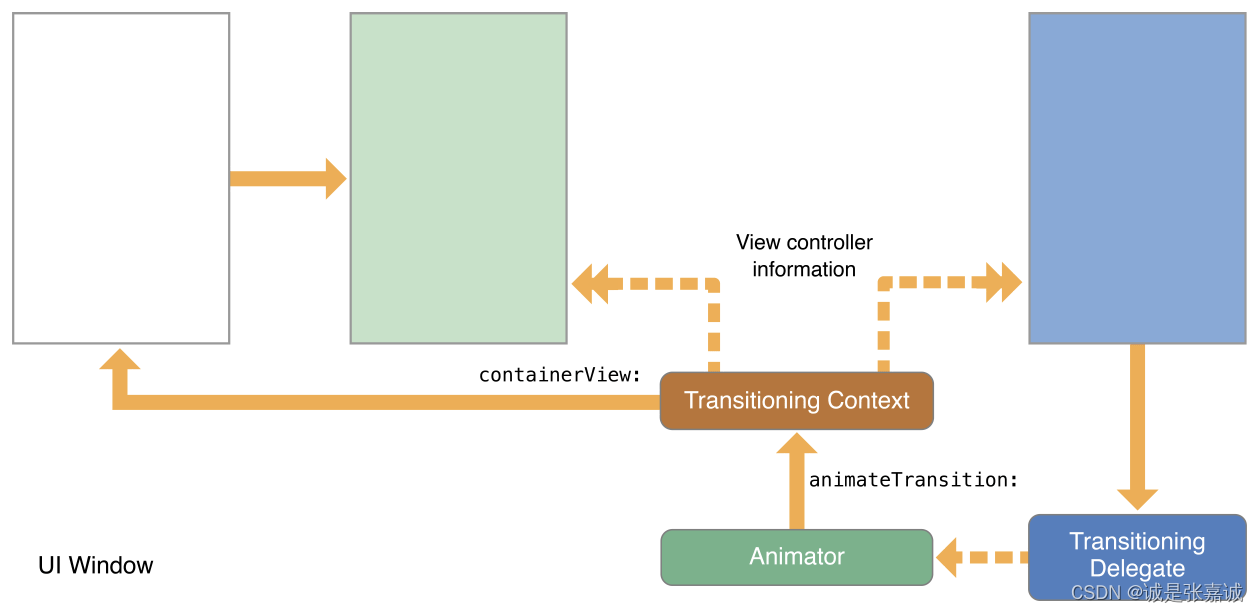
上图清楚的展示了上下文对象如何与其他对象交互,动画对象在他的animateTransition: 方法中接收对象,动画应该在你提供的容器VC内执行
For both the built-in transitions and your custom transitions, UIKit creates a transition coordinator object to facilitate any extra animations that you might need to perform. Aside from the presentation and dismissal of a view controller, transitions can occur when an interface rotation occurs or when the frame of a view controller changes. All of these transitions represent changes to the view hierarchy. The transition coordinator is a way to track those changes and animate your own content at the same time. To access the transition coordinator, get the object in the transitionCoordinator property of the affected view controller. A transition coordinator exists only for the duration of the transition.
Figure 10-3 shows the relationship of the transition coordinator to the view controllers involved in a presentation. Use the transition coordinator to get information about the transition and to register animation blocks that you want performed at the same time as the transition animations. Transition coordinator objects conform to the UIViewControllerTransitionCoordinatorContext protocol, which provides timing information, information about the animation’s current state, and the views and view controllers involved in the transition. When your animation blocks are executed, they similarly receive a context object with the same information.
Figure 10-3The transition coordinator objects
无论是系统过渡还是自定义的过渡,UIKit都会创建transition协调对象简化额外的动画,除了VC的显示消失,界面旋转或VC帧改变时也可引起过渡,所有过渡代表了层级的改变,transition协调是一个跟踪改变并同时为内容添加动画效果的方法。要访问transition协调,在受影响视图控制器的transition协调属性中获取对象。transition协调仅在过渡期间存在。
Figure 10-3 shows the relationship of the transition coordinator to the view controllers involved in a presentation. Use the transition coordinator to get information about the transition and to register animation blocks that you want performed at the same time as the transition animations. Transition coordinator objects conform to the UIViewControllerTransitionCoordinatorContext protocol, which provides timing information, information about the animation’s current state, and the views and view controllers involved in the transition. When your animation blocks are executed, they similarly receive a context object with the same information.
Figure 10-3The transition coordinator objects
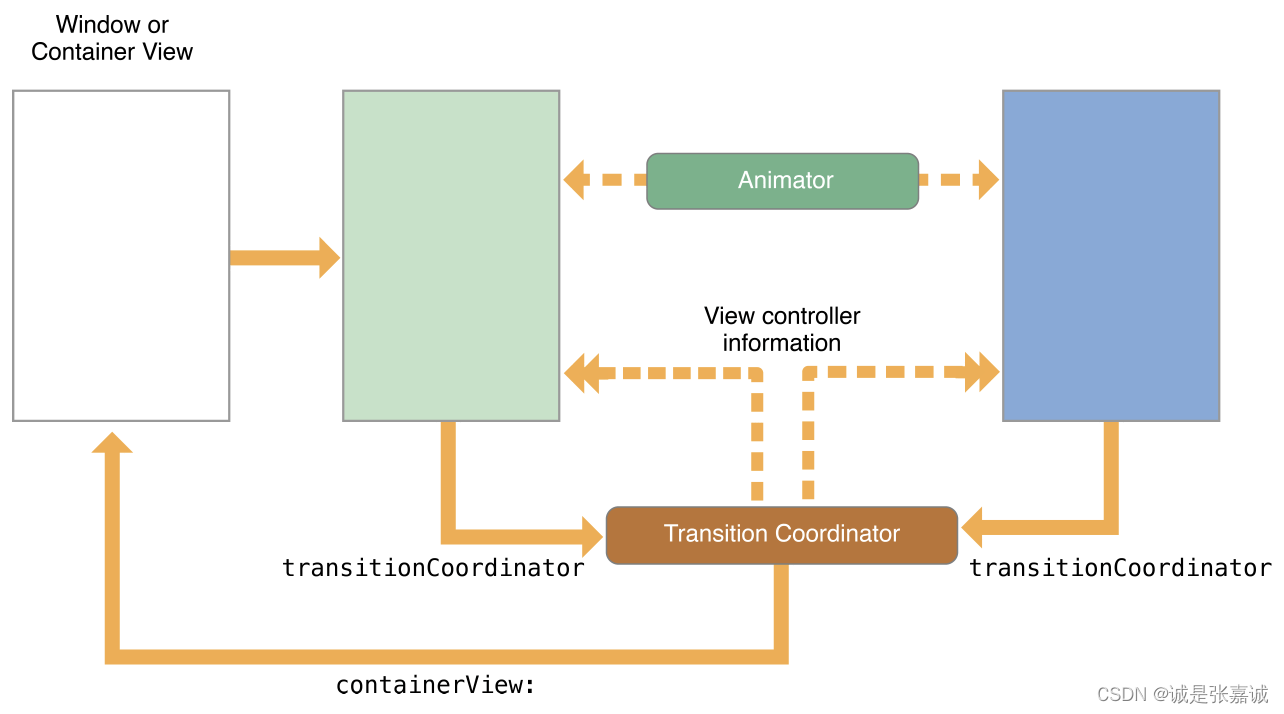
Presenting a View Controller Using Custom Animations
To present a view controller using custom animations, do the following in an action method of your existing view controllers:
Create the view controller that you want to present.
Create your custom transitioning delegate object and assign it to the view controller’s transitioningDelegate property. The methods of your transitioning delegate should create and return your custom animator objects when asked.
Call the presentViewController:animated:completion: method to present the view controller.
When you call the presentViewController:animated:completion: method, UIKit initiates the presentation process. Presentations start during the next run loop iteration and continue until your custom animator calls the completeTransition: method. Interactive transitions allow you to process touch events while the transition is ongoing, but noninteractive transitions run for the duration specified by the animator object.
自定义动画显示VC有如下步骤
创建VC
创建自定义transition代理对象并将其赋值给VC的transitioningDelegate 属性,你transition代理中的方法应该在需要时创建并返回自定义动画对象
调用presentViewController:animated:completion: 方法显示VC
当你调用presentViewController:animated:completion: method 方法时,UIKit开始初始化presentation进程,presentation会在下个runloop周期中开始并持续到completeTransition: 方法被调用。
Transition代理的作用就是创建并返回自定义的对象
举个例子创建一个动画对象
func animationController(
animationControllerForPresentedController presented: UIViewController,
presentingController presenting: UIViewController,
sourceController source: UIViewController
) -> UIViewControllerAnimatedTransitioning? {
let animator = MyAnimator()
return animator
}
任何动画对象都遵守UIViewControllerAnimatedTransitioning 协议,动画对象创建执行一段固定时间的动画,用animateTransition: 方法创建动画,动画过程被分割成以下三段
Getting the animation parameters. 取参
传递给animateTransition:方法的上下文转换对象包含执行动画时要使用的数据。
Call the viewControllerForKey: method twice to get the "from” and “to” view controller’s involved in the transition. Never assume that you know which view controllers are taking part in a transition. UIKit might change the view controllers while adapting to a new trait environment or in response to a request from your app. 调用两次viewControllerForKey: 方法获取参与过度的新旧VC,不要假设自己知道哪些视图参与过渡,UIKit可能会在适应新环境或响应app的请求时更改视图控制器。
Call the containerView method to get the superview for the animations. Add all key subviews to this view. 调用containerView 方法获取动画的旧,往旧视图上添加所有需要的新视图
Call the viewForKey: method to get the view to be added or removed. A view controller’s view might not be the only one added or removed during a transition. A presentation controller might insert views into the hierarchy that must also be added or removed. The viewForKey: method returns the root view that contains everything you need to add or remove. 调用ViewForKey: 方法获取将要被添加或移除的视图或多个视图的根视图,
Call the finalFrameForViewController: method to get the final frame rectangle for the view being added or removed. 调用finalFrameForViewController:获取正在被移除或添加的视图的最后一个矩形帧
The context transitioning object uses “from” and “to” nomenclature to identify the view controllers, views, and frame rectangles involved in a transition. The “from” view controller is always the one whose view is onscreen at the beginning of the transition, and the “to” view controller is the one whose view will be visible at the end of the transition. As you can see in Figure 10-4 , the “from” and “to” view controllers swap positions between a presentation and a dismissal.
Figure 10-4The from and to objects
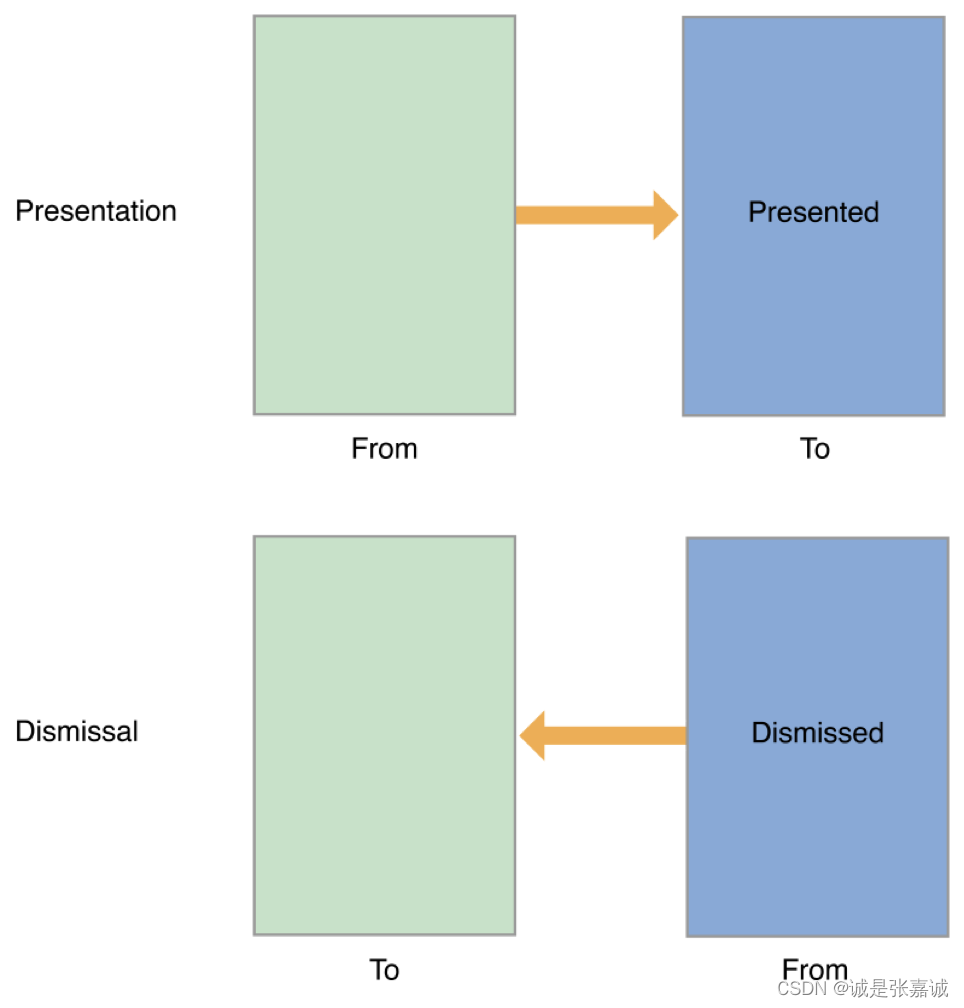
Swapping the values makes it easier to write a single animator that handles both presentations and dismissals. When you design your animator, all you have to do is include a property to know whether it is animating a presentation or dismissal. The only required difference between the two is the following:
For a presentation, add the “to” view to the container view hierarchy.
For a dismissal, remove the “from” view from the container view hierarchy.
可以只用一套动画对象执行添加和删除两种过渡,将from和to倒置即可
Creating the animations using Core Animation or UIView animation methods. When animating the main view, the basic actions you take to configure your animations are the same. You fetch the objects and data you need from the transitioning context object and use that information to create your actual animations.做动画时从transition上下文对象中取需要的对象和数据并用他们做动画
Presentation animations:
Use the viewControllerForKey: and viewForKey: methods to retrieve the view controllers and views involved in the transition.
Set the starting position of the “to” view. Set any other properties to their starting values as well.
Get the end position of the “to” view from the finalFrameForViewController: method of the context transitioning context.
Add the “to” view as a subview of the container view.
Create the animations.
In your animation block, animate the “to” view to its final location in the container view. Set any other properties to their final values as well.
In the completion block, call the completeTransition: method, and perform any other cleanup.
Dismissal animations:
Use the viewControllerForKey: and viewForKey: methods to retrieve the view controllers and views involved in the transition.
Compute the end position of the “from” view. This view belongs to the presented view controller that is now being dismissed.
Add the “to” view as a subview of the container view.
During a presentation, the view belonging to the presenting view controller is removed when the transition completes. As a result, you must add that view back to the container during a dismissal operation.
Create the animations.
In your animation block, animate the “from” view to its final location in the container view. Set any other properties to their final values as well.
In the completion block, remove the “from” view from your view hierarchy and call the completeTransition: method. Perform any other cleanup as needed.
添加新的和移除旧的几乎一样,放在一起翻译
用viewControllerForKey: 和 viewForKey: 方法取过渡所需的VC
设置/计算to/from视图的初始/结束值
这步添加视图独有,就是从过渡上下文的 finalFrameForViewController: 方法中取to视图的过渡终点
添加或移除to/from视图
创建动画
在动画闭包中将to/from视图动画到最终位置,同时设置其他属性值为动画结束时的值
在完成闭包中调用completeTransition: 方法,移除from视图并做其他收尾工作
Figure 10-5 shows a custom presentation and dismissal transition that animates its view diagonally. During a presentation, the presented view starts offscreen and animates diagonally up and to the left until it is visible. During a dismissal, the view reverses its direction and animates down and to the right until it is offscreen once again.
Figure 10-5A custom presentation and dismissal
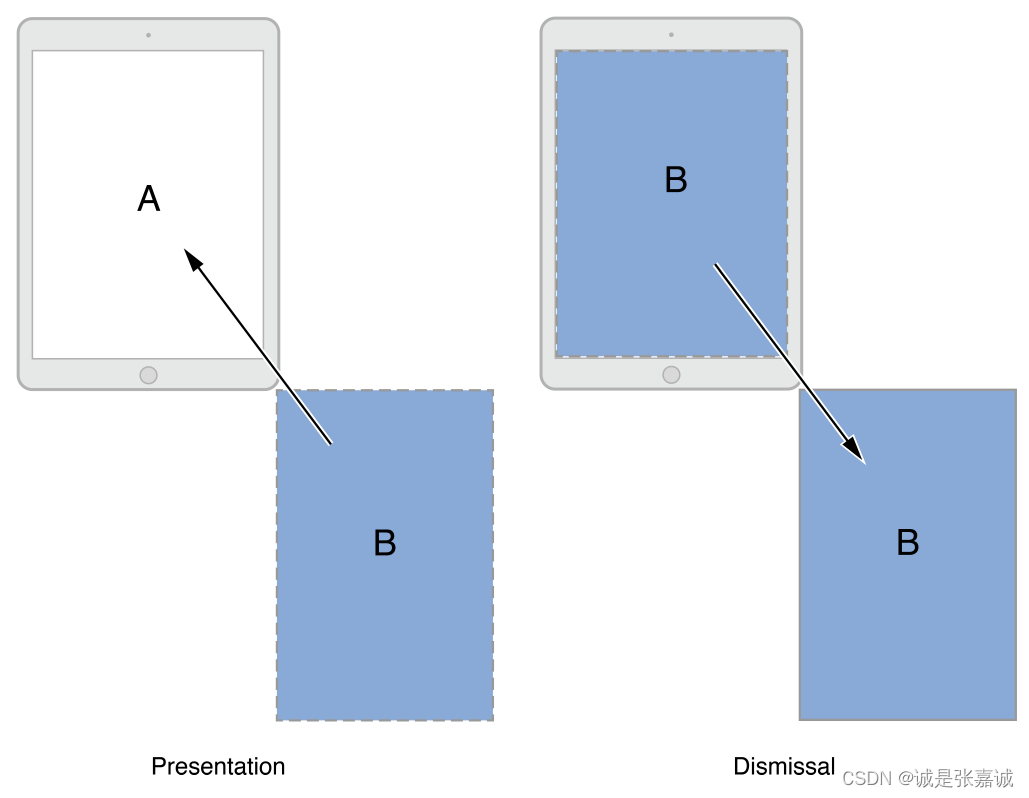
Cleaning up and completing the transition.清理并完成过渡
At the end of a transition animation, it is critical that you call the completeTransition: method. Calling that method tells UIKit that the transition is complete and that the user may begin to use the presented view controller. Calling that method also triggers a cascade of other completion handlers, including the one from the presentViewController:animated:completion: method and the animator object’s own animationEnded: method. The best place to call the completeTransition: method is in the completion handler of your animation block.
Because transitions can be canceled, you should use the return value of the transitionWasCancelled method of the context object to determine what cleanup is required. When a presentation is canceled, your animator must undo any modifications it made to the view hierarchy. A successful dismissal requires similar actions
动画结束时刻需要调用completeTransition: 方法通知UIKit过渡已完成,新VC已可用,调用completeTransition: 方法时会触发其他一系列包括presentViewController:animated:completion: 方法和动画对象自己的 animationEnded: 方法。最好在动画闭包的完成闭包中调用completeTransition: 方法。
过渡可被取消,所以你应该使用 transitionWasCancelled 方法的返回值决定哪些清理工作是必须的,过渡被取消时必须能撤销更改
为transition添加可交互性
用UIPercentDrivenInteractiveTransition 对象让transition可交互,它与已存在的动画对象一起控制动画时间。它使用您提供的完成度来做到这一点。您只需设置计算完成百分比值所需的事件处理代码,并在每个新事件到达时进行更新。
用UIPercentDrivenInteractiveTransition 的时候可以带子类,带子类的话用初始化器或者startInteractiveTransition: 方法执行一次性事件处理的设置,之后用自定义的事件处理代码计算完成度然后调用updateInteractiveTransition: 方法,如果确定transition应该结束了,调用finishInteractiveTransition 方法。
A gesture recognizer calls its action method for each new event that arrives. Your implementation of the action method can use the gesture recognizer’s state information to determine whether the gesture succeeded, failed, or is still in progress. At the same time, you can use the latest touch event information to compute a new percentage value for the gesture.
Note
The value you compute represents the completion percentage for the entire length of the animation. For interactive animations, you might want to avoid nonlinear effects such as initial velocities, damping values, and nonlinear completion curves in the animations themselves. Such effects tend to decouple the touch location of events from the movement of any underlying views.
手势识别器为每个到达的新事件调用其action方法,此方法中可以通过手势识别状态信息确定手势是否成功或仍在进行中,同时可以使用最后一次触摸事件为手势计算新的百分比
你计算的值代表了整个动画的完成度,对于交互式动画,需要避免动画本身的非线性效果,如初始速度、阻尼值和非线性完成曲线。这种效果往往会使事件的触摸位置与任何基础视图的移动脱钩
Any object can create animations, as long as it is able to access the transitionCoordinator property of the presented or presenting view controller. The transition coordinator exists only while a transition is in progress.To create animations, call the animateAlongsideTransition:completion: or animateAlongsideTransitionInView:animation:completion: method of the transition coordinator. The blocks you provide are stored until the transition animations begin, at which point they are executed along with the rest of the transition animations.
任何对象都可以创建动画,只要他能访问新旧VC其中之一的transitionCoordinator 属性,transition协调只在transition过程中存在,调用transition协调的animateAlongsideTransition:completion: o或animateAlongsideTransitionInView:animation:completion: 方法创建动画。你创建的闭包在过渡动画开始之前会被保存,之后的某个时刻将会和其他transition动画一起执行。
Using a Presentation Controller with Your Animations
For custom presentations, you can provide your own presentation controller to give the presented view controller a custom appearance. Presentation controllers manage any custom chrome that is separate from the view controller and its contents. For example, a dimming view placed behind the view controller’s view would be managed by a presentation controller. The fact that it does not manage a specific view controller’s view means that you can use the same presentation controller with any view controller in your app.
You provide a custom presentation controller from the transitioning delegate of the presented view controller. (The modalTransitionStyle property of the view controller must be UIModalPresentationCustom.) The presentation controller operates in parallel with any animator objects. As the animator objects animate the view controller’s view into place, the presentation controller animates any additional views into place. At the end of a transition, the presentation controller has an opportunity to perform any final adjustments to the view hierarchy.
对于自定义显示,你可以提供自己的显示控制器给到新VC一个自定义外观。显示控制器管理的东西和VC以及他的内容是相分离的,所以它可以和所有任何VC一起使用
通过新VC的transition代理提供自定义显示控制器(VC的modalTransitionStyle属性必须是UIModalPresentationCustom.的)。
Creating Custom Presentations
UIKit separates the content of your view controllers from the way that content is presented and displayed onscreen. Presented view controllers are managed by an underlying presentation controller object, which manages the visual style used to display the view controller’s view. A presentation controller may do the following:
Set the size of the presented view controller.
Add custom views to change the visual appearance of the presented content.
Supply transition animations for any of its custom views.
Adapt the visual appearance of the presentation when changes occur in the app’s environment.
UIKit provides presentation controllers for the standard presentation styles. When you set the presentation style of a view controller to UIModalPresentationCustom and provide an appropriate transitioning delegate, UIKit uses your custom presentation controller instead.
UIKit将VC内容与内容显示规则分离,新VC被底层的presentation控制器对象管理,用于管理view的显示视觉
presentation控制器会做以下工作
设置新VC的尺寸
添加自定义视图改变新内容的外观
为自定义视图支持过渡动画
当app环境发生改变时适配presentation的外观
自定义presentation时需要将VC的presentation style设置为UIModalPresentationCustom并提供合适的过渡代理
A presentation controller works alongside any animator objects to implement the overall transition. The animator objects animate the view controller’s contents onto the screen and the presentation controller handles everything else. Normally, your presentation controller animates its own views, but you can also override the presentation controller’s presentedView method and let the animator objects animate all or some of those views.
Presentation控制器和其他动画对象一起实现整体的过渡,动画对象负责将内容动画到屏幕上,其余工作均有presentation控制器来做。一般presentation控制器动画他的视图,但也可通过重写presentation控制器的presentedView 方法让动画对象来动画那些视图
显示期间,UIKit会做以下工作
During a presentation, UIKit:
Calls the presentationControllerForPresentedViewController:presentingViewController:sourceViewController: method of the transitioning delegate to retrieve your custom presentation controller
调用过渡控制器的presentationControllerForPresentedViewController:presentingViewController:sourceViewController: 方法取自定义的presentation控制器
Asks the transitioning delegate for the animator and interactive animator objects, if any
查找动画对象的过渡代理
Calls your presentation controller’s presentationTransitionWillBegin method
Your implementation of this method should add any custom views to the view hierarchy and configure the animations for those views.
调用presentation控制器的动画presentationTransitionWillBegin方法,此方法中应该往层级中添加自定义视图并为这些视图配置
Gets the presentedView from your presentation controller
The view returned by this method is animated into position by the animator objects. Normally, this method returns the root view of the presented view controller. Your presentation controller can replace that view with a custom background view, as needed. If you do specify a different view, you must embed the root view of the presented view controller into your view hierarchy.
获取presentation控制器的presentedView,返回的view将会被动画对象动画到指定位置,一般情况下这个方法返回新VC的根视图,可以替换成其他视图,如果替换的话必须手动嵌入根视图
Performs the transition animations
The transition animations include the main ones created by the animator objects and any animations you configured to run alongside the main animations.
During the animation process, UIKit calls the containerViewWillLayoutSubviews and containerViewDidLayoutSubviews methods of your presentation controller so that you can adjust the layout of your custom views as needed.
执行过渡动画。过渡动画包含了一个动画对象创建的主要动画和其他和主动画一起运行的配置动画。动画期间,UIKit调用presentation控制器的containerViewWillLayoutSubviews 和 containerViewDidLayoutSubviews 方法以便于调整自定义视图布局
Calls the presentationTransitionDidEnd: method when the transition animations finish
过渡动画结束时调用它的 presentationTransitionDidEnd: 方法
一个消失过程中UIKit会做以下工作:
During a dismissal, UIKit:
Gets your custom presentation controller from the currently visible view controller
获取当前可见的VC的自定义presentation控制器
Asks the transitioning delegate for the animator and interactive animator objects, if any
查找动画对象是否存在过渡代理
Calls your presentation controller’s dismissalTransitionWillBegin method
Your implementation of this method should add any custom views to the view hierarchy and configure the animations for those views .
调用presentation控制器的dismissalTransitionWillBegin 方法,此方法需要向层级中添加自定义视图并为这些视图配置动画
Gets the already presentedView from your presentation controller
获取presentation控制器的presentedView
Performs the transition animations
The transition animations include the main ones created by the animator objects and any animations you configured to run alongside the main animations.
During the animation process, UIKit calls the containerViewWillLayoutSubviews and containerViewDidLayoutSubviews methods of your presentation controller so that you can remove any custom constraints.
执行过渡动画。过渡动画包含了一个动画对象创建的主要动画和其他和主动画一起运行的配置动画。动画期间,UIKit调用presentation控制器的containerViewWillLayoutSubviews 和 containerViewDidLayoutSubviews 方法以便于调整自定义视图布局
Calls the dismissalTransitionDidEnd: method when the transition animations finish
过渡动画结束时调用它的 dismissalTransitionDidEnd: 方法
During the presentation process, The frameOfPresentedViewInContainerView and presentedView methods of your presentation controller may be called several times, so your implementations should return quickly. Also, your implementation of your presentedView method should not try to set up the view hierarchy. The view hierarchy should already be configured by the time the method is called.
显示过程中,presentation控制器的frameOfPresentedViewInContainerView 和 presentedView 方法可能会被调用很多次,在presentedView 方法的实现中不应该设置视图层级,在此方法被调用之前视图层级应已配置完毕
Creating a Custom Presentation Controller
To implement a custom presentation style, subclass UIPresentationController and add code to create the views and animations for your presentation. When creating a custom presentation controller, consider the following questions:
What views do you want to add?
How do you want to animate any additional views onscreen?
What size should the presented view controller be?
How should the presentation adapt between a horizontally regular and horizontally compact size class?
Should the presenting view controller’s view be removed when the presentation finishes?
All of these decisions require overriding different methods of the UIPresentationController class.
自定义presentation控制器
通过子类化UIPresentationController 并且添加视图和动画来自定义presentation风格,在自定义时应考虑以下问题:
需要添加哪些视图
额外的视图应怎样动画到屏幕上
新VC尺寸应该多大
Presentation在横全屏和横分屏下的适配
新VC来的时候旧VC是否应该移除
全部的工作都在UIPresentationController 类中,子类化它并重写一些方法
By default, a presented view controller is sized to completely fill the container view’s frame. To change the frame rectangle, override your presentation controller’s frameOfPresentedViewInContainerView method.
默认情况下新VC会填满整个容器VC,可以通过重写presentation控制器的frameOfPresentedViewInContainerView 方法改变尺寸
Custom presentations often involve adding custom views to the presented content. Use custom views to implement purely visual adornments or use them to add practical behaviors to the presentation. For example, a background view might incorporate gesture recognizers to track specific actions outside the bounds of the presented content.The presentation controller is responsible for creating and managing all custom views associated with its presentation. Usually, you create custom views during the initialization of your presentation controller.
自定义presentation通常会引起向新内容中添加自定义视图,用这些自定义视图实现视觉修饰或向presentation添加一些行为。presentation控制器负责创建和管理所有和它有关的自定义视图,一般来说,应该在presentation控制器的初始化过程中创建自定义视图
You animate your custom views onto the screen using the presentationTransitionWillBegin method. In this method, configure your custom views and add them to the container view. Use the transition coordinator of either the presented or presenting view controller to create any animations. Do not modify the presented view controller’s view in this method. The animator objects are responsible for animating the presented view controller into the frame rectangle you return from your frameOfPresentedViewInContainerView method.
使用presentationTransitionWillBegin 方法动画自定义视图到屏幕上,在这个方法中配置自定义视图并将他们添加到容器VIew中,使用新VC或旧VC的过渡协调器创建任何动画,不要在此方法中修改旧VC的view,动画对象负责将新VC移动到frameOfPresentedViewInContainerView 方法返回的矩形框里
At the end of a presentation, use the presentationTransitionDidEnd: method to handle any cleanup caused by the cancelation of the presentation. An interactive animator object might cancel a transition if its threshold conditions are not met. When that happens, UIKit calls the presentationTransitionDidEnd: method with a value of NO. When a cancelation occurs, remove any custom views you added at the beginning of the presentation and return any other views to their previous configurations
presentation结束时,使用presentationTransitionDidEnd: 方法处理因为presentation取消残留的垃圾。如果没达到可交互动画师对象的临界条件,它可能会取消过渡。这种情况发生时,UIKit会传false给 presentationTransitionDidEnd: 方法,当取消发生时,移除所有presentation添加上去的自定义视图并返回所有视图到之前的配置
When the view controller is dismissed, use the dismissalTransitionDidEnd: methods to remove your custom views from the view hierarchy. If you want to animate the disappearance of your views, set up those animations in the dismissalTransitionDidEnd: method. Always check the parameter of the dismissalTransitionDidEnd: method to see if the dismissal was successful or was canceled.
当VC消失时,调用dismissalTransitionDidEnd: 方法从层级中移除所有自定义视图,如果你想为这个过程添加动画,把这些动画写进dismissalTransitionDidEnd: 方法中,记得检查方法的参数来判断dismissal是否成功
显示VC时,自定义presentation控制器应做如下操作
When presenting a view controller, do the following to display it using your custom presentation controller:
Set the modalPresentationStyle property of the presented view controller to UIModalPresentationCustom.
设置新VC的modalPresentationStyle 属性为UIModalPresentationCustom
Assign a transitioning delegate to the transitioningDelegate property of the presented view controller.
给新VC的transitioningDelegate 属性赋值一个过渡代理
Implement the presentationControllerForPresentedViewController:presentingViewController:sourceViewController: method of the transitioning delegate.
实现过渡代理的presentationControllerForPresentedViewController:presentingViewController:sourceViewController: 方法
UIKit calls the presentationControllerForPresentedViewController:presentingViewController:sourceViewController: method of your transitioning delegate when it needs your presentation controller. Simply create your presentation controller, configure it, and return it. If you return nil from this method, UIKit presents the view controller using a full-screen presentation style.
Adapting to Different Size Classes
While a presentation is onscreen, UIKit notifies your presentation controller when changes occur to the underlying traits or to the size of the container view. Such changes typically occur during a device rotation but may occur at other times. You can use trait and size notifications to adjust your presentation’s custom views and update your presentation style as appropriate.

 369


 扫一扫


 被折叠的 条评论
为什么被折叠?
 到【灌水乐园】发言


