



 本文介绍了一款美图应用的开发过程,重点讲解了如何使用 RecyclerView 实现图片展示,并通过 Glide 进行图片加载优化。同时,展示了如何通过 OkGo 获取网络数据并解析 JSON 数据,最终实现动态更新界面。
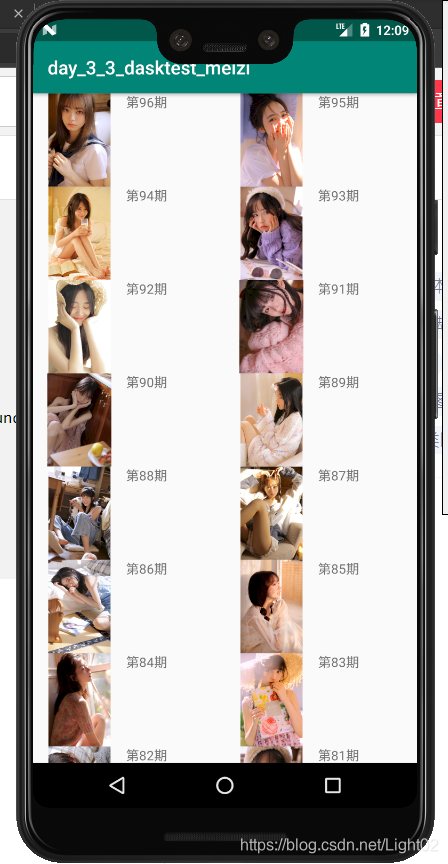
作业一访问网站
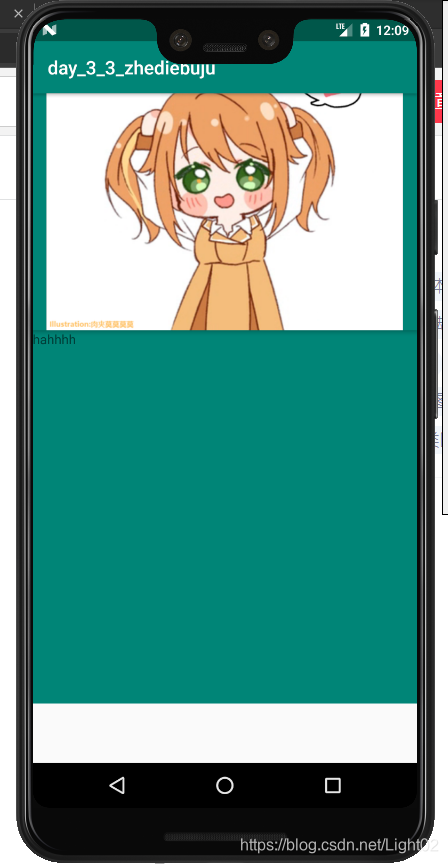
作业二折叠布局
网站访问代码
package com.example.day_3_3_dasktest_meizi;

import android.content.Context;
import android.view.LayoutInflater;
import android.view.View;
import android.view.ViewGroup;
import android.widget.ImageView;
import android.widget.TextView;

import androidx.annotation.NonNull;
import androidx.recyclerview.widget.RecyclerView;

import com.bumptech.glide.Glide;

import java.util.List;

public class FoodAdapter extends RecyclerView.Adapter<FoodAdapter.ViewHolder>{
    Context context;
    List<KaWaYi.DataBean> list;

    public FoodAdapter(Context context, List<KaWaYi.DataBean> list) {
        this.context = context;
        this.list = list;
    }

    @NonNull
    @Override
    public ViewHolder onCreateViewHolder(@NonNull ViewGroup parent, int viewType) {
        View inflate = LayoutInflater.from(context).inflate(R.layout.food_item, null);
        return new ViewHolder(inflate);
    }

    @Override
    public void onBindViewHolder(@NonNull ViewHolder holder, int position) {
        KaWaYi.DataBean dataBean = list.get(position);
        holder.textView.setText(dataBean.getTitle());
        Glide.with(context).load(dataBean.getUrl()).into(holder.imageView);
    }

    @Override
    public int getItemCount() {
        return list.size();
    }

    class ViewHolder extends  RecyclerView.ViewHolder{

        ImageView imageView;
        TextView textView;

        public ViewHolder(@NonNull View itemView) {
            super(itemView);
            imageView = itemView.findViewById(R.id.img);
            textView = itemView.findViewById(R.id.tv1);
        }
    }
}
package com.example.day_3_3_dasktest_meizi;
import java.util.List;
public class KaWaYi {
/**
* data : [{"_id":"5e959250808d6d2fe6b56eda","author":"鸢媛","category":"Girl","createdAt":"2020-05-25 08:00:00","desc":"与其安慰自己平凡可贵,\n不如拼尽全力活得漂亮。 \u200b \u200b\u200b\u200b\u200b","images":["http://gank.io/images/f4f6d68bf30147e1bdd4ddbc6ad7c2a2"],"likeCounts":7,"publishedAt":"2020-05-25 08:00:00","stars":1,"title":"第96期","type":"Girl","url":"http://gank.io/images/f4f6d68bf30147e1bdd4ddbc6ad7c2a2","views":13477},{"_id":"5e95923f808d6d2fe6b56ed8","author":"鸢媛","category":"Girl","createdAt":"2020-05-24 08:00:00","desc":"这世界总有人在笨拙地爱着你,想把全部的温柔都给你。 \u200b\u200b\u200b\u200b","images":["http://gank.io/images/dc75cbde1d98448183e2f9514b4d1320"],"likeCounts":4,"publishedAt":"2020-05-24 08:00:00","stars":1,"title":"第95期","type":"Girl","url":"http://gank.io/images/dc75cbde1d98448183e2f9514b4d1320","views":5777},{"_id":"5e95922e808d6d2fe6b56ed6","author":"鸢媛","category":"Girl","createdAt":"2020-05-23 08:00:00","desc":"陪伴本来就是这世界上最了不起的安慰\u200b。","images":["http://gank.io/images/6b2efa591564475fb8bc32291fb0007c"],"likeCounts":1,"publishedAt":"2020-05-23 08:00:00","stars":1,"title":"第94期","type":"Girl","url":"http://gank.io/images/6b2efa591564475fb8bc32291fb0007c","views":5101},{"_id":"5e959200ee6ba981da2af34d","author":"鸢媛","category":"Girl","createdAt":"2020-05-22 08:00:00","desc":"长不过执念,短不过善变。","images":["http://gank.io/images/d6bba8cf5b8c40f9ad229844475e9149"],"likeCounts":2,"publishedAt":"2020-05-22 08:00:00","stars":1,"title":"第93期","type":"Girl","url":"http://gank.io/images/d6bba8cf5b8c40f9ad229844475e9149","views":4060},{"_id":"5e9591dcee6ba981da2af34b","author":"鸢媛","category":"Girl","createdAt":"2020-05-21 08:00:00","desc":"无论多么艰难的现在,终会翻篇。\n朝未来大步向前吧,别丧,别止步。","images":["http://gank.io/images/9fa43020cf724c69842eec3e13f6d21c"],"likeCounts":4,"publishedAt":"2020-05-21 08:00:00","stars":1,"title":"第92期","type":"Girl","url":"http://gank.io/images/9fa43020cf724c69842eec3e13f6d21c","views":2713},{"_id":"5e9591c60bd5529b54e712af","author":"鸢媛","category":"Girl","createdAt":"2020-05-20 08:00:00","desc":"希望下一次,能喜欢上一个也喜欢自己的人 \u200b\u200b\u200b\u200b。","images":["http://gank.io/images/d237f507bf1946d2b0976e581f8aab9b"],"likeCounts":0,"publishedAt":"2020-05-20 08:00:00","stars":1,"title":"第91期","type":"Girl","url":"http://gank.io/images/d237f507bf1946d2b0976e581f8aab9b","views":2279},{"_id":"5e9591b6808d6d2fe6b56ed5","author":"鸢媛","category":"Girl","createdAt":"2020-05-19 08:00:00","desc":"这个世界上,\n有些人有多冷漠,\n有些人就有多温暖,\n希望你总会遇到那些温暖对你的人。","images":["http://gank.io/images/25d3e3db2c1248bb917c09dc4f50a46f"],"likeCounts":1,"publishedAt":"2020-05-19 08:00:00","stars":1,"title":"第90期","type":"Girl","url":"http://gank.io/images/25d3e3db2c1248bb917c09dc4f50a46f","views":3147},{"_id":"5e9591a2ee6ba981da2af34a","author":"鸢媛","category":"Girl","createdAt":"2020-05-18 08:00:00","desc":"以前对你的喜欢,\n是见你,念你,陪伴你。\n现在对你的喜欢,\n是不问,不看,不叨扰。","images":["http://gank.io/images/19c99c447e0a40a6b3ff89951957cfb1"],"likeCounts":0,"publishedAt":"2020-05-18 08:00:00","stars":1,"title":"第89期","type":"Girl","url":"http://gank.io/images/19c99c447e0a40a6b3ff89951957cfb1","views":2143},{"_id":"5e959197808d6d2fe6b56ed4","author":"鸢媛","category":"Girl","createdAt":"2020-05-17 08:00:00","desc":"只要结局是喜剧,过程你要我怎么哭都行,幸福可以来的慢一些,\n只要它是真的,如果最后能在一起,晚点我真的无所谓的。","images":["http://gank.io/images/f0c192e3e335400db8a709a07a891b2e"],"likeCounts":0,"publishedAt":"2020-05-17 08:00:00","stars":1,"title":"第88期","type":"Girl","url":"http://gank.io/images/f0c192e3e335400db8a709a07a891b2e","views":3044},{"_id":"5e95915f808d6d2fe6b56ed3","author":"鸢媛","category":"Girl","createdAt":"2020-05-16 08:00:00","desc":"若不是情深似海,思念又怎会泛滥成灾。","images":["http://gank.io/images/bdb35e4b3c0045c799cc7a494a3db3e0"],"likeCounts":3,"publishedAt":"2020-05-16 08:00:00","stars":1,"title":"第87期","type":"Girl","url":"http://gank.io/images/bdb35e4b3c0045c799cc7a494a3db3e0","views":4498}]
* page : 1
* page_count : 10
* status : 100
* total_counts : 96
*/
private int page;
private int page_count;
private int status;
private int total_counts;
private List<DataBean> data;
public int getPage() {
return page;
}
public void setPage(int page) {
this.page = page;
}
public int getPage_count() {
return page_count;
}
public void setPage_count(int page_count) {
this.page_count = page_count;
}
public int getStatus() {
return status;
}
public void setStatus(int status) {
this.status = status;
}
public int getTotal_counts() {
return total_counts;
}
public void setTotal_counts(int total_counts) {
this.total_counts = total_counts;
}
public List<DataBean> getData() {
return data;
}
public void setData(List<DataBean> data) {
this.data = data;
}
public static class DataBean {
/**
* _id : 5e959250808d6d2fe6b56eda
* author : 鸢媛
* category : Girl
* createdAt : 2020-05-25 08:00:00
* desc : 与其安慰自己平凡可贵,
不如拼尽全力活得漂亮。
* images : ["http://gank.io/images/f4f6d68bf30147e1bdd4ddbc6ad7c2a2"]
* likeCounts : 7
* publishedAt : 2020-05-25 08:00:00
* stars : 1
* title : 第96期
* type : Girl
* url : http://gank.io/images/f4f6d68bf30147e1bdd4ddbc6ad7c2a2
* views : 13477
*/
private String _id;
private String author;
private String category;
private String createdAt;
private String desc;
private int likeCounts;
private String publishedAt;
private int stars;
private String title;
private String type;
private String url;
private int views;
private List<String> images;
public String get_id() {
return _id;
}
public void set_id(String _id) {
this._id = _id;
}
public String getAuthor() {
return author;
}
public void setAuthor(String author) {
this.author = author;
}
public String getCategory() {
return category;
}
public void setCategory(String category) {
this.category = category;
}
public String getCreatedAt() {
return createdAt;
}
public void setCreatedAt(String createdAt) {
this.createdAt = createdAt;
}
public String getDesc() {
return desc;
}
public void setDesc(String desc) {
this.desc = desc;
}
public int getLikeCounts() {
return likeCounts;
}
public void setLikeCounts(int likeCounts) {
this.likeCounts = likeCounts;
}
public String getPublishedAt() {
return publishedAt;
}
public void setPublishedAt(String publishedAt) {
this.publishedAt = publishedAt;
}
public int getStars() {
return stars;
}
public void setStars(int stars) {
this.stars = stars;
}
public String getTitle() {
return title;
}
public void setTitle(String title) {
this.title = title;
}
public String getType() {
return type;
}
public void setType(String type) {
this.type = type;
}
public String getUrl() {
return url;
}
public void setUrl(String url) {
this.url = url;
}
public int getViews() {
return views;
}
public void setViews(int views) {
this.views = views;
}
public List<String> getImages() {
return images;
}
public void setImages(List<String> images) {
this.images = images;
}
}
}
package com.example.day_3_3_dasktest_meizi;

import android.os.Bundle;

import androidx.appcompat.app.AppCompatActivity;
import androidx.recyclerview.widget.RecyclerView;
import androidx.recyclerview.widget.StaggeredGridLayoutManager;

import com.google.gson.Gson;
import com.lzy.okgo.OkGo;
import com.lzy.okgo.callback.StringCallback;
import com.lzy.okgo.model.Response;

import java.util.ArrayList;
import java.util.List;

public class MainActivity extends AppCompatActivity {
    List<KaWaYi.DataBean> list = new ArrayList<>();
    private RecyclerView re;

    @Override
    protected void onCreate(Bundle savedInstanceState) {
        super.onCreate(savedInstanceState);
        setContentView(R.layout.activity_main);
        initView();
        final FoodAdapter foodAdapter = new FoodAdapter(this, list);
        re.setLayoutManager(new StaggeredGridLayoutManager(2,StaggeredGridLayoutManager.VERTICAL));
        re.setAdapter(foodAdapter);

        OkGo.<String>get("https://gank.io/api/v2/data/category/Girl/type/Girl/page/1/count/20").execute(new StringCallback() {
            @Override
            public void onSuccess(Response<String> response) {
                String body = response.body();
                KaWaYi kaWaYi = new Gson().fromJson(body, KaWaYi.class);
                List<KaWaYi.DataBean> data = kaWaYi.getData();
                list.addAll(data);
                foodAdapter.notifyDataSetChanged();
            }
        });


    }

    private void initView() {
        re = (RecyclerView) findViewById(R.id.re);
    }
}
XML代码
<?xml version="1.0" encoding="utf-8"?>
<LinearLayout xmlns:android="http://schemas.android.com/apk/res/android"
    xmlns:app="http://schemas.android.com/apk/res-auto"
    xmlns:tools="http://schemas.android.com/tools"
    android:layout_width="match_parent"
    android:layout_height="match_parent"
    tools:context=".MainActivity">

    <androidx.recyclerview.widget.RecyclerView
        android:layout_width="match_parent"
        android:layout_height="match_parent"
        android:id="@+id/re"
        />

</LinearLayout>
<?xml version="1.0" encoding="utf-8"?>
<LinearLayout xmlns:android="http://schemas.android.com/apk/res/android"
    android:orientation="horizontal" android:layout_width="match_parent"
    android:layout_height="wrap_content">
<ImageView
    android:layout_width="100dp"
    android:layout_height="100dp"
    android:id="@+id/img"
    />
    <TextView
        android:layout_width="match_parent"
        android:layout_height="100dp"
        android:id="@+id/tv1"
        />
</LinearLayout>
折叠布局
所需依赖
    implementation 'androidx.coordinatorlayout:coordinatorlayout:1.1.0'
    implementation 'com.google.android.material:material:1.2.1'
<?xml version="1.0" encoding="utf-8"?>
<androidx.coordinatorlayout.widget.CoordinatorLayout xmlns:android="http://schemas.android.com/apk/res/android"
    xmlns:app="http://schemas.android.com/apk/res-auto"
    xmlns:tools="http://schemas.android.com/tools"
    android:layout_width="match_parent"
    android:layout_height="match_parent"
    tools:context=".MainActivity">
    <com.google.android.material.appbar.AppBarLayout
        android:layout_width="match_parent"
        android:layout_height="300dp"
        >
        <com.google.android.material.appbar.CollapsingToolbarLayout
            android:layout_width="match_parent"
            app:layout_scrollFlags="scroll"
            android:minHeight="50dp"
            android:layout_height="300dp"
            >
            <ImageView
                android:layout_width="match_parent"
                android:layout_height="300dp"
                android:src="@mipmap/aaa"
                />
        </com.google.android.material.appbar.CollapsingToolbarLayout>
    </com.google.android.material.appbar.AppBarLayout>
    <androidx.core.widget.NestedScrollView
        android:layout_width="match_parent"
        android:layout_height="wrap_content"
        app:layout_behavior="@string/appbar_scrolling_view_behavior"
        >
        <LinearLayout
            android:layout_width="match_parent"
            android:layout_height="wrap_content"
            android:orientation="vertical"
            >
            <TextView
                android:layout_width="match_parent"
                android:layout_height="400dp"
                android:background="@color/colorPrimary"
                android:text="hahhhh"
                />
            <ImageView
                android:layout_width="wrap_content"
                android:layout_height="400dp"
                android:src="@drawable/ic_launcher_background"
                />
        </LinearLayout>
    </androidx.core.widget.NestedScrollView>

</androidx.coordinatorlayout.widget.CoordinatorLayout>






 扫一扫
扫一扫


 5481
5481


 到【灌水乐园】发言



