


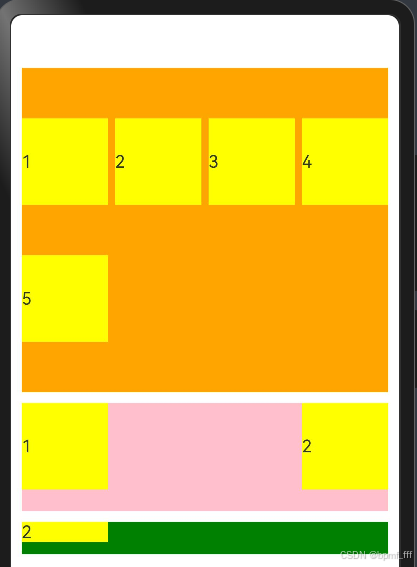
1. Flex 弹性布局
@Entry
@Component
struct Index {
  @State message: string = 'Hello World';

  build() {
    Column({space:10}) {
      // Flex默认内容一行显示,宽度不够时自动挤压
      // alignItems:ItemAlign.Center在flex容器内不生效
      Flex({
        // Flex换行显示
        wrap: FlexWrap.Wrap,
        // 主轴对齐方式
        justifyContent: FlexAlign.SpaceBetween,
        // 交叉轴对齐方式
        // alignItems:ItemAlign.Center
        alignContent:FlexAlign.SpaceEvenly
      }) {
        Text('1')
          .width(80)
          .height(80)
          .backgroundColor(Color.Yellow)
        Text('2')
          .width(80)
          .height(80)
          .backgroundColor(Color.Yellow)
        Text('3')
          .width(80)
          .height(80)
          .backgroundColor(Color.Yellow)
        Text('4')
          .width(80)
          .height(80)
          .backgroundColor(Color.Yellow)
        Text('5')
          .width(80)
          .height(80)
          .backgroundColor(Color.Yellow)
      }
      .height(300)
      .backgroundColor(Color.Orange)

      // 主轴交叉轴justifyContent...
      // Column、Row(属性) 和 Flex(参数)使用差别
      Row(){
        Text('1')
          .width(80)
          .height(80)
          .backgroundColor(Color.Yellow)
        Text('2')
          .width(80)
          .height(80)
          .backgroundColor(Color.Yellow)
      }
      .width('100%')
      .height(100)
      .backgroundColor(Color.Pink)
      .justifyContent(FlexAlign.SpaceBetween)
      .alignItems(VerticalAlign.Top)


      // Flex里没内容时无尺寸,有内容时默认宽度尺寸为100%
      Flex(){
        Text('2')
          .width(80)
          // .height(80)
          .backgroundColor(Color.Yellow)
      }
      .height(30)
      .backgroundColor(Color.Green)
    }
    .width('100%')
    .height('100%')
    .padding(10)
  }
}
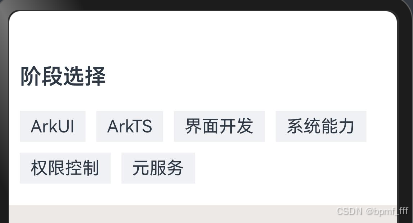
2. 案例-阶段选择
@Entry
@Component
struct Index {

  @State arr:string[] = ['ArkUI','ArkTS','界面开发','系统能力','权限控制','元服务']

  build() {
    Column() {
      // 阶段选择
      Column({space:20}){
        Text('阶段选择')
          .fontSize(20)
          .fontWeight(600)
        Flex({wrap:FlexWrap.Wrap}){
          // 渲染控制
          ForEach(this.arr,(item:string)=>{
            Text(item)
              .padding({left:10,right:10,top:5,bottom:5})
              .backgroundColor('#F0F1F4')
              .margin({right:10,bottom:10})
          })
        }
        .width('100%')
        // .backgroundColor(Color.Yellow)
      }
      .width('100%')
      .padding(10)
      .alignItems(HorizontalAlign.Start)
      .backgroundColor(Color.White)
    }
    .width('100%')
    .height('100%')
    // .padding(10)
    .backgroundColor('#ECE9E7')
  }
}
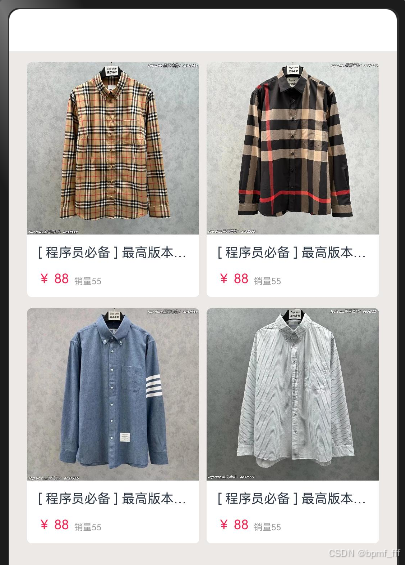
3. 案例-微店卡片
interface Kapian {
  // 对象内出现图片属性时其类型为 ResourceStr
  img: ResourceStr,
  title: string,
  price: string,
  count: string
}

@Entry
@Component
struct Index {
  // 对象数组
  // 定义状态时 不用加let 直接 ‘状态名称:类型= ’
  @State
  kp: Kapian[] = [
    {
      img: $r('app.media.top1'),
      title: '[ 程序员必备 ] 最高版本-格子衫',
      price: '¥ 88',
      count: '销量55'
    },
    {
      img: $r('app.media.top2'),
      title: '[ 程序员必备 ] 最高版本-格子衫',
      price: '¥ 88',
      count: '销量55'
    },
    {
      img: $r('app.media.top3'),
      title: '[ 程序员必备 ] 最高版本-格子衫',
      price: '¥ 88',
      count: '销量55'
    },
    {
      img: $r('app.media.top4'),
      title: '[ 程序员必备 ] 最高版本-格子衫',
      price: '¥ 88',
      count: '销量55'
    },
  /*{
    img: $r('app.media.top5'),
    title: '[ 程序员必备 ] 最高版本-格子衫',
    price: '¥ 88',
    count: '销量55'
  },*/
  ]

  build() {
    Column() {
      // 案例-微店商品
      Flex({
        // 换行
        wrap: FlexWrap.Wrap,
        // 主轴(此处为水平)对齐方式
        justifyContent: FlexAlign.SpaceEvenly,
      }) {
        ForEach(this.kp, (item: Kapian, index: number) => {
          Column() {
            // 图片
            Image(item.img)
              .width('100%')
              .syncLoad(true)
            // 下方文字
            Column({ space: 10 }) {
              // 第一行
              Text(item.title)
                .fontSize(12)
                .maxLines(1)
                .textOverflow({ overflow: TextOverflow.Ellipsis })
              // 第二行
              Row({ space: 5 }) {
                Text(item.price)
                  .fontSize(12)
                  .fontColor('#f52555')
                Text(item.count)
                  .fontSize(8)
                  .fontColor('#999')
              }
              .width('100%')
              .alignItems(VerticalAlign.Bottom)
            }
            .padding(10)
            .backgroundColor(Color.White)
          }
          .borderRadius(5)
          // 裁剪,图片遮盖圆角部分剪掉
          .clip(true)
          .width('47%')
          .margin({ bottom: 10 })
        })

        // 卡片
        /*Column() {
          // 图片
          Image($r('app.media.top1'))
            .width('100%')
            .syncLoad(true)
          // 下方文字
          Column({ space: 10 }) {
            // 第一行
            Text('[ 程序员必备 ] 最高版本-格子衫')
              .fontSize(12)
              .maxLines(1)
              .textOverflow({ overflow: TextOverflow.Ellipsis })
            // 第二行
            Row({ space: 5 }) {
              Text('¥ 88')
                .fontSize(12)
                .fontColor('#f52555')
              Text('销量55')
                .fontSize(8)
                .fontColor('#999')
            }
            .width('100%')
            .alignItems(VerticalAlign.Bottom)
          }
          .padding(10)
          .backgroundColor(Color.White)
          .borderRadius(5)
        }
        .width('47%')*/
      }
      .width('100%')
    }
    .width('100%')
    .height('100%')
    .padding(10)
    .backgroundColor('#ECE9E7')
  }
}
4. 定位
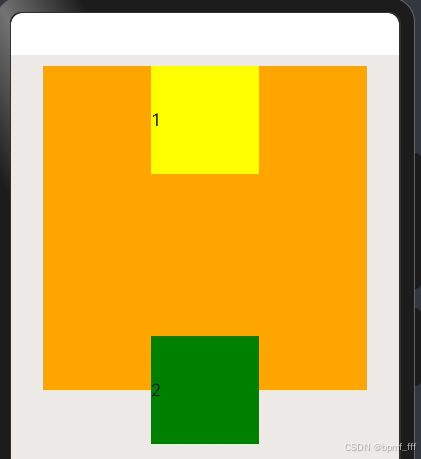
position 绝对定位
@Entry
@Component
struct Index {
  build() {
    Column() {
      Column(){
        Text('1')
          .width(100)
          .height(100)
          .backgroundColor(Color.Yellow)
        Text('2')
          .width(100)
          .height(100)
          .backgroundColor(Color.Green)
          /*绝对定位(常用)
           绝对定位:position,相对父组件左上角进行偏移
           绝对定位后的组件不再占用自身原有位置

           值为百分数时结果参照父级尺寸进行计算
           正值右下,负值左上
          */
          .position({x:'50%',y:'50%'})
      }
      .width(300)
      .height(300)
      .backgroundColor(Color.Orange)
    }
    .width('100%')
    .height('100%')
    .padding(10)
    .backgroundColor('#ECE9E7')
  }
}
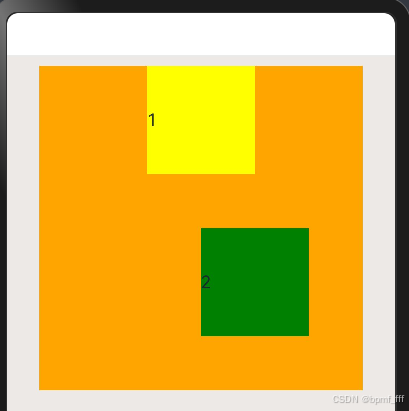
offset 相对定位
@Entry
@Component
struct Index {
  build() {
    Column() {
      Column() {
        Text('1')
          .width(100)
          .height(100)
          .backgroundColor(Color.Yellow)
        Text('2')
          .width(100)
          .height(100)
          .backgroundColor(Color.Green)
          /*相对定位offset:相对自身左上角进行偏移
            相对定位后的组件仍然占用自身原有位置
          * 1. 基于自己原来位置进行偏移
          * 2. 取值为百分比时,参照父组件尺寸计算结果
          */
          .offset({ x: 10, y: -10 })
          .offset({ x: 0, y: '50%' })
      }
      .width(300)
      .height(300)
      .backgroundColor(Color.Orange)
    }
    .width('100%')
    .height('100%')
    .padding(10)
    .backgroundColor('#ECE9E7')
  }
}
5. 案例-人气热播故事
@Entry
@Component
struct Index {

  build() {
    Column() {
      //案例-人气热播故事
      Column(){
        // 上方主图片
        Image($r('app.media.moco'))
          .width('100%')
          .borderRadius(8)
          .syncLoad(true)
        // 左上角 VIP绝对定位
        Text('VIP')
          .position({x:0,y:0})
          .backgroundColor(Color.Orange)
          .fontColor(Color.White)
          .padding({left:5,right:5})
          .fontSize(14)
          .fontStyle(FontStyle.Italic)
          .fontWeight(600)
          .border({
            width:2,
            color:'#F6D38A',
            radius:{topLeft:8,bottomRight:8}
          })
        // 下方区域
        Row({space:5}){
          Image($r('app.media.ic_device_earphone_roc_filled'))
            .width(20)
            .fillColor(Color.White)
            .backgroundColor('#0BB9F2')
            .borderRadius(10)
            .padding(3)
          Text('飞狗MOCO')
            .fontWeight(600)
            .fontSize(14)
        }
        .width('100%')
        .padding(10)
      }
      .width('47%')
      .backgroundColor(Color.White)
      .borderRadius(8)
    }
    .width('100%')
    .height('100%')
    .padding(10)
    .backgroundColor('#ECE9E7')
  }
}

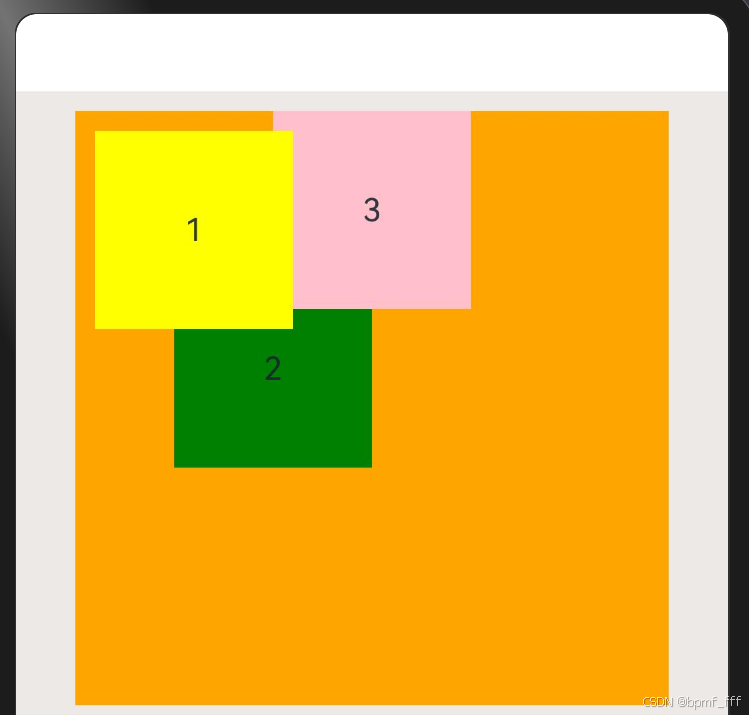
6. zIndex Z序控制
@Entry
@Component
struct Index {

  build() {
    Column() {
      /*定位后组件重叠默认后来者居上,
       可通过zIndex属性调整显示层级
       取值为整数数字,取值越大,显示层级越高*/

      /* 下面代码,默认显示层级为321,
      使用zIndex属性将1设置为最上显示
      之后显示层级为132
       * */
      Column() {
        Text('1')
          .width(100)
          .height(100)
          .backgroundColor(Color.Yellow)
          .textAlign(TextAlign.Center)
          .position({x:10,y:10})
          .zIndex(1)
        Text('2')
          .width(100)
          .height(100)
          .textAlign(TextAlign.Center)
          .backgroundColor(Color.Green)
          .position({x:50,y:80})
        Text('3')
          .width(100)
          .height(100)
          .textAlign(TextAlign.Center)
          .backgroundColor(Color.Pink)
      }
      .width(300)
      .height(300)
      .backgroundColor(Color.Orange)

    }
    .width('100%')
    .height('100%')
    .padding(10)
    .backgroundColor('#ECE9E7')
  }
}
7. Stack 层叠布局
@Entry
@Component
struct Index {
  build() {
    Column() {
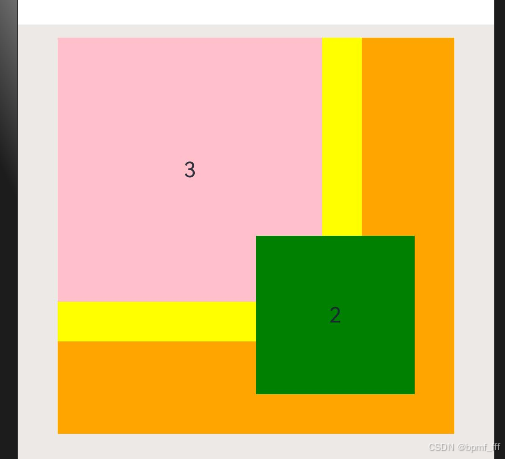
      /*层叠布局
       子元素默认进行居中堆叠
       可通过alignContent改变对齐方式*/
      Stack({alignContent:Alignment.TopStart}){
        Text('1')
          .width(230)
          .height(230)
          .backgroundColor(Color.Yellow)
          .textAlign(TextAlign.Center)
        Text('2')
          .width(120)
          .height(120)
          .textAlign(TextAlign.Center)
          .backgroundColor(Color.Green)
          // 绝对定位
          .position({x:'50%',y:'50%'})
          // Z 序控制
          .zIndex(1)
        Text('3')
          .width(200)
          .height(200)
          .textAlign(TextAlign.Center)
          .backgroundColor(Color.Pink)
      }
      .width(300)
      .height(300)
      .backgroundColor(Color.Orange)
    }
    .width('100%')
    .height('100%')
    .padding(10)
    .backgroundColor('#ECE9E7')
  }
}
8. 案例-B站视频卡片
@Entry
@Component
struct Index {
  build() {
    Column() {

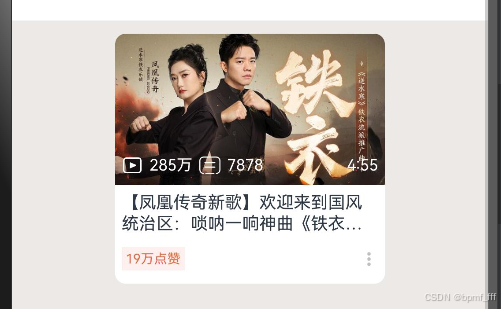
      //案例-B站视频卡片
      Column() {

        // 层叠布局 图片及播放量等
        Stack({ alignContent: Alignment.Bottom }) {
          Image($r('app.media.tieyi'))
            .width('100%')
          Row({ space: 5 }) {
            Image($r('app.media.ic_bofangshu'))
              .width(16)
              .fillColor(Color.White)
            Text('285万')
              .fontSize(12)
              .fontColor(Color.White)
            Image($r('app.media.ic_ziyuan'))
              .width(16)
              .fillColor(Color.White)
            Text('7878')
              .fontSize(12)
              .fontColor(Color.White)

            // Blank 空白组件,填充父容器剩余尺寸
            Blank()

            Text('4:55')
              .fontSize(12)
              .fontColor(Color.White)
          }
          .width('100%')
          .height(30)
          .padding({ left: 5, right: 5 })
        }
        .width('100%')

        // 下方文字区域 标题等
        Column({ space: 10 }) {
          // 标题
          Text('【凤凰传奇新歌】欢迎来到国风统治区:唢呐一响神曲《铁衣流派推广曲》')
            .width('100%')
            .fontSize(13)
            .textOverflow({ overflow: TextOverflow.Ellipsis })
            .maxLines(2)
            .lineHeight(16)
          // 点赞及更多
          Row() {
            Text('19万点赞')
              .padding(3)
              .backgroundColor('#fef0ef')
              .fontSize(10)
              .fontColor('#e66c43')
            Image($r('app.media.ic_gengduo'))
              .width(14)
              .fillColor('#bfbfbf')
          }
          .width('100%')
          .justifyContent(FlexAlign.SpaceBetween)
          .margin({ bottom: 5 })
        }
        .padding(5)
      }
      .width('60%')
      .borderRadius(8)
      .clip(true)
      .backgroundColor(Color.White)
      // .height(200)
    }
    .width('100%')
    .height('100%')
    .padding(10)
    .backgroundColor('#ECE9E7')
  }
}
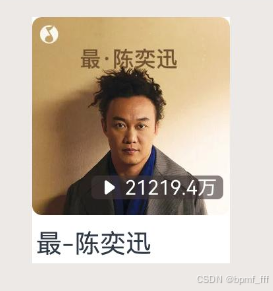
9. 作业1_QQ音乐歌单
@Entry
@Component
struct Index {
  build() {
    Column() {
      // QQ音乐歌单
      // 待定位组件较为简单,使用绝对定位即可
      Column({ space: 5 }) {
        // 主图
        Image($r('app.media.chenyixun'))
          .width('100%')
          .borderRadius(5)
        // 待定位区域
        Row({ space: 2 }) {
          Image($r('app.media.ic_play'))
            .fillColor(Color.White)
            .width(12)
          Text('21219.4万')
            .fontColor(Color.White)
            .fontSize(10)
        }
        .padding({ left: 3, right: 3 })
        .backgroundColor('#9C413636')
        .position({ x: 30, y: 80 })
        .borderRadius(3)
        // 介绍文字
        Text('最-陈奕迅')
          .fontSize(13)
          .width('100%')
          .padding(2)
      }
      .width(100)
      .backgroundColor(Color.White)
    }
    .width('100%')
    .height('100%')
    .padding(10)
    .backgroundColor('#ECE9E7')
  }
}
10. 作业2_网易云歌单
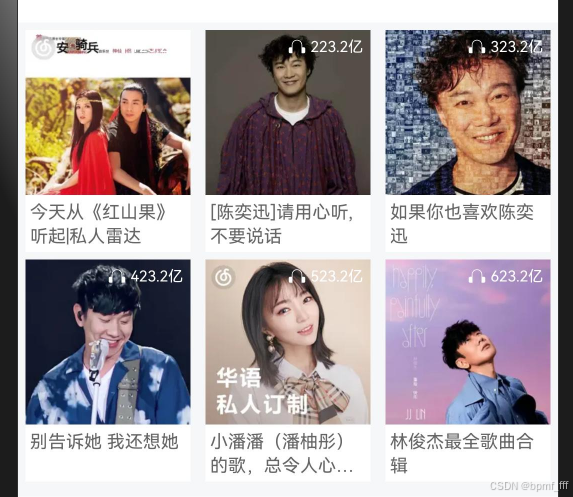
interface playlist {
  img: ResourceStr,
  title: string,
  count: number
}

@Entry
@Component
struct Index {
  // 对象数组
  @State
  pl: playlist[] = [
    {
      img: $r('app.media.music1'),
      title: '今天从《红山果》听起|私人雷达',
      count: 123.2
    },
    {
      img: $r('app.media.music2'),
      title: '[陈奕迅]请用心听,不要说话',
      count: 223.2
    },
    {
      img: $r('app.media.music3'),
      title: '如果你也喜欢陈奕迅',
      count: 323.2
    },
    {
      img: $r('app.media.music4'),
      title: '别告诉她 我还想她',
      count: 423.2
    },
    {
      img: $r('app.media.music5'),
      title: '小潘潘(潘柚彤)的歌,总令人心动向往',
      count: 523.2
    },
    {
      img: $r('app.media.music6'),
      title: '林俊杰最全歌曲合辑',
      count: 623.2
    },
  ]

  build() {
    Column() {
      // 网易云歌单
      Flex({
        wrap: FlexWrap.Wrap,
        justifyContent: FlexAlign.SpaceBetween
      }) {
        ForEach(this.pl, (item: playlist) => {
          Column() {
            // 歌单主图
            Image(item.img)
              .width('100%')
            // 歌单标题
            Text(item.title)
              .width('100%')
              .fontSize(12)
              .lineHeight(16)
              .fontColor('#666')
              .padding(3)
              .maxLines(2)
              .textOverflow({ overflow: TextOverflow.Ellipsis })
            // 右上角歌单播放量 定位区域
            Row({ space: 3 }) {
              Image($r('app.media.ic_headphones'))
                .width(12)
                .fillColor(Color.White)
              Text(`${item.count}亿`)
                .fontSize(10)
                .fontColor(Color.White)
            }
            .position({ x: 55, y: 5 })
          }
          .backgroundColor(Color.White)
          .width(110)
          .height(148)
          .margin({ bottom: 5 })
        })
        /*Column(){
          Image($r('app.media.music2'))
            .width('100%')
          Text('今天从《红山果》听起|私人雷达')
            .width('100%')
            .fontSize(12)
            .lineHeight(16)
            .fontColor('#666')
            .padding(3)
            .maxLines(2)
            .textOverflow({overflow:TextOverflow.Ellipsis})
          Row({space:3}){
            Image($r('app.media.ic_headphones'))
              .width(12)
              .fillColor(Color.White)
            Text('614.2亿')
              .fontSize(10)
              .fontColor(Color.White)
          }
          .position({x:55,y:5})
        }
        .backgroundColor(Color.White)
        .width(110)*/
      }
      .width('100%')
      .backgroundColor('#F6F7F9')
      .padding(5)
    }
    .width('100%')
    .height('100%')
    .backgroundColor(Color.White)
  }
}
11. 作业3_会员卡片
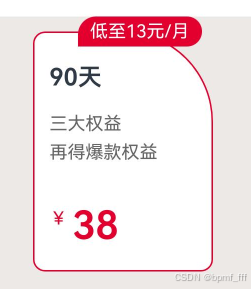
@Entry
@Component
struct Index {
  build() {
    Column() {
      // 会员卡片
      Column() {
        // 主要大框架
        Column() {
          Text('90天')
            .margin({ top: 20 })
            .fontWeight(600)
          Text('三大权益')
            .margin({ top: 15 })
            .fontSize(12)
            .fontColor('#666')
          Text('再得爆款权益')
            .margin({ top: 5 })
            .fontSize(12)
            .fontColor('#666')
          Row({ space: 3 }) {
            Text('¥')
              .fontSize(12)
              .fontColor('#e4002e')
              // .backgroundColor(Color.Green)
            Text('38')
              .fontSize(26)
              .fontWeight(600)
              .fontColor('#e4002e')
              // .backgroundColor(Color.Yellow)
              .lineHeight(26)
          }
          .alignItems(VerticalAlign.Top)
          .margin({ top: 30 })

        }
        .width(120)
        .height(160)
        .alignItems(HorizontalAlign.Start)
        .border({
          width: 1,
          color: '#e4002e',
          radius: {
            topRight: 60,
            topLeft: 8,
            bottomLeft: 8,
            bottomRight: 8
          }
        })
        .backgroundColor(Color.White)
        .padding({ left: 10 })

        // 右上角需定位区域
        Text('低至13元/月')
          .fontSize(12)
          .fontColor(Color.White)
          .height(20)
          .padding({
            left: 8,
            right: 8,
            top: 2,
            bottom: 2
          })
          .backgroundColor('#e4002e')
          .borderRadius({ topLeft: 12, topRight: 10, bottomRight: 10 })
          .position({ x: 30, y: -10 })
      }
      .width(120)
      .height(160)
    }
    .width('100%')
    .height('100%')
    .padding(10)
    .backgroundColor('#ECE9E7')
  }
}
12. 作业4_淘宝店铺
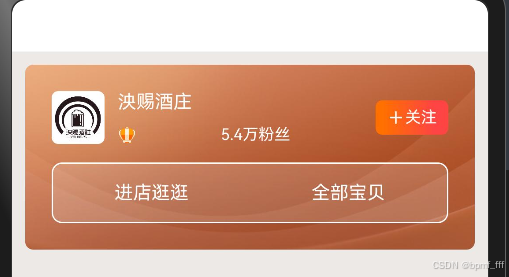
241027修改后代码(关注区域的线性渐变、最下一行的点击区域)
@Entry
@Component
struct Index {
  build() {
    Column() {
      // 淘宝店铺简介
      /* 布局思路(通用)
          从外到内,
          依次写一个大容器组件设置宽高边距圆角等属性,
          最后填充内部较小组件
          先框架后内容!!
       * */
      Column() {
        // 总布局第一行
        Row({ space: 10 }) {
          // 左边 店铺头像
          Image($r('app.media.wine'))
            .width(40)
            .borderRadius(5)

          // 中间
          Column() {
            // 第一行 店铺标题
            Text('泱赐酒庄')
              .fontColor(Color.White)
              .fontSize(14)
            // 第二行 粉丝数量
            Row() {
              Image($r('app.media.crown'))
                .width(14)
                .margin({ right: 64 })
              Text('5.4万粉丝')
                .fontColor(Color.White)
                .fontSize(12)
            }
          }
          .justifyContent(FlexAlign.SpaceBetween)
          .alignItems(HorizontalAlign.Start)
          .height(40)
          .layoutWeight(1)

          // 右边 关注界面
          Row() {
            Image($r('app.media.ic_jia'))
              .width(14)
              .fillColor(Color.White)

            Text('关注')
              .fontSize(12)
              .fontColor(Color.White)
          }
          .justifyContent(FlexAlign.Center)
          .width(55)
          .height(26)
          .borderRadius(5)
          // .backgroundColor('#ff4444')
          // 线性渐变
          /*linearGradient({
              angle?:  线性渐变的起始角度,
              direction?: 线性渐变的方向,
              colors: [[颜色1, 颜色1所处位置], [颜色2, 颜色2所处位置], ......],
              repeating?: 是否重复着色
            })
           */
          .linearGradient({
            direction: GradientDirection.Right,
            colors: [['#ff7000', 0.1], ['#ff4444', 0.8]],
          })
        }
        .width('100%')
        .height(40)
        // .backgroundColor(Color.Yellow)

        // 总布局第二行
        Row() {
          Text('进店逛逛')
            .width('50%')
            .height('100%')
            .fontSize(14)
            .fontColor(Color.White)
            .textAlign(TextAlign.Center)
          // .backgroundColor(Color.Yellow)
          Text('全部宝贝')
            .width('50%')
            .height('100%')
            .fontSize(14)
            .fontColor(Color.White)
            .textAlign(TextAlign.Center)
        }
        .width('100%')
        .height(46)
        .backgroundColor('#2dffffff')
        .border({
          width: 1,
          color: Color.White,
          radius: 8
        })
        // 考虑到实际开发中点击可跳转范围,不用主轴对齐方式,给Text组件添加属性实现相同布局
        // .justifyContent(FlexAlign.SpaceAround)
      }
      .padding(20)
      .width(340)
      .height(140)
      .borderRadius(6)
      .backgroundImage($r('app.media.bg'))
      .backgroundImageSize({ width: '100%', height: '100%' })
      .backgroundImageSize(ImageSize.Cover)
      .justifyContent(FlexAlign.SpaceBetween)

    }
    .width('100%')
    .height('100%')
    .padding(10)
    .backgroundColor('#ECE9E7')
  }
}





 扫一扫
扫一扫


 1604
1604

 被折叠的 条评论
为什么被折叠?
被折叠的 条评论
为什么被折叠?
 到【灌水乐园】发言





