 MonoGame实现牧场物语基础功能



目录
- 【MonoGame游戏开发】| 牧场物语实现 第一卷 : 农场基础实现
【MonoGame游戏开发】| 牧场物语实现 第一卷 : 农场基础实现
前言
在这之前我们说一些废话:我们先介绍一下MonoGame吧
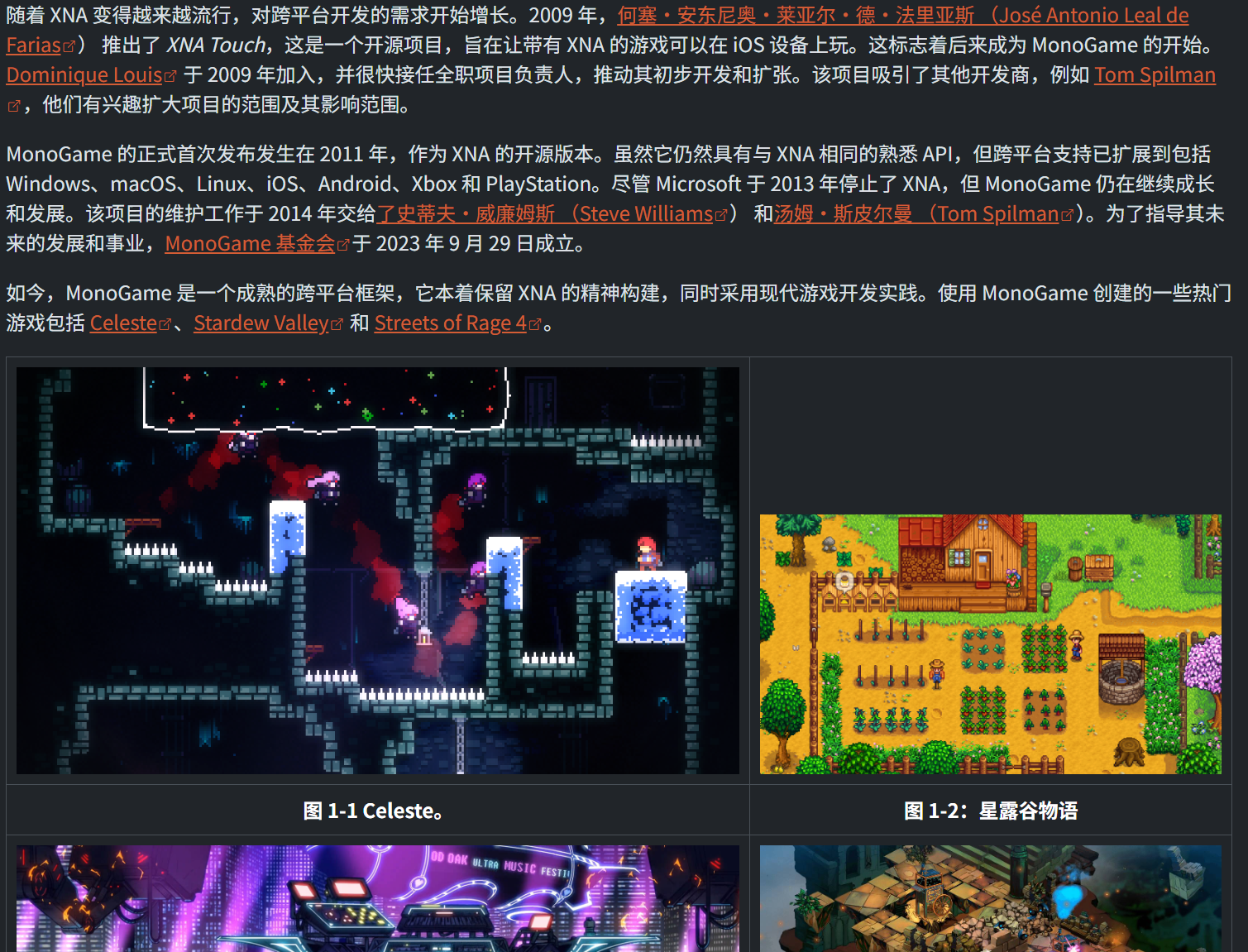
006 年,Microsoft 发布了一个名为 XNA Game Studio 的游戏开发框架,以促进 Windows PC 和 Xbox 360 主机的游戏开发。它带来了一种简化的游戏构建方法,并提供了一套工具来降低有抱负的游戏开发者的进入门槛,从而彻底改变了独立创作者的游戏开发。XNA Game Studio 推出了广受好评的游戏,例如 Bastion 和 Terraria。2008 年,XNA 进行了扩展,以支持 Zune 和 Windows Phone 的开发。这个是官网的解释:
第一章 搭建开发环境
在做任何项目之前我们都必须搭建这个项目所需的环境,那么我们接下来就一步一步的来帮助大家搭建我们进行MonoGame开发所需要的环境,OK我们正式开始!
安装 .NET
.NET 是微软旗下的一款产品,不仅是C#的必须支持而且我们所开发的MonoGame也需要这个东西,当然了因为MonoGame用的就是C#首先我们给出一个网址
.NET 官方下载地址
https://dotnet.microsoft.com/zh-cn/download
常规下载下弹出的弹窗大家同意协议后无脑点击下一步就可以了
现在大家已经完成了第一步我们进行下一步安装VSCode
安装VSCode
第一步
OK 我们接下来进行下一步步骤安装VSCode VSCode 也是微软旗下的一款文本编辑器,当然了他是文本编辑器而不是IDE集成编辑环境,我们需要的组件都需要自己安装
下面给出安装的地址:
VSCode 官方下载地址
https://code.visualstudio.com/
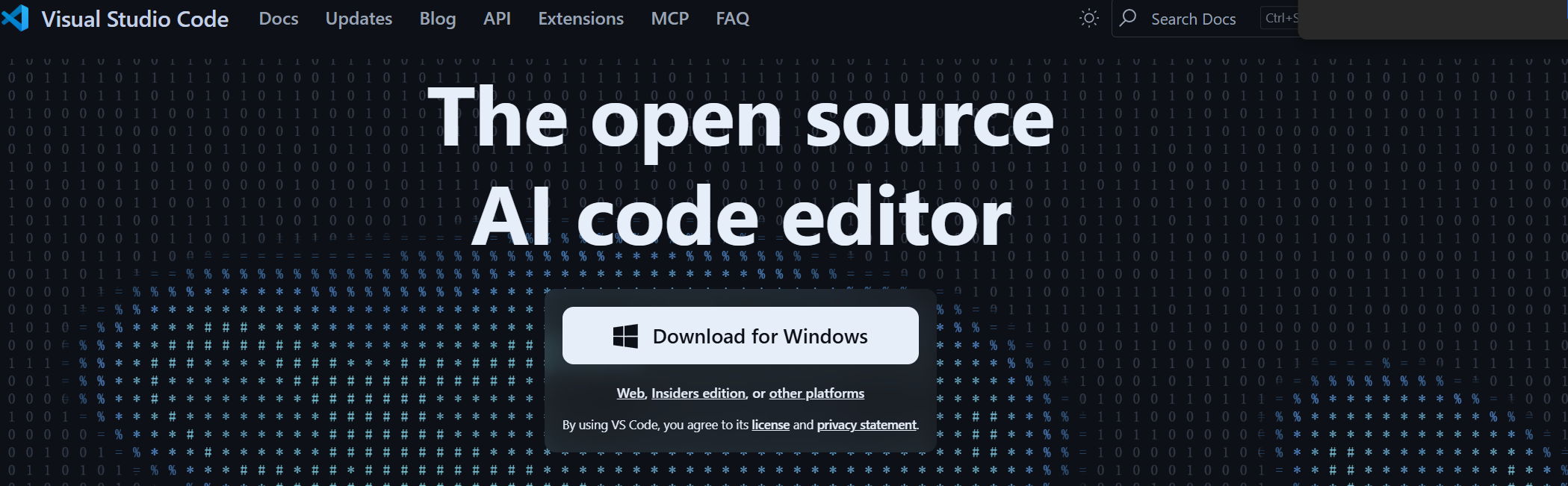
这里点击DownLoad for Windows即可进行安装
这里说一下安装过程中需要注意的点:首先我们同意协议后,选择自己希望的安装路径比如说直接安装再C盘或是选择其他路径,一直无脑点下一步直到遇到下面这一个界面:
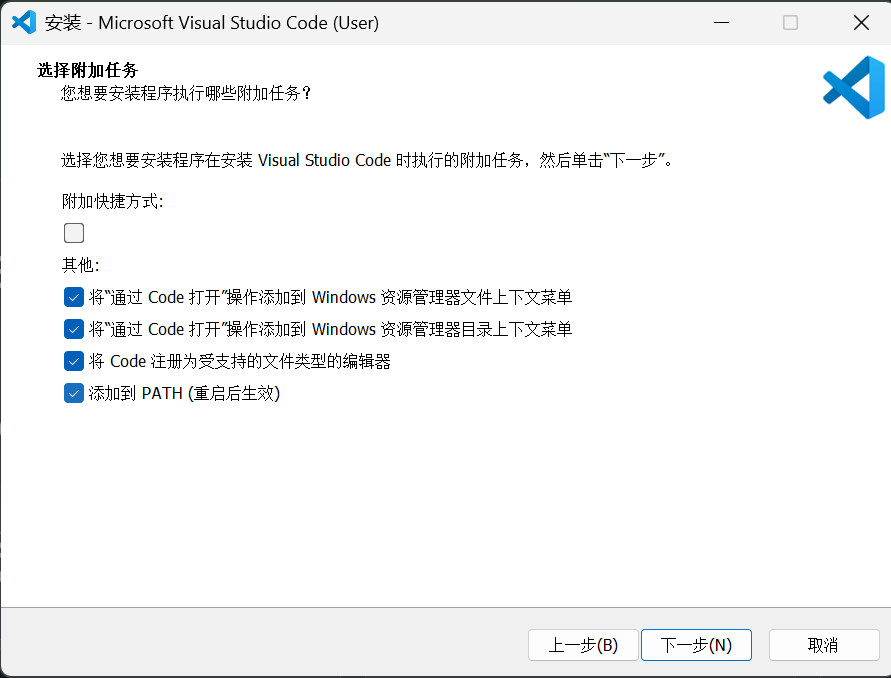
这里我推荐将下面的四个选项全部勾选(强烈推荐)
当然了大家就是不勾选这些东西我们也是可以完成这个项目的,但是为了后续开发的便捷性我还是希望大家能够勾选下面这些选项;那么之后就可以进行安装了;
第二步
我们接下来需要为我们的VSCode配置一些我们需要的组件,以便于我们后续的开发,我们打开VSCode后再你的左手有一列边栏,在最下面那个图标:四个积木搭成的正方向,右上角有一个积木是斜着的图标,点击这个,我们便可以在社区里寻找自己需要的组件以此来搭建自己的开发环境
组件一:Chinese(中文)(可选)
这个组件可选可不选,但是安装之后一定要重启编辑器否则无法生效记住了,他会弹出一个英文提示符意思是叫你重启编辑器,那么什么样的人需要安装这个组件呢?就是像我一样英文基础不好,需要中文组件包的人,当然了,如果你对自己的英文水平足够自信,能够看得懂报错信息等等的日志报告的的话,我当然对你不下载这个保持只接受
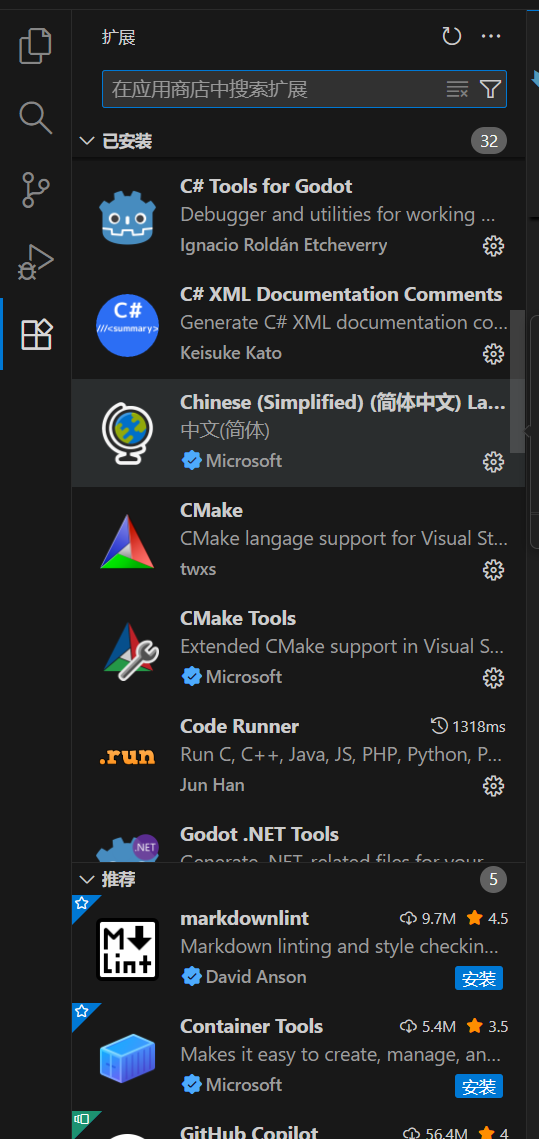
组件二:C# (必选)
这是一个组件包,你只需要下载C#他就会自动帮你下载好所有需要的东西,如果没有自动下载请一定要下载下面这些组件包:除了Godot的C#工具包,就是那个小机器人头像的那一个,那么其他的组件都需要下载,
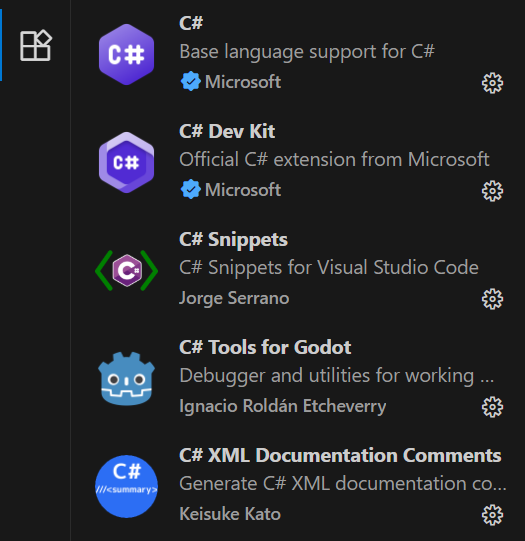
组件三:MonoGame for VSCode(推荐可选)
这个是我强烈推荐的组件,能下载自然是最好,但如果后教程中有部分编辑器的差异请谅解,因为在我使用的电脑上安装有这个组件,这里我再提一嘴:就是那个TODO Hightlight我也是很喜欢的一个开发组件,他会让你的TODO显示高亮模式,这会让你的注释更加美观和完善
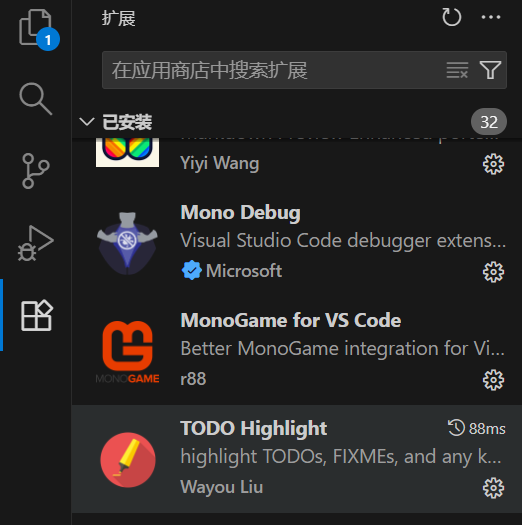
安装MonoGame 框架
OK我们完成了大部分的步骤我们接下来需要的就是安装MonoGame必要的框架了,安装了这个我们就可以在任何位置创建新的MonoGame项目,首先我们需要的是打开名令行窗口,有基础的同学可以跳过这部分,首先我们在电脑上按爪Win + R键召唤出一个窗口,在你的左下角
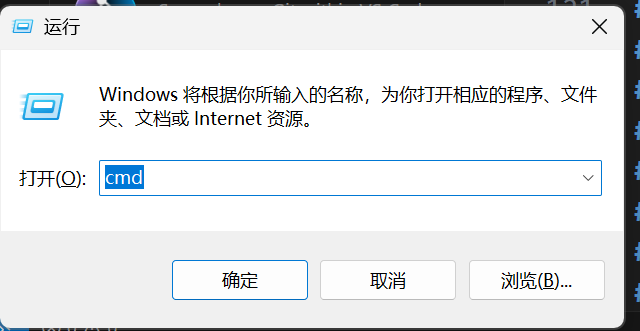
然后输入cmd接着按下回车键就可以召唤命令行窗口
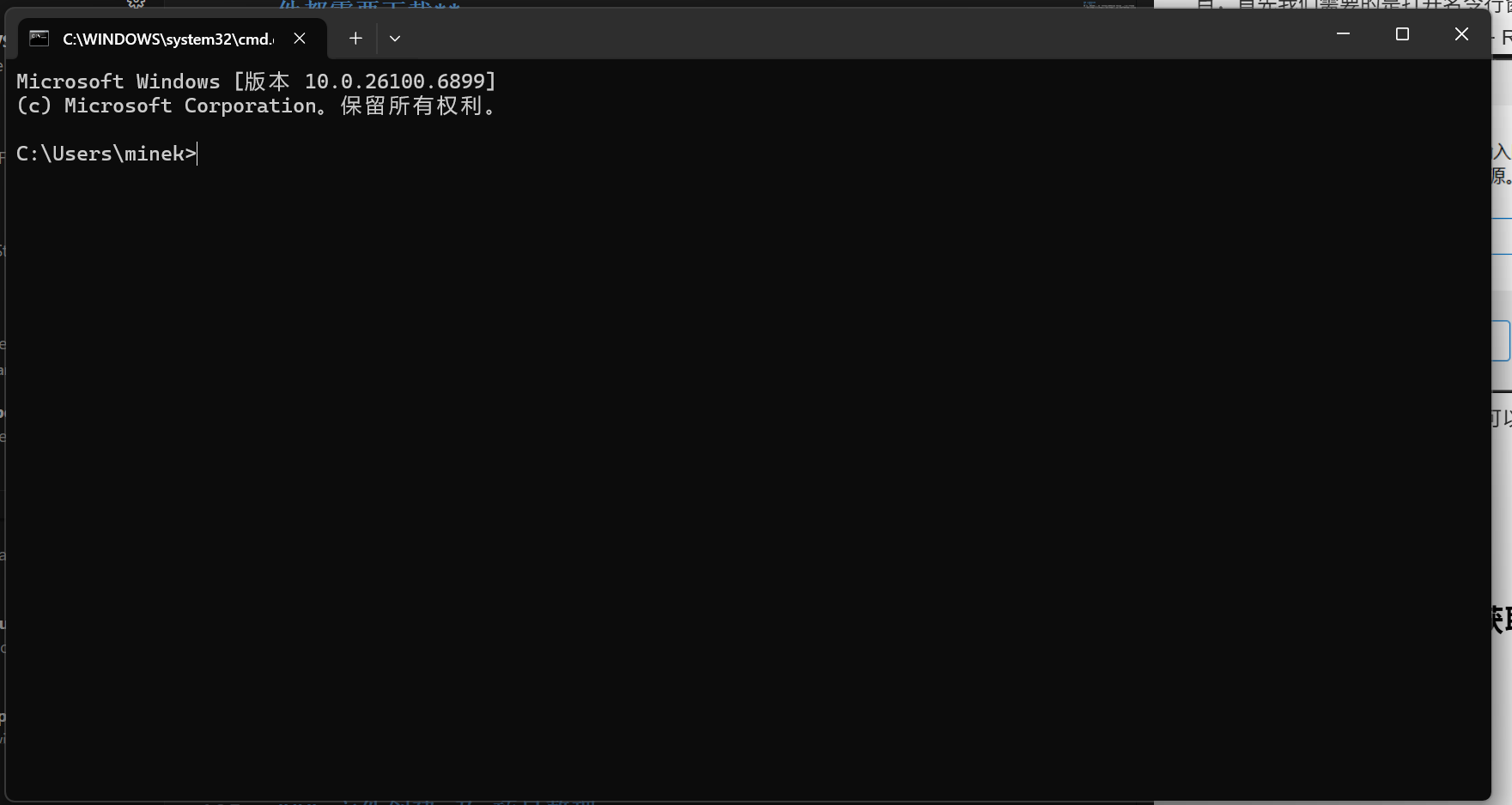
就像这样然后我们就成功打开了命令窗口,这个步骤非常简单,那么我们需要通过命令行窗口为你的电脑安装MonoGame所需要的必要的环境接下来请复制下面这段代码并粘贴到命令行窗口中并回车运行
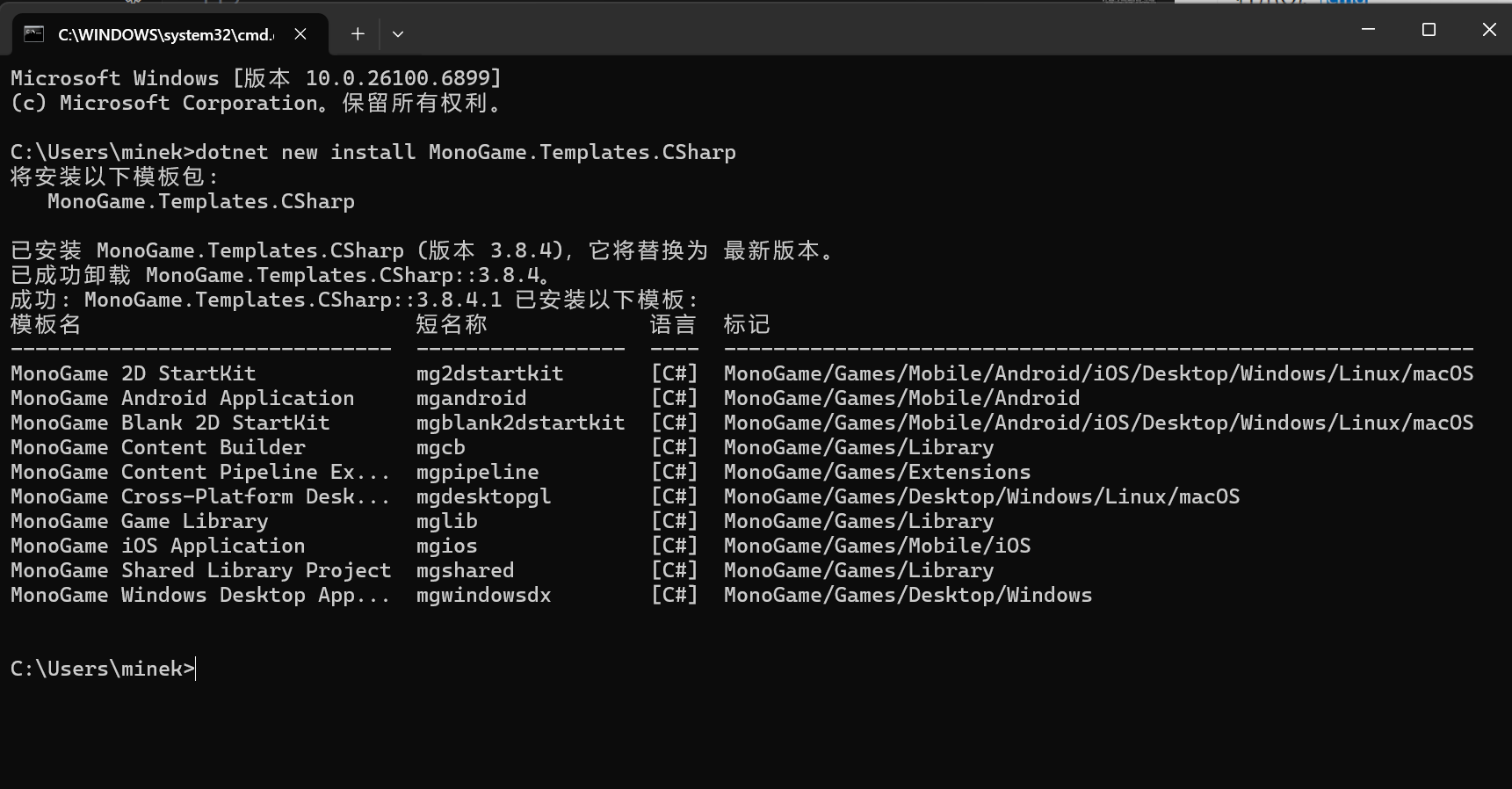
dotnet new install MonoGame.Templates.CSharp
效果如下,当然了我的是已经安装过MonoGame的电脑,所有会有些许不同但是大家一定要等待他安装结束之后再关闭命令行窗口,否则会有一些不好的事情发生,那么安装结束的标志,就是出现类似最后一行:C:\Users\你的用户名> 这样的格式
OK 现在我们已经完成了大部分的内容,我们现在需要创建一个项目。
创建项目
接下来我们要做的就是让自己的代码成功跑起来,MonoGame已经帮我们写好了一部分代码,让我们能供成功的运行起来,渲染出你的一个窗口,那么我们怎么实现呢,首先我们需要创建一个项目文件夹来存放你的代码,美术图片,配置文件,项目版本等等东西,但这一切的前提就是你必须得先有一个文件夹,那么我们直接创建一个就行,希望你会创建一个文件夹,如果不会创建文件夹的话希望先去网络上学习一些电脑的基础知识再来观看我们这个教程,我们这个教程的代码是全部提供的,不用担心,但是我还是希望大家能够自主独立的再抄一遍这样对你开发之旅也有好处!
第一步:创建一个文件夹并取一个喜欢的名字(没什么好教的嘻嘻)
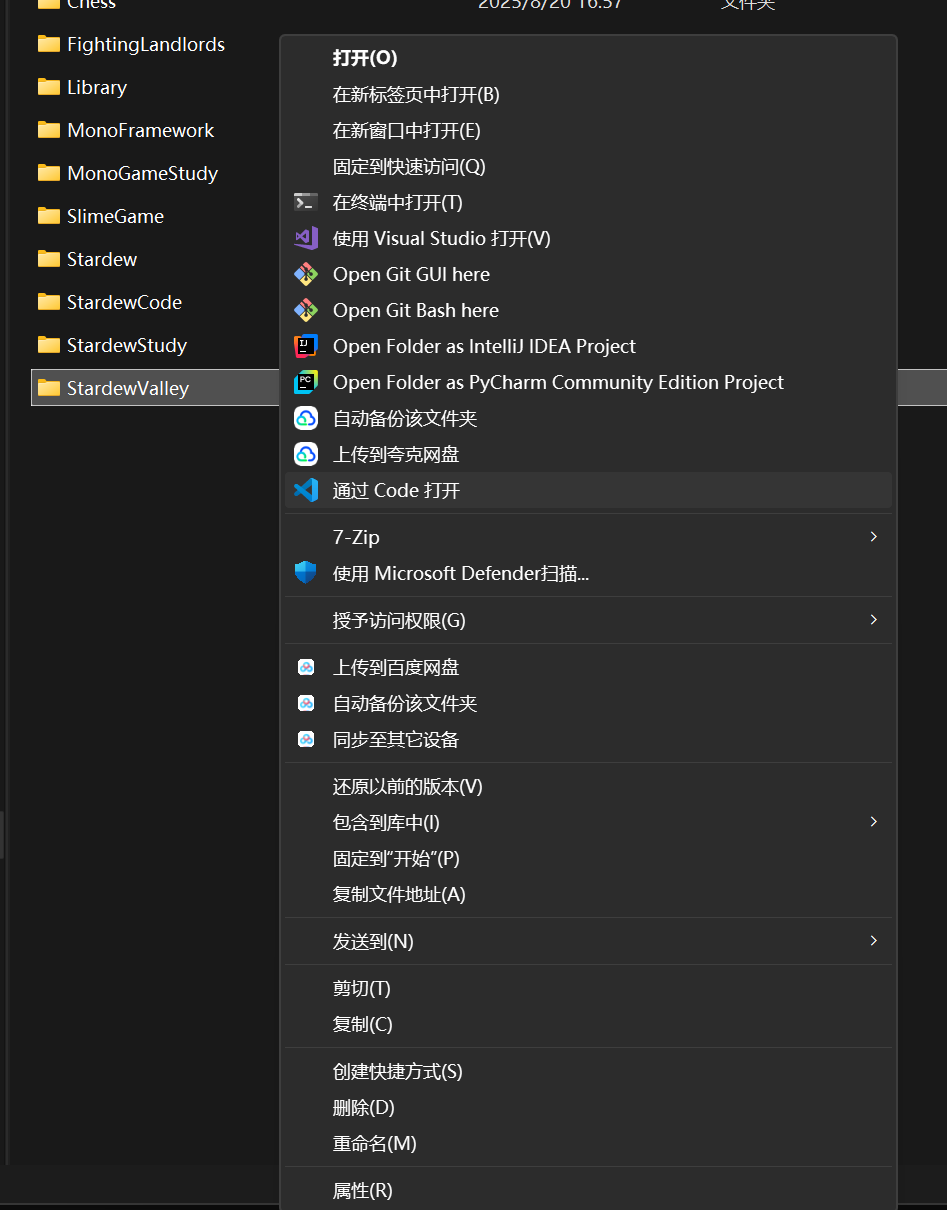
第二步:通过VSCode打开StardewValley
右键点击文件夹,如果操作系统的版本和我一样是Windowns11系统的情况下需要点击最下方的“显示更多选项”以打开项目文件夹
第三步:创建MonoGame模板项目
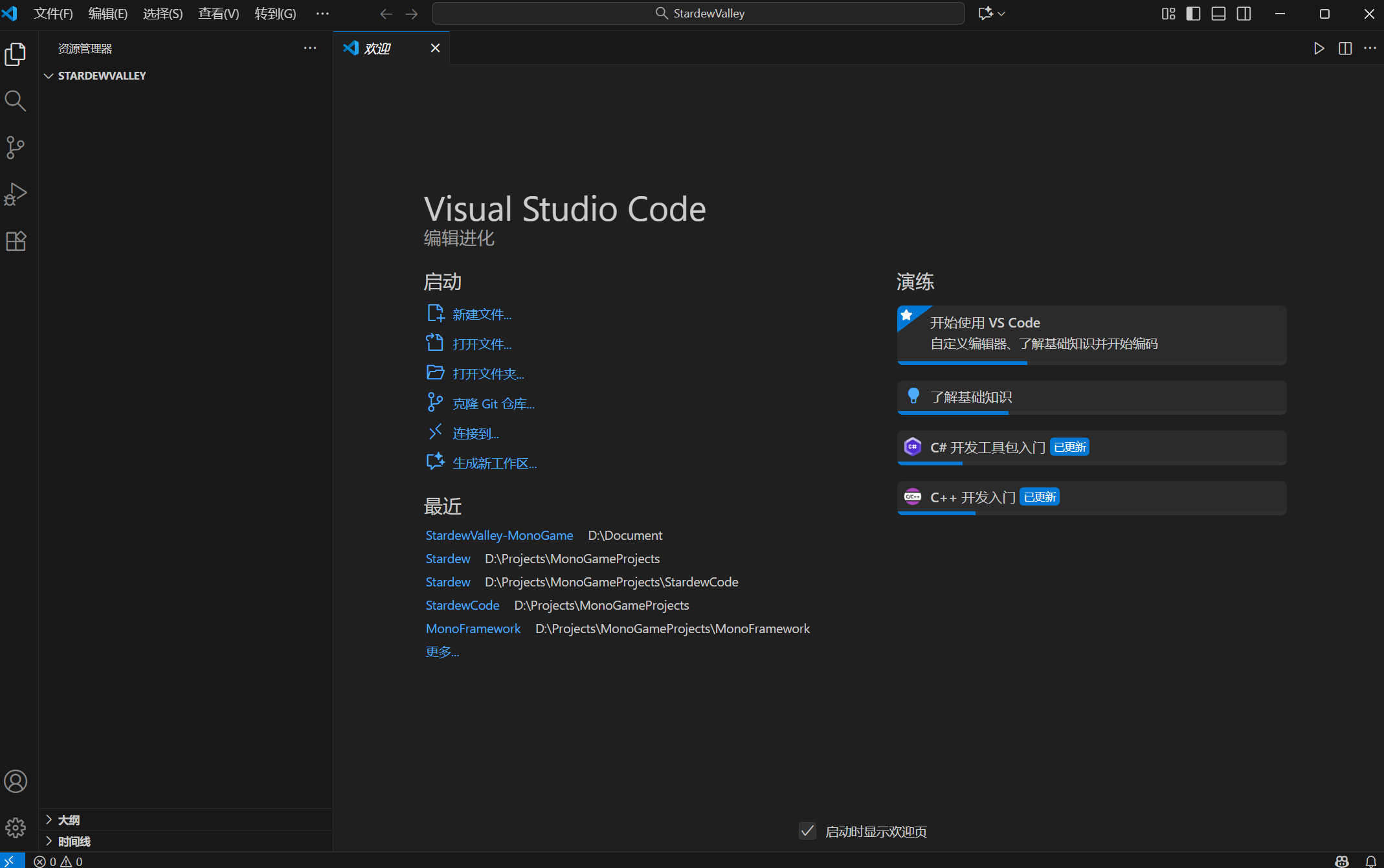
你打开后应该是这样的界面,然后我们需要再最上方中间的搜索栏下方输入下面的内容,记住如果复制的话请不要忘记最前方的>符号
>MonoGame: New Project

那么回车按下之后会出现这样的界面:
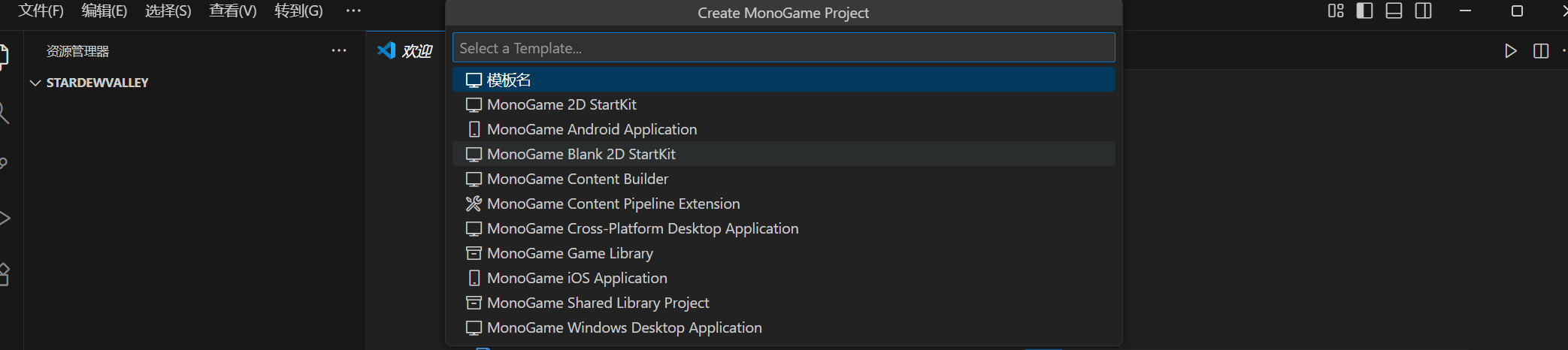
这里是各种模板的选择大家可以按照自己需要安装所需要的模板,这里有:跨平台,IOS,安卓,Windows等等的模板供大家选择,这里我的选择:是Windows平台的模板也就是最后一个:MonoGame Windows Desktop Application
选择完模板后,接着再为你项目取一个名字,我取的名字是:Stardew直接再上方输入框里输入你的Project Name

接着直接在弹出的窗口中选择Select Floder 就行了,那么接下来你的项目应该是这样的
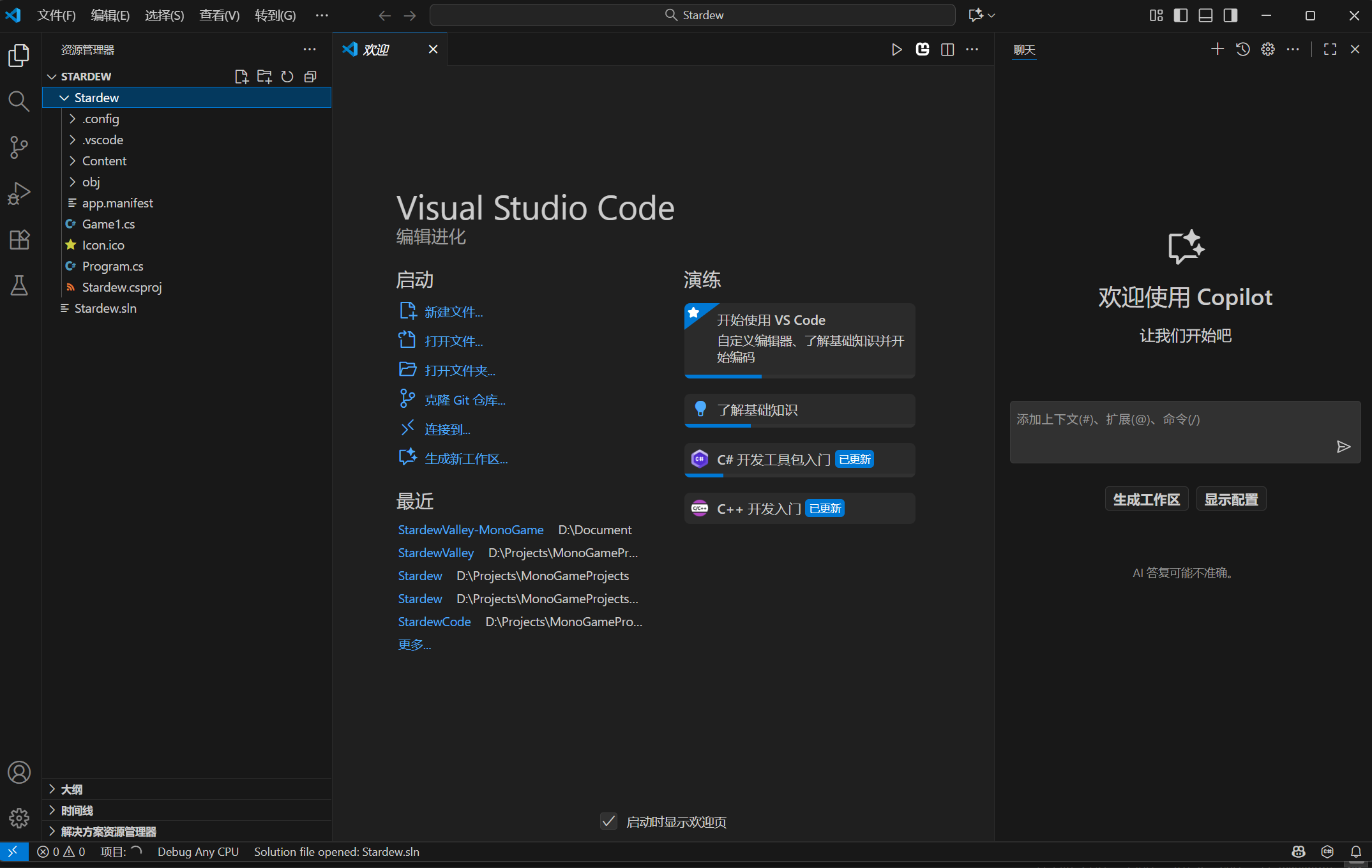
这个时候你就已经完成创建项目的90%的操作了,那么我们就剩最后一步:验证我们的环境是否安装正确:也就是运行项目看一下是否能够成功运行:
第一步:召唤控制台
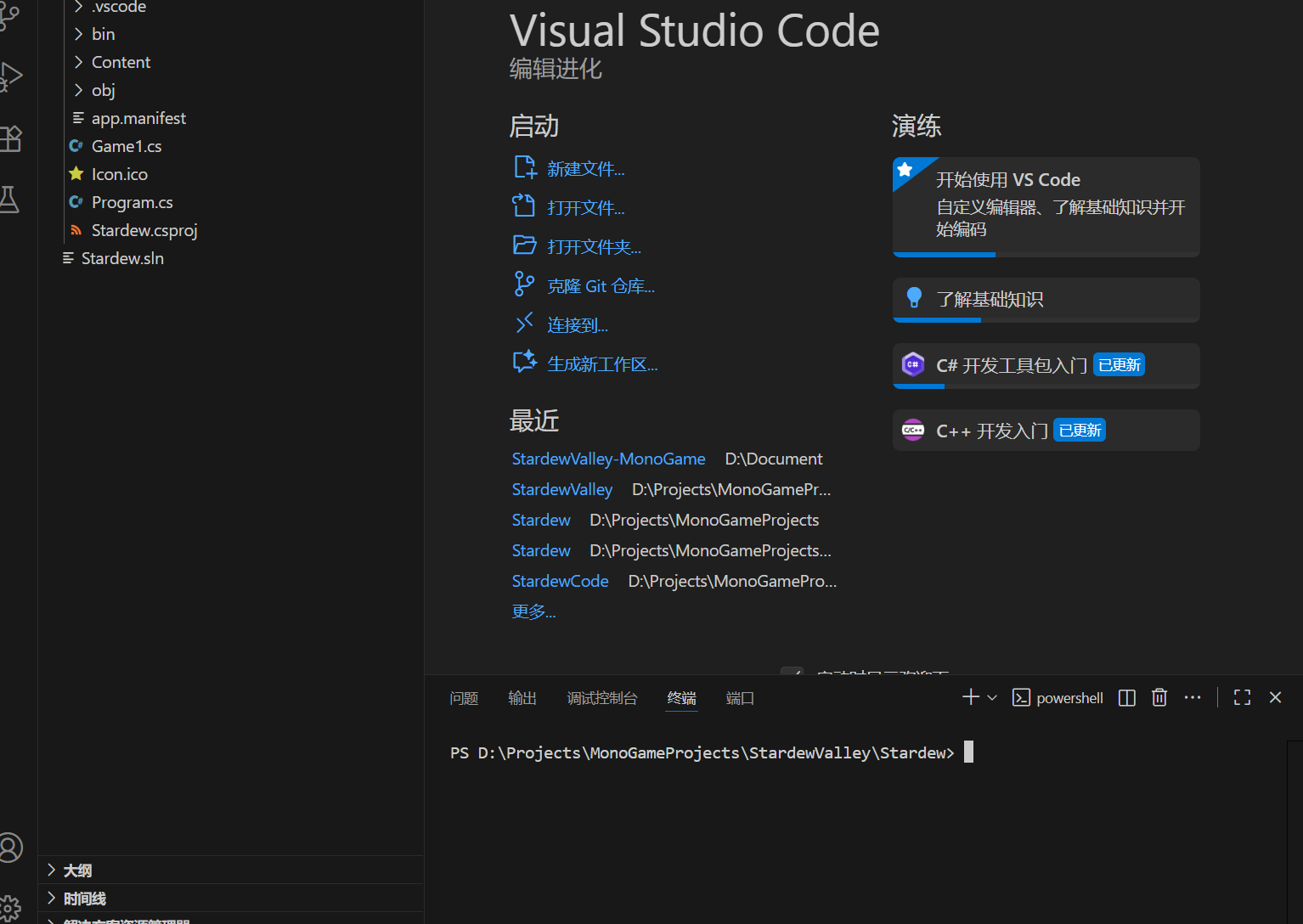
首先我们需要按下
Ctrl + Shift + ~
那么你的编辑器下方会出现这样的弹窗:
第二步:运行代码
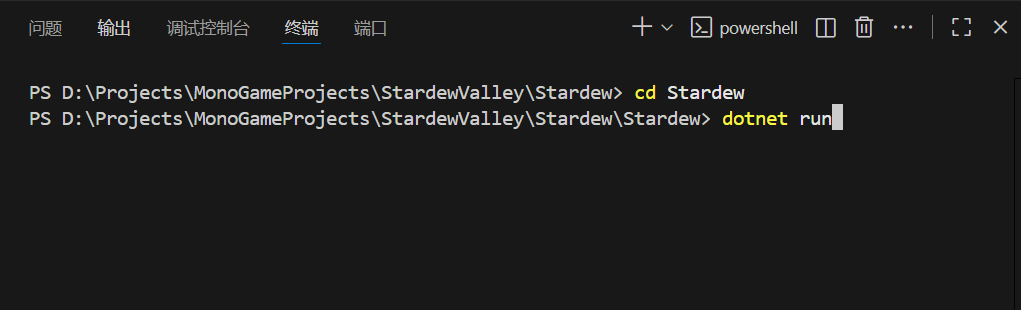
记住是分批次,也就是先输入一行再输入一行
我们需要输入下面两行代码:
cd Stardew
dotnet run
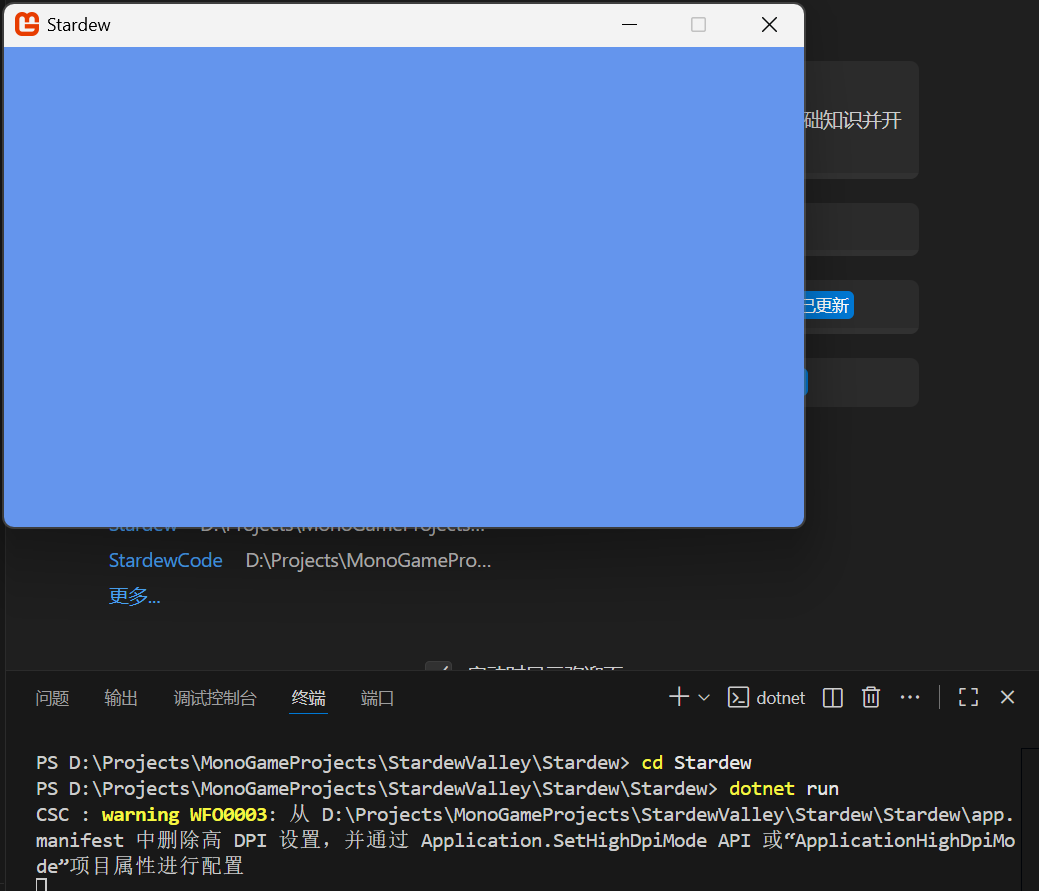
记住了这里有一些朋友会出先无法找到项目的情况,我们解释一下我们为什么需要cd Stardew 因为我们需要到项目的根目录下,我们现在只是第一层目录,大家想知道自己的根目录再哪里就只需要再旁边的侧栏中找到代码最多的那个文件夹,那个就是你的根目录,我们需要导航到这个目录下代码才能正常运行
运行后的效果如下:
一个蓝色的背景窗口,我们已经完成了第一步了,看得这里的朋友已经超过50%的人了,为什么呢,其实很多时候我们学习一个东西都会输在安装啊,这些七七八八的东西,但是现在AI技术这么发达,大家遇到问题都可以直接找到AI帮你解答,我们不要一味的求助AI而是要使用AI这个强大的工具而不是不断求助AI
【不需要者略】资源获取
这里有一种替代方案:大家如果嫌下载时间长,并且技术过关能够使用科学上网的话,且自己的电脑里面下载有正版的星露谷物语的话,我这边推荐一个github仓库帮助大家快速反编译星露谷物语的所有资源
github地址
OK 这里又是喜闻乐见的资源获取环节了,我这里给到一个百度网盘的网址,我们需要下载我给大家的资源包这里面包括星露谷物语的所有素材内容,希望大家能够一起加油啊
百度网盘:星露谷物语所有美术资源(下面这两张图片只是冰山一角)下载的时间有点长。
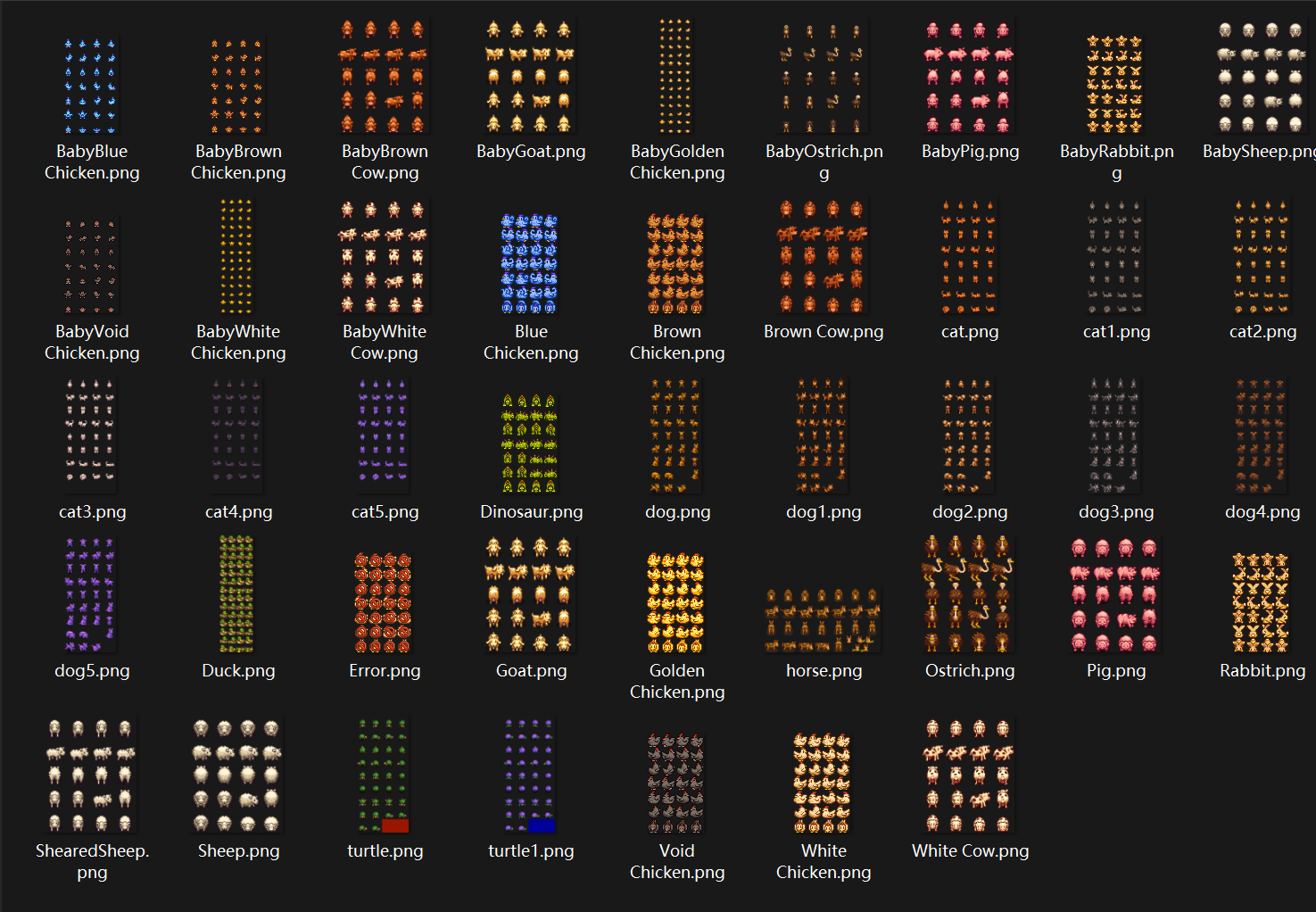
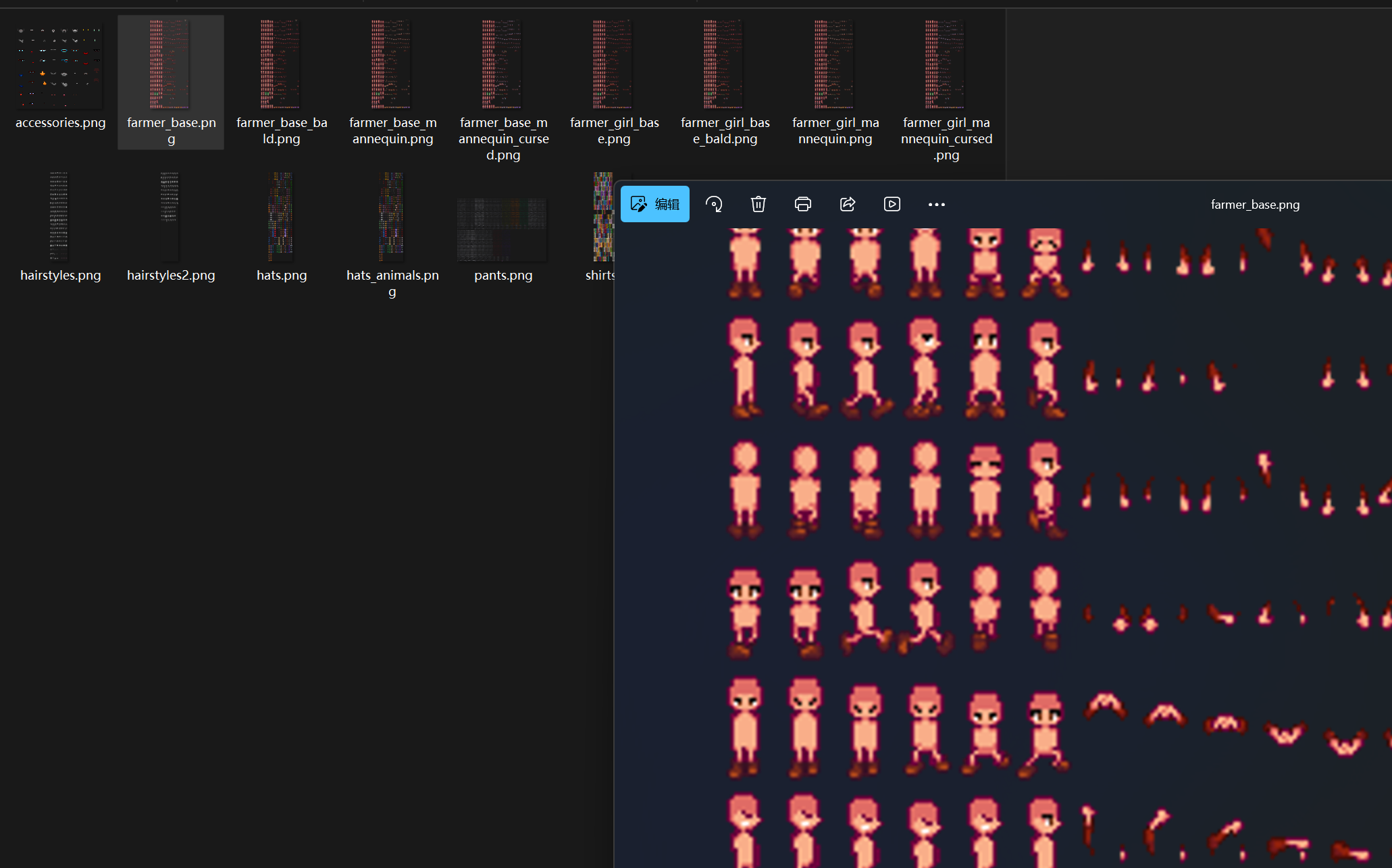
https://pan.baidu.com/s/1ctzJyPnKE8sLLNCNCy6-Og 提取码: 44in
这里还有一个事情说一下就是大家如果在代码方面遇到问题可以在Gitee上找到我的仓库下载里面的代码进行参考:
第二章 组件开发
OK 我们终于要开始写代码了,首先我先声明一下这一章的内容非常的枯燥,全是一些代码的内容,大家可以选择直接复制代码也可以选择抄一遍代码,但是当然了这边游戏工匠还是推荐你抄一遍代码,当然如果你不是打算往游戏开发工程师方面发展的话,当然可以直接复制代码,如果想要深入理解的话我还是希望大家先去学一些C#的语法,不需要学的很深,只需要了解一些语法就够了,那么总的来说呢:
一,我会给出全部代码
二,我推荐计算机专业的学生/游戏开发程序员自己抄一遍代码或者改装代码
三,无论什么人我都推荐你先学习C#的基础语法
那么我们正式开始吧!!
文件创建 及 项目整理
在写代码之前呢我们必须先整理我们的项目,我们要做一个整洁的程序员,我们需要的是以后我们修改我们之前写的代码能够很快速的找到我们在VSCode下创建下面这些文件夹
创建文件夹的方式为:右键上一级文件便可以在该级文件夹下创建新的文件或者文件夹
我们先给出我们原本文件夹的样子
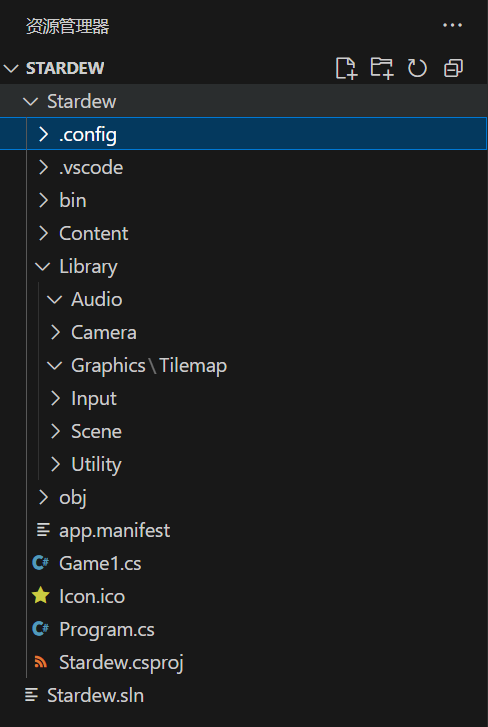
那么我们需要创建我们文件夹如下图所示:
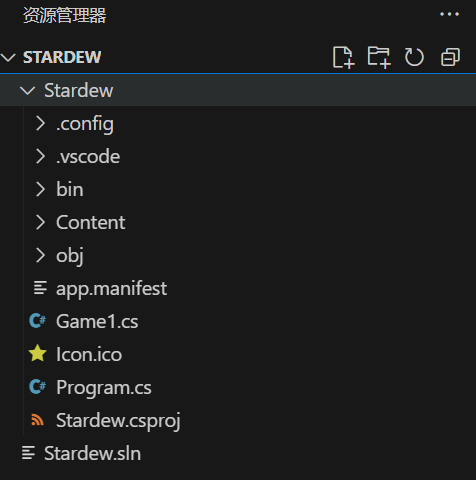
也就是说我们在根目录下创建以下文件夹
📁 Library
├── 📁 Audio
├── 📁 Camera
├── 📁 Graphics
│ └── 📁 Tilemap
├── 📁 Input
├── 📁 Scene
└── 📁 Utility
那么我们先暂时创建这些文件夹,因为我们的第二章的内容只需要用到这些文件夹,我们在短时间内就只会使用这些文件
摄像机 以及 概念
我们要开始写代码了!很激动对吧没错我第一次写代码比你更激动,在代码跑起来的瞬间我也很激动。
但我们需要先定义一个摄像机的概念:
在游戏运行过程中,我们需要操控玩家在地图上乱跑,并在电脑屏幕上渲染出来,那么我们怎么做到呢,那么我们需要先定义一个摄像机来跟随玩家移动将玩家和周围的环境“拍摄进去”并让窗口渲染出来那么我们该怎么实现这个窗口呢?
答案是:直接定义一个单例模式的类,这个类只需要存储摄像机的坐标其他什么都不用管,我们在渲染的过程中只需要将物体本身的坐标 - 摄像机的坐标我们就可以在屏幕中渲染出这个物品(大家现在可能不是很理解怎么在窗口中渲染物品,这个很简单我们往后会讲的但是我们现在先实现一个摄像机的类,这个很简单主要是想让大家学会第一个编程模式:单例模式)
单例模式:
单例模式详细解释 - 参考文献
单例设计模式(Singleton Pattern)是一种创建型设计模式,旨在确保一个类只有一个实例,并提供一个全局访问点来访问该实例。这种模式涉及到一个单一的类,该类负责创建自己的对象,同时确保只有单个对象被创建。
此处我们单例模式的实现有很多种,具体的代码和实现方式主要有下面几种
饿汉式
饿汉式在类加载时就创建实例,因此线程安全,但可能会浪费内存。
public class Singleton
{
   private static Singleton instance = new Singleton();
   private Singleton() {}
   public static Singleton getInstance()
   {
       return instance;
   }
}
懒汉式
懒汉式在第一次使用时才创建实例,节省资源,但需要加锁以确保线程安全。
public class Singleton
{
   private static Singleton instance;
   private Singleton() {}
   public static synchronized Singleton getInstance()
   {
       if (instance == null)
       {
           instance = new Singleton();
       }
       return instance;
   }
}
双重锁定式
双重检查锁在多线程环境下性能较好,但实现较复杂。
public class Singleton
{
   private static volatile Singleton instance;
   private Singleton() {}
   public static Singleton getInstance()
   {
       if (instance == null)
       {
           synchronized (Singleton.class)
           {
               if (instance == null)
               {
                   instance = new Singleton();
               }
           }
       }
       return instance;
   }
}
静态内部式
静态内部类方式既能确保线程安全,又能实现延迟加载。
public class Singleton
{
   private static class SingletonHolder
   {
       private static final Singleton INSTANCE = new Singleton();
   }
   private Singleton() {}
   public static Singleton getInstance()
   {
       return SingletonHolder.INSTANCE;
   }
}
枚举式
枚举方式是实现单例模式的最佳方法,既简洁又能防止反序列化和反射攻击
public enum Singleton
{
   INSTANCE;
   public void whateverMethod()
   {
   }
}
那么我们为了代码简洁,而且还需要能够保障线程安全,我们就使用第一种模式饿汉式
我们在Camera文件夹下面创建一个文件:Camera.cs 一定要+cs

然后再代码中写下下面的代码
using Microsoft.Xna.Framework;

namespace MonoLibrary.View;

public class Camera
{
    // 静态只读实例,在类加载时初始化
    private static readonly Camera instance = new Camera();

    // 私有构造函数
    private Camera()
    {
        CameraPosition = new Vector2(0, 0);
    }

    // 静态构造函数(可选,用于确保线程安全)
    static Camera() { }

    // 公共静态实例访问器
    public static Camera Instance
    {
        get { return instance; }
    }

    // 相机位置属性
    public Vector2 CameraPosition { get; set; }
}
上面这段代码很简单,就是实现一个单例模式,然后Vector2 再MonoGame 中代表的意思是二维向量的意思,那么我们可以用它来表示我们摄像机的坐标,可以保证线程安全的同时还能够访问摄像机的坐标,OK我们写下这段代码就结束了
我们现在的文件应该是这样的:
📁 Library
├── 📁 Audio
├── 📁 Camera
│ └── 📄 Camera.cs
├── 📁 Graphics
│ └── 📁 Tilemap
├── 📁 Input
├── 📁 Scene
└── 📁 Utility
第一部分:Graphics
OK 我们现在需要学习的是渲染方面的知识,这部分的知识我们将会正式接触MonoGame的渲染方式,在这之前我们需要先了解一下我们的文件结构,OK我们打开我们模板文件夹下的Game1.cs文件,这个文件的内容是:
using Microsoft.Xna.Framework;
using Microsoft.Xna.Framework.Graphics;
using Microsoft.Xna.Framework.Input;

namespace Stardew;

public class Game1 : Game
{
    private GraphicsDeviceManager _graphics;
    private SpriteBatch _spriteBatch;

    public Game1()
    {
        _graphics = new GraphicsDeviceManager(this);
        Content.RootDirectory = "Content";
        IsMouseVisible = true;
    }

    protected override void Initialize()
    {
        // TODO: Add your initialization logic here

        base.Initialize();
    }

    protected override void LoadContent()
    {
        _spriteBatch = new SpriteBatch(GraphicsDevice);

        // TODO: use this.Content to load your game content here
    }

    protected override void Update(GameTime gameTime)
    {
        if (GamePad.GetState(PlayerIndex.One).Buttons.Back == ButtonState.Pressed || Keyboard.GetState().IsKeyDown(Keys.Escape))
            Exit();

        // TODO: Add your update logic here

        base.Update(gameTime);
    }

    protected override void Draw(GameTime gameTime)
    {
        GraphicsDevice.Clear(Color.CornflowerBlue);

        // TODO: Add your drawing code here

        base.Draw(gameTime);
    }
}
在这个Game1文件中我们可以发现他这里面有两个属性,一个是SpriteBatch类型的,而另外一个是GraphicsDeviceManager类型;
SpriteBatch:
这个类是MonoGame封装的主要进行材质封装的东西可以帮助你快速的在屏幕中的任何位置渲染图片等资源,那么这个东西就是我们主要的渲染器。大家只需要知道这个就是用来渲染我们的图片的机器就行了;
GraphicsDeviceManager
这个类主要是帮助我们渲染窗口信息的组件,就是决定你的窗口大小,窗口是否全屏等等的信息。
接下来的三个函数就是MonoGame的生命周期了,不了解什么是生命周期的朋友可以先去了解一下什么是生命周期
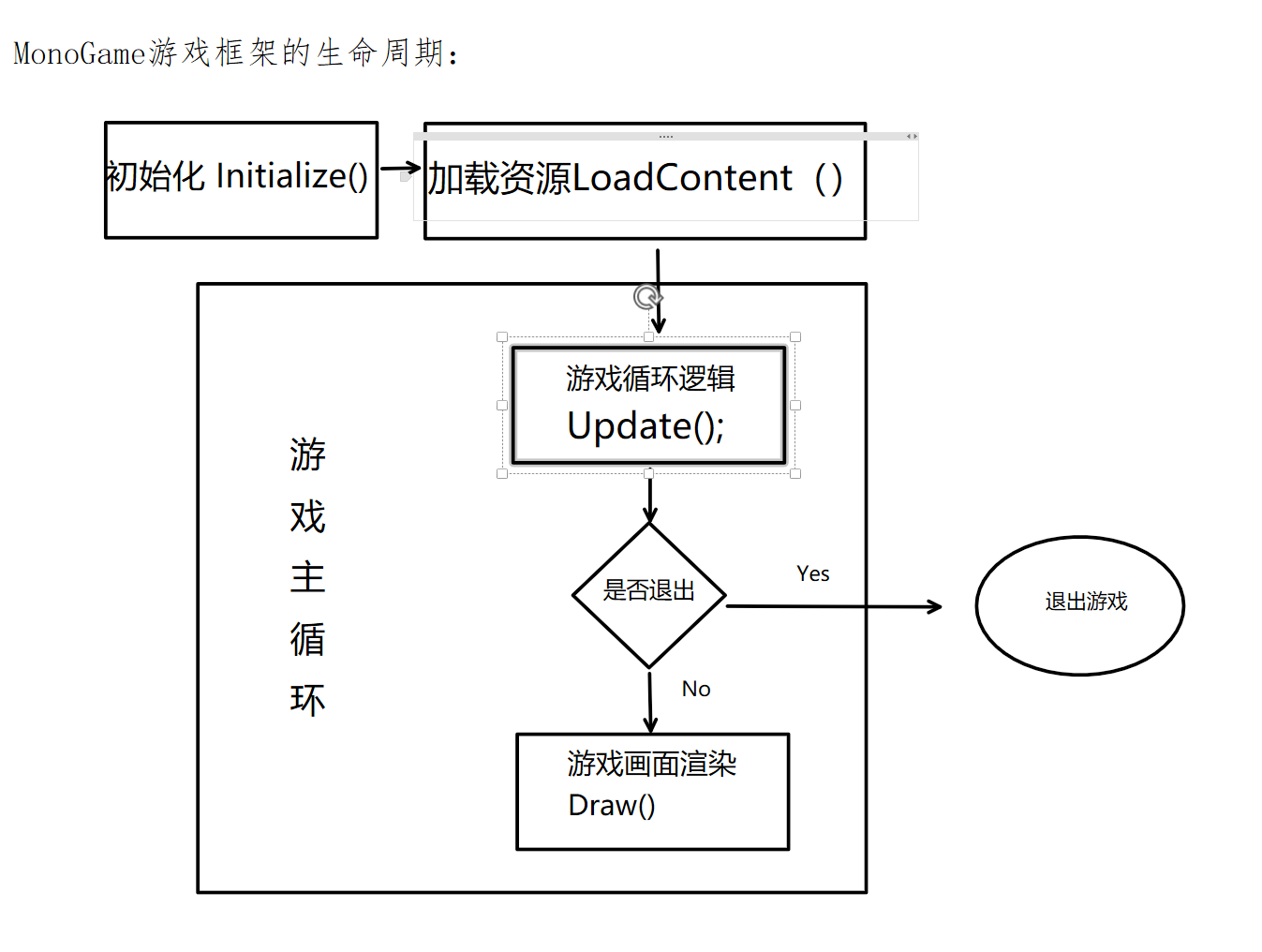
OK我们这边给大家准备一张图片让大家了解一下我们的内容管道,并且帮助我们了解渲染的知识,我们先介绍一下我们的内容管道吧
内容管道
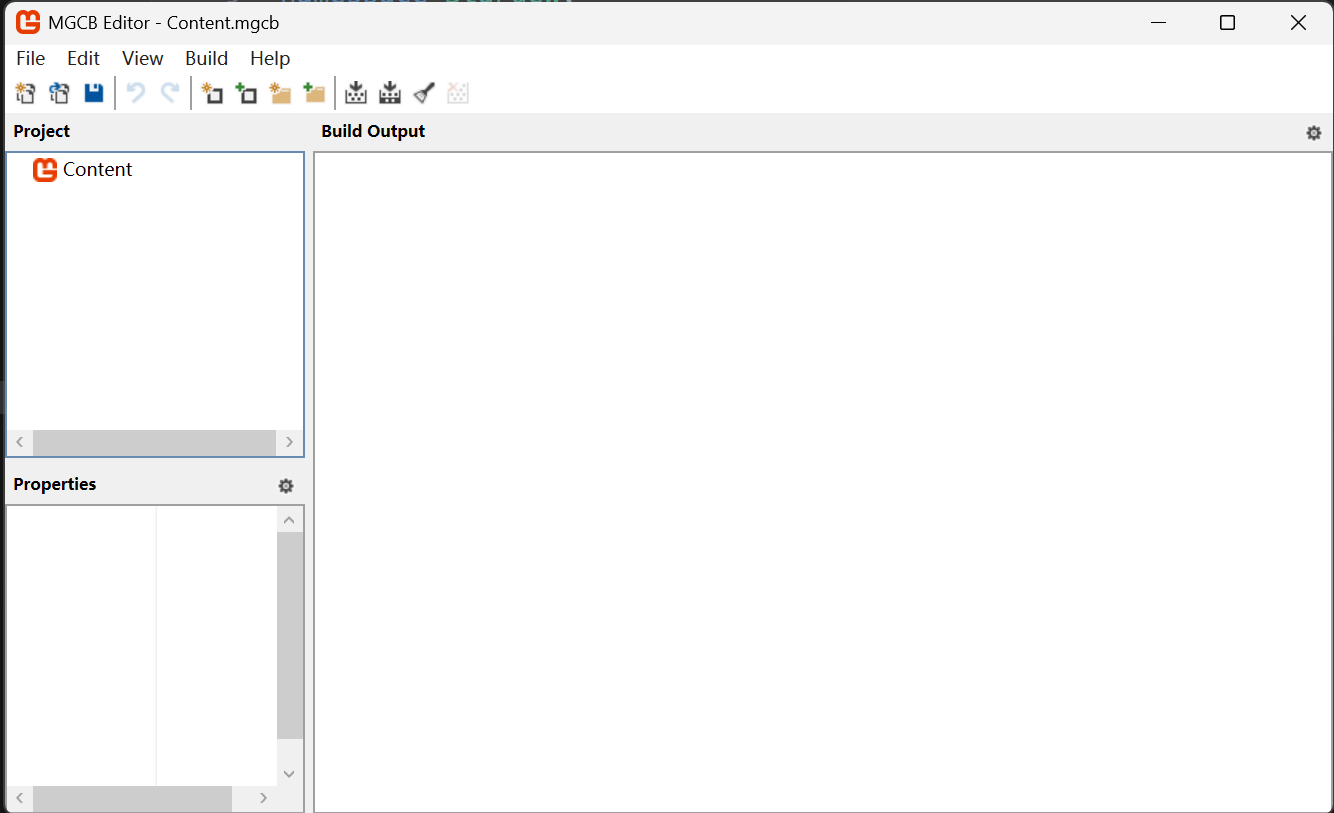
我们在进行游戏开发的时候,我们需要导入一些照片等等的内容,以及一些配置文件的东西,我们都会存储在这个Content 文件夹中,但是我事先声明一下,一定要使用我们的内容管道添加图片,那么我们接下来直接介绍一下我们的内容
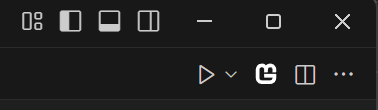
在这里我们可以看到一个MonoGame的Logo的图标,在你的右上角的位置,那么我们单击这个图标我们就可以打开一个图形化窗口用来导入我们的图片,配置文件
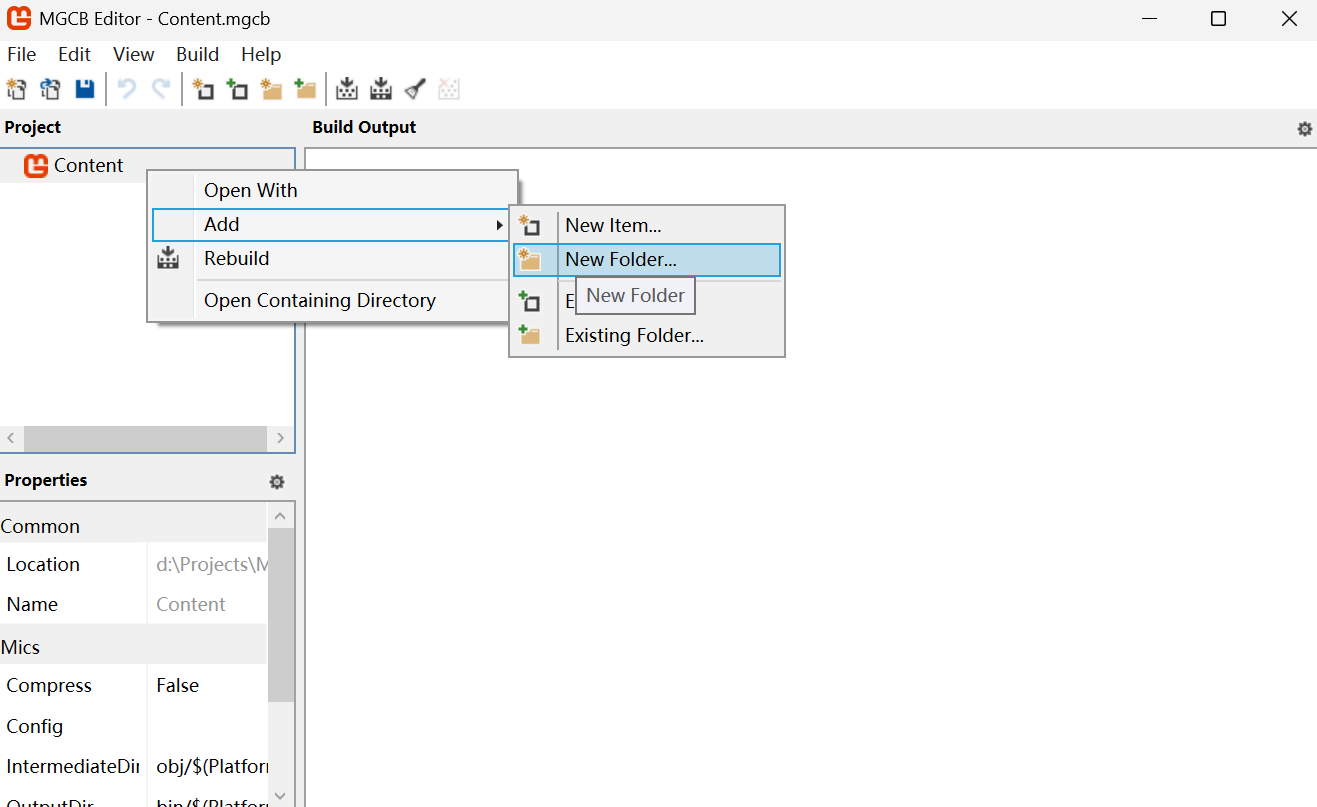
这个时候我们右键 Content,也就是左边Project边栏里的Content元素,然后选择Add Folder 添加文件夹并取名字
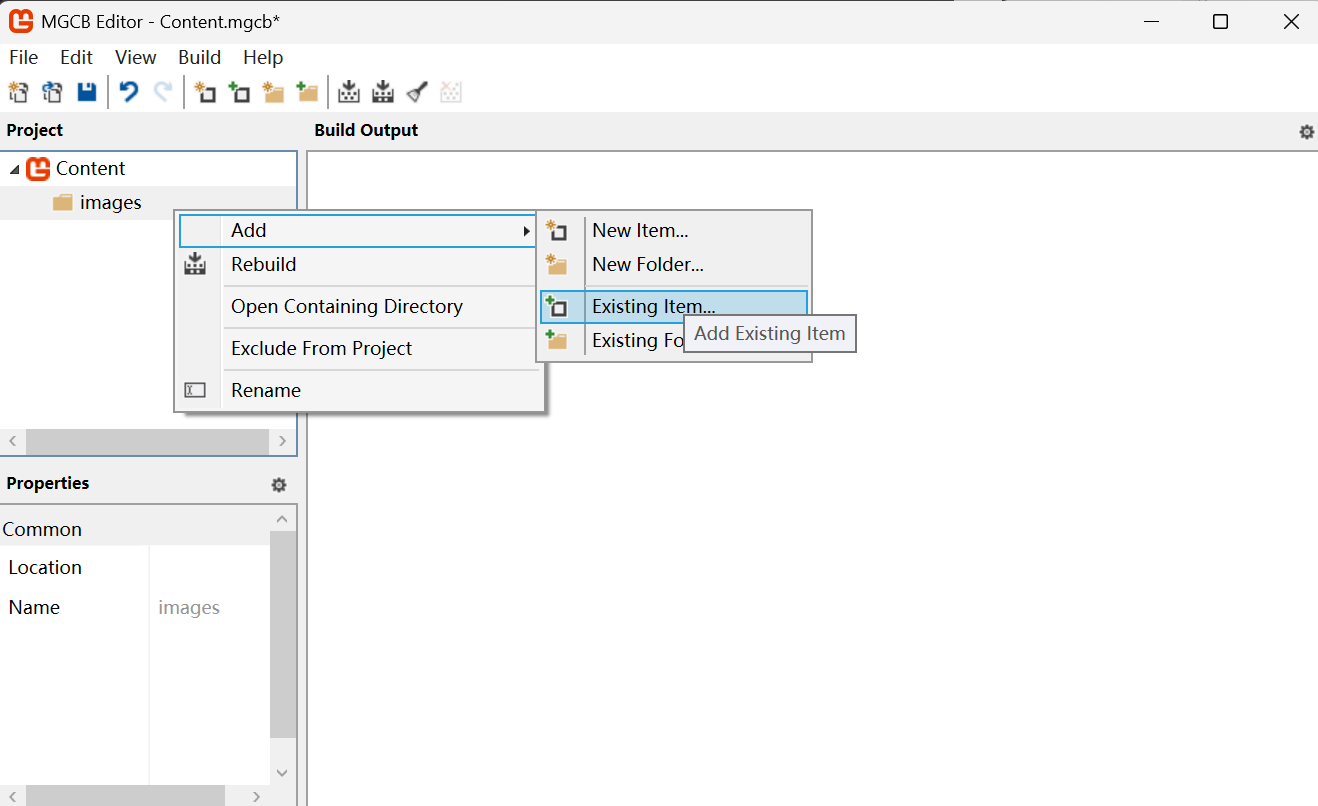
然后我们再右键images文件夹,在这里添加我们的图片:选择Add Exiting Item如下图所示
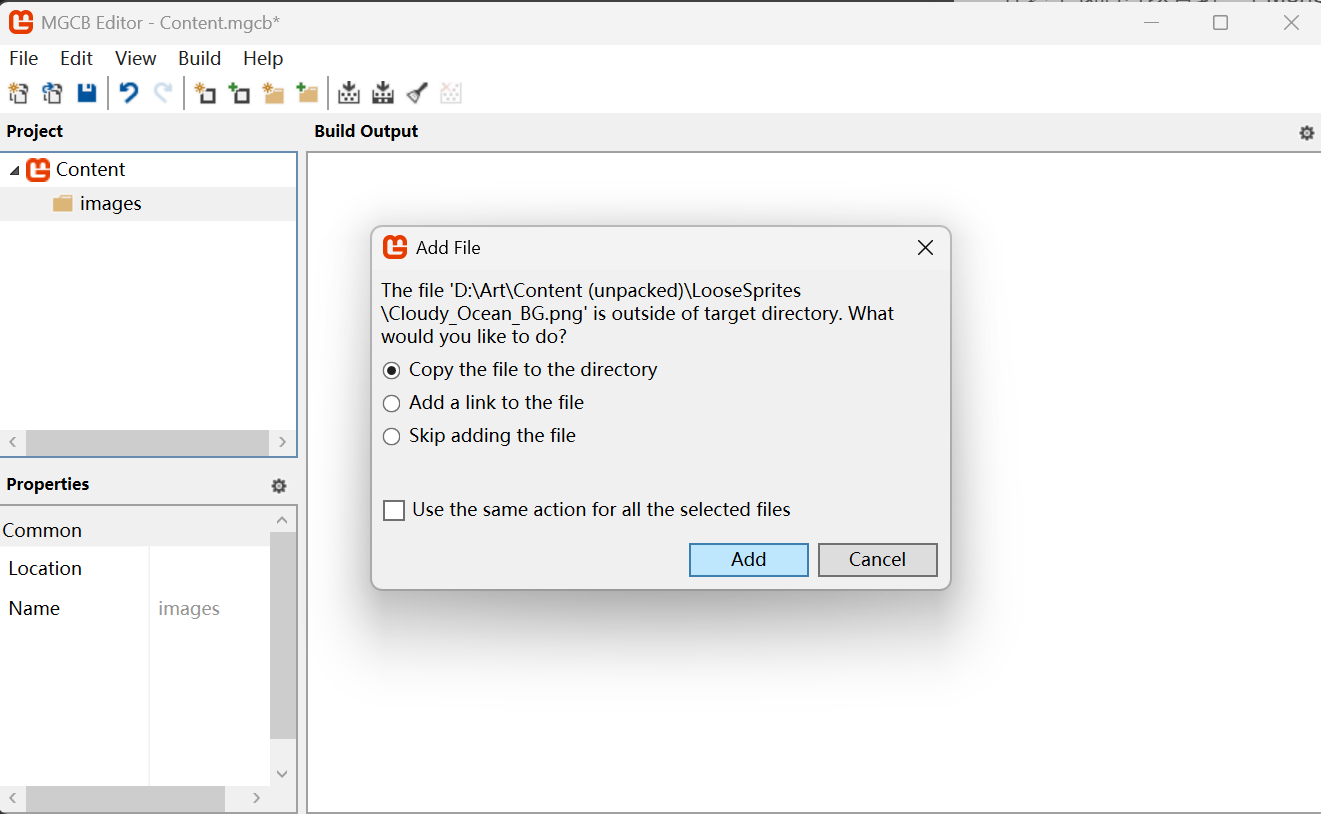
然后在自己的电脑里找到需要的素材,选择好后他会弹出这样的弹窗,直接点击确定即可
OK 完成了以上步骤我们就已经完成了90%了,那么最后一步就是保存我们的文件有许多种方式
Ctrl + S 或者 点击File -> Save
那么现在我们完成了图片的导入,这边我给大家提供一张图片来让大家练习,就如下面这张图大家可以直接拿走练习

基础渲染知识
接下来我们已经导入了一张图片了我们现在需要介绍一下我们的渲染知识,用来渲染我们的图片,这部分内容是为了让大家先了解我们的MonoGame是如何进行渲染的,我们回到我们的Game1.cs文件这个文件是我们的大头,也就是说这部分文件是我们主要地游戏逻辑地关键部分,那么我们首先我们需要介绍一个类:Texture2D 这个类是MonoGame用来进行基础渲染地东西那么我么怎么实现呢?首先我们先定义一个Texture2D地属性background如下
private Texture2D background;
然后我们在LoadContent 里面添加如下代码以此来导入我们地图片
background = Content.Load<Texture2D>("images/Cloudy_Ocean_BG.png");
然后我们在Draw函数里面进行渲染;
// 启动我们的渲染   渲染像素画,需要添加samplerState: SamplerState.PointClamp
_spriteBatch.Begin(samplerState: SamplerState.PointClamp);

// 绘制图片      图片         位置          颜色(默认)
_spriteBatch.Draw(background, Vector2.Zero, Color.White);

// 结束我们的渲染
_spriteBatch.End();
那么我们的完整修改的代码如下,大家仔细看一下哪里有修改的地方
using Microsoft.Xna.Framework;
using Microsoft.Xna.Framework.Graphics;
using Microsoft.Xna.Framework.Input;

namespace Stardew;

public class Game1 : Game
{
    private GraphicsDeviceManager _graphics;
    private SpriteBatch _spriteBatch;

    private Texture2D background;

    public Game1()
    {
        _graphics = new GraphicsDeviceManager(this);
        Content.RootDirectory = "Content";
        IsMouseVisible = true;
    }

    protected override void Initialize()
    {
        // TODO: Add your initialization logic here

        base.Initialize();
    }

    protected override void LoadContent()
    {
        _spriteBatch = new SpriteBatch(GraphicsDevice);

        // TODO: use this.Content to load your game content here

        background = Content.Load<Texture2D>("images/Cloudy_Ocean_BG");
    }

    protected override void Update(GameTime gameTime)
    {
        if (GamePad.GetState(PlayerIndex.One).Buttons.Back == ButtonState.Pressed || Keyboard.GetState().IsKeyDown(Keys.Escape))
            Exit();

        // TODO: Add your update logic here

        base.Update(gameTime);
    }

    protected override void Draw(GameTime gameTime)
    {
        GraphicsDevice.Clear(Color.CornflowerBlue);

        // TODO: Add your drawing code here

        base.Draw(gameTime);

        // 启动我们的渲染   渲染像素画,需要添加samplerState: SamplerState.PointClamp
        _spriteBatch.Begin(samplerState: SamplerState.PointClamp);

        // 绘制图片      图片         位置          颜色(默认)
        _spriteBatch.Draw(background, Vector2.Zero, Color.White);

        // 结束我们的渲染
        _spriteBatch.End();
    }
}
那么我们的运行效果就如下面所示
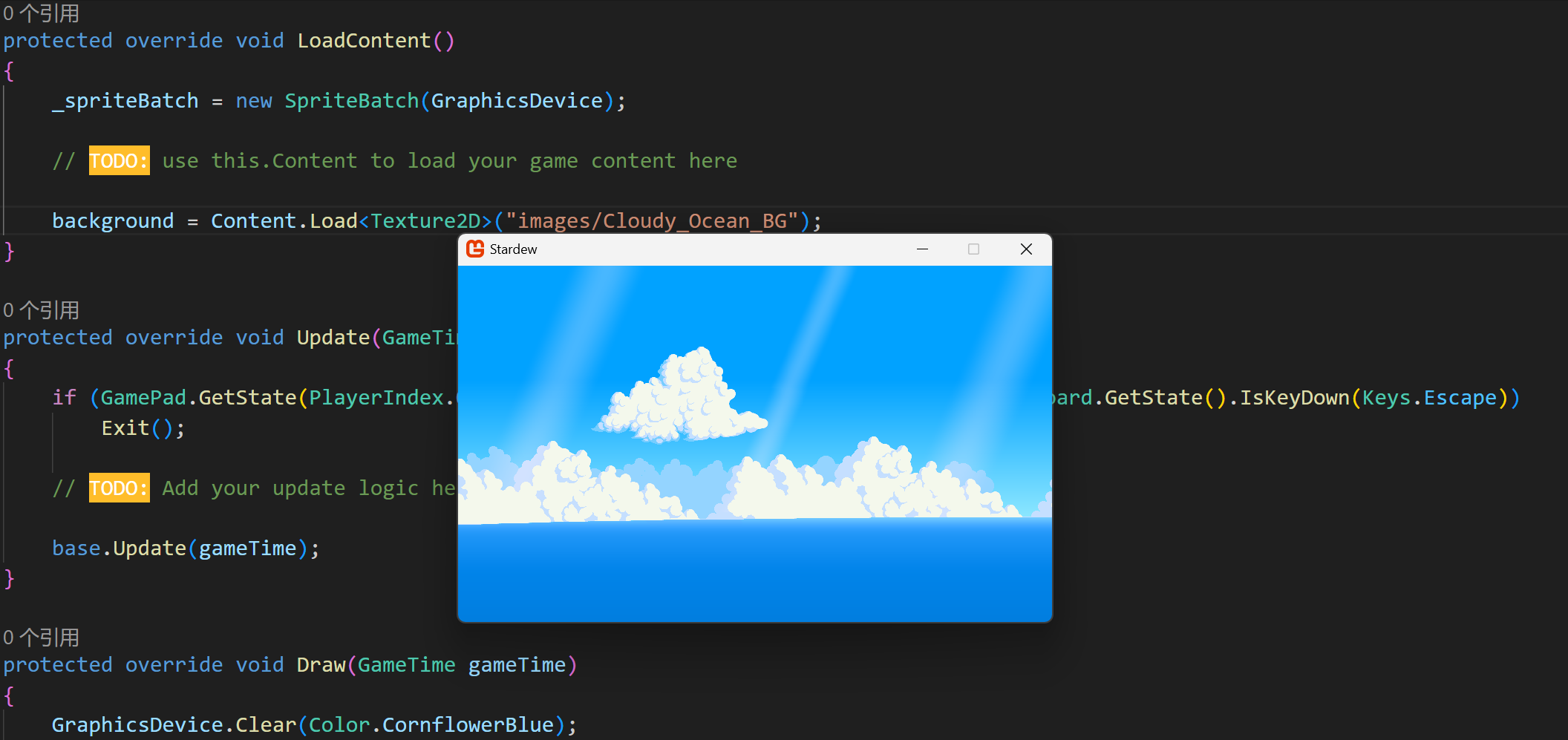
OK 我们也是成功的渲染出了一张图片那么我们接下来的事情就会简单很多我们MonoGame 的游戏开发就正式开始了,那么我们也不多废话直接开始!!!!
TextureRegion 类
前情提要
这种都是注释的一种,大家在自己写的时候可以不使用注释
注释的作用主要是帮助大家理解我的代码
    /// <summary>
    /// 文本
    /// </summary>

    // 文本
在我们渲染的时候老是通过上面的方式渲染会显得非常麻烦,所以我们需要简单封装一下这个Texture2D 类,什么是封装呢?很简单封装的意思就是说我们需要通过定义一个类,将原本复杂的方式简化一下就OK了,那么我们直接开始:
首先在Graphics文件夹下新建文件:TextureRegion.cs 在这个文件里编写我们所需要的代码,如下所示
📁 Library
├── 📁 Audio
├── 📁 Camera
├── 📁 Graphics
│ └── 📁 Tilemap
│ └── 📄 TextureRegion.cs
├── 📁 Input
├── 📁 Scene
└── 📁 Utility
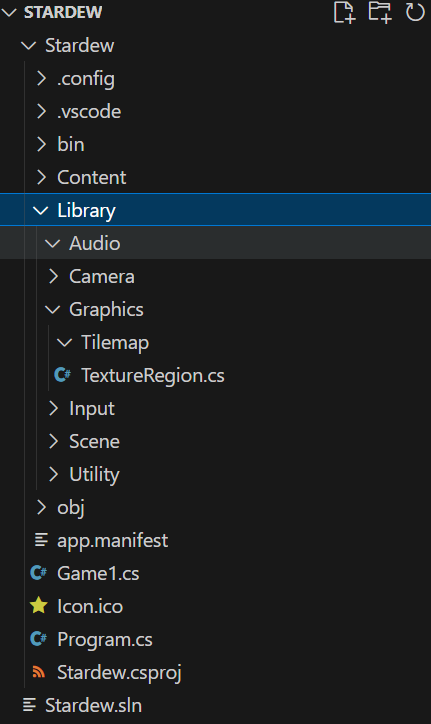
然后我们在文件夹里编写如下代码
using Microsoft.Xna.Framework;
using Microsoft.Xna.Framework.Graphics;
using MonoLibrary.View;

namespace MonoLibrary.Graphics;

/// <summary>
/// 表示纹理中的矩形区域.
/// </summary>
public class TextureRegion
{
    /// <summary>
    /// 取得所需的纹理文件
    /// </summary>
    public Texture2D texture { get; set; }

    /// <summary>
    /// 取得切割的长方形
    /// </summary>
    public Rectangle SourceRectangle { get; set; }

    /// <summary>
    /// 切割宽度
    /// </summary>
    public int Width => SourceRectangle.Width;

    /// <summary>
    /// 切割高度
    /// </summary>
    public int Height => SourceRectangle.Height;

    /// <summary>
    /// 获取该纹理区域的顶部标准化坐标.
    /// </summary>
    public float TopTextureCoordinate => SourceRectangle.Top / (float)texture.Height;

    /// <summary>
    /// 获取该纹理区域的底部标准化坐标.
    /// </summary>
    public float BottomTextureCoordinate => SourceRectangle.Bottom / (float)texture.Height;

    /// <summary>
    /// 获取该纹理区域的左侧标准化坐标.
    /// </summary>
    public float LeftTextureCoordinate => SourceRectangle.Left / (float)texture.Width;

    /// <summary>
    /// 获取该纹理区域的右侧标准化坐标.
    /// </summary>
    public float RightTextureCoordinate => SourceRectangle.Right / (float)texture.Width;


    /// <summary>
    /// 无参构造
    /// </summary>
    public TextureRegion() { }


    /// <summary>
    /// 有参构造
    /// </summary>
    /// <param name="texture">所需纹理</param>
    /// <param name="x">矩形位置的X轴坐标</param>
    /// <param name="y">矩形位置的Y轴坐标</param>
    /// <param name="width">矩形切割的宽度</param>
    /// <param name="height">矩形切割的高度</param>
    public TextureRegion(Texture2D texture, int x, int y, int width, int height)
    {
        this.texture = texture;
        SourceRectangle = new Rectangle(x, y, width, height);
    }


    /// <summary>
    /// 绘制函数重写,极简版本
    /// </summary>
    /// <param name="spriteBatch">绘制组件</param>
    /// <param name="position">位置</param>
    /// <param name="color">颜色</param>
    public void Draw(SpriteBatch spriteBatch, Vector2 position, Color color)
    {
        Draw(spriteBatch, position, color, 0.0f, Vector2.Zero, Vector2.One, SpriteEffects.None, 0.0f);
    }


    /// <summary>
    /// 绘制函数的重写简单版本
    /// </summary>
    /// <param name="spriteBatch">绘制函数所需组件</param>
    /// <param name="position">位置</param>
    /// <param name="color">眼色</param>
    /// <param name="rotation">旋转角度</param>
    /// <param name="origin">中心偏移量</param>
    /// <param name="scale">缩放比例</param>
    /// <param name="effects">翻转效果</param>
    /// <param name="layerDepth">深度效果</param>
    public void Draw(SpriteBatch spriteBatch, Vector2 position, Color color, float rotation, Vector2 origin, float scale, SpriteEffects effects, float layerDepth)
    {
        Draw(
            spriteBatch,
            position,
            color,
            rotation,
            origin,
            new Vector2(scale, scale),
            effects,
            layerDepth
        );
    }


    /// <summary>
    /// 绘制函数:所有详细参数
    /// </summary>
    /// <param name="spriteBatch">所需绘制精灵组件</param>
    /// <param name="position">绘制位置</param>
    /// <param name="color">颜色</param>
    /// <param name="rotation">旋转角度</param>
    /// <param name="origin">精灵中心偏移量</param>
    /// <param name="scale">缩放比例</param>
    /// <param name="effects">翻转效果</param>
    /// <param name="layerDepth">图层深度</param>
    public void Draw(SpriteBatch spriteBatch, Vector2 position, Color color, float rotation, Vector2 origin, Vector2 scale, SpriteEffects effects, float layerDepth)
    {
        spriteBatch.Draw(
            texture,
            position - Camera.Instance.CameraPosition,
            SourceRectangle,
            color,
            rotation,
            origin,
            scale,
            effects,
            layerDepth
        );
    }
}
在代码中我都标有明显的注释为大家解释我的代码都是什么意思,大家如果不是计算机专业的学生或者对编程完全不了解的话,但是你又想了解这个的具体含义请先前往观看相关教程视频/书籍在来观看我的这个教程
那么首先我们得先给我们的这个类提供一个命名空间,也就是
namespace MonoLibrary.Graphics;
然后我们再给这个类提供一些属性以此来实现渲染的效果,那么我们可以很明显地看到Texture2D 类,我们之前已经知道Texture2D是用来渲染的,但是大家知道他其实可以切割吗,没错Texture2D 可以通过切割图片来进行渲染。那么我们为了后续开发能够稳定的进行我们先写下我们切割所需要的属性:矩形,位置,长和宽这样我们的实际写下的代码是可以省去注释的,什么是注释
    /// <summary>
    /// 取得所需的纹理文件
    /// </summary>
    public Texture2D texture { get; set; }

    /// <summary>
    /// 取得切割的长方形
    /// </summary>
    public Rectangle SourceRectangle { get; set; }

    /// <summary>
    /// 切割宽度
    /// </summary>
    public int Width => SourceRectangle.Width;

    /// <summary>
    /// 切割高度
    /// </summary>
    public int Height => SourceRectangle.Height;

    /// <summary>
    /// 获取该纹理区域的顶部标准化坐标.
    /// </summary>
    public float TopTextureCoordinate => SourceRectangle.Top / (float)texture.Height;

    /// <summary>
    /// 获取该纹理区域的底部标准化坐标.
    /// </summary>
    public float BottomTextureCoordinate => SourceRectangle.Bottom / (float)texture.Height;

    /// <summary>
    /// 获取该纹理区域的左侧标准化坐标.
    /// </summary>
    public float LeftTextureCoordinate => SourceRectangle.Left / (float)texture.Width;

    /// <summary>
    /// 获取该纹理区域的右侧标准化坐标.
    /// </summary>
    public float RightTextureCoordinate => SourceRectangle.Right / (float)texture.Width;
然后就是我们的构造函数,那么构造函数就是为我的这个类赋予一个初始值,这个很重要我这边建议想要搞懂的同学先去了解一下面向对象的基本语法
    /// <summary>
    /// 无参构造
    /// </summary>
    public TextureRegion() { }


    /// <summary>
    /// 有参构造
    /// </summary>
    /// <param name="texture">所需纹理</param>
    /// <param name="x">矩形位置的X轴坐标</param>
    /// <param name="y">矩形位置的Y轴坐标</param>
    /// <param name="width">矩形切割的宽度</param>
    /// <param name="height">矩形切割的高度</param>
    public TextureRegion(Texture2D texture, int x, int y, int width, int height)
    {
        this.texture = texture;
        SourceRectangle = new Rectangle(x, y, width, height);
    }
那么剩下的就是我们的渲染方面的函数了,大家可能会很疑惑,为什么我的渲染代码怎么那么多参数,上一次的时候,我们的渲染函数不就只有三个参数吗,为什么突然添加了,因为这个方法是可以重构的,因为有些时候你并不需要这么多的参数只需要其中一两个那么我们的最优渲染策略就不只一种
  /// <summary>
    /// 绘制函数重写,极简版本
    /// </summary>
    /// <param name="spriteBatch">绘制组件</param>
    /// <param name="position">位置</param>
    /// <param name="color">颜色</param>
    public void Draw(SpriteBatch spriteBatch, Vector2 position, Color color)
    {
        Draw(spriteBatch, position, color, 0.0f, Vector2.Zero, Vector2.One, SpriteEffects.None, 0.0f);
    }


    /// <summary>
    /// 绘制函数的重写简单版本
    /// </summary>
    /// <param name="spriteBatch">绘制函数所需组件</param>
    /// <param name="position">位置</param>
    /// <param name="color">眼色</param>
    /// <param name="rotation">旋转角度</param>
    /// <param name="origin">中心偏移量</param>
    /// <param name="scale">缩放比例</param>
    /// <param name="effects">翻转效果</param>
    /// <param name="layerDepth">深度效果</param>
    public void Draw(SpriteBatch spriteBatch, Vector2 position, Color color, float rotation, Vector2 origin, float scale, SpriteEffects effects, float layerDepth)
    {
        Draw(
            spriteBatch,
            position,
            color,
            rotation,
            origin,
            new Vector2(scale, scale),
            effects,
            layerDepth
        );
    }


    /// <summary>
    /// 绘制函数:所有详细参数
    /// </summary>
    /// <param name="spriteBatch">所需绘制精灵组件</param>
    /// <param name="position">绘制位置</param>
    /// <param name="color">颜色</param>
    /// <param name="rotation">旋转角度</param>
    /// <param name="origin">精灵中心偏移量</param>
    /// <param name="scale">缩放比例</param>
    /// <param name="effects">翻转效果</param>
    /// <param name="layerDepth">图层深度</param>
    public void Draw(SpriteBatch spriteBatch, Vector2 position, Color color, float rotation, Vector2 origin, Vector2 scale, SpriteEffects effects, float layerDepth)
    {
        spriteBatch.Draw(
            texture,
            position,
            SourceRectangle,
            color,
            rotation,
            origin,
            scale,
            effects,
            layerDepth
        );
    }
我说的已经非常详细了,这个代码和官网中的代码都是一样的,我花时间把他写出来稍微改编一下就成为了大家现在所看的教程,当然了之后我们的教程都会尽可能地简洁,我把代码给大家给到,并给出解释那么我们地开发就会不断慢慢地进行着,那么我们进行下一项代码的编写
实践
这部分内容我们主要就是为大家提供实践部分的内容,教大家这部分的代码到底如何使用?首先我们先导入一些图片,还是按照之前的老方法 这里我导入的是阿比盖尔的图片大家可以在我给大家资源包里找到这个动画
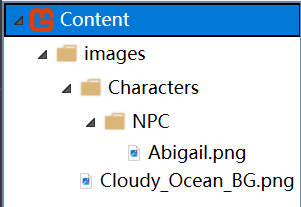

同样的这个时候我们需要实践也就是将图片切割好并放到我们屏幕上,那么大家可以根据一些图片编辑软件就可以查看图片信息,并切割好自己需要的图片那么我们现在可以在Game1.cs文件中使用这个代码,然后第二部加载代码仔细看下面的代码
第一步:首先定义Textureregion
private TextureRegion abigail;
第二步:查询我们需要的图片并加载到TextureRegion中
abigail = new TextureRegion(Content.Load<Texture2D>("images/Characters/NPC/Abigail"), 0, 0, 16, 32);
第三步:渲染我们使用封装好的绘制函数进行绘制,我们只需要传数据给函数,函数会帮我们完成渲染的逻辑的,这里我们在位置 (0, 0)默认颜色渲染
abigail.Draw(_spriteBatch, new Vector2(0, 0), Color.White);
完整Game1代码
using Microsoft.Xna.Framework;
using Microsoft.Xna.Framework.Graphics;
using Microsoft.Xna.Framework.Input;
using MonoLibrary.Graphics;

namespace Stardew;

public class Game1 : Game
{
    private GraphicsDeviceManager _graphics;
    private SpriteBatch _spriteBatch;

    private TextureRegion abigail;

    public Game1()
    {
        _graphics = new GraphicsDeviceManager(this);
        Content.RootDirectory = "Content";
        IsMouseVisible = true;
    }

    protected override void Initialize()
    {
        // TODO: Add your initialization logic here

        base.Initialize();
    }

    protected override void LoadContent()
    {
        _spriteBatch = new SpriteBatch(GraphicsDevice);

        // TODO: use this.Content to load your game content here

        abigail = new TextureRegion(Content.Load<Texture2D>("images/Characters/NPC/Abigail"), 0, 0, 16, 32);
    }

    protected override void Update(GameTime gameTime)
    {
        if (GamePad.GetState(PlayerIndex.One).Buttons.Back == ButtonState.Pressed || Keyboard.GetState().IsKeyDown(Keys.Escape))
            Exit();

        // TODO: Add your update logic here

        base.Update(gameTime);
    }

    protected override void Draw(GameTime gameTime)
    {
        GraphicsDevice.Clear(Color.CornflowerBlue);

        // TODO: Add your drawing code here

        base.Draw(gameTime);

        // 启动我们的渲染   渲染像素画,需要添加samplerState: SamplerState.PointClamp
        _spriteBatch.Begin(samplerState: SamplerState.PointClamp);

        // 绘制图片      图片         位置          颜色(默认)
        abigail.Draw(_spriteBatch, new Vector2(0, 0), Color.White);

        // 结束我们的渲染
        _spriteBatch.End();
    }
}
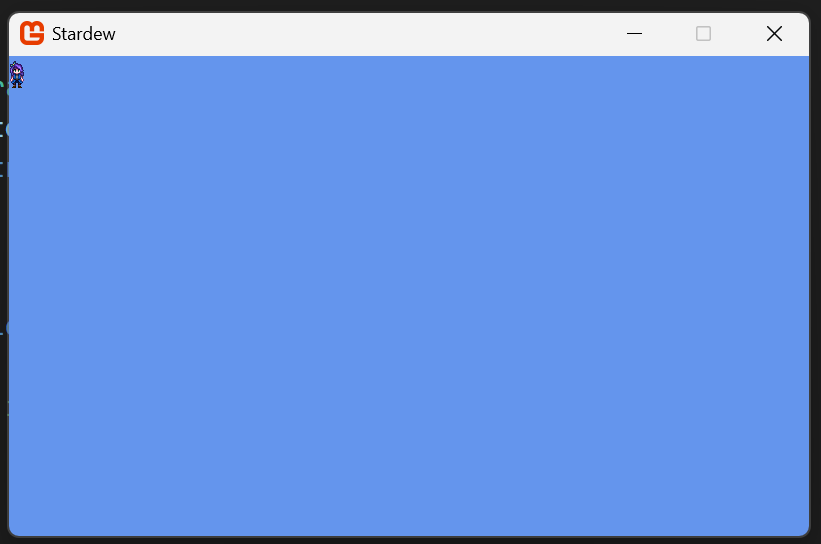
效果(阿比盖尔在上面小小的,大家可以通过Scale自己调):
Sprite 类
我们现在已经实现简单的封装了,我们现在实现了一个Texture2D 的渲染模式,也就是TextureRegion这个类能够帮助我们渲染出一张张切割好的图片,但是我们现在还是无法通过简单的方式渲染图片,我们现在需要编写一个Sprite代码使得TextureRegion能够只通过一个代码渲染出所有效果,我们只需要通过修改Sprite的属性就可以实现下面的效果
首先我们先创建文件夹在Graphics文件夹的下方创建
📁 Library
├── 📁 Audio
├── 📁 Camera
├── 📁 Graphics
│ └── 📁 Tilemap
│ └── 📄 TextureRegion.cs
│ └── 📄 Sprite.cs
├── 📁 Input
├── 📁 Scene
└── 📁 Utility
using Microsoft.Xna.Framework;
using Microsoft.Xna.Framework.Graphics;

namespace MonoLibrary.Graphics;

/// <summary>
/// 精灵类,用于渲染2D精灵
/// </summary>
public class Sprite
{
    /// <summary>
    /// 该精灵类纹理
    /// </summary>
    public TextureRegion Region { get; set; }

    /// <summary>
    /// 颜色系以及透明度
    /// </summary>
    public Color Color { get; set; } = Color.White;

    /// <summary>
    /// 旋转角度
    /// </summary>
    public float Rotation { get; set; } = 0.0f;

    /// <summary>
    /// 缩放比例
    /// </summary>
    public Vector2 Scale { get; set; } = Vector2.One;

    /// <summary>
    /// 中心偏移量
    /// </summary>
    public Vector2 Origin { get; set; } = Vector2.Zero;

    /// <summary>
    /// 是否翻转
    /// </summary>
    public SpriteEffects Effects { get; set; } = SpriteEffects.None;

    /// <summary>
    /// 图层深度
    /// </summary>
    public float LayerDepth { get; set; } = 0.0f;

    /// <summary>
    /// 宽度
    /// </summary>
    public float Width => Region.Width * Scale.X;
    /// <summary>
    /// 高度
    /// </summary>
    public float Height => Region.Height * Scale.Y;

    /// <summary>
    /// 无参构造
    /// </summary>
    public Sprite() { }
    /// <summary>
    /// 有参构造
    /// </summary>
    /// <param name="region">材质</param>
    public Sprite(TextureRegion region)
    {
        Region = region;
    }

    /// <summary>
    /// 使得Origin为材质的中心
    /// </summary>
    public void CenterOrigin()
    {
        Origin = new Vector2(Region.Width, Region.Height) * 0.5f;
    }


    /// <summary>
    /// 渲染函数,在窗口中绘制函数
    /// </summary>
    /// <param name="spriteBatch">精灵渲染组件</param>
    /// <param name="position">渲染位置</param>
    public void Draw(SpriteBatch spriteBatch, Vector2 position)
    {
        Region.Draw(spriteBatch, position, Color, Rotation, Origin, Scale, Effects, LayerDepth);
    }


}
这个代码实现的效果非常简单,就是先罗列出我们渲染所需要的属性比如:放大的比例,渲染的颜色,渲染的透明度,旋转的角度,无论从哪个方面来看都非常简单,这里我们也不做过多解释了,大家写完这部分代码就可以直接去实践一下就OK了
实践
这里我们还是使用阿比盖尔的角色图,为什么使用阿比盖尔,实话和大伙说了吧,俺每个存档都是阿比盖尔的老婆嘻嘻嘻,那么我们直接用阿比盖尔的图片来实践我们的Sprite类
首先我们需要先定义一下这个属性
private Sprite abigail;
第二步我们再来加载我们的图片怎么加载呢,就按照我们定义的那样,先定义TextureRegion进行赋值那么我们只需要从上一章的修改一下即可,而且我们可以通过直接修改他的Scale值就可以通过直接修改属性值来定义大小而不需要再通过函数渲染如下:
abigail = new Sprite(new TextureRegion(Content.Load<Texture2D>("images/Characters/NPC/Abigail.png"), 0, 0, 16, 32));
abigail.Scale = new Vector2(4f, 4f);
第三步:渲染,我们渲染只需要为Sprite赋值就可以给一个位置直接渲染
abigail.Draw(_spriteBatch, Vector2.Zero);
完整Game1文件代码代码:
using Microsoft.Xna.Framework;
using Microsoft.Xna.Framework.Graphics;
using Microsoft.Xna.Framework.Input;
using MonoLibrary.Graphics;

namespace Stardew;

public class Game1 : Game
{
    private GraphicsDeviceManager _graphics;
    private SpriteBatch _spriteBatch;

    private Sprite abigail;

    public Game1()
    {
        _graphics = new GraphicsDeviceManager(this);
        Content.RootDirectory = "Content";
        IsMouseVisible = true;
    }

    protected override void Initialize()
    {
        // TODO: Add your initialization logic here

        base.Initialize();
    }

    protected override void LoadContent()
    {
        _spriteBatch = new SpriteBatch(GraphicsDevice);

        // TODO: use this.Content to load your game content here

        abigail = new Sprite(new TextureRegion(Content.Load<Texture2D>("images/Characters/NPC/Abigail.png"), 0, 0, 16, 32));
        abigail.Scale = new Vector2(4f, 4f);
    }

    protected override void Update(GameTime gameTime)
    {
        if (GamePad.GetState(PlayerIndex.One).Buttons.Back == ButtonState.Pressed || Keyboard.GetState().IsKeyDown(Keys.Escape))
            Exit();

        // TODO: Add your update logic here

        base.Update(gameTime);
    }

    protected override void Draw(GameTime gameTime)
    {
        GraphicsDevice.Clear(Color.CornflowerBlue);

        // TODO: Add your drawing code here

        base.Draw(gameTime);

        // 启动我们的渲染   渲染像素画,需要添加samplerState: SamplerState.PointClamp
        _spriteBatch.Begin(samplerState: SamplerState.PointClamp);

        // 绘制图片      图片         位置          颜色(默认)
        abigail.Draw(_spriteBatch, Vector2.Zero);

        // 结束我们的渲染
        _spriteBatch.End();
    }
}
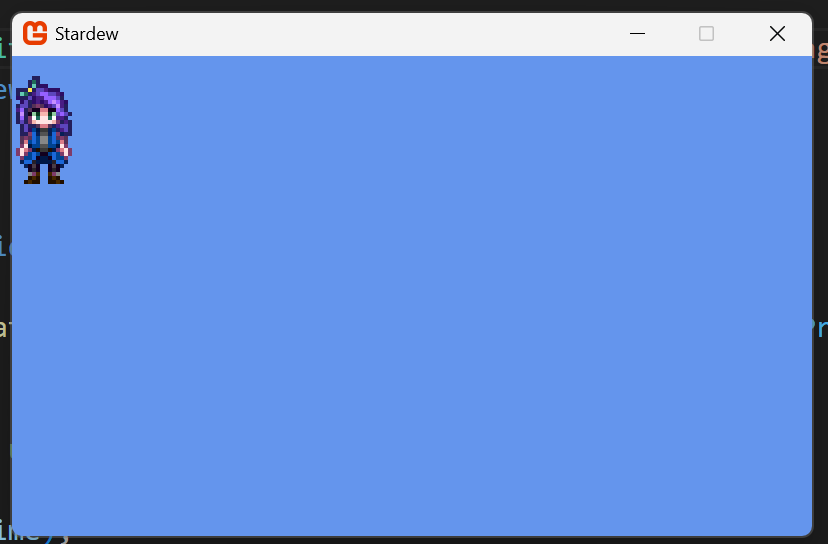
效果(我们可以看到我们的阿比盖尔变大非常多)
Animation 类
OK 在实际过程种我们进行游戏开发的时候总是需要一些动画效果,那么我们是怎么实现让我们的图片动起来的呢?很简单也就是帧动画,在很早之前就发明了,将连续的图片连续播放人类的眼睛视觉暂留效果就会让大家实现动画的这个效果,那么我们实现这个效果就是定义一个列表,让我们的图片循环播放这个列表那么我们就实现了我们的Animation效果,OK我们废话不多说直接开始编代码;
首先我们需要在Graphics下创建一个Animation.cs的文件夹
📁 Library
├── 📁 Audio
├── 📁 Camera
├── 📁 Graphics
│ └── 📁 Tilemap
│ └── 📄 TextureRegion.cs
│ └── 📄 Sprite.cs
│ └── 📄 Animation.cs
├── 📁 Input
├── 📁 Scene
└── 📁 Utility
创建好后我们输入下面的代码
using System;
using System.Collections.Generic;

namespace MonoLibrary.Graphics;

public class Animation
{
   /// <summary>
   /// 帧序列,此处主要使用帧动画,通过逐帧渲染实现动态效果
   /// 此处列表用于存储所有帧
   /// </summary>
   public List<TextureRegion> Frames { get; set; }

   /// <summary>
   /// 在移动到此动画的下一帧之前,每帧之间延迟的时间量
   /// 帧间隔
   /// </summary>
   public TimeSpan Delay { get; set; }


   /// <summary>
   /// 无参构造
   /// </summary>
   public Animation()
   {
       Frames = new List<TextureRegion>();
       Delay = TimeSpan.FromMilliseconds(100);
   }


   /// <summary>
   /// 有参构造
   /// </summary>
   /// <param name="frames">预设定帧序列</param>
   /// <param name="delay">预设定帧间隔</param>
   public Animation(List<TextureRegion> frames, TimeSpan delay)
   {
       Frames = frames;
       Delay = delay;
   }
}
这部分代码非常简单,就是定义了一个List来存储我们这个过程中的所有图片,然后定义了一下帧间隔,并且定义了构造函数就这样我们快速的编写完了所有代码,但是光只有这个我们还无法实现动画渲染,我们这个小章节只是为了下一个做铺垫,所以我们这个不进行实践
AnimatedSprite 类
在我们上一个Animation.cs类写完了之后我们需要不断地进行开发的话时它能够在电脑屏幕种渲染出来就必不可少的需要创建一些特殊的类,我们知道地是我们的Sprite类是已经封装好的且靠谱的一个渲染类,那么我们可以通过继承Sprite类实现一个不断变换的AnimatedSprite字如其名就是动画化的精灵组件这个我们就可以实际运用在Game1.cs文件种,那么下一步我们先创建AnimatedSprite.cs文件
📁 Library
├── 📁 Audio
├── 📁 Camera
├── 📁 Graphics
│ └── 📁 Tilemap
│ └── 📄 TextureRegion.cs
│ └── 📄 Sprite.cs
│ └── 📄 Animation.cs
│ └── 📄 AnimatedSprite.cs
├── 📁 Input
├── 📁 Scene
└── 📁 Utility
接着我们编写如下代码
using System;
using Microsoft.Xna.Framework;

namespace MonoLibrary.Graphics;

public class AnimatedSprite : Sprite
{
    /// <summary>
    /// 当前帧下标
    /// </summary>
    public int CurrentFrame;

    /// <summary>
    /// 时间间隔
    /// </summary>
    private TimeSpan Elapsed;

    /// <summary>
    /// 所用动画
    /// </summary>
    private Animation animation;

    public Animation Animation
    {
        get => animation;
        set
        {
            animation = value;
            Region = animation.Frames[0];
        }
    }

    /// <summary>
    /// 无参构造
    /// </summary>
    public AnimatedSprite() { }


    /// <summary>
    /// 有参构造
    /// </summary>
    /// <param name="animation">动画</param>
    public AnimatedSprite(Animation animation)
    {
        Animation = animation;
    }

    /// <summary>
    /// 循环播放当前动画组件
    /// </summary>
    /// <param name="gameTime"></param>
    public void Update(GameTime gameTime)
    {
        Elapsed += gameTime.ElapsedGameTime;

        if (Elapsed >= animation.Delay)
        {
            Elapsed -= animation.Delay;
            CurrentFrame++;

            if (CurrentFrame >= animation.Frames.Count)
            {
                CurrentFrame = 0;
            }

            Region = animation.Frames[CurrentFrame];
        }
    }
}
这段代码的逻辑很简单,应为我们继承制Sprite类那么Sprite类中当前渲染的图片是属性:Region
那么我们要实现动画就是不断地变更Region我们就可以实现基础的动画操作,那么我们实现的方式也很见到那粗暴就是直接通过超过我们的帧间隔就直接进行下一帧,那么大家如果看不懂Update里面的内容的话就直接复制粘贴就OK了,不过我还是很推荐大家自己再敲一遍的,哪怕是对着字母一个个敲都有自己动手的过程,而不是直接复制粘贴,那么我们进行下一步,大家不要有什么心里负担,谁不是从零开始学的,我一开始都是照着教程一个一个字敲的,那么我们现在就需要实践了
实践
我们这个AnimatedSprite类主要是通过列表来存储所以我们还是老样子首先先定义一下我们的属性,然后再LoadContent函数里面操作
第一步:定义属性
private AnimatedSprite abigail;
第二步:加载文件资源,哪个TimeSpan是转换:就是帧间隔一百毫秒的意思
        List<TextureRegion> regions = new List<TextureRegion>
        {
            new TextureRegion(Content.Load<Texture2D>("images/Characters/NPC/Abigail"), 0, 0, 16, 32),
            new TextureRegion(Content.Load<Texture2D>("images/Characters/NPC/Abigail"), 16, 0, 16, 32),
            new TextureRegion(Content.Load<Texture2D>("images/Characters/NPC/Abigail"), 32, 0, 16, 32),
            new TextureRegion(Content.Load<Texture2D>("images/Characters/NPC/Abigail"), 48, 0, 16, 32)
        };
        abigail = new AnimatedSprite(new Animation(regions, TimeSpan.FromMilliseconds(100)));
第三步:我们渲染方式和Sprite一样因为它继承与Sprite那么我们直接开始
abigail.Draw(_spriteBatch, Vector2.Zero);
Game1文件完整代码
using System;
using System.Collections.Generic;
using Microsoft.Xna.Framework;
using Microsoft.Xna.Framework.Graphics;
using Microsoft.Xna.Framework.Input;
using MonoLibrary.Graphics;

namespace Stardew;

public class Game1 : Game
{
    private GraphicsDeviceManager _graphics;
    private SpriteBatch _spriteBatch;

    private AnimatedSprite abigail;

    public Game1()
    {
        _graphics = new GraphicsDeviceManager(this);
        Content.RootDirectory = "Content";
        IsMouseVisible = true;
    }

    protected override void Initialize()
    {
        // TODO: Add your initialization logic here

        base.Initialize();
    }

    protected override void LoadContent()
    {
        _spriteBatch = new SpriteBatch(GraphicsDevice);

        // TODO: use this.Content to load your game content here
        List<TextureRegion> regions = new List<TextureRegion>
        {
            new TextureRegion(Content.Load<Texture2D>("images/Characters/NPC/Abigail"), 0, 0, 16, 32),
            new TextureRegion(Content.Load<Texture2D>("images/Characters/NPC/Abigail"), 16, 0, 16, 32),
            new TextureRegion(Content.Load<Texture2D>("images/Characters/NPC/Abigail"), 32, 0, 16, 32),
            new TextureRegion(Content.Load<Texture2D>("images/Characters/NPC/Abigail"), 48, 0, 16, 32)
        };
        abigail = new AnimatedSprite(new Animation(regions, TimeSpan.FromMilliseconds(100)));
        abigail.Scale = new Vector2(4f, 4f);
    }

    protected override void Update(GameTime gameTime)
    {
        if (GamePad.GetState(PlayerIndex.One).Buttons.Back == ButtonState.Pressed || Keyboard.GetState().IsKeyDown(Keys.Escape))
            Exit();

        // TODO: Add your update logic here

        base.Update(gameTime);
    }

    protected override void Draw(GameTime gameTime)
    {
        GraphicsDevice.Clear(Color.CornflowerBlue);

        // TODO: Add your drawing code here

        base.Draw(gameTime);

        // 启动我们的渲染   渲染像素画,需要添加samplerState: SamplerState.PointClamp
        _spriteBatch.Begin(samplerState: SamplerState.PointClamp);

        // 绘制图片      图片         位置          颜色(默认)
        abigail.Draw(_spriteBatch, Vector2.Zero);

        // 结束我们的渲染
        _spriteBatch.End();
    }
}
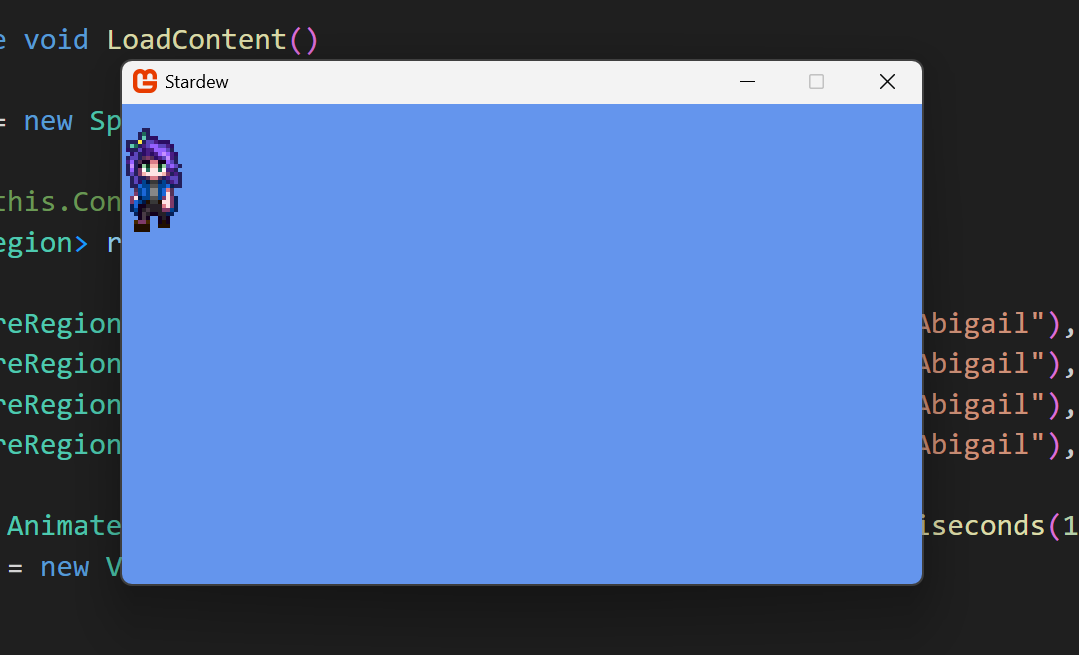
这个时候大家运行代码可以发现我们的阿比盖尔已经动起来了,这边我给出我们渲染出来的动画那么我们接下来进行下一步
Animator 类
在这时候我们需要创建一个Animator类来管理我们的AnimatedSprite为什么呢?这个类可以帮助我们快速的切换当前动画,因为有些角色是由多个动画构成的,我给大家举个例子:著名游戏《空洞骑士:KnightHollow》它分为许多个状态:跳跃,行走,攻击,下劈等等的状态,我们如果就是单独拿这个来说的话就要许多状态了,但是类银河恶魔城和这种星露谷俯视角角色扮演的不一样:类银河恶魔城需要物理引擎的支撑,所以我们需要自己编写游戏引擎,虽然但是物理引擎并没有大家想象中的那么复杂,那么我们快点实现我们的Animtor类吧,首先我们在Graphics文件夹下创建一个Animator.cs的文件
using System.Collections.Generic;

namespace MonoLibrary.Graphics;

public class Animator
{
    public AnimatedSprite CurAnimated;

    public Dictionary<string, AnimatedSprite> AnimatedSprites;

    public Animator(Dictionary<string, AnimatedSprite> AnimatedSprites)
    {
        this.AnimatedSprites = AnimatedSprites;
    }

    public Animator()
    {
        AnimatedSprites = new Dictionary<string, AnimatedSprite>();
    }

    public void InitializeAnimator(string animName)
    {
        CurAnimated = AnimatedSprites[animName];
    }

    public void ChangeAnimatedSprite(string animName)
    {
        CurAnimated = AnimatedSprites[animName];
    }

    public AnimatedSprite GetAnimatedSprite(string animName)
    {
        return AnimatedSprites[animName];
    }
}
没错这部分代码非常简单基本没有什么技术含量就只是定义一个字典为每个动画取一个名字,然后写了一个当前状态,我们的任务就完成了,那么这个就有点类似我们的设计模式经典模式:有限状态机,那么我们实践一下我们的代码;
实践
第一步
我们首先想一下我们该怎么实践,那么我们直接切割出一套上下左右的走动代码,那么我们接着继续写下去的话我们直接给出代码
Animator abigail;
第二步
创建上下左右的所有动画,那么我们现在需要把所有动画全部加载出来那么这里直接给出我的代码,大家直接复制就行
        List<TextureRegion> walk_down = new List<TextureRegion>
        {
            new TextureRegion(Content.Load<Texture2D>("images/Characters/NPC/Abigail"), 0, 0, 16, 32),
            new TextureRegion(Content.Load<Texture2D>("images/Characters/NPC/Abigail"), 16, 0, 16, 32),
            new TextureRegion(Content.Load<Texture2D>("images/Characters/NPC/Abigail"), 32, 0, 16, 32),
            new TextureRegion(Content.Load<Texture2D>("images/Characters/NPC/Abigail"), 48, 0, 16, 32)
        };
        List<TextureRegion> walk_left = new List<TextureRegion>
        {
            new TextureRegion(Content.Load<Texture2D>("images/Characters/NPC/Abigail"), 0, 96, 16, 32),
            new TextureRegion(Content.Load<Texture2D>("images/Characters/NPC/Abigail"), 16, 96, 16, 32),
            new TextureRegion(Content.Load<Texture2D>("images/Characters/NPC/Abigail"), 32, 96, 16, 32),
            new TextureRegion(Content.Load<Texture2D>("images/Characters/NPC/Abigail"), 48, 96, 16, 32)
        };
        List<TextureRegion> walk_right = new List<TextureRegion>
        {
            new TextureRegion(Content.Load<Texture2D>("images/Characters/NPC/Abigail"), 0, 32, 16, 32),
            new TextureRegion(Content.Load<Texture2D>("images/Characters/NPC/Abigail"), 16, 32, 16, 32),
            new TextureRegion(Content.Load<Texture2D>("images/Characters/NPC/Abigail"), 32, 32, 16, 32),
            new TextureRegion(Content.Load<Texture2D>("images/Characters/NPC/Abigail"), 48, 32, 16, 32)
        };
        List<TextureRegion> walk_up = new List<TextureRegion>
        {
            new TextureRegion(Content.Load<Texture2D>("images/Characters/NPC/Abigail"), 0, 64, 16, 32),
            new TextureRegion(Content.Load<Texture2D>("images/Characters/NPC/Abigail"), 16, 64, 16, 32),
            new TextureRegion(Content.Load<Texture2D>("images/Characters/NPC/Abigail"), 32, 64, 16, 32),
            new TextureRegion(Content.Load<Texture2D>("images/Characters/NPC/Abigail"), 48, 64, 16, 32)
        };

        abigail = new Animator(new Dictionary<string, AnimatedSprite>
        {
            {"down", new AnimatedSprite(new Animation(walk_down, TimeSpan.FromMilliseconds(100)))},
            {"left", new AnimatedSprite(new Animation(walk_left, TimeSpan.FromMilliseconds(100)))},
            {"right", new AnimatedSprite(new Animation(walk_right, TimeSpan.FromMilliseconds(100)))},
            {"up", new AnimatedSprite(new Animation(walk_up, TimeSpan.FromMilliseconds(100)))}
        });
第三步:
初始化,也就是定义我们一开始需要使用的代码
abigail.InitializeAnimator("down");
第四步
渲染,这部就简单了我们只需要在Update,和Draw里分别调用就可以了
abigail.CurAnimated.Update(gameTime);
abigail.CurAnimated.Draw(_spriteBatch, new Vector2(0, 0));
完整Game1文件
using System;
using System.Collections.Generic;
using Microsoft.Xna.Framework;
using Microsoft.Xna.Framework.Graphics;
using Microsoft.Xna.Framework.Input;
using MonoLibrary.Graphics;

namespace Stardew;

public class Game1 : Game
{
    private GraphicsDeviceManager _graphics;
    private SpriteBatch _spriteBatch;

    private Animator abigail;

    public Game1()
    {
        _graphics = new GraphicsDeviceManager(this);
        Content.RootDirectory = "Content";
        IsMouseVisible = true;
    }

    protected override void Initialize()
    {
        // TODO: Add your initialization logic here

        base.Initialize();
        abigail.InitializeAnimator("down");
    }

    protected override void LoadContent()
    {
        _spriteBatch = new SpriteBatch(GraphicsDevice);

        // TODO: use this.Content to load your game content here
        List<TextureRegion> walk_down = new List<TextureRegion>
        {
            new TextureRegion(Content.Load<Texture2D>("images/Characters/NPC/Abigail"), 0, 0, 16, 32),
            new TextureRegion(Content.Load<Texture2D>("images/Characters/NPC/Abigail"), 16, 0, 16, 32),
            new TextureRegion(Content.Load<Texture2D>("images/Characters/NPC/Abigail"), 32, 0, 16, 32),
            new TextureRegion(Content.Load<Texture2D>("images/Characters/NPC/Abigail"), 48, 0, 16, 32)
        };
        List<TextureRegion> walk_left = new List<TextureRegion>
        {
            new TextureRegion(Content.Load<Texture2D>("images/Characters/NPC/Abigail"), 0, 96, 16, 32),
            new TextureRegion(Content.Load<Texture2D>("images/Characters/NPC/Abigail"), 16, 96, 16, 32),
            new TextureRegion(Content.Load<Texture2D>("images/Characters/NPC/Abigail"), 32, 96, 16, 32),
            new TextureRegion(Content.Load<Texture2D>("images/Characters/NPC/Abigail"), 48, 96, 16, 32)
        };
        List<TextureRegion> walk_right = new List<TextureRegion>
        {
            new TextureRegion(Content.Load<Texture2D>("images/Characters/NPC/Abigail"), 0, 32, 16, 32),
            new TextureRegion(Content.Load<Texture2D>("images/Characters/NPC/Abigail"), 16, 32, 16, 32),
            new TextureRegion(Content.Load<Texture2D>("images/Characters/NPC/Abigail"), 32, 32, 16, 32),
            new TextureRegion(Content.Load<Texture2D>("images/Characters/NPC/Abigail"), 48, 32, 16, 32)
        };
        List<TextureRegion> walk_up = new List<TextureRegion>
        {
            new TextureRegion(Content.Load<Texture2D>("images/Characters/NPC/Abigail"), 0, 64, 16, 32),
            new TextureRegion(Content.Load<Texture2D>("images/Characters/NPC/Abigail"), 16, 64, 16, 32),
            new TextureRegion(Content.Load<Texture2D>("images/Characters/NPC/Abigail"), 32, 64, 16, 32),
            new TextureRegion(Content.Load<Texture2D>("images/Characters/NPC/Abigail"), 48, 64, 16, 32)
        };

        abigail = new Animator(new Dictionary<string, AnimatedSprite>
        {
            {"down", new AnimatedSprite(new Animation(walk_down, TimeSpan.FromMilliseconds(100)))},
            {"left", new AnimatedSprite(new Animation(walk_left, TimeSpan.FromMilliseconds(100)))},
            {"right", new AnimatedSprite(new Animation(walk_right, TimeSpan.FromMilliseconds(100)))},
            {"up", new AnimatedSprite(new Animation(walk_up, TimeSpan.FromMilliseconds(100)))}
        });
    }

    protected override void Update(GameTime gameTime)
    {
        if (GamePad.GetState(PlayerIndex.One).Buttons.Back == ButtonState.Pressed || Keyboard.GetState().IsKeyDown(Keys.Escape))
            Exit();

        // TODO: Add your update logic here

        base.Update(gameTime);
        abigail.CurAnimated.Update(gameTime);
    }

    protected override void Draw(GameTime gameTime)
    {
        GraphicsDevice.Clear(Color.CornflowerBlue);

        // TODO: Add your drawing code here

        base.Draw(gameTime);

        // 启动我们的渲染   渲染像素画,需要添加samplerState: SamplerState.PointClamp
        _spriteBatch.Begin(samplerState: SamplerState.PointClamp);

        // 绘制图片      图片         位置          颜色(默认)
        abigail.CurAnimated.Draw(_spriteBatch, new Vector2(0, 0));

        // 结束我们的渲染
        _spriteBatch.End();
    }
}
这里运行的结果应该和运行AnimatedSprite的时候应该是一样的
TextureAtlas 类
我们从之前的代码就可以发现:我们所加载的代码太长了,我们要是我们每次加载图片动画时都需要这么多这么冗杂的代码时候,那么我们的代码就会风场乱,我们就不再合适使用这种东西了,我们需要一种新的,加载图片的方式:图集类:我们直接将切割好的图片全部切割好并且存储在这个类里面,并且我们使用配置文件加载我们的所要切割的信息,那么我们使用什么配置文件呢?那么我们需要先了解一个文件类型xml文件
Xml文件
Xml文件是一种配置文件,通常用来存储信息,他的作用和Json这种东西是差不多的,都是用来存储一些我们所必须的信息,现在大部分的存档模式都是使用的Json文件来存储我们的存档信息的,那么xml文件的语法到底是什么呢,
https://blog.youkuaiyun.com/raining优快云/article/details/143905744
这个网站很推荐大家去看一下,这边我就不过多介绍了,因为我们现在的主线是:MonoGame的游戏开发,也就是我们可以通过xml文件的方式来存储我们切割的信息,那么具体存储方式就是:因为xml的结构是树状的,因此我们可以来用此书写我们的代码我给大家做一个演示
<!-- 区域定义部分:定义纹理图中的各个子区域 -->
<Regions>
    <!-- 向下行走动画帧 -->
    <Region name="naruto-down-1" x="0" y="0" width="32" height="48" />
    <Region name="naruto-down-2" x="32" y="0" width="32" height="48" />
    <Region name="naruto-down-3" x="64" y="0" width="32" height="48" />
    <Region name="naruto-down-4" x="96" y="0" width="32" height="48" />

    <!-- 向左行走动画帧 -->
    <Region name="naruto-left-1" x="0" y="48" width="32" height="48" />
    <Region name="naruto-left-2" x="32" y="48" width="32" height="48" />
    <Region name="naruto-left-3" x="64" y="48" width="32" height="48" />
    <Region name="naruto-left-4" x="96" y="48" width="32" height="48" />

    <!-- 向右行走动画帧 -->
    <Region name="naruto-right-1" x="0" y="96" width="32" height="48" />
    <Region name="naruto-right-2" x="32" y="96" width="32" height="48" />
    <Region name="naruto-right-3" x="64" y="96" width="32" height="48" />
    <Region name="naruto-right-4" x="96" y="96" width="32" height="48" />

    <!-- 向上行走动画帧 -->
    <Region name="naruto-up-1" x="0" y="144" width="32" height="48" />
    <Region name="naruto-up-2" x="32" y="144" width="32" height="48" />
    <Region name="naruto-up-3" x="64" y="144" width="32" height="48" />
    <Region name="naruto-up-4" x="96" y="144" width="32" height="48" />
</Regions>

<!-- 动画定义部分:将区域组合成动画序列 -->
<Animations>
    <!-- 向下行走动画,帧间隔200毫秒 -->
    <Animation name="naruto-down" delay="200">
        <Frame region="naruto-down-1" />
        <Frame region="naruto-down-2" />
        <Frame region="naruto-down-3" />
        <Frame region="naruto-down-4" />
    </Animation>

    <!-- 向左行走动画,帧间隔200毫秒 -->
    <Animation name="naruto-left" delay="200">
        <Frame region="naruto-left-1" />
        <Frame region="naruto-left-2" />
        <Frame region="naruto-left-3" />
        <Frame region="naruto-left-4" />
    </Animation>

    <!-- 向右行走动画,帧间隔200毫秒 -->
    <Animation name="naruto-right" delay="200">
        <Frame region="naruto-right-1" />
        <Frame region="naruto-right-2" />
        <Frame region="naruto-right-3" />
        <Frame region="naruto-right-4" />
    </Animation>

    <!-- 向上行走动画,帧间隔200毫秒 -->
    <Animation name="naruto-up" delay="200">
        <Frame region="naruto-up-1" />
        <Frame region="naruto-up-2" />
        <Frame region="naruto-up-3" />
        <Frame region="naruto-up-4" />
    </Animation>
</Animations>
那么我们想实现这样的效果的话我们需要做什么呢?很简单,就是先得到这个xml文件的根:TextureAtlas ,然后我们继续写他的第一个子元素:Regions,然后我们在Regions里编辑我们的材质,也就是精灵,那么我们在Animation中执行相同操作,我们就直接开始写代码
using System;
using System.Collections.Generic;
using System.IO;
using System.Xml;
using System.Xml.Linq;
using Microsoft.Xna.Framework;
using Microsoft.Xna.Framework.Content;
using Microsoft.Xna.Framework.Graphics;

namespace MonoLibrary.Graphics;

/// <summary>
/// 图集类:存储纹理集和
/// </summary>
public class TextureAtlas
{
    /// <summary>
    /// 存储每个纹理的字典
    /// </summary>
    private Dictionary<string, TextureRegion> Regions;

    /// <summary>
    /// 存储每个动画的字典
    /// </summary>
    private Dictionary<string, Animation> Animations;

    /// <summary>
    /// 所需总体的纹理图片
    /// </summary>
    public Texture2D TotalTexture { get; set; }

    /// <summary>
    /// 无参构造
    /// </summary>
    public TextureAtlas()
    {
        Regions = new Dictionary<string, TextureRegion>();
        Animations = new Dictionary<string, Animation>();
    }

    /// <summary>
    /// 有参构造
    /// </summary>
    /// <param name="texture">所需总体纹理</param>
    public TextureAtlas(Texture2D texture)
    {
        TotalTexture = texture;
        Regions = new Dictionary<string, TextureRegion>();
        Animations = new Dictionary<string, Animation>();
    }


    /// <summary>
    /// 在图集里增加纹理
    /// </summary>
    /// <param name="name">纹理对应名称/键</param>
    /// <param name="x">纹理切割X坐标</param>
    /// <param name="y">纹理切割Y坐标</param>
    /// <param name="width">纹理切割宽度</param>
    /// <param name="height">纹理切割高度</param>
    public void AddRegion(string name, int x, int y, int width, int height)
    {
        TextureRegion region = new TextureRegion(TotalTexture, x, y, width, height);
        Regions.Add(name, region);
    }

    /// <summary>
    /// 在字典中增加动画
    /// </summary>
    /// <param name="animationName">动画对应名称/键</param>
    /// <param name="animation">动画本体</param>
    public void AddAnimation(string animationName, Animation animation)
    {
        Animations.Add(animationName, animation);
    }

    /// <summary>
    /// 从字典中查询纹理
    /// </summary>
    /// <param name="name">对应字典名字/键</param>
    /// <returns>纹理</returns>
    public TextureRegion GetRegion(string name)
    {
        return Regions[name];
    }

    /// <summary>
    /// 得到当前动画
    /// </summary>
    /// <param name="animationName">动画名称</param>
    /// <returns>动画本体</returns>
    public Animation GetAnimation(string animationName)
    {
        return Animations[animationName];
    }

    /// <summary>
    /// 从字典中移除纹理
    /// </summary>
    /// <param name="name">对应字典名字/键</param>
    /// <returns>是否删除</returns>
    public bool RemoveRegion(string name)
    {
        return Regions.Remove(name);
    }

    /// <summary>
    /// 从字典中移除动画
    /// </summary>
    /// <param name="animationName">动画名称/键</param>
    /// <returns>是否移除</returns>
    public bool RemoveAnimation(string animationName)
    {
        return Animations.Remove(animationName);
    }

    /// <summary>
    /// 清空此字典
    /// </summary>
    public void RegionsClear()
    {
        Regions.Clear();
    }

    public void AnimationsClear()
    {
        Animations.Clear();
    }

    /// <summary>
    /// 从文件中加载纹理
    /// </summary>
    /// <param name="content">文件资源管理</param>
    /// <param name="fileName">文件名称</param>
    /// <returns></returns>
    public static TextureAtlas FromFile(ContentManager content, string fileName)
    {
        TextureAtlas atlas = new TextureAtlas();

        // 合并文件名成完整项目路径
        string filePath = Path.Combine(content.RootDirectory, fileName);


        //文件流式存储
        using (Stream stream = TitleContainer.OpenStream(filePath))
        {
            // Xml读取器的获得
            using (XmlReader reader = XmlReader.Create(stream))
            {
                // 读XMl的文件内容
                XDocument doc = XDocument.Load(reader);
                XElement root = doc.Root;

                // <Texture> 该元素包含要加载的 Texture2D 的内容路径.
                // 因此,我们将检索该值,然后使用内容管理器加载纹理.
                string texturePath = root.Element("Texture").Value;
                atlas.TotalTexture = content.Load<Texture2D>(texturePath);

                // <Regions> 该元素包含单独的<Region>元素,每个元素描述
                // 图集中的其他纹理区域.
                //
                // 例子:
                // <Regions>
                //      <Region name="spriteOne" x="0" y="0" width="32" height="32" />
                //      <Region name="spriteTwo" x="32" y="0" width="32" height="32" />
                // </Regions>
                //
                // 因此,我们检索所有<Region>元素,然后遍历每个元素,从中生成一个新的 TextureRegion 实例,并将其添加到此图集.
                var regions = root.Element("Regions")?.Elements("Region");

                if (regions != null)
                {
                    foreach (var region in regions)
                    {
                        string name = region.Attribute("name")?.Value;
                        int x = int.Parse(region.Attribute("x")?.Value ?? "0");
                        int y = int.Parse(region.Attribute("y")?.Value ?? "0");
                        int width = int.Parse(region.Attribute("width")?.Value ?? "0");
                        int height = int.Parse(region.Attribute("height")?.Value ?? "0");

                        if (!string.IsNullOrEmpty(name))
                        {
                            atlas.AddRegion(name, x, y, width, height);
                        }
                    }
                }


                // <Animations> 该元素包含单独的<Animation>元素,每个元素描述
                // 在图集中的不同动画
                //
                // Example:
                // <Animations>
                //      <Animation name="animation" delay="100">
                //          <Frame region="spriteOne" />
                //          <Frame region="spriteTwo" />
                //      </Animation>
                // </Animations>
                //
                // 因此,我们检索所有<Animation>元素,然后遍历每个元素
                // 并从中生成新的 Animation 实例并将其添加到此图集.
                var animationElements = root.Element("Animations").Elements("Animation");

                if (animationElements != null)
                {
                    foreach (var animationElement in animationElements)
                    {
                        string name = animationElement.Attribute("name")?.Value;
                        float delayInMilliseconds = float.Parse(animationElement.Attribute("delay")?.Value ?? "0");
                        TimeSpan delay = TimeSpan.FromMilliseconds(delayInMilliseconds);

                        List<TextureRegion> frames = new List<TextureRegion>();

                        var frameElements = animationElement.Elements("Frame");

                        if (frameElements != null)
                        {
                            foreach (var frameElement in frameElements)
                            {
                                string regionName = frameElement.Attribute("region").Value;
                                TextureRegion region = atlas.GetRegion(regionName);
                                frames.Add(region);
                            }
                        }

                        Animation animation = new Animation(frames, delay);
                        atlas.AddAnimation(name, animation);
                    }
                }

                return atlas;
            }
        }
    }

    public Sprite CreatSprite(string regionName)
    {
        TextureRegion region = GetRegion(regionName);
        return new Sprite(region);
    }

    public AnimatedSprite CreateAnimatedSprite(string animationName)
    {
        Animation animation = GetAnimation(animationName);
        return new AnimatedSprite(animation);
    }
}
大家可以看一下我们的代码:也就是我们的FromFile的代码,我们将ContentManager的参数传进去存储切割信息,我在注释里写的非常清楚了,这里不再做进一步解释,那么我们这边就细讲一下我们的xml文件是如何在C#里面读取xml
首先我们得使用
Stream 流式传输 然后再用xmlreader来读取我们的xml文件,这个是我们的模板代码,无论你写什么样格式的xml文件都需要写这部分内容
// 合并文件名成完整项目路径
string filePath = Path.Combine(content.RootDirectory, fileName);

//文件流式存储
using (Stream stream = TitleContainer.OpenStream(filePath))
{
    // Xml读取器的获得
    using (XmlReader reader = XmlReader.Create(stream))
    {
        // 读XMl的文件内容
        XDocument doc = XDocument.Load(reader);
        XElement root = doc.Root;
    }
}
那么我们有以下的方式获取当前节点的子元素,节点的子属性
root.Element("元素名称");
root.Attribute("属性名称")
那么这个时候我们就可以成功实现我们的代码内容,其实我们使用的就是这些的东西我们就够了,足够了,我们直接开始实践
实践
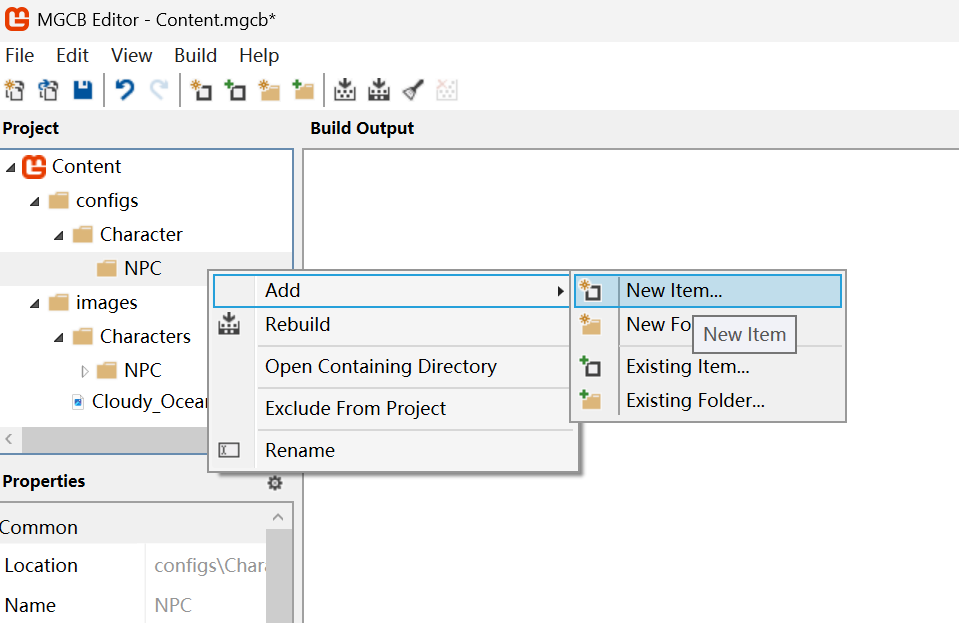
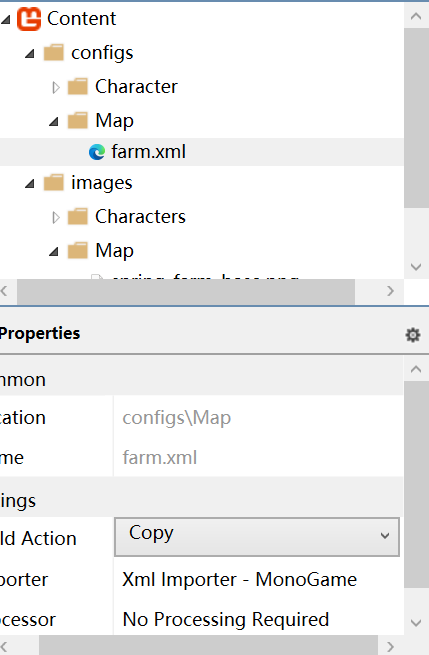
创建文件,选择xml文件并取一个名字
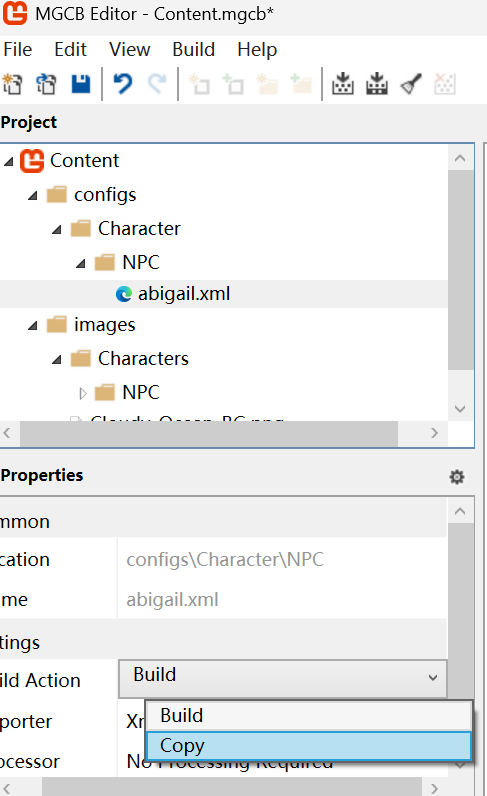
下方的xml文件把Build改成Copy,然后保存,退出!
然后我们编辑一下我们阿比盖尔的xml文件
<?xml version="1.0" encoding="utf-8"?>
<TextureAtlas>
    <Texture>images/Character/NPC/Abigail</Texture>
    <Regions>
        <Region name="abigail-down-1" x="0" y="0" width="16" height="32" />
        <Region name="abigail-down-2" x="16" y="0" width="16" height="32" />
        <Region name="abigail-down-3" x="32" y="0" width="16" height="32" />
        <Region name="abigail-down-4" x="48" y="0" width="16" height="32" />
        <Region name="abigail-left-1" x="0" y="96" width="16" height="32" />
        <Region name="abigail-left-2" x="16" y="96" width="16" height="32" />
        <Region name="abigail-left-3" x="32" y="96" width="16" height="32" />
        <Region name="abigail-left-4" x="48" y="96" width="16" height="32" />
        <Region name="abigail-right-1" x="0" y="32" width="16" height="32" />
        <Region name="abigail-right-2" x="16" y="32" width="16" height="32" />
        <Region name="abigail-right-3" x="32" y="32" width="16" height="32" />
        <Region name="abigail-right-4" x="48" y="32" width="16" height="32" />
        <Region name="abigail-up-1" x="0" y="64" width="16" height="32" />
        <Region name="abigail-up-2" x="16" y="64" width="16" height="32" />
        <Region name="abigail-up-3" x="32" y="64" width="16" height="32" />
        <Region name="abigail-up-4" x="48" y="64" width="16" height="32" />
    </Regions>
    <Animations>
        <Animation name="abigail-down" delay="200">
            <Frame region="abigail-down-1" />
            <Frame region="abigail-down-2" />
            <Frame region="abigail-down-3" />
            <Frame region="abigail-down-4" />
        </Animation>
        <Animation name="abigail-left" delay="200">
            <Frame region="abigail-left-1" />
            <Frame region="abigail-left-2" />
            <Frame region="abigail-left-3" />
            <Frame region="abigail-left-4" />
        </Animation>
        <Animation name="abigail-right" delay="200">
            <Frame region="abigail-right-1" />
            <Frame region="abigail-right-2" />
            <Frame region="abigail-right-3" />
            <Frame region="abigail-right-4" />
        </Animation>
        <Animation name="abigail-up" delay="200">
            <Frame region="abigail-up-1" />
            <Frame region="abigail-up-2" />
            <Frame region="abigail-up-3" />
            <Frame region="abigail-up-4" />
        </Animation>
    </Animations>
</TextureAtlas>
我这边给大家写好了已经,大家再Content目录下找到自己的xml文件并编辑
,那么我们使用的方法也很简单,我们用AnimatedSprite来举个例子大家就看懂了,这个是我们在LoadContent里使用的方法,后续渲染部分的代码我就不过多赘述了,大家看我的代码就行
TextureAtlas atlas = TextureAtlas.FromFile(Content, "configs/Character/NPC/Abigail.xml");
down = atlas.CreateAnimatedSprite("abigail-down");
如下:
using Microsoft.Xna.Framework;
using Microsoft.Xna.Framework.Graphics;
using Microsoft.Xna.Framework.Input;
using MonoLibrary.Graphics;

namespace Stardew;

public class Game1 : Game
{
    private GraphicsDeviceManager _graphics;
    private SpriteBatch _spriteBatch;

    private AnimatedSprite down;

    public Game1()
    {
        _graphics = new GraphicsDeviceManager(this);
        Content.RootDirectory = "Content";
        IsMouseVisible = true;
    }

    protected override void Initialize()
    {
        // TODO: Add your initialization logic here

        base.Initialize();
    }

    protected override void LoadContent()
    {
        _spriteBatch = new SpriteBatch(GraphicsDevice);

        // TODO: use this.Content to load your game content here
        TextureAtlas atlas = TextureAtlas.FromFile(Content, "configs/Character/NPC/Abigail.xml");
        down = atlas.CreateAnimatedSprite("abigail-down");
    }

    protected override void Update(GameTime gameTime)
    {
        if (GamePad.GetState(PlayerIndex.One).Buttons.Back == ButtonState.Pressed || Keyboard.GetState().IsKeyDown(Keys.Escape))
            Exit();

        // TODO: Add your update logic here

        base.Update(gameTime);
        down.Update(gameTime);
    }

    protected override void Draw(GameTime gameTime)
    {
        GraphicsDevice.Clear(Color.CornflowerBlue);

        // TODO: Add your drawing code here

        base.Draw(gameTime);

        // 启动我们的渲染   渲染像素画,需要添加samplerState: SamplerState.PointClamp
        _spriteBatch.Begin(samplerState: SamplerState.PointClamp);

        // 绘制图片      图片         位置          颜色(默认)
        down.Draw(_spriteBatch, new Vector2(0, 0));

        // 结束我们的渲染
        _spriteBatch.End();
    }
}
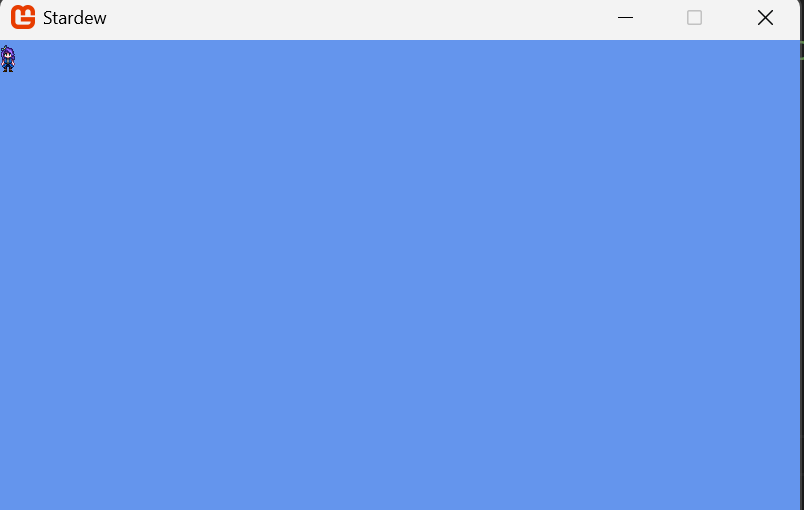
Tileset 类
那么我们接下来引入一个非常关键的概念:就是瓦片地图,这个东西是我们在游戏开发中所必需的东西:瓦片地图,什么意思呢?就是我们日常所玩的游戏,星露谷物语,蔚蓝等一些我们需要的大面积的相同重复的地图块时我们就需要这个东西,那么我们使用这个东西是很有讲究的,我们需要和图集一样先把我们的瓦片地图给切割出来,然后再通过xml文件来读取我们的地图信息,那么我们现在完成的就是第一步:瓦片集:也就是我们所需要把瓦片的所有信息全部存储起来,我们直接上代码
namespace MonoLibrary.Graphics;

public class Tileset
{
    /// <summary>
    /// 瓦片所有纹理
    /// </summary>
    private readonly TextureRegion[] tiles;

    /// <summary>
    /// 瓦片宽度
    /// </summary>
    public int TileWidth { get; }

    /// <summary>
    /// 瓦片高度
    /// </summary>
    public int TileHeight { get; }

    /// <summary>
    /// 瓦片总数
    /// </summary>
    public int Columns { get; }

    /// <summary>
    /// 瓦片行数
    /// </summary>
    public int Rows { get; }

    /// <summary>
    /// 瓦片列数
    /// </summary>
    public int Count { get; }

    /// <summary>
    /// 根据给定的纹理区域创建一个新的瓦片集,其中包含指定的
    /// 图块宽度和高度。
    /// </summary>
    /// <param name="textureRegion">包含图块集的图块的纹理区域.</param>
    /// <param name="tileWidth">图块集中每个图块的宽度.</param>
    /// <param name="tileHeight">图块集中每个图块的高度.</param>
    public Tileset(TextureRegion textureRegion, int tileWidth, int tileHeight)
    {
        TileWidth = tileWidth;
        TileHeight = tileHeight;
        Columns = textureRegion.Width / tileWidth;
        Rows = textureRegion.Height / tileHeight;
        Count = Columns * Rows;

        // Create the texture regions that make up each individual tile
        tiles = new TextureRegion[Count];

        for (int i = 0; i < Count; i++)
        {
            int x = i % Columns * tileWidth;
            int y = i / Columns * tileHeight;
            tiles[i] = new TextureRegion(textureRegion.texture, textureRegion.SourceRectangle.X + x, textureRegion.SourceRectangle.Y + y, tileWidth, tileHeight);
        }
    }

    /// <summary>
    /// 根据瓦片下标取得瓦片
    /// </summary>
    /// <param name="index">瓦片下标</param>
    /// <returns></returns>
    public TextureRegion GetTile(int index) => tiles[index];

    /// <summary>
    /// 根据瓦片的行列数取得瓦片
    /// </summary>
    /// <param name="column">列</param>
    /// <param name="row">行</param>
    /// <returns></returns>
    public TextureRegion GetTile(int column, int row)
    {
        int index = row * Columns + column;
        return GetTile(index);
    }
}
这个代码的内容我还是同样的话我的注释写的非常明白了,我们只需要理解我注释的内容并开发的任务完成就行了,那么这部分代码的主要目的就是为了:将我们的图片切割开来,然后我们给每个图片加上一个数字键,代表的就是图片能够用过数字标记,这部分代码我们无法进行实践,因为它没什么效果给大家展示出来,我们需要另一个更加重要的类:Tilemap类
Tilemap 类
这个类就是我们瓦片地图的最关键的部分,我们Tilemap我们需要我们声明一个一维数组来代表一个二维数组,使用二维数组的部分比较复杂,而且无法在C#种实现,我们只需要通过定义宽度,长度的内容我们直接就开始,我们期望的xml文件格式是这样的,先声明一个材质文件,然后我们渲染定义出我们的map,也就是这个地图的样子那我们直接开始。
<?xml version="1.0" encoding="utf-8"?>
<Tilemap>
    <Tileset region="0 0 128 64" tileWidth="16" tileHeight="16">images/Map/spring_farm_base</Tileset>
    <Tiles>
        08 08 08 08 08 08 08 08 24 09 09 27 08 08 08 08 08 08 08 08 08 08 08 08 08 08 08 08 08 08 08
        08 08 08 08 08 08 08 08 24 09 09 27 08 08 08 08 08 08 08 08 08 08 08 08 08 08 08 08 08 08 08
        08 08 08 08 08 08 08 08 24 09 09 27 08 08 08 08 08 08 16 12 13 21 12 13 21 12 13 21 12 13 21
        08 08 16 17 12 13 21 17 18 09 09 10 12 13 21 12 13 21 18 09 09 09 09 09 09 09 09 09 09 09 09
        08 08 24 09 09 09 09 09 09 09 09 09 09 09 09 09 09 09 09 09 09 09 09 09 09 09 09 09 09 09 09
        08 08 24 09 09 09 09 09 09 09 09 09 09 09 09 09 09 09 09 09 09 09 09 09 09 09 09 11 28 29 29
        08 08 24 09 09 09 09 09 09 09 09 09 09 09 09 09 09 09 09 09 09 09 09 09 09 09 09 27 08 08 08
        08 08 24 09 09 09 09 09 09 09 09 09 09 09 09 09 09 09 09 09 09 09 09 09 09 09 09 27 08 08 08
        08 08 24 09 09 09 09 09 09 09 09 09 09 09 09 09 09 09 09 09 09 09 09 09 09 09 09 27 08 08 08
        08 08 24 09 09 09 09 09 09 09 09 09 09 09 09 09 09 09 09 09 09 09 09 09 09 09 09 27 08 08 08
        08 08 24 09 09 09 09 09 09 09 09 09 09 09 09 09 09 09 09 09 09 09 09 09 09 09 09 27 08 08 08
        08 08 24 09 09 09 09 09 09 09 09 09 09 09 09 09 09 09 09 09 09 09 09 09 09 09 09 27 08 08 08
        08 08 24 09 09 09 09 09 09 09 09 09 09 09 09 09 09 09 09 09 09 09 09 09 09 09 09 27 08 08 08
        08 08 24 09 09 09 09 09 09 09 09 09 09 09 09 09 09 09 09 09 09 09 09 09 09 09 09 27 08 08 08
        08 08 24 09 09 09 09 09 09 09 09 09 09 09 09 09 09 09 09 09 09 09 09 09 09 09 09 27 08 08 08
        08 08 24 09 09 09 09 09 09 09 09 09 09 09 09 09 09 09 09 09 09 09 09 09 09 09 09 27 08 08 08
        08 08 24 09 09 09 09 09 09 09 09 09 09 09 09 09 09 09 09 09 09 09 09 09 09 09 09 27 08 08 08
        08 08 24 09 09 09 09 09 09 09 09 09 09 09 09 09 09 09 09 09 09 09 09 09 09 09 09 27 08 08 08
        08 08 04 05 05 05 05 05 05 05 05 05 05 05 05 05 05 05 05 05 05 05 05 05 05 05 05 07 08 08 08
        08 08 08 08 08 08 08 08 08 08 08 08 08 08 08 08 08 08 08 08 08 08 08 08 08 08 08 08 08 08 08
        08 08 08 08 08 08 08 08 08 08 08 08 08 08 08 08 08 08 08 08 08 08 08 08 08 08 08 08 08 08 08
    </Tiles>
</Tilemap>
那么我们的代码和加载xml文件的时候就需要这么写!那么我们直接开始吧
using System;
using System.IO;
using System.Xml;
using System.Xml.Linq;
using Microsoft.Xna.Framework;
using Microsoft.Xna.Framework.Content;
using Microsoft.Xna.Framework.Graphics;
using MonoLibrary.View;

namespace MonoLibrary.Graphics;

public class Tilemap
{
    private readonly Tileset _tileset;
    private readonly int[] _tiles;

    /// <summary>
    /// 得到在这个瓦片地图中总行数
    /// </summary>
    public int Rows { get; }

    /// <summary>
    /// 得到在这个瓦片地图中的总列数.
    /// </summary>
    public int Columns { get; }

    /// <summary>
    /// 得到这个瓦片地图中的总数.
    /// </summary>
    public int Count { get; }

    /// <summary>
    /// 得到这个瓦片地图的缩放比例.
    /// </summary>
    public Vector2 Scale { get; set; }

    /// <summary>
    /// 得到瓦片地图的宽度.
    /// </summary>
    public float TileWidth => _tileset.TileWidth * Scale.X;

    /// <summary>
    /// 得到瓦片地图的宽度.
    /// </summary>
    public float TileHeight => _tileset.TileHeight * Scale.Y;

    /// <summary>
    /// 图层深度
    /// </summary>
    public float LayerDepth;


    /// <summary>
    /// 构造函数
    /// </summary>
    /// <param name="tileset">瓦片集合</param>
    /// <param name="columns">列数</param>
    /// <param name="rows">行数</param>
    public Tilemap(Tileset tileset, int columns, int rows)
    {
        _tileset = tileset;
        Rows = rows;
        Columns = columns;
        Count = Columns * Rows;
        Scale = Vector2.One;
        _tiles = new int[Count];
    }

    /// <summary>
    /// 设置下标为index的数为ID
    /// </summary>
    /// <param name="index">下标</param>
    /// <param name="tilesetID">ID</param>
    public void SetTile(int index, int tilesetID)
    {
        _tiles[index] = tilesetID;
    }

    /// <summary>
    /// 通过行列来设置ID
    /// </summary>
    /// <param name="column">列数</param>
    /// <param name="row">行数</param>
    /// <param name="tilesetID"></param>
    public void SetTile(int column, int row, int tilesetID)
    {
        int index = row * Columns + column;
        SetTile(index, tilesetID);
    }

    /// <summary>
    /// 得到下标为Index的纹理
    /// </summary>
    /// <param name="index">下标</param>
    /// <returns></returns>
    public TextureRegion GetTile(int index)
    {
        return _tileset.GetTile(_tiles[index]);
    }

    /// <summary>
    /// 得到行列数的纹理
    /// </summary>
    /// <param name="column">列数</param>
    /// <param name="row">行数</param>
    /// <returns></returns>
    public TextureRegion GetTile(int column, int row)
    {
        int index = row * Columns + column;
        return GetTile(index);
    }

    /// <summary>
    /// 取得当前ID
    /// </summary>
    /// <param name="column"></param>
    /// <param name="row"></param>
    /// <returns></returns>
    public int GetTileID(int column, int row)
    {
        int index = row * Columns + column;
        return _tiles[index];
    }


    /// <summary>
    /// 渲染瓦片地图
    /// </summary>
    /// <param name="spriteBatch">渲染组件</param>
    public void Draw(SpriteBatch spriteBatch)
    {
        for (int i = 0; i < Count; i++)
        {
            int tileSetIndex = _tiles[i];
            TextureRegion tile = _tileset.GetTile(tileSetIndex);

            int x = i % Columns;
            int y = i / Columns;

            Vector2 position = new Vector2(x * TileWidth, y * TileHeight);
            tile.Draw(spriteBatch, position, Color.White, 0.0f, Vector2.Zero, Scale, SpriteEffects.None, LayerDepth);
        }
    }

    /// <summary>
    /// 根据瓦片地图 xml 配置文件创建新的瓦片地图.
    /// </summary>
    /// <param name="content">用于加载图块集纹理的内容管理器.</param>
    /// <param name="filename">xml 文件的路径,相对于内容根目录.</param>
    /// <returns>通过此方法创建的瓦片图.</returns>
    public static Tilemap FromFile(ContentManager content, string filename)
    {
        string filePath = Path.Combine(content.RootDirectory, filename);

        using (Stream stream = TitleContainer.OpenStream(filePath))
        {
            using (XmlReader reader = XmlReader.Create(stream))
            {
                XDocument doc = XDocument.Load(reader);
                XElement root = doc.Root;

                // 该<Tileset>元素包含有关图块集的信息
                // 由瓦片地图使用。
                //
                // 示例
                // <Tileset region="0 0 100 100" tileWidth="10" tileHeight="10">contentPath</Tileset>
                //
                // region 属性表示 x、y、width 和高度
                // 纹理区域边界的组件
                // 纹理。
                //
                // tileWidth 和 tileHeight 属性指定宽度和
                // 图块集中每个图块的高度。
                //
                // contentPath 值是纹理的 contentPath
                // 包含瓦片集的负载
                XElement tilesetElement = root.Element("Tileset");

                string regionAttribute = tilesetElement.Attribute("region").Value;
                string[] split = regionAttribute.Split(" ", StringSplitOptions.RemoveEmptyEntries);
                int x = int.Parse(split[0]);
                int y = int.Parse(split[1]);
                int width = int.Parse(split[2]);
                int height = int.Parse(split[3]);

                int tileWidth = int.Parse(tilesetElement.Attribute("tileWidth").Value);
                int tileHeight = int.Parse(tilesetElement.Attribute("tileHeight").Value);
                string contentPath = tilesetElement.Value;

                // 加载2D纹理路径
                Texture2D texture = content.Load<Texture2D>(contentPath);

                // 创建纹理Region
                TextureRegion textureRegion = new TextureRegion(texture, x, y, width, height);

                // 创建Tileset
                Tileset tileset = new Tileset(textureRegion, tileWidth, tileHeight);

                // 该<Tiles>元素包含字符串行,其中每行
                // 该示例中再Content的内容管线中加载位置在images/atlas的图片
                // 并解释一下各个的含义:
                // 在Tileset region = "260 0 80 80" 的意思是切割图片atlas在以260 0为起点的长宽为80的图片作为瓦片集
                // tileWidth="20" tileHeight="20" 切割之后每个瓦片的厂宽都为20的瓦片地图
                // <?xml version="1.0" encoding="utf-8"?>
                // <Tilemap>
                //     <Tileset region="260 0 80 80" tileWidth="20" tileHeight="20">images/atlas</Tileset>
                //     <Tiles>
                //         00 01 02 01 02 01 02 01 02 01 02 01 02 01 02 03
                //         04 05 05 06 05 05 06 05 05 06 05 05 06 05 05 07
                //         08 09 09 09 09 09 09 09 09 09 09 09 09 09 09 11
                //         04 09 09 09 09 09 09 09 10 09 09 09 09 10 09 07
                //         08 09 10 09 09 09 09 09 09 09 09 09 09 09 09 11
                //         04 09 09 09 09 09 09 09 09 09 09 09 09 09 09 07
                //         08 10 09 09 09 09 09 09 09 09 10 09 09 09 09 11
                //         04 09 09 09 09 09 10 09 09 09 09 09 09 09 09 07
                //         12 13 14 13 14 13 14 13 14 13 14 13 14 13 14 15
                //     </Tiles>
                // </Tilemap>

                // </Tiles>
                XElement tilesElement = root.Element("Tiles");

                // Split the value of the tiles data into rows by splitting on
                // the new line character
                string[] rows = tilesElement.Value.Trim().Split('\n', StringSplitOptions.RemoveEmptyEntries);

                // Split the value of the first row to determine the total number of columns
                int columnCount = rows[0].Split(" ", StringSplitOptions.RemoveEmptyEntries).Length;

                // Create the tilemap
                Tilemap tilemap = new Tilemap(tileset, columnCount, rows.Length);

                // Process each row
                for (int row = 0; row < rows.Length; row++)
                {
                    // Split the row into individual columns
                    string[] columns = rows[row].Trim().Split(" ", StringSplitOptions.RemoveEmptyEntries);

                    // Process each column of the current row
                    for (int column = 0; column < columnCount; column++)
                    {
                        // Get the tileset index for this location
                        int tilesetIndex = int.Parse(columns[column]);

                        // Get the texture region of that tile from the tileset
                        TextureRegion region = tileset.GetTile(tilesetIndex);

                        // Add that region to the tilemap at the row and column location
                        tilemap.SetTile(column, row, tilesetIndex);
                    }
                }

                return tilemap;
            }
        }
    }
}
实践
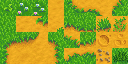
实践就非常简单了,我们在Content里面常见一个xml文件来存储我们的地图信息和导入我们的地图图片,创建xml文件
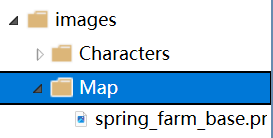
<?xml version="1.0" encoding="utf-8"?>
<Tilemap>
    <Tileset region="0 0 128 64" tileWidth="16" tileHeight="16">images/Map/spring_farm_base</Tileset>
    <Tiles>
        08 08 08 08 08 08 08 08 24 09 09 27 08 08 08 08 08 08 08 08 08 08 08 08 08 08 08 08 08 08 08
        08 08 08 08 08 08 08 08 24 09 09 27 08 08 08 08 08 08 08 08 08 08 08 08 08 08 08 08 08 08 08
        08 08 08 08 08 08 08 08 24 09 09 27 08 08 08 08 08 08 16 12 13 21 12 13 21 12 13 21 12 13 21
        08 08 16 17 12 13 21 17 18 09 09 10 12 13 21 12 13 21 18 09 09 09 09 09 09 09 09 09 09 09 09
        08 08 24 09 09 09 09 09 09 09 09 09 09 09 09 09 09 09 09 09 09 09 09 09 09 09 09 09 09 09 09
        08 08 24 09 09 09 09 09 09 09 09 09 09 09 09 09 09 09 09 09 09 09 09 09 09 09 09 11 28 29 29
        08 08 24 09 09 09 09 09 09 09 09 09 09 09 09 09 09 09 09 09 09 09 09 09 09 09 09 27 08 08 08
        08 08 24 09 09 09 09 09 09 09 09 09 09 09 09 09 09 09 09 09 09 09 09 09 09 09 09 27 08 08 08
        08 08 24 09 09 09 09 09 09 09 09 09 09 09 09 09 09 09 09 09 09 09 09 09 09 09 09 27 08 08 08
        08 08 24 09 09 09 09 09 09 09 09 09 09 09 09 09 09 09 09 09 09 09 09 09 09 09 09 27 08 08 08
        08 08 24 09 09 09 09 09 09 09 09 09 09 09 09 09 09 09 09 09 09 09 09 09 09 09 09 27 08 08 08
        08 08 24 09 09 09 09 09 09 09 09 09 09 09 09 09 09 09 09 09 09 09 09 09 09 09 09 27 08 08 08
        08 08 24 09 09 09 09 09 09 09 09 09 09 09 09 09 09 09 09 09 09 09 09 09 09 09 09 27 08 08 08
        08 08 24 09 09 09 09 09 09 09 09 09 09 09 09 09 09 09 09 09 09 09 09 09 09 09 09 27 08 08 08
        08 08 24 09 09 09 09 09 09 09 09 09 09 09 09 09 09 09 09 09 09 09 09 09 09 09 09 27 08 08 08
        08 08 24 09 09 09 09 09 09 09 09 09 09 09 09 09 09 09 09 09 09 09 09 09 09 09 09 27 08 08 08
        08 08 24 09 09 09 09 09 09 09 09 09 09 09 09 09 09 09 09 09 09 09 09 09 09 09 09 27 08 08 08
        08 08 24 09 09 09 09 09 09 09 09 09 09 09 09 09 09 09 09 09 09 09 09 09 09 09 09 27 08 08 08
        08 08 04 05 05 05 05 05 05 05 05 05 05 05 05 05 05 05 05 05 05 05 05 05 05 05 05 07 08 08 08
        08 08 08 08 08 08 08 08 08 08 08 08 08 08 08 08 08 08 08 08 08 08 08 08 08 08 08 08 08 08 08
        08 08 08 08 08 08 08 08 08 08 08 08 08 08 08 08 08 08 08 08 08 08 08 08 08 08 08 08 08 08 08
    </Tiles>
</Tilemap>
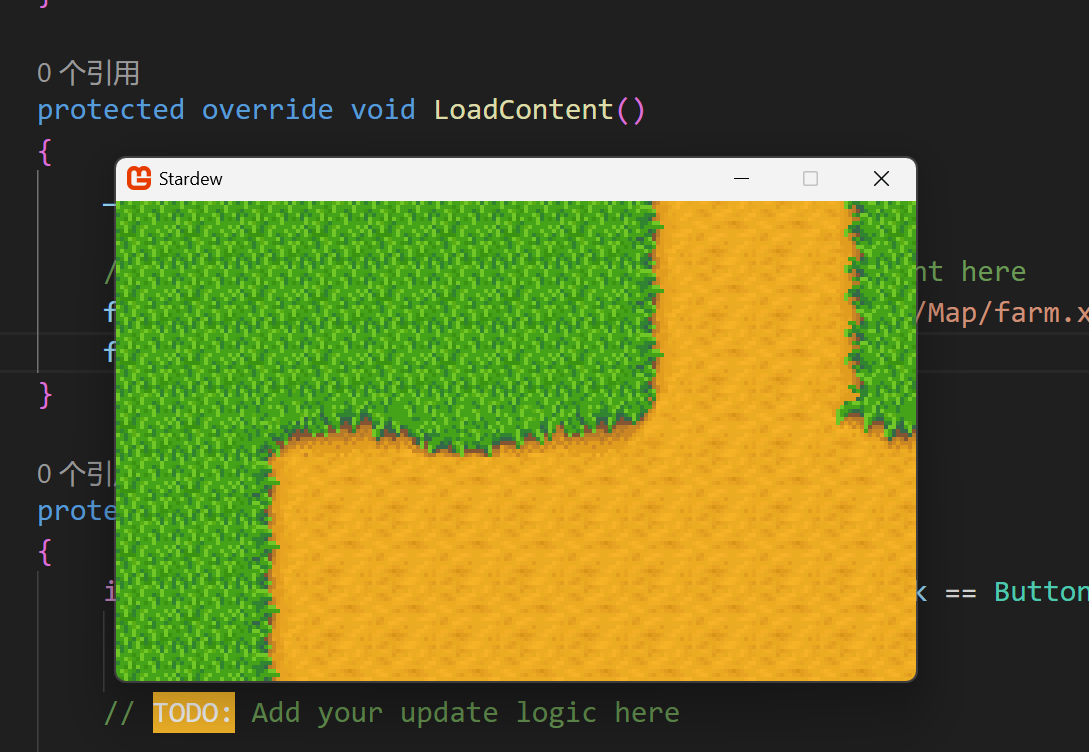
这个xml文件就是我们的农场场景了
我们的渲染很简单,加载xml’文件然后渲染就OK了
using Microsoft.Xna.Framework;
using Microsoft.Xna.Framework.Graphics;
using Microsoft.Xna.Framework.Input;
using MonoLibrary.Graphics;

namespace Stardew;

public class Game1 : Game
{
    private GraphicsDeviceManager _graphics;
    private SpriteBatch _spriteBatch;

    private Tilemap farm_tilemap;

    public Game1()
    {
        _graphics = new GraphicsDeviceManager(this);
        Content.RootDirectory = "Content";
        IsMouseVisible = true;
    }

    protected override void Initialize()
    {
        // TODO: Add your initialization logic here

        base.Initialize();
    }

    protected override void LoadContent()
    {
        _spriteBatch = new SpriteBatch(GraphicsDevice);

        // TODO: use this.Content to load your game content here
        farm_tilemap = Tilemap.FromFile(Content, "configs/Map/farm.xml");
        farm_tilemap.Scale = new Vector2(4f, 4f);
    }

    protected override void Update(GameTime gameTime)
    {
        if (GamePad.GetState(PlayerIndex.One).Buttons.Back == ButtonState.Pressed || Keyboard.GetState().IsKeyDown(Keys.Escape))
            Exit();

        // TODO: Add your update logic here

        base.Update(gameTime);

    }

    protected override void Draw(GameTime gameTime)
    {
        GraphicsDevice.Clear(Color.CornflowerBlue);

        // TODO: Add your drawing code here

        base.Draw(gameTime);

        // 启动我们的渲染   渲染像素画,需要添加samplerState: SamplerState.PointClamp
        _spriteBatch.Begin(samplerState: SamplerState.PointClamp);

        // 绘制图片      图片         位置          颜色(默认)
        farm_tilemap.Draw(_spriteBatch);

        // 结束我们的渲染
        _spriteBatch.End();
    }
}
RuleTile 类
在星露谷种我们耕种土地时他会根据我们更重的形状实时改变我们耕地的形状,而不是一成不变的我们需要制定一套规则来规定瓦片的绘制有什么规律我们计算机才能更好的计算出来:
我们可以知道我们这边给出一套瓦片

举个例子 
这里我们可以知道,这个瓦片的上方和左侧不能存在任何的同类型的瓦片,而下方和右方可以存在同类型的瓦片,那么是什么我们就不得而知,我们这边就要初步运用算法的思想,也是我们本系列学到的第一个算法思想:分治
分治
首先我们分治就是将大问题分化成小问题:就比如一块大面积的耕地我们应该怎么解决这个问题,那么我们就拆分成一个一个的子问题,比如我们知道这个耕地的右上角的一小块耕地的下方存在耕地,左侧也存在耕地那么我们就需要使用我给出的耕地
我们只需要存储这个规则瓦片的 图片,四个方向是否能够存在同类型瓦片,以及位置信息等等就行了,我们直接开始写代码
namespace MonoLibrary.Graphics;

public class RuleTile
{
    public TextureRegion texture;

    public bool[] NeighborsMask = new bool[4];

    public RuleTile(TextureRegion texture, bool[] NeighborsMask)
    {
        this.texture = texture;
        this.NeighborsMask = NeighborsMask;
    }
}
没错!就是这么简单,因为我们只是声明一规则瓦片来存储信息而已,我们的重头戏实在下方的RuleTilemap这里会说到我们学习的第一种算法程序:广度优先搜索
RuleTilemap 类
在上一小节种我们已经声明了规则瓦片以此来存储我们的瓦片信息,但是我们比方说添加瓦片时我们该怎么做呢,这个时候大家会想到我们可以像瓦片地图一样先声明一个数组存储我们的瓦片,然后我们遍历我们的数组以此来判断有哪些耕地需要变换的,对的!没错,这个是可以实现的
RuleTilemap 类的核心思想是管理一个基于规则的瓦片地图系统,其中每个瓦片的显示纹理会根据其相邻瓦片的状态自动调整。这种机制特别适合创建连贯的地形效果,如耕地、道路、水域等需要自然过渡的场景元素。
现在我们需要:广度优先搜索算法
广度优先搜索算法
当我们放置一个新瓦片时,不只是这个瓦片本身需要确定显示哪种纹理,所有与之相连的瓦片都需要重新检查它们的邻居状态,因为新瓦片的加入改变了整个连接区域的边界关系。
大家想想一下:在平静水面丢下去一块石头,那么这个石头的波纹就会散发开来
这个非常像广度优先搜索算法
- 第一步:以我们决定设置瓦片的位置row column 为起点
- 第二步:让这个位置入队 并设置该位置已经访问
- 第三步:然后进入循环
- Loop(循环):
- 把第一个位置出队
- 判断第一个位置的周围四个位置是否有瓦片
- 如果有瓦片则入队 并设置该瓦片为已经访问
- 记录周围四个瓦片是否存在的信息
- 对比瓦片库,看是需要那种瓦片
- 设置瓦片
这个上面的步骤就是我们设置瓦片的步骤,非常简单的算法,就是像遍历一个东西一样不断地渲染所有地代码,大家可以去网上搜索“黑红瓷砖”等等题目来练习就可以理解我说的是什么意思了
代码环节:我们首先得先写一个Pair类来处理我们的位置代码,那么我们的文件结构是这样的
📁 Library
├── 📁 Audio
├── 📁 Camera
│ └── 📄 Camera.cs
├── 📁 Graphics
│ ├── 📁 Tilemap
│ │ ├── 📄 RuleTile.cs
│ │ ├── 📄 RuleTilemap.cs
│ │ ├── 📄 Tilemap.cs
│ │ └── 📄 Tileset.cs
│ ├── 📄 AnimatedSprite.cs
│ ├── 📄 Animation.cs
│ ├── 📄 Sprite.cs
│ ├── 📄 TextureAtlas.cs
│ └── 📄 TextureRegion.cs
├── 📁 Input
├── 📁 Scene
└── 📁 Utility
└── 📄 Pair.cs
public struct Pair
{
    public int X, Y;
}
using System.Collections.Generic;
using System.IO;
using System.Xml;
using System.Xml.Linq;
using Microsoft.Xna.Framework;
using Microsoft.Xna.Framework.Content;
using Microsoft.Xna.Framework.Graphics;
using MonoLibrary.View;

namespace MonoLibrary.Graphics;

public class RuleTilemap
{
    public readonly int[] _tiles;

    private Dictionary<int, RuleTile> _tileset;

    /// <summary>
    /// 得到在这个瓦片地图中总行数
    /// </summary>
    public int Rows { get; }

    /// <summary>
    /// 得到在这个瓦片地图中的总列数.
    /// </summary>
    public int Columns { get; }

    /// <summary>
    /// 得到这个瓦片地图中的总数.
    /// </summary>
    public int Count { get; }

    /// <summary>
    /// 得到这个瓦片地图的缩放比例.
    /// </summary>
    public Vector2 Scale { get; set; }

    /// <summary>
    /// 瓦片地图的图层深度
    /// </summary>
    public float LayerDepth { get; set; }

    /// <summary>
    /// 瓦片宽度
    /// </summary>
    public float TileWidth { get; set; }

    /// <summary>
    /// 瓦片高度
    /// </summary>
    public float TileHeight { get; set; }

    /// <summary>
    /// 构造函数
    /// </summary>
    /// <param name="tileset">瓦片集</param>
    /// <param name="columns">总列数</param>
    /// <param name="rows">总行数</param>
    public RuleTilemap(Dictionary<int, RuleTile> tileset, int columns, int rows, float TileWidth, float TileHeight)
    {
        _tileset = tileset;
        Rows = rows;
        Columns = columns;
        Count = Columns * Rows;
        Scale = Vector2.One;
        _tiles = new int[Count];
        System.Array.Fill(_tiles, -1);
        this.TileWidth = TileWidth;
        this.TileHeight = TileHeight;
    }

    public int GetIndex(int column, int row)
    {
        return row * Columns + column;
    }

    public TextureRegion GetRegion(int column, int row)
    {
        int index = GetIndex(column, row);
        return _tileset[_tiles[index]].texture;
    }

    public void SetTile(int column, int row)
    {
        int index = GetIndex(column, row);
        if (column < 0 || row < 0 || column >= Columns || row >= Rows || _tiles[index] != -1) return;
        _tiles[index] = 0;
        Queue<Pair> queue = new Queue<Pair>();
        queue.Enqueue(new Pair { X = column, Y = row });
        bool[,] vis = new bool[Columns, Rows];
        vis[column, row] = true;
        // 四方向:  上  左  下 右
        int[] dx = { 0, -1, 0, 1 };
        int[] dy = { -1, 0, 1, 0 };

        while (queue.Count > 0)
        {
            Pair top = queue.Dequeue();
            bool[] NeighborsMask = new bool[4];
            for (int i = 0; i < 4; i++)
            {
                int x = dx[i] + top.X;
                int y = dy[i] + top.Y;
                if (x < 0 || y < 0 || x >= Columns || y >= Rows)
                {
                    NeighborsMask[i] = false;
                    continue;
                }

                NeighborsMask[i] = _tiles[GetIndex(x, y)] != -1;

                if (!vis[x, y] && _tiles[GetIndex(x, y)] != -1)
                {
                    vis[x, y] = true;
                    Pair newPair = new Pair { X = x, Y = y };
                    queue.Enqueue(newPair);
                }
            }
            RefreshRuleTile(NeighborsMask, top.X, top.Y);
        }
    }

    private bool ArraysEqual(bool[] a, bool[] b)
    {
        if (a.Length != b.Length) return false;
        for (int i = 0; i < a.Length; i++)
        {
            if (a[i] != b[i]) return false;
        }
        return true;
    }

    public void RefreshRuleTile(bool[] NeighborsMask, int column, int row)
    {
        int index = GetIndex(column, row);
        int ans = -1;
        foreach (var item in _tileset)
        {
            if (ArraysEqual(item.Value.NeighborsMask, NeighborsMask))
            {
                ans = item.Key;
                break;
            }
        }
        _tiles[index] = ans;
    }

    public void Draw(SpriteBatch spriteBatch)
    {
        for (int i = 0; i < Count; i++)
        {
            int tileSetID = _tiles[i];
            if (tileSetID == -1) continue;
            if (!_tileset.ContainsKey(tileSetID)) continue;
            TextureRegion tile = _tileset[tileSetID].texture;

            int x = i % Columns;
            int y = i / Columns;

            Vector2 position = new Vector2(x * TileWidth * Scale.X, y * TileHeight * Scale.Y );
            tile.Draw(spriteBatch, position, Color.White, 0.0f, Vector2.Zero, Scale, SpriteEffects.None, LayerDepth);
        }
    }

    public static RuleTilemap FromFile(ContentManager content, string filename)
    {
        string filePath = Path.Combine(content.RootDirectory, filename);

        using (Stream stream = TitleContainer.OpenStream(filePath))
        {
            using (XmlReader reader = XmlReader.Create(stream))
            {
                XDocument doc = XDocument.Load(reader);
                XElement root = doc.Root;

                string texturePath = root.Element("Texture").Value;
                Texture2D atlas = content.Load<Texture2D>(texturePath);

                var tiles = root.Element("Tiles");
                int Columns = int.Parse(tiles.Attribute("Columns")?.Value ?? "0");
                int Rows = int.Parse(tiles.Attribute("Rows")?.Value ?? "0");
                int TileWidth = int.Parse(tiles.Attribute("TileWidth")?.Value ?? "0");
                int TileHeight = int.Parse(tiles.Attribute("TileHeight")?.Value ?? "0");

                var tileset = root.Element("Tileset").Elements("RuleTile");
                Dictionary<int, RuleTile> _tileset = new Dictionary<int, RuleTile>();
                if (tileset != null)
                {
                    foreach (var tile in tileset)
                    {
                        int ID = int.Parse(tile.Attribute("ID")?.Value ?? "0");
                        var Region = tile.Element("Region");
                        var NeighborsMask = tile.Element("Neighbors");
                        int x = int.Parse(Region.Attribute("x")?.Value ?? "0");
                        int y = int.Parse(Region.Attribute("y")?.Value ?? "0");
                        int width = int.Parse(Region.Attribute("width")?.Value ?? "0");
                        int height = int.Parse(Region.Attribute("height")?.Value ?? "0");
                        TextureRegion region = new TextureRegion(atlas, x, y, width, height);
                        bool Up = bool.Parse(NeighborsMask.Attribute("Up")?.Value ?? "false");
                        bool Down = bool.Parse(NeighborsMask.Attribute("Down")?.Value ?? "false");
                        bool Left = bool.Parse(NeighborsMask.Attribute("Left")?.Value ?? "false");
                        bool Right = bool.Parse(NeighborsMask.Attribute("Right")?.Value ?? "false");
                        bool[] mask = { Up, Left, Down, Right };
                        RuleTile ruleTile = new RuleTile(region, mask);
                        _tileset.Add(ID, ruleTile);
                    }
                }
                RuleTilemap ruleTilemap = new RuleTilemap(_tileset, Columns, Rows, TileWidth, TileHeight);
                return ruleTilemap;
            }
        }
    }
}
实践
这个部分我们不进行实践我们等之后再进行,因为现在的的代码还没有实现我们的主要游戏逻辑,我们需要再要一段时间的框架开发再来实现我们的代码!那么我们呢跳过这部分,大家先把代码写好我们准备发车!
我们准备进入第二部分:输入输出,这部分和我们的代码的输入输出有关,我们用它来控制我们的输入输出。
第二部分:Input
欢迎回来!我们接着进行我们的输入输出的代码编写,那么我们输入输出的代码是怎么完成的呢?没错我们的MonoGame本身封装了一部分键盘输入输出来检测我们电脑的键盘和鼠标的输入,但是他的封装还是很复杂,我希望我们能通过进一步封装来实现我们的快速检测按钮的输入输出的效果!
这部分代码我不会进行过多的讲解,因为这里大部分的代码都是一些二次封装没什么技术含量
📁 Library
├── 📁 Audio
├── 📁 Camera
├── 📁 Graphics
│ ├── 📁 Tilemap
│ │ ├── 📄 RuleTile.cs
│ │ ├── 📄 RuleTilemap.cs
│ │ ├── 📄 Tilemap.cs
│ │ └── 📄 Tileset.cs
│ ├── 📄 AnimatedSprite.cs
│ ├── 📄 Animation.cs
│ ├── 📄 Animator.cs
│ ├── 📄 Sprite.cs
│ ├── 📄 TextureAtlas.cs
│ └── 📄 TextureRegion.cs
├── 📁 Input
│ ├── 📄 GamePadInfo.cs
│ ├── 📄 InputManager.cs
│ ├── 📄 KeyBoardInfo.cs
│ ├── 📄 MouseButtons.cs
│ └── 📄 MouseInfo.cs
├── 📁 Scene
└── 📁 Utility
└── 📄 Pair.cs
KeyBoardInfo 类
using Microsoft.Xna.Framework.Input;

namespace MonoLibrary.Input;

public class KeyBoardInfo
{
    /// <summary>
    /// 之前的按键状态
    /// </summary>
    public KeyboardState PreviousState { get; private set; }

    /// <summary>
    /// 当前的按键状态
    /// </summary>
    public KeyboardState CurrentState { get; private set; }

    /// <summary>
    /// 无参构造
    /// </summary>
    public KeyBoardInfo()
    {
        PreviousState = new KeyboardState();
        CurrentState = Keyboard.GetState();
    }

    /// <summary>
    /// 不断更新键盘状态
    /// </summary>
    public void Update()
    {
        PreviousState = CurrentState;
        CurrentState = Keyboard.GetState();
    }

    /// <summary>
    /// 检测当前按钮是否按下 (只要按住指定的键,就会返回 true)
    /// </summary>
    /// <param name="key">检测按键</param>
    /// <returns>返回是否按下</returns>
    public bool IsKeyDown(Keys key)
    {
        return CurrentState.IsKeyDown(key);
    }


    /// <summary>
    /// 检测当前按钮是否未被按下 (只要未按下指定的键,则返回 true)
    /// </summary>
    /// <param name="key">检测按键</param>
    /// <returns>返回是否Up</returns>
    public bool IsKeyUp(Keys key)
    {
        return CurrentState.IsKeyUp(key);
    }


    /// <summary>
    /// 仅当指定的键从上到下更改时,仅在帧上返回 true
    /// </summary>
    /// <param name="key">检测按键</param>
    /// <returns>返回是否按下</returns>
    public bool WasKeyJustPressed(Keys key)
    {
        return CurrentState.IsKeyDown(key) && PreviousState.IsKeyUp(key);
    }


    /// <summary>
    /// 仅当指定的键从 down-up 更改为 up 时,仅在帧上返回 true
    /// </summary>
    /// <param name="key">检测按键</param>
    /// <returns>返回是否Up</returns>
    public bool WasKeyJustReleased(Keys key)
    {
        return CurrentState.IsKeyUp(key) && PreviousState.IsKeyDown(key);
    }
}
这个类非常简单,就算是原本的类也能实现这个效果,我们前面已经说了,这边我不会进行过多的讲解,这个大家稍微看一下代码就能理解了
MouseButton && MouseInfo类
MouseButton 是一个枚举用来枚举我们鼠标的状态,为什么枚举呢,因为MonoGame的封装需要先取得当前的CurrentState再通过他的子函数来调用代码获取按钮的效果!
MouseButton
namespace MonoLibrary.Input;

public enum MouseButton
{
    Left,
    Middle,
    Right,
    XButton1,
    XButton2
}
MouseInfo
using Microsoft.Xna.Framework;
using Microsoft.Xna.Framework.Input;

namespace MonoLibrary.Input;

public class MouseInfo
{
    /// <summary>
    /// 鼠标上一帧的状态
    /// </summary>
    public MouseState PreviousState { get; private set; }

    /// <summary>
    /// 鼠标当前状态
    /// </summary>
    public MouseState CurrentState { get; private set; }

    /// <summary>
    /// 将光标位置获取/设置为 Point
    /// </summary>
    public Point Position
    {
        get => CurrentState.Position;
        set => SetPosition(value.X, value.Y);
    }

    /// <summary>
    /// 仅获取/设置水平位置
    /// </summary>
    public int X
    {
        get => CurrentState.X;
        set => SetPosition(value, CurrentState.Y);
    }

    /// <summary>
    /// 仅获取/设置垂直位置
    /// </summary>
    public int Y
    {
        get => CurrentState.Y;
        set => SetPosition(CurrentState.X, value);
    }

    /// <summary>
    /// 获取光标作为 Point 在帧之间移动的量
    /// </summary>
    public Point PositionDelta => CurrentState.Position - PreviousState.Position;

    /// <summary>
    /// 获取光标在帧之间水平移动的量
    /// </summary>
    public int XDelta => CurrentState.X - PreviousState.X;

    /// <summary>
    /// 获取光标在帧之间垂直移动的量
    /// </summary>
    public int YDelta => CurrentState.Y - PreviousState.Y;

    /// <summary>
    /// 指示光标是否在帧之间移动
    /// </summary>
    public bool WasMoved => PositionDelta != Point.Zero;

    /// <summary>
    /// 获取自游戏开始以来的总累积滚动值
    /// </summary>
    public int ScrollWheel => CurrentState.ScrollWheelValue;

    /// <summary>
    /// 获取此帧中滚动值的变化
    /// </summary>
    public int ScrollWheelDelta => CurrentState.ScrollWheelValue - PreviousState.ScrollWheelValue;

    /// <summary>
    /// 无参构造
    /// </summary>
    public MouseInfo()
    {
        PreviousState = new MouseState();
        CurrentState = Mouse.GetState();
    }

    /// <summary>
    /// 更新鼠标状态
    /// </summary>
    public void Update()
    {
        PreviousState = CurrentState;
        CurrentState = Mouse.GetState();
    }

    /// <summary>
    /// 只要按住指定的按钮,就返回 true
    /// </summary>
    /// <param name="button">按键</param>
    /// <returns></returns>
    public bool IsButtonDown(MouseButton button)
    {
        switch (button)
        {
            case MouseButton.Left:
                return CurrentState.LeftButton == ButtonState.Pressed;
            case MouseButton.Middle:
                return CurrentState.MiddleButton == ButtonState.Pressed;
            case MouseButton.Right:
                return CurrentState.RightButton == ButtonState.Pressed;
            case MouseButton.XButton1:
                return CurrentState.XButton1 == ButtonState.Pressed;
            case MouseButton.XButton2:
                return CurrentState.XButton2 == ButtonState.Pressed;
            default:
                return false;
        }
    }

    /// <summary>
    /// 只要未按下指定的按钮,则返回 true
    /// </summary>
    /// <param name="button">按键</param>
    /// <returns></returns>
    public bool IsButtonUp(MouseButton button)
    {
        switch (button)
        {
            case MouseButton.Left:
                return CurrentState.LeftButton == ButtonState.Released;
            case MouseButton.Middle:
                return CurrentState.MiddleButton == ButtonState.Released;
            case MouseButton.Right:
                return CurrentState.RightButton == ButtonState.Released;
            case MouseButton.XButton1:
                return CurrentState.XButton1 == ButtonState.Released;
            case MouseButton.XButton2:
                return CurrentState.XButton2 == ButtonState.Released;
            default:
                return false;
        }
    }

    /// <summary>
    /// 仅当指定的按钮从上到下更改时,在帧上返回 true
    /// </summary>
    /// <param name="button">按键</param>
    /// <returns></returns>
    public bool WasButtonJustPressed(MouseButton button)
    {
        switch (button)
        {
            case MouseButton.Left:
                return CurrentState.LeftButton == ButtonState.Pressed && PreviousState.LeftButton == ButtonState.Released;
            case MouseButton.Middle:
                return CurrentState.MiddleButton == ButtonState.Pressed && PreviousState.MiddleButton == ButtonState.Released;
            case MouseButton.Right:
                return CurrentState.RightButton == ButtonState.Pressed && PreviousState.RightButton == ButtonState.Released;
            case MouseButton.XButton1:
                return CurrentState.XButton1 == ButtonState.Pressed && PreviousState.XButton1 == ButtonState.Released;
            case MouseButton.XButton2:
                return CurrentState.XButton2 == ButtonState.Pressed && PreviousState.XButton2 == ButtonState.Released;
            default:
                return false;
        }
    }

    /// <summary>
    /// 仅当指定的按钮从 down-up 变为 up 时,仅在帧上返回 true
    /// </summary>
    /// <param name="button">按键</param>
    /// <returns></returns>
    public bool WasButtonJustReleased(MouseButton button)
    {
        switch (button)
        {
            case MouseButton.Left:
                return CurrentState.LeftButton == ButtonState.Released && PreviousState.LeftButton == ButtonState.Pressed;
            case MouseButton.Middle:
                return CurrentState.MiddleButton == ButtonState.Released && PreviousState.MiddleButton == ButtonState.Pressed;
            case MouseButton.Right:
                return CurrentState.RightButton == ButtonState.Released && PreviousState.RightButton == ButtonState.Pressed;
            case MouseButton.XButton1:
                return CurrentState.XButton1 == ButtonState.Released && PreviousState.XButton1 == ButtonState.Pressed;
            case MouseButton.XButton2:
                return CurrentState.XButton2 == ButtonState.Released && PreviousState.XButton2 == ButtonState.Pressed;
            default:
                return false;
        }
    }

    /// <summary>
    /// 设置光标位置
    /// </summary>
    /// <param name="x">X坐标值</param>
    /// <param name="y">Y坐标值</param>
    public void SetPosition(int x, int y)
    {
        Mouse.SetPosition(x, y);
        CurrentState = new MouseState(
            x,
            y,
            CurrentState.ScrollWheelValue,
            CurrentState.LeftButton,
            CurrentState.MiddleButton,
            CurrentState.RightButton,
            CurrentState.XButton1,
            CurrentState.XButton2
        );
    }
}
GamePadInfo 类
GamePadInfo
using System;
using Microsoft.Xna.Framework;
using Microsoft.Xna.Framework.Input;

namespace MonoLibrary.Input;

public class GamePadInfo
{
    private TimeSpan _vibrationTimeRemaining = TimeSpan.Zero;

    /// <summary>
    /// 获取此游戏手柄所针对的玩家的索引.
    /// </summary>
    public PlayerIndex PlayerIndex { get; }

    /// <summary>
    /// 获取此游戏手柄在上一个更新周期内的输入状态.
    /// </summary>
    public GamePadState PreviousState { get; private set; }

    /// <summary>
    /// 获取此游戏手柄在当前更新周期内的输入状态.
    /// </summary>
    public GamePadState CurrentState { get; private set; }

    /// <summary>
    /// 获取一个值,该值指示此游戏手柄当前是否已连接.
    /// </summary>
    public bool IsConnected => CurrentState.IsConnected;

    /// <summary>
    /// 获取此游戏手柄的左控制杆的值.
    /// </summary>
    public Vector2 LeftThumbStick => CurrentState.ThumbSticks.Left;

    /// <summary>
    /// 获取此游戏手柄的右控制杆的值.
    /// </summary>
    public Vector2 RightThumbStick => CurrentState.ThumbSticks.Right;

    /// <summary>
    /// 获取此游戏手柄的左触发器的值.
    /// </summary>
    public float LeftTrigger => CurrentState.Triggers.Left;

    /// <summary>
    /// 获取此游戏手柄的右触发器的值.
    /// </summary>
    public float RightTrigger => CurrentState.Triggers.Right;

    /// <summary>
    /// 为在指定玩家索引处连接的游戏手柄创建新的 GamePadInfo.
    /// </summary>
    /// <param name="playerIndex">此游戏手柄的玩家索引.</param>
    public GamePadInfo(PlayerIndex playerIndex)
    {
        PlayerIndex = playerIndex;
        PreviousState = new GamePadState();
        CurrentState = GamePad.GetState(playerIndex);
    }

    /// <summary>
    /// 更新此游戏手柄输入的状态信息.
    /// </summary>
    /// <param name="gameTime"></param>
    public void Update(GameTime gameTime)
    {
        PreviousState = CurrentState;
        CurrentState = GamePad.GetState(PlayerIndex);

        if (_vibrationTimeRemaining > TimeSpan.Zero)
        {
            _vibrationTimeRemaining -= gameTime.ElapsedGameTime;

            if (_vibrationTimeRemaining <= TimeSpan.Zero)
            {
                StopVibration();
            }
        }
    }

    /// <summary>
    /// 返回一个值,该值指示指定的游戏手柄按钮是否当前关闭.
    /// </summary>
    /// <param name="button">要检查的游戏手柄按钮.</param>
    /// <returns>如果指定的游戏手柄按钮当前处于关闭状态,则为 true;否则为 false.</returns>
    public bool IsButtonDown(Buttons button)
    {
        return CurrentState.IsButtonDown(button);
    }

    /// <summary>
    /// 返回一个值,该值指示指定的游戏手柄按钮当前是否处于打开状态.
    /// </summary>
    /// <param name="button">要检查的游戏手柄按钮.</param>
    /// <returns>如果指定的游戏手柄按钮当前处于打开状态,则为 true;否则为 false.</returns>
    public bool IsButtonUp(Buttons button)
    {
        return CurrentState.IsButtonUp(button);
    }

    /// <summary>
    /// 返回一个值,该值指示是否刚刚在当前帧上按下了指定的游戏手柄按钮.
    /// </summary>
    /// <param name="button">要检查的游戏手柄按钮.</param>
    /// <returns>如果仅在当前帧上按下指定的游戏手柄按钮,则为 true;否则为 false.</returns>
    public bool WasButtonJustPressed(Buttons button)
    {
        return CurrentState.IsButtonDown(button) && PreviousState.IsButtonUp(button);
    }

    /// <summary>
    /// 返回一个值,该值指示是否刚刚在当前帧上释放了指定的游戏手柄按钮.
    /// </summary>
    /// <param name="button">要检查的游戏手柄按钮</param>
    /// <returns>如果指定的 Gamepad 按钮刚刚在当前帧上释放,则为 true;否则为 false.</returns>
    public bool WasButtonJustReleased(Buttons button)
    {
        return CurrentState.IsButtonUp(button) && PreviousState.IsButtonDown(button);
    }

    /// <summary>
    /// 设置此游戏手柄的所有电机的振动.
    /// </summary>
    /// <param name="strength">振动强度从 0.0f(无)到 1.0f(全).</param>
    /// <param name="time">振动应发生的时间量.</param>
    public void SetVibration(float strength, TimeSpan time)
    {
        _vibrationTimeRemaining = time;
        GamePad.SetVibration(PlayerIndex, strength, strength);
    }

    /// <summary>
    /// 停止此游戏手柄的所有电机的振动.
    /// </summary>
    public void StopVibration()
    {
        GamePad.SetVibration(PlayerIndex, 0.0f, 0.0f);
    }

}
InputManager 类
这部分代码我稍微讲一下,上面GamePadInfo封装的太密集了,有的我也看不懂,但是官网的代码写有我就是用的官网的代码书写的GamePadInfo和其他输入类,那这边我们InputManager上会有一个数组存储GamePadInfo来存储我们的游戏手柄,理由很简单:因为一台电脑是可以插入多个手柄设备的
InputManager
using Microsoft.Xna.Framework;

namespace MonoLibrary.Input;

public class InputManager
{
    /// <summary>
    /// 获取键盘按键信息
    /// </summary>
    public KeyBoardInfo Keyboard { get; private set; }

    /// <summary>
    /// 获取鼠标按键信息
    /// </summary>
    public MouseInfo Mouse { get; private set; }

    /// <summary>
    /// 获取手柄按键信息
    /// </summary>
    public GamePadInfo[] GamePads { get; private set; }

    /// <summary>
    /// 无参构造
    /// </summary>
    /// <param name="game">此 input manager 所属的游戏.</param>
    public InputManager()
    {
        Keyboard = new KeyBoardInfo();
        Mouse = new MouseInfo();

        GamePads = new GamePadInfo[4];
        for (int i = 0; i < 4; i++)
        {
            GamePads[i] = new GamePadInfo((PlayerIndex)i);
        }
    }

    /// <summary>
    /// 更新按键信息
    /// </summary>
    /// <param name="gameTime">游戏时钟</param>
    public void Update(GameTime gameTime)
    {
        Keyboard.Update();
        Mouse.Update();

        for (int i = 0; i < 4; i++)
        {
            GamePads[i].Update(gameTime);
        }
    }
}
第三部分 Audio
因为MonoGame是一个图形渲染库,所以我会重点讲解我们的图形渲染,而音频也很重要,但是MonoGame的代码给我们封装的非常完美,导致我们现在都没有什么需要进一步封装的,所以我们这部分的代码非常简短,我们也不会将重点放在这上面讲解
AudioController 类
AudioController
using System;
using System.Collections.Generic;
using Microsoft.Xna.Framework.Audio;
using Microsoft.Xna.Framework.Media;

namespace MonoLibrary.Audio;

public class AudioController : IDisposable
{
    // 跟踪创建的声音效果实例,以便可以暂停、取消暂停和/或释放它们。
    private readonly List<SoundEffectInstance> _activeSoundEffectInstances;

    // 在静音和取消静音时跟踪歌曲播放的音量.
    private float _previousSongVolume;

    // 在静音和取消静音时跟踪音效播放的音量.
    private float _previousSoundEffectVolume;

    /// <summary>
    /// 获取一个值,该值指示音频是否静音.
    /// </summary>
    public bool IsMuted { get; private set; }

    /// <summary>
    /// 获取或设置歌曲的全局音量.
    /// </summary>
    /// <remarks>
    /// 如果 IsMuted 为 true,则 getter 将始终返回 0.0f,并且
    /// setter 将忽略设置音量。
    /// </remarks>
    public float SongVolume
    {
        get
        {
            if (IsMuted)
            {
                return 0.0f;
            }

            return MediaPlayer.Volume;
        }
        set
        {
            if (IsMuted)
            {
                return;
            }

            MediaPlayer.Volume = Math.Clamp(value, 0.0f, 1.0f);
        }
    }

    /// <summary>
    /// 获取或设置音效的全局音量
    /// </summary>
    /// <remarks>
    /// 如果 IsMuted 为 true,则 getter 将始终返回 0.0f,并且
    /// setter 将忽略设置音量。
    /// </remarks>
    public float SoundEffectVolume
    {
        get
        {
            if (IsMuted)
            {
                return 0.0f;
            }

            return SoundEffect.MasterVolume;
        }
        set
        {
            if (IsMuted)
            {
                return;
            }

            SoundEffect.MasterVolume = Math.Clamp(value, 0.0f, 1.0f);
        }
    }

    /// <summary>
    /// 获取一个值,该值指示此音频控制器是否已释放.
    /// </summary>
    public bool IsDisposed { get; private set; }

    /// <summary>
    /// 创建音频管理器
    /// </summary>
    public AudioController()
    {
        _activeSoundEffectInstances = new List<SoundEffectInstance>();
    }

    // 当垃圾回收器收集对象时调用 Finalizer
    ~AudioController() => Dispose(false);

    /// <summary>
    /// 更新这个音频播放器
    /// </summary>
    public void Update()
    {
        int index = 0;

        while (index < _activeSoundEffectInstances.Count)
        {
            SoundEffectInstance instance = _activeSoundEffectInstances[index];

            if (instance.State == SoundState.Stopped && !instance.IsDisposed)
            {
                instance.Dispose();
            }

            _activeSoundEffectInstances.RemoveAt(index);
        }
    }

    /// <summary>
    /// 播放给定音频
    /// </summary>
    /// <param name="soundEffect">音频</param>
    /// <returns></returns>
    public SoundEffectInstance PlaySoundEffect(SoundEffect soundEffect)
    {
        return PlaySoundEffect(soundEffect, 1.0f, 1.0f, 0.0f, false);
    }

    /// <summary>
    /// 播放给定音效
    /// </summary>
    /// <param name="soundEffect">音效</param>
    /// <param name="volume">音量</param>
    /// <param name="pitch">音高</param>
    /// <param name="pan"></param>
    /// <param name="isLooped">是否循环播放</param>
    /// <returns></returns>
    public SoundEffectInstance PlaySoundEffect(SoundEffect soundEffect, float volume, float pitch, float pan, bool isLooped)
    {
        // 通过给定音效创建实例.
        SoundEffectInstance soundEffectInstance = soundEffect.CreateInstance();

        // 将函数中的参数应用到音效中.
        soundEffectInstance.Volume = volume;
        soundEffectInstance.Pitch = pitch;
        soundEffectInstance.Pan = pan;
        soundEffectInstance.IsLooped = isLooped;

        // 呼叫并播放
        soundEffectInstance.Play();

        // 将其添加到活动实例以进行跟踪
        _activeSoundEffectInstances.Add(soundEffectInstance);

        return soundEffectInstance;
    }

    /// <summary>
    /// 播放音乐
    /// </summary>
    /// <param name="song"></param>
    /// <param name="isRepeating"></param>
    public void PlaySong(Song song, bool isRepeating = true)
    {
        // 检查目标音乐是否已经播放
        // 如果他还在播放先给他停下来
        if (MediaPlayer.State == MediaState.Playing)
        {
            MediaPlayer.Stop();
        }

        MediaPlayer.Play(song);
        MediaPlayer.IsRepeating = isRepeating;
    }

    /// <summary>
    /// 暂停所有音乐
    /// </summary>
    public void PauseAudio()
    {
        // 音乐
        MediaPlayer.Pause();

        // 音效
        foreach (SoundEffectInstance soundEffectInstance in _activeSoundEffectInstances)
        {
            soundEffectInstance.Pause();
        }
    }

    /// <summary>
    /// 继续播放之前暂停的所有音频.
    /// </summary>
    public void ResumeAudio()
    {
        // 音乐
        MediaPlayer.Resume();

        // 音效
        foreach (SoundEffectInstance soundEffectInstance in _activeSoundEffectInstances)
        {
            soundEffectInstance.Resume();
        }
    }

    /// <summary>
    /// 将所有音频静音.
    /// </summary>
    public void MuteAudio()
    {
        // 将音乐,音效静音
        _previousSongVolume = MediaPlayer.Volume;
        _previousSoundEffectVolume = SoundEffect.MasterVolume;

        // 设置音量为0
        MediaPlayer.Volume = 0.0f;
        SoundEffect.MasterVolume = 0.0f;

        IsMuted = true;
    }

    /// <summary>
    /// 在静音之前将所有音频取消静音至音量级别.
    /// </summary>
    public void UnmuteAudio()
    {
        // Restore the previous volume values
        MediaPlayer.Volume = _previousSongVolume;
        SoundEffect.MasterVolume = _previousSoundEffectVolume;

        IsMuted = false;
    }

    /// <summary>
    /// 切换当前音频静音状态.
    /// </summary>
    public void ToggleMute()
    {
        if (IsMuted)
        {
            UnmuteAudio();
        }
        else
        {
            MuteAudio();
        }
    }


    /// <summary>
    /// 释放此音频控制器并清理资源
    /// </summary>
    public void Dispose()
    {
        Dispose(true);
        GC.SuppressFinalize(this);
    }

    /// <summary>
    /// 释放此音频控制器并清理资源
    /// </summary>
    /// <param name="disposing">指示是否应释放托管资源</param>
    protected void Dispose(bool disposing)
    {
        if (IsDisposed)
        {
            return;
        }

        if (disposing)
        {
            foreach (SoundEffectInstance soundEffectInstance in _activeSoundEffectInstances)
            {
                soundEffectInstance.Dispose();
            }
            _activeSoundEffectInstances.Clear();
        }

        IsDisposed = true;
    }
}
这部分代码非常长,但是不重要,大家直接复制走就好了,因为我们这一篇文章我们从头到尾都没使用过这个类,但是并不是说没有用!因为我们这一卷主要实现的时我们农场代码的一些基础的东西和逻辑我们实现的方法都是这样的,这里大家记得把代码搬走!!!
第四部分 Scene 类 和 Core 类
来到最后一部分!也是非常关键的一部分,这部分的代码我们需要创建一个非常关键的技术:Core类,和Scene类,我们需要了解,在我们的游戏开发种有一种概念:场景:没错我们星露谷物语种我们从农场去小镇的时候会黑屏一下然后再慢慢亮起,那么这个就是场景之间的切换,我们的农场是一个场景,小镇是一个场景,但在实现之前我们需要一个Core类用来封装我们的窗口类!
首先我们在根目录文件夹下创建Core代码,然后让Core类继承至Game类,然后实现基本的场景转化效果,记住!这里我们初步效果的时候他是会报错的,因为我们还没有开始写Scene的代码
using System;
using Microsoft.Xna.Framework;
using Microsoft.Xna.Framework.Content;
using Microsoft.Xna.Framework.Graphics;
using Microsoft.Xna.Framework.Input;
using MonoLibrary.Input;
using MonoLibrary.Audio;
using MonoLibrary.Scenes;

namespace MonoLibrary;

/// <summary>
/// 核心类,用于处理游戏的核心逻辑
/// </summary>
public class Core : Game
{
    internal static Core instance;

    /// <summary>
    /// 获取对 Core 实例的引用
    /// </summary>
    public static Core Instance => instance;

    /// <summary>
    /// 当前激活的场景
    /// </summary>
    private static Scene ActiveScene;

    /// <summary>
    /// 下一个场景
    /// </summary>
    private static Scene NextScene;

    /// <summary>
    /// 获取图形设备管理器以控制图形的表示
    /// </summary>
    public static GraphicsDeviceManager Graphics { get; private set; }

    /// <summary>
    /// 获取用于创建图形资源和执行基元渲染的图形设备.
    /// </summary>
    public static new GraphicsDevice GraphicsDevice { get; private set; }

    /// <summary>
    /// 获取用于所有 2D 渲染的 sprite 批处理.
    /// </summary>
    public static SpriteBatch SpriteBatch { get; private set; }

    /// <summary>
    /// 获取用于加载全局资源的内容管理器.
    /// </summary>
    public static new ContentManager Content { get; private set; }

    /// <summary>
    /// 输入信息管理器
    /// </summary>
    public static InputManager Input { get; private set; }

    /// <summary>
    /// 取得音频控制器
    /// </summary>
    public static AudioController Audio { get; private set; }

    /// <summary>
    /// 获取或设置一个值,该值指示在按下键盘上的 Esc 键时是否应退出游戏
    /// </summary>
    public static bool ExitOnEscape { get; set; }

    /// <summary>
    /// 创建Core实例初始化实例
    /// </summary>
    /// <param name="title">窗口标题</param>
    /// <param name="width">窗口宽度</param>
    /// <param name="height">窗口高度</param>
    /// <param name="fullScreen">是否为全屏模式</param>
    public Core(string title, int width, int height, bool fullScreen)
    {
        // 确保创建单一实例
        if (instance != null)
        {
            throw new InvalidOperationException($"Only a single Core instance can be created");
        }

        // 保证全局仅有一个实例
        instance = this;

        // 初始化一个图形管理器
        Graphics = new GraphicsDeviceManager(this);

        //设置这个窗口的高度,宽度以及模式
        Graphics.PreferredBackBufferWidth = width;
        Graphics.PreferredBackBufferHeight = height;
        Graphics.IsFullScreen = fullScreen;

        // 应用这个更改
        Graphics.ApplyChanges();

        // 设置这个窗口的窗口
        Window.Title = title;

        // 设置这个窗口管理器的初始化
        Content = base.Content;

        // 创建资源树的树根
        Content.RootDirectory = "Content";

        // 鼠标图标是否显示
        IsMouseVisible = true;
    }

    /// <summary>
    /// 初始化时调用
    /// </summary>
    protected override void Initialize()
    {
        base.Initialize();

        // 初始化图形处理器
        GraphicsDevice = base.GraphicsDevice;

        // 精灵管理器
        SpriteBatch = new SpriteBatch(GraphicsDevice);

        // 按键输入管理器
        Input = new InputManager();

        // 音频播放管理器
        Audio = new AudioController();
    }

    /// <summary>
    /// 卸载资源时调用
    /// </summary>
    protected override void UnloadContent()
    {
        // Dispose of the audio controller.
        Audio.Dispose();

        base.UnloadContent();
    }

    /// <summary>
    /// 更新游戏逻辑时调用
    /// </summary>
    /// <param name="gameTime">游戏时刻</param>
    protected override void Update(GameTime gameTime)
    {
        // 更新输入管理器状态
        Input.Update(gameTime);

        // 更新音频管理器状态
        Audio.Update();

        if (ExitOnEscape && Input.Keyboard.IsKeyDown(Keys.Escape))
        {
            Exit();
        }

        // 如果下一个场景不为空立刻切换
        if (NextScene != null)
        {
            TransitionScene();
        }

        if (ActiveScene != null)
        {
            ActiveScene.Update(gameTime);
        }

        base.Update(gameTime);
    }

    protected override void Draw(GameTime gameTime)
    {
        // 如果当前激活场景不为空渲染这个场景
        if (ActiveScene != null)
        {
            ActiveScene.Draw(gameTime);
        }

        base.Draw(gameTime);
    }

    public static void ChangeScene(Scene next)
    {
        // 当且仅当,当前场景不等于下一个场景时切换
        if (ActiveScene != next)
        {
            NextScene = next;
        }
    }

    private static void TransitionScene()
    {
        // 如果当前场景不为空,清理当前场景
        if (ActiveScene != null)
        {
            ActiveScene.Dispose();
        }

        // 强制垃圾回收器进行回收以确保清除内存
        GC.Collect();

        // 将当前活动的场景更改为新场景
        ActiveScene = NextScene;

        // 将下一个场景值设为 null,以便它不会一遍又一遍地触发更改.
        NextScene = null;

        // 如果当前场景不为null则初始化当前场景
        if (ActiveScene != null)
        {
            ActiveScene.Initialize();
        }
    }
}
写完这个后我们再来写我们的场景类,那么他需要继承与一个 IDisposable 这样他才可以在我们的Game中自动销毁,不会消耗内存,因为我们的游戏代码是很讲究运行效率的一个东西,我们需要高效的快速的执行渲染的模式,以及内存的消耗,尽量减少内存的消耗
Scene
using System;
using Microsoft.Xna.Framework;
using Microsoft.Xna.Framework.Content;

namespace MonoLibrary.Scenes;

public abstract class Scene : IDisposable
{
    /// <summary>
    /// 最大行数
    /// </summary>
    public int MaxRows = 0;

    /// <summary>
    /// 得到资源管理器
    /// </summary>
    protected ContentManager Content { get; }

    /// <summary>
    /// 获取一个值,该值指示场景是否已处理.
    /// </summary>
    public bool IsDisposed { get; private set; }

    /// <summary>
    /// 构造函数
    /// </summary>
    public Scene()
    {
        // 为场景创建内容管理器
        Content = new ContentManager(Core.Content.ServiceProvider);

        // 将 content 的根目录设置为与游戏内容的根目录相同
        Content.RootDirectory = Core.Content.RootDirectory;
    }

    // 终结器,在垃圾回收器清理对象时调用.
    ~Scene() => Dispose(false);

    /// <summary>
    // 初始化场景.
    /// </summary>
    /// <remarks>
    /// 在派生类中重写 this 时,请确保 base.初始化()
    /// 仍然调用,因为这是调用 LoadContent 时.
    /// </remarks>
    public virtual void Initialize()
    {
        LoadContent();
    }

    /// <summary>
    /// Override 以提供逻辑来加载场景的内容.
    /// </summary>
    public virtual void LoadContent() { }

    /// <summary>
    /// 卸载特定于场景的内容.
    /// </summary>
    public virtual void UnloadContent()
    {
        Content.Unload();
    }

    /// <summary>
    /// 更新此场景。.
    /// </summary>
    /// <param name="gameTime">当前帧的计时值的快照.</param>
    public virtual void Update(GameTime gameTime) { }

    /// <summary>
    /// 绘制此场景.
    /// </summary>
    /// <param name="gameTime">当前帧的计时值的快照.</param>
    public virtual void Draw(GameTime gameTime) { }

    /// <summary>
    /// 处理此场景.
    /// </summary>
    public void Dispose()
    {
        Dispose(true);
        GC.SuppressFinalize(this);
    }

    /// <summary>
    /// 处理此场景.
    /// </summary>
    /// <param name="disposing">'
    /// 指示是否应释放托管资源。仅当从 main 调用
    /// Dispose 方法。从终结器调用时,这将是 false
    /// </param>
    protected virtual void Dispose(bool disposing)
    {
        if (IsDisposed)
        {
            return;
        }

        if (disposing)
        {
            UnloadContent();
            Content.Dispose();
        }
    }
}
那么我们回到Game1文件,我们需要让Game1文件重新写:因为需要让Game1文件继承与Core类我们才能实现场景的切换:
第一步:我们需要将Game1文件重命名为:GameMain,然后再重写这个类
using Microsoft.Xna.Framework;
using MonoLibrary;
namespace StardewValley;

public class GameMain : Core
{
    public GameMain() : base("Stardew Valley", 1280, 720, false)
    {

    }

    protected override void Initialize()
    {
        base.Initialize();
    }

    protected override void LoadContent()
    {

    }
    protected override void Update(GameTime gameTime)
    {
        base.Update(gameTime);
    }
}
接着修改Program文件
using var game = new StardewValley.GameMain();
game.Run();
至此我们的场景和章节代码全部搞定了!
章节结束
📁 Stardew
├── 📁 config
├── 📁 .vscode
├── 📁 bin
├── 📁 Content
├── 📁 Library
│ ├── 📁 Audio
│ │ └── 📄 AudioController.cs
│ ├── 📁 Camera
│ │ └── 📄 Camera.cs
│ ├── 📁 Graphics
│ │ ├── 📁 Tilemap
│ │ │ ├── 📄 RuleTile.cs
│ │ │ ├── 📄 RuleTilemap.cs
│ │ │ ├── 📄 Tilemap.cs
│ │ │ └── 📄 Tileset.cs
│ │ ├── 📄 AnimatedSprite.cs
│ │ ├── 📄 Animation.cs
│ │ ├── 📄 Animator.cs
│ │ ├── 📄 Sprite.cs
│ │ ├── 📄 TextureAtlas.cs
│ │ └── 📄 TextureRegion.cs
│ ├── 📁 Input
│ │ ├── 📄 GamePadInfo.cs
│ │ ├── 📄 InputManager.cs
│ │ ├── 📄 KeyBoardInfo.cs
│ │ ├── 📄 MouseButton.cs
│ │ └── 📄 MouseInfo.cs
│ ├── 📁 Scene
│ │ └── 📄 Scene.cs
│ └── 📁 Utility
│ │ └── 📄 Pair.cs
├── 📁 obj
├── 📄 app.manifest
├── 📄 Core.cs
├── 📄 GameMain.cs
├── 📄 Icon.ico
├── 📄 Programs.cs
└── 📄 Stardew.csproj
OK!爆肝一个月,我总算是把所有开发框架的教程全部写好了,这部分很重要,也是大家入门的必须的部分,我花费很多时间写这个东西!我也是身心俱疲了!我们接着加油干,我会为大家写完一个完整流程的!
第三章 搭建农场环境
我们终于正式开始写我们游戏相关的代码,我们首先的任务就是创建一个场景用来渲染我们的包括地板,地面以及等等的东西,也就是搭建我们的农场场景,那么大家可以根据自己的图片资源来搭建自己想要的场景,那么我们先新建一个文件夹来存储我们的代码文件:
StardewValley 用来存储我们这个星露谷项目里的所有代码文件。我们这个项目一定要做好文件管理,而不是到处乱创建文件,导致项目报废,文件混乱,这个是我们做开发地基本功:
第一步:创建文件夹 以及 Farm 文件
📁 StardewValley (项目根目录)
├── 📁 .config
├── 📁 .vscode
├── 📁 bin
├── 📁 Content
├── 📁 Library
├── 📁 obj
├── 📁 StardewValley
│ ├── 📁 Entity
│ └── 📁 Scenes
│ │ ├── 📄 Farm.cs
├── 📄 app.manifest
├── 📄 Core.cs
├── 📄 GameMain.cs
├── 📄 Icon.ico
├── 📄 Program.cs
├── 📄 Stardew.csproj
└── 📄 Stardew.sln
这个时候我们项目的代码应该是这样的:那么我们之后的所有操作都会再这个StardewValley上面进行
那么创建完文件之后呢,我们就要初始化一下我们的代码,也就是我们的Farm代码,那么我们所需要的是什么呢,我们需要让我们的Farm类继承至我们的Scene类,我们的Farm是一个场景因此需要如此,下面我给出我们Farm的代码
Farm.cs
using Microsoft.Xna.Framework;
using Microsoft.Xna.Framework.Graphics;
using MonoLibrary;
using MonoLibrary.Scenes;


namespace StardewValley.Scenes;
public class Farm : Scene
{
   private enum GameState
   {
       Playing,
       Paused,
       GameOver
   }
   private GameState CurState;

   public override void Initialize()
   {
       base.Initialize();
       CurState = GameState.Playing;
   }

   public override void LoadContent()
   {
       base.LoadContent();

   }

   public override void Update(GameTime gameTime)
   {
       if (CurState == GameState.GameOver)
       {
           return;
       }
       if (CurState == GameState.Paused)
       {
           return;
       }
       base.Update(gameTime);
   }

   public override void Draw(GameTime gameTime)
   {
       base.Draw(gameTime);
       Core.GraphicsDevice.Clear(Color.Black);
       Core.SpriteBatch.Begin(samplerState: SamplerState.PointClamp, sortMode: SpriteSortMode.FrontToBack);

       Core.SpriteBatch.End();
   }
}
可以看到我们还定义了一个enum,用来代表当前游戏运行的状态,我们可以通过修改CurState值来修改游戏的状态
    private enum GameState
    {
        Playing,
        Paused,
        GameOver
    }
    private GameState CurState;
OK 我们的准备工作已经全部做完了,我们现在需要的就是让我们场景里存在我们的瓦片!
第一部分:搭建瓦片地图
早在之前我们就已经解释过瓦片地图的效果了这次我们只需要再地图中添加渲染瓦片地图的逻辑就行,还记得我们之前进行的代码渲染逻辑,没事忘记了我们可以再来一次
首先将这张照片导入我们的文件中
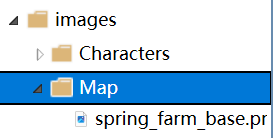
然后我们再导入我们的xml文件
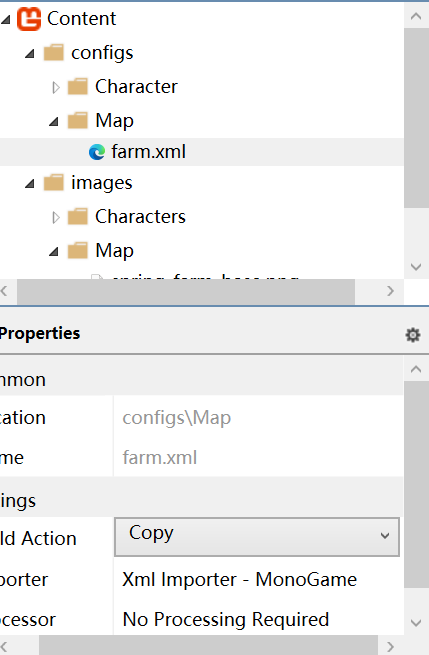
然后我们再进行xml文件的编写
按照之前的语法,我们需要写的代码我在之前就已经写好了一个完整的,map文件,它可以帮助你实现一个简单的农场瓦片地图
farm.xml
<?xml version="1.0" encoding="utf-8"?>
<Tilemap>
    <Tileset region="0 0 128 64" tileWidth="16" tileHeight="16">images/Map/spring_farm_base</Tileset>
    <Tiles>
        08 08 08 08 08 08 08 08 24 09 09 27 08 08 08 08 08 08 08 08 08 08 08 08 08 08 08 08 08 08 08
        08 08 08 08 08 08 08 08 24 09 09 27 08 08 08 08 08 08 08 08 08 08 08 08 08 08 08 08 08 08 08
        08 08 08 08 08 08 08 08 24 09 09 27 08 08 08 08 08 08 16 12 13 21 12 13 21 12 13 21 12 13 21
        08 08 16 17 12 13 21 17 18 09 09 10 12 13 21 12 13 21 18 09 09 09 09 09 09 09 09 09 09 09 09
        08 08 24 09 09 09 09 09 09 09 09 09 09 09 09 09 09 09 09 09 09 09 09 09 09 09 09 09 09 09 09
        08 08 24 09 09 09 09 09 09 09 09 09 09 09 09 09 09 09 09 09 09 09 09 09 09 09 09 11 28 29 29
        08 08 24 09 09 09 09 09 09 09 09 09 09 09 09 09 09 09 09 09 09 09 09 09 09 09 09 27 08 08 08
        08 08 24 09 09 09 09 09 09 09 09 09 09 09 09 09 09 09 09 09 09 09 09 09 09 09 09 27 08 08 08
        08 08 24 09 09 09 09 09 09 09 09 09 09 09 09 09 09 09 09 09 09 09 09 09 09 09 09 27 08 08 08
        08 08 24 09 09 09 09 09 09 09 09 09 09 09 09 09 09 09 09 09 09 09 09 09 09 09 09 27 08 08 08
        08 08 24 09 09 09 09 09 09 09 09 09 09 09 09 09 09 09 09 09 09 09 09 09 09 09 09 27 08 08 08
        08 08 24 09 09 09 09 09 09 09 09 09 09 09 09 09 09 09 09 09 09 09 09 09 09 09 09 27 08 08 08
        08 08 24 09 09 09 09 09 09 09 09 09 09 09 09 09 09 09 09 09 09 09 09 09 09 09 09 27 08 08 08
        08 08 24 09 09 09 09 09 09 09 09 09 09 09 09 09 09 09 09 09 09 09 09 09 09 09 09 27 08 08 08
        08 08 24 09 09 09 09 09 09 09 09 09 09 09 09 09 09 09 09 09 09 09 09 09 09 09 09 27 08 08 08
        08 08 24 09 09 09 09 09 09 09 09 09 09 09 09 09 09 09 09 09 09 09 09 09 09 09 09 27 08 08 08
        08 08 24 09 09 09 09 09 09 09 09 09 09 09 09 09 09 09 09 09 09 09 09 09 09 09 09 27 08 08 08
        08 08 24 09 09 09 09 09 09 09 09 09 09 09 09 09 09 09 09 09 09 09 09 09 09 09 09 27 08 08 08
        08 08 04 05 05 05 05 05 05 05 05 05 05 05 05 05 05 05 05 05 05 05 05 05 05 05 05 07 08 08 08
        08 08 08 08 08 08 08 08 08 08 08 08 08 08 08 08 08 08 08 08 08 08 08 08 08 08 08 08 08 08 08
        08 08 08 08 08 08 08 08 08 08 08 08 08 08 08 08 08 08 08 08 08 08 08 08 08 08 08 08 08 08 08
    </Tiles>
</Tilemap>
然后我们在我们的Farm代码中重新书写内容,使其能够渲染出我们的瓦片地图就行
Farm.cs
using Microsoft.Xna.Framework;
using Microsoft.Xna.Framework.Graphics;
using MonoLibrary;
using MonoLibrary.Graphics;
using MonoLibrary.Scenes;


namespace StardewValley.Scenes;
public class Farm : Scene
{
    private enum GameState
    {
        Playing,
        Paused,
        GameOver
    }
    private GameState CurState;

    private Tilemap ground;

    public override void Initialize()
    {
        base.Initialize();
        CurState = GameState.Playing;

        ground.Scale = new Vector2(4f, 4f);
    }

    public override void LoadContent()
    {
        base.LoadContent();
        ground = Tilemap.FromFile(Core.Content, "configs/Map/farm.xml");
    }

    public override void Update(GameTime gameTime)
    {
        if (CurState == GameState.GameOver)
        {
            return;
        }
        if (CurState == GameState.Paused)
        {
            return;
        }
        base.Update(gameTime);
    }

    public override void Draw(GameTime gameTime)
    {
        base.Draw(gameTime);
        Core.GraphicsDevice.Clear(Color.Black);
        Core.SpriteBatch.Begin(samplerState: SamplerState.PointClamp, sortMode: SpriteSortMode.FrontToBack);
        ground.Draw(Core.SpriteBatch);
        Core.SpriteBatch.End();
    }
}
那么我们回到GameMain文件,也就是上一章的最后我们完成的那个文件,初始化场景
ChangeScene(new Farm());
GameMain:
GameMain.cs
using Microsoft.Xna.Framework;
using MonoLibrary;
using StardewValley.Scenes;
namespace StardewValley;

public class GameMain : Core
{
    public GameMain() : base("Stardew Valley", 1280, 720, false)
    {

    }

    protected override void Initialize()
    {
        base.Initialize();
        ChangeScene(new Farm());
    }

    protected override void LoadContent()
    {

    }
    protected override void Update(GameTime gameTime)
    {
        base.Update(gameTime);
    }
}
运行
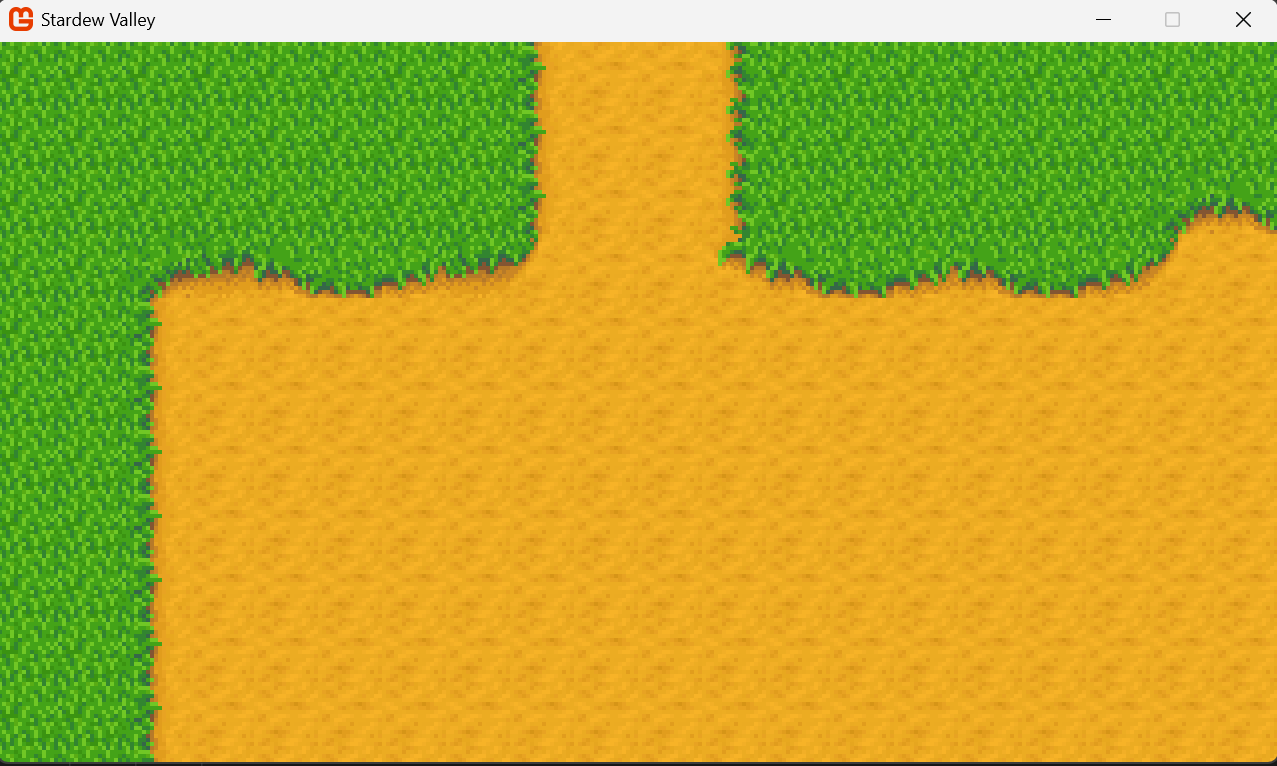
第二部分:搭建耕地规则瓦片
OK,我们终于要实践我们的规则瓦片了,我们现在需要的就是实现瓦片能够在地图上耕种并且实现我们的耕种地图的创建,这个东西的作用就是在渲染整个土地的上方渲染,但是我们在没有耕地的时候是不需要渲染的,那么我们该怎么做呢,首先我们得先准备一份我们的耕地图片

如上方所示
我们将他通过MonoGame的渲染管线导入到我们的项目中,在这之后我不会再为这些基本的东西做解释,该导入的资源自己导入,然后该整理的自己整理,那么文件路径也需要自己记住,这个非常基础,建议大家学会,那么我们继续,我们在创建完我们的图片之后,我们需要创建一个xml文件以此来存储我们的文件配置
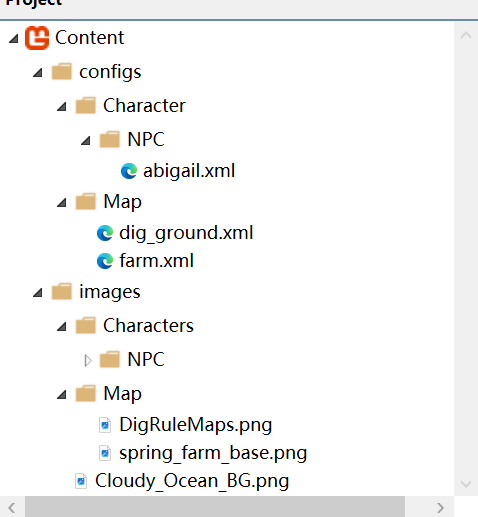
以此我们来根据我们的编写的规则瓦片配置文件书写规则来写我们的配置文件,那么我们根据每个瓦片的上下左右的瓦片存在规则来编写xml文件
dig_ground.xml
<?xml version="1.0" encoding="utf-8"?>
<RuleTilemap>
  <Texture>images/Map/DigRuleMaps</Texture>
  <Tiles Columns="31" Rows="21" TileWidth="16" TileHeight="16"/>
  <Tileset>
    <RuleTile ID="0">
      <Region x="0" y="0" width="16" height="16"/>
      <Neighbors Up="false" Left="false" Down="false" Right="false"/>
    </RuleTile>
    <RuleTile ID="1">
      <Region x="0" y="16" width="16" height="16"/>
      <Neighbors Up="false" Left="false" Down="true" Right="false"/>
    </RuleTile>
    <RuleTile ID="2">
      <Region x="0" y="32" width="16" height="16"/>
      <Neighbors Up="true" Left="false" Down="true" Right="false"/>
    </RuleTile>
    <RuleTile ID="3">
      <Region x="0" y="48" width="16" height="16"/>
      <Neighbors Up="true" Left="false" Down="false" Right="false"/>
    </RuleTile>
    <RuleTile ID="4">
      <Region x="16" y="0" width="16" height="16"/>
      <Neighbors Up="false" Left="false" Down="true" Right="true"/>
    </RuleTile>
    <RuleTile ID="5">
      <Region x="16" y="16" width="16" height="16"/>
      <Neighbors Up="true" Left="false" Down="true" Right="true"/>
    </RuleTile>
    <RuleTile ID="6">
      <Region x="16" y="32" width="16" height="16"/>
      <Neighbors Up="true" Left="false" Down="false" Right="true"/>
    </RuleTile>
    <RuleTile ID="7">
      <Region x="16" y="48" width="16" height="16"/>
      <Neighbors Up="false" Left="false" Down="false" Right="true"/>
    </RuleTile>
    <RuleTile ID="8">
      <Region x="32" y="0" width="16" height="16"/>
      <Neighbors Up="false" Left="true" Down="true" Right="true"/>
    </RuleTile>
    <RuleTile ID="9">
      <Region x="32" y="16" width="16" height="16"/>
      <Neighbors Up="true" Left="true" Down="true" Right="true"/>
    </RuleTile>
    <RuleTile ID="10">
      <Region x="32" y="32" width="16" height="16"/>
      <Neighbors Up="true" Left="true" Down="false" Right="true"/>
    </RuleTile>
    <RuleTile ID="11">
      <Region x="32" y="48" width="16" height="16"/>
      <Neighbors Up="false" Left="true" Down="false" Right="true"/>
    </RuleTile>
    <RuleTile ID="12">
      <Region x="48" y="0" width="16" height="16"/>
      <Neighbors Up="false" Left="true" Down="true" Right="false"/>
    </RuleTile>
    <RuleTile ID="13">
      <Region x="48" y="16" width="16" height="16"/>
      <Neighbors Up="true" Left="true" Down="true" Right="false"/>
    </RuleTile>
    <RuleTile ID="14">
      <Region x="48" y="32" width="16" height="16"/>
      <Neighbors Up="true" Left="true" Down="false" Right="false"/>
    </RuleTile>
    <RuleTile ID="15">
      <Region x="48" y="48" width="16" height="16"/>
      <Neighbors Up="false" Left="true" Down="false" Right="false"/>
    </RuleTile>
  </Tileset>
</RuleTilemap>
OK 我们编写完我们的规则瓦片后,我们需要在我们的农场场景里面创建该瓦片地图并进行测试:因此我们需要编写我们的农场场景,代码如下:
Farm.cs
using Microsoft.Xna.Framework;
using Microsoft.Xna.Framework.Graphics;
using MonoLibrary;
using MonoLibrary.Graphics;
using MonoLibrary.Scenes;


namespace StardewValley.Scenes;
public class Farm : Scene
{
    private enum GameState
    {
        Playing,
        Paused,
        GameOver
    }
    private GameState CurState;

    private Tilemap ground;

    private RuleTilemap dig_ground;

    public override void Initialize()
    {
        base.Initialize();
        CurState = GameState.Playing;
        ground.Scale = new Vector2(4f, 4f);
        ground.LayerDepth = 0;
        dig_ground.Scale = new Vector2(4f, 4f);
        dig_ground.LayerDepth = 0.1f;
        dig_ground.SetTile(5, 5);
        dig_ground.SetTile(5, 6);
        dig_ground.SetTile(4, 5);
    }

    public override void LoadContent()
    {
        base.LoadContent();
        ground = Tilemap.FromFile(Core.Content, "configs/Map/farm.xml");
        dig_ground = RuleTilemap.FromFile(Core.Content, "configs/Map/dig_ground.xml");
    }

    public override void Update(GameTime gameTime)
    {
        if (CurState == GameState.GameOver)
        {
            return;
        }
        if (CurState == GameState.Paused)
        {
            return;
        }
        base.Update(gameTime);
    }

    public override void Draw(GameTime gameTime)
    {
        base.Draw(gameTime);
        Core.GraphicsDevice.Clear(Color.Black);
        Core.SpriteBatch.Begin(samplerState: SamplerState.PointClamp, sortMode: SpriteSortMode.FrontToBack);
        ground.Draw(Core.SpriteBatch);
        dig_ground.Draw(Core.SpriteBatch);
        Core.SpriteBatch.End();
    }
}
图片:
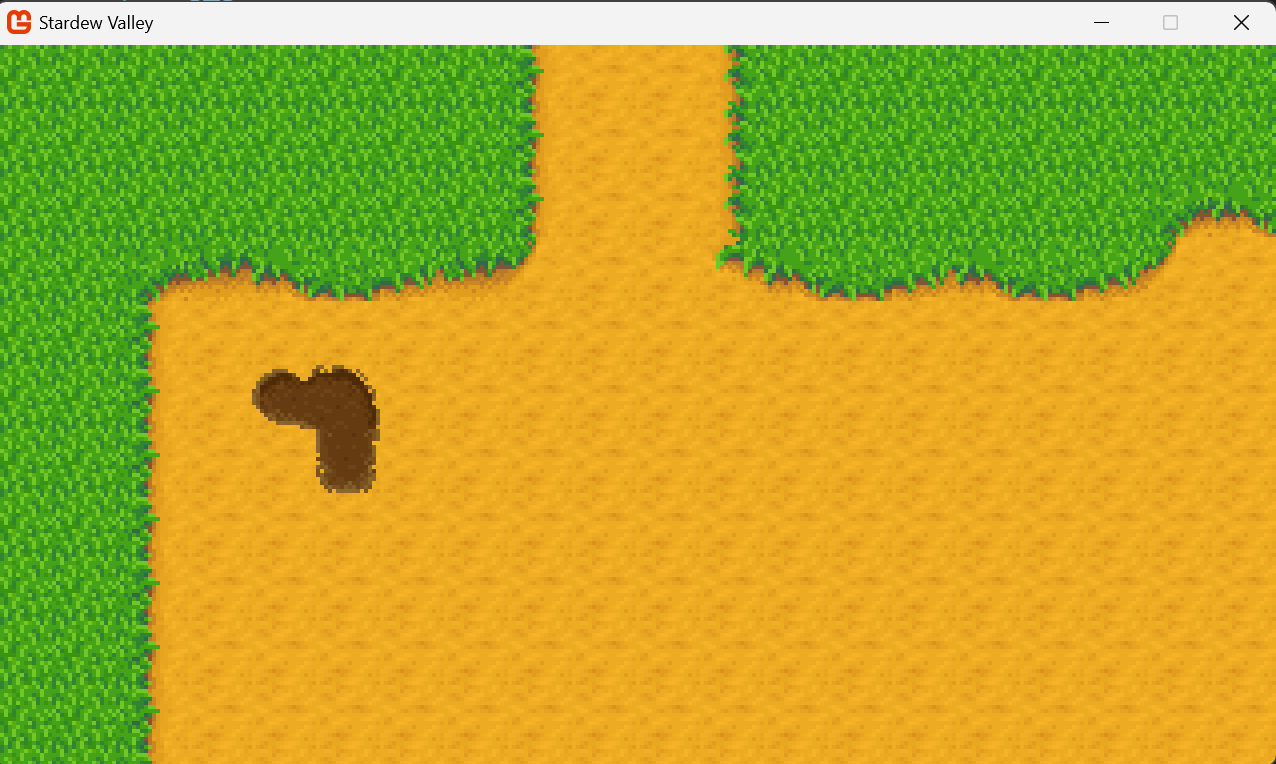
第四章 农夫创建
OK 我们的场景已经暂时创建好了,我们后续会再处理的,但是我们现在需要的是创建一个我们的Farmer类,也就是我们要开始编写我们的所操控的农夫了,那么我们该怎么做呢,我们现在得先做一些前置准备:我们需要写一个Transform类来管理每个实体的位置渲染角度等信息,首先我们在StardewValley的文件夹下创建一个Transform.cs文件 (此处省略)
📁 Stardew
├── 📁 config
├── 📁 .vscode
├── 📁 bin
├── 📁 Content
├── 📁 Library
├── 📁 obj
├── 📁 StardewValley
│ ├── 📁 Entity
│ ├── 📁 Scene
│ │ └── 📄 Farm.cs
│ ├── 📁 Utility
│ │ └── 📄 Transform.cs
├── 📄 app.manifest
├── 📄 Core.cs
├── 📄 GameMain.cs
├── 📄 Icon.ico
├── 📄 Programs.cs
└── 📄 Stardew.csproj
这个Transform的代码非常简单就只是单纯的存储一下信息而已,别看他简简单单,我们后续需要通过这个Transform来完成各种事情
Transform.cs
using Microsoft.Xna.Framework;

namespace StardewValley.Utility;

public class Transform
{
    public Vector2 Position;

    public float Rotation;

    public Transform(Vector2 position)
    {
        Position = position;
    }

    public Transform(float X, float Y)
    {
        Position = new Vector2(X, Y);
    }
}
接着我们需要创建一个Character的抽象基类,用来让我们的Player继承,包括之后的所有NPC角色,我们需要通过继承于这个Character类来搞定,那么这个Character的基类以此来创建我们的代码,同样的这个代码也非常简单,只需要声明一个抽象类以及一些可以继承的方法
📁 Stardew
├── 📁 config
├── 📁 .vscode
├── 📁 bin
├── 📁 Content
├── 📁 Library
├── 📁 obj
├── 📁 StardewValley
│ ├── 📁 Entity
│ │ └── 📁 Character
│ │ │ └── 📄 Character.cs
│ ├── 📁 Scene
│ │ └── 📄 Farm.cs
│ ├── 📁 Utility
│ │ └── 📄 Transform.cs
├── 📄 app.manifest
├── 📄 Core.cs
├── 📄 GameMain.cs
├── 📄 Icon.ico
├── 📄 Programs.cs
└── 📄 Stardew.csproj
Character.cs
using Microsoft.Xna.Framework;
using StardewValley.Utility;

namespace StardewValley.Characters;

public abstract class Character
{
    public Transform transform;

    public Character()
    {
        transform = new Transform(new Vector2(0, 0));
    }

    public virtual void Initialize() { }

    public virtual void LoadContent() { }

    public virtual void Update(GameTime gameTime) { }

    public virtual void Draw() { }
}
OK 我们的准备工作就此完成了,我们已经可以创建我们的农夫代码,也就是要准备开始我们的正式开发了
第一部分:Farmer 渲染
OK,我们要开始正式的开发了,但是在这之前我们得先了解一下一些其他的东西,细心且聪明的朋友会发现我们Core的代码里场景转换时我们会把整个场景删除以此来减轻内存压力,但是我们保存的数据怎么办呢,当然大家放一百心,这个我们到时候会单独处理的,因此我们的场景只需要处理一些 不变 的东西,什么是不变的东西呢,玩家的渲染图片,场景地图图片,NPC的渲染图片,动物的渲染图片,这些是不变的,而且这个也会适合我们的存档系统的开发,但是存档我将会放在第二卷进行书写,那么我们开始吧!
渲染准备
首先我们得先创建一个文件
📁 Stardew
├── 📁 config
├── 📁 .vscode
├── 📁 bin
├── 📁 Content
├── 📁 Library
├── 📁 obj
├── 📁 StardewValley
│ ├── 📁 Entity
│ │ └── 📁 Character
│ │ │ └── 📄 Character.cs
│ │ │ └── 📄 Farmer.cs (New)
│ ├── 📁 Scene
│ │ └── 📄 Farm.cs
│ ├── 📁 Utility
│ │ └── 📄 Transform.cs
├── 📄 app.manifest
├── 📄 Core.cs
├── 📄 GameMain.cs
├── 📄 Icon.ico
├── 📄 Programs.cs
└── 📄 Stardew.csproj
那么我们接着导入图片和创建xml文件
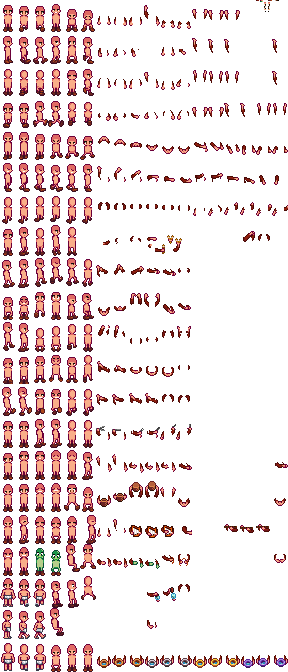
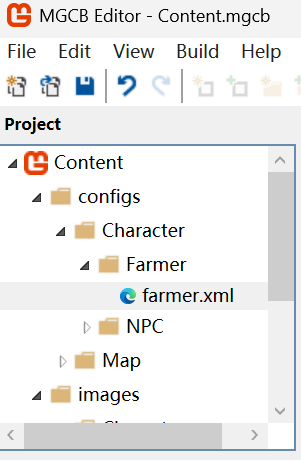
这里我们使用图集也就是TextureAtlas来导入我们Farmer的所有动画那么我们根据图集的编写配置文件的规则来编写我们的xml文件
farmer.xml
<?xml version="1.0" encoding="utf-8"?>
<TextureAtlas>
   <Texture>images/Characters/Farmer/farmer_base</Texture>
   <Regions>
       <!-- 向下动画 -->
       <Region name="farmer-body-down-0" x="0" y="0" width="16" height="32" />
       <Region name="farmer-arm-down-0" x="96" y="0" width="16" height="32" />
       <Region name="farmer-arm-item-down-0" x="192" y="0" width="16" height="32" />

       <Region name="farmer-body-down-walk-1" x="16" y="0" width="16" height="32" />
       <Region name="farmer-arm-down-walk-1" x="112" y="0" width="16" height="32" />
       <Region name="farmer-arm-item-down-walk-1" x="208" y="0" width="16" height="32" />

       <Region name="farmer-body-down-walk-2" x="32" y="0" width="16" height="32" />
       <Region name="farmer-arm-down-walk-2" x="128" y="0" width="16" height="32" />
       <Region name="farmer-arm-item-down-walk-2" x="224" y="0" width="16" height="32" />

       <Region name="farmer-body-down-run-1" x="0" y="96" width="16" height="32" />
       <Region name="farmer-arm-down-run-1" x="96" y="96" width="16" height="32" />
       <Region name="farmer-arm-item-down-run-1" x="192" y="96" width="16" height="32" />

       <Region name="farmer-body-down-run-2" x="16" y="96" width="16" height="32" />
       <Region name="farmer-arm-down-run-2" x="112" y="96" width="16" height="32" />
       <Region name="farmer-arm-item-down-run-2" x="208" y="96" width="16" height="32" />

       <Region name="farmer-body-down-use-0" x="0" y="128" width="16" height="32" />
       <Region name="farmer-body-down-use-1" x="16" y="128" width="16" height="32" />
       <Region name="farmer-body-down-use-2" x="32" y="128" width="16" height="32" />
       <Region name="farmer-body-down-use-3" x="48" y="128" width="16" height="32" />
       <Region name="farmer-body-down-use-4" x="64" y="128" width="16" height="32" />
       <Region name="farmer-body-down-use-5" x="80" y="128" width="16" height="32" />

       <Region name="farmer-arm-down-usetool-0" x="96" y="128" width="16" height="32" />
       <Region name="farmer-arm-down-usetool-1" x="112" y="128" width="16" height="32" />
       <Region name="farmer-arm-down-usetool-2" x="128" y="128" width="16" height="32" />
       <Region name="farmer-arm-down-usetool-3" x="144" y="128" width="16" height="32" />
       <Region name="farmer-arm-down-usetool-4" x="160" y="128" width="16" height="32" />
       <Region name="farmer-arm-down-usetool-5" x="176" y="128" width="16" height="32" />

       <Region name="farmer-arm-down-useweapon-0" x="192" y="128" width="16" height="32" />
       <Region name="farmer-arm-down-useweapon-1" x="208" y="128" width="16" height="32" />
       <Region name="farmer-arm-down-useweapon-2" x="224" y="128" width="16" height="32" />
       <Region name="farmer-arm-down-useweapon-3" x="240" y="128" width="16" height="32" />
       <Region name="farmer-arm-down-useweapon-4" x="256" y="128" width="16" height="32" />
       <Region name="farmer-arm-down-useweapon-5" x="272" y="128" width="16" height="32" />
       <!-- 侧面动画 -->
       <Region name="farmer-body-side-0" x="0" y="32" width="16" height="32" />
       <Region name="farmer-arm-side-0" x="96" y="32" width="16" height="32" />
       <Region name="farmer-arm-item-side-0" x="192" y="32" width="16" height="32" />

       <Region name="farmer-body-side-walk-1" x="16" y="32" width="16" height="32" />
       <Region name="farmer-arm-side-walk-1" x="112" y="32" width="16" height="32" />
       <Region name="farmer-arm-item-side-walk-1" x="208" y="32" width="16" height="32" />

       <Region name="farmer-body-side-walk-2" x="32" y="32" width="16" height="32" />
       <Region name="farmer-arm-side-walk-2" x="128" y="32" width="16" height="32" />
       <Region name="farmer-arm-item-side-walk-2" x="224" y="32" width="16" height="32" />

       <Region name="farmer-body-side-run-1" x="32" y="96" width="16" height="32" />
       <Region name="farmer-arm-side-run-1" x="128" y="96" width="16" height="32" />
       <Region name="farmer-arm-item-side-run-1" x="224" y="96" width="16" height="32" />

       <Region name="farmer-body-side-run-2" x="48" y="96" width="16" height="32" />
       <Region name="farmer-arm-side-run-2" x="144" y="96" width="16" height="32" />
       <Region name="farmer-arm-item-side-run-2" x="240" y="96" width="16" height="32" />

       <Region name="farmer-body-side-use-0" x="0" y="160" width="16" height="32" />
       <Region name="farmer-body-side-use-1" x="16" y="160" width="16" height="32" />
       <Region name="farmer-body-side-use-2" x="32" y="160" width="16" height="32" />
       <Region name="farmer-body-side-use-3" x="48" y="160" width="16" height="32" />
       <Region name="farmer-body-side-use-4" x="64" y="160" width="16" height="32" />
       <Region name="farmer-body-side-use-5" x="80" y="160" width="16" height="32" />

       <Region name="farmer-arm-side-usetool-0" x="96" y="160" width="16" height="32" />
       <Region name="farmer-arm-side-usetool-1" x="112" y="160" width="16" height="32" />
       <Region name="farmer-arm-side-usetool-2" x="128" y="160" width="16" height="32" />
       <Region name="farmer-arm-side-usetool-3" x="144" y="160" width="16" height="32" />
       <Region name="farmer-arm-side-usetool-4" x="160" y="160" width="16" height="32" />
       <Region name="farmer-arm-side-usetool-5" x="176" y="160" width="16" height="32" />

       <Region name="farmer-arm-side-useweapon-0" x="192" y="160" width="16" height="32" />
       <Region name="farmer-arm-side-useweapon-1" x="208" y="160" width="16" height="32" />
       <Region name="farmer-arm-side-useweapon-2" x="224" y="160" width="16" height="32" />
       <Region name="farmer-arm-side-useweapon-3" x="240" y="160" width="16" height="32" />
       <Region name="farmer-arm-side-useweapon-4" x="256" y="160" width="16" height="32" />
       <Region name="farmer-arm-side-useweapon-5" x="272" y="160" width="16" height="32" />
       <!-- 向上动画 -->
       <Region name="farmer-body-up-0" x="0" y="64" width="16" height="32" />
       <Region name="farmer-arm-up-0" x="96" y="64" width="16" height="32" />
       <Region name="farmer-arm-item-up-0" x="192" y="64" width="16" height="32" />

       <Region name="farmer-body-up-walk-1" x="16" y="64" width="16" height="32" />
       <Region name="farmer-arm-up-walk-1" x="112" y="64" width="16" height="32" />
       <Region name="farmer-arm-item-up-walk-1" x="208" y="64" width="16" height="32" />

       <Region name="farmer-body-up-walk-2" x="32" y="64" width="16" height="32" />
       <Region name="farmer-arm-up-walk-2" x="128" y="64" width="16" height="32" />
       <Region name="farmer-arm-item-up-walk-2" x="224" y="64" width="16" height="32" />

       <Region name="farmer-body-up-run-1" x="64" y="96" width="16" height="32" />
       <Region name="farmer-arm-up-run-1" x="160" y="96" width="16" height="32" />
       <Region name="farmer-arm-item-up-run-1" x="256" y="96" width="16" height="32" />

       <Region name="farmer-body-up-run-2" x="80" y="96" width="16" height="32" />
       <Region name="farmer-arm-up-run-2" x="176" y="96" width="16" height="32" />
       <Region name="farmer-arm-item-up-run-2" x="272" y="96" width="16" height="32" />

       <Region name="farmer-body-up-use-0" x="0" y="192" width="16" height="32" />
       <Region name="farmer-body-up-use-1" x="16" y="192" width="16" height="32" />
       <Region name="farmer-body-up-use-2" x="32" y="192" width="16" height="32" />
       <Region name="farmer-body-up-use-3" x="48" y="192" width="16" height="32" />
       <Region name="farmer-body-up-use-4" x="64" y="192" width="16" height="32" />
       <Region name="farmer-body-up-use-5" x="80" y="192" width="16" height="32" />

       <Region name="farmer-arm-up-usetool-0" x="96" y="192" width="16" height="32" />
       <Region name="farmer-arm-up-usetool-1" x="112" y="192" width="16" height="32" />
       <Region name="farmer-arm-up-usetool-2" x="128" y="192" width="16" height="32" />
       <Region name="farmer-arm-up-usetool-3" x="144" y="192" width="16" height="32" />
       <Region name="farmer-arm-up-usetool-4" x="160" y="192" width="16" height="32" />
       <Region name="farmer-arm-up-usetool-5" x="176" y="192" width="16" height="32" />

       <Region name="farmer-arm-up-useweapon-0" x="192" y="192" width="16" height="32" />
       <Region name="farmer-arm-up-useweapon-1" x="208" y="192" width="16" height="32" />
       <Region name="farmer-arm-up-useweapon-2" x="224" y="192" width="16" height="32" />
       <Region name="farmer-arm-up-useweapon-3" x="240" y="192" width="16" height="32" />
       <Region name="farmer-arm-up-useweapon-4" x="256" y="192" width="16" height="32" />
       <Region name="farmer-arm-up-useweapon-5" x="272" y="192" width="16" height="32" />
   </Regions>
   <Animations>
       <!-- 向下动画 -->
       <Animation name="farmer-body-idle-down" delay="100">
           <Frame region="farmer-body-down-0" />
       </Animation>
       <Animation name="farmer-body-walk-down" delay="100">
           <Frame region="farmer-body-down-0" />
           <Frame region="farmer-body-down-walk-1" />
           <Frame region="farmer-body-down-walk-2" />
       </Animation>
       <Animation name="farmer-body-run-down" delay="100">
           <Frame region="farmer-body-down-0" />
           <Frame region="farmer-body-down-run-1" />
           <Frame region="farmer-body-down-run-2" />
       </Animation>
       <Animation name="farmer-body-use-down" delay="100">
           <Frame region="farmer-body-down-use-0" />
           <Frame region="farmer-body-down-use-1" />
           <Frame region="farmer-body-down-use-2" />
           <Frame region="farmer-body-down-use-3" />
           <Frame region="farmer-body-down-use-4" />
           <Frame region="farmer-body-down-use-5" />
       </Animation>

       <Animation name="farmer-arm-idle-down" delay="100">
           <Frame region="farmer-arm-down-0" />
       </Animation>
       <Animation name="farmer-arm-walk-down" delay="100">
           <Frame region="farmer-arm-down-0" />
           <Frame region="farmer-arm-down-walk-1" />
           <Frame region="farmer-arm-down-walk-2" />
       </Animation>
       <Animation name="farmer-arm-run-down" delay="100">
           <Frame region="farmer-arm-down-0" />
           <Frame region="farmer-arm-down-run-1" />
           <Frame region="farmer-arm-down-run-2" />
       </Animation>
       <Animation name="farmer-arm-usetool-down" delay="100">
           <Frame region="farmer-arm-down-usetool-0" />
           <Frame region="farmer-arm-down-usetool-1" />
           <Frame region="farmer-arm-down-usetool-2" />
           <Frame region="farmer-arm-down-usetool-3" />
           <Frame region="farmer-arm-down-usetool-4" />
           <Frame region="farmer-arm-down-usetool-5" />
       </Animation>
       <Animation name="farmer-arm-useweapon-down" delay="100">
           <Frame region="farmer-arm-down-useweapon-0" />
           <Frame region="farmer-arm-down-useweapon-1" />
           <Frame region="farmer-arm-down-useweapon-2" />
           <Frame region="farmer-arm-down-useweapon-3" />
           <Frame region="farmer-arm-down-useweapon-4" />
           <Frame region="farmer-arm-down-useweapon-5" />
       </Animation>
       <Animation name="farmer-arm-item-idle-down" delay="100">
           <Frame region="farmer-arm-item-down-0" />
       </Animation>
       <Animation name="farmer-arm-item-walk-down" delay="100">
           <Frame region="farmer-arm-item-down-0" />
           <Frame region="farmer-arm-item-down-walk-1" />
           <Frame region="farmer-arm-item-down-walk-2" />
       </Animation>
       <Animation name="farmer-arm-item-run-down" delay="100">
           <Frame region="farmer-arm-item-down-0" />
           <Frame region="farmer-arm-item-down-run-1" />
           <Frame region="farmer-arm-item-down-run-2" />
       </Animation>

       <!-- 侧面动画 -->
       <Animation name="farmer-body-idle-side" delay="100">
           <Frame region="farmer-body-side-0" />
       </Animation>
       <Animation name="farmer-body-walk-side" delay="100">
           <Frame region="farmer-body-side-0" />
           <Frame region="farmer-body-side-walk-1" />
           <Frame region="farmer-body-side-walk-2" />
       </Animation>
       <Animation name="farmer-body-run-side" delay="100">
           <Frame region="farmer-body-side-0" />
           <Frame region="farmer-body-side-run-1" />
           <Frame region="farmer-body-side-run-2" />
       </Animation>
       <Animation name="farmer-body-use-side" delay="100">
           <Frame region="farmer-body-side-use-0" />
           <Frame region="farmer-body-side-use-1" />
           <Frame region="farmer-body-side-use-2" />
           <Frame region="farmer-body-side-use-3" />
           <Frame region="farmer-body-side-use-4" />
           <Frame region="farmer-body-side-use-5" />
       </Animation>

       <Animation name="farmer-arm-idle-side" delay="100">
           <Frame region="farmer-arm-side-0" />
       </Animation>
       <Animation name="farmer-arm-walk-side" delay="100">
           <Frame region="farmer-arm-side-0" />
           <Frame region="farmer-arm-side-walk-1" />
           <Frame region="farmer-arm-side-walk-2" />
       </Animation>
       <Animation name="farmer-arm-run-side" delay="100">
           <Frame region="farmer-arm-side-0" />
           <Frame region="farmer-arm-side-run-1" />
           <Frame region="farmer-arm-side-run-2" />
       </Animation>
       <Animation name="farmer-arm-usetool-side" delay="100">
           <Frame region="farmer-arm-side-usetool-0" />
           <Frame region="farmer-arm-side-usetool-1" />
           <Frame region="farmer-arm-side-usetool-2" />
           <Frame region="farmer-arm-side-usetool-3" />
           <Frame region="farmer-arm-side-usetool-4" />
           <Frame region="farmer-arm-side-usetool-5" />
       </Animation>
       <Animation name="farmer-arm-useweapon-side" delay="100">
           <Frame region="farmer-arm-side-useweapon-0" />
           <Frame region="farmer-arm-side-useweapon-1" />
           <Frame region="farmer-arm-side-useweapon-2" />
           <Frame region="farmer-arm-side-useweapon-3" />
           <Frame region="farmer-arm-side-useweapon-4" />
           <Frame region="farmer-arm-side-useweapon-5" />
       </Animation>
       <Animation name="farmer-arm-item-idle-side" delay="100">
           <Frame region="farmer-arm-item-side-0" />
       </Animation>
       <Animation name="farmer-arm-item-walk-side" delay="100">
           <Frame region="farmer-arm-item-side-0" />
           <Frame region="farmer-arm-item-side-walk-1" />
           <Frame region="farmer-arm-item-side-walk-2" />
       </Animation>
       <Animation name="farmer-arm-item-run-side" delay="100">
           <Frame region="farmer-arm-item-side-0" />
           <Frame region="farmer-arm-item-side-run-1" />
           <Frame region="farmer-arm-item-side-run-2" />
       </Animation>

       <!-- 向上动画 -->
       <Animation name="farmer-body-idle-up" delay="100">
           <Frame region="farmer-body-up-0" />
       </Animation>
       <Animation name="farmer-body-walk-up" delay="100">
           <Frame region="farmer-body-up-0" />
           <Frame region="farmer-body-up-walk-1" />
           <Frame region="farmer-body-up-walk-2" />
       </Animation>
       <Animation name="farmer-body-run-up" delay="100">
           <Frame region="farmer-body-up-0" />
           <Frame region="farmer-body-up-run-1" />
           <Frame region="farmer-body-up-run-2" />
       </Animation>
       <Animation name="farmer-body-use-up" delay="100">
           <Frame region="farmer-body-up-use-0" />
           <Frame region="farmer-body-up-use-1" />
           <Frame region="farmer-body-up-use-2" />
           <Frame region="farmer-body-up-use-3" />
           <Frame region="farmer-body-up-use-4" />
           <Frame region="farmer-body-up-use-5" />
       </Animation>

       <Animation name="farmer-arm-idle-up" delay="100">
           <Frame region="farmer-arm-up-0" />
       </Animation>
       <Animation name="farmer-arm-walk-up" delay="100">
           <Frame region="farmer-arm-up-0" />
           <Frame region="farmer-arm-up-walk-1" />
           <Frame region="farmer-arm-up-walk-2" />
       </Animation>
       <Animation name="farmer-arm-run-up" delay="100">
           <Frame region="farmer-arm-up-0" />
           <Frame region="farmer-arm-up-run-1" />
           <Frame region="farmer-arm-up-run-2" />
       </Animation>
       <Animation name="farmer-arm-usetool-up" delay="100">
           <Frame region="farmer-arm-up-usetool-0" />
           <Frame region="farmer-arm-up-usetool-1" />
           <Frame region="farmer-arm-up-usetool-2" />
           <Frame region="farmer-arm-up-usetool-3" />
           <Frame region="farmer-arm-up-usetool-4" />
           <Frame region="farmer-arm-up-usetool-5" />
       </Animation>
       <Animation name="farmer-arm-useweapon-up" delay="100">
           <Frame region="farmer-arm-up-useweapon-0" />
           <Frame region="farmer-arm-up-useweapon-1" />
           <Frame region="farmer-arm-up-useweapon-2" />
           <Frame region="farmer-arm-up-useweapon-3" />
           <Frame region="farmer-arm-up-useweapon-4" />
           <Frame region="farmer-arm-up-useweapon-5" />
       </Animation>
       <Animation name="farmer-arm-item-idle-up" delay="100">
           <Frame region="farmer-arm-item-up-0" />
       </Animation>
       <Animation name="farmer-arm-item-walk-up" delay="100">
           <Frame region="farmer-arm-item-up-0" />
           <Frame region="farmer-arm-item-up-walk-1" />
           <Frame region="farmer-arm-item-up-walk-2" />
       </Animation>
       <Animation name="farmer-arm-item-run-up" delay="100">
           <Frame region="farmer-arm-item-up-0" />
           <Frame region="farmer-arm-item-up-run-1" />
           <Frame region="farmer-arm-item-up-run-2" />
       </Animation>
   </Animations>
</TextureAtlas>
这里我已经给大家编写好了我们的xml文件,大家只要是使用和我们使用的图片是相同的话可以直接复制粘贴这部分重复的内容,不需要再花时间再创建,我们就这么完成我们的简单的实现
那么我们接下来需要再给大家介绍一下我们的一个新的编程模式:有限状态机
有限状态机
有限状态机(FSM)是一种数学模型,用于描述具有有限数量状态的系统及其状态之间的转移和行为。
有限状态机的定义
有限状态机(Finite State Machine, FSM)是一种用于模拟和表示系统行为的抽象计算模型。它由以下几个基本组成部分构成:
状态:系统可能存在的所有情况。
初始状态:系统开始时的状态。
输入事件:触发状态转换的动作或条件。
状态转移规则:描述系统从一个状态到另一个状态的变化过程。
有限状态机的工作原理
在任何给定的时刻,有限状态机只能处于有限个状态中的一个。当某些条件满足或某些事件发生时,状态机会根据当前状态和事件类型进行状态转换。这种变化被称为状态转移。例如,在一个自动售货机中,状态可以包括“等待投币”、“选择商品”和“发放商品”,每个状态之间的转换由用户的操作触发。
有限状态机的应用
有限状态机在计算机科学和工程中有着广泛的应用,包括但不限于:
游戏开发 :用于描述角色的行为和状态转换。
网络协议 :许多网络和通信协议使用状态机来描述其工作流程。
硬件电路 :如CPU的工作状态也可以看作是一个状态机。
用户界面 :在用户界面设计中,状态机可以帮助管理不同的界面状态和用户交互。
上面这个是有限状态机最官方的解释,但是我们是俗人我们需要简单的理解方式,这么说吧,每个人在同一个时间段内只能进行一种行为:
你总不能在走路和站立状态叠加态吧肯定是不行的一个人要么就是站着,要么就是坐着,要么就是走着,不可能在同一个时间内又站又坐
因此我们需要实现这个状态的话我们需要写一个类:StateNode 用来表示我们的状态,以及创建一个StateMachine类来管理我们的状态,而且我们需要创建一个DirectionFace来记录我们的方向
📁 Stardew
├── 📁 config
├── 📁 .vscode
├── 📁 bin
├── 📁 Content
├── 📁 Library
├── 📁 obj
├── 📁 StardewValley
│ ├── 📁 FSM
│ │ └── 📄 StateNode.cs // New
│ │ └── 📄 StateMachine.cs /// New
│ ├── 📁 Entity
│ │ └── 📁 Character
│ │ │ └── 📄 Character.cs
│ │ │ └── 📄 Farmer.cs
│ │ │ └── 📄 DirectionFace.cs // New
│ ├── 📁 Scene
│ │ └── 📄 Farm.cs
│ ├── 📁 Utility
│ │ └── 📄 Transform.cs
├── 📄 app.manifest
├── 📄 Core.cs
├── 📄 GameMain.cs
├── 📄 Icon.ico
├── 📄 Programs.cs
└── 📄 Stardew.csproj
DirectionFace.cs
namespace StardewValley.Characters;

public enum DirectionFace
{
    Down,
    Left,
    Right,
    Up,
}
StateNode.cs
using System.Collections.Generic;
using Microsoft.Xna.Framework;
using MonoLibrary.Graphics;
using StardewValley.Characters;

namespace StardewValley.FSM;

public class StateNode
{
    public Character character;

    public StateMachine stateMachine;

    public Dictionary<DirectionFace, AnimatedSprite> animator;

    public StateNode(Character character, StateMachine stateMachine, Dictionary<DirectionFace, AnimatedSprite> animator)
    {
        this.character = character;
        this.stateMachine = stateMachine;
        this.animator = animator;
    }

    public virtual void Enter()
    {

    }

    public virtual void Update(GameTime gameTime)
    {

    }

    public virtual void Draw()
    {

    }

    public virtual void Exit()
    {

    }
}
StateMachine.cs
using Microsoft.Xna.Framework;

namespace StardewValley.FSM;

public class StateMachine
{
    public StateNode Current;

    public void Initialize(StateNode node)
    {
        Current = node;
        Current.Enter();
    }

    public void ChangeState(StateNode node)
    {
        Current.Exit();
        Current = node;
        Current.Enter();
    }

    public void Update(GameTime gameTime)
    {
        Current.Update(gameTime);
    }

    public void Draw()
    {
        Current.Draw();
    }
}
OK 我们已经编写好最基础的有限状态机模板了,那么我们的农夫有几种状态呢?
- IDLE
- WALK
- RUN
- USETOOL
- USEWEAPON
- TAKE_ITEM_IDLE
- TAKE_ITEM_WALK
- TAKE_ITEM_RUN
虽然但是,我们的TAKE——ITEM状态其实是可以将其统一归类为一种状态的,我们现在需要写出农夫状态的基类,以及我们还需要创建农夫的各个状态
📁 Stardew
├── 📁 config
├── 📁 .vscode
├── 📁 bin
├── 📁 Content
├── 📁 Library
├── 📁 obj
├── 📁 StardewValley
│ ├── 📁 FSM
│ │ └── 📄 StateNode.cs
│ │ └── 📄 StateMachine.cs
│ ├── 📁 Entity
│ │ └── 📁 Character
│ │ │ └── 📁 FarmerFSM // New
│ │ │ │ └── 📄 FarmerState.cs // New
│ │ │ │ └── 📄 FarmerIdle.cs // New
│ │ │ │ └── 📄 FarmerWalk.cs // New
│ │ │ │ └── 📄 FarmerRun.cs // New
│ │ │ │ └── 📄 FarmerUseTool.cs // New
│ │ │ └── 📄 Character.cs
│ │ │ └── 📄 Farmer.cs
│ │ │ └── 📄 DirectionFace.cs
│ ├── 📁 Scene
│ │ └── 📄 Farm.cs
│ ├── 📁 Utility
│ │ └── 📄 Transform.cs
├── 📄 app.manifest
├── 📄 Core.cs
├── 📄 GameMain.cs
├── 📄 Icon.ico
├── 📄 Programs.cs
└── 📄 Stardew.csproj
FarmerState.cs
using System.Collections.Generic;
using Microsoft.Xna.Framework;
using MonoLibrary.Graphics;
using StardewValley.FSM;

namespace StardewValley.Characters;

public class FarmerState : StateNode
{
    public Farmer farmer;

    public Dictionary<DirectionFace, AnimatedSprite> arm_animator;

    public Dictionary<DirectionFace, AnimatedSprite> arm_item_animator;

    public FarmerState(Character character, Dictionary<DirectionFace, AnimatedSprite> animator,
                       Dictionary<DirectionFace, AnimatedSprite> arm_animator,
                       Dictionary<DirectionFace, AnimatedSprite> arm_item_animator,
                       StateMachine stateMachine) : base(character, stateMachine, animator)
    {
        farmer = character as Farmer;
        this.arm_animator = arm_animator;
        this.arm_item_animator = arm_item_animator;
    }

    public override void Enter()
    {
        base.Enter();
    }

    public override void Update(GameTime gameTime)
    {
        base.Update(gameTime);
    }

    public override void Draw()
    {
        base.Draw();
    }

    public override void Exit()
    {
        base.Exit();
    }
}
FarmerIdle.cs
using System.Collections.Generic;
using Microsoft.Xna.Framework;
using MonoLibrary.Graphics;
using StardewValley.FSM;

namespace StardewValley.Characters;

public class FarmerIdle : FarmerState
{
    public FarmerIdle(Character character, Dictionary<DirectionFace, AnimatedSprite> animator,
                       Dictionary<DirectionFace, AnimatedSprite> arm_animator,
                       Dictionary<DirectionFace, AnimatedSprite> arm_item_animator,
                       StateMachine stateMachine) : base(character, animator, arm_animator, arm_item_animator, stateMachine)
    {

    }

    public override void Enter()
    {
        base.Enter();
    }

    public override void Update(GameTime gameTime)
    {
        base.Update(gameTime);
    }

    public override void Draw()
    {
        base.Draw();
    }

    public override void Exit()
    {
        base.Exit();
    }
}
FarmerWalk.cs
using System.Collections.Generic;
using Microsoft.Xna.Framework;
using MonoLibrary.Graphics;
using StardewValley.FSM;

namespace StardewValley.Characters;

public class FarmerWalk : FarmerState
{
    public FarmerWalk(Character character, Dictionary<DirectionFace, AnimatedSprite> animator,
                       Dictionary<DirectionFace, AnimatedSprite> arm_animator,
                       Dictionary<DirectionFace, AnimatedSprite> arm_item_animator,
                       StateMachine stateMachine) : base(character, animator, arm_animator, arm_item_animator, stateMachine)
    {

    }

    public override void Enter()
    {
        base.Enter();
    }

    public override void Update(GameTime gameTime)
    {
        base.Update(gameTime);
    }

    public override void Draw()
    {
        base.Draw();
    }

    public override void Exit()
    {
        base.Exit();
    }
}
FarmerRun.cs
using System.Collections.Generic;
using Microsoft.Xna.Framework;
using MonoLibrary.Graphics;
using StardewValley.FSM;

namespace StardewValley.Characters;

public class FarmerRun : FarmerState
{
    public FarmerRun(Character character, Dictionary<DirectionFace, AnimatedSprite> animator,
                       Dictionary<DirectionFace, AnimatedSprite> arm_animator,
                       Dictionary<DirectionFace, AnimatedSprite> arm_item_animator,
                       StateMachine stateMachine) : base(character, animator, arm_animator, arm_item_animator, stateMachine)
    {

    }

    public override void Enter()
    {
        base.Enter();
    }

    public override void Update(GameTime gameTime)
    {
        base.Update(gameTime);
    }

    public override void Draw()
    {
        base.Draw();
    }

    public override void Exit()
    {
        base.Exit();
    }
}
FarmerUseTool.cs
using System.Collections.Generic;
using Microsoft.Xna.Framework;
using MonoLibrary.Graphics;
using StardewValley.FSM;

namespace StardewValley.Characters;

public class FarmerUseTool : FarmerState
{
    public FarmerUseTool(Character character, Dictionary<DirectionFace, AnimatedSprite> animator,
                       Dictionary<DirectionFace, AnimatedSprite> arm_animator,
                       Dictionary<DirectionFace, AnimatedSprite> arm_item_animator,
                       StateMachine stateMachine) : base(character, animator, arm_animator, arm_item_animator, stateMachine)
    {

    }

    public override void Enter()
    {
        base.Enter();
    }

    public override void Update(GameTime gameTime)
    {
        base.Update(gameTime);
    }

    public override void Draw()
    {
        base.Draw();
    }

    public override void Exit()
    {
        base.Exit();
    }
}
OK,我们现在暂时完成了我们这几个状态的初步编写,我们这些状态的内容会不断地继续开发,那么接下来我们需要加载一下我们地美术资源,还记得我给大家的图片吗?我们继续进行吧,我们现在要做的就是加载我们的图片确保我们候选开发的方便
Farmer.cs
using System.Collections.Generic;
using Microsoft.Xna.Framework;
using MonoLibrary;
using MonoLibrary.Graphics;
using StardewValley.FSM;

namespace StardewValley.Characters;

public class Farmer : Character
{
    /// <summary>
    /// 当前位置
    /// </summary>
    public DirectionFace CurrentFace;

    /// <summary>
    /// 状态机
    /// </summary>
    private StateMachine stateMachine;

    /// <summary>
    /// Idle站立状态
    /// </summary>
    public FarmerIdle idle;

    /// <summary>
    /// Walk行走状态
    /// </summary>
    public FarmerWalk walk;

    /// <summary>
    /// Run 奔跑状态
    /// </summary>
    public FarmerRun run;

    /// <summary>
    /// UseTool 使用工具状态
    /// </summary>
    public FarmerUseTool useTool;

    /// <summary>
    /// 是否持有物品
    /// </summary>
    public bool IsHoldItem = false;

    public Farmer() : base()
    {
        IsHoldItem = false;
        stateMachine = new StateMachine();
    }

    public override void Initialize()
    {
        base.Initialize();
        CurrentFace = DirectionFace.Down;
        stateMachine.Initialize(idle);
    }

    public override void LoadContent()
    {
        base.LoadContent();
        TextureAtlas atlas = TextureAtlas.FromFile(Core.Content, "configs/Character/Farmer/farmer.xml");
        Dictionary<DirectionFace, AnimatedSprite> body_idle = new Dictionary<DirectionFace, AnimatedSprite>()
        {
            {DirectionFace.Down, atlas.CreateAnimatedSprite("farmer-body-idle-down")},
            {DirectionFace.Left, atlas.CreateAnimatedSprite("farmer-body-idle-side")},
            {DirectionFace.Right, atlas.CreateAnimatedSprite("farmer-body-idle-side")},
            {DirectionFace.Up, atlas.CreateAnimatedSprite("farmer-body-idle-up")}
        };

        Dictionary<DirectionFace, AnimatedSprite> arm_idle = new Dictionary<DirectionFace, AnimatedSprite>()
        {
            {DirectionFace.Down, atlas.CreateAnimatedSprite("farmer-arm-idle-down")},
            {DirectionFace.Left, atlas.CreateAnimatedSprite("farmer-arm-idle-side")},
            {DirectionFace.Right, atlas.CreateAnimatedSprite("farmer-arm-idle-side")},
            {DirectionFace.Up, atlas.CreateAnimatedSprite("farmer-arm-idle-up")}
        };

        Dictionary<DirectionFace, AnimatedSprite> arm_item_idle = new Dictionary<DirectionFace, AnimatedSprite>()
        {
            {DirectionFace.Down, atlas.CreateAnimatedSprite("farmer-arm-item-idle-down")},
            {DirectionFace.Left, atlas.CreateAnimatedSprite("farmer-arm-item-idle-side")},
            {DirectionFace.Right, atlas.CreateAnimatedSprite("farmer-arm-item-idle-side")},
            {DirectionFace.Up, atlas.CreateAnimatedSprite("farmer-arm-item-idle-up")}
        };

        Dictionary<DirectionFace, AnimatedSprite> body_walk = new Dictionary<DirectionFace, AnimatedSprite>()
        {
            {DirectionFace.Down, atlas.CreateAnimatedSprite("farmer-body-walk-down")},
            {DirectionFace.Left, atlas.CreateAnimatedSprite("farmer-body-walk-side")},
            {DirectionFace.Right, atlas.CreateAnimatedSprite("farmer-body-walk-side")},
            {DirectionFace.Up, atlas.CreateAnimatedSprite("farmer-body-walk-up")}
        };

        Dictionary<DirectionFace, AnimatedSprite> arm_walk = new Dictionary<DirectionFace, AnimatedSprite>()
        {
            {DirectionFace.Down, atlas.CreateAnimatedSprite("farmer-arm-walk-down")},
            {DirectionFace.Left, atlas.CreateAnimatedSprite("farmer-arm-walk-side")},
            {DirectionFace.Right, atlas.CreateAnimatedSprite("farmer-arm-walk-side")},
            {DirectionFace.Up, atlas.CreateAnimatedSprite("farmer-arm-walk-up")}
        };

        Dictionary<DirectionFace, AnimatedSprite> arm_item_walk = new Dictionary<DirectionFace, AnimatedSprite>()
        {
            {DirectionFace.Down, atlas.CreateAnimatedSprite("farmer-arm-item-walk-down")},
            {DirectionFace.Left, atlas.CreateAnimatedSprite("farmer-arm-item-walk-side")},
            {DirectionFace.Right, atlas.CreateAnimatedSprite("farmer-arm-item-walk-side")},
            {DirectionFace.Up, atlas.CreateAnimatedSprite("farmer-arm-item-walk-up")}
        };

        Dictionary<DirectionFace, AnimatedSprite> body_run = new Dictionary<DirectionFace, AnimatedSprite>()
        {
            {DirectionFace.Down, atlas.CreateAnimatedSprite("farmer-body-run-down")},
            {DirectionFace.Left, atlas.CreateAnimatedSprite("farmer-body-run-side")},
            {DirectionFace.Right, atlas.CreateAnimatedSprite("farmer-body-run-side")},
            {DirectionFace.Up, atlas.CreateAnimatedSprite("farmer-body-run-up")}
        };

        Dictionary<DirectionFace, AnimatedSprite> arm_run = new Dictionary<DirectionFace, AnimatedSprite>()
        {
            {DirectionFace.Down, atlas.CreateAnimatedSprite("farmer-arm-run-down")},
            {DirectionFace.Left, atlas.CreateAnimatedSprite("farmer-arm-run-side")},
            {DirectionFace.Right, atlas.CreateAnimatedSprite("farmer-arm-run-side")},
            {DirectionFace.Up, atlas.CreateAnimatedSprite("farmer-arm-run-up")}
        };

        Dictionary<DirectionFace, AnimatedSprite> arm_item_run = new Dictionary<DirectionFace, AnimatedSprite>()
        {
            {DirectionFace.Down, atlas.CreateAnimatedSprite("farmer-arm-item-run-down")},
            {DirectionFace.Left, atlas.CreateAnimatedSprite("farmer-arm-item-run-side")},
            {DirectionFace.Right, atlas.CreateAnimatedSprite("farmer-arm-item-run-side")},
            {DirectionFace.Up, atlas.CreateAnimatedSprite("farmer-arm-item-run-up")}
        };

        Dictionary<DirectionFace, AnimatedSprite> body_use = new Dictionary<DirectionFace, AnimatedSprite>()
        {
            {DirectionFace.Down, atlas.CreateAnimatedSprite("farmer-body-use-down")},
            {DirectionFace.Left, atlas.CreateAnimatedSprite("farmer-body-use-side")},
            {DirectionFace.Right, atlas.CreateAnimatedSprite("farmer-body-use-side")},
            {DirectionFace.Up, atlas.CreateAnimatedSprite("farmer-body-use-up")}
        };

        Dictionary<DirectionFace, AnimatedSprite> arm_usetool = new Dictionary<DirectionFace, AnimatedSprite>()
        {
            {DirectionFace.Down, atlas.CreateAnimatedSprite("farmer-arm-usetool-down")},
            {DirectionFace.Left, atlas.CreateAnimatedSprite("farmer-arm-usetool-side")},
            {DirectionFace.Right, atlas.CreateAnimatedSprite("farmer-arm-usetool-side")},
            {DirectionFace.Up, atlas.CreateAnimatedSprite("farmer-arm-usetool-up")}
        };
        useTool = new FarmerUseTool(this, body_use, arm_usetool, stateMachine);
        idle = new FarmerIdle(this, body_idle, arm_idle, arm_item_idle, stateMachine);
        walk = new FarmerWalk(this, body_walk, arm_walk, arm_item_walk, stateMachine);
        run = new FarmerRun(this, body_run, arm_run, arm_item_run, stateMachine);
    }

    public override void Update(GameTime gameTime)
    {
        base.Update(gameTime);
        stateMachine.Update(gameTime);
    }

    public override void Draw()
    {
        base.Draw();
        stateMachine.Draw();
    }
}
这个时候我们是没有任何渲染的逻辑的,我们需要后续增加物理引擎后再继续开发
第二部分:农夫移动处理
OK,我们上一章节我们主要处理了Farmer的一些资源的处理,也就是添加了有限状态机,以及一些资源的导入,我们在场景中添加Farmer的代码是没有任何效果的,我们需要添加主要的移动逻辑之后再进行开发,那么如果我们的Farmer需要移动的话,我们需要构建一个完整的物理引擎来处理我们的碰撞逻辑和速度逻辑,那么我们接下来就来创建我们的逻辑吧!
物理引擎
📁 Stardew
├── 📁 config
├── 📁 .vscode
├── 📁 bin
├── 📁 Content
├── 📁 Library
├── 📁 obj
├── 📁 StardewValley
│ ├── 📁 Physics (New)
│ │ └── 📄 BoxCollider.cs (New)
│ │ └── 📄 CollisionLayer.cs (New)
│ │ └── 📄 CollisionHandler.cs (New)
│ │ └── 📄 RigidBody.cs (New)
│ │ └── 📄 Physics2D.cs (New)
│ ├── 📁 FSM
│ │ └── 📄 StateNode.cs
│ │ └── 📄 StateMachine.cs
│ ├── 📁 Entity
│ │ └── 📁 Character
│ │ │ └── 📁 FarmerFSM // New
│ │ │ │ └── 📄 FarmerState.cs
│ │ │ │ └── 📄 FarmerIdle.cs
│ │ │ │ └── 📄 FarmerWalk.cs
│ │ │ │ └── 📄 FarmerRun.cs
│ │ │ │ └── 📄 FarmerUseTool.cs
│ │ │ └── 📄 Character.cs
│ │ │ └── 📄 Farmer.cs
│ │ │ └── 📄 DirectionFace.cs
│ ├── 📁 Scene
│ │ └── 📄 Farm.cs
│ │ └── 📄 GameScene.cs (New)
│ ├── 📁 Utility
│ │ └── 📄 Transform.cs
├── 📄 app.manifest
├── 📄 Core.cs
├── 📄 GameMain.cs
├── 📄 Icon.ico
├── 📄 Programs.cs
└── 📄 Stardew.csproj
我们为什么不把游戏的物理引擎整合到我们的Library中呢?这个是大家基本都会问的问题,因为我们每款游戏的物理引擎的碰撞逻辑与其他不同,我们的游戏物理引擎是需要根据游戏逻辑的不同而进行不同的开发的
那么我们就从BoxCollider开始创建独属于我们牧场物语的游戏引擎
在我们游戏中我们最经常使用的就是BoxCollider,也就是矩形碰撞体,在这个系列中我们将统一使用BoxCollider作为碰撞体,不仅是因为检测方便,也是为了我们开发的便利,我们的游戏逻辑也只需要矩形的碰撞体来创建,那么我们直接开发开发吧!
在这之前我们得先创建一个GameScene来管理我们的场景名称
我们暂时就使用这两种场景
namespace StardewValley.Scenes;

public enum GameScene
{
    Farm,
    Room
}
那么我们接下来要创建碰撞层代码,为什么需要碰撞层这个东西呢,因为我们开发游戏时有些东西是会阻止玩家移动,而有些东西是看不见的但是碰到之后会触发检测的东西,因此我们为了区分这些东西,我们需要创建一个碰撞层的枚举类型的代码来存储我们的所有层级
public enum CollisionLayer
{
    None,             // 无层级:不参与碰撞检测
    Farmer,           // 农夫:玩家层级 参与碰撞检测,物理检测
    NPC,              // NPC: NPC层级 参与碰撞检测,物理检测
    Obstacle,         // 障碍:参与碰撞检测,物理检测
    DroppedItems      // 掉落物:参与碰撞检测,但不进行物理检测(也就是不会阻碍玩家移动)
}
接着我们创建BoxCollider类,并为其添加碰撞逻辑,我们的主要逻辑无非就是:位置和形状,但是我们还需要创建一个CollisionInfo来存储我们的碰撞信息,这样我们的代码才会更加的规范和优雅
BoxCollider.cs && CollisionInfo.cs
using System;
using Microsoft.Xna.Framework;

namespace StardewValley.Physics;

public class BoxCollider
{
    /// <summary>
    /// 位置
    /// </summary>
    private Vector2 _position;

    /// <summary>
    /// 大小
    /// </summary>
    private Vector2 _size;

    /// <summary>
    /// 当前碰撞层
    /// </summary>
    private CollisionLayer _layer;

    /// <summary>
    /// 目标碰撞层
    /// </summary>
    private CollisionLayer _interactionLayers;

    /// <summary>
    /// 外部取值:位置
    /// </summary>
    /// <value></value>
    public Vector2 Position
    {
        get => _position;
        set => _position = value;
    }

    /// <summary>
    /// 外部取值:大小
    /// </summary>
    /// <value></value>
    public Vector2 Size
    {
        get => _size;
        set => _size = value;
    }

    /// <summary>
    /// 外部取值:当前碰撞层
    /// </summary>
    /// <value></value>
    public CollisionLayer Layer
    {
        get => _layer;
        set => _layer = value;
    }

    /// <summary>
    /// 外部取值:目标碰撞层
    /// </summary>
    /// <value></value>
    public CollisionLayer InteractionLayers
    {
        get => _interactionLayers;
        set => _interactionLayers = value;
    }

    /// <summary>
    /// 左侧X坐标
    /// </summary>
    public float Left => _position.X;

    /// <summary>
    /// 右侧X坐标
    /// </summary>
    public float Right => _position.X + _size.X;

    /// <summary>
    /// 上侧Y坐标
    /// </summary>
    public float Top => _position.Y;

    /// <summary>
    /// 下侧Y坐标
    /// </summary>
    public float Bottom => _position.Y + _size.Y;

    /// <summary>
    /// 构造函数
    /// </summary>
    /// <param name="position">位置</param>
    /// <param name="size">大小</param>
    /// <param name="layer">当前碰撞层</param>
    public BoxCollider(Vector2 position, Vector2 size, CollisionLayer layer)
    {
        _position = position;
        _size = size;
        _layer = layer;
        _interactionLayers = CollisionLayer.None;
    }

    /// <summary>
    /// 构造函数
    /// </summary>
    /// <param name="x">位置X坐标</param>
    /// <param name="y">位置Y坐标</param>
    /// <param name="width">宽度</param>
    /// <param name="height">高度</param>
    /// <param name="layer">当前碰撞层</param>
    public BoxCollider(float x, float y, float width, float height, CollisionLayer layer)
        : this(new Vector2(x, y), new Vector2(width, height), layer)
    {
    }

    /// <summary>
    /// 检查与另一个碰撞体的碰撞
    /// </summary>
    public bool CheckCollision(BoxCollider other)
    {
        if (!CanInteractWith(other.Layer))
            return false;

        return Right > other.Left &&
               Left < other.Right &&
               Bottom > other.Top &&
               Top < other.Bottom;
    }

    /// <summary>
    /// 检查碰撞并获取碰撞信息
    /// </summary>
    public bool CheckCollision(BoxCollider other, out CollisionInfo collisionInfo)
    {
        collisionInfo = null;

        if (!CheckCollision(other))
            return false;

        // 计算碰撞法线和穿透深度
        Vector2 centerA = new Vector2(Position.X + Size.X / 2, Position.Y + Size.Y / 2);
        Vector2 centerB = new Vector2(other.Position.X + other.Size.X / 2, other.Position.Y + other.Size.Y / 2);

        Vector2 delta = centerB - centerA;
        Vector2 overlap = new Vector2(
            (Size.X + other.Size.X) / 2 - Math.Abs(delta.X),
            (Size.Y + other.Size.Y) / 2 - Math.Abs(delta.Y)
        );

        if (overlap.X < 0 || overlap.Y < 0)
            return false;

        Vector2 normal;
        float depth;

        if (overlap.X < overlap.Y)
        {
            normal = new Vector2(delta.X > 0 ? -1 : 1, 0);
            depth = overlap.X;
        }
        else
        {
            normal = new Vector2(0, delta.Y > 0 ? -1 : 1);
            depth = overlap.Y;
        }

        collisionInfo = new CollisionInfo(this, other, normal, depth);
        return true;
    }

    /// <summary>
    /// 检查是否可以与指定层级交互
    /// </summary>
    public bool CanInteractWith(CollisionLayer layer)
    {
        return layer != CollisionLayer.None &&
               _layer != CollisionLayer.None &&
               (_interactionLayers & layer) != 0;
    }

    /// <summary>
    /// 设置交互层级
    /// </summary>
    public void SetInteractionLayers(params CollisionLayer[] layers)
    {
        _interactionLayers = CollisionLayer.None;
        foreach (var layer in layers)
        {
            _interactionLayers |= layer;
        }
    }
}

/// <summary>
/// 碰撞信息
/// </summary>
public class CollisionInfo
{
    public BoxCollider ColliderA { get; }
    public BoxCollider ColliderB { get; }
    public Vector2 Normal { get; }        // 碰撞法线
    public float Depth { get; }           // 穿透深度

    public CollisionInfo(BoxCollider a, BoxCollider b, Vector2 normal, float depth)
    {
        ColliderA = a;
        ColliderB = b;
        Normal = normal;
        Depth = depth;
    }
}
OK,我们完成这个CollisionInfo的代码之后我们就可以完成我们的碰撞逻辑最核心的代码,CollisionHandler,为什么要创建这部分的代码呢?因为我们需要将所有的碰撞体统一的管理起来,如果每次都需要单独分开判断这个就会非常的麻烦,我们不如将它们整合倒一个单例模式里面集中处理判断,这个时候我们就可以非常优雅的处理我们的逻辑了,我们创建一个单例模式来存储各个场景的所有碰撞体的碰撞逻辑
CollisionHandler.cs
using System.Collections.Generic;
using StardewValley.Scenes;

namespace StardewValley.Physics.Collision;

/// <summary>
/// 管理所有碰撞体
/// </summary>
public class CollisionHandler
{
    private static CollisionHandler instance;

    /// <summary>
    /// 所有碰撞体
    /// </summary>
    private List<BoxCollider> _colliders;

    /// <summary>
    /// 不同场景的碰撞体
    /// </summary>
    private Dictionary<GameScene, List<BoxCollider>> _sceneColliders;

    /// <summary>
    /// 构造函数
    /// </summary>
    private CollisionHandler()
    {
        _colliders = new List<BoxCollider>();
        _sceneColliders = new Dictionary<GameScene, List<BoxCollider>>();
        foreach (GameScene scene in System.Enum.GetValues(typeof(GameScene)))
        {
            _sceneColliders[scene] = new List<BoxCollider>();
        }
    }

    public static CollisionHandler Instance
    {
        get
        {
            if (instance == null)
            {
                instance = new CollisionHandler();
            }
            return instance;
        }
    }

    /// <summary>
    /// 注册碰撞体
    /// </summary>
    /// <param name="collider">碰撞体</param>
    /// <param name="scene">场景</param>
    public void RegisterCollider(BoxCollider collider, GameScene scene)
    {
        if (!_colliders.Contains(collider))
        {
            _colliders.Add(collider);
            _sceneColliders[scene].Add(collider);
        }
    }

    /// <summary>
    /// 注销碰撞体
    /// </summary>
    /// <param name="collider">碰撞体</param>
    /// <param name="gameScene">所在场景</param>
    public void UnregisterCollider(BoxCollider collider, GameScene gameScene)
    {
        _colliders.Remove(collider);
        _sceneColliders[gameScene].Remove(collider);
    }

    /// <summary>
    /// 检测与指定碰撞体的所有碰撞
    /// </summary>
    public List<CollisionInfo> CheckCollisions(BoxCollider collider, GameScene gameScene)
    {
        var collisions = new List<CollisionInfo>();

        foreach (var other in _sceneColliders[gameScene])
        {
            if (other == collider) continue;

            if (collider.CheckCollision(other, out CollisionInfo collisionInfo))
            {
                collisions.Add(collisionInfo);
            }
        }

        return collisions;
    }
}
这个时候我们已经创建好我们的碰撞体逻辑,但是我们还缺少刚体组件来处理我们的农夫移动的问题。为什么用刚体,因为我们会将碰撞体的碰撞后的移动处理放在RigidBody上,这样我们处理移动和碰撞的逻辑会更加简洁明了,然后我们再声明一个Physics2D来管理我们所有的物理体,这样我们所有的逻辑就完成了,我们只需要创建刚体并操控刚体就可以实现我们的效果
RigidBody.cs
using System;
using Microsoft.Xna.Framework;
using StardewValley.Physics.Collision;
using StardewValley.Scenes;
using StardewValley.Utility;

namespace StardewValley.Physics;

public class Rigidbody
{
    /// <summary>
    /// 当前场景
    /// </summary>
    public GameScene CurrentScene;

    /// <summary>
    /// Transform 组件,帮助我们处理角色位置
    /// </summary>
    private Transform transform;

    /// <summary>
    /// 刚体碰撞体,帮助我们处理碰撞逻辑
    /// </summary>
    private BoxCollider collider;

    // 物理属性:

    /// <summary>
    /// 速度
    /// </summary>
    public Vector2 Velocity;

    /// <summary>
    /// 质量
    /// </summary>
    public float Mass { get; set; } = 1.0f;

    /// <summary>
    /// 线性阻力
    /// </summary>
    public float Drag { get; set; } = 0.1f;

    /// <summary>
    /// 是否为触发器:是否参与碰撞检测
    /// </summary>
    public bool IsTrigger { get; set; } = false;

    /// <summary>
    /// 存储位置信息 外部取得
    /// </summary>
    public Transform Transform => transform;

    /// <summary>
    /// 碰撞体 外部取得
    /// </summary>
    public BoxCollider Collider => collider;

    /// <summary>
    /// 构造函数
    /// </summary>
    /// <param name="transform">位置等信息</param>
    /// <param name="Size">大小等信息</param>
    /// <param name="layer">碰撞层级</param>
    /// <param name="scene">当前游戏场景</param>
    public Rigidbody(Transform transform, Vector2 Size, CollisionLayer layer, GameScene scene)
    {
        CurrentScene = scene;
        this.transform = transform;
        collider = new BoxCollider(transform.Position - new Vector2(Size.X / 2, Size.Y / 2), Size, layer);
        SetDefaultInteractionLayers(layer);
        CollisionHandler.Instance.RegisterCollider(collider, CurrentScene);
        Physics2D.Instance.RegisterRigidbody(this, CurrentScene);
    }

    /// <summary>
    /// 设置默认的目标层级
    /// </summary>
    /// <param name="layer"></param>
    private void SetDefaultInteractionLayers(CollisionLayer layer)
    {
        switch (layer)
        {
            case CollisionLayer.Farmer:
                collider.SetInteractionLayers(
                    CollisionLayer.Obstacle,
                    CollisionLayer.NPC,
                    CollisionLayer.DroppedItems
                );
                break;
            case CollisionLayer.NPC:
                collider.SetInteractionLayers(
                    CollisionLayer.Obstacle,
                    CollisionLayer.Farmer
                );
                break;
            case CollisionLayer.Obstacle:
                collider.SetInteractionLayers(
                    CollisionLayer.Farmer,
                    CollisionLayer.NPC,
                    CollisionLayer.DroppedItems
                );
                break;
            case CollisionLayer.DroppedItems:
                collider.SetInteractionLayers(
                    CollisionLayer.Farmer
                );
                break;
        }
    }


    public void Update(GameTime gameTime)
    {
        float deltaTime = (float)gameTime.ElapsedGameTime.TotalSeconds;

        // 应用阻力
        Velocity *= (1 - Drag * deltaTime);

        // 应用速度
        Vector2 movement = Velocity * deltaTime;

        // 碰撞检测和响应
        if (!IsTrigger && movement != Vector2.Zero)
        {
            MoveWithCollision(movement);
        }
        else
        {
            transform.Position += movement;
        }

        // 更新碰撞体位置
        collider.Position = transform.Position - new Vector2(collider.Size.X / 2, collider.Size.Y / 2);
    }

    /// <summary>
    /// 参与物理碰撞的物体检测
    /// </summary>
    /// <param name="movement"></param>
    private void MoveWithCollision(Vector2 movement)
    {
        Vector2 resolvedMovement = movement;
        var allCollisions = CollisionHandler.Instance.CheckCollisions(collider, CurrentScene);

        // 处理所有碰撞
        foreach (var collision in allCollisions)
        {
            if (!IsTrigger)
            {
                // 根据碰撞法线修正移动向量
                Vector2 penetration = collision.Normal * collision.Depth;

                // 如果移动方向与法线方向相反(即朝向碰撞体移动)
                if (Vector2.Dot(movement, collision.Normal) < 0)
                {
                    // 将移动向量投影到碰撞平面上
                    Vector2 tangent = new Vector2(-collision.Normal.Y, collision.Normal.X);
                    float projectedMovement = Vector2.Dot(movement, tangent);

                    // 修正移动向量,避免穿透
                    resolvedMovement = tangent * Math.Abs(projectedMovement);

                    // 稍微后退一点确保不穿透
                    Vector2 correction = collision.Normal * 0.01f;
                    transform.Position += correction;
                }

                // 重置在碰撞法线方向的速度分量
                float velocityDotNormal = Vector2.Dot(Velocity, collision.Normal);
                if (velocityDotNormal < 0)
                {
                    Velocity -= collision.Normal * velocityDotNormal;
                }
            }
        }

        // 应用修正后的移动
        transform.Position += resolvedMovement;
    }

    /// <summary>
    /// 销毁物理体
    /// </summary>
    public void Destroy()
    {
        CollisionHandler.Instance.UnregisterCollider(collider, CurrentScene);
        Physics2D.Instance.UnregisterRigidbody(this, CurrentScene);
    }
}
这个就是我们所说的物理刚体了,但是我们游戏里面不仅仅只有一个可以移动的刚体,有许多可以移动的刚体,比如说:阿比盖尔,亚历克斯,史莱姆,骷髅骑士等等实体,但是我们要管理他们的话就会非常困难,那么我们直接将所有物理体总结到一个Physics2D里面一起管理,这样我们的代码将会非常整洁而且优雅,那么我们最后还需要将这些东西放到我们的GameMain中去运行,但是不是现在,当然你现在放过去也可以,我们后续会放过去的,但是我们得先搞定玩家的移动逻辑
Physics2D.cs
using System.Collections.Generic;
using Microsoft.Xna.Framework;
using StardewValley.Scenes;

namespace StardewValley.Physics;

public class Physics2D
{
    /// <summary>
    /// 当前场景
    /// </summary>
    public GameScene CurrentScene;

    /// <summary>
    /// 单例模式
    /// </summary>
    private static Physics2D instance;

    public static Physics2D Instance
    {
        get
        {
            if (instance == null)
            {
                instance = new Physics2D();
            }
            return instance;
        }
    }

    /// <summary>
    /// 存储所有物理刚体体
    /// </summary>
    private List<Rigidbody> rigidbodies;

    /// <summary>
    /// 存储各个场景的物理题
    /// </summary>
    private Dictionary<GameScene, List<Rigidbody>> _sceneRigidbodys;

    /// <summary>
    /// 初始化物理体
    /// </summary>
    private Physics2D()
    {
        rigidbodies = new List<Rigidbody>();
        _sceneRigidbodys = new Dictionary<GameScene, List<Rigidbody>>();

        foreach (GameScene scene in System.Enum.GetValues(typeof(GameScene)))
        {
            _sceneRigidbodys[scene] = new List<Rigidbody>();
        }
    }

    /// <summary>
    /// 注册物理体
    /// </summary>
    /// <param name="rigidbody">刚体</param>
    /// <param name="scene">所在场景</param>
    public void RegisterRigidbody(Rigidbody rigidbody, GameScene scene)
    {
        if (!rigidbodies.Contains(rigidbody))
        {
            rigidbodies.Add(rigidbody);
            _sceneRigidbodys[scene].Add(rigidbody);
        }
    }

    /// <summary>
    /// 注销物理体
    /// </summary>
    /// <param name="rigidbody">刚体</param>
    /// <param name="scene">所在场景</param>
    public void UnregisterRigidbody(Rigidbody rigidbody, GameScene scene)
    {
        rigidbodies.Remove(rigidbody);
        _sceneRigidbodys[scene].Remove(rigidbody);
    }

    /// <summary>
    /// 更新物理逻辑
    /// </summary>
    /// <param name="gameTime"></param>
    public void Update(GameTime gameTime)
    {
        foreach (var rigidbody in _sceneRigidbodys[CurrentScene])
        {
            rigidbody.Update(gameTime);
        }
    }

    /// <summary>
    /// 清空物理体
    /// </summary>
    public void Clear()
    {
        rigidbodies.Clear();
        foreach (GameScene scene in System.Enum.GetValues(typeof(GameScene)))
        {
            _sceneRigidbodys[scene].Clear();
        }
    }
}
至此我们物理部分的内容就已经全部完成了,接下来我们需要为玩家添加碰撞逻辑
编写Farmer主要移动代码
既然我们已经添加了物理体了,那么我们就要使用它,该怎么使用呢?很简单我们回到Farmer.cs的代码中,并进行一部分的修改!
Farmer.cs
using System.Collections.Generic;
using Microsoft.Xna.Framework;
using MonoLibrary;
using MonoLibrary.Graphics;
using StardewValley.FSM;
using StardewValley.Physics;

namespace StardewValley.Characters;

public class Farmer : Character
{
    /// <summary>
    /// 玩家刚体
    /// </summary>
    public Rigidbody rigidbody;

    /// <summary>
    /// 当前位置
    /// </summary>
    public DirectionFace CurrentFace;

    /// <summary>
    /// 状态机
    /// </summary>
    private StateMachine stateMachine;

    /// <summary>
    /// Idle站立状态
    /// </summary>
    public FarmerIdle idle;

    /// <summary>
    /// Walk行走状态
    /// </summary>
    public FarmerWalk walk;

    /// <summary>
    /// Run 奔跑状态
    /// </summary>
    public FarmerRun run;

    /// <summary>
    /// UseTool 使用工具状态
    /// </summary>
    public FarmerUseTool useTool;

    /// <summary>
    /// 是否持有物品
    /// </summary>
    public bool IsHoldItem = false;

    public Farmer() : base()
    {
        IsHoldItem = false;
        stateMachine = new StateMachine();
        rigidbody = new Rigidbody(transform, new Vector2(40, 24), CollisionLayer.Farmer, GameMain.CurrentScene);
    }

    public override void Initialize()
    {
        base.Initialize();
        CurrentFace = DirectionFace.Down;
        stateMachine.Initialize(idle);
    }

    public override void LoadContent()
    {
        base.LoadContent();
        TextureAtlas atlas = TextureAtlas.FromFile(Core.Content, "configs/Character/Farmer/farmer.xml");
        Dictionary<DirectionFace, AnimatedSprite> body_idle = new Dictionary<DirectionFace, AnimatedSprite>()
        {
            {DirectionFace.Down, atlas.CreateAnimatedSprite("farmer-body-idle-down")},
            {DirectionFace.Left, atlas.CreateAnimatedSprite("farmer-body-idle-side")},
            {DirectionFace.Right, atlas.CreateAnimatedSprite("farmer-body-idle-side")},
            {DirectionFace.Up, atlas.CreateAnimatedSprite("farmer-body-idle-up")}
        };

        Dictionary<DirectionFace, AnimatedSprite> arm_idle = new Dictionary<DirectionFace, AnimatedSprite>()
        {
            {DirectionFace.Down, atlas.CreateAnimatedSprite("farmer-arm-idle-down")},
            {DirectionFace.Left, atlas.CreateAnimatedSprite("farmer-arm-idle-side")},
            {DirectionFace.Right, atlas.CreateAnimatedSprite("farmer-arm-idle-side")},
            {DirectionFace.Up, atlas.CreateAnimatedSprite("farmer-arm-idle-up")}
        };

        Dictionary<DirectionFace, AnimatedSprite> arm_item_idle = new Dictionary<DirectionFace, AnimatedSprite>()
        {
            {DirectionFace.Down, atlas.CreateAnimatedSprite("farmer-arm-item-idle-down")},
            {DirectionFace.Left, atlas.CreateAnimatedSprite("farmer-arm-item-idle-side")},
            {DirectionFace.Right, atlas.CreateAnimatedSprite("farmer-arm-item-idle-side")},
            {DirectionFace.Up, atlas.CreateAnimatedSprite("farmer-arm-item-idle-up")}
        };

        Dictionary<DirectionFace, AnimatedSprite> body_walk = new Dictionary<DirectionFace, AnimatedSprite>()
        {
            {DirectionFace.Down, atlas.CreateAnimatedSprite("farmer-body-walk-down")},
            {DirectionFace.Left, atlas.CreateAnimatedSprite("farmer-body-walk-side")},
            {DirectionFace.Right, atlas.CreateAnimatedSprite("farmer-body-walk-side")},
            {DirectionFace.Up, atlas.CreateAnimatedSprite("farmer-body-walk-up")}
        };

        Dictionary<DirectionFace, AnimatedSprite> arm_walk = new Dictionary<DirectionFace, AnimatedSprite>()
        {
            {DirectionFace.Down, atlas.CreateAnimatedSprite("farmer-arm-walk-down")},
            {DirectionFace.Left, atlas.CreateAnimatedSprite("farmer-arm-walk-side")},
            {DirectionFace.Right, atlas.CreateAnimatedSprite("farmer-arm-walk-side")},
            {DirectionFace.Up, atlas.CreateAnimatedSprite("farmer-arm-walk-up")}
        };

        Dictionary<DirectionFace, AnimatedSprite> arm_item_walk = new Dictionary<DirectionFace, AnimatedSprite>()
        {
            {DirectionFace.Down, atlas.CreateAnimatedSprite("farmer-arm-item-walk-down")},
            {DirectionFace.Left, atlas.CreateAnimatedSprite("farmer-arm-item-walk-side")},
            {DirectionFace.Right, atlas.CreateAnimatedSprite("farmer-arm-item-walk-side")},
            {DirectionFace.Up, atlas.CreateAnimatedSprite("farmer-arm-item-walk-up")}
        };

        Dictionary<DirectionFace, AnimatedSprite> body_run = new Dictionary<DirectionFace, AnimatedSprite>()
        {
            {DirectionFace.Down, atlas.CreateAnimatedSprite("farmer-body-run-down")},
            {DirectionFace.Left, atlas.CreateAnimatedSprite("farmer-body-run-side")},
            {DirectionFace.Right, atlas.CreateAnimatedSprite("farmer-body-run-side")},
            {DirectionFace.Up, atlas.CreateAnimatedSprite("farmer-body-run-up")}
        };

        Dictionary<DirectionFace, AnimatedSprite> arm_run = new Dictionary<DirectionFace, AnimatedSprite>()
        {
            {DirectionFace.Down, atlas.CreateAnimatedSprite("farmer-arm-run-down")},
            {DirectionFace.Left, atlas.CreateAnimatedSprite("farmer-arm-run-side")},
            {DirectionFace.Right, atlas.CreateAnimatedSprite("farmer-arm-run-side")},
            {DirectionFace.Up, atlas.CreateAnimatedSprite("farmer-arm-run-up")}
        };

        Dictionary<DirectionFace, AnimatedSprite> arm_item_run = new Dictionary<DirectionFace, AnimatedSprite>()
        {
            {DirectionFace.Down, atlas.CreateAnimatedSprite("farmer-arm-item-run-down")},
            {DirectionFace.Left, atlas.CreateAnimatedSprite("farmer-arm-item-run-side")},
            {DirectionFace.Right, atlas.CreateAnimatedSprite("farmer-arm-item-run-side")},
            {DirectionFace.Up, atlas.CreateAnimatedSprite("farmer-arm-item-run-up")}
        };

        Dictionary<DirectionFace, AnimatedSprite> body_use = new Dictionary<DirectionFace, AnimatedSprite>()
        {
            {DirectionFace.Down, atlas.CreateAnimatedSprite("farmer-body-use-down")},
            {DirectionFace.Left, atlas.CreateAnimatedSprite("farmer-body-use-side")},
            {DirectionFace.Right, atlas.CreateAnimatedSprite("farmer-body-use-side")},
            {DirectionFace.Up, atlas.CreateAnimatedSprite("farmer-body-use-up")}
        };

        Dictionary<DirectionFace, AnimatedSprite> arm_usetool = new Dictionary<DirectionFace, AnimatedSprite>()
        {
            {DirectionFace.Down, atlas.CreateAnimatedSprite("farmer-arm-usetool-down")},
            {DirectionFace.Left, atlas.CreateAnimatedSprite("farmer-arm-usetool-side")},
            {DirectionFace.Right, atlas.CreateAnimatedSprite("farmer-arm-usetool-side")},
            {DirectionFace.Up, atlas.CreateAnimatedSprite("farmer-arm-usetool-up")}
        };
        useTool = new FarmerUseTool(this, body_use, arm_usetool, stateMachine);
        idle = new FarmerIdle(this, body_idle, arm_idle, arm_item_idle, stateMachine);
        walk = new FarmerWalk(this, body_walk, arm_walk, arm_item_walk, stateMachine);
        run = new FarmerRun(this, body_run, arm_run, arm_item_run, stateMachine);
    }

    public override void Update(GameTime gameTime)
    {
        base.Update(gameTime);
        stateMachine.Update(gameTime);
    }

    public override void Draw()
    {
        base.Draw();
        stateMachine.Draw();
    }
}
还记得我们之前的有限状态机吗,我们创建了一个基类StateNode用来表示角色状态,而FarmerState用来表示农夫状态,因为大部分的农夫状态都有拿着Item和不拿着Item两种状态,但是他们的区别只有手上的的动作,因此我们不需要为此添加新的状态,我们最终总结出了四种常用的状态进行开发:Idle, Walk, Run, UseTool那么我们接下来的人物就非常清楚了,我们要完善各个状态中的物理碰撞逻辑,以及各种动画切换逻辑,这里我们直接写出我们的代码
1.修改我们的AnimatedSprited代码使其适配我们的农夫状态代码
2.修改GameMain代码,为其添加物理题逻辑,以及当前场景
3.修改我们的IDLE,WALK,RUN的逻辑,我们使用工具的动画等后续我们再一一添加
AnimatedSprite.cs
using System;
using Microsoft.Xna.Framework;

namespace MonoLibrary.Graphics;

public class AnimatedSprite : Sprite
{
    /// <summary>
    /// 当前帧下标
    /// </summary>
    public int CurrentFrame;

    /// <summary>
    /// 时间间隔
    /// </summary>
    private TimeSpan Elapsed;

    /// <summary>
    /// 所用动画
    /// </summary>
    private Animation animation;

    public Animation Animation
    {
        get => animation;
        set
        {
            animation = value;
            Region = animation.Frames[0];
        }
    }

    /// <summary>
    /// 无参构造
    /// </summary>
    public AnimatedSprite() { }


    /// <summary>
    /// 有参构造
    /// </summary>
    /// <param name="animation">动画</param>
    public AnimatedSprite(Animation animation)
    {
        Animation = animation;
    }

    /// <summary>
    /// 设置当前帧
    /// </summary>
    /// <param name="FrameIndex">帧序号</param>
    public void SetFrames(int FrameIndex)
    {
        if (FrameIndex >= animation.Frames.Count) return;
        CurrentFrame = FrameIndex;
        Region = animation.Frames[CurrentFrame];
    }

    /// <summary>
    /// 循环播放当前动画组件
    /// </summary>
    /// <param name="gameTime"></param>
    public void Update(GameTime gameTime)
    {
        Elapsed += gameTime.ElapsedGameTime;

        if (Elapsed >= animation.Delay)
        {
            Elapsed -= animation.Delay;
            CurrentFrame++;

            if (CurrentFrame >= animation.Frames.Count)
            {
                CurrentFrame = 0;
            }

            Region = animation.Frames[CurrentFrame];
        }
    }
}
修改GameMain.cs (Game1.cs)
GameMain.cs (Game1.cs)
using Microsoft.Xna.Framework;
using MonoLibrary;
using StardewValley.Physics;
using StardewValley.Scenes;
namespace StardewValley;

public class GameMain : Core
{
    public static GameScene CurrentScene;

    public GameMain() : base("Stardew Valley", 1280, 720, false)
    {

    }

    protected override void Initialize()
    {
        base.Initialize();
        CurrentScene = GameScene.Farm;
        Physics2D.Instance.CurrentScene = CurrentScene;
        ChangeScene(new Farm());
    }

    protected override void LoadContent()
    {

    }
    protected override void Update(GameTime gameTime)
    {
        base.Update(gameTime);
        Physics2D.Instance.Update(gameTime);
    }
}
完善农夫代码以此来适配我们的GetLayerDepth函数
Farmer.cs
using System.Collections.Generic;
using Microsoft.Xna.Framework;
using MonoLibrary;
using MonoLibrary.Graphics;
using StardewValley.FSM;
using StardewValley.Physics;

namespace StardewValley.Characters;

public class Farmer : Character
{
    /// <summary>
    /// 地图最大宽度
    /// </summary>
    public int MAX_ROWS = 0;

    /// <summary>
    /// 玩家移动速度
    /// </summary>
    public float RunSpeed = 300f;

    /// <summary>
    /// 玩家行走速度
    /// </summary>
    public float WalkSpeed = 100f;

    /// <summary>
    /// 玩家刚体
    /// </summary>
    public Rigidbody rigidbody;

    /// <summary>
    /// 当前位置
    /// </summary>
    public DirectionFace CurrentFace;

    /// <summary>
    /// 状态机
    /// </summary>
    private StateMachine stateMachine;

    /// <summary>
    /// Idle站立状态
    /// </summary>
    public FarmerIdle idle;

    /// <summary>
    /// Walk行走状态
    /// </summary>
    public FarmerWalk walk;

    /// <summary>
    /// Run 奔跑状态
    /// </summary>
    public FarmerRun run;

    /// <summary>
    /// UseTool 使用工具状态
    /// </summary>
    public FarmerUseTool useTool;

    /// <summary>
    /// 是否持有物品
    /// </summary>
    public bool IsHoldItem = false;

    public Farmer() : base()
    {
        IsHoldItem = false;
        stateMachine = new StateMachine();
        rigidbody = new Rigidbody(transform, new Vector2(40, 24), CollisionLayer.Farmer, GameMain.CurrentScene);
        RunSpeed = 300f;
        WalkSpeed = 100;
        LoadContent();
    }

    public override void Initialize()
    {
        base.Initialize();
        transform.Position = new Vector2(128f, 128f);
        CurrentFace = DirectionFace.Down;
        stateMachine.Initialize(idle);
    }

    public override void LoadContent()
    {
        base.LoadContent();
        TextureAtlas atlas = TextureAtlas.FromFile(Core.Content, "configs/Character/Farmer/farmer.xml");
        Dictionary<DirectionFace, AnimatedSprite> body_idle = new Dictionary<DirectionFace, AnimatedSprite>()
        {
            {DirectionFace.Down, atlas.CreateAnimatedSprite("farmer-body-idle-down")},
            {DirectionFace.Left, atlas.CreateAnimatedSprite("farmer-body-idle-side")},
            {DirectionFace.Right, atlas.CreateAnimatedSprite("farmer-body-idle-side")},
            {DirectionFace.Up, atlas.CreateAnimatedSprite("farmer-body-idle-up")}
        };

        Dictionary<DirectionFace, AnimatedSprite> arm_idle = new Dictionary<DirectionFace, AnimatedSprite>()
        {
            {DirectionFace.Down, atlas.CreateAnimatedSprite("farmer-arm-idle-down")},
            {DirectionFace.Left, atlas.CreateAnimatedSprite("farmer-arm-idle-side")},
            {DirectionFace.Right, atlas.CreateAnimatedSprite("farmer-arm-idle-side")},
            {DirectionFace.Up, atlas.CreateAnimatedSprite("farmer-arm-idle-up")}
        };

        Dictionary<DirectionFace, AnimatedSprite> arm_item_idle = new Dictionary<DirectionFace, AnimatedSprite>()
        {
            {DirectionFace.Down, atlas.CreateAnimatedSprite("farmer-arm-item-idle-down")},
            {DirectionFace.Left, atlas.CreateAnimatedSprite("farmer-arm-item-idle-side")},
            {DirectionFace.Right, atlas.CreateAnimatedSprite("farmer-arm-item-idle-side")},
            {DirectionFace.Up, atlas.CreateAnimatedSprite("farmer-arm-item-idle-up")}
        };

        Dictionary<DirectionFace, AnimatedSprite> body_walk = new Dictionary<DirectionFace, AnimatedSprite>()
        {
            {DirectionFace.Down, atlas.CreateAnimatedSprite("farmer-body-walk-down")},
            {DirectionFace.Left, atlas.CreateAnimatedSprite("farmer-body-walk-side")},
            {DirectionFace.Right, atlas.CreateAnimatedSprite("farmer-body-walk-side")},
            {DirectionFace.Up, atlas.CreateAnimatedSprite("farmer-body-walk-up")}
        };

        Dictionary<DirectionFace, AnimatedSprite> arm_walk = new Dictionary<DirectionFace, AnimatedSprite>()
        {
            {DirectionFace.Down, atlas.CreateAnimatedSprite("farmer-arm-walk-down")},
            {DirectionFace.Left, atlas.CreateAnimatedSprite("farmer-arm-walk-side")},
            {DirectionFace.Right, atlas.CreateAnimatedSprite("farmer-arm-walk-side")},
            {DirectionFace.Up, atlas.CreateAnimatedSprite("farmer-arm-walk-up")}
        };

        Dictionary<DirectionFace, AnimatedSprite> arm_item_walk = new Dictionary<DirectionFace, AnimatedSprite>()
        {
            {DirectionFace.Down, atlas.CreateAnimatedSprite("farmer-arm-item-walk-down")},
            {DirectionFace.Left, atlas.CreateAnimatedSprite("farmer-arm-item-walk-side")},
            {DirectionFace.Right, atlas.CreateAnimatedSprite("farmer-arm-item-walk-side")},
            {DirectionFace.Up, atlas.CreateAnimatedSprite("farmer-arm-item-walk-up")}
        };

        Dictionary<DirectionFace, AnimatedSprite> body_run = new Dictionary<DirectionFace, AnimatedSprite>()
        {
            {DirectionFace.Down, atlas.CreateAnimatedSprite("farmer-body-run-down")},
            {DirectionFace.Left, atlas.CreateAnimatedSprite("farmer-body-run-side")},
            {DirectionFace.Right, atlas.CreateAnimatedSprite("farmer-body-run-side")},
            {DirectionFace.Up, atlas.CreateAnimatedSprite("farmer-body-run-up")}
        };

        Dictionary<DirectionFace, AnimatedSprite> arm_run = new Dictionary<DirectionFace, AnimatedSprite>()
        {
            {DirectionFace.Down, atlas.CreateAnimatedSprite("farmer-arm-run-down")},
            {DirectionFace.Left, atlas.CreateAnimatedSprite("farmer-arm-run-side")},
            {DirectionFace.Right, atlas.CreateAnimatedSprite("farmer-arm-run-side")},
            {DirectionFace.Up, atlas.CreateAnimatedSprite("farmer-arm-run-up")}
        };

        Dictionary<DirectionFace, AnimatedSprite> arm_item_run = new Dictionary<DirectionFace, AnimatedSprite>()
        {
            {DirectionFace.Down, atlas.CreateAnimatedSprite("farmer-arm-item-run-down")},
            {DirectionFace.Left, atlas.CreateAnimatedSprite("farmer-arm-item-run-side")},
            {DirectionFace.Right, atlas.CreateAnimatedSprite("farmer-arm-item-run-side")},
            {DirectionFace.Up, atlas.CreateAnimatedSprite("farmer-arm-item-run-up")}
        };

        Dictionary<DirectionFace, AnimatedSprite> body_use = new Dictionary<DirectionFace, AnimatedSprite>()
        {
            {DirectionFace.Down, atlas.CreateAnimatedSprite("farmer-body-use-down")},
            {DirectionFace.Left, atlas.CreateAnimatedSprite("farmer-body-use-side")},
            {DirectionFace.Right, atlas.CreateAnimatedSprite("farmer-body-use-side")},
            {DirectionFace.Up, atlas.CreateAnimatedSprite("farmer-body-use-up")}
        };

        Dictionary<DirectionFace, AnimatedSprite> arm_usetool = new Dictionary<DirectionFace, AnimatedSprite>()
        {
            {DirectionFace.Down, atlas.CreateAnimatedSprite("farmer-arm-usetool-down")},
            {DirectionFace.Left, atlas.CreateAnimatedSprite("farmer-arm-usetool-side")},
            {DirectionFace.Right, atlas.CreateAnimatedSprite("farmer-arm-usetool-side")},
            {DirectionFace.Up, atlas.CreateAnimatedSprite("farmer-arm-usetool-up")}
        };
        useTool = new FarmerUseTool(this, body_use, arm_usetool, stateMachine);
        idle = new FarmerIdle(this, body_idle, arm_idle, arm_item_idle, stateMachine);
        walk = new FarmerWalk(this, body_walk, arm_walk, arm_item_walk, stateMachine);
        run = new FarmerRun(this, body_run, arm_run, arm_item_run, stateMachine);
    }

    public override void Update(GameTime gameTime)
    {
        base.Update(gameTime);
        stateMachine.Update(gameTime);
    }

    public override void Draw()
    {
        base.Draw();
        stateMachine.Draw();
    }

    public float GetLayerDepth()
    {
        float row = transform.Position.Y / 64f;
        float normalizedRow = row / MAX_ROWS;
        return (normalizedRow * 0.8f) + 0.1f;
    }
}
完善农夫状态代码添加状态转换逻辑
FarmerIdle.cs
using System.Collections.Generic;
using Microsoft.Xna.Framework;
using Microsoft.Xna.Framework.Graphics;
using Microsoft.Xna.Framework.Input;
using MonoLibrary;
using MonoLibrary.Graphics;
using StardewValley.FSM;

namespace StardewValley.Characters;

public class FarmerIdle : FarmerState
{
    public FarmerIdle(Character character, Dictionary<DirectionFace, AnimatedSprite> animator,
                       Dictionary<DirectionFace, AnimatedSprite> arm_animator,
                       Dictionary<DirectionFace, AnimatedSprite> arm_item_animator,
                       StateMachine stateMachine) : base(character, animator, arm_animator, arm_item_animator, stateMachine)
    {
        foreach (var anim in animator)
        {
            anim.Value.Scale = new Vector2(4f, 4f);
            anim.Value.Origin = new Vector2(8, 29);
            if (anim.Key == DirectionFace.Left)
            {
                anim.Value.Effects = SpriteEffects.FlipHorizontally;
            }
        }
        foreach (var anim in arm_animator)
        {
            anim.Value.Scale = new Vector2(4f, 4f);
            anim.Value.Origin = new Vector2(8, 29);
            if (anim.Key == DirectionFace.Left)
            {
                anim.Value.Effects = SpriteEffects.FlipHorizontally;
            }
        }
        foreach (var anim in arm_item_animator)
        {
            anim.Value.Scale = new Vector2(4f, 4f);
            anim.Value.Origin = new Vector2(8, 29);
            if (anim.Key == DirectionFace.Left)
            {
                anim.Value.Effects = SpriteEffects.FlipHorizontally;
            }
        }
    }

    public override void Enter()
    {
        base.Enter();
    }

    public override void Update(GameTime gameTime)
    {
        base.Update(gameTime);
        if (Core.Input.Keyboard.IsKeyDown(Keys.A) ||
            Core.Input.Keyboard.IsKeyDown(Keys.D) ||
            Core.Input.Keyboard.IsKeyDown(Keys.W) ||
            Core.Input.Keyboard.IsKeyDown(Keys.S))
        {
            stateMachine.ChangeState(farmer.run);
        }
        farmer.rigidbody.Velocity = new Vector2(0, 0);
        animator[farmer.CurrentFace].Update(gameTime);
        if (farmer.IsHoldItem) arm_item_animator[farmer.CurrentFace].SetFrames(animator[farmer.CurrentFace].CurrentFrame);
        else arm_animator[farmer.CurrentFace].SetFrames(animator[farmer.CurrentFace].CurrentFrame);
    }

    public override void Draw()
    {
        base.Draw();
        animator[farmer.CurrentFace].LayerDepth = farmer.GetLayerDepth();

        arm_animator[farmer.CurrentFace].LayerDepth = farmer.GetLayerDepth()+ 0.00002f;
        arm_item_animator[farmer.CurrentFace].LayerDepth = farmer.GetLayerDepth() + 0.00002f;

        animator[farmer.CurrentFace].Draw(Core.SpriteBatch, farmer.transform.Position);

        if (farmer.IsHoldItem) arm_item_animator[farmer.CurrentFace].Draw(Core.SpriteBatch, farmer.transform.Position);
        else arm_animator[farmer.CurrentFace].Draw(Core.SpriteBatch, farmer.transform.Position);
    }

    public override void Exit()
    {
        base.Exit();
    }
}
FarmerRun.cs
using System.Collections.Generic;
using Microsoft.Xna.Framework;
using Microsoft.Xna.Framework.Graphics;
using Microsoft.Xna.Framework.Input;
using MonoLibrary;
using MonoLibrary.Graphics;
using StardewValley.FSM;

namespace StardewValley.Characters;

public class FarmerRun : FarmerState
{
    private int InputX = 0;

    private int InputY = 0;

    public FarmerRun(Character character, Dictionary<DirectionFace, AnimatedSprite> animator,
                       Dictionary<DirectionFace, AnimatedSprite> arm_animator,
                       Dictionary<DirectionFace, AnimatedSprite> arm_item_animator,
                       StateMachine stateMachine) : base(character, animator, arm_animator, arm_item_animator, stateMachine)
    {
        foreach (var anim in animator)
        {
            anim.Value.Scale = new Vector2(4f, 4f);
            anim.Value.Origin = new Vector2(8, 29);
            if (anim.Key == DirectionFace.Left)
            {
                anim.Value.Effects = SpriteEffects.FlipHorizontally;
            }
        }
        foreach (var anim in arm_animator)
        {
            anim.Value.Scale = new Vector2(4f, 4f);
            anim.Value.Origin = new Vector2(8, 29);
            if (anim.Key == DirectionFace.Left)
            {
                anim.Value.Effects = SpriteEffects.FlipHorizontally;
            }
        }
        foreach (var anim in arm_item_animator)
        {
            anim.Value.Scale = new Vector2(4f, 4f);
            anim.Value.Origin = new Vector2(8, 29);
            if (anim.Key == DirectionFace.Left)
            {
                anim.Value.Effects = SpriteEffects.FlipHorizontally;
            }
        }
    }

    public override void Enter()
    {
        base.Enter();
    }

    public override void Update(GameTime gameTime)
    {
        base.Update(gameTime);
        InputX = 0;
        InputY = 0;
        if (Core.Input.Keyboard.IsKeyDown(Keys.A)) InputX = -1;
        if (Core.Input.Keyboard.IsKeyDown(Keys.D)) InputX = 1;
        if (Core.Input.Keyboard.IsKeyDown(Keys.W)) InputY = -1;
        if (Core.Input.Keyboard.IsKeyDown(Keys.S)) InputY = 1;

        if (InputX == 1) farmer.CurrentFace = DirectionFace.Right;
        if (InputX == -1) farmer.CurrentFace = DirectionFace.Left;
        if (InputY == 1 && InputX == 0) farmer.CurrentFace = DirectionFace.Down;
        if (InputY == -1 && InputX == 0) farmer.CurrentFace = DirectionFace.Up;

        if (InputX == 0 && InputY == 0) stateMachine.ChangeState(farmer.idle);
        if ((InputX != 0 || InputY != 0) && Core.Input.Keyboard.IsKeyDown(Keys.LeftShift)) stateMachine.ChangeState(farmer.walk);

        Vector2 velocity;
        if (InputX != 0 && InputY != 0) velocity = new Vector2(InputX, InputY) / 1.4f;
        else velocity = new Vector2(InputX, InputY);
        farmer.rigidbody.Velocity = velocity * farmer.RunSpeed;
        animator[farmer.CurrentFace].Update(gameTime);
        if (farmer.IsHoldItem) arm_item_animator[farmer.CurrentFace].SetFrames(animator[farmer.CurrentFace].CurrentFrame);
        else arm_animator[farmer.CurrentFace].SetFrames(animator[farmer.CurrentFace].CurrentFrame);
    }

    public override void Draw()
    {
        base.Draw();
        animator[farmer.CurrentFace].LayerDepth = farmer.GetLayerDepth();

        arm_animator[farmer.CurrentFace].LayerDepth = farmer.GetLayerDepth()+ 0.00002f;
        arm_item_animator[farmer.CurrentFace].LayerDepth = farmer.GetLayerDepth() + 0.00002f;

        animator[farmer.CurrentFace].Draw(Core.SpriteBatch, farmer.transform.Position);
        if (farmer.IsHoldItem) arm_item_animator[farmer.CurrentFace].Draw(Core.SpriteBatch, farmer.transform.Position);
        else arm_animator[farmer.CurrentFace].Draw(Core.SpriteBatch, farmer.transform.Position);
    }

    public override void Exit()
    {
        base.Exit();
    }
}
FarmerWalk.cs
using System.Collections.Generic;
using Microsoft.Xna.Framework;
using Microsoft.Xna.Framework.Graphics;
using Microsoft.Xna.Framework.Input;
using MonoLibrary;
using MonoLibrary.Graphics;
using StardewValley.FSM;

namespace StardewValley.Characters;

public class FarmerWalk : FarmerState
{
    private int InputX = 0;

    private int InputY = 0;

    public FarmerWalk(Character character, Dictionary<DirectionFace, AnimatedSprite> animator,
                       Dictionary<DirectionFace, AnimatedSprite> arm_animator,
                       Dictionary<DirectionFace, AnimatedSprite> arm_item_animator,
                       StateMachine stateMachine) : base(character, animator, arm_animator, arm_item_animator, stateMachine)
    {
        foreach (var anim in animator)
        {
            anim.Value.Scale = new Vector2(4f, 4f);
            anim.Value.Origin = new Vector2(8, 29);
            if (anim.Key == DirectionFace.Left)
            {
                anim.Value.Effects = SpriteEffects.FlipHorizontally;
            }
        }
        foreach (var anim in arm_animator)
        {
            anim.Value.Scale = new Vector2(4f, 4f);
            anim.Value.Origin = new Vector2(8, 29);
            if (anim.Key == DirectionFace.Left)
            {
                anim.Value.Effects = SpriteEffects.FlipHorizontally;
            }
        }
        foreach (var anim in arm_item_animator)
        {
            anim.Value.Scale = new Vector2(4f, 4f);
            anim.Value.Origin = new Vector2(8, 29);
            if (anim.Key == DirectionFace.Left)
            {
                anim.Value.Effects = SpriteEffects.FlipHorizontally;
            }
        }
    }

    public override void Enter()
    {
        base.Enter();
    }

    public override void Update(GameTime gameTime)
    {
        base.Update(gameTime);
        InputX = 0;
        InputY = 0;
        if (Core.Input.Keyboard.IsKeyDown(Keys.A)) InputX = -1;
        if (Core.Input.Keyboard.IsKeyDown(Keys.D)) InputX = 1;
        if (Core.Input.Keyboard.IsKeyDown(Keys.W)) InputY = -1;
        if (Core.Input.Keyboard.IsKeyDown(Keys.S)) InputY = 1;

        if (InputX == 1) farmer.CurrentFace = DirectionFace.Right;
        if (InputX == -1) farmer.CurrentFace = DirectionFace.Left;
        if (InputY == 1 && InputX == 0) farmer.CurrentFace = DirectionFace.Down;
        if (InputY == -1 && InputX == 0) farmer.CurrentFace = DirectionFace.Up;

        if (InputX == 0 && InputY == 0) stateMachine.ChangeState(farmer.idle);
        if ((InputX != 0 || InputY != 0) && !Core.Input.Keyboard.IsKeyDown(Keys.LeftShift)) stateMachine.ChangeState(farmer.run);

        Vector2 velocity;
        if (InputX != 0 && InputY != 0) velocity = new Vector2(InputX, InputY) / 1.4f;
        else velocity = new Vector2(InputX, InputY);
        farmer.rigidbody.Velocity = velocity * farmer.WalkSpeed;
        animator[farmer.CurrentFace].Update(gameTime);
        if (farmer.IsHoldItem) arm_item_animator[farmer.CurrentFace].SetFrames(animator[farmer.CurrentFace].CurrentFrame);
        else arm_animator[farmer.CurrentFace].SetFrames(animator[farmer.CurrentFace].CurrentFrame);
    }

    public override void Draw()
    {
        base.Draw();
        animator[farmer.CurrentFace].LayerDepth = farmer.GetLayerDepth();

        arm_animator[farmer.CurrentFace].LayerDepth = farmer.GetLayerDepth()+ 0.0002f;
        arm_item_animator[farmer.CurrentFace].LayerDepth = farmer.GetLayerDepth() + 0.0002f;

        animator[farmer.CurrentFace].Draw(Core.SpriteBatch, farmer.transform.Position);
        if (farmer.IsHoldItem) arm_item_animator[farmer.CurrentFace].Draw(Core.SpriteBatch, farmer.transform.Position);
        else arm_animator[farmer.CurrentFace].Draw(Core.SpriteBatch, farmer.transform.Position);
    }

    public override void Exit()
    {
        base.Exit();
    }
}
OK,我们可以仔细看我们的代码,逻辑非常明确,各个状态完成各个状态的事情,然后再需要转换状态的时候切换状态,我们的代码可能游戏潦草,但是这个设计模式非常棒,因为我是独立开发的,而且还要花时间写这篇文档和教程,所以我的代码封装程度不会非常高,但是大家如果想实现可持续发展的话,建议修改和规范我的代码状态代码,那么接下来我们需要修改我们的Farm场景代码这主要是为了让我们的状态能够正常运行。
Farm
using Microsoft.Xna.Framework;
using Microsoft.Xna.Framework.Graphics;
using MonoLibrary;
using MonoLibrary.Graphics;
using MonoLibrary.Scenes;
using StardewValley.Characters;

namespace StardewValley.Scenes;
public class Farm : Scene
{
    private enum GameState
    {
        Playing,
        Paused,
        GameOver
    }
    private GameState CurState;

    private Tilemap ground;

    private RuleTilemap dig_ground;

    private Farmer farmer;

    public override void Initialize()
    {
        base.Initialize();
        CurState = GameState.Playing;
        ground.Scale = new Vector2(4f, 4f);
        ground.LayerDepth = 0;
        dig_ground.Scale = new Vector2(4f, 4f);
        dig_ground.LayerDepth = 0.1f;
        farmer.Initialize();
        farmer.MAX_ROWS = ground.Rows;
    }

    public override void LoadContent()
    {
        base.LoadContent();
        ground = Tilemap.FromFile(Core.Content, "configs/Map/farm.xml");
        dig_ground = RuleTilemap.FromFile(Core.Content, "configs/Map/dig_ground.xml");
        farmer = new Farmer();
    }

    public override void Update(GameTime gameTime)
    {
        if (CurState == GameState.GameOver)
        {
            return;
        }
        if (CurState == GameState.Paused)
        {
            return;
        }
        base.Update(gameTime);
        farmer.Update(gameTime);
    }

    public override void Draw(GameTime gameTime)
    {
        base.Draw(gameTime);
        Core.GraphicsDevice.Clear(Color.Black);
        Core.SpriteBatch.Begin(samplerState: SamplerState.PointClamp, sortMode: SpriteSortMode.FrontToBack);
        ground.Draw(Core.SpriteBatch);
        dig_ground.Draw(Core.SpriteBatch);
        farmer.Draw();
        Core.SpriteBatch.End();
    }
}
OK这个时候我们应该总结一下我们的代码我们现在的带啊吗结构应该是这样的
📁 Stardew
├── 📁 config
├── 📁 .vscode
├── 📁 bin
├── 📁 Content
├── 📁 Library // 修改了AnimatedSprite
├── 📁 obj
├── 📁 StardewValley
│ ├── 📁 Physics
│ │ └── 📄 BoxCollider.cs
│ │ └── 📄 CollisionLayer.cs
│ │ └── 📄 CollisionHandler.cs
│ │ └── 📄 RigidBody.cs
│ │ └── 📄 Physics2D.cs
│ ├── 📁 FSM
│ │ └── 📄 StateNode.cs
│ │ └── 📄 StateMachine.cs
│ ├── 📁 Entity
│ │ └── 📁 Character
│ │ │ └── 📁 FarmerFSM
│ │ │ │ └── 📄 FarmerState.cs
│ │ │ │ └── 📄 FarmerIdle.cs // 修改了运动逻辑
│ │ │ │ └── 📄 FarmerWalk.cs // 修改了运动逻辑
│ │ │ │ └── 📄 FarmerRun.cs // 修改了运动逻辑
│ │ │ │ └── 📄 FarmerUseTool.cs
│ │ │ └── 📄 Character.cs
│ │ │ └── 📄 Farmer.cs // 修改以此适配运动逻辑
│ │ │ └── 📄 DirectionFace.cs
│ ├── 📁 Scene
│ │ └── 📄 Farm.cs // 修改以此来实现玩家渲染
│ │ └── 📄 GameScene.cs
│ ├── 📁 Utility
│ │ └── 📄 Transform.cs
├── 📄 app.manifest
├── 📄 Core.cs
├── 📄 GameMain.cs // 修改以此实现玩家物理运动逻辑
├── 📄 Icon.ico
├── 📄 Programs.cs
└── 📄 Stardew.csproj
运行
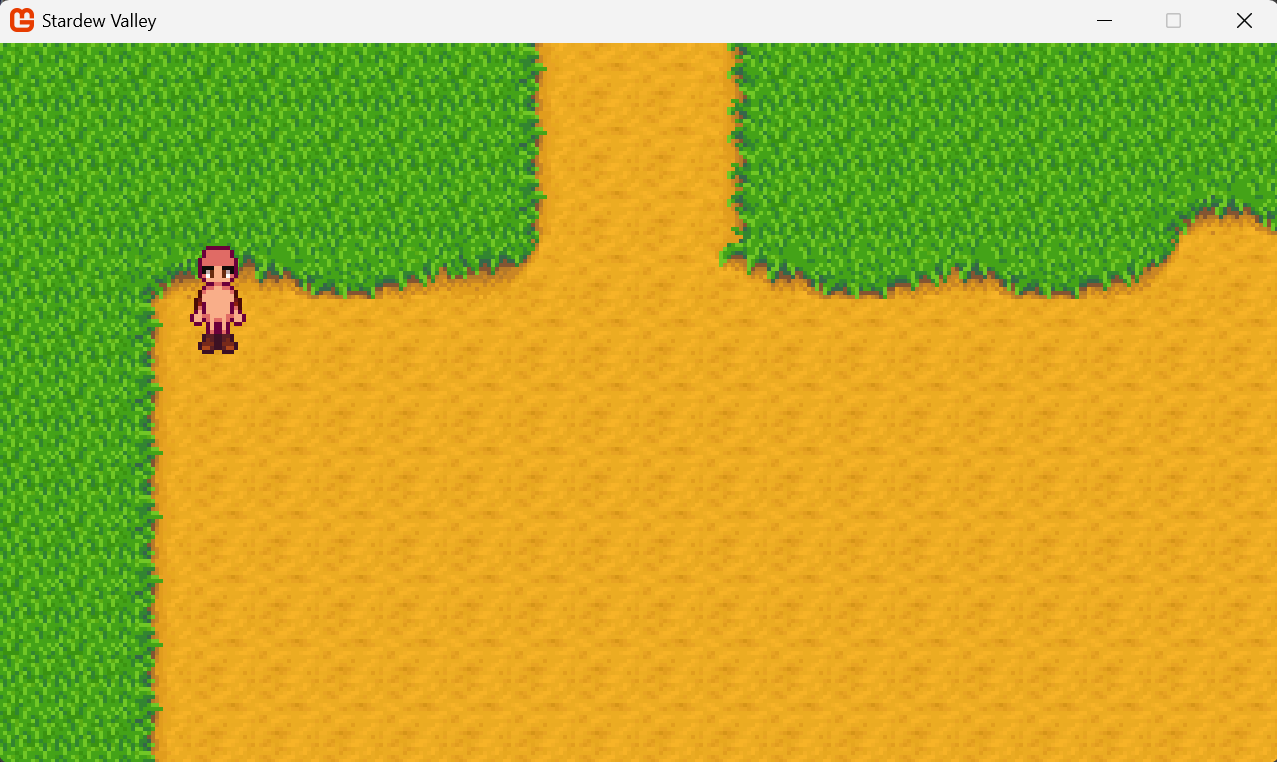
我们可以看到屏幕上出现的小人,能够通过我们的WASD操控移动,很有意思对吧,没错这个很有意思,但是问题很快就出现了,我希望我的农夫穿上衣服,我可不希望我们玩家游玩的时候不穿衣服呢,那么这个就得提到我们的服装系统了,也就是怎么给我们的玩家换衣服
服装系统
好了朋友们,上一个小部分我们创建了一个我们允许我们玩家操作的的农夫,我们现在要给他穿上衣服,我们该怎么做呢?那么这个就需要提到我们的衣服服装系统了,这里我不会给出完整的换装系统,但是我们会给一个案例让大家自行扩展。
现在是文明社会,我们就算光着膀子,都得穿条裤子,所以我们就从裤子开始吧
📁 Stardew
├── 📁 config
├── 📁 .vscode
├── 📁 bin
├── 📁 Content
├── 📁 Library
├── 📁 obj
├── 📁 StardewValley
│ ├── 📁 Physics
│ │ └── 📄 BoxCollider.cs
│ │ └── 📄 CollisionLayer.cs
│ │ └── 📄 CollisionHandler.cs
│ │ └── 📄 RigidBody.cs
│ │ └── 📄 Physics2D.cs
│ ├── 📁 FSM
│ │ └── 📄 StateNode.cs
│ │ └── 📄 StateMachine.cs
│ ├── 📁 Entity
│ │ └── 📁 Character
│ │ │ └── 📁 FarmerFSM
│ │ │ │ └── 📄 FarmerState.cs
│ │ │ │ └── 📄 FarmerIdle.cs
│ │ │ │ └── 📄 FarmerWalk.cs
│ │ │ │ └── 📄 FarmerRun.cs
│ │ │ │ └── 📄 FarmerUseTool.cs
│ │ │ └── 📁 Farmer (New)
│ │ │ │ └── 📄 Pant.cs (New)
│ │ │ │ └── 📄 Shirt.cs (New)
│ │ │ │ └── 📄 FarmerStatus.cs (New)
│ │ │ └── 📄 Character.cs
│ │ │ └── 📄 Farmer.cs
│ │ │ └── 📄 DirectionFace.cs
│ ├── 📁 Scene
│ │ └── 📄 Farm.cs
│ │ └── 📄 GameScene.cs
│ ├── 📁 Utility
│ │ └── 📄 Transform.cs
├── 📄 app.manifest
├── 📄 Core.cs
├── 📄 GameMain.cs
├── 📄 Icon.ico
├── 📄 Programs.cs
└── 📄 Stardew.csproj
接着我们导入一些图片
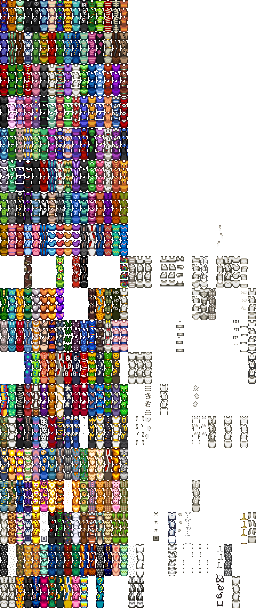
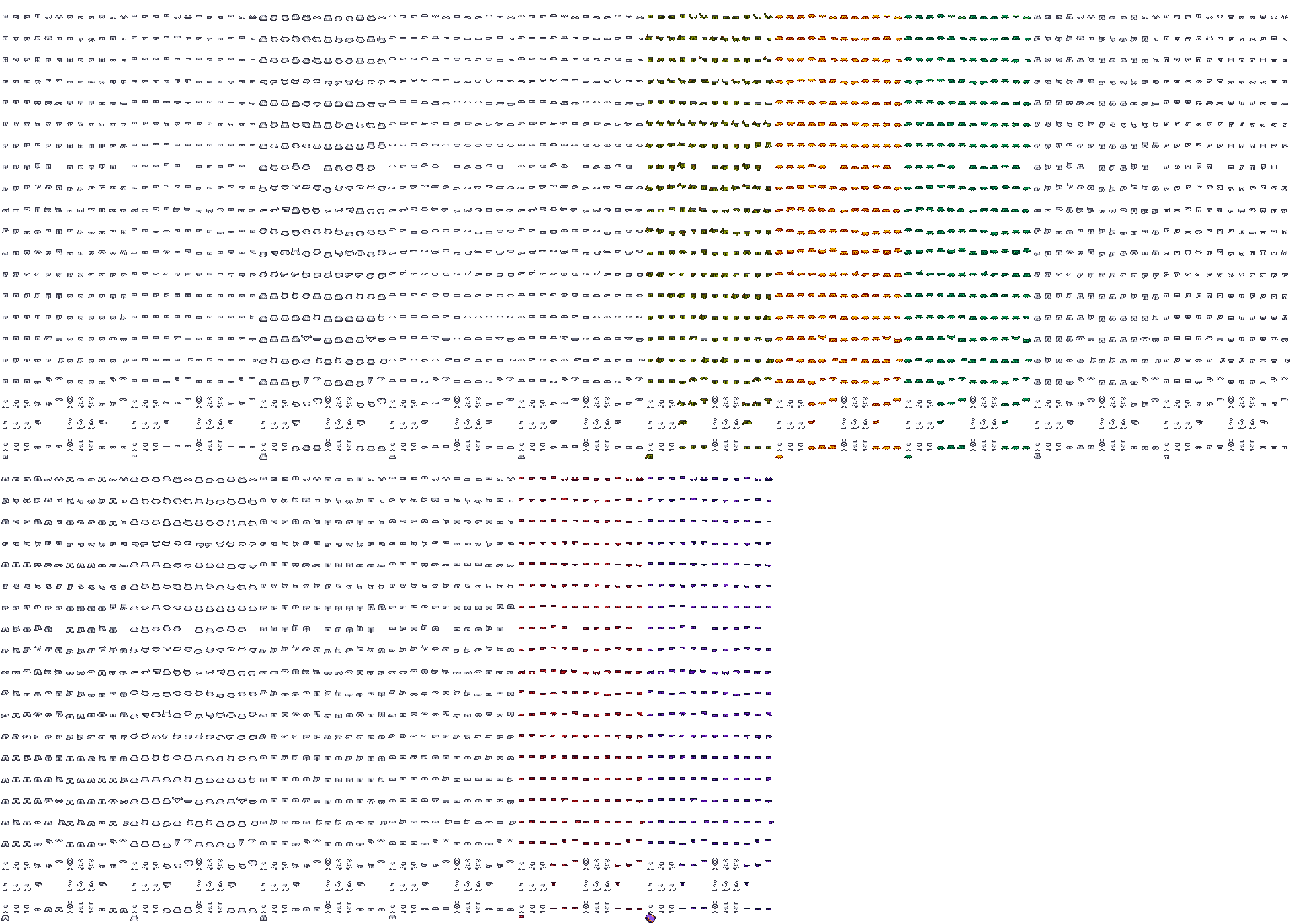
创建我们的配置文件xml文件
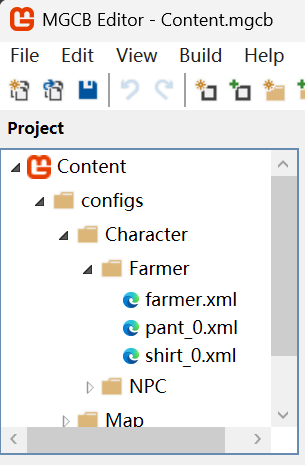
我们可以看见,我们有许多各种各样地图片供我们选择,但是我只会选择一种,我们的Shirt只需要选择一种,所以我只创建了一个shirt的配置文件,和pant的配置文件,我们一个配置文件代表的是一种类型的裤子,那么我们开始创建代码吧
首先我们先写一个FarmerStatus来存储玩家当前的状态,来决定我们要穿什么样的裤子
FarmerStatus.cs
namespace StardewValley.Characters;

public enum FarmerStatus
{
    IDLE,
    WALK,
    RUN,
    USETOOL
}
接着我们写出我们裤子的代码,大家下载图片之后可以仔细观察一下我们的图片,其实我们裤子的代码也是通过帧动画进行渲染的,那么我们直接就通过TextureAtlas直接进行我们的渲染逻辑,然后再根据玩家当前的状态进行区分我们需要使用哪一个动画,那么我们的动画就如此简单的搞定了
Pant.cs
using System.Collections.Generic;
using Microsoft.Xna.Framework;
using Microsoft.Xna.Framework.Graphics;
using MonoLibrary;
using MonoLibrary.Graphics;

namespace StardewValley.Characters.Clothes;

public class Pant
{
    public int ID = 0;

    public Color color;

    public float LayerDepth = 0;

    public Dictionary<DirectionFace, AnimatedSprite> idle;

    public Dictionary<DirectionFace, AnimatedSprite> walk;

    public Dictionary<DirectionFace, AnimatedSprite> run;

    public Dictionary<DirectionFace, AnimatedSprite> use;

    public Pant(Color color, int ID)
    {
        this.ID = ID;
        idle = new Dictionary<DirectionFace, AnimatedSprite>();
        walk = new Dictionary<DirectionFace, AnimatedSprite>();
        run = new Dictionary<DirectionFace, AnimatedSprite>();
        use = new Dictionary<DirectionFace, AnimatedSprite>();
        this.color = color;
    }

    public void Initialized()
    {
        foreach (var item in idle)
        {
            item.Value.Scale = new Vector2(4f, 4f);
            item.Value.Origin = new Vector2(8, 29);
            if (item.Key == DirectionFace.Left)
            {
                item.Value.Effects = SpriteEffects.FlipHorizontally;
            }
            item.Value.Color = color;
        }
        foreach (var item in walk)
        {
            item.Value.Scale = new Vector2(4f, 4f);
            item.Value.Origin = new Vector2(8, 29);
            if (item.Key == DirectionFace.Left)
            {
                item.Value.Effects = SpriteEffects.FlipHorizontally;
            }
            item.Value.Color = color;
        }
        foreach (var item in run)
        {
            item.Value.Scale = new Vector2(4f, 4f);
            item.Value.Origin = new Vector2(8, 29);
            if (item.Key == DirectionFace.Left)
            {
                item.Value.Effects = SpriteEffects.FlipHorizontally;
            }
            item.Value.Color = color;
        }
        foreach (var item in use)
        {
            item.Value.Scale = new Vector2(4f, 4f);
            item.Value.Origin = new Vector2(8, 29);
            if (item.Key == DirectionFace.Left)
            {
                item.Value.Effects = SpriteEffects.FlipHorizontally;
            }
            item.Value.Color = color;
        }
    }

    public void LoadContent()
    {
        TextureAtlas atlas = TextureAtlas.FromFile(Core.Content, $"configs/Character/Farmer/pant_{ID}.xml");
        idle.Add(DirectionFace.Down, atlas.CreateAnimatedSprite("pants-idle-down"));
        idle.Add(DirectionFace.Left, atlas.CreateAnimatedSprite("pants-idle-side"));
        idle.Add(DirectionFace.Right, atlas.CreateAnimatedSprite("pants-idle-side"));
        idle.Add(DirectionFace.Up, atlas.CreateAnimatedSprite("pants-idle-up"));

        walk.Add(DirectionFace.Down, atlas.CreateAnimatedSprite("pants-walk-down"));
        walk.Add(DirectionFace.Left, atlas.CreateAnimatedSprite("pants-walk-side"));
        walk.Add(DirectionFace.Right, atlas.CreateAnimatedSprite("pants-walk-side"));
        walk.Add(DirectionFace.Up, atlas.CreateAnimatedSprite("pants-walk-up"));

        run.Add(DirectionFace.Down, atlas.CreateAnimatedSprite("pants-run-down"));
        run.Add(DirectionFace.Left, atlas.CreateAnimatedSprite("pants-run-side"));
        run.Add(DirectionFace.Right, atlas.CreateAnimatedSprite("pants-run-side"));
        run.Add(DirectionFace.Up, atlas.CreateAnimatedSprite("pants-run-up"));

        use.Add(DirectionFace.Down, atlas.CreateAnimatedSprite("pants-use-down"));
        use.Add(DirectionFace.Left, atlas.CreateAnimatedSprite("pants-use-side"));
        use.Add(DirectionFace.Right, atlas.CreateAnimatedSprite("pants-use-side"));
        use.Add(DirectionFace.Up, atlas.CreateAnimatedSprite("pants-use-up"));
    }

    public void Draw(DirectionFace face, FarmerStatus state, Vector2 position, int FrameIndex)
    {
        if (state == FarmerStatus.IDLE)
        {
            idle[face].LayerDepth = LayerDepth;
            idle[face].SetFrames(FrameIndex);
            idle[face].Draw(Core.SpriteBatch, position);
        }
        if (state == FarmerStatus.WALK)
        {
            walk[face].LayerDepth = LayerDepth;
            walk[face].CurrentFrame = FrameIndex;
            walk[face].SetFrames(FrameIndex);
            walk[face].Draw(Core.SpriteBatch, position);
        }
        if (state == FarmerStatus.RUN)
        {
            run[face].LayerDepth = LayerDepth;
            run[face].SetFrames(FrameIndex);
            run[face].Draw(Core.SpriteBatch, position);
        }
        if (state == FarmerStatus.USETOOL)
        {
            use[face].LayerDepth = LayerDepth;
            use[face].SetFrames(FrameIndex);
            use[face].Draw(Core.SpriteBatch, position);
        }
    }
}
这样我们就可以实现我们通过修改不同的ID值来穿不一样的衣服,这里我值用了一套,那么其他的道理是相同的,我们加油干吧!
那么我们的衬衫和裤子不一样的是,他是一个精灵而不是动画,也就是无论何时何地他的图片使用的都是那一张因此我们便要使用不同的方法来加载我们的Shirt
Shirt.cs
using System.Collections.Generic;
using System.IO;
using System.Xml;
using System.Xml.Linq;
using Microsoft.Xna.Framework;
using Microsoft.Xna.Framework.Content;
using Microsoft.Xna.Framework.Graphics;
using MonoLibrary;
using MonoLibrary.Graphics;

namespace StardewValley.Characters.Clothes;

public class Shirt
{
    public Dictionary<DirectionFace, Sprite> sprites;

    public Shirt(Dictionary<DirectionFace, Sprite> sprites)
    {
        this.sprites = sprites;
    }

    public void Initialized()
    {
        foreach (var i in sprites)
        {
            i.Value.Scale = new Vector2(4f, 4f);
            i.Value.Origin = new Vector2(4f, 14f);
        }
    }

    public void Draw(Vector2 Position, Vector2 Offset, DirectionFace Face, float LayerDepth)
    {
        sprites[Face].LayerDepth = LayerDepth;
        sprites[Face].Draw(Core.SpriteBatch, Position + Offset);
    }

    public static Shirt FromFile(ContentManager content, string fileName)
    {
        string filePath = Path.Combine(content.RootDirectory, fileName);

        using (Stream stream = TitleContainer.OpenStream(filePath))
        {
            using (XmlReader reader = XmlReader.Create(stream))
            {
                XDocument doc = XDocument.Load(reader);
                XElement root = doc.Root;

                string texturePath = root.Element("Texture").Value;
                Texture2D atlas = content.Load<Texture2D>(texturePath);

                var down = root.Element("Down");
                var left = root.Element("Left");
                var right = root.Element("Right");
                var up = root.Element("Up");

                int x, y, width, height;
                x = int.Parse(down.Attribute("x")?.Value ?? "0");
                y = int.Parse(down.Attribute("y")?.Value ?? "0");
                width = int.Parse(down.Attribute("width")?.Value ?? "0");
                height = int.Parse(down.Attribute("height")?.Value ?? "0");
                Sprite _down = new Sprite(new TextureRegion(atlas, x, y, width, height));

                x = int.Parse(left.Attribute("x")?.Value ?? "0");
                y = int.Parse(left.Attribute("y")?.Value ?? "0");
                width = int.Parse(left.Attribute("width")?.Value ?? "0");
                height = int.Parse(left.Attribute("height")?.Value ?? "0");
                Sprite _left = new Sprite(new TextureRegion(atlas, x, y, width, height));

                x = int.Parse(right.Attribute("x")?.Value ?? "0");
                y = int.Parse(right.Attribute("y")?.Value ?? "0");
                width = int.Parse(right.Attribute("width")?.Value ?? "0");
                height = int.Parse(right.Attribute("height")?.Value ?? "0");
                Sprite _right = new Sprite(new TextureRegion(atlas, x, y, width, height));

                x = int.Parse(up.Attribute("x")?.Value ?? "0");
                y = int.Parse(up.Attribute("y")?.Value ?? "0");
                width = int.Parse(up.Attribute("width")?.Value ?? "0");
                height = int.Parse(up.Attribute("height")?.Value ?? "0");
                Sprite _up = new Sprite(new TextureRegion(atlas, x, y, width, height));

                Dictionary<DirectionFace, Sprite> shirt_sprites = new Dictionary<DirectionFace, Sprite>
                {
                    {DirectionFace.Down, _down},
                    {DirectionFace.Left, _left},
                    {DirectionFace.Right, _right},
                    {DirectionFace.Up, _up},
                };
                return new Shirt(shirt_sprites);
            }
        }
    }
}
这样我们就完成了我们基本逻辑的渲染,这个时候我们需要做什么呢?我们需要编辑一下我们的xml文件以此来切割出正确的图片
pant_0.xml
<?xml version="1.0" encoding="utf-8"?>
<TextureAtlas>
    <Texture>images/Characters/Farmer/pants</Texture>
    <Regions>
        <!-- 向下动画 -->
        <Region name="pants-down-0" x="0" y="0" width="16" height="32" />
        <Region name="pants-down-walk-1" x="16" y="0" width="16" height="32" />
        <Region name="pants-down-walk-2" x="32" y="0" width="16" height="32" />
        <Region name="pants-down-run-1" x="0" y="96" width="16" height="32" />
        <Region name="pants-down-run-2" x="16" y="96" width="16" height="32" />
        <Region name="pants-down-use-0" x="0" y="128" width="16" height="32" />
        <Region name="pants-down-use-1" x="16" y="128" width="16" height="32" />
        <Region name="pants-down-use-2" x="32" y="128" width="16" height="32" />
        <Region name="pants-down-use-3" x="48" y="128" width="16" height="32" />
        <Region name="pants-down-use-4" x="64" y="128" width="16" height="32" />
        <Region name="pants-down-use-5" x="80" y="128" width="16" height="32" />
        <!-- 侧面动画 -->
        <Region name="pants-side-0" x="0" y="32" width="16" height="32" />
        <Region name="pants-side-walk-1" x="16" y="32" width="16" height="32" />
        <Region name="pants-side-walk-2" x="32" y="32" width="16" height="32" />
        <Region name="pants-side-run-1" x="32" y="96" width="16" height="32" />
        <Region name="pants-side-run-2" x="48" y="96" width="16" height="32" />
        <Region name="pants-side-use-0" x="0" y="160" width="16" height="32" />
        <Region name="pants-side-use-1" x="16" y="160" width="16" height="32" />
        <Region name="pants-side-use-2" x="32" y="160" width="16" height="32" />
        <Region name="pants-side-use-3" x="48" y="160" width="16" height="32" />
        <Region name="pants-side-use-4" x="64" y="160" width="16" height="32" />
        <Region name="pants-side-use-5" x="80" y="160" width="16" height="32" />
        <!-- 向上动画 -->
        <Region name="pants-up-0" x="0" y="64" width="16" height="32" />
        <Region name="pants-up-walk-1" x="16" y="64" width="16" height="32" />
        <Region name="pants-up-walk-2" x="32" y="64" width="16" height="32" />
        <Region name="pants-up-run-1" x="64" y="96" width="16" height="32" />
        <Region name="pants-up-run-2" x="80" y="96" width="16" height="32" />
        <Region name="pants-up-use-0" x="0" y="192" width="16" height="32" />
        <Region name="pants-up-use-1" x="16" y="192" width="16" height="32" />
        <Region name="pants-up-use-2" x="32" y="192" width="16" height="32" />
        <Region name="pants-up-use-3" x="48" y="192" width="16" height="32" />
        <Region name="pants-up-use-4" x="64" y="192" width="16" height="32" />
        <Region name="pants-up-use-5" x="80" y="192" width="16" height="32" />
    </Regions>
    <Animations>
        <!-- 向下动画 -->
        <Animation name="pants-idle-down" delay="100">
            <Frame region="pants-down-0" />
        </Animation>
        <Animation name="pants-walk-down" delay="100">
            <Frame region="pants-down-0" />
            <Frame region="pants-down-walk-1" />
            <Frame region="pants-down-walk-2" />
        </Animation>
        <Animation name="pants-run-down" delay="100">
            <Frame region="pants-down-0" />
            <Frame region="pants-down-run-1" />
            <Frame region="pants-down-run-2" />
        </Animation>
        <Animation name="pants-use-down" delay="100">
            <Frame region="pants-down-use-0" />
            <Frame region="pants-down-use-1" />
            <Frame region="pants-down-use-2" />
            <Frame region="pants-down-use-3" />
            <Frame region="pants-down-use-4" />
            <Frame region="pants-down-use-5" />
        </Animation>
        <!-- 侧面动画 -->
        <Animation name="pants-idle-side" delay="100">
            <Frame region="pants-side-0" />
        </Animation>
        <Animation name="pants-walk-side" delay="100">
            <Frame region="pants-side-0" />
            <Frame region="pants-side-walk-1" />
            <Frame region="pants-side-walk-2" />
        </Animation>
        <Animation name="pants-run-side" delay="100">
            <Frame region="pants-side-0" />
            <Frame region="pants-side-run-1" />
            <Frame region="pants-side-run-2" />
        </Animation>
        <Animation name="pants-use-side" delay="100">
            <Frame region="pants-side-use-0" />
            <Frame region="pants-side-use-1" />
            <Frame region="pants-side-use-2" />
            <Frame region="pants-side-use-3" />
            <Frame region="pants-side-use-4" />
            <Frame region="pants-side-use-5" />
        </Animation>
        <!-- 向上动画 -->
        <Animation name="pants-idle-up" delay="100">
            <Frame region="pants-up-0" />
        </Animation>
        <Animation name="pants-walk-up" delay="100">
            <Frame region="pants-up-0" />
            <Frame region="pants-up-walk-1" />
            <Frame region="pants-up-walk-2" />
        </Animation>
        <Animation name="pants-run-up" delay="100">
            <Frame region="pants-up-0" />
            <Frame region="pants-up-run-1" />
            <Frame region="pants-up-run-2" />
        </Animation>
        <Animation name="pants-use-up" delay="100">
            <Frame region="pants-up-use-0" />
            <Frame region="pants-up-use-1" />
            <Frame region="pants-up-use-2" />
            <Frame region="pants-up-use-3" />
            <Frame region="pants-up-use-4" />
            <Frame region="pants-up-use-5" />
        </Animation>
    </Animations>
</TextureAtlas>
shirt_0.xml
<?xml version="1.0" encoding="utf-8"?>
<Shirt>
  <Texture>images/Characters/Farmer/shirts</Texture>
  <Down x="0" y="0" width="8" height="8"/>
  <Left x="0" y="16" width="8" height="8"/>
  <Right x="0" y="8" width="8" height="8"/>
  <Up x="0" y="24" width="8" height="8"/>
</Shirt>
OK 现在我们的准备工作已经完成了,现在只需要在我们的Farmer的代码中导入我们需要的代码,以及我们的状态中添加渲染逻辑就可以了,值得注意的是:我们的衬衫因为我们玩家移动动画的播放过程中我们躯体的位置有所变化,所以我们的应该再状态中添加逻辑以此来处理我们的渲染逻辑
Farmer.cs
using System.Collections.Generic;
using Microsoft.Xna.Framework;
using MonoLibrary;
using MonoLibrary.Graphics;
using StardewValley.Characters.Clothes;
using StardewValley.FSM;
using StardewValley.Physics;

namespace StardewValley.Characters;

public class Farmer : Character
{
    /// <summary>
    /// 地图最大宽度
    /// </summary>
    public int MAX_ROWS = 0;

    /// <summary>
    /// 玩家移动速度
    /// </summary>
    public float RunSpeed = 300f;

    /// <summary>
    /// 玩家行走速度
    /// </summary>
    public float WalkSpeed = 100f;

    /// <summary>
    /// 玩家刚体
    /// </summary>
    public Rigidbody rigidbody;

    /// <summary>
    /// 玩家裤子
    /// </summary>
    public Pant pant;

    /// <summary>
    /// 玩家衬衫
    /// </summary>
    public Shirt shirt;

    /// <summary>
    /// 当前位置
    /// </summary>
    public DirectionFace CurrentFace;

    /// <summary>
    /// 状态机
    /// </summary>
    private StateMachine stateMachine;

    /// <summary>
    /// Idle站立状态
    /// </summary>
    public FarmerIdle idle;

    /// <summary>
    /// Walk行走状态
    /// </summary>
    public FarmerWalk walk;

    /// <summary>
    /// Run 奔跑状态
    /// </summary>
    public FarmerRun run;

    /// <summary>
    /// UseTool 使用工具状态
    /// </summary>
    public FarmerUseTool useTool;

    /// <summary>
    /// 是否持有物品
    /// </summary>
    public bool IsHoldItem = false;

    public Farmer() : base()
    {
        IsHoldItem = false;
        stateMachine = new StateMachine();
        rigidbody = new Rigidbody(transform, new Vector2(40, 24), CollisionLayer.Farmer, GameMain.CurrentScene);
        RunSpeed = 300f;
        WalkSpeed = 100;
        LoadContent();
    }

    public override void Initialize()
    {
        base.Initialize();
        transform.Position = new Vector2(128f, 128f);
        CurrentFace = DirectionFace.Down;
        stateMachine.Initialize(idle);
        pant.Initialized();
        shirt.Initialized();
    }

    public override void LoadContent()
    {
        base.LoadContent();
        TextureAtlas atlas = TextureAtlas.FromFile(Core.Content, "configs/Character/Farmer/farmer.xml");
        Dictionary<DirectionFace, AnimatedSprite> body_idle = new Dictionary<DirectionFace, AnimatedSprite>()
        {
            {DirectionFace.Down, atlas.CreateAnimatedSprite("farmer-body-idle-down")},
            {DirectionFace.Left, atlas.CreateAnimatedSprite("farmer-body-idle-side")},
            {DirectionFace.Right, atlas.CreateAnimatedSprite("farmer-body-idle-side")},
            {DirectionFace.Up, atlas.CreateAnimatedSprite("farmer-body-idle-up")}
        };

        Dictionary<DirectionFace, AnimatedSprite> arm_idle = new Dictionary<DirectionFace, AnimatedSprite>()
        {
            {DirectionFace.Down, atlas.CreateAnimatedSprite("farmer-arm-idle-down")},
            {DirectionFace.Left, atlas.CreateAnimatedSprite("farmer-arm-idle-side")},
            {DirectionFace.Right, atlas.CreateAnimatedSprite("farmer-arm-idle-side")},
            {DirectionFace.Up, atlas.CreateAnimatedSprite("farmer-arm-idle-up")}
        };

        Dictionary<DirectionFace, AnimatedSprite> arm_item_idle = new Dictionary<DirectionFace, AnimatedSprite>()
        {
            {DirectionFace.Down, atlas.CreateAnimatedSprite("farmer-arm-item-idle-down")},
            {DirectionFace.Left, atlas.CreateAnimatedSprite("farmer-arm-item-idle-side")},
            {DirectionFace.Right, atlas.CreateAnimatedSprite("farmer-arm-item-idle-side")},
            {DirectionFace.Up, atlas.CreateAnimatedSprite("farmer-arm-item-idle-up")}
        };

        Dictionary<DirectionFace, AnimatedSprite> body_walk = new Dictionary<DirectionFace, AnimatedSprite>()
        {
            {DirectionFace.Down, atlas.CreateAnimatedSprite("farmer-body-walk-down")},
            {DirectionFace.Left, atlas.CreateAnimatedSprite("farmer-body-walk-side")},
            {DirectionFace.Right, atlas.CreateAnimatedSprite("farmer-body-walk-side")},
            {DirectionFace.Up, atlas.CreateAnimatedSprite("farmer-body-walk-up")}
        };

        Dictionary<DirectionFace, AnimatedSprite> arm_walk = new Dictionary<DirectionFace, AnimatedSprite>()
        {
            {DirectionFace.Down, atlas.CreateAnimatedSprite("farmer-arm-walk-down")},
            {DirectionFace.Left, atlas.CreateAnimatedSprite("farmer-arm-walk-side")},
            {DirectionFace.Right, atlas.CreateAnimatedSprite("farmer-arm-walk-side")},
            {DirectionFace.Up, atlas.CreateAnimatedSprite("farmer-arm-walk-up")}
        };

        Dictionary<DirectionFace, AnimatedSprite> arm_item_walk = new Dictionary<DirectionFace, AnimatedSprite>()
        {
            {DirectionFace.Down, atlas.CreateAnimatedSprite("farmer-arm-item-walk-down")},
            {DirectionFace.Left, atlas.CreateAnimatedSprite("farmer-arm-item-walk-side")},
            {DirectionFace.Right, atlas.CreateAnimatedSprite("farmer-arm-item-walk-side")},
            {DirectionFace.Up, atlas.CreateAnimatedSprite("farmer-arm-item-walk-up")}
        };

        Dictionary<DirectionFace, AnimatedSprite> body_run = new Dictionary<DirectionFace, AnimatedSprite>()
        {
            {DirectionFace.Down, atlas.CreateAnimatedSprite("farmer-body-run-down")},
            {DirectionFace.Left, atlas.CreateAnimatedSprite("farmer-body-run-side")},
            {DirectionFace.Right, atlas.CreateAnimatedSprite("farmer-body-run-side")},
            {DirectionFace.Up, atlas.CreateAnimatedSprite("farmer-body-run-up")}
        };

        Dictionary<DirectionFace, AnimatedSprite> arm_run = new Dictionary<DirectionFace, AnimatedSprite>()
        {
            {DirectionFace.Down, atlas.CreateAnimatedSprite("farmer-arm-run-down")},
            {DirectionFace.Left, atlas.CreateAnimatedSprite("farmer-arm-run-side")},
            {DirectionFace.Right, atlas.CreateAnimatedSprite("farmer-arm-run-side")},
            {DirectionFace.Up, atlas.CreateAnimatedSprite("farmer-arm-run-up")}
        };

        Dictionary<DirectionFace, AnimatedSprite> arm_item_run = new Dictionary<DirectionFace, AnimatedSprite>()
        {
            {DirectionFace.Down, atlas.CreateAnimatedSprite("farmer-arm-item-run-down")},
            {DirectionFace.Left, atlas.CreateAnimatedSprite("farmer-arm-item-run-side")},
            {DirectionFace.Right, atlas.CreateAnimatedSprite("farmer-arm-item-run-side")},
            {DirectionFace.Up, atlas.CreateAnimatedSprite("farmer-arm-item-run-up")}
        };

        Dictionary<DirectionFace, AnimatedSprite> body_use = new Dictionary<DirectionFace, AnimatedSprite>()
        {
on="pants-up-0" />
            <Frame region="pants-up-run-1" />
            <Frame region="pants-up-run-2" />
        </Animation>
        <Animation name="pants-use-up" delay="100">
            <Frame region="pants-up-use-0" />
            <Frame region="pants-up-use-1" />
            <Frame region="pants-up-use-2" />
            <Frame region="pants-up-use-3" />
            <Frame region="pants-up-use-4" />
            <Frame region="pants-up-use-5" />
        </Animation>
    </Animations>
</TextureAtlas>
shirt_0.xml
<?xml version="1.0" encoding="utf-8"?>
<Shirt>
  <Texture>images/Characters/Farmer/shirts</Texture>
  <Down x="0" y="0" width="8" height="8"/>
  <Left x="0" y="16" width="8" height="8"/>
  <Right x="0" y="8" width="8" height="8"/>
  <Up x="0" y="24" width="8" height="8"/>
</Shirt>
OK 现在我们的准备工作已经完成了,现在只需要在我们的Farmer的代码中导入我们需要的代码,以及我们的状态中添加渲染逻辑就可以了,值得注意的是:我们的衬衫因为我们玩家移动动画的播放过程中我们躯体的位置有所变化,所以我们的应该再状态中添加逻辑以此来处理我们的渲染逻辑
Farmer.cs






 扫一扫
扫一扫


 639
639

 被折叠的 条评论
为什么被折叠?
被折叠的 条评论
为什么被折叠?
 到【灌水乐园】发言





