


Python项目配置前的准备工作
安装miniconda
推荐大家使用清华镜像下载的miniconda,实测非常稳定,记得安装的时候所有的对号都要选择上。
https://mirrors.tuna.tsinghua.edu.cn/anaconda/miniconda/Miniconda3-py39_4.9.2-Windows-x86_64.exe
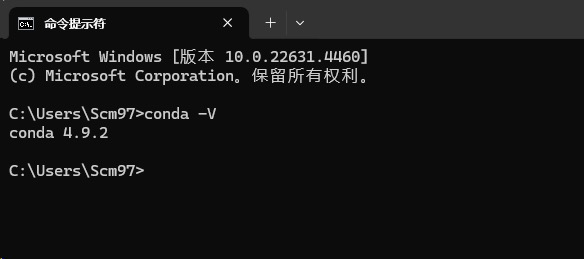
现在完成之后,直接命令行打开输入conda -V的指令观察是否能正确输出conda的版本号,如果可以,则说明没有问题。
另外,为了增加后面镜像下载的速度,推荐大家配置国内的镜像。
请执行下面的指令进行镜像的配置。
conda config --remove-key channels
conda config --add channels https://mirrors.tuna.tsinghua.edu.cn/anaconda/pkgs/free/
conda config --add channels https://mirrors.tuna.tsinghua.edu.cn/anaconda/pkgs/main/
conda config --add channels https://mirrors.tuna.tsinghua.edu.cn/anaconda/cloud/pytorch/
conda config --set show_channel_urls yes
pip config set global.index-url https://pypi.tuna.tsinghua.edu.cn/simple
安装社区版本的pycharm
这里推荐大家安装社区版本的,社区版本的功能已经非常强大,并且完全免费。
下载的地址在这里:其他版本 - PyCharm
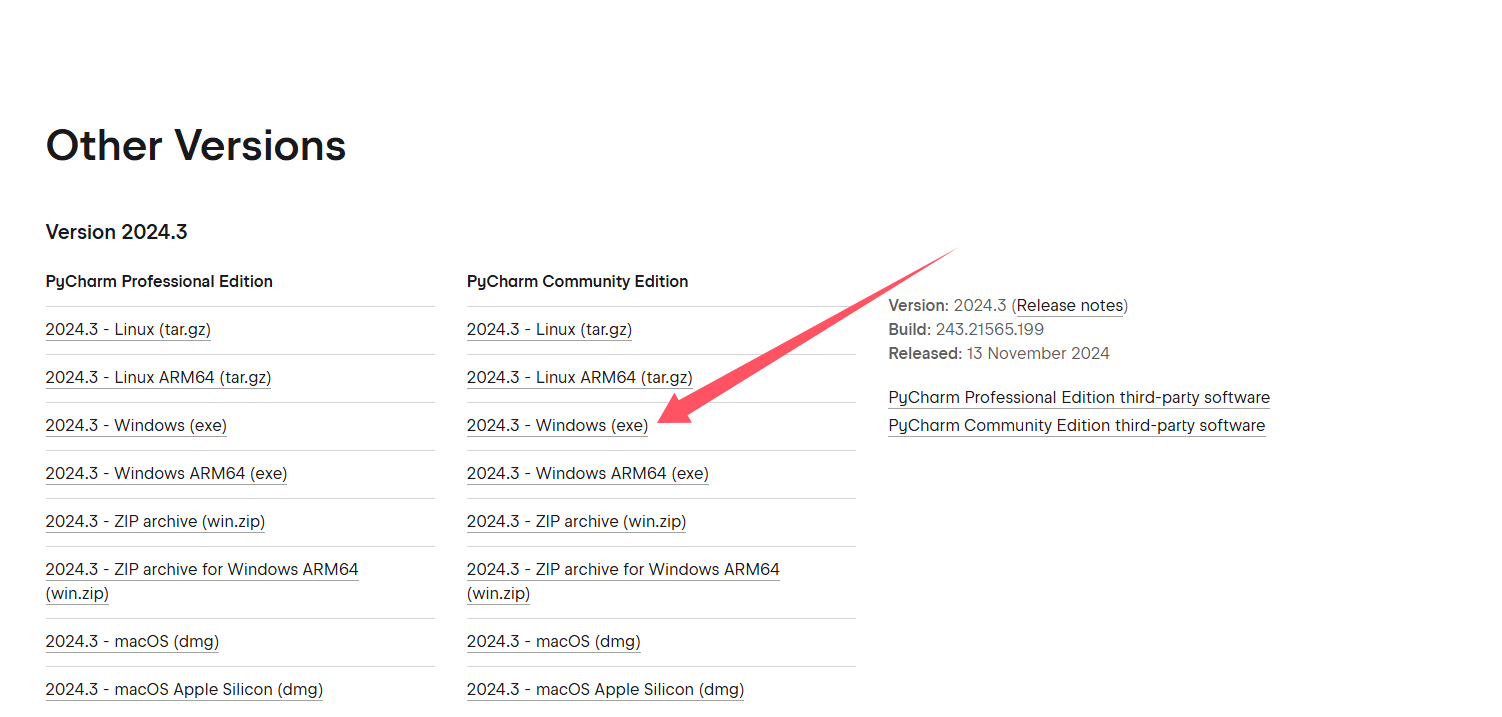
下载之后直接安装即可。
安装vs编译工具
后期在进行一些库的安装的过程中,可能出出现下面的错误。

error: Microsoft Visual C++ 14.0 is required. Get it with "Build Tools for Visual Studio":https://visualstudio.microsoft.com/downloads/ Tools":
出现这样的错误表示你的代码缺乏c++的编译工具,因为部分库的底层实现逻辑是通过C++来进行完成的,所以为了避免出现这样的错误,在前期的准备中,我们需要从官网下载对应的库进行安装:Microsoft C++ 生成工具 - Visual Studio
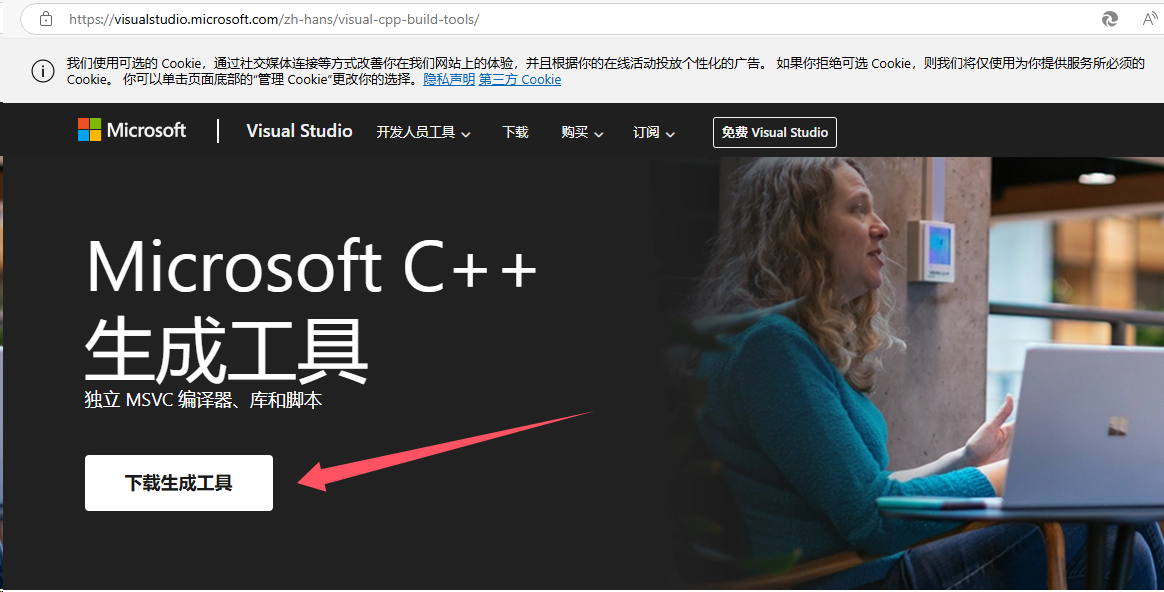
下载之后双击进行安装,你需要从列表中选择下面的部分,注意,这里的安装位置默认在c盘,如果你的c盘没有足够的空间,你一定要给他移动他其他的盘中。
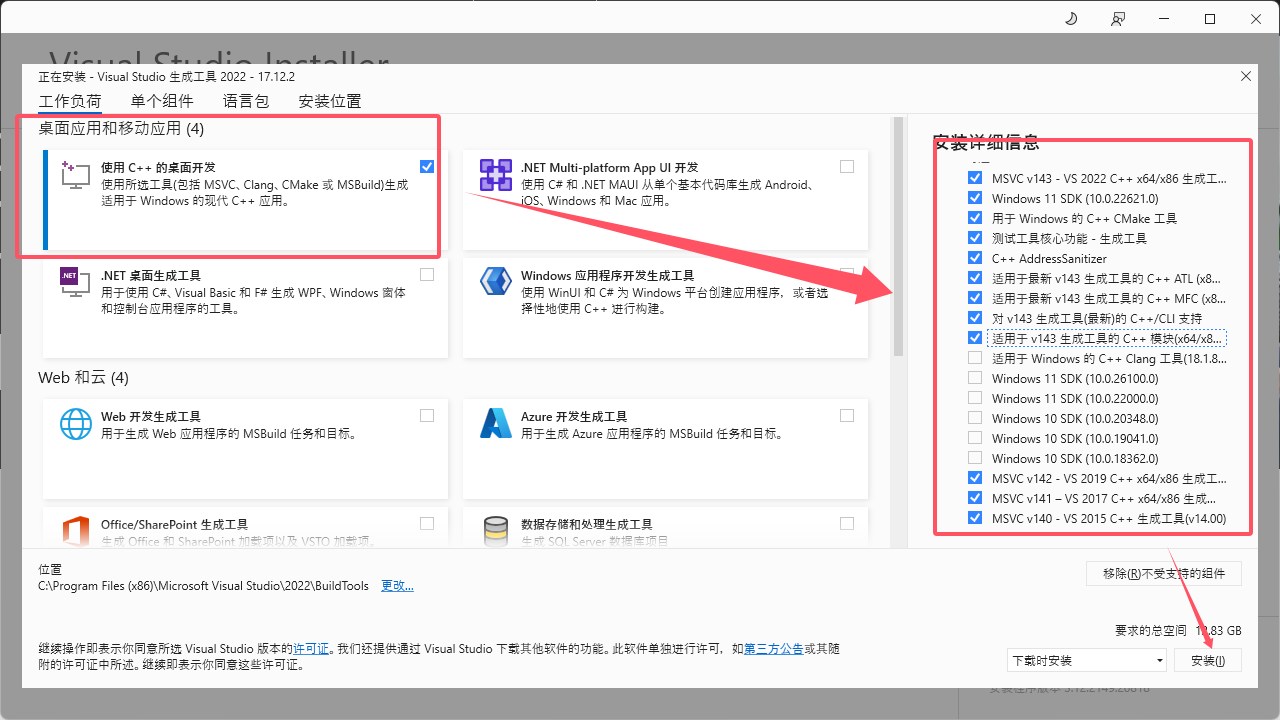
安装完成之后重启你的电脑即可。
装字体文件(可选)
另外,很多小伙伴在跑yolo的时候,会提示字体文件缺失,虽然程序设置了自动下载,但是因为国内的下载速度比较慢,所以大家还是提前进行安装,字体文件已经提前准备在了代码包中,大家从字体文件的目录打开,双击进行安装即可。
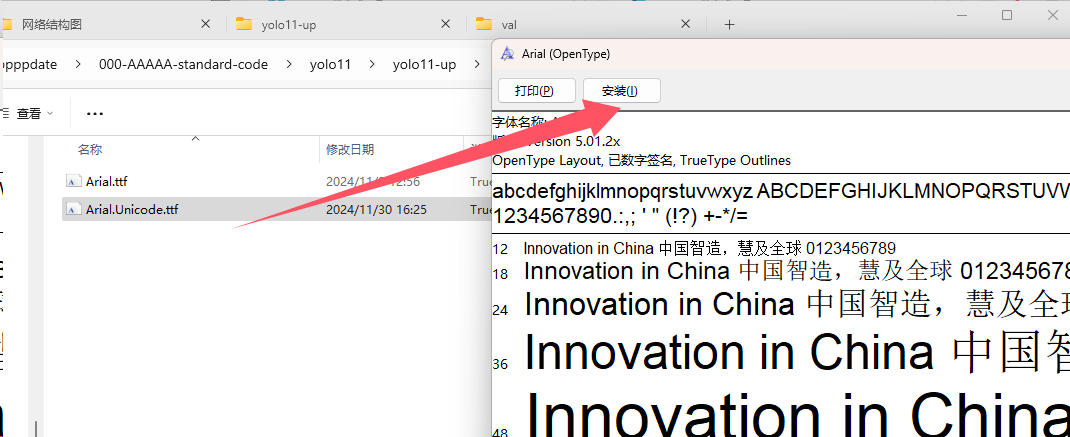
没有字体包的小伙伴可以直接从本博客的资源链接中获取。
一些常用的深度学习库的安装指令
conda install pytorch==1.8.0 torchvision torchaudio cudatoolkit=10.2 # 注意这条命令指定Pytorch的版本和cuda的版本
conda install pytorch==1.10.0 torchvision torchaudio cudatoolkit=11.3 # 30系列以上显卡gpu版本pytorch安装指令
conda install pytorch==1.8.0 torchvision==0.9.0 torchaudio==0.8.0 cpuonly # CPU的小伙伴直接执行这条命令即可
pip install torch==1.10.0 torchvision==0.11.0 torchaudio==0.10.0
pip install torch==1.8.0 torchvision==0.9.0 torchaudio==0.8.0
pip install torch==2.1.0 torchvision==0.16.0 torchaudio==2.1.0
conda install pytorch==2.1.0 torchvision==0.16.0 torchaudio==2.1.0 -c pytorch





 扫一扫
扫一扫


 被折叠的 条评论
为什么被折叠?
被折叠的 条评论
为什么被折叠?
 到【灌水乐园】发言





