


文章目录
-
简介
-
功能介绍
-
基本原理
-
控件控制入门:记事本操作
-
控件分析与可用参数
-
控件延迟搜索机制
-
示例:连续打开三个记事本并关闭
-
UIAutomation的常见功能
-
基本方法
-
获取窗口对象
-
控件查找方法
-
窗口属性调整
-
WalkTree遍历子控件
-
Bitmap位图对象的使用
-
对多个显示器分别截屏
-
剪切板操作
-
自带的Logger日志输出类
-
全局热键与多线程
-
管理员提权
-
通过实例学习UI自动化
-
控制win10计算器自动计算
-
窗口的拖拽与缩放
-
管理员提权操作并读取设备管理器栏目数据
-
记事本文本输入与字体调整
-
wireshark抓包数据读取
-
PDF目录折叠展开提取器
简介
功能介绍
本文档大纲:
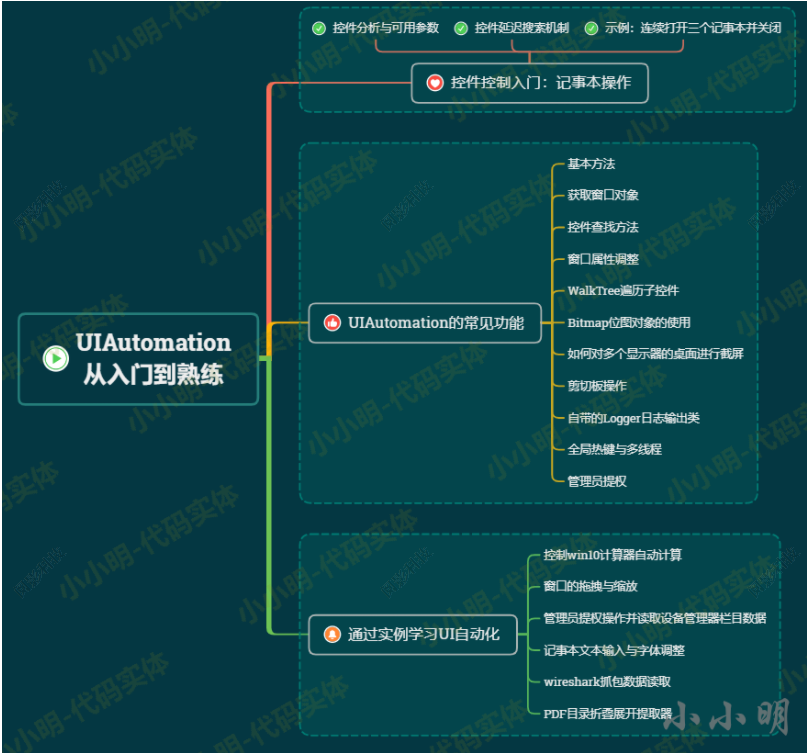
可以看到uiautomation模块除了核心功能UI控件的控制、截图和数据提取外,还支持全局热键注册、剪切板操作和管理员权限提权。
在常规的模拟鼠标和键盘操作,我们一般使用pyautogui,uiautomation模块不仅能直接支持这些操作,还能通过控件定位方式直接定位到目标控件的位置,而不需要自己去获取对应坐标位置。uiautomation模块不仅支持任意坐标位置截图,还支持目标控件的截图,缺点在于截取产生的图片对象难以直接与PIL库配合,只能导出文件后让PIL图像处理库重新读取。对于能够获取到其ScrollItemPattern对象的控件还可以通过ScrollIntoView方法进行视图定位,与游览器的元素定位效果几乎一致。
在常规的热键功能,我们一般使用pynput实现,但现在有了uiautomation模块,热键注册会比pynput更简单功能更强。uiautomation模块所支持的剪切板操作的功能也远远超过常规的专门用于剪切板复制粘贴的库。更牛的是uiautomation模块能直接支持让你的python程序实现管理员提权。
基本上这个库的功能超过好几个专门针对某个功能的库。我们可以看看一下这个库自动化操作过程的动图效果:
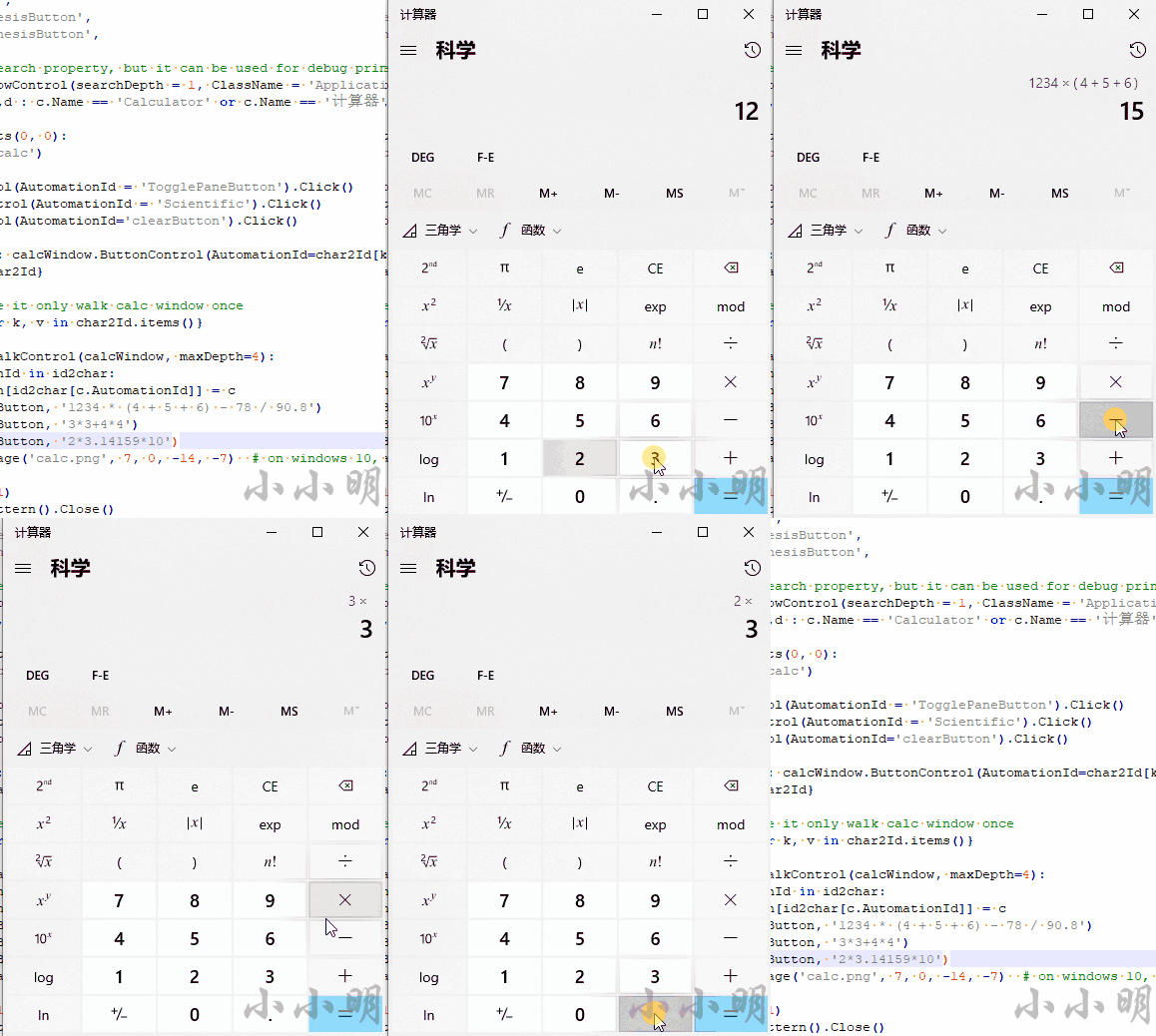
掌握这个框架之后,你能够实现的自动化效果远不止如此。
这么优秀的框架你是否心动了呢?心动不如行动,学起来吧!!!
基本原理
uiautomation模块项目地址:https://github.com/yinkaisheng/Python-UIAutomation-for-Windows
uiautomation是yinkaisheng业余时间开发一个模块。封装了微软UIAutomation API,支持自动化Win32,MFC,WPF,Modern UI(Metro UI), Qt, IE, Firefox( version<=56 or >=60), Chrome谷歌游览器和基于Electron开发的应用程序(加启动参数–force-renderer-accessibility也能支持UIAutomation被自动化).
uiautomation只支持Python 3版本,依赖comtypes和typing这两个包,但Python不要使用3.7.6和3.8.1这两个版本,comtypes在这两个版本中不能正常工作(issue)。
UIAutomation的工作原理:
UIAutomation操作程序时会给程序发送WM_GETOBJECT消息,如果程序处理WM_GETOBJECT消息,实现UI Automation Provider,并调用函数
UiaReturnRawElementProvider(HWND hwnd,WPARAM wparam,LPARAM lparam,IRawElementProviderSimple *el),此程序就支持UIAutomation。
IRawElementProviderSimple 就是 UI Automation Provider,包含了控件的各种信息,如Name,ClassName,ContorlType,坐标等。
UIAutomation 根据程序返回的 IRawElementProviderSimple,就能遍历程序的控件,得到控件各种属性,进行自动化操作。若程序没有处理WM_GETOBJECT或没有实现UIAutomation Provider,UIAutomation则无法识别这些程序内的控件,不支持自动化。
很多DirectUI程序没有实现UIAutomation Provider,所以不支持自动化。
关于各控件所支持的控件模式,可参考:
控件类型及其支持的控件模式 - Win32 apps | Microsoft Learn
在使用uiautomation模块前需要先安装:
pip install uiautomation安装后会在python安装目录下的Scripts目录下得到一个automation.py脚本,可以使用它来准确获取目标窗口的控件结构信息。
automation.py脚本也可以从https://github.com/yinkaisheng/Python-UIAutomation-for-Windows/raw/master/automation.py下载。
当然使用windows自带的inspect.exe图形化工具来观察控件的树形结构更加,通过everything可以很快在系统中找到该工具。
⚠️ :inspect.exe工具获取到的控件类型可能与automation.py脚本打印的结果不太一样,如果发现控件实际不存在,要以automation.py脚本打印的结果为准。
控件控制入门:记事本操作
控件分析与可用参数
首先打开记事本窗口,并设置窗口前置:
import subprocess
import uiautomation as auto

subprocess.Popen('notepad.exe')# 从桌面的第一层子控件中找到记事本程序的窗口WindowControl
notepadWindow = auto.WindowControl(searchDepth=1, ClassName='Notepad')print(notepadWindow.Name)# 设置窗口前置
notepadWindow.SetTopmost(True)
运行上述代码后,会打开一个窗口前置的记事本程序。
控件可用参数说明:
-
searchFromControl = None:从哪个控件开始查找,如果为None,从根控件Desktop开始查找
-
searchDepth = 0xFFFFFFFF: 搜索深度
-
searchInterval = SEARCH_INTERVAL:搜索间隔
-
foundIndex = 1 :搜索到的满足搜索条件的控件索引,索引从1开始
-
Name:控件名字
-
SubName :控件部分名字
-
RegexName:使用re.match匹配符合正则表达式的名字,Name,SubName,RegexName只能使用一个,不能同时使用
-
ClassName :类名字
-
AutomationId: 控件AutomationId
-
ControlType :控件类型
-
Depth:控件相对于searchFromControl的精确深度
-
Compare:自定义比较函数function(control: Control, depth: int)->bool
searchDepth和Depth的区别:
searchDepth在指定的深度范围内(包括1~searchDepth层中的所有子孙控件)搜索第一个满足搜索条件的控件
Depth只在Depth所在的深度(如果Depth>1,排除1~searchDepth-1层中的所有子孙控件)搜索第一个满足搜索条件的控件
为了进一步操作该程序,我们可以使用inspect.exe工具或automation.py脚本分析控件结构。
通过inspect.exe工具分析控件时可以看到记事本的编辑区类型为DocumentControl:
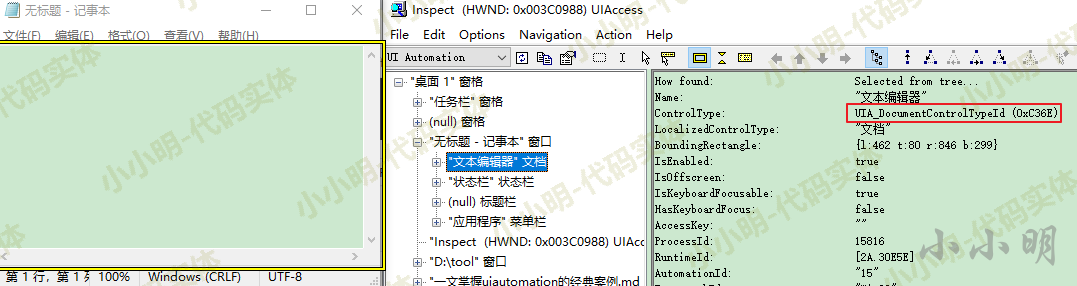
但uiautomation实际使用该类型查找控件时却会找不到控件报错。
下面我们使用automation.py脚本来分析目标窗口,我的Python安装目录为D:Miniconda3所以automation.py脚本会存在于D:Miniconda3Scriptsautomation.py
查看帮助信息:
>python D:Miniconda3Scriptsautomation.py -h
UIAutomation 2.0.15 (Python 3.7.4, 64 bit)
usage
-h      show commandhelp
-t      delay time, default 3 seconds, begin to enumerate after Value seconds, this must be an integer
        you can delay a few seconds and make a window active so automation can enumerate the active window
-d      enumerate tree depth, this must be an integer, if it is null, enumerate the whole tree
-r      enumerate from root:Desktop window, if it is null, enumerate from foreground window
-f      enumerate from focused control, if it is null, enumerate from foreground window
-c      enumerate the control under cursor, if depth is <0, enumerate from its ancestor up to depth
-a      show ancestors of the control under cursor
-n      show control full name, if it is null, show first 30 characters of control's name in console,
        always show full name in log file @AutomationLog.txt
-p      show process id of controls

if UnicodeError or LookupError occurred when printing,
try to change the active code page of console window by using chcp or see the log file @AutomationLog.txt
chcp, get current active code page
chcp 936, set active code page to gbk
chcp 65001, set active code page to utf-8

examples:
automation.py -t3
automation.py -t3 -r -d1 -m -n
automation.py -c -t3
下面为了后续命令简化一点,我先将automation.py文件复制到cmd所在的当前目录。
执行以下命令:
python automation.py -t1 -d1立马在1秒内将鼠标激活记事本窗口,可以看到控制台打印:
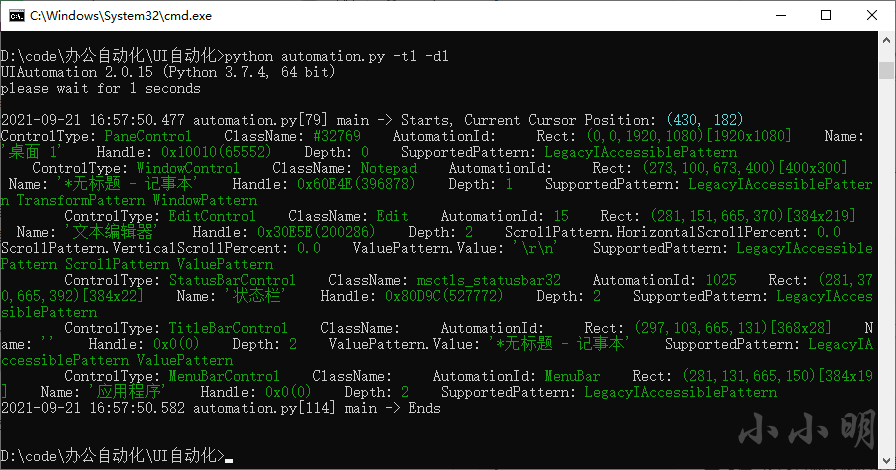
可以看到第一个控件的类型为EditControl。
下面将鼠标移动到记事本的编辑框内之后,执行:
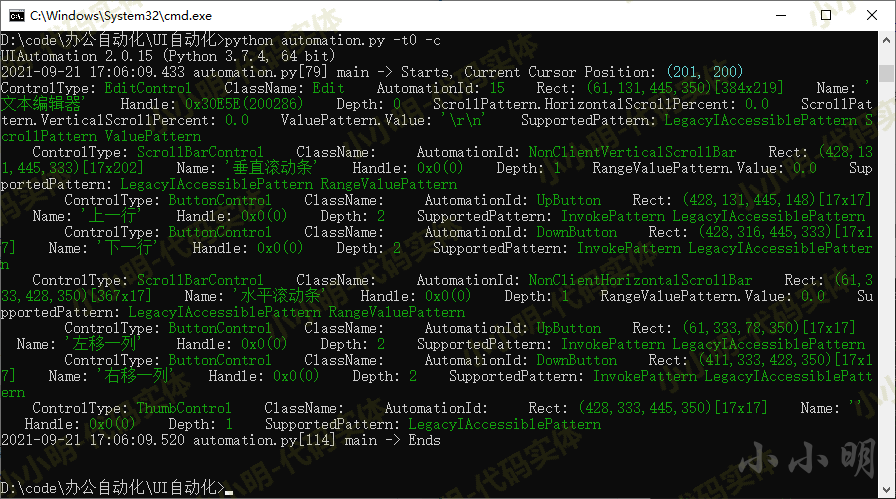
python automation.py -t0 -c就得到编辑器的全部子控件信息:
下面我们使用uiautomation向记事本输入文本。
首先获取输入框:
edit = notepadWindow.EditControl()方法1-使用EditControl支持的ValuePattern:
edit.GetValuePattern().SetValue('方法1')该方法直接修改编辑框的文本内容。
方法2-发送按键指令输入文本:
edit.SendKeys('方法2')该方法的输入效果比较像打字机输入。
方法3-复制文本后到剪切板粘贴:
auto.SetClipboardText("方法3")
edit.SendKeys('{Ctrl}v')
获取当前编辑框中的文本:
print(edit.GetValuePattern().Value)最后我们点击标题栏的关闭按钮(可以通过索引或名称查找目标按钮):
# 通过标题栏第三个按钮找到关闭按钮
notepadWindow.TitleBarControl(Depth=1).ButtonControl(foundIndex=3).Click()
或:
# 通过标题栏查找名称为关闭的按钮
notepadWindow.TitleBarControl(Depth=1).ButtonControl(searchDepth=1, Name='关闭').Click()
最后保存并关闭:
notepadWindow.TitleBarControl(Depth=1).ButtonControl(searchDepth=1, Name='关闭').Click()# 确认保存
auto.SendKeys('{ALT}s')# 输入文件名,并快捷键点击保存
auto.SendKeys('自动保存{ALT}s')# 如果弹出文件名冲突提示,则确认覆盖
auto.SendKeys('{ALT}y')
完整代码:
import subprocess
import uiautomation as auto

subprocess.Popen('notepad.exe')# 首先从桌面的第一层子控件中找到记事本程序的窗口WindowControl,再从这个窗口查找子控件
notepadWindow = auto.WindowControl(searchDepth=1, ClassName='Notepad')print(notepadWindow.Name)# 设置窗口前置
notepadWindow.SetTopmost(True)# 输入文本
edit = notepadWindow.EditControl()
auto.SetClipboardText("WIN98中的“98”是什么意思?")
edit.SendKeys('{Ctrl}v')# 获取文本print("编辑框内容:",edit.GetValuePattern().Value)# 通过标题栏查找名称为关闭的按钮
notepadWindow.TitleBarControl(Depth=1).ButtonControl(searchDepth=1, Name='关闭').Click()# 确认保存
auto.SendKeys('{ALT}s')# 输入文件名,并快捷键点击保存
auto.SendKeys('自动保存{ALT}s')# 如果弹出文件名冲突提示,则确认覆盖
auto.SendKeys('{ALT}y')
控件延迟搜索机制
底层COM对象方法:
⚠️ Control.Element返回IUIAutomation底层COM对象IUIAutomationElement, 基本上Control的所有属性或方法都是通过调用IUIAutomationElement COM API和Win32 API实现的。
延迟搜索控件:
当我们创建一个Control对象时,uiautomation并不会马上开始搜索控件,而是当使用其属性或方法,并且内部的Control.Element是None时uiautomation才开始搜索控件。如果在uiautomation.TIME_OUT_SECOND(默认为10)秒内找不到控件,uiautomation就会抛出一个LookupError异常。
也可以调用Control.Refind立马或重新开始搜索控件,例如:
edit = notepadWindow.EditControl()
edit.Refind()True但是当控件不存在时,则会报出错误。
为了避免函数最终抛出异常,可以调用Control.Exists(maxSearchSeconds, searchIntervalSeconds, printIfNotExist)检查目标控件是否存在:
edit = notepadWindow.EditControl()
edit.Exists()TrueControl.Refind和Control.Exists均会使Control.Element无效并触发重新搜索逻辑。
另一种检查目标控件是否存在的方法是auto.WaitForExist(control, timeout)。
下面继续以记事本为对象演示这个机制。首先打开第一个记事本并获取输入控件:
import subprocess
import uiautomation as auto
auto.uiautomation.SetGlobalSearchTimeout(2)# 设置全局搜索超时时间为2秒

subprocess.Popen('notepad.exe')
window = auto.WindowControl(searchDepth=1, ClassName='Notepad')# 创建控件对象时并不会开始搜索控件
edit = window.EditControl()
此时,控件window和edit还没有开始搜索,内部Control.Element的值为None。
第一次调用SendKeys时,才开始搜索控件window和edit:
# 第一次调用SendKeys时, 才开始搜索控件window和edit
edit.SendKeys('第一次调用')
搜索完毕后,才会开始执行发送按键方法,此时Control.Element有效。
第二次调用SendKeys不会触发搜索(Control.Element不为None):
 最低0.47元/天 解锁文章






 扫一扫
扫一扫


 2万+
2万+


 到【灌水乐园】发言



