



 本文介绍了如何在Android中实现一个自定义的车牌号码输入软键盘,包括中文省份简称和数字字母切换的功能。通过XML布局定义键盘样式,并使用KeyboardView进行交互。
Android 一个简易的自定义软键盘
前言:
我看的第一篇博客就是HongYang的博客。后面一段时间开始对看博客产生浓厚的兴趣(也就一两个月,最多两个月……),每天泡在优快云上几个小时,纵阅各路大神的博客。当然,看的最多的是HongYang的博客,借机加入了HongYang的交流群,从此踏上了一条不归路(在群里天天水,竟然被我混上了管理,感谢HongYang厚爱)……可惜,我只是个菜鸟,各路大神的博客皮毛都没摸着,但是也让我获益匪浅、弄明白了一些小白问题。于是,我产生了成为这些大神中的一员的想法(估计是我脑子一热想多了),有了想写博客的想法。直到现在才想写人生中第一篇博客,那是因为之前自己觉得自己还是个渣渣,写不好博客,当然,现在还是个渣渣。不过万事都要开头,不开头怎么知道难不难呢?于是,我参考了HongYang(博客更新速度杠杠的)、郭霖(著有:Android第一行代码,LitePal开源数据库框架。)、AigeStudio(著有Android源码设计模式解析与实践,一个只有十几篇博文却成为优快云博客专家的男人!)等大神的建议,决定开始写博客。感觉自己还是一个菜鸟,所以挑了个简单的来写博客,希望自己以后能坚持写博客吧。额~废话有点多,接下来进入正题吧。
一、概述
最进因项目所需,需要自定义软键盘,当然,于是乎,百度了N次,看了API文档不知道多久(我不会告诉你们我是用有道翻译API文档的……)。这个软键盘不是常见的软键盘,而是纯中文汉字和数字软键盘切换的车牌选择软键盘(姑且这么叫吧)。嗯~其实和常见软键盘也没什么太大的区别,就是布局的问题……
好吧,我们来看下效果图: 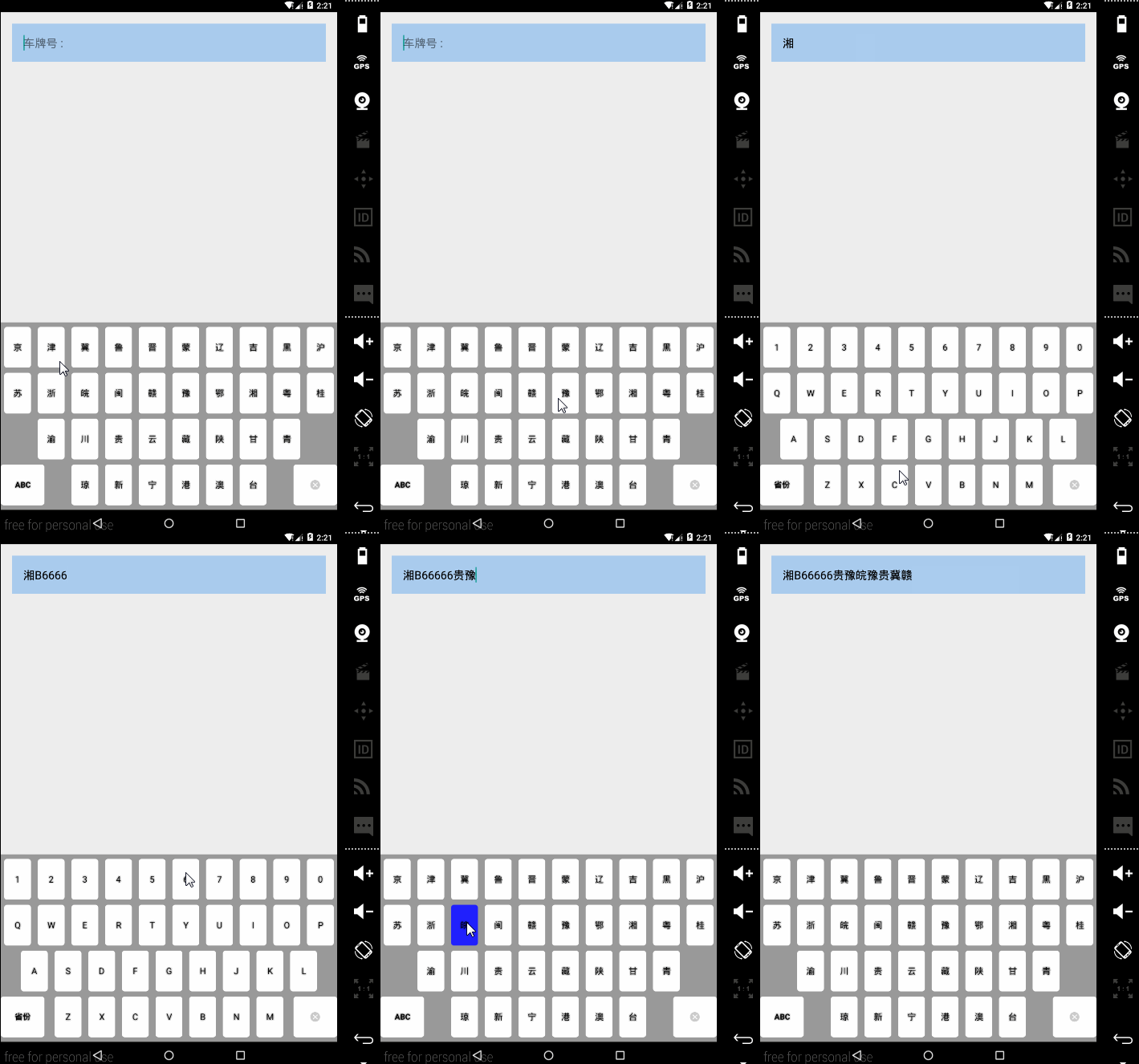
二、实现
既然是实现自定义的软件盘,那么软键盘长什么样子肯定要自己确定了,所以,首先在res目录下创建xml目录,在xml目录里面创建布局文件。这里我提供两个布局文件:province_abbreviation.xml(中国省会、直辖市、特别行政区简称)和number_or_letters.xml(数字与大写字母)。
效果图:
province_abbreviation.xml内容如下:
效果图: 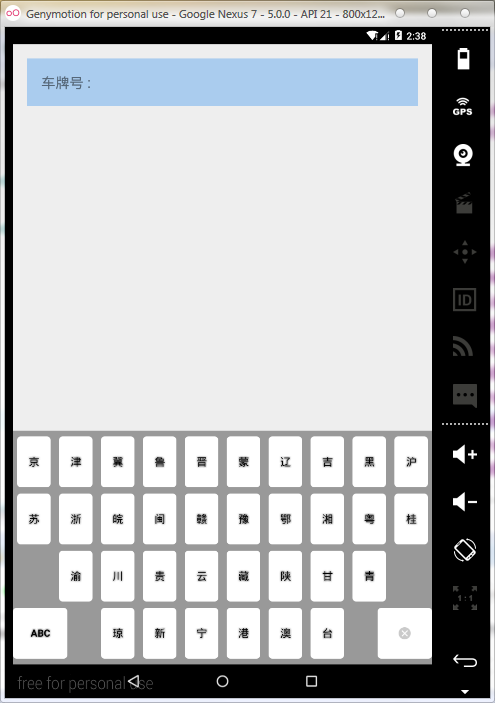
<?xml version="1.0" encoding="UTF-8"?>
<Keyboard
        android:keyWidth="10%p" android:keyHeight="8%p"
        android:horizontalGap="0.0px" android:verticalGap="0.0px"
        xmlns:android="http://schemas.android.com/apk/res/android">

    <Row android:verticalGap="1%p">
        <Key android:codes="20140" android:keyLabel="京"
             android:horizontalGap="1%p" android:keyWidth="8%p"
             android:keyEdgeFlags="left"  />
        <Key android:codes="27941" android:keyLabel="津"
             android:horizontalGap="2%p" android:keyWidth="8%p" />
        <Key android:codes="20864" android:keyLabel="冀"
             android:horizontalGap="2%p" android:keyWidth="8%p" />
        <Key android:codes="40065" android:keyLabel="鲁"
             android:horizontalGap="2%p" android:keyWidth="8%p" />
        <Key android:codes="26187" android:keyLabel="晋"
             android:horizontalGap="2%p" android:keyWidth="8%p" />
        <Key android:codes="33945" android:keyLabel="蒙"
             android:horizontalGap="2%p" android:keyWidth="8%p" />
        <Key android:codes="36797" android:keyLabel="辽"
             android:horizontalGap="2%p" android:keyWidth="8%p" />
        <Key android:codes="21513" android:keyLabel="吉"
             android:horizontalGap="2%p" android:keyWidth="8%p" />
        <Key android:codes="40657" android:keyLabel="黑"
             android:horizontalGap="2%p" android:keyWidth="8%p" />
        <Key android:codes="27818" android:keyLabel="沪"
             android:horizontalGap="2%p" android:keyWidth="8%p"
             android:keyEdgeFlags="right"/>
    </Row>

    <Row android:verticalGap="1%p">
        <Key android:codes="33487" android:keyLabel="苏"
             android:horizontalGap="1%p" android:keyWidth="8%p"
             android:keyEdgeFlags="left" />
        <Key android:codes="27993" android:keyLabel="浙"
             android:horizontalGap="2%p" android:keyWidth="8%p" />
        <Key android:codes="30358" android:keyLabel="皖"
             android:horizontalGap="2%p" android:keyWidth="8%p" />
        <Key android:codes="38397" android:keyLabel="闽"
             android:horizontalGap="2%p" android:keyWidth="8%p" />
        <Key android:codes="36195" android:keyLabel="赣"
             android:horizontalGap="2%p" android:keyWidth="8%p" />
        <Key android:codes="35947" android:keyLabel="豫"
             android:horizontalGap="2%p" android:keyWidth="8%p" />
        <Key android:codes="37122" android:keyLabel="鄂"
             android:horizontalGap="2%p" android:keyWidth="8%p" />
        <Key android:codes="28248" android:keyLabel="湘"
             android:horizontalGap="2%p" android:keyWidth="8%p" />
        <Key android:codes="31908" android:keyLabel="粤"
             android:horizontalGap="2%p" android:keyWidth="8%p" />
        <Key android:codes="26690" android:keyLabel="桂"
             android:horizontalGap="2%p" android:keyWidth="8%p"
             android:keyEdgeFlags="right" />
    </Row>

    <Row android:verticalGap="1%p">
        <Key android:codes="28189" android:keyLabel="渝"
             android:horizontalGap="11%p" android:keyWidth="8%p"
             android:keyEdgeFlags="left"/>
        <Key android:codes="24029" android:keyLabel="川"
             android:horizontalGap="2%p" android:keyWidth="8%p" />
        <Key android:codes="36149" android:keyLabel="贵"
             android:horizontalGap="2%p" android:keyWidth="8%p" />
        <Key android:codes="20113"  android:keyLabel="云"
             android:horizontalGap="2%p" android:keyWidth="8%p" />
        <Key android:codes="34255" android:keyLabel="藏"
             android:horizontalGap="2%p" android:keyWidth="8%p" />
        <Key android:codes="38485"  android:keyLabel="陕"
             android:horizontalGap="2%p" android:keyWidth="8%p" />
        <Key android:codes="29976" android:keyLabel="甘"
             android:horizontalGap="2%p" android:keyWidth="8%p" />
        <Key android:codes="38738"  android:keyLabel="青"
            android:horizontalGap="2%p" android:keyWidth="8%p"
            android:keyEdgeFlags="right" />
    </Row>

    <Row >
        <Key android:codes="-1" android:keyLabel="ABC"
            android:keyWidth="13%p" android:keyEdgeFlags="left"
             android:isModifier="true" android:isSticky="true"  />
        <Key android:codes="29756"  android:keyLabel="琼"
             android:horizontalGap="8%p" android:keyWidth="8%p"/>
        <Key android:codes="26032" android:keyLabel="新"
             android:horizontalGap="2%p" android:keyWidth="8%p" />
        <Key android:codes="23425" android:keyLabel="宁"
             android:horizontalGap="2%p" android:keyWidth="8%p" />
        <Key android:codes="28207" android:keyLabel="港"
             android:horizontalGap="2%p" android:keyWidth="8%p" />
        <Key android:codes="28595" android:keyLabel="澳"
             android:horizontalGap="2%p" android:keyWidth="8%p" />
        <Key android:codes="21488" android:keyLabel="台"
             android:horizontalGap="2%p" android:keyWidth="8%p"/>
        <Key  android:codes="-3"
             android:keyEdgeFlags="right" android:keyIcon="@drawable/remove_edittext_data"
             android:horizontalGap="8%p" android:keyWidth="13%p"
             android:isRepeatable="true" />
    </Row>

</Keyboard> - 1
- 2
- 3
- 4
- 5
- 6
- 7
- 8
- 9
- 10
- 11
- 12
- 13
- 14
- 15
- 16
- 17
- 18
- 19
- 20
- 21
- 22
- 23
- 24
- 25
- 26
- 27
- 28
- 29
- 30
- 31
- 32
- 33
- 34
- 35
- 36
- 37
- 38
- 39
- 40
- 41
- 42
- 43
- 44
- 45
- 46
- 47
- 48
- 49
- 50
- 51
- 52
- 53
- 54
- 55
- 56
- 57
- 58
- 59
- 60
- 61
- 62
- 63
- 64
- 65
- 66
- 67
- 68
- 69
- 70
- 71
- 72
- 73
- 74
- 75
- 76
- 77
- 78
- 79
- 80
- 81
- 82
- 83
- 84
- 85
- 86
- 87
- 88
- 89
- 90
- 91
- 92
- 93
- 94
- 95
- 96
- 97
- 98
- 99
- 100
number_or_letters.xml内容如下:
效果图: 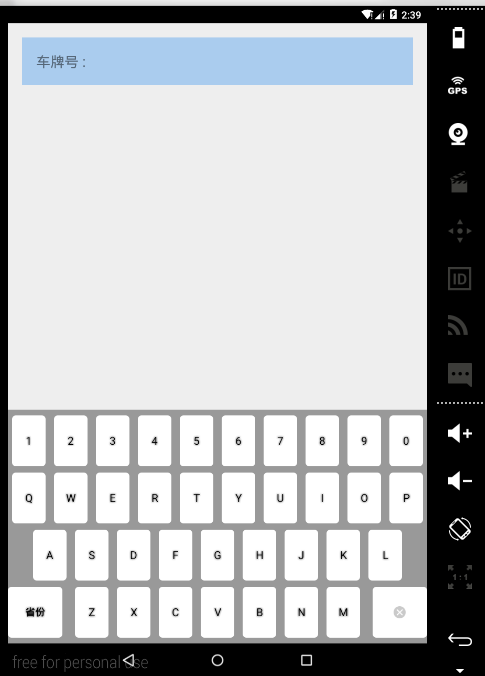
<?xml version="1.0" encoding="UTF-8"?>
<Keyboard android:keyWidth="10%p" android:keyHeight="8%"
        android:horizontalGap="0.0px" android:verticalGap="0.0px"
        xmlns:android="http://schemas.android.com/apk/res/android">
    <Row android:verticalGap="1%p">
        <Key android:codes="49" android:keyLabel="1"
             android:horizontalGap="1%p" android:keyWidth="8%p"
             android:keyEdgeFlags="left"  />
        <Key android:codes="50" android:keyLabel="2"
             android:horizontalGap="2%p" android:keyWidth="8%p" />
        <Key android:codes="51" android:keyLabel="3"
             android:horizontalGap="2%p" android:keyWidth="8%p" />
        <Key android:codes="52" android:keyLabel="4"
             android:horizontalGap="2%p" android:keyWidth="8%p" />
        <Key android:codes="53" android:keyLabel="5"
             android:horizontalGap="2%p" android:keyWidth="8%p" />
        <Key android:codes="54" android:keyLabel="6"
             android:horizontalGap="2%p" android:keyWidth="8%p" />
        <Key android:codes="55" android:keyLabel="7"
             android:horizontalGap="2%p" android:keyWidth="8%p" />
        <Key android:codes="56" android:keyLabel="8"
             android:horizontalGap="2%p" android:keyWidth="8%p" />
        <Key android:codes="57" android:keyLabel="9"
             android:horizontalGap="2%p" android:keyWidth="8%p" />
        <Key android:codes="48" android:keyLabel="0"
             android:horizontalGap="2%p" android:keyWidth="8%p"
             android:keyEdgeFlags="right"/>
    </Row>

    <Row android:verticalGap="1%p">
        <Key android:codes="81" android:keyLabel="Q"
             android:horizontalGap="1%p" android:keyWidth="8%p"
             android:keyEdgeFlags="left" />
        <Key android:codes="87" android:keyLabel="W"
             android:horizontalGap="2%p" android:keyWidth="8%p" />
        <Key android:codes="69" android:keyLabel="E"
             android:horizontalGap="2%p" android:keyWidth="8%p" />
        <Key android:codes="82" android:keyLabel="R"
             android:horizontalGap="2%p" android:keyWidth="8%p" />
        <Key android:codes="84" android:keyLabel="T"
             android:horizontalGap="2%p" android:keyWidth="8%p" />
        <Key android:codes="89" android:keyLabel="Y"
             android:horizontalGap="2%p" android:keyWidth="8%p" />
        <Key android:codes="85" android:keyLabel="U"
             android:horizontalGap="2%p" android:keyWidth="8%p" />
        <Key android:codes="73" android:keyLabel="I"
             android:horizontalGap="2%p" android:keyWidth="8%p" />
        <Key android:codes="79" android:keyLabel="O"
             android:horizontalGap="2%p" android:keyWidth="8%p" />
        <Key android:codes="80" android:keyLabel="P"
             android:horizontalGap="2%p" android:keyWidth="8%p"
             android:keyEdgeFlags="right" />
    </Row>

    <Row android:verticalGap="1%p">
        <Key android:codes="65" android:keyLabel="A"
             android:horizontalGap="6%p" android:keyWidth="8%p"
             android:keyEdgeFlags="left"/>
        <Key android:codes="83" android:keyLabel="S"
             android:horizontalGap="2%p" android:keyWidth="8%p" />
        <Key android:codes="68" android:keyLabel="D"
             android:horizontalGap="2%p" android:keyWidth="8%p" />
        <Key android:codes="70"  android:keyLabel="F"
             android:horizontalGap="2%p" android:keyWidth="8%p" />
        <Key android:codes="71" android:keyLabel="G"
             android:horizontalGap="2%p" android:keyWidth="8%p" />
        <Key android:codes="72"  android:keyLabel="H"
             android:horizontalGap="2%p" android:keyWidth="8%p" />
        <Key android:codes="74" android:keyLabel="J"
             android:horizontalGap="2%p" android:keyWidth="8%p" />
        <Key android:codes="75" android:keyLabel="K"
             android:horizontalGap="2%p" android:keyWidth="8%p" />
        <Key android:codes="76"  android:keyLabel="L"
            android:horizontalGap="2%p" android:keyWidth="8%p"
            android:keyEdgeFlags="right" />
    </Row>

    <Row >
        <Key android:codes="-1" android:keyLabel="省份"
            android:keyWidth="13%p" android:keyEdgeFlags="left"
             android:isModifier="true" android:isSticky="true"  />
        <Key android:codes="90" android:keyLabel="Z"
             android:horizontalGap="3%p" android:keyWidth="8%p"/>
        <Key android:codes="88" android:keyLabel="X"
             android:horizontalGap="2%p" android:keyWidth="8%p" />
        <Key android:codes="67" android:keyLabel="C"
             android:horizontalGap="2%p" android:keyWidth="8%p" />
        <Key android:codes="86" android:keyLabel="V"
             android:horizontalGap="2%p" android:keyWidth="8%p" />
        <Key android:codes="66" android:keyLabel="B"
             android:horizontalGap="2%p" android:keyWidth="8%p" />
        <Key android:codes="78" android:keyLabel="N"
             android:horizontalGap="2%p" android:keyWidth="8%p"/>
        <Key android:codes="77" android:keyLabel="M"
             android:horizontalGap="2%p" android:keyWidth="8%p"/>
        <Key  android:codes="-3"
             android:keyEdgeFlags="right" android:keyIcon="@drawable/remove_edittext_data"
             android:horizontalGap="3%p" android:keyWidth="13%p"
             android:isRepeatable="true" />
    </Row>

</Keyboard>
- 1
- 2
- 3
- 4
- 5
- 6
- 7
- 8
- 9
- 10
- 11
- 12
- 13
- 14
- 15
- 16
- 17
- 18
- 19
- 20
- 21
- 22
- 23
- 24
- 25
- 26
- 27
- 28
- 29
- 30
- 31
- 32
- 33
- 34
- 35
- 36
- 37
- 38
- 39
- 40
- 41
- 42
- 43
- 44
- 45
- 46
- 47
- 48
- 49
- 50
- 51
- 52
- 53
- 54
- 55
- 56
- 57
- 58
- 59
- 60
- 61
- 62
- 63
- 64
- 65
- 66
- 67
- 68
- 69
- 70
- 71
- 72
- 73
- 74
- 75
- 76
- 77
- 78
- 79
- 80
- 81
- 82
- 83
- 84
- 85
- 86
- 87
- 88
- 89
- 90
- 91
- 92
- 93
- 94
- 95
- 96
- 97
- 98
- 99
- 100
- 101
- 102
- 103
上述代码都只是展示了两张图……如果已经研究过的同学发现为什么我要写这么多,好吧,如果百度过自定义软件盘看过别的博客确实会发现我的xml文件比别人的长了好多。我承认,我写这么多,就是为了介绍里面属性的作用。
KeyBoard属性: 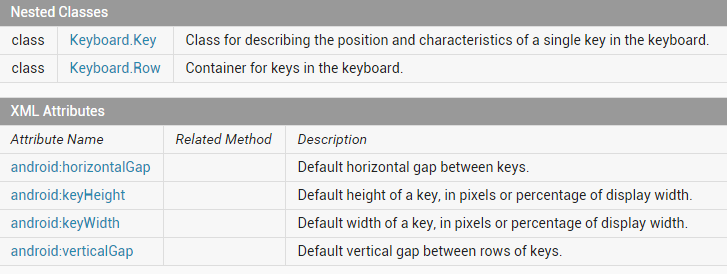
Keyboard.Key 表示用来描述键盘特征和位置的键。
Keyboard.Row 表示键Key在键盘KeyBoard中的容器。
android:keyWidth :代表按键的宽度,可以为精确值或则相对值,对于精确值支持多种单位,例如:像素,英寸 等;相对值为相对于基础取值的百分比,为以% 或则%p 结尾,其中%p表示相对于父容器。
android:keyHeight:代表按键的高度,取值同上。
android:horizontalGap 代表按键的间隙(水平方向),取值同上。
android:verticalGap 代表按键的间隙(垂直方向)。
首先我们来看看KeyBoard代码片段:
<Keyboard
        android:keyWidth="10%p" android:keyHeight="8%p"
        android:horizontalGap="0.0px" android:verticalGap="0.0px"
xmlns:android="http://schemas.android.com/apk/res/android">- 1
- 2
- 3
- 4
android:keyWidth=“10%p”、android:keyHeight=”8%p”意义分别为在此Keyboard每个Key(输入键)的宽度为手机屏幕宽度的十分之一、手机屏幕高度的百分之八,android:horizontalGap=”0.0px”和android:verticalGap=”0.0px”无实际意义。
Row属性: 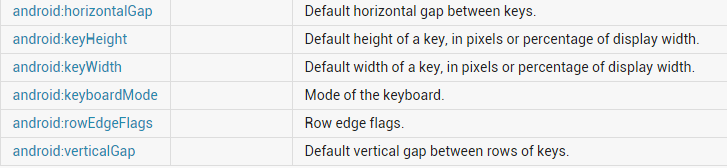
重复的属性不做介绍。
android:keyboardMode 键盘Keyboard的模式。
android:rowEdgeFlags 设置为top表示固定在键盘Keyboard最上面,设置为bottom表示固定在键盘Keyboard最下面。
接下来我们再看看Row代码片段:
<Row android:verticalGap="1%p">- 1
Row就是一排Key的父容器,设置android:verticalGap=”1%p”这个属性值就相当于给每个Key设置了。是不是觉得很熟悉?是的,没错,就和我平时打交道最多的布局一样,在父布局中的控件或子布局有同样的属性值,我们就会把这个属性值写到父布局中。Row就相当于一个布局,唯一的不同Row里面只能放Key。
Key的属性: 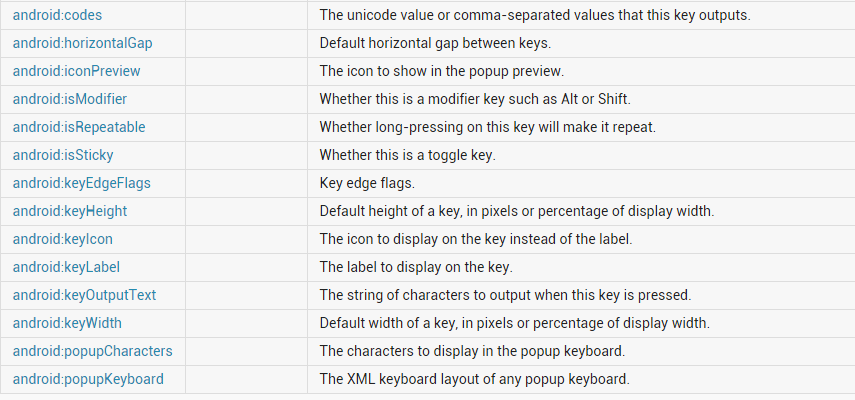
额~这里面的属性好多哦!重复的属性依然不介绍……
android:codes 表示键Key的标签,也可以说是Key的身份证~
android:iconPreview 表示键点击后放大后的View
android:isModifier 指定按键是否为功能键( modifier key ) ,例如 Alt 或则 Shift 。取值为true或则false。
android:isRepeatable 表示长时间按下key键重复执行这个键的操作,比如输入法删除按钮长按删除输入内容。
android:isSticky 指定按键是否为sticky的。例如Shift大小写切换按键,具有两种状态,按下状态和正常状态,取值为true或则false。
android:keyEdgeFlags 指定按键的对齐指令,取值为left或则right。
android:keyIcon 代表按键显示的图标内容,如果指定了该值则在显示的时候显示为图片不显示文本。
android:keyLabel 代表按键显示的文本内容。
android:keyOutputText 指定按键输出的文本内容,取值为字符串。
android:popupCharacters 表示编辑特殊字符,空格、换行等.。
android:popupKeyboard 表示按键点击预览窗口。
最后我们来看看Key的代码片段:
<Key android:codes="49" android:keyLabel="1"
             android:horizontalGap="1%p" android:keyWidth="8%p"
             android:keyEdgeFlags="left"  />
        <Key android:codes="50" android:keyLabel="2"
             android:horizontalGap="2%p" android:keyWidth="8%p" />
        <Key android:codes="51" android:keyLabel="3"
             android:horizontalGap="2%p" android:keyWidth="8%p" />
        <Key android:codes="52" android:keyLabel="4"
             android:horizontalGap="2%p" android:keyWidth="8%p" />
        <Key android:codes="53" android:keyLabel="5"
             android:horizontalGap="2%p" android:keyWidth="8%p" />
        <Key android:codes="54" android:keyLabel="6"
             android:horizontalGap="2%p" android:keyWidth="8%p" />
        <Key android:codes="55" android:keyLabel="7"
             android:horizontalGap="2%p" android:keyWidth="8%p" />
        <Key android:codes="56" android:keyLabel="8"
             android:horizontalGap="2%p" android:keyWidth="8%p" />
        <Key android:codes="57" android:keyLabel="9"
             android:horizontalGap="2%p" android:keyWidth="8%p" />
        <Key android:codes="48" android:keyLabel="0"
             android:horizontalGap="2%p" android:keyWidth="8%p"
android:keyEdgeFlags="right"/> - 1
- 2
- 3
- 4
- 5
- 6
- 7
- 8
- 9
- 10
- 11
- 12
- 13
- 14
- 15
- 16
- 17
- 18
- 19
- 20
- 21
- 22
细心的同学会发现上述代码中android:keyWidth的值+android:horizontalGap的值为100%p,为什么是100%p?没有达到100%p的效果图如下: 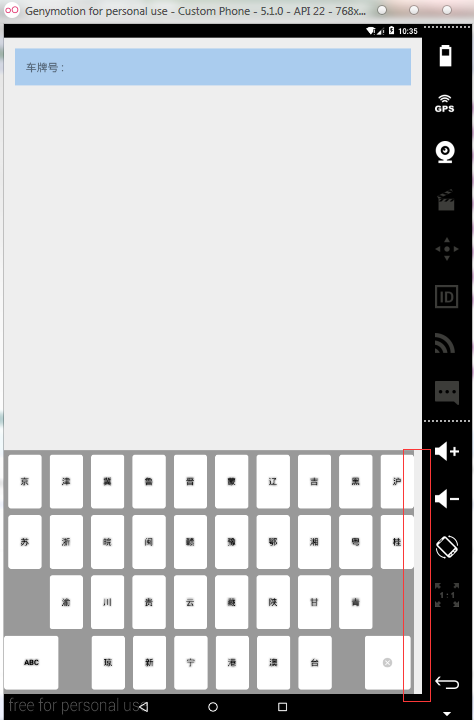
所以key大小和间距值的和要注意满足100%p。好吧,我们开始上代码吧。
布局文件activity_main.xml:
<RelativeLayout xmlns:android="http://schemas.android.com/apk/res/android"
    android:layout_width="match_parent"
    android:layout_height="match_parent"
     >

      <EditText
          android:id="@+id/id_keyboard"
             android:layout_width="match_parent"
             android:layout_height="wrap_content"
             android:layout_margin="20dp"
             android:padding="20dp"
             android:layout_gravity="center_horizontal"
             android:text=""
             android:textSize="20sp"
             android:textColor="#000"
             android:hint="车牌号 :"
             android:background="#ACE"
             />

     <android.inputmethodservice.KeyboardView
            android:id="@+id/keyboard_view"
            android:layout_width="match_parent"
            android:layout_height="wrap_content"
            android:paddingTop="8dp"
            android:paddingBottom="8dp"
            android:layout_alignParentBottom="true"
            android:focusable="true"
            android:focusableInTouchMode="true"
            android:background="#999999"
            android:keyBackground="@drawable/btn_keyboard_key"
            android:keyTextSize="16sp"
            android:keyTextColor="#000"
            android:visibility="gone" />

</RelativeLayout>- 1
- 2
- 3
- 4
- 5
- 6
- 7
- 8
- 9
- 10
- 11
- 12
- 13
- 14
- 15
- 16
- 17
- 18
- 19
- 20
- 21
- 22
- 23
- 24
- 25
- 26
- 27
- 28
- 29
- 30
- 31
- 32
- 33
- 34
- 35
布局文件没有什么东西,就一个EditText,和系统提供软键盘android.inputmethodservice.KeyboardView。
主程序MainActivity.java:
package com.skycracks.platekey;

import android.app.Activity;
import android.os.Bundle;
import android.view.KeyEvent;
import android.view.MotionEvent;
import android.view.View;
import android.view.View.OnTouchListener;
import android.widget.EditText;

public class MainActivity extends Activity {

    private Activity mActivity;
    private EditText mEdit;
    private KeyboardUtil keyboardUtil;

    @Override
    protected void onCreate(Bundle savedInstanceState) {
        super.onCreate(savedInstanceState);
        setContentView(R.layout.activity_main);
        mActivity = this;
        mEdit = (EditText) findViewById(R.id.id_keyboard);

        mEdit.setOnTouchListener(new OnTouchListener() {

            @Override
            public boolean onTouch(View view, MotionEvent event) {
            if(keyboardUtil == null){
                    keyboardUtil = new KeyboardUtil(mActivity, mEdit);
                    keyboardUtil.hideSoftInputMethod();
                    keyboardUtil.showKeyboard();
                }
                return false;
            }
        });
    }

    @Override
    public boolean onKeyDown(int keyCode, KeyEvent event) {
        if(keyCode == KeyEvent.KEYCODE_BACK){
            if(keyboardUtil.isShow()){
                keyboardUtil.hideKeyboard();
            }else{
                finish();
            }
        }
        return false;
    }
}- 1
- 2
- 3
- 4
- 5
- 6
- 7
- 8
- 9
- 10
- 11
- 12
- 13
- 14
- 15
- 16
- 17
- 18
- 19
- 20
- 21
- 22
- 23
- 24
- 25
- 26
- 27
- 28
- 29
- 30
- 31
- 32
- 33
- 34
- 35
- 36
- 37
- 38
- 39
- 40
- 41
- 42
- 43
- 44
- 45
- 46
- 47
- 48
- 49
额~代码很少的感觉……重头戏在下面啦~
KeyboardUtil
首先,在创建KeyboardUtil工具类实例对象的时候初始化基本配置。然后给EditText设置OnTouch事件,只要EditText获得焦点就弹出我们自定义的软键盘。竟然要弹出自定义的软件盘,那么,禁掉系统自带软件盘和第三方软件是必须的了。关键来了,keyboardUtil.hideKeyboard(),hideKeyboard方法就是禁掉系统默认的软键盘啦~
初始化KeyboardUtil:
public KeyboardUtil(Activity activity, EditText edit) {
        mActivity = activity;
        mContext = (Context) activity;
        mEdit = edit;
        province_keyboard = new Keyboard(mContext, R.xml.province_abbreviation);
        number_keyboar = new Keyboard(mContext, R.xml.number_or_letters);
        mKeyboardView = (KeyboardView) activity
                .findViewById(R.id.keyboard_view);
        mKeyboardView.setKeyboard(province_keyboard);
        mKeyboardView.setEnabled(true);
        mKeyboardView.setPreviewEnabled(false);
        mKeyboardView.setOnKeyboardActionListener(listener);
    }

通过new Keyboard(context, xmlLayoutResId)加载我们写好的xml文件加载进来得到Keyboard对象,将得到的Keyboard对象设置给KeyboardView。调用KeyboardView中setEnabled(true)启用我们的KeyboardView,setPreviewEnabled(false)设置软件盘key键点击不展示预览窗口。给KeyboardView设置OnKeyboardActionListener 监听。
hideKeyboard方法:

public void hideSoftInputMethod() {
        mActivity.getWindow().setSoftInputMode(
                WindowManager.LayoutParams.SOFT_INPUT_STATE_ALWAYS_HIDDEN);
        int currentVersion = android.os.Build.VERSION.SDK_INT;
        String methodName = null;
        if (currentVersion >= 16) {
            // 4.2
            methodName = "setShowSoftInputOnFocus";
        } else if (currentVersion >= 14) {
            // 4.0
            methodName = "setSoftInputShownOnFocus";
        }
        if (methodName == null) {
            mEdit.setInputType(InputType.TYPE_NULL);
        } else {
            Class<EditText> cls = EditText.class;
            Method setShowSoftInputOnFocus;
            try {
                setShowSoftInputOnFocus = cls.getMethod(methodName,
                        boolean.class);
                setShowSoftInputOnFocus.setAccessible(true);
                setShowSoftInputOnFocus.invoke(mEdit, false);
            } catch (NoSuchMethodException e) {
                mEdit.setInputType(InputType.TYPE_NULL);
                e.printStackTrace();
            } catch (IllegalAccessException e) {
                e.printStackTrace();
            } catch (IllegalArgumentException e) {
                e.printStackTrace();
            } catch (InvocationTargetException e) {
                e.printStackTrace();
            }
        }
}- 1
- 2
- 3
- 4
- 5
- 6
- 7
- 8
- 9
- 10
- 11
- 12
- 13
- 14
- 15
- 16
- 17
- 18
- 19
- 20
- 21
- 22
- 23
- 24
- 25
- 26
- 27
- 28
- 29
- 30
- 31
- 32
- 33
- 34
- 35
- 36
- 37
- 38
- 39
- 40
- 41
- 42
- 43
- 44
- 45
- 46
- 47
- 48
- 49
- 50
- 51
这个是最终版本的禁掉系统默认软件盘,前面试过的方法不能兼容不同版本,就不贴了(PS:找资料痛苦并快乐着……)。应用反射机制调用mEdit.setInputType(InputType.TYPE_NULL)方法禁掉我们EditText弹出系统默认软键盘。
同学们最关心的是软件盘上的数据是怎么获取的,上代码:
private OnKeyboardActionListener listener = new OnKeyboardActionListener() {
        @Override
        public void swipeUp() {
        }

        @Override
        public void swipeRight() {
        }

        @Override
        public void swipeLeft() {
        }

        @Override
        public void swipeDown() {
        }

        @Override
        public void onText(CharSequence text) {
        }

        @Override
        public void onRelease(int primaryCode) {
        }

        @Override
        public void onPress(int primaryCode) {
        }

        @Override
        public void onKey(int primaryCode, int[] keyCodes) {
            Editable editable = mEdit.getText();
            int start = mEdit.getSelectionStart();
            if (primaryCode == -1) {// 省份简称与数字键盘切换
                changeKeyboard();
            } else if (primaryCode == -3) {// 回退
                if (editable != null && editable.length() > 0) {
                    //没有输入内容时软键盘重置为省份简称软键盘
                    if(editable.length() == 1){
                        changeKeyboard(false);
                    }
                    if (start > 0) {
                        editable.delete(start - 1, start);
                    }
                }
            } else {
                editable.insert(start, Character.toString((char) primaryCode));
                // 判断第一个字符是否是中文,是,则自动切换到数字软键盘
                if (mEdit.getText().toString().matches(reg)) {
                    changeKeyboard(true);
                }
            }
        }
};- 1
- 2
- 3
- 4
- 5
- 6
- 7
- 8
- 9
- 10
- 11
- 12
- 13
- 14
- 15
- 16
- 17
- 18
- 19
- 20
- 21
- 22
- 23
- 24
- 25
- 26
- 27
- 28
- 29
- 30
- 31
- 32
- 33
- 34
- 35
- 36
- 37
- 38
- 39
- 40
- 41
- 42
- 43
- 44
- 45
- 46
- 47
- 48
- 49
- 50
- 51
- 52
- 53
- 54
我们主要关注onKey(int primaryCode, int[] keyCodes)方法,primaryCode就是我们在xml文件中给key设置的codes值。除了特殊的一些操作我们加上判断条件外,如上述代码中切换省份简称键盘与数字键盘、回退等操作。通过editable.insert(start, Character.toString((char) primaryCode))方法我们直接给EditText设置值、editable.delete(start - 1, start);方法删除逛遍前面一个值。注意上述代码加上了EditText中第一个字符是中文的就自动切换省份简称键盘与数字键盘,这个纯属满足项目需求。欢迎各位同学来互相探讨!
END
作于一个阳光明媚的下午~





 扫一扫
扫一扫


 658
658

 被折叠的 条评论
为什么被折叠?
被折叠的 条评论
为什么被折叠?
 到【灌水乐园】发言





