



 本文详细介绍了Flutter中Align、Center、Padding及Container等单子布局组件的使用方法,包括对齐方式、区域大小控制及BoxDecoration的应用。
Flutter学习-单子布局Widget
1. 概述
单子布局组件的含义是其只有一个子组件,可以通过设置一些属性设置该子组件所在的位置信息等。
比较常用的单子布局组件有:Align、Center、Padding、Container。
2. Align
2.1 Align的对齐方式
我们前面经常使用的Center组件,他的子组件为什么可以居中显示? 在我们查看Center的源码之后,发现Center 继承自Align ,并且Center没有做任何其他的操作, 我们传递的参数,Center原封不动的传递给Align。
class Center extends Align {
  /// Creates a widget that centers its child.
  const Center({ Key? key, double? widthFactor, double? heightFactor, Widget? child })
    : super(key: key, widthFactor: widthFactor, heightFactor: heightFactor, child: child);
}
相当于使用Center等于使用Align,那么为什么在外层嵌套一个Align之后里面的子组件就可以居中,我们可以查看下Align的源码
const Align({
    Key? key,
    this.alignment = Alignment.center, // 对齐方式,默认居中对齐
    this.widthFactor, // 宽度因子,不设置的情况,会尽可能大
    this.heightFactor, // 高度因子,不设置的情况,会尽可能大
    Widget? child, // 要布局的子Widget
  })
由源码我们可以看出,Align组件总有一个属性alignment表示是对齐方式,并且有一个默认值.center,所以里面的子组件可以居中,Align 占据了我们整个屏幕的区域
那么我们在使用Align的时候,可以通过设置alignment的值,来控制子组件显示的位置
class GYHomeContent extends StatelessWidget {
  @override
  Widget build(BuildContext context) {
    return Align(
      //alignment: Alignment.topLeft,
      alignment: Alignment(-1,-1),  //这两种方式都是可以的
      child: Icon(Icons.pets,size: 80,)
    );
  }
}
- Align 显示的区域 中心点是 (0,0) 左上角是(-1,-1),右下角是(1,1)

2.2 Align的区域大小控制
widthFactor和heightFactor作用:- 因为子组件在父组件中的对齐方式必须有一个前提,就是父组件得知道自己的范围(宽度和高度)
- 如果
widthFactor和heightFactor不设置,那么默认Align会尽可能的大(尽可能占据自己所在的父组件); - 我们也可以对他们进行设置,比如widthFactor设置为3,那么相对于Align的宽度是子组件跨度的3倍;

class GYHomeContent extends StatelessWidget {
  @override
  Widget build(BuildContext context) {
    return Container(
      color: Colors.orange,
      child: Align(
        alignment: Alignment.bottomRight,
        // alignment: Alignment(-1,-1),
        child: Icon(
          Icons.pets,
          size: 80,
        ),
        widthFactor: 3,
        heightFactor: 4,
      ),
    );
  }
}

- 注意: 如果外层的Container设置了自己的大小,那么
widthFactor和heightFactor这个两个属性设置是不起作用的
class GYHomeContent extends StatelessWidget {
  @override
  Widget build(BuildContext context) {
    return Container(
      width: 100,
      height: 100,
      color: Colors.orange,
      child: Align(
        alignment: Alignment.bottomRight,
        // alignment: Alignment(-1,-1),
        child: Icon(
          Icons.pets,
          size: 80,
        ),
        widthFactor: 3,
        heightFactor: 4,
      ),
    );
  }
}

2. Center
代码演练:
class GYHomeContent extends StatelessWidget {
  @override
  Widget build(BuildContext context) {
    return Container(
      color: Colors.orange,
      child: Center(
        widthFactor: 2,
        heightFactor: 2,
        child: Icon(
          Icons.pets,
          size: 80,
        ),
      ),
    );
  }
}

3. Padding
Padding组件在其他端也是一个属性而已,但是在Flutter中是一个Widget,但是Flutter中没有Margin这样一个Widget,这是因为外边距也可以通过Padding来完成。
Padding通常用于设置子Widget到父Widget的边距(你可以称之为是父组件的内边距或子Widget的外边距)。
源码:
const Padding({
    Key? key,
    required this.padding,
    Widget? child,
  })
代码演练:
class GYHomeContent extends StatelessWidget {
  @override
  Widget build(BuildContext context) {
    return Padding(
      padding: EdgeInsets.only(left: 20),
      child: Text(
        "padding",
        style: TextStyle(fontSize: 30, color: Colors.orange),
      ),
    );
  }
}

padding还有很多其他的用法,可以自行查看文档
4. Container
4.1 源码查看、基础演练
Container组件类似于其他Android中的View,iOS中的UIView。
如果你需要一个视图,有一个背景颜色、图像、有固定的尺寸、需要一个边框、圆角等效果,那么就可以使用Container组件。
源码:
Container({
    Key? key,
    this.alignment, //对齐方式
    this.padding,//容器内补白,属于decoration的装饰范围
    this.color,// 背景色
    this.decoration,// 背景装饰
    this.foregroundDecoration,//前景装饰
    double? width,//容器的宽度
    double? height,//容器的高度
    BoxConstraints? constraints,//容器大小的限制条件
    this.margin,//容器外补白,不属于decoration的装饰范围
    this.transform,
    this.transformAlignment,
    this.child,//变换
    this.clipBehavior = Clip.none,
  })
大多数属性在介绍其它容器时都已经介绍过了,不再赘述,但有两点需要说明:
- 容器的大小可以通过
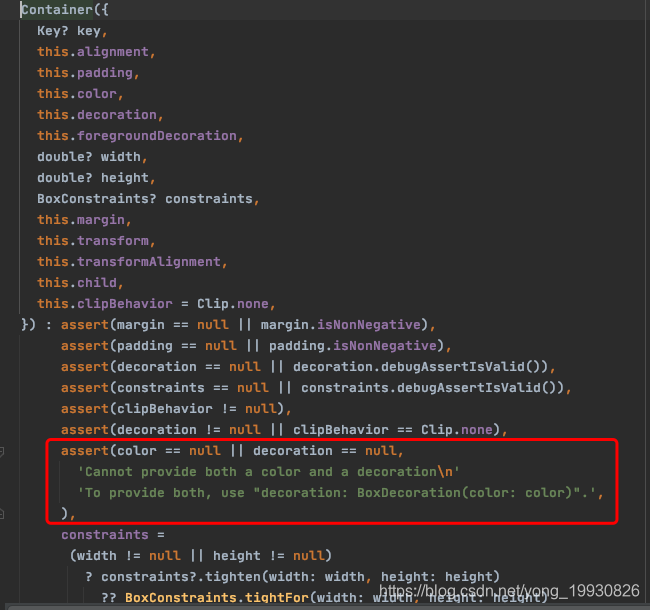
width、height属性来指定,也可以通过constraints来指定,如果同时存在时,width、height优先。实际上Container内部会根据width、height来生成一个constraints; color和decoration是互斥的,实际上,当指定color时,Container内会自动创建一个decoration;
class GYHomeContent extends StatelessWidget {
  @override
  Widget build(BuildContext context) {
    return Container(
      color: Color.fromRGBO(5, 5, 20, 0.5),
      width: 100,
      height: 100,
      child: Icon(
        Icons.pets,
        size: 30,
      ),
    );
  }
}
4.2 BoxDecoration
Container有一个非常重要的属性 decoration:
- 他对应的类型是Decoration类型,但是它是一个抽象类。
- 在开发中,我们经常使用它的实现类BoxDecoration来进行实例化
BoxDecoration的常见属性:
const BoxDecoration({
    this.color, //颜色,会和Container中的color属性冲突
    this.image, // 背景图片
    this.border,// 边框,对应类型是Border类型,里面每一个边框使用BorderSide
    this.borderRadius, // 圆角效果
    this.boxShadow,// 阴影效果
    this.gradient,// 渐变效果
    this.backgroundBlendMode,// 背景混合
    this.shape = BoxShape.rectangle,// 形变
  })
4.2.1 Color属性冲突
class GYHomeContent extends StatelessWidget {
  @override
  Widget build(BuildContext context) {
    return Center(
      child: Container(
        color: Color.fromRGBO(5, 5, 20, 0.5),
        width: 100,
        height: 100,
        child: Icon(
          Icons.pets,
          size: 30,
        ),
        decoration: BoxDecoration(
          color: Colors.orange,
        ),
      ),
    );
  }
}

其实我们查看源码便可以知道为什么会报错?
4.2.2 部分效果演示
class GYHomeContent extends StatelessWidget {
  @override
  Widget build(BuildContext context) {
    return Center(
      child: Container(
        // color: Color.fromRGBO(5, 5, 20, 0.5),
        width: 100,
        height: 100,
        child: Icon(
          Icons.pets,
          size: 30,
        ),
        decoration: BoxDecoration(
          color: Colors.orange,
          border: Border.all(
              color: Colors.redAccent, width: 3, style: BorderStyle.solid),
          borderRadius: BorderRadius.circular(5), //设置圆角 这里也可以使用only设置
          boxShadow: [
            BoxShadow(offset: Offset(5, 5), color: Colors.purple, blurRadius: 5)
          ],
          //          shape: BoxShape.circle, // 会和borderRadius冲突
          gradient:LinearGradient(colors: [Colors.orange,Colors.purple])//渐变效果
        ),
      ),
    );
  }
}

4.3 实现圆角图片
class GYHomeContent extends StatelessWidget {
  @override
  Widget build(BuildContext context) {
    //实现圆角图片
    return Center(
      child: Container(
        width: 100,
        height: 100,
        decoration: BoxDecoration(
          image: DecorationImage(
            image: NetworkImage(
                "https://tva1.sinaimg.cn/large/006y8mN6gy1g7aa03bmfpj3069069mx8.jpg"),
          ),
          color: Colors.orange,
          borderRadius: BorderRadius.circular(10), //设置圆角 这里也可以使用only设置
        ),
      ),
    );
  }
}





 扫一扫
扫一扫


 2230
2230


 到【灌水乐园】发言



