



1.概要
2.内容
qt 进度条
在 Qt 中使用进度条(QProgressBar)非常简单。你可以通过创建一个 QProgressBar 实例,并将其值设置为适当的范围来显示进度。下面是一个基本的示例,演示如何在 Qt 的 C++ 代码中使用 QProgressBar。
首先,确保你已经安装了 Qt 并设置好了开发环境。然后,创建一个新的 Qt Widgets 应用程序项目,并在其中添加以下代码。
main.cpp
#include <QApplication>
#include "mainwindow.h"

int main(int argc, char *argv[])
{
    QApplication a(argc, argv);
    MainWindow w;
    w.show();
    return a.exec();
}
mainwindow.h
#ifndef MAINWINDOW_H
#define MAINWINDOW_H

#include <QMainWindow>
#include <QProgressBar>
#include <QTimer>

class MainWindow : public QMainWindow
{
    Q_OBJECT

public:
    MainWindow(QWidget *parent = nullptr);
    ~MainWindow();

private slots:
    void updateProgressBar();

private:
    QProgressBar *progressBar;
    QTimer *timer;
    int progressValue;
};

#endif // MAINWINDOW_H
mainwindow.cpp
#include "mainwindow.h"

MainWindow::MainWindow(QWidget *parent)
    : QMainWindow(parent), progressValue(0)
{
    // 创建一个进度条,并将其设置为窗口的中心
    progressBar = new QProgressBar(this);
    progressBar->setGeometry(100, 100, 400, 30);
    progressBar->setRange(0, 100);  // 设置进度条的范围为 0 到 100

    // 创建一个定时器
    timer = new QTimer(this);
    connect(timer, &QTimer::timeout, this, &MainWindow::updateProgressBar);
    timer->start(100);  // 每 100 毫秒触发一次 timeout 信号
}

MainWindow::~MainWindow()
{
}

void MainWindow::updateProgressBar()
{
    progressValue++;
    if (progressValue > 100) {
        progressValue = 0;  // 重置进度值
    }
    progressBar->setValue(progressValue);  // 更新进度条的值
}
项目结构
确保你的项目结构类似如下:
MyQtApp/
├── MyQtApp.pro
├── main.cpp
├── mainwindow.h
└── mainwindow.cpp
解释
- main.cpp:这是应用程序的入口点,创建并显示
MainWindow。 - mainwindow.h:定义了
MainWindow类,并声明了一个进度条、一个定时器和一个槽函数updateProgressBar。 - mainwindow.cpp:实现了
MainWindow类的构造函数和槽函数。在构造函数中,初始化进度条和定时器,并将定时器的timeout信号连接到槽函数updateProgressBar。槽函数每次被调用时,都会增加进度条的值。
编译和运行
- 打开 Qt Creator 并创建一个新的 Qt Widgets 应用程序项目。
- 将上述代码分别复制到
main.cpp、mainwindow.h和mainwindow.cpp中。 - 构建并运行项目。
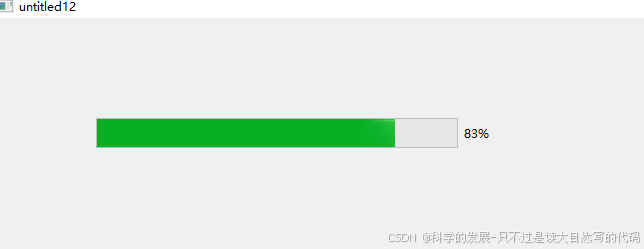
你应该会看到一个窗口,其中包含一个进度条,该进度条每 100 毫秒更新一次,从 0 到 100 循环显示。
这个示例展示了如何在 Qt 中使用 QProgressBar 和 QTimer 来创建和更新进度条。你可以根据需要修改这个示例,以适应你的具体应用场景。
运行结果
QProgressBar
QProgressBar是Qt框架中的一个控件,用于显示进度条,通常用于表示任务的完成程度,例如文件下载、数据处理等。以下是对QProgressBar的详细介绍:
一、基本属性与功能
- 方向:QProgressBar可以显示水平或垂直的进度条。
- 范围与值:可以通过设置最小值和最大值来指定进度条的范围。当前的步数是通过
setValue()方法设置的。 - 文本显示:可以选择是否显示进度条的文本(即当前值或百分比),以及文本的对齐方式。
- 外观定制:支持通过样式表(QSS)来定制进度条的外观,如背景色、边框、圆角等。
二、常用方法与属性
- setValue(int value):设置进度条的当前值。
- value():获取进度条的当前值。
- setRange(int minimum, int maximum):设置进度条的最小值和最大值。
- setMinimum(int minimum):设置进度条的最小值。
- setMaximum(int maximum):设置进度条的最大值。
- setTextVisible(bool visible):设置是否显示进度条的文本。
- setStyleSheet(const QString &styleSheet):设置进度条的样式表。
- reset():将进度条重置为初始状态。
- setOrientation(Qt::Orientation orientation):设置进度条的方向(水平或垂直)。
- setInvertedAppearance(bool inverted):设置进度条是否以反方向显示。
- setFormat(const QString &format):设置进度条上显示的文本格式,可以使用占位符如
%p%(百分比)和%v(当前值)。
三、使用示例
以下是一个简单的示例,演示了如何使用QProgressBar来显示进度条:
#include <QApplication>
#include "MyWidget.h"


int main(int argc, char *argv[]) {
    QApplication app(argc, argv);
    MyWidget widget;
    widget.show();
    return app.exec();
}
#ifndef MYWIDGET_H
#define MYWIDGET_H
#include <QWidget>
#include <QProgressBar>
#include <QTimer>
#include <QVBoxLayout>

class MyWidget : public QWidget {
    Q_OBJECT

public:
    MyWidget(QWidget *parent = nullptr) : QWidget(parent) {
        QVBoxLayout *layout = new QVBoxLayout(this);

        QProgressBar *progressBar = new QProgressBar(this);
        progressBar->setRange(0, 100);
        progressBar->setValue(0);
        layout->addWidget(progressBar);

        QTimer *timer = new QTimer(this);
        connect(timer, &QTimer::timeout, this, &MyWidget::updateProgress);
        timer->start(100); // 每100毫秒更新一次进度

        setLayout(layout);
    }

private slots:
    void updateProgress() {
        QProgressBar *progressBar = findChild<QProgressBar *>();
        int value = progressBar->value();
        if (value < 100) {
            progressBar->setValue(value + 1);
        } else {
            QTimer *timer = (QTimer *)sender();
            timer->stop();
            timer->deleteLater();
        }
    }
};

#endif // MYWIDGET_H
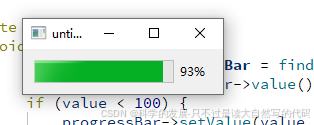
在这个示例中,我们创建了一个简单的Qt应用程序,其中包含一个QProgressBar和一个QTimer。QTimer用于定期更新进度条的值。当进度条的值达到100时,我们停止定时器。
四、注意事项
- 在多线程应用程序中更新QProgressBar的值时,需要注意线程安全性。通常,可以使用信号和槽机制来在UI线程中更新进度条的值。
- 使用样式表定制进度条外观时,可以参照CSS的语法来设置各种属性。
- 确保在使用QProgressBar之前已经正确设置了其范围(最小值和最大值)和当前值。
总的来说,QProgressBar是Qt中用于显示进度条的一个非常实用的控件,通过灵活使用其各种方法和属性,可以轻松实现各种进度显示需求。
五、运行效果





 扫一扫
扫一扫


 3358
3358

 被折叠的 条评论
为什么被折叠?
被折叠的 条评论
为什么被折叠?
 到【灌水乐园】发言





