



起因
同事在工作中需要经常处理视频,所以就写了个视频剪辑工具。
结果
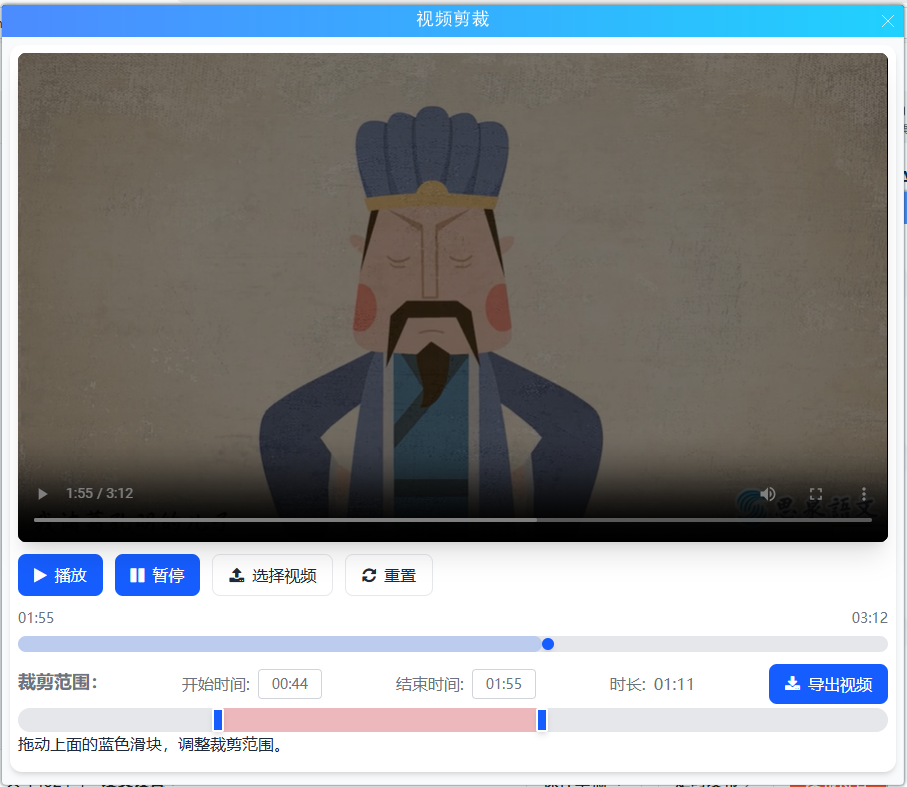
用AI写完了,结果还行。
过程
首先分析,有哪些部分? 无非就是ui + 视频处理 。
第一步 先折腾ui
俺选择了豆包,其实其他的ai 也都可以。告诉AI,写个页面,用于在pc上显示的。功能是...。
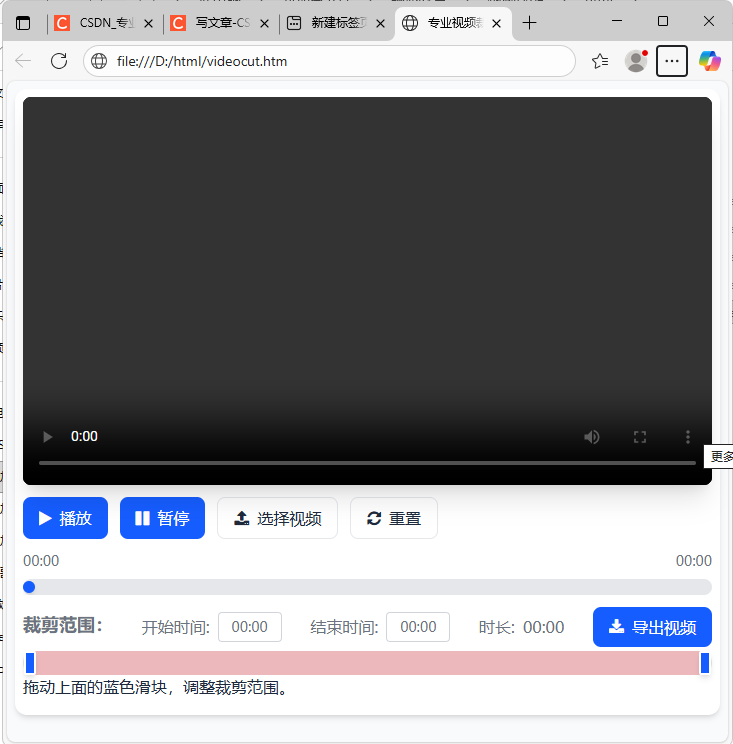
然后豆包就给了个ui,如果感觉不好看,就告诉AI “美观 大气 上档” 加大力度 再来一遍。
然后你就得到了一个ui 。
<!DOCTYPE html>
<html lang="zh-CN">
<head>
<meta charset="UTF-8">
<meta name="viewport" content="width=device-width, initial-scale=1.0">
<title>专业视频裁剪工具</title>
<script src="js/tailwindcss.js"></script>
<link href="css/font-awesome.min.css" rel="stylesheet">
<!-- 配置Tailwind自定义主题 -->
<script>
tailwind.config = {
theme: {
extend: {
colors: {
primary: '#165DFF',
secondary: '#0F172A',
accent: '#FF4D4F',
neutral: '#F8FAFC',
dark: '#1E293B'
},
fontFamily: {
inter: ['Inter', 'system-ui', 'sans-serif'],
},
},
}
}
</script>
<style type="text/tailwindcss">
@layer utilities {
.content-auto {
content-visibility: auto;
}
.timeline-thumb {
@apply w-3 h-6 -ml-1.5 rounded-sm bg-primary border-2 border-white shadow-md cursor-pointer z-10;
}
.timeline-progress {
@apply h-full bg-primary/20 absolute left-0 top-0;
}
.crop-region {
@apply h-full bg-accent/30 absolute z-0;
}
.timeline-track {
@apply h-full bg-gray-200 rounded-full relative cursor-pointer;
}
.video-container {
@apply relative bg-black rounded-lg overflow-hidden shadow-xl;
}
.btn-primary {
@apply bg-primary hover:bg-primary/90 text-white px-4 py-2 rounded-lg transition-all duration-200 flex items-center gap-2;
}
.btn-secondary {
@apply bg-white hover:bg-gray-100 text-dark border border-gray-200 px-4 py-2 rounded-lg transition-all duration-200 flex items-center gap-2;
}
}
</style>
</head>
<body class="bg-gray-50 font-inter text-dark min-h-screen flex flex-col" onload="win_load();" style="overflow:hidden;">
<!-- 顶部导航 -->
<!-- 主要内容区域 -->
<main class="flex-1 max-w-7xl w-full mx-auto p-2">
<div class="bg-white rounded-xl shadow-md p-2 mb-2">
<!-- 视频预览区域 -->
<div class="mb-3">
<div class="video-container aspect-video w-full">
<video id="videoPlayer" class="w-full h-full object-contain" controls>
<source src="" type="video/mp4">
您的浏览器不支持HTML5视频播放
</video>
<!-- 裁剪区域遮罩 (JS控制显示) -->
<div id="cropOverlay" class="absolute top-0 left-0 w-full h-full bg-black/50 hidden"></div>
</div>
</div>
<!-- 视频控制区域 -->
<div class="mb-3">
<div class="flex flex-wrap gap-3 mb-3">
<button id="playBtn" class="btn-primary">
<i class="fa fa-play"></i>
<span>播放</span>
</button>
<button id="pauseBtn" class="btn-primary">
<i class="fa fa-pause"></i>
<span>暂停</span>
</button>
<button id="uploadBtn" class="btn-secondary">
<i class="fa fa-upload"></i>
<span>选择视频</span>
</button>
<input type="file" id="fileInput" accept="video/*" class="hidden">
<button id="resetBtn" class="btn-secondary">
<i class="fa fa-refresh"></i>
<span>重置</span>
</button>
</div>
<!-- 视频进度条 -->
<div class="mb-2 flex justify-between text-sm text-gray-500">
<span id="currentTime">00:00</span>
<span id="totalTime">00:00</span>
</div>
<div class="relative h-4 cursor-pointer group" id="progressBar" style="overflow:hidden;">
<div class="timeline-track w-full rounded-full"></div>
<div id="progressFill" class="timeline-progress w-0 rounded-full"></div>
<div id="progressHandle" class="absolute top-1/2 -translate-y-1/2 w-3 h-3 bg-primary rounded-full shadow-md z-10" style="left: 0%"></div>
</div>
</div>
<!-- 裁剪时间轴 -->
<div class="mb-2">
<div class="flex justify-between text-gray-500 mb-1">
<div class="flex items-center gap-2">
<h2 class="text-lg font-semibold mb-1">裁剪范围:</h2>
</div>
<div class="flex items-center gap-2">
<span>开始时间:</span>
<input type="text" id="startTimeInput" class="w-16 px-2 py-1 border border-gray-300 rounded text-center text-sm" value="00:00">
</div>
<div class="flex items-center gap-2">
<span>结束时间:</span>
<input type="text" id="endTimeInput" class="w-16 px-2 py-1 border border-gray-300 rounded text-center text-sm" value="00:00">
</div>
<div class="flex items-center gap-2">
<span>时长:</span>
<span id="durationText">00:00</span>
</div>
<button class="btn-primary" id="btn_proc">
<i class="fa fa-download"></i>
<span>导出视频</span>
</button>
</div>
<div class="relative h-6 cursor-pointer" id="cropTimeline">
<div class="timeline-track w-full h-6 absolute top-1/2 -translate-y-1/2"></div>
<!-- 裁剪区域 -->
<div id="cropRegion" class="crop-region h-6 absolute top-1/2 -translate-y-1/2" style="left: 1%; right: 1%"></div>
<!-- 开始控制点 -->
<div id="startHandle" class="timeline-thumb absolute top-1/2 -translate-y-1/2" style="left: 1%"></div>
<!-- 结束控制点 -->
<div id="endHandle" class="timeline-thumb absolute top-1/2 -translate-y-1/2" style="left: 99%"></div>
</div>
<div>
拖动上面的蓝色滑块,调整裁剪范围。
</div>
</div>
</div>
</main>
<!-- 提示弹窗 -->
<div class="fixed inset-0 bg-black/50 flex items-center justify-center z-50 hidden " id="success-modal">
<div class="bg-white rounded-xl p-8 max-w-md w-full mx-4 transform transition-all duration-300 " id="modal-content">
<div class="text-center">
<div class="w-16 h-16 rounded-full bg-green-100 flex items-center justify-center mx-auto mb-6">
<i class="fa fa-coffee text-3xl text-success"></i>
</div>
<h3 id="h3_msg" class="text-xl font-bold mb-3 text-gray-800">正在处理 ...</h3>
<br/>
<br/>
<br/>
<div id="div_btn_modal" class="hidden " style="text-align: center;">
<button id="close-modal" class=" btn-secondary" style="display: inline-block;">
关     闭
</button>
<button id="modal-download" class=" btn-primary" style="display: inline-block;">
保存文件
</button>
</div>
</div>
</div>
</div>
<script>
// 元素获取
const videoPlayer = document.getElementById('videoPlayer');
const fileInput = document.getElementById('fileInput');
const uploadBtn = document.getElementById('uploadBtn');
const playBtn = document.getElementById('playBtn');
const pauseBtn = document.getElementById('pauseBtn');
const resetBtn = document.getElementById('resetBtn');
const progressBar = document.getElementById('progressBar');
const progressFill = document.getElementById('progressFill');
const progressHandle = document.getElementById('progressHandle');
const currentTime = document.getElementById('currentTime');
const totalTime = document.getElementById('totalTime');
const cropTimeline = document.getElementById('cropTimeline');
const cropRegion = document.getElementById('cropRegion');
const startHandle = document.getElementById('startHandle');
const endHandle = document.getElementById('endHandle');
const startTimeInput = document.getElementById('startTimeInput');
const endTimeInput = document.getElementById('endTimeInput');
const durationText = document.getElementById('durationText');
const cropOverlay = document.getElementById('cropOverlay');
const btn_proc = document.getElementById('btn_proc');
const successModal = document.getElementById('success-modal');
// 状态变量
let isDragging = false;
let dragTarget = null;
let videoDuration = 0;
let cropStart = 0; // 裁剪开始时间(秒)
let cropEnd = 0; // 裁剪结束时间(秒)
let isPlaying = false;
// 格式化时间 (秒 -> MM:SS)
const formatTime = (seconds) => {
const mins = Math.floor(seconds / 60);
const secs = Math.floor(seconds % 60);
return `${mins.toString().padStart(2, '0')}:${secs.toString().padStart(2, '0')}`;
};
// 更新进度条
const updateProgress = () => {
if (!videoDuration) return;
const progress = (videoPlayer.currentTime / videoDuration) * 100;
progressFill.style.width = `${progress}%`;
progressHandle.style.left = `${progress}%`;
currentTime.textContent = formatTime(videoPlayer.currentTime);
// 检查是否超出裁剪范围
//if (videoPlayer.currentTime > cropEnd) {
// videoPlayer.currentTime = cropStart;
//}
};
// 更新裁剪区域UI
const updateCropUI = () => {
if (!videoDuration) return;
const startPercent = (cropStart / videoDuration) * 100;
const endPercent = (cropEnd / videoDuration) * 100;
const widthPercent = endPercent - startPercent;
cropRegion.style.left = `${startPercent}%`;
cropRegion.style.width = `${widthPercent}%`;
startHandle.style.left = `${startPercent}%`;
endHandle.style.left = `${endPercent}%`;
startTimeInput.value = formatTime(cropStart);
endTimeInput.value = formatTime(cropEnd);
durationText.textContent = formatTime(cropEnd - cropStart);
};
// 计算鼠标位置对应的时间
const getTimeFromMouse = (e) => {
const rect = cropTimeline.getBoundingClientRect();
const percent = (e.clientX - rect.left) / rect.width;
return Math.max(0, Math.min(videoDuration, percent * videoDuration));
};
// 设置裁剪范围(新增:同步视频定位)
const setCropRange = (start, end, syncVideo = true) => {
cropStart = Math.max(0, Math.min(videoDuration, start));
cropEnd = Math.max(cropStart, Math.min(videoDuration, end));
updateCropUI();
// 同步视频定位到对应的时间点
if (syncVideo && videoDuration) {
if (dragTarget === 'start') {
videoPlayer.pause();
videoPlayer.currentTime = cropStart;
} else if (dragTarget === 'end') {
videoPlayer.pause();
videoPlayer.currentTime = cropEnd;
} else if (dragTarget === 'region') {
// 拖动整个区域时,保持视频相对位置
const centerTime = cropStart;// cropStart + (cropEnd - cropStart) / 2;
videoPlayer.currentTime = centerTime;
} else if (dragTarget === null) {
// 点击时间轴时,定位到点击的时间点
const clickTime = getTimeFromMouse(event);
videoPlayer.currentTime = clickTime;
}
updateProgress();
}
};
// 初始化视频
const initVideo = (videoURL) => {
videoPlayer.src = videoURL;
videoPlayer.load();
videoPlayer.onloadedmetadata = () => {
videoDuration = videoPlayer.duration;
totalTime.textContent = formatTime(videoDuration);
const defaultStart = videoDuration * 0.01;
const defaultEnd = videoDuration * 0.99;
setCropRange(defaultStart, defaultEnd, false); // 初始化时不同步视频
// 显示裁剪遮罩
cropOverlay.classList.remove('hidden');
};
};
// 事件监听 - 上传视频
uploadBtn.addEventListener('click', () => {
fileInput.click();
});
fileInput.addEventListener('change', (e) => {
const file = e.target.files[0];
if (file && file.type.startsWith('video/')) {
initVideo(file);
}
});
function simulateCompression() {
const interval = setInterval(() => {
chrome.webview.hostObjects.customHost.Proc("get_progress").then(function (data) {
var p = JSON.parse(data);
var progress = parseFloat(p.progress);
if (p.completed) {
clearInterval(interval);
document.getElementById("h3_msg").innerHTML = "处理完成";
if (p.err) {
alert(p.err);
document.getElementById("div_btn_modal").classList.remove("hidden");
return;
}
setTimeout(() => {
document.getElementById("div_btn_modal").classList.remove("hidden");
}, 500);
}
});
}, 500);
}
btn_proc.addEventListener('click', () => {
successModal.classList.remove('hidden');
var cmd = "proc:" + startTimeInput.value + "-" + endTimeInput.value;
chrome.webview.hostObjects.customHost.Proc(cmd).then(function (data) {
simulateCompression();
});
});
document.getElementById('close-modal').addEventListener('click', () => {
setTimeout(() => {
chrome.webview.hostObjects.customHost.Proc("close").then(function (data) {
//
});
}, 300);
});
document.getElementById('modal-download').addEventListener('click', () => {
setTimeout(() => {
chrome.webview.hostObjects.customHost.Proc("save").then(function (data) {
//
});
}, 300);
});
// 事件监听 - 播放控制
playBtn.addEventListener('click', () => {
videoPlayer.play();
isPlaying = true;
});
pauseBtn.addEventListener('click', () => {
videoPlayer.pause();
isPlaying = false;
});
resetBtn.addEventListener('click', () => {
videoPlayer.pause();
videoPlayer.currentTime = 0;
isPlaying = false;
updateProgress();
if (videoDuration) {
setCropRange(videoDuration * 0.1, videoDuration * 0.9, false);
}
});
// 事件监听 - 视频进度更新
videoPlayer.addEventListener('timeupdate', updateProgress);
videoPlayer.addEventListener('ended', () => {
videoPlayer.currentTime = cropStart;
videoPlayer.pause();
isPlaying = false;
});
// 事件监听 - 进度条点击
progressBar.addEventListener('click', (e) => {
const rect = progressBar.getBoundingClientRect();
const percent = (e.clientX - rect.left) / rect.width;
videoPlayer.currentTime = percent * videoDuration;
updateProgress();
});
// 事件监听 - 裁剪时间轴交互
const startDrag = (e, target) => {
isDragging = true;
dragTarget = target;
document.addEventListener('mousemove', onDrag);
document.addEventListener('mouseup', stopDrag);
e.preventDefault();
};
const onDrag = (e) => {
if (!isDragging || !videoDuration) return;
const newTime = getTimeFromMouse(e);
if (dragTarget === 'start') {
setCropRange(newTime, cropEnd);
} else if (dragTarget === 'end') {
setCropRange(cropStart, newTime);
} else if (dragTarget === 'region') {
const diff = newTime - (cropStart + (cropEnd - cropStart) / 2);
setCropRange(cropStart + diff, cropEnd + diff);
}
};
const stopDrag = () => {
isDragging = false;
// 保留dragTarget以便最后同步视频位置
setTimeout(() => {
dragTarget = null;
}, 100);
};
// 开始控制点
startHandle.addEventListener('mousedown', (e) => startDrag(e, 'start'));
// 结束控制点
endHandle.addEventListener('mousedown', (e) => startDrag(e, 'end'));
// 裁剪区域拖动
cropRegion.addEventListener('mousedown', (e) => startDrag(e, 'region'));
// 时间轴点击设置裁剪点(同步视频定位)
cropTimeline.addEventListener('click', (e) => {
if (isDragging) return;
const clickTime = getTimeFromMouse(e);
const startPos = (cropStart / videoDuration) * 100;
const endPos = (cropEnd / videoDuration) * 100;
const clickPos = (clickTime / videoDuration) * 100;
// 点击位置靠近开始控制点则设置开始时间
if (Math.abs(clickPos - startPos) < Math.abs(clickPos - endPos)) {
setCropRange(clickTime, cropEnd);
} else {
setCropRange(cropStart, clickTime);
}
// 视频定位到点击位置
videoPlayer.currentTime = clickTime;
updateProgress();
});
// 输入框时间修改(同步视频定位)
startTimeInput.addEventListener('change', () => {
//const timeParts = startTimeInput.value.split(':');
//if (timeParts.length !== 2) return;
//const newStart = parseInt(timeParts[0]) * 60 + parseInt(timeParts[1]);
//setCropRange(newStart, cropEnd);
//// 视频定位到新的开始时间
//videoPlayer.currentTime = newStart;
//updateProgress();
});
endTimeInput.addEventListener('change', () => {
//const timeParts = endTimeInput.value.split(':');
//if (timeParts.length !== 2) return;
//const newEnd = parseInt(timeParts[0]) * 60 + parseInt(timeParts[1]);
//setCropRange(cropStart, newEnd);
//// 视频定位到新的结束时间
//videoPlayer.currentTime = newEnd;
//updateProgress();
});
// 键盘快捷键
document.addEventListener('keydown', (e) => {
if (e.code === 'Space') {
e.preventDefault();
if (videoPlayer.paused) {
videoPlayer.play();
} else {
videoPlayer.pause();
}
}
});
// 初始化
updateCropUI();
function win_load() {
chrome.webview.hostObjects.customHost.Proc("get_video_url").then(function (data) {
var r = JSON.parse(data);
initVideo(r.video_url);
});
}
</script>
</body>
</html>
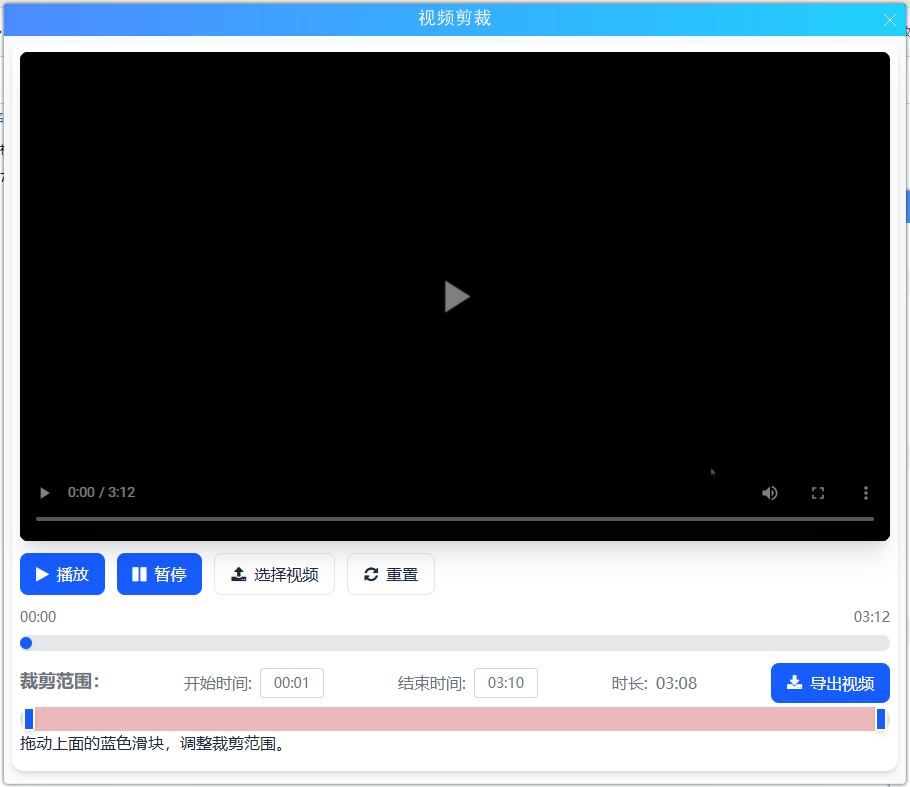
然后ui放进 winform窗体中,直接使用webview2,简单方便。注意:一些css、js文件改成本地的。
第二步 处理视频
用豆包、百度等等AI,直接问AI:“使用ffmpeg.exe 裁剪视频,指定裁剪的时间范围 ,命令行参数如何写?” ,然后就得到了一个命令行。例如 "ffmpeg -ss 00:00:00 -i 1.mp4 -t 00:00:36 -c copy 2.mp4" 。到了这一步基本大功告成了。
第三步 拼装
用豆包、百度等等AI,问:“你是一个优秀的C#程序员,写一个类,类的功能是调用 ffmpeg.exe。 通过命令行参数,完成视频的处理。有事件显示处理的进度。........"
然后就得到了一个class。然后就复制的工程中就可以用了。
然后就开始做拼装。AI还怪好的。AI在html代码里已经写好函数 ,还有注释。稍微改改就OK。
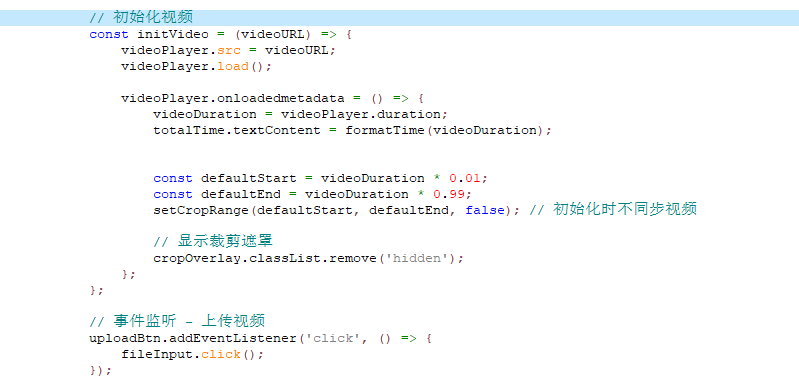
改一下按钮的事件就ok
btn_proc.addEventListener('click', () => {
successModal.classList.remove('hidden');
var cmd = "proc:" + startTimeInput.value + "-" + endTimeInput.value;
chrome.webview.hostObjects.customHost.Proc(cmd).then(function (data) {
simulateCompression();
});
});
传了开始时间和结束时间到C#。
C#这边处理一下就ok。
if (e.message == "get_video_url")
{
Dictionary<string, string> dict = new Dictionary<string, string>();
dict["video_url"] = "file://"+filename;
e.result = Newtonsoft.Json.JsonConvert.SerializeObject(dict);
}
if (e.message == "close")
{
Close();
}
if (e.message.StartsWith("proc:"))
{
clear_tmp();
string s = e.message.Substring("proc:".Length);
proc(s.Trim());
return;
}
然后,调试一下就完工了 。
  private async void proc(string time)
        {

            string[] ss_time = time.Replace(" ", "").Split(new string[] { "-"},StringSplitOptions.RemoveEmptyEntries);
            string start = get_ss_str(ss_time[0]);
            int len_i = get_ss_i(ss_time[1]) - get_ss_i(ss_time[0]) + 1;
            TimeSpan ts = new TimeSpan(0, 0, len_i);
            string len = ts.ToString();

            err = "";
            completed = "";
            ProgressPercentage = 0;
            string fn = filename;
            string fn_tmp = System.IO.Path.Combine(TmpDir, Guid.NewGuid().ToString("N") + ".mp4");
            if (System.IO.File.Exists(fn_tmp))
                System.IO.File.Delete(fn_tmp);
            if (System.IO.File.Exists(fn))
            {
                string Info = "";
                FfmpegMediaInfo ffmpegInfo = new FfmpegMediaInfo(ffmpegPath);
                MediaInfo mediaInfo = ffmpegInfo.GetMediaInfo(fn);
                if (mediaInfo != null)
                {
                    Info = mediaInfo.ToString();
                    //ffmpeg -ss 00:01:32  -i 1.mp4 -t 00:00:34  -c copy 2.mp4
                    string arguments = @" -ss " + start + @"   -i ""[fn1]""  -t " + len + @"  -c copy  ";
                    arguments= arguments.Replace("[fn1]", fn);
                    arguments = arguments + @" """ + fn_tmp + @"""";
                    //////////////////////
                    bool succ = false;

                    var = new VideoC(ffmpegPath);
                    p.ProgressUpdated += ProgressUpdated;
                    .CompressionCompleted += CompressionCompleted;
                    filename_new = fn_tmp;
                    PResult cr = await .CompressVideoAsync(arguments, mediaInfo);
                    succ = cr.Success;

                    completed = "1";
                    if (succ)
                    {
                    }
                    else
                    {
                    }

                }
            }
        }





 扫一扫
扫一扫


 1388
1388

 被折叠的 条评论
为什么被折叠?
被折叠的 条评论
为什么被折叠?
 到【灌水乐园】发言





