


 本文详细介绍了在SPA项目中实现CRUD操作及表单验证的方法,重点讲解了Element UI框架下Form组件的使用,包括如何设定验证规则、区分多个表单以及清空表单验证信息。
SPA项目开发之CRUD+表单验证
- 表单验证
Form组件提供了表单验证的功能,只需要通过 rules 属性传入约定的验证规则,
并将Form-Item的prop属性设置为需校验的字段名即可
  <el-form-item label="活动名称" prop="name">
   <el-form :model="ruleForm" :rules="rules" ref="ruleForm"
注1:有多个表单,怎么在提交进行区分?
我们在rules这里写了对表单的验证规则,但是我们如何在methods里进行指定的表单进行认证,
所以我们一开始就在el-form里写了 ref=“ruleForm”,我们在methods里就可以用
注2:清空表单验证信息
this.$refs[formName].resetFields();
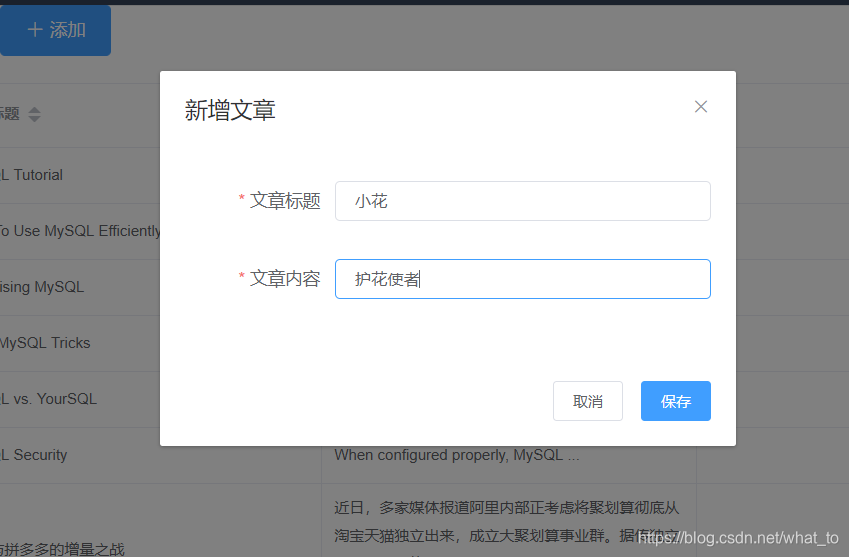
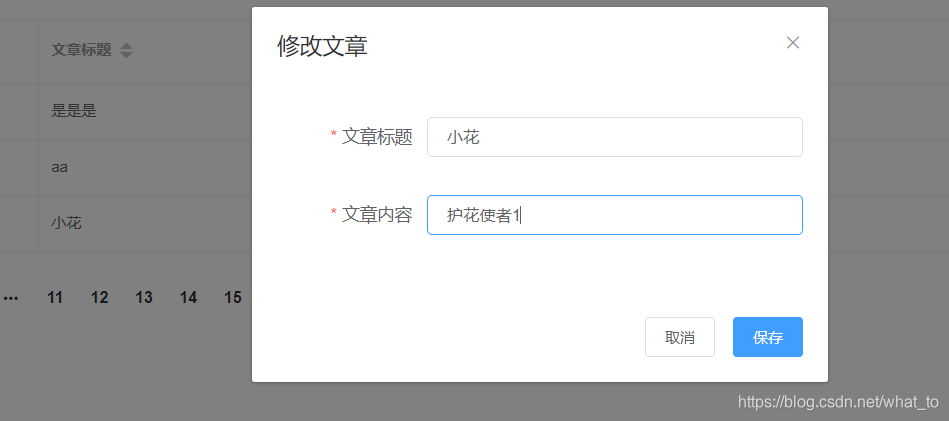
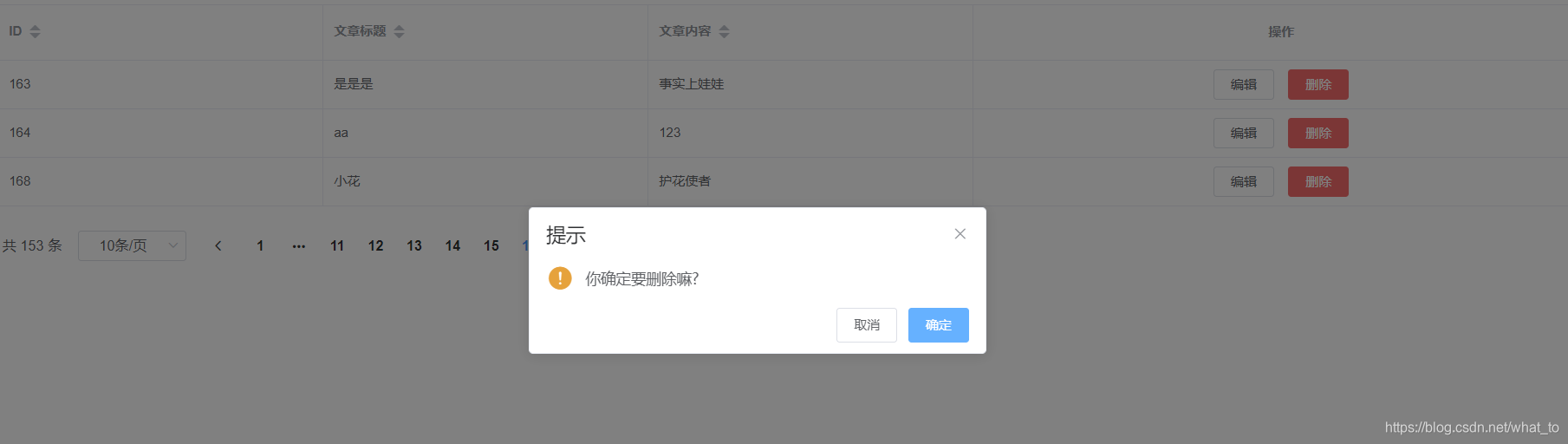
话不多说,上代码
Articles.vue
<template>
	<div>
		<!-- 搜索筛选 -->
		<el-form :inline="true" :model="formInline" class="user-search">
			<el-form-item label="搜索:">
				<el-input size="small" v-model="formInline.title" placeholder="请输入文章标题"></el-input>
			</el-form-item>
			<el-form-item>
				<el-button size="small" type="primary" icon="el-icon-search" @click="search">搜索</el-button>
				<el-button type="primary" icon="el-icon-plus" @click="add">添加</el-button>
			</el-form-item>
		</el-form>
		<!--列表-->
		<el-table size="small" :data="listData" border element-loading-text="拼命加载中" style="width: 100%;">
			<el-table-column sortable prop="id" label="ID" width="300">
			</el-table-column>
			<el-table-column sortable prop="title" label="文章标题" width="300">
			</el-table-column>
			<el-table-column sortable prop="body" label="文章内容" width="300">
			</el-table-column>
			<el-table-column align="center" label="操作" min-width="300">
				<template slot-scope="scope">
					<el-button size="mini" @click="edit(scope.$index, scope.row)">编辑</el-button>
					<el-button size="mini" type="danger" @click="del(scope.$index, scope.row)">删除</el-button>
				</template>
			</el-table-column>
		</el-table>
		<!-- 分页条 -->
		<el-pagination style="margin-top: 20px;" @size-change="handleSizeChange" @current-change="handleCurrentChange"
		 :current-page="formInline.page" :page-sizes="[10, 20, 30, 50]" :page-size="formInline.rows" layout="total, sizes, prev, pager, next, jumper"
		 :total="total">
		</el-pagination>

		<!-- 编辑界面 -->
		<el-dialog :title="title" :visible.sync="editFormVisible" width="30%" :before-close="closeDialog">
			<!-- ref="editForm" 代表id  提交的页面 -->
			<el-form label-width="120px" :model="editForm" :rules="rules" ref="editForm">
				<el-form-item label="文章标题" prop="title">
					<el-input size="small" v-model="editForm.title" auto-complete="off" placeholder="请输入文章标题"></el-input>
				</el-form-item>
				<el-form-item label="文章内容" prop="body">
					<el-input size="small" v-model="editForm.body" auto-complete="off" placeholder="请输入文章内容"></el-input>
				</el-form-item>
			</el-form>
			<div slot="footer" class="dialog-footer">
				<el-button size="small" @click="closeDialog">取消</el-button>
				<!-- 提交那個表單的數據  与上面的ref 表单相对应-->
				<el-button size="small" type="primary" class="title" @click="submitForm">保存</el-button>
			</div>
		</el-dialog>
	</div>
</template>

<script>
	export default {
		data() {
			return {
				listData: [],
				total: 0,
				formInline: {
					title: '',
					/* 携带分页的参数 */
					page: 1,
					rows: 10
				},
				editFormVisible: false,
				title: '',
				editForm: {
					/* 提交数据来后台以键值对的形式存在 */
					body: '',
					title: '',
					id: 0
				},
				rules: {
					title: [{
						required: true,
						message: '请输入文章的标题',
						trigger: 'blur'
					}],
					body: [{
							required: true,
							message: '请输入文章的内容',
							trigger: 'blur'
						},
						{
							min: 3,
							max: 5,
							message: '长度在 3 到 5 个字符',
							trigger: 'blur'
						}
					]
				}
			};
		},
		methods: {
			search() {
				this.doSearch(this.formInline);
			},
			doSearch(params) {
				let url = this.axios.urls.SYSTEM_ARTICLE_LIST;
				this.axios.post(url, params).then((response) => {
					console.log(response + "iiii");
					this.listData = response.data.result;
					this.total = response.data.pageBean.total;
				}).catch((response) => {
					console.log(response);
				});
			},
			handleSizeChange(rows) {
				console.log('页码发生改变的时候触发' + rows);
				this.formInline.page = 1;
				this.formInline.rows = rows;
				this.search();
			},
			handleCurrentChange(page) {
				console.log('当前页页码发生改变的时候触发!!!' + page);
				this.formInline.page = page;
				this.search();
			},
			closeDialog() {
				this.editFormVisible = false;
				this.clearForm();
			},
			submitForm() {
				// 用来提交新增,修改表单书籍的,提交需要通过vue实列中定义的表单填写规则
				/* ‘’不加是给字符串 加了是给对象 */
				this.$refs['editForm'].validate((valid) => {
					if (valid) {
						let url;
						if (this.editForm.id == 0) {
							url = this.axios.urls.SYSTEM_ARTICLE_ADD;
						} else {
							url = this.axios.urls.SYSTEM_ARTICLE_EDIT;
						}
						this.axios.post(url, this.editForm).then((response) => {
							console.log(response);
							this.clearForm();
							/* 刷新 */
							this.doSearch(this.formInline);
						}).catch((response) => {
							console.log(response);
						});
					} else {
						console.log('error submit!!');
						return false;
					}
				});
			},
			clearForm() {
				/* 清空表单数据 */
				this.editForm.id = 0;
				this.editForm.title = '';
				this.editForm.body = '';
				this.formInline.page = 1;
				this.formInline.rows = 10;
				this.editFormVisible = false;
			},
			add() {
				this.title = '新增文章';
				this.editFormVisible = true;
			},
			edit(index, row) {
				// index代表的是操作数据在当前页面的行号
				// row代表操作的当前数据,那就意味着可以从row中获取到所以数据库列段名
				//var row=$("#dd").dategrid("getSelected");
				// $("#ff").from(“load”,row);完成了数据回显
				this.title = '修改文章';
				this.editForm.id = row.id;
				this.editForm.title = row.title;
				this.editForm.body = row.body;
				this.editFormVisible = true;
			},
			del(index, row) {
				this.$confirm('你确定要删除嘛?', '提示', { //提示框
					confirmButtonText: '确定',
					cancelButtonText: '取消',
					type: 'warning'
				}).then(() => { //点击确定
					this.$message({
						type: 'success',
						message: '删除成功!'
					});
					let url = this.axios.urls.SYSTEM_ARTICLE_DEL;
					this.axios.post(url, {
						id: row.id
					}).then((response) => {
						console.log(response);
						this.clearForm();
						/* 刷新 */
						this.doSearch({});
					}).catch((response) => {
						console.log(response);
					});
				}).catch(() => { //取消
					this.$message({
						type: 'info',
						message: '已取消删除'
					});
				});

			}
		},
		created() {
			this.doSearch({});
		}
	}
</script>

<style>

</style>





 扫一扫
扫一扫


 450
450

 被折叠的 条评论
为什么被折叠?
被折叠的 条评论
为什么被折叠?
 到【灌水乐园】发言





